I installed Meteor.js version 1.4 using the windows installer on Windows 10 Pro 64-bit. When I run
meteor --version
C:\Users\adam\AppData\Local.meteor\packages\meteor-tool1.4.1_2\mt-os.windows.x86_32\dev_bundle\libnode_modules\cordova-libnode_modules\cordova-commonnode_modules\q\q.js:86

    hasStacks = !!e.stack;

                   ^

RangeError: Maximum call stack size exceeded
This is not the first time I've installed Meteor.js. It was working fine the first time around. I was able to do the entire blaze todo app tutorial.
I started setting up the linter according to https://guide.meteor.com/code-style.html. I did the instructions in http://info.meteor.com/blog/set-up-sublime-text-for-meteor-es6-es2015-and-jsx-syntax-and-linting up to step 3 inclusive.
I then did all the steps in "Installing and running ESLint" in the code style. It was after these steps that I started getting the error mentioned above.
I tried uninstalling, reinstalling and still get the same error. Also I tried uninstalling meteor, deleting any file in my C drive that had meteor in it, then reinstalling.
 ADobrzycki
All 82 comments
the only way i was able to get around this issue was by creating a new user account on windows then you login into that account then install meteor again and it would work
 hadihallak
on 9 Oct 2016
hadihallak
on 9 Oct 2016
Just did that and it works. Thanks for that! Although it would be nice if someone had some idea about why this happened and how I could get it to work in my original profile.
ADobrzycki
on 10 Oct 2016
@ADobrzycki Try reinstalling with these specific instructions, please:
- Uninstall Meteor from:
- Win10: Settings > System > Apps & features > Meteor > Uninstall
- Win7: Control Panel > Programs > Programs and Features > Meteor > Uninstall
- Using Windows Explorer, delete the
.meteorfolder from%LOCALAPPDATA%completely. If you are unable to delete it due to long file-path errors, please try using the 7-zip File Explorer application to do it instead. - Install fresh 1.4.1.2 from https://install.meteor.com/windows (skip logging in at end due to #6218 bug)
- Restart (This is very important)
- Open Command Prompt and type
meteor --versionto confirm it's working.
 abernix
on 10 Oct 2016
abernix
on 10 Oct 2016
@abernix I did all of the steps suggested by you and i'm still getting :
C:\Users\Hadi\AppData\Local\.meteor\packages\meteor-tool\1.4.1_2\mt-os.windows.x86_32\dev_bundle\lib\node_modules\cordova-lib\node_modules\cordova-common\node_modules\q\q.js:86
    hasStacks = !!e.stack;
                   ^
RangeError: Maximum call stack size exceeded
hadihallak
on 10 Oct 2016
@hadihallak How or what changed for you to start experiencing this in the first place?
abernix
on 11 Oct 2016
@abernix
- Meteor was working , NPM was working , Node was working.
- windows 10 updated itself while i was away to version 1607 and after finishing the update my pc did a restart to install the update..
- after installing the update my pc wouldn't boot because there was some sort of compatibility issue with avg internet security and the new update.
- i did a safe mode boot to remove avg and all of its components using avg removal tool which worked and i was able to get past the error i was getting
- after trying to boot again to windows i was getting a black screen with no error messages .
- i went in safe mode again and disabled all non windows startup programs and services since i thought it might be a virus preventing windows from booting normally which in the end didn't work and i still wasn't able to boot to windows .
- went into safemode again and uninstalled my GPU driver. this solution worked and i was able to login to my account but with no wifi and installing new wifi drivers didnt help with solveing the issue. so ,i decided after all to rollback to the previous windows version .
- after rolling-back to the previous windows version everything was working except that when i tried running Meteor commands i was getting that error . after that i tried NPM and Node commands and all returned the same
RangeError: Maximum call stack size exceededwith the q.js file. - uninstalled meteor with all of its temp data and re installed, error was still there. did the same with NPM and Node and this time NPM and Node commands worked while Meteor commands remains not working.
hopefully, this wall of text will be useful with debugging the issue...
hadihallak
on 11 Oct 2016
@hadihallak Walls-of-text are almost always helpful in debugging. Thank you! No further updates right now but hopefully something soon. It appears that some larger Cordova updates are coming down the pipeline, hopefully in Meteor 1.4.2, which could help as well.
At the very least, it sounds like a Windows Anniversary Edition virtual machine might be in my future. :wink:
abernix
on 11 Oct 2016
I have this problem too, with Meteor 1.4.2.3 on Windows 7. Meteor was running fine until I did meteor npm install -g yarn and tried meteor yarn, which gave the exact same error message as in the original post, and now every meteor command does the same. I tried removing AppData\Local\.meteor and reinstalling Meteor, but this did not help.
Is there any additional debugging information that I could provide to help solve this issue?
 Waiski
on 1 Dec 2016
Waiski
on 1 Dec 2016
@Waiski Which command prompt are you using (e.g. cmd.exe, PowerShell, BashOnWindows) and what is the output of:
systeminfo | findstr /C:"OS"
Hi everyone, I have the same error as @Waiski, also in win7, meteor was working fine and then, suddenly (i don't remember exactly after what), the meteor command was not longer working, I'm gonna try with a restore point, because i cant create a new user in this station.
Update: I couldn't find a restoring point, have someone found a solution for this ? :(
 pabloazurduy
on 21 Dec 2016
pabloazurduy
on 21 Dec 2016
@pabloazurduy Does the problem go away if you reinstall Meteor?:
- Uninstall Meteor from:
- Win10: Settings > System > Apps & features > Meteor > Uninstall
- Win7/Win8.1: Control Panel > Programs > Programs and Features > Meteor > Uninstall
- Using Windows Explorer, delete the
.meteorfolder from%LOCALAPPDATA%completely. If you are unable to delete it due to long file-paths, please try using the 7-zip File Explorer application to do it instead. - Install fresh from https://install.meteor.com/windows (skip logging in at end due to #6218 bug)
- Restart
- Try again!
Please report back how it goes.
abernix
on 27 Dec 2016
Same problem here... I was messing around with Next.JS and yarn... now I can't run meteor at all.
At the time I installed the latest LTS version of Node as well. Since i've uninstalled everything related to node, meteor, yarn, totally wiped my Temp folder and .meteor folders... still no luck starting meteor (even just running "meteor" doesn't work).
C:\Users\zzzzzzz\AppData\Local\.meteor\packages\meteor-tool\1.4.2_3\mt-os.windows.x86_32\dev_bundle\lib\node_modules\q\q.js:70
    hasStacks = !!e.stack;
RangeError: Maximum call stack size exceeded
 brendonlamb
on 28 Dec 2016
brendonlamb
on 28 Dec 2016
So i tried making a fresh user account in windows and installing that way:
The install took the normal 10 minutes and one completed I was able to run "meteor" normally and get the typical response:

So somethings awry with the installer, my test account version of meteor is different than my main account...

Something is messing up the installer... i'm guessing maybe a permissions issue when it's extracting files (although i've tried run as admin a few times)
brendonlamb
on 28 Dec 2016
Thank you everyone for the debugging efforts.
This is very difficult to fix without a reproduction so if you could figure out what the differences are that would be most helpful. For example, step by steps to break your new user account or possibly some sort of recursive diff on those directories. (In Unix this is relatively easy, but I'm not sure what to recommend for Windows).
Also, consider running Meteor from a checkout and doing some more serious debugging! I'm happy to try to point those willing to find the problem in the right direction as much as possible, but don't regularly work on Windows (nor have I encountered this on any of my Windows VirtualBox versions).
abernix
on 28 Dec 2016
K, Fully wiped anything with the word meteor in it in my appdata folder and user folder (except for my projects which i figure shouldn't matter) restarted, tried a fresh download and install. Same results... The meteor install in my main account has 173 less files in it...
Few more observations- my main install has less files but it's larger in size on the disk... maybe something didn't extract?
Further- and i'm sure this was happening on my test install as well but who knows if this could be impacting things... the windows anti-malware service is chugging right along during the install/extraction process:

Further- the only obvious difference i see between the working and non-working meteor installs is the package-metadata folder differs (missing a couple files in the non-functioning account)- copying these didn't solve the problem though.
(hope these screenshots aren't too annoying haha)

edit- Trying http://winmerge.org/ to compare the two installs.
brendonlamb
on 28 Dec 2016
Results are in, the difference between the working install and non-working:
diff.zip
The issues are between two packages, less and meteor-tool. Most of meteor-tool appears to be missing and just a couple things from less are missing.
What would stop the installer from installing meteor-tool properly? Could this be a registry issue and if so what entries could I delete to ensure a clean uninstall/install of meteor.
Going to try and copy "right to left" and get the working installation of meteor from the test account on my main account.
brendonlamb
on 28 Dec 2016
Interesting... so any copy operations from the working meteor installation (.meteor folder) are failing as well... I've tried using Explorer, TeraCopy- and also zipping the whole thing with a fresh install of 7Zip (and then moving it)....
Even using RoboCopy on just the meteor-tool folder i get strange results:

Windows... why?!
It's almost as if something is wrong with my user folder, maybe the drive even? Seems far fetched since this is only a few months old SSD (850 Evo) but who knows.
Maybe something with path names that are too long? Though it's confusing that it installed on a fresh account no issue.
I tried "chkdsk" - no bad sectors... very strange. -- also tried sfc /scannow no issues there either.
brendonlamb
on 28 Dec 2016
Any way to install an older version of meteor-tool? I see in the latest change log:
The Windows installer now always fetches the latest available version of Meteor at runtime, so that it doesn't need to be recompiled for every release.
I'm wondering if the current version of meteor is causing this somehow? Just tried my 3rd full/clean install, did a CCleaner registry clean too... i'm at a loss :( Really need this to be reliable for an upcoming project.
brendonlamb
on 28 Dec 2016
Well, shower thought I had for a temporary fix if anyone's having this issue. Without having to wipe my whole main account or start fresh in a new one it occurred to me to just do this:

As I had a working install on the fresh account I figured why not just point my Path variable there.
I hope my rantings above help with a solution... i'm pretty stumped. :(
brendonlamb
on 29 Dec 2016
@abernix Any way to force the windows installer to use/install a different version of meteor-tool?
brendonlamb
on 30 Dec 2016
@brendonlamb Have you tried using the --release flag to the meteor command? i.e. meteor --release 1.4.1.3 (or a version you'd like to try).
abernix
on 3 Jan 2017
@abernix I can't because nothing "meteor" works, literally any "meteor" command will cause the "RangeError: Maximum call stack size exceeded" error.
The issue lies between the Meteor installer and Windows... a failure to write or extra files correctly by the looks of it.
It's just strange that I can install it fine on a fresh windows user account but not (after a clean wipe of Meteor) on my main windows user account.
brendonlamb
on 3 Jan 2017
@brendonlamb I would definitely try a complete reinstall (instructions from me above) and avoid using Administrator privileges for anything (the install, or command prompt you run meteor from). Also maybe try disabling your Anti-Virus?
I guess you can also try the Alternate Windows Installation. If you want to install a specific version, you could use a link in the form of this in place of the bootstrap-link URL in the instructions:
https://meteorinstall-4168.kxcdn.com/packages-bootstrap/1.4.2.3/meteor-bootstrap-os.windows.x86_32.tar.gz
...where 1.4.2.3 is the version you'd like to install.
abernix
on 3 Jan 2017
Just tried five installs with the alternative method...
1 - 7Zip Extracting to .meteor returns about 90 errors, "Cannot create symbolic link accessed denied" (something like that)
2 - Opened Zip as Admin and extracted to .meteor- this worked but I still can't run any meteor commands.
3 - Repeated above in a .meteor2 folder to see if somehow the .meteor folder/path is causing the problem- repointed my PATH var to this folder but still get the same RangeError from q.js
On my 3rd attempt I disabled windows defender (which i've spotted has pretty high CPU usage during 7zip extractions) - this made the extraction take 3 minutes instead of 15 minutes but it resulted in the same number of extracted files (and as i said, same results with meteor)...
Guess that's one thing to note for anyone installing meteor, disabling Windows Defender real-time protection speeds up the install by a lot... not that it helps the current issue.
4 - this time i tried extracting (with admin, win defender turned off) to a "meteor" folder on my desktop. This extraction resulted in more files than the previous attempts (fully unpacked it was 95,177 files). I repointed my path variable to this two install location but with no luck- any meteor commands still give the error (and just to clarify- they mention the file by absolute path and I can see it's referencing the new install location on my desktop.)
5 - repeating my fourth attempt except "outside" of my user folder all together directly in C:/meteor, (admin, win defender off) - this resulted in a meteor folder with 96,039 files... This is where it gets interesting.
On this fifth attempt i got a different error message, meteor started breathing:
"Can't get default release version for track undefined "
https://github.com/meteor/meteor/issues/4702
I set my METEOR_WAREHOUSE_DIR variable as mentioned here:
https://github.com/meteor/meteor/issues/4702#issuecomment-121422315
And now meteor is working.
Something about my windows user/account folder isn't happy with meteor? 7zip? large paths? maybe symbolic links?
Simple solution for this would be to allow an "advanced" install option in the meteor installer to put it into a different directory other than the user's appdata folder. - Still, strange this happening in the first place...
Sidenote- If you're having trouble extracting "std:accounts" (ie- it's taking 5 hours and doing nothing) when setting up a project try replacing the "7z.exe" within "meteor\packagesmeteor-tool1.4.2_3\mt-os.windows.x86_32\dev_bundle\bin" with the latest version (in your 7 Zip installation or the portable download on their site)
brendonlamb
on 3 Jan 2017
UPDATE: Uninstalling Atom and deleting all folders inside AppData relating to npm or node and installing Meteor from the executable seems to have resolved the issue. It may be related to a conflict with Atom and the npm that it uses. My theory is that during install it attempts to use that npm installation and it causes some issue.
IMPORTANT: Performing the actions below did not allow me to successfully run the simple-todos tutorial. It seemed to have issues with recognizing ES6 despite all attempts to make it work (it complains about "export" when attempting to start the web server).
I also started experiencing this issue right after I installed Meteor directly onto of a previous Meteor installation in Windows. My solution was moving .meteor outside the %LOCALAPPDATA% into C:\Meteor and updating the PATH env variable and adding a METEOR_WAREHOUSE_DIR.
I noticed that METEOR_WAREHOUSE_DIR did not exist even after the Windows binary install, and I think it was part of the issue. It also seems there was an issue with long path names because even putting it into C:\Users worked, but once I put it inside a deeper folder, it started having the stack issue. Hope this helps anyone reading it. I am using Windows 7 64 Bit.
Note: I installed Meteor using the .exe file. I continuously had issues extracting with 7zip (long path error from Windows), even with the most updated version. Yes, I am aware the .exe installation is not proper anymore due to moving the .meteor folder and uninstalling may have issues.
 jtm297
on 10 Jan 2017
jtm297
on 10 Jan 2017
Honestly- i've just moved to linux :/ running Gnome Ubuntu 16.10.
Even once I had meteor starting (installing it outside of a user directory all together) I was still having issues. There's a plethora of similar issues:
https://github.com/meteor/meteor/issues/8003
I can easily clone a project, "meteor npm install" , "meteor" and start it on Linux- no issues. 1.4.2 + but on Windows I get error after error about missing packages. I've gone through all the steps of setting up the build environments... even tried a fresh install of Win10 pro... literally nothing installed but Chrome, Git, Meteor and the build tools.
I simply can't waste these days trying to figure out why things wont even start on Windows when I know it all works fine on Linux. It's kinda sad but Meteor should just stop saying they support Windows until they really have it figured out. Hell and official vagrant or docker setup would probably be better.
brendonlamb
on 11 Jan 2017
+1 having the exact same problem.
Tried the fix suggested by @abernix but no luck.
 derek-fong
on 18 Jan 2017
derek-fong
on 18 Jan 2017
Same issues here - seems Meteor is fading fast :(
 eltel
on 30 Jan 2017
eltel
on 30 Jan 2017
@eltel I disagree that it's fading- been working with it on Linux since this issue and holy $*#(% it's so much better.
NPM is WAY faster on Linux, and my Meteor build times went from 30-45 seconds to less than 2 seconds... even with the same big complex app i have.
Just setup a dual boot and then never go back to Windows for this kinda dev. :D
brendonlamb
on 30 Jan 2017
Really??...I tried on Linux too, as have others on here (see Brendon above) - I have a Linux comp specifically for development, what version are you using? Curious.
eltel
on 30 Jan 2017
I've a big, but old project in Meteor I need to revive urgently - so any help would be greatly appreciated. :)
eltel
on 30 Jan 2017
(i am Brendon :D) And that's what I was saying- i've circumnavigated all issues within this thread by just moving to Ubuntu.
I have an enormous project too that's stuck on Meteor 1.2 - It literally only works on Windows (ironically) which is terrifying.
I've got a lot to do moving it to Linux and then updating ... in the same boat you are.
One thing i'll say, don't use a virtual machine for this... my experience has been miserable, Meteor / NPM just need a native linux environment to work their best.
brendonlamb
on 30 Jan 2017
Doh!! OK mate, really appreciate the tip - switching over now (must pay more attention to whom I'm talking to!! Lol)
Cheers again! 👍
eltel
on 30 Jan 2017
@brendonlamb First, I appreciate your extensive tests and attempts to resolve the problem above. There are some interesting findings here, but this still stays as a relatively bizarre situation. I guess I'll avoid recommending the alternative installation from now on. Really, that was just a debug option and while I'm glad that it seems it worked for you (eventually!), I'd be hard pressed to expect others to go to that much effort.
The installer is the best way, and again, not installing it as "Administrator" is the correct approach and also not running the "Command Prompt" as "Administrator".
As you've suggested, Mac/*nix is unfortunately the better platform to be working on here, but I realize that's not realistic for some users. Sadly, Windows just makes particular tasks and particular types of development more difficult (and JavaScript Node development is something that Microsoft is openly committed to trying to improve). They're making strides, but it's still not quite there. I'm hopeful that the next version of Windows 10 (last rumored for March 2017) will make a lot of things better and some further consolidation can happen (BashOnWindows!)
The real question, for now, is still how to reproduce this, and specifically how can I easily go from "Meteor working" to "Meteor broken", since I do not experience these problems on a fresh Windows, or existing Windows no matter how many times I reinstall. This is probably something we can fix, but I someone else needs to be devoted to fixing this and go in with a debugger and start fiddling with things, or we need a reproduction so I (or another contributor) can do the same.
Something definitely seems to be conflicting or interfering, but I'm not sure what component it is (e.g. other NPM, virus scanner, etc.)
abernix
on 2 Feb 2017
+1 having the exact same problem.
So @abernix you're saying if I follow your steps above and reinstall NOT using admin privileges it should work?
 ianosullivan
on 2 Feb 2017
ianosullivan
on 2 Feb 2017
@ianosullivan Please try and let me know. What I can say is: I run and reinstall Meteor on Windows 10 all the time with no problems and I've never run the installer or Command Prompt (or PowerShell) as Administrator.
abernix
on 7 Feb 2017
Hi, I have tried every approach above and I still have a problem..... installed with and without administrator. remove atom and node, even deleting all the meteor, atom and node files from appdata
 IamVacer
on 9 Feb 2017
IamVacer
on 9 Feb 2017
Hi All,
I just created a new 'Standard' user account on my laptop and installed Meteor here. It's working now for me under this account. Bit of a pain though that I need to change accounts to work with Meteor.
Ian
ianosullivan
on 9 Feb 2017
@ianosullivan That's an interesting find- I think when i setup that fresh account to test with it was also a Standard ...
Maybe this is the problem?
brendonlamb
on 9 Feb 2017
An intern in our development team has the same issue. The odd thing is that other interns that started the same day and followed the same guidelines don't have an issue. It has to be for a specific reason and probably because of already installed software.
 33Fraise33
on 22 Feb 2017
33Fraise33
on 22 Feb 2017
Tried all suggestions proposed above. (and also alternative install per https://github.com/meteor/docs/blob/version-NEXT/long-form/alternate-windows-installation.md, as I
am having issues with the installer who is a bit to quick, and does not actually install anything, but says that Meteor is now installed!...)
(Difference with or without admin, is the sym-link creation errors... but not able to run either way..)
C:\Users\Hermann\AppData\Local.meteor\packagesmeteor-tool1.4.3_1\mt-os.windows.x86_32\dev_bundle\libnode_modules\q\q.js:70
hasStacks = !!e.stack;
^
RangeError: Maximum call stack size exceeded
 hermannr
on 4 Mar 2017
hermannr
on 4 Mar 2017
@AnjaniKumar15 Nice, I was play with some hacks like that a while back with no luck- glad to hear you figured it, hope this is the head of the trail to solving this for reals :D
brendonlamb
on 9 Mar 2017
@AnjaniKumar15 Nice indeed. It did solve this particular error.
But I hit another one right after, when using meteor on a newly created project.
C:\Users\Hermann\AppData\Local.meteor\packagesmeteor-tool1.4.3_1\mt-os.windows.x86_32\dev_bundle\libnode_modulesmeteor-promise\promise_server.js:190
  throw error;
  ^
RangeError: Maximum call stack size exceeded
Commenting out that "throw statement" does not work for me, and it's just stuck on startup.
hermannr
on 9 Mar 2017
@AnjaniKumar15 this did it for me! Thanks!
 Kudefe
on 18 Mar 2017
Kudefe
on 18 Mar 2017
@AnjaniKumar15's solution worked for me!
And I even managed to create a new project with it. Thanks!
 RafaelLiendo
on 24 Mar 2017
RafaelLiendo
on 24 Mar 2017
I just had this error happen to me...for the first time in since I first started using Meteor in 2014.
I've been using Express and Node extensively for the last 5 months or so and I'm assuming this error is happening because there is some kind of collision between globally installed NPM modules and Meteor. I'll look at some solutions and will report back.
 sproleee
on 28 Mar 2017
sproleee
on 28 Mar 2017
i have the same error, first comment out the lines @AnjaniKumar15 mention, can install package, but later trying to run "npm run meteor-client:bundle" i have the same error that @hermannr metions :(
Specs:
meteor --version
Meteor 1.4.3.2
Windows 7 64 bits
node -v
v6.10.1
npm -v
4.4.4
C:\Users\malditowindows\AppData\Local.meteor\packagesmeteor-tool1.4.3_2\mt-os
.windows.x86_32\dev_bundle\libnode_modulesmeteor-promise*promise_server.js:190*
throw error;
^
 nanomo
on 31 Mar 2017
nanomo
on 31 Mar 2017
The only solution I found was creating a new windows user account and installing Meteor there. There is literally no other solution as nobody knows what the problem is.
I'm pretty sure it's because I used Express + Node and installed some npm package that was in conflict with Meteor. I have no other explanation.
sproleee
on 31 Mar 2017
the secound time i leave meteor for a related bug in windows :(
nanomo
on 2 Apr 2017
I am pulling my hair out trying to get back to my meteor projects. Did anybody figure this out? I have a similar issue.
 nosizejosh
on 3 Apr 2017
nosizejosh
on 3 Apr 2017
Found a solution to this problem. Sorry for the late reply.
The problem was that there were conflicting NPM installations I had that did not work well with Meteor. Which ones? I'm thinking globally installing Webpack or another such module, but I don't really know. The solution is basically to delete node and all the remnant npm folders from your computer, uninstall Meteor completely, restart your computer, install meteor, then restart again. The following is a step-by-step guide that I used to solve this problem:
1) First, run the uninstaller to completely remove NodeJS from your Windows machine. If you don't have an uninstaller, go to Node website and install the newest version of Node. That will give you an uninstaller. Uninstall it.
2) Uninstall Meteor via the uninstaller.
2) Remove all the files + the folders in the following paths: C:\Program Files (x86)\Nodejs, C:\Users\{YOUR_USERNAME}\AppData\Roaming\npm, C:\Users\{YOUR_USERNAME}\AppData\Roaming\npm-cache and/or C:\Users\{YOUR_USERNAME}\.npmrc. This will be a pain, especially if you have the long name error. If you have the long name error, you have to manually rename the affected folders to single letters in order to shorten the path name.
3) Download CCleaner and run the general scan and remove all the temporary files, chached files, etc from your system. Run the registry cleaner and clean out all the junk you have on your PC.
4) Restart your computer.
5) Install the newest version of Meteor.
6) Restart your computer again.
7) Open command prompt and check installation by running Meteor --version. This should output the latest version of Meteor you're running.
You are good to go. This helped resolve my issue.
sproleee
on 7 Apr 2017
@sproleee, thanks this worked for me. I also had to remove the node_modules and .node-gyp folders. The uninstall didn't get these for some reason.
 twspaul
on 18 Apr 2017
twspaul
on 18 Apr 2017
@sproleee 's advice didn't work for me. I am still getting the error...
C:\Users\johndance\AppData\Local\.meteor\packages\meteor-tool\1.4.4_1\mt-os.windows.x86_32\dev_bundle\lib\node_modules\q\q.js:70
    hasStacks = !!e.stack;
                   ^

RangeError: Maximum call stack size exceeded
This started happening after deleting yarn.lock and running meteor npm install on my project
 DanceParty
on 27 Apr 2017
DanceParty
on 27 Apr 2017
I had the same problem, and the following worked for me:
No matter what I did, I couldn't get it to work in the AppData directory, so I downloaded the zip file from https://github.com/meteor/docs/blob/version-NEXT/long-form/alternate-windows-installation.md
I created a directory at my root directory level called meteor (C:/meteor) and then extracted all of the files there. (C:/meteor/.meteor) is where they now reside.
I then updated my Path variable under System variables, and everything works great.
As a test, I tried to re-locate these extracted files to the original install location (/AppData/Local/.meteor) and I got a bunch of filename too long windows errors, so that may have something to do with the issue many of us are having, but I'm not sure. (I originally tried to extract it to my Documents folder, and it failed there as well, but that would have had an even longer directory name, so that may make sense)
Anyways, with it installed outside of the User directory, everything seems to work well for me.
 elimiller22
on 10 May 2017
elimiller22
on 10 May 2017
@sproleee 's advice steps worked for me (although I skipped restarting my computer). My problems began when installing webpack globally when working on another project, so that guess was spot on! My understanding was that Meteor keeps a separate installation of npm, so it seems strange that installing packages to another npm installation can affect Meteor, but I'm almost 100% that was the cause in my case.
 Godsmith
on 7 Jul 2017
Godsmith
on 7 Jul 2017
I am still facing this issue on Ubuntu with Meteor 1.5, is there any solution for this yet? issue
 MartiniHenry1988
on 31 Aug 2017
MartiniHenry1988
on 31 Aug 2017
@MartiniHenry1988 While I realize this issue looks similar, I believe your issue is a different and best tracked in that other issue for now. :smile:
abernix
on 31 Aug 2017
I had this same error appear a few days ago on Windows. I tried the fix with making a new user account, but that did not work. The only thing that worked for me was completely wiping and cleaning my drive and reinstalling Windows.
However, I did figure out what caused the error for me. When I was reinstalling apps after doing a complete reset, I continually checked Meteor to see what apps (if any) would cause the error again. Immediately after doing a global install of js-ipfs through npm, the error appeared again. When I discovered this, I did a quick wipe again, reinstalled all of my apps and used the Go version of ipfs instead. Now everything works fine. I don't know if it was caused by the -g install or js-ipfs itself, but the process definitely caused the error for me.
 lllDMDlll
on 20 Sep 2017
lllDMDlll
on 20 Sep 2017
The same here. I have node and npm installed (playing with alngular). Solution by sproleee was not for me as I do not want my angular projects to stop working. I repeated steps provided by elimiller22 and now it works. So looks like the problem still remains (I installed fresh 1.5.2.2). And I use windows 10 pro x64.
Thanks!
 dexter69
on 19 Oct 2017
dexter69
on 19 Oct 2017
To anyone still encountering this issue - please try upgrading to Meteor 1.6 using Meteor's new Windows installation process. If you're still encountering this issue with 1.6 (after installing via choco install meteor), please post back and let us know. Thanks!
 hwillson
on 1 Nov 2017
hwillson
on 1 Nov 2017
Windows PowerShell
Copyright (C) 2013 Microsoft Corporation. Tous droits réservés.
PS C:\Windows\system32> choco install meteor
Chocolatey v0.10.8
Installing the following packages:
meteor
By installing you accept licenses for the packages.
Progress: Downloading chocolatey-core.extension 1.3.3... 100%
Progress: Downloading meteor 0.0.1... 100%
chocolatey-core.extension v1.3.3 [Approved]
chocolatey-core.extension package files install completed. Performing other installation steps.
Installed/updated chocolatey-core extensions.
The install of chocolatey-core.extension was successful.
Software installed to 'C:\ProgramData\chocolatey\extensions\chocolatey-core'
meteor v0.0.1 [Approved]
meteor package files install completed. Performing other installation steps.
The package meteor wants to run 'chocolateyinstall.ps1'.
Note: If you don't run this script, the installation will fail.
Note: To confirm automatically next time, use '-y' or consider:
choco feature enable -n allowGlobalConfirmation
Do you want to run the script?([Y]es/[N]o/[P]rint): y
Removing exising Meteor installation with installer
=> "C:\Users\Pc_user\AppData\Local\Package Cache{e2d162ba-d521-4ab7-89c0-bcddd6010381}\InstallMeteor.exe" /uninstall
/quiet
Chocolatey timed out waiting for the command to finish. The timeout
specified (or the default value) was '2700' seconds. Perhaps try a
higher --execution-timeout? See choco -h for details.
The install of meteor was NOT successful.
Error while running 'C:\ProgramData\chocolatey\libmeteor\tools\chocolateyinstall.ps1'.
See log for details.
Chocolatey installed 1/2 packages. 1 packages failed.
See the log for details (C:\ProgramData\chocolatey\logs\chocolatey.log).
Failures
- meteor (exited -1) - Error while running 'C:\ProgramData\chocolatey\libmeteor\tools\chocolateyinstall.ps1'.
See log for details.
PS C:\Windows\system32>
 hounaine
on 10 Nov 2017
hounaine
on 10 Nov 2017
see log file to see why chocolatey failed to install meteor
chocolatey.log
hounaine
on 10 Nov 2017
LAST TRY WORKS >> BUT...
PS C:\Windows\system32> choco install meteor
Chocolatey v0.10.8
Installing the following packages:
meteor
By installing you accept licenses for the packages.
Progress: Downloading meteor 0.0.1... 100%
meteor v0.0.1 [Approved]
meteor package files install completed. Performing other installation steps.
The package meteor wants to run 'chocolateyinstall.ps1'.
Note: If you don't run this script, the installation will fail.
Note: To confirm automatically next time, use '-y' or consider:
choco feature enable -n allowGlobalConfirmation
Do you want to run the script?([Y]es/[N]o/[P]rint): y
Downloading meteor 64 bit
from 'https://packages.meteor.com/bootstrap-link?arch=os.windows.x86_64'
Progress: 100% - Completed download of C:\Users\Pc_user\AppData\Local\Temp\chocolateymeteor0.0.1meteor-bootstrap-os.w
indows.x86_64.tar.gz (140.52 MB).
Download of meteor-bootstrap-os.windows.x86_64.tar.gz (140.52 MB) completed.
Extracting C:\Users\Pc_user\AppData\Local\Temp\chocolateymeteor0.0.1meteor-bootstrap-os.windows.x86_64.tar.gz to C:\U
sers\Pc_user\AppData\Local\Temp\chocolateymeteor0.0.1...
C:\Users\Pc_user\AppData\Local\Temp\chocolateymeteor0.0.1
Extracting C:\Users\Pc_user\AppData\Local\Temp\chocolateymeteor0.0.1meteor-bootstrap-os.windows.x86_64.tar to C:\User
s\Pc_user\AppData\Local...
C:\Users\Pc_user\AppData\Local
Meteor has been installed!
To get started fast:
$ meteor create ~/my_cool_app
$ cd ~/my_cool_app
$ meteor
Or see the docs at:
The install of meteor was successful.
Software installed to 'C:\Users\Pc_user\AppData\Local'
Chocolatey installed 1/1 packages.
See the log for details (C:\ProgramData\chocolatey\logs\chocolatey.log).
PS C:\Windows\system32>
hounaine
on 10 Nov 2017
I AM STILL GETTING SAME ERROR WITH METEOR 1.6
C:\Users\Pc_user\AppData\Local.meteor\packagesmeteor-tool1.6.0\mt-os.windows.
x86_64\tools\tool-env\source-map-retriever-stack.js:31
function tryAllSourceMapRetrievers(filename) {
^
RangeError: Maximum call stack size exceeded
hounaine
on 10 Nov 2017
AFTER RESTARTING
C:\Users\Pc_usernode_modules\underscore\underscore.js:1143
_.has = function(obj, key) {
^
RangeError: Maximum call stack size exceeded
hounaine
on 10 Nov 2017
WHEN TRYING AGAIN SAME MESSAGE AND AGAIN I AM GETTING THIS (if it helps..)
C:\Users\Pc_user\AppData\Local.meteor\packagesmeteor-tool1.6.0\mt-os.windows.
x86_64\tools\fs\files.js:59
var useParsedSourceMap = function (pathForSourceMap) {
^
RangeError: Maximum call stack size exceeded
hounaine
on 10 Nov 2017
STILL TRYING TO SOLVE THE ISSUE
something is related to this >>
Shortcut function for checking if an object has a given property directly on itself (in other words, not on a prototype).
hounaine
on 11 Nov 2017
UNINSTALLED METEOR FRESH INSTALLATION >>>
Microsoft Windows [version 6.3.9600]
(c) 2013 Microsoft Corporation. Tous droits réservés.
C:\Users\Pc_user>meteor
C:node_modules\source-map-support\source-map-support.js:51
return function(arg) {
^
RangeError: Maximum call stack size exceeded
C:\Users\Pc_user>meteor
C:node_modules\source-map-support\source-map-support.js:51
return function(arg) {
^
RangeError: Maximum call stack size exceeded
C:\Users\Pc_user>meteor
C:node_modules\source-map-support\source-map-support.js:51
return function(arg) {
^
RangeError: Maximum call stack size exceeded
C:\Users\Pc_user>
GAVE UP
hounaine
on 11 Nov 2017
@hounaine Can you temporarily move your global node_modules directory, located at C:\Users\Pc_user\node_modules to another name, like, node_modules.old?
abernix
on 14 Nov 2017
@abernix. Tnx. I did that moved node_modules directory to node_modules.old. I got the same error (line 51) then l restarted now the error is here
C:\Users\Pc_user\AppData\Local.meteor\packagesmeteor-tool1.6.0\mt-os.windows.
x86_32\tools\tool-env\source-map-retriever-stack.js:31
function tryAllSourceMapRetrievers(filename) {
^
RangeError: Maximum call stack size exceeded
AND AGAIN TRYING meteor --version
C:node_modules\source-map-support\source-map-support.js:51
return function(arg) {
^
RangeError: Maximum call stack size exceeded
hounaine
on 14 Nov 2017
@hounaine Can you check the output of meteor node -p 'module.paths' on your machine and consider moving any other global node_modules directories which might exist from that list, out of the way (in a similar fashion, by moving to .old)?
For example, I think on Windows it's also possible that they are in %AppData%\npm\node_modules or even %AppData%\Roaming\npm\node_modules – the answer to "where might a global npm package directory live?" seems complicated, and I hope that the command above might reveal a problematic module search path, though this is really just a theory.
Also, is there anything of interest in your username itself? For example, a space or an accented character?
abernix
on 14 Nov 2017
@abernix THANK YOU.
FIRST l did that >>
C:\Users\Pc_user>meteor node -p 'module.paths'
module.paths
C:\Users\Pc_user>
THEN I MOVED DIRECTORY FROM %AppData%\Roaming\npmnode_modules TO .old
I AM GETTING THE SAME ERROR
AND
C:\Users\Pc_user>meteor node -p 'module.paths'
module.paths
C:\Users\Pc_user>
hounaine
on 15 Nov 2017
@abernix my username is pc_user
hounaine
on 15 Nov 2017
WHEN CHANGING USER
C:\Users>cd hounaine
C:\Users\Hounaine>meteor --version
C:node_modules\source-map-support\source-map-support.js:53
var ret = listi;
^
RangeError: Maximum call stack size exceeded
C:\Users\Hounaine>
REMEMBER node_modules is an empty directory !!!!
hounaine
on 15 Nov 2017
@abernix >> YOUR idea was the good one, there was a node_modules folder in root C:
NOW >>>>
C:\Users\Hounaine>meteor --version
Meteor 1.6
C:\Users\Hounaine>
WORKING - WORKING -WORKING
Thank you.
hounaine
on 15 Nov 2017
one more remark
when l try to run meteor app it fails >> seems some packages are missing >> l deleted c:node_modules and kept c:\users\pc_usernode_modules
Is it possible that i deleted some needed packages in c:\nodes_modules ?
(i have another meteor app) >> that one works !
hounaine
on 16 Nov 2017
First, I realize it's tempting to post multiple updates to this issue as you discover more information, but please keep in mind that every update to an issue sends out approximately 2000 notification e-mails, in addition to GitHub notifications, to all the watchers of a repository. In future updates, please try to consolidate, or use the "Edit" feature of GitHub, rather than posting a new update! Thanks!
None of the node_modules that Meteor needs should be in C:\node_modules\, or any place outside of your application's node_modules directory, with the notable exception of the Meteor dev_bundle, which is buried deep in your %localappdata%\.meteor\packages\meteor-tool\...\...\ directory. You shouldn't need to touch that part of the installation though.
I'm glad you've partially solved the problem though! Unfortunately, without an exact error message or a reproduction, it's hard to help further, but please make sure you've run meteor npm install within your application, and if you're still having a problem, consider opening a new issue, keeping in mind that reproduction steps and error messages are important for that step! The guidelines for reporting a bug have more information on what's needed.
abernix
on 16 Nov 2017
@abernix Thank you. I'll keep in mind all what you said.
hounaine
on 16 Nov 2017
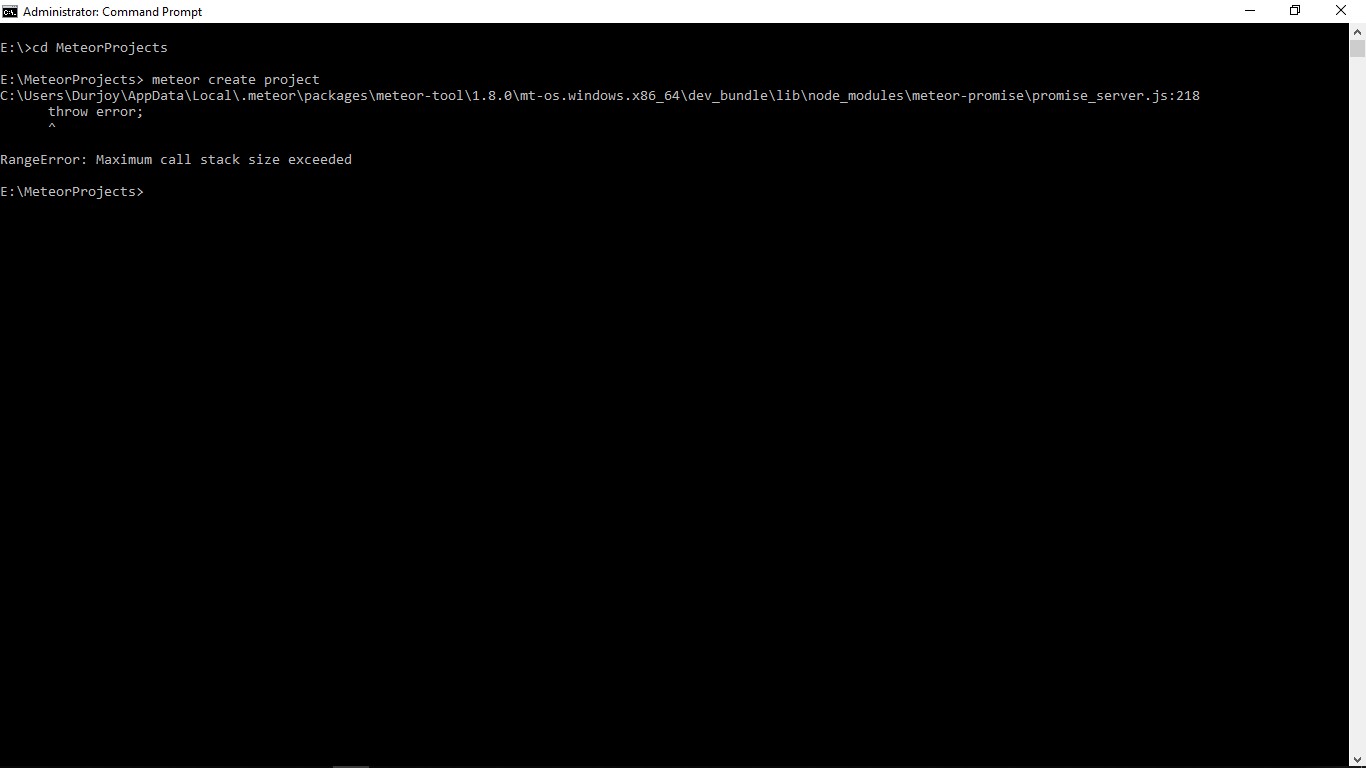
I just installed meteor 1.8 in my win.10 pc by using choco but when I'm going to open a new project it's throw error;
^
RangeError: Maximum call stack size exceeded
why the error is generated?
 durjoy28
on 16 Oct 2018
durjoy28
on 16 Oct 2018
durjoy28
on 16 Oct 2018
My problem is solved. Just, I changed my another node_modules folder C:\Users\Durjoynode_modules_old previously it was C:\Users\Durjoynode_modules. I shared for others as if they can solve easily when they will face the same problem.
durjoy28
on 16 Oct 2018
Can you share your website, if there is any website...
Since there is no demo of the code..:)
Thank you.
hounaine
on 16 Dec 2018
Related issues
 abhiaiyer91
·
3Comments
abhiaiyer91
·
3Comments
 ShinyLeee
·
3Comments
ShinyLeee
·
3Comments
 zarub2k
·
3Comments
zarub2k
·
3Comments
 mitar
·
3Comments
mitar
·
3Comments
 cicode225
·
3Comments
cicode225
·
3Comments
Most helpful comment
I had the same problem, and the following worked for me:
No matter what I did, I couldn't get it to work in the AppData directory, so I downloaded the zip file from https://github.com/meteor/docs/blob/version-NEXT/long-form/alternate-windows-installation.md
I created a directory at my root directory level called meteor (C:/meteor) and then extracted all of the files there. (C:/meteor/.meteor) is where they now reside.
I then updated my Path variable under System variables, and everything works great.
As a test, I tried to re-locate these extracted files to the original install location (/AppData/Local/.meteor) and I got a bunch of filename too long windows errors, so that may have something to do with the issue many of us are having, but I'm not sure. (I originally tried to extract it to my Documents folder, and it failed there as well, but that would have had an even longer directory name, so that may make sense)
Anyways, with it installed outside of the User directory, everything seems to work well for me.