Keepassxc-browser: Auto-fill does not work for Amazon AWS login
Expected Behavior
Icon in input fields appearing, filling in username and password to work.
Current Behavior
Only username is filled, but only works via context menu.
Possible Solution
Not sure how to fix this. I can't seem to manually edit the custom inputs in the extension's settings though. Maybe if I knew how they were stored (selectors perhaps?) I could maybe adjust them so they would work.
Steps to Reproduce (for bugs)
- Go to console.aws.amazon.com
- Notice that username is not auto-filled (if you have the
Automatically fill in single-credential entriessetting enabled) or no KeepassXC icon is available in the username input
2.1. Right clicking and using the context menu to selectFill username and passwordfills the input

- When clicking
Nextand the password field appears, notice that password won't auto-fill (if that setting is enabled though), only the password generator icon is present, and the context menu optionsFill username and password_and_Fill password onlydo nothing. - Trying to set custom inputs for username/password does not work as the username and password fields are not shown at the same time.
- Clicking the
Add username-only option for the sitedoes not help either.
Debug info
KeePassXC - 2.5.3
KeePassXC-Browser - 1.5.4
Operating system: Linux x86_64
Browser: Mozilla Firefox 73.0 (the exact same happens in Chrome/Chromium 80.0.3987.116)
 carestad
All 12 comments
Add the following URL to extension's Site Preferences settings and enable Username-only detection: https://signin.aws.amazon.com/*
 varjolintu
on 19 Feb 2020
varjolintu
on 19 Feb 2020
Add the following URL to extension's Site Preferences settings and enable Username-only detection:
https://signin.aws.amazon.com/*
That helps with the icon showing up and the username being filled automatically, but the password won't fill at all on the next step though, not even if I right click the password input and chose Fill password only.
carestad
on 19 Feb 2020
For some reason the fill icon shows on the username field even when it's not available anymore. Filling the password works only if you have https://amazon.com in your entry URL because the subdomain is not the same for the password input site. It changes to plain www.amazon.com after the username input. You can also add the URL to the Additional URL's so you don't have to create another entry.
The user input field has an attribute readonly. Adding support for ignoring those fields fixes the problem. Making the required PR right away. Thanks for finding the bug!
varjolintu
on 19 Feb 2020
After adding the Additional URL you should be able to fill the password from the context menu as a workaround.
varjolintu
on 19 Feb 2020
For some reason the fill icon shows on the username field even when it's not available anymore. Filling the password works only if you have
https://amazon.comin your entry URL because the subdomain is not the same for the password input site. It changes to plainwww.amazon.comafter the username input. You can also add the URL to the Additional URL's so you don't have to create another entry.
Weird. I tried changing the entry URL to just https://amazon.com but that did not seem to help on the password-filling. The original URL I had for my entry was https://signin.aws.amazon.com.
The user input field has an attribute
readonly. Adding support for ignoring those fields fixes the problem. Making the required PR right away. Thanks for finding the bug!
Nice! Thanks for the quick response!
After adding the Additional URL you should be able to fill the password from the context menu as a workaround.
Strange. I am not able to fill the password by doing this though.
Just for your reference, this is the entry I have:
Username: [email protected]
Password: *****
URL: https://signin.aws.amazon.com
Additional URLs: https://amazon.com/
Having the additional URL makes the entry list twice, btw:
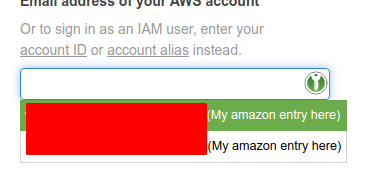
carestad
on 19 Feb 2020
Showing the entry list twice is already fixed for the next release. Using the context menu should fill the password if the Additional URL is set. It works for me.
varjolintu
on 19 Feb 2020
Showing the entry list twice is already fixed for the next release. Using the context menu should fill the password if the Additional URL is set. It works for me.
That's strange.
I do however notice that if I click Amazon's Sign in to a different account link under the password input, which shows the username input again, the filling of both username and passwords work after that. But on a hard refresh of the login page, it won't(?). I have kept the Username only detection setting on for https://signin.aws.amazon.com/*, btw.
Could it be some settings that I have turned on/off that you don't?

And from KeepassXC:

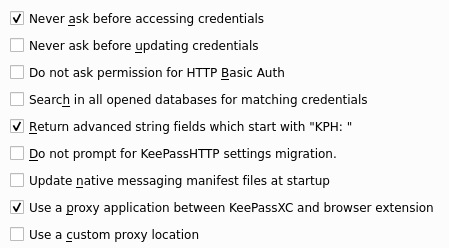
carestad
on 19 Feb 2020
The settings are be fine, but you could try to disable "Return only best-matching credentials" and try again.
I tested the login successfully with Firefox & stable extension version, and Chromium with the upcoming 1.5.5.
varjolintu
on 19 Feb 2020
I am having problems with the AWS login again now. Username is filled out, but password refuse to be filled even if I right-click inside the input and chose Fill password only. Fill Username and Passowrd does not work either. Fill TOTP does actually work in the password input.
carestad
on 4 Jul 2020
I also experience this and couldn't get it to work no matter what. I think Amazon is to blame though.
 droidmonkey
on 5 Jul 2020
droidmonkey
on 5 Jul 2020
Strange. It works for me. Please note that the URL changes at the password screen. You'll have to use them both in your entry.
varjolintu
on 5 Jul 2020
I do not see that the URL changes though? At least not the domain. Are we looking at the same AWS login? I use the "root login" there.
The entry has set https://signin.aws.amazon.com as its URL.

Right-clicking here, selecting KeepassXC > Fill Username and Password fills the username correctly. Then clicking Next and trying the same with anything else than TOTP fails in the password input. Even though I see the KPXC attributes are set on the password element: <input id="password" type="password" class="aws-signin-textfield" autocorrect="off" autocapitalize="off" data-kpxc-id="password" kpxc-password-generator="true" kpxc-pwgen-next-field-exists="false">. It shows the password generation icon though.
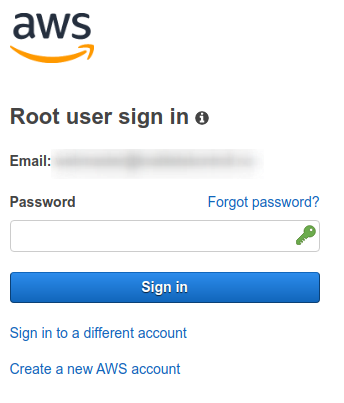
This is in Firefox btw. It does not work for me in Chrome either.
This used to work after the re-designed extension was released, but has stopped working at some point. I am not quite up to date with any recent changes in the extension though.
Edit: got it working now! I had another AWS login entry in my DB that I had set up with the same URL but enabled Hide this entry from the browser extension. Once I changed its URL to https://signin666.aws.amazon.com instead, the entry was filled successfully. I suppose that could be a bug?
carestad
on 6 Jul 2020
Related issues
 derula
·
4Comments
derula
·
4Comments
 tolot27
·
5Comments
tolot27
·
5Comments
 Generator
·
5Comments
Generator
·
5Comments
 gwerbin
·
4Comments
gwerbin
·
4Comments
 FWDekker
·
3Comments
FWDekker
·
3Comments