Karabiner-elements: "Allow" button in System Preferences does not work
following problem in Step 2 of the installation procedure:
-> I press the button "Open System Preferences > Security & Privacy"
-> the window "System Preferences" appears
-> I press the "Allow" button
-> nothing happens
-> the message on the left side of the button and the button itself stay there
-> even after hours and restarts and reinstallations
Any ideas? Many thanks!
System information:
-> macOS version: macOS 10.13
-> Karabiner version: Karabiner-Elements 11.0.0
-> Mac hardware: MacBook Pro
I tried to load the KEXT manually:
mymac:extensions admin$ sudo kextload org.pqrs.driver.Karabiner.VirtualHIDDevice.kext
/Library/Extensions/org.pqrs.driver.Karabiner.VirtualHIDDevice.kext failed to load - (libkern/kext) system policy prevents loading; check the system/kernel logs for errors or try kextutil(8).
I called KEXTUTIL:
mymac:extensions admin$ sudo kextutil org.pqrs.driver.Karabiner.VirtualHIDDevice.kext
Kext rejected due to system policy:
 pschremisl
All 98 comments
There is a report that you cannot allow kext if you are using Screen Sharing.
https://twitter.com/felix_schwarz/status/908690187219283970
 tekezo
on 4 Oct 2017
tekezo
on 4 Oct 2017
I have the same issue. I am not using Screen Sharing, I am at the computer. Screen sharing is totally disabled. I tried to enable-disable Screen Sharing, doesn't seem to have any effect.
This is annoying like hell...
 patkoscsaba
on 9 Oct 2017
patkoscsaba
on 9 Oct 2017
So, I figured this out!!! I use magic perf to intercept various touchpad actions. It seems like Apple is obsessed with security. If you have this problem try to disable any apps that my capture and forward clicks. The click must come from the touchpad directly. << pulling my hair out >>
patkoscsaba
on 9 Oct 2017
Also happens if you have SteerMouse installed. You'll have to remove the SteerMouse preference pane and reboot in order to click the Allow button.
 obriencj
on 10 Oct 2017
obriencj
on 10 Oct 2017
@patkoscsaba, thank you! I was having the same issue, and disabling MagicPrefs got it going.
 shockey
on 16 Oct 2017
shockey
on 16 Oct 2017
You are welcome.
On Mon, Oct 16, 2017 at 10:05 PM kyle notifications@github.com wrote:
@patkoscsaba https://github.com/patkoscsaba, thank you! I was having
the same issue, and disabling MagicPrefs got it going.—
You are receiving this because you were mentioned.Reply to this email directly, view it on GitHub
https://github.com/tekezo/Karabiner-Elements/issues/1017#issuecomment-336998931,
or mute the thread
https://github.com/notifications/unsubscribe-auth/ABN-SRjy4OaRo0Zejgpdv1U9j5YO9dWDks5ss6kTgaJpZM4Ps-87
.>
Patkós Csaba
Engineering Team Lead @ Syneto
patkoscsaba
on 17 Oct 2017
Same issue here, but with Witch
 msaspence
on 31 Oct 2017
msaspence
on 31 Oct 2017
I was clicking like crazy that button and nothing happened then I tried clicking with a wacom pen using my wacom tablet and it worked!!! :D (have to say I have MagicPrefs Installed but I didn't have to disable it, since I was able to click the allow button with the tablet)
 fcomeraz
on 13 Nov 2017
fcomeraz
on 13 Nov 2017
Eudic does it, too. If it should help.
 4faramita
on 14 Nov 2017
4faramita
on 14 Nov 2017
I am having the same problem (OS 10.13, Karabiner Elements 11.3) "allow" button not operating (it turns blue on clicking but white again off-click and nothing happens). I have screen sharing OFF and no trackpad modifying apps that I know of. I have tried restarting in "safe" mode with no other apps running.
The only thing that works is to disable SIP – and I have to leave it disabled because if I restart with it enabled the keyboard changes revert to default. This doesn't seem like a good solution: is there a safer alternative? I really need a one-hand [enter] key on my macBook Pro, preferably the right-hand [alt] key, where it used to be. I would happily pay for an app that does just this (and works).
 joncpc
on 24 Nov 2017
joncpc
on 24 Nov 2017
Disabling MagicPrefs worked for me as well! Thanks!
 maczkus
on 19 Dec 2017
maczkus
on 19 Dec 2017
Alternatively you can use the keyboard, if you have full keyboard access enabled:

Then just press tab several times until the "Allow" button is highlighted, then press space to activate it.
 dansanduleac
on 13 Jan 2018
dansanduleac
on 13 Jan 2018
omg! This also happens with a (wacom) tablet. I had to use a normal mouse...
 woutervanwijk
on 16 Jan 2018
woutervanwijk
on 16 Jan 2018
Thanks guys for posting that. It sucks. I have a remote OSX Jenkins box and I want VirtualBox there, and can't "Allow" Oracle extensions. I tried that:
http://hints.macworld.com/article.php?story=2008051406323031
WIth parameters:
./click -y 470 -x 600
When the Security&Privacy is at the top left corner. No luck.
 wkoszek
on 19 Jan 2018
wkoszek
on 19 Jan 2018
This works for me for clicking "Allow" button via Screen Sharing:
https://gist.github.com/wkoszek/691f41c6ba2edfacc6903d163868b348
@tekezo
wkoszek
on 19 Jan 2018
FWIW, I had a similar issue in 10.13.3. It took a few days to find a fix. Namely, Security asked me to "approve" Google for its Google File Stream Drive KEXT. In console, I could see that the keypress event was being rejected. It was ultimately due to the use of a third-party mouse from Logitech. I plugged in my Magic Mouse, click on the "approve" and things started to work as advertised.
 wwvuillemot
on 7 Feb 2018
wwvuillemot
on 7 Feb 2018
Better touch tool make the same problems.
 librucha
on 2 Mar 2018
librucha
on 2 Mar 2018
The same thing happens with xGestures – I had to stop it in order to allow Karabiner Elements to run from inside the Security preferences. After that I just started xGestures again. Thank you for the information!
 hdiogenes
on 5 Mar 2018
hdiogenes
on 5 Mar 2018
closed slack and discord and intellij and was able to click it.... 😠
 rogerschlachter
on 30 Mar 2018
rogerschlachter
on 30 Mar 2018
I have noting of previously mentioned running and still no luck...
 sv3k
on 31 Mar 2018
sv3k
on 31 Mar 2018
Solved with following steps:
- Take a full desktop screenshot with System Preferences opened on it.
- Open it in Preview app and find the button coordinates from upper left corner of the screen.
- If you have Retina display, divide those coordinates by 2.
- Open Script Editor and use the coordinates you have in following script (I've put my coordinates):
tell application "System Events" to click at {880, 511}
UPDATE: As suggested by @Evanthx, instead of first 3 steps you can just press ⌘⇧4 (command+shift+4) to switch to the screenshot capturing mode where you can move the mouse cursor and see its coordinates which is much easier.
sv3k
on 31 Mar 2018
sv3k's answer was the only thing that worked, but if you hit command-shift-4 to take a screenshot, the cursor will give you screen coordinates. That was easier than the screenshot!
 Evanthx
on 4 Apr 2018
Evanthx
on 4 Apr 2018
sv3k's answer also worked for me.
 Reed97123
on 4 Apr 2018
Reed97123
on 4 Apr 2018
sv3k's answer worked for me even though I wasn't using any click capturing software.
 jsalvatier
on 6 Apr 2018
jsalvatier
on 6 Apr 2018
Saw this issue today with a Wacom tablet being used as a mouse. Had to remove it and use the system mouse in order to click "Allow" ...
 endobrendo
on 7 Apr 2018
endobrendo
on 7 Apr 2018
@dansanduleac's solution worked best for me 👍
 DaveNOTDavid
on 8 Apr 2018
DaveNOTDavid
on 8 Apr 2018
@dansanduleac's solution is the best!
 AndreiLetyushov
on 13 Apr 2018
AndreiLetyushov
on 13 Apr 2018
@dansanduleac's solution did not work for me. But I discovered that Chrome was the culprit and for some reasins was intercepting trackpad clicks. Just shutting it down made me able to click the alllow button.
 romi1502
on 13 Apr 2018
romi1502
on 13 Apr 2018
Used @sv3k answer with a couple modifications, used Shif-Cmd-4 to get coordinates @Evanthx, and then did echo "tell application \"System Events\" to click at {x, y}" && osascript click && rm ./click
@AndreiLetyushov that solution may not work for everyone. I tried it on my machine and it did not work.
I'm not using chrome on my machine - I don't have a wacom tablet, and I'm not using screen sharing. Not sure what caused it on my machine.
 ExProbitasFiducia
on 16 Apr 2018
ExProbitasFiducia
on 16 Apr 2018
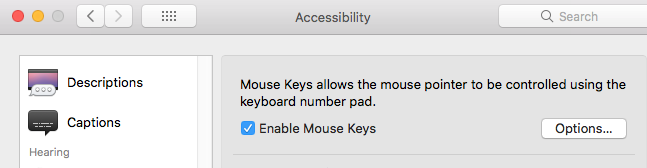
Enabling mouse keys worked for me. The scripting solution failed at "System Events" and trying to use tab on my keyboard just skips over the allow button.
 rayfoss
on 16 Apr 2018
rayfoss
on 16 Apr 2018
sv3k's answer worked for me even though I wasn't using any click capturing software.
Same here .. this is just nuts
 madAndroid
on 18 Apr 2018
madAndroid
on 18 Apr 2018
Same issue without install any mouse control software.
I'm using mac high sierra 10.13.4, and extension of Tuxera 2018 can't be allow.
 ghost
on 19 Apr 2018
ghost
on 19 Apr 2018
I collect information into this page.
https://pqrs.org/osx/karabiner/help.html#kext-allow-button-does-not-work
The major app which prevents click seems Google Chrome.
tekezo
on 19 Apr 2018
Nothing else suggested worked for me. I closed Chrome and was able to click the 'Allow' button. Insane.
OS not optimized for your Mac...
 ficus
on 19 Apr 2018
ficus
on 19 Apr 2018
The only thing that worked for me was closing Google Chrome.
What is chrome doing exactly and why does it need to intercept mouse clicks?
 kohnworkshop
on 22 Apr 2018
kohnworkshop
on 22 Apr 2018
Same here, closing Chrome immediately enabled me to click "Allow" in Security & Privacy Prefs..
 timblaktu
on 25 Apr 2018
timblaktu
on 25 Apr 2018
The answer provided by @dansanduleac did not work for me. Here are the steps I took, but I suspect that High Sierra disabled keyboard-based access to the "Allow" area as yet another security lockdown to ensure that maligned apps couldn't use accessibility as a back door to allow their own access.
- Open System Preferences
- Click on Keyboard
- Click on the Shortcuts "tab" at the top
- Click on the All controls radio button at the bottom (under Full Keyboard Access)
- Click the "Show All" button at the top to get back to all System Preferences
- Click on Security & Privacy
- Tab to that damned Allow button - you can't!
Trying the above steps including unlocking first (clicking the lock icon in the lower left corner and entering my credentials) also didn't work.
Closing Chrome also didn't help. In fact, closing EVERYTHING didn't help. Why the hell doesn't Apple at least complain about WHY the button isn't allowing the click, telling us what exact software it's unhappy about!? That's not a question I expect an answer to here; it's more of a complaint that a company who is supposedly _the_ expert on user interfaces really screwed the pooch here.
I had to use the @sv3k script approach (and this worked for me previously, too - I just wanted to see if I could do it another way this time) but had to take one extra step. I'm sure this is High Sierra's "improved" security at work _again_.
The script looks like this (your coordinates may vary - use Shift+Command+4 to get the right coordinates for that damned Allow button):
tell application "System Events" to click at {880, 511}
Running it yields the following Script Error:
System Events got an error: Script Editor is not allowed assistive access.
The fix for _that_ problem:
- In Security & Privacy, click the Privacy tab
- Click Accessibility
- Click the lock in the lower left corner and authenticate to make changes
- Scroll down to Script Editor and check the box next to it
- Click on the General tab to go back to your favorite place in the whole world
- Try running your Apple Script again
- If you're feeling security conscious, go back to Privacy and unckeck the box next to Script Editor
Yes, this is insane. If you're a masochist (I sometimes am), you can read about more people being angry about this. To be clear, it's very much not Karabiner's fault!
 jt-github
on 30 Apr 2018
jt-github
on 30 Apr 2018
I seemed to be hitting this issue as well - hitting Allow in System Preferences, Security for Karabiner did nothing.
However, going to Keyboard, Shortcuts then enabling Full Keyboard Access for All Controls allowed me to hit Allow using Tab/Space.
(See https://github.com/tekezo/Karabiner-Elements/issues/1017#issuecomment-357471556 above).
Weird.
Is this a bug in Karabiner or in MacOS?
 victorhooi
on 1 May 2018
victorhooi
on 1 May 2018
One more thing: seems like we'll have to go around this issue on each Karabiner update 😐
sv3k
on 4 May 2018
@sv3k, hence my latest post. This is the second time I've had to do this, which is why I decided I should write it down this time. Hopefully, I'll remember to come here after the next freakin' update. Ugh... Apple, I know you're just trying to be secure, but holy crap, there has to be a better way! Yes, I know Apple won't see this; I'm just too lazy at the moment to go find the right place to yell at Apple where they'll see it.
@victorhooi, to be clear, this is not a bug, and absolutely not Karabiner's issue at all. But it is a major usability issue that is 100% the responsibility of Apple. They really need to provide some feedback (like telling you what app(s) are preventing the click) when you click that button and _nothing happens_.
jt-github
on 4 May 2018
I'm confused - how is this not a MacOS bug?
As in, it sounds like some bug in MacOS, which renders the button unclickable?
victorhooi
on 10 May 2018
Sorry, I guess my clearness was more opaque than it should have been. I was just trying to say that this is not a Karabiner bug. I don't think Apple considers this a bug either since they would likely state that it is "by design." But you and I might call it a bug or at least a usability issue because Apple is refusing to allow the click without giving any feedback about _why_.
jt-github
on 10 May 2018
I had to quit Google Chrome to get the allow button to work. So I suggest closing all applications and then try the allow button in System Preferences > Security&Privacy.
 commd
on 15 May 2018
commd
on 15 May 2018
I had the same issue macOS High Sierra v10.13.4
To be able to allow application I had to disable all gestures in System preference Trackpad.
 wojtekk
on 25 May 2018
wojtekk
on 25 May 2018
I had to run sudo spctl --master-disable in the Terminal to enable a third option for "Anywhere" for where to trust software from. After that, I was able to Allow the software to run.
See http://osxdaily.com/2016/09/27/allow-apps-from-anywhere-macos-gatekeeper/
 aardvarkk
on 25 May 2018
aardvarkk
on 25 May 2018
I had to close all of my apps for the button to work. Annoying as crap, but I'm just glad I found a resolution! I'm using macOS High Sierra 10.13.4.
 bjornbennett
on 30 May 2018
bjornbennett
on 30 May 2018
sv3k's solution worked from the terminal too:
osascript -e 'tell application "System Events" to click at {584, 819}'
Just insert the mouse coordinates you get from cmd-shift-4
 mdupuy
on 1 Jun 2018
mdupuy
on 1 Jun 2018
OMG guys, I'm so happy to have solved this, thanks to @sv3k and @jt-github.
How Apple allows the button to still have the "click animation" without actually doing anything is beyond me. If it had been greyed out or something, then it would be at least a hint.
 arnostko
on 8 Jun 2018
arnostko
on 8 Jun 2018
For me it was a software named jing to make screencasts. I closed it and the button worked. Apple should have added a prompt with the problem and specify the name of the software that is not allowing the button to work!
 natxet
on 9 Jun 2018
natxet
on 9 Jun 2018
It's not an issue with the software, it's a MacOS flaw.
Easiest workaround (screen coordinates!?!?) is to turn on Keyboard Tabbing functions (in Prefs/Keyboard/Shortcuts/FullKeyboardAccess/ALL - and then simply use tab and space bar to move and select in the appropriate dialog box in the System/Security preferences, after clicking the Security (un)lock, of course.
 dclive
on 10 Jun 2018
dclive
on 10 Jun 2018
About the tab thing... I had no luck using my external keyboard (it would block before the ALLOW button), it only works with an Apple keyboard (internal or external I suppose too).
This security feature is just a joke
 kedare
on 14 Jun 2018
kedare
on 14 Jun 2018
I had http://milgra.com/high-sierra-media-key-enabler.html running in the background - quitting this worked for me - Ironic since this app actually fixes another MacOS issue with spotify and media keys
 linearza
on 15 Jun 2018
linearza
on 15 Jun 2018
Apple’s issue - or - the thing they are protecting you against - is a third party keyboard driver, mouse driver, etc. doing something bad here. So yes, Apple forcing the use of internal keyboard to set this makes sense (if you follow their logic).
I happen to think it’s silly, but the keyboard workaround does work and is far easier for me than trying to find coordinates and using scripting.
dclive
on 15 Jun 2018
Just a tip, you can use the keyboard to focus the "Allow" button (press TAB few times), and then press the space key to "click" it.
 FezVrasta
on 17 Jun 2018
FezVrasta
on 17 Jun 2018
Easy Working Solution(Worked for me):
Sytem Prefs --> Keyboard --> Shortcuts --> hit all controls at the bottom
then go to Security and Privacy and use tab button on keyboard to navigate to allow and hit space. Voila...!
 mr-kamran-ali
on 17 Jun 2018
mr-kamran-ali
on 17 Jun 2018
Now we are just repeating ourselves :)
dclive
on 17 Jun 2018
Easy Fix : worked for me
1) Open System Preferences
2) Right click on System Preferences icon on Dock -> Options -> Assign to -> All Desktops
3) If you have any other Desktop tab to it ( or Create new Desktop and switch to it )
4) Open System Preferences on the new Desktop and click allow
 MohamedSayed008
on 18 Jun 2018
MohamedSayed008
on 18 Jun 2018
I closed iTerm2, Atom, Skype, Viber and Deezer apps and was able to click it. Can't say which one helped though.
 lpld
on 27 Jun 2018
lpld
on 27 Jun 2018
To add to Ipld's response if you have Chrome remote desktop you have to close out chrome as well.
 tit1
on 2 Jul 2018
tit1
on 2 Jul 2018
Wish I'd scrolled down to see the comments about Chrome earlier!
In the end I got it working with Full Keyboard access (toggle this with Ctrl+F7 - you may need to hold down the Fn key as well). It's worth noting that depending on where the focus starts it may not be able to reach the button you need to - I found that clicking on the search field and tabbing from there allowed focus to reach the Allow button by tabbing. Hope this helps someone else!
 markstickley
on 5 Jul 2018
markstickley
on 5 Jul 2018
Use the tab to jump to the allow button, not your mouse, then press space.
Setting tab focus to "All controls" in "system prefs / keyboard / shortcuts" may be needed.
 szkrd
on 14 Jul 2018
szkrd
on 14 Jul 2018
Okay so I was trying the keyboard method... Tab was not going far enough and would stop in the top portion of the pane. I found I could get it to cycle by exiting the security pane, going back in, selecting File Vault tab, and selecting the General tab again but pressing tab very fast within a window. Quite absurd but I eventually got it to land on the Allow button and pressed space.
 gregpardo
on 17 Jul 2018
gregpardo
on 17 Jul 2018
Wow, thank you so much @sv3k
 aredridel
on 18 Jul 2018
aredridel
on 18 Jul 2018
For me, it was Chrome causing the issue. Closing it allowed me to press the Allow button. Couldn't tell you why it was Chrome.
 hijewpositive
on 27 Jul 2018
hijewpositive
on 27 Jul 2018
I pressed Allow button, it disappeared, but Karabiner doesn't work and each time I restart it I see notification about approving in System preferences
 dmitriyK1
on 27 Jul 2018
dmitriyK1
on 27 Jul 2018
Just a heads up, it wouldn't allow until I closed Chrome. Apple needs to get their services in order here.
 cameron-deoliviera
on 7 Aug 2018
cameron-deoliviera
on 7 Aug 2018

Had the same issue with the Caffeine osx app. Disabling caffeine let me click allow.
 flynnduism
on 7 Aug 2018
flynnduism
on 7 Aug 2018
I spent forever on this. none of the things that other people had were relevant until someone said they found out chrome was the culprit. I can't say it was chrome but I closed all open apps except sys pref the app i was installing and thats it. chrome was open though
 slyone420
on 14 Aug 2018
slyone420
on 14 Aug 2018
What worked for me is turning the Bluetooth function off (which in turn disconnected my Magic Mouse ).
 warmitu
on 15 Aug 2018
warmitu
on 15 Aug 2018
I used mouse keys accessibility feature to avoid figuring out which app is causing issue.
https://support.apple.com/kb/PH18381?locale=en_US
 ankiit
on 16 Aug 2018
ankiit
on 16 Aug 2018
_Backup and Sync from Google_ app was causing the issue in my case.
 MaksymDolia
on 18 Aug 2018
MaksymDolia
on 18 Aug 2018
Closing Chrome is working for me
 sfesfizh
on 28 Aug 2018
sfesfizh
on 28 Aug 2018
@sfesfizh Closing Chrome also worked for me.
 quanglam2807
on 30 Aug 2018
quanglam2807
on 30 Aug 2018
disabling CrashPlan client from the top bar beside volume and bluetooth icons did it for me.
 dashony
on 2 Sep 2018
dashony
on 2 Sep 2018
I found a solution. Some of the comments here mentioned that any app that might interrupt mouse clicks to add functionality can break the "Allow" button in System Preferences > Security > General. To avoid having to click I installed Shortcat, which gives keyboard access to any interactive element on the screen. I fired it up, moved my focus down to "Allow", and hit return and it worked fine.
 escapist
on 12 Sep 2018
escapist
on 12 Sep 2018
After enabling full keyboard access and tabbing down, Return still wasn't working, but the space bar did.
 SeanHayes
on 12 Sep 2018
SeanHayes
on 12 Sep 2018
If anybody is wondering how they can see the coordinates through Screen Sharing with Cmd Shift 4, well, you can't. There's no coordinates showing up.
Oh no! What can you do?
Well, forget targeting a wild window _somewhere_ on the screen. Just move the System Preferences window to a known location like the top left corner since that's the origin (0,0). Make sure none of it is off-screen. Now you can run something very, very similar to this in Script editor because the Allow button location is known and the System Preferences Window and menu bar is a static size.
tell application "System Events" to click at {560, 473}
osascript -e 'tell application "System Events" to click at {560, 473}'
 nelsonjchen
on 12 Sep 2018
nelsonjchen
on 12 Sep 2018
Alternatively you can use the keyboard, if you have full keyboard access enabled:
Then just press tab several times until the "Allow" button is highlighted, then press space to activate it.
OMG..this saves me.
 HRLTY
on 16 Sep 2018
HRLTY
on 16 Sep 2018
This is really a non sense....
 satblip
on 20 Sep 2018
satblip
on 20 Sep 2018
Opening System preferences in another desktop worked for me
Easy Fix : worked for me
- Open System Preferences
- Right click on System Preferences icon on Dock -> Options -> Assign to -> All Desktops
- If you have any other Desktop tab to it ( or Create new Desktop and switch to it )
- Open System Preferences on the new Desktop and click allow
 gunnzolder
on 23 Sep 2018
gunnzolder
on 23 Sep 2018
I had to close ITerm2 to get it working.
 wasserholz
on 14 Oct 2018
wasserholz
on 14 Oct 2018
Closed Google Chrome and now the allow button works.
 jessegyger
on 3 Nov 2018
jessegyger
on 3 Nov 2018
Closing MagicPrefs solved the issue for me. Thank you @patkoscsaba!
 natterstefan
on 5 Nov 2018
natterstefan
on 5 Nov 2018
I will give you a crazier scenario... I tried EVERYTHING... the install message was showing FAILED every time, yet, when I checked applications folder, IT WAS INSTALLED and fully working :O what the... So, check your Applications folder despite failing install :D
 ZaNa02
on 5 Nov 2018
ZaNa02
on 5 Nov 2018
I close other applications, then I can press the button.
 gaochengyidlmu
on 19 Nov 2018
gaochengyidlmu
on 19 Nov 2018
Eudic does it, too. If it should help.
Saved my day
 KeDaQHR
on 1 Dec 2018
KeDaQHR
on 1 Dec 2018
Uninstalling VOX Preferences solved the issue for me.
 mekarthedev
on 16 Dec 2018
mekarthedev
on 16 Dec 2018
For me it was disabling MagicPerf - Thank you everyone for contributing to this thread!
 belroyale
on 3 Jan 2019
belroyale
on 3 Jan 2019
For me, no mouse/touchpad would allow the click. I had to do it using my MacBook's builtin keyboard only, and hit 'tab' till I highlighted the 'Allow' button and then press space to select it!
 sberriman
on 22 Jan 2019
sberriman
on 22 Jan 2019
Alternatively you can use the keyboard, if you have full keyboard access enabled:
Then just press tab several times until the "Allow" button is highlighted, then press space to activate it.
Note that this may not work unless you restart System Preferences first.
 johnsonra
on 27 Feb 2019
johnsonra
on 27 Feb 2019
@sfesfizh Closing Chrome also worked for me.
Yes. Thanks! Finally worked for me.
 piyushbajaj0704
on 29 Mar 2019
piyushbajaj0704
on 29 Mar 2019
Mac Media Key Forwarder also causes this: milgra/macmediakeyforwarder#42
 thom-nic
on 3 Apr 2019
thom-nic
on 3 Apr 2019
Another solution:
- Go to the Preferences>Universal Access
- Open the 'Mouse and trackpad' tab
- Check the 'Enable Mouse Keys' box
- Open 'Options'
- Check 'Press the Option key five times to toggle Mouse keys'
- Go to the 'Security and Privacy'
- Point the 'Allow' button using trackpad or mouse
- Press the Option key five times, this will turn on 'Mouse keys' mode.
- Press the 'i' key at the keyboard (this will perform left click)
- Enjoy)))
- Press the Option key five times to turn off the 'Mouse Keys' mode
 MrJonhnny
on 21 May 2019
MrJonhnny
on 21 May 2019
- Boot into recovery using command+R
- Open terminal when in recovery
- Run
csrutil disable; reboot - Install VirtualBox again
This worked for me after trying every other option, I've read about.
6.0.8 Virtual Box on High Sierra
After finished installation, enable csrutil again for safety.
 onlineatwork
on 27 May 2019
onlineatwork
on 27 May 2019
This issue has been automatically marked as stale because it has not had recent activity. It will be closed if no further activity occurs. Thank you for your contributions.
![stale[bot] picture](https://avatars3.githubusercontent.com/in/1724?v=4&s=40) stale[bot]
on 26 Jul 2019
stale[bot]
on 26 Jul 2019
Closing Chrome worked for me too.
 robscherer
on 18 Aug 2019
robscherer
on 18 Aug 2019
sorry - wrong thread
 waldi1992
on 28 Nov 2019
waldi1992
on 28 Nov 2019
Downgrading to 12.10.0 works on 10.15 OSX
https://github.com/pqrs-org/Karabiner-Elements/issues/2473
 antongorshkov
on 31 Oct 2020
antongorshkov
on 31 Oct 2020
Related issues
 rkusa
·
3Comments
rkusa
·
3Comments
 rcaputo
·
3Comments
rcaputo
·
3Comments
 willisworley
·
3Comments
willisworley
·
3Comments
 impala75
·
3Comments
impala75
·
3Comments
 Fengur
·
3Comments
Fengur
·
3Comments
Most helpful comment
Alternatively you can use the keyboard, if you have full keyboard access enabled:

Then just press tab several times until the "Allow" button is highlighted, then press space to activate it.