Joplin: Pressing Ctrl + P doesn't go to previous line in Mac
Environment
Joplin version: 1.0.174 (prod, darwin)
Platform: macOS
OS specifcs: macOS Catalina, 10.15.1
Steps To Reproduce
- Open Joplin app.
- Create a note.
- Pressing Ctrl + P doesn't go to previous line.
I could use Ctrl + N to go to next line, but Ctrl + P doesn't work.
I use Emacs keybindings a lot, without Ctrl + P working, it impacts my workflow.
Logfile
N/A
 junjizhi
All 9 comments
@ShaneKilkelly, do you have any idea what might be the issue? I think we disable some shortcuts like ctrl+p in the editor, so that it can be processed by the app. Perhaps we should disable this part of the code when a keyboard mode is active?
 laurent22
on 3 Dec 2019
laurent22
on 3 Dec 2019
I might remove this feature as it's incomplete and we have noone to maintain it
laurent22
on 16 Dec 2019
Hi! Sorry it's taken a while to get around to this.
Anyway, on the original question: nothing springs to mind immediately, and I can't test because I don't have access to a mac. I wonder if it's a collision between the pervasive emacs-style shortcuts on the MacOS platform, vs the specific key-handling code of electron/joplin/ace ?
I note that @junjizhi says that they "use emacs keybindings a lot", which could refer to either of two things:
- They use the MacOS emacs-style keybindings (which are supposed to work everywhere in the system)
- They actually use the new emacs-mode in Joplin
We'd need to clarify where exactly the problem lies. Just now (on Ubuntu), I've tried CTRL-P and it pops open the print menu, so I suspect "go to previous line" is just not something Joplin does on the CTRL-P binding anyway, regardless of keyboard mode.
Actually, scratch that, I just tried the same with the Emacs mode in joplin, and it does "go to previous line" perfectly.
So, perhaps our advice to the user should be to explicitely turn on Emacs keybindings in the Joplin options?
 ShaneKilkelly
on 16 Dec 2019
ShaneKilkelly
on 16 Dec 2019
Thanks for clarifying @ShaneKilkelly. We'll indeed need more details from you @junjizhi then, in case it's something to your setup.
laurent22
on 16 Dec 2019
I do take the wider point about the maintenance burden of supporting these new keyboard modes. I'll try to make time to look at these kind of issues :+1:
ShaneKilkelly
on 17 Dec 2019
Thanks @ShaneKilkelly, much appreciated.
laurent22
on 17 Dec 2019
They use the MacOS emacs-style keybindings (which are supposed to work everywhere in the system)
@ShaneKilkelly ^This is what I meant.
So, perhaps our advice to the user should be to explicitely turn on Emacs keybindings in the Joplin options?
Can you advise where the option is? There wasn't anything like that in the settings in the Joplin version (1.0.174) I used. For my environment details, please see the ticket.
junjizhi
on 18 Dec 2019
The option should be under the "General" section of the Options screen. See screenshot:
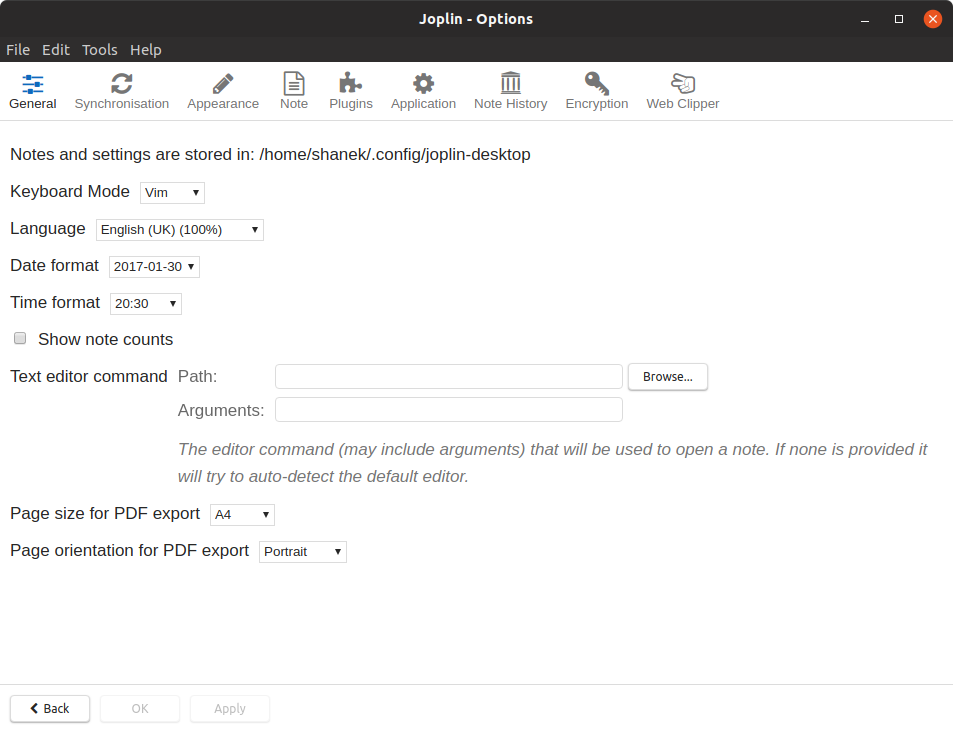
You can get there by selecting Tools -> Options in the menu.
ShaneKilkelly
on 19 Dec 2019
@ShaneKilkelly Hah, switching to Emacs mode actually fixes the problem. Thanks!
junjizhi
on 19 Dec 2019
Related issues
 jmcastagnetto
·
3Comments
jmcastagnetto
·
3Comments
 jurgenhaas
·
3Comments
jurgenhaas
·
3Comments
 v-marinkov
·
3Comments
v-marinkov
·
3Comments
 xfrose
·
3Comments
xfrose
·
3Comments
 seagoj
·
3Comments
seagoj
·
3Comments