Heidisql: Unable to connect to localhost\sqlexpress
Steps to reproduce this issue
- Ensure MS SQL Server Express is installed on localhost
- Create a new connection to:
- Network type:
Microsoft SQL Server (TCP/IP) - Hostname:
localhost\sqlexpress - Use Windows authentication
- Click Open
Current behavior
Unable to connect to server. After a while I receive an error:
SQL Error (0): SQL Server Network Interfaces: Error Locating Server/Instance Specified [xFFFFFFFF]Login timeout expired
Expected behavior
Successfully connect to localhost\sqlexpress server.
Possible solution
Until HeidiSql v9.5 I could successfully connect to SQL Express. The new TLS driver seems to have broken this.
Environment
- HeidiSQL version:
10.1.0.5505 (64 bit) - Database system and version:
Microsoft SQL Server Express - Operating system:
Windows 7 64b
 igitur
All 10 comments
Are you probably missing the newer OLE DB driver, mentioned on the download page?
 ansgarbecker
on 18 Apr 2019
ansgarbecker
on 18 Apr 2019
@ansgarbecker No, I already have the very latest version.
igitur
on 18 Apr 2019
Have you tried reproducing the error on your side? SQL Express is free to download and install.
igitur
on 18 Apr 2019
Yes, I have no problems connecting to my local SQL Express installation. That's why I was asking for the driver. Indeed if you hadn't installed the OLE DB driver, HeidiSQL would see that and fall back to the older one.
So I have no clue currently. Maybe activate debug log messages in preferences and see if there's some relevant stuff?
ansgarbecker
on 18 Apr 2019
Ok, to which file does the debug messages write?
Also, since you can connect successfully, I will check out firewall and anti-virus. But as I say, SSMS can connect successfully. Weird.
igitur
on 18 Apr 2019
You can open the preferences dialog from the session manager's "More" button, than enable debug messages and writing to file:

I just tried these hosts and all of them work:
- DESKTOP-P7OHKGH\SQLExpress (my computername)
- DESKTOP-P7OHKGH\sqlexpress
- localhost\SQLExpress
- localhost\sqlexpress
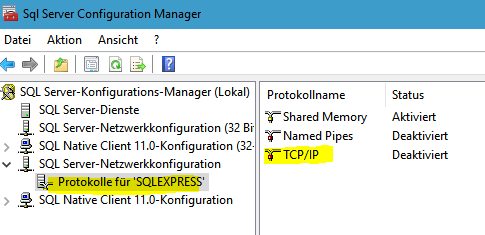
But I just realize I am connecting via named pipe, not TCP/IP.
I remember I had to once open TCP/IP for connecting, in the SQL Server Configuration manager, under network > protocols:
ansgarbecker
on 18 Apr 2019
Anyone else reading this and looking for an answer -- make sure SQL Browser is enabled. If it's grayed out for you to enable, go to start, search "SERVICES" find SQL SERVER BROWSER, right click Properties, switch "Disabled" to "Automatic" or whatever your preference is
 LukeARG
on 26 Apr 2019
LukeARG
on 26 Apr 2019
@LukeARG Thanks! That was my problem too. My SQL Server Browser service was set to disabled.
igitur
on 29 Apr 2019
None of this helps me yet. Using latest drivers and trying to connect to local dev sqlexpress has not worked since the Heidisql TLS upgrade Thank you.
 warrenlbrown
on 24 Jun 2019
warrenlbrown
on 24 Jun 2019
Hi make sure it is the right path, use .\sqlexpress, instead, could be that the localhost should be in brackets (localhost)\sqlexpress, check if the sqlexpress is correct, by going to Services (admin), scroll down and check the name(s) by the MSQLSERVER services, different versions of SQLExpress have different default db names.
 jpwits
on 10 Apr 2020
jpwits
on 10 Apr 2020
Related issues
 hkaraoglu
·
3Comments
hkaraoglu
·
3Comments
 catamphetamine
·
3Comments
catamphetamine
·
3Comments
 Ivan-Perez
·
3Comments
Ivan-Perez
·
3Comments
 cammudito
·
3Comments
cammudito
·
3Comments
 dzintb
·
3Comments
dzintb
·
3Comments
Most helpful comment
Anyone else reading this and looking for an answer -- make sure SQL Browser is enabled. If it's grayed out for you to enable, go to start, search "SERVICES" find SQL SERVER BROWSER, right click Properties, switch "Disabled" to "Automatic" or whatever your preference is