Godot: Viewport window stretch mode does not reduce performance cost
Godot version:
3.2 stable
OS/device including version:
Windows 10
Issue description:
When i chose window stretch mode to be "Viewport", with a low resolution, i expected the performance cost to be reduced accordingly. However i found that stretching a 640 x 360 sized viewport costs the same as rendering at 4k resolution, with disabled window stretch mode
This is with the setting "Allow HiDPI" set to true.
There are two ways/workarounds to get lower drawing cost (but with the same visual results):
- Set "Allow HiDPI" back to false again. Put the high dpi scale in windows to max (but only x00%, because non-integer scaling will distort distort the pixels in the game). This works because godot scales every pixel by the high dpi scale value set in windows, if "Allow HiDPI" is set to false.
- Set the resolution in windows to be the same as the target viewport size in godot game.
This issue worries me, because I think it is too much to ask the users to go change their resolution settings in Windows, before playing a game. Also in my case, I could not reduce windows resolution lower than 1280 x 720, so I probably could have gotten 4x more performance if i used 3rd party software to get even lower resolution. I think this might be one of Godot biggest performance issues, as a doubling in resolution seems to cost about 4x more, which is logical because the amount of pixels is quadrupled.
With the games target resolution of 640 x 360 pixels: Here you can see i increased FPS by over 1000%, just by changing settings in windows.
4K resolution with allow HIDPI disabled, window stretch mode = disabled:
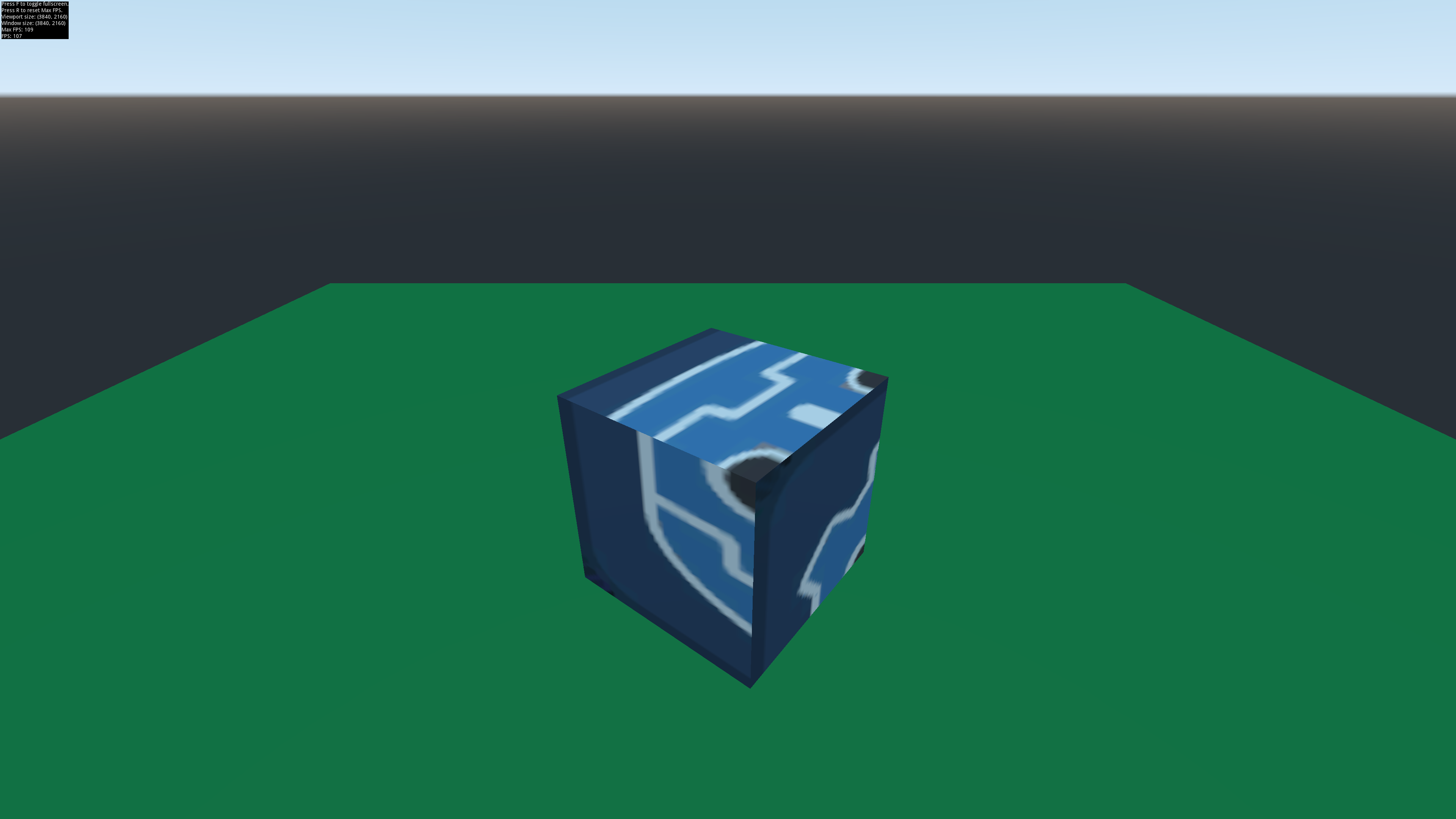
4K resolution with allow HIDPI disabled, window stretch mode = viewport:
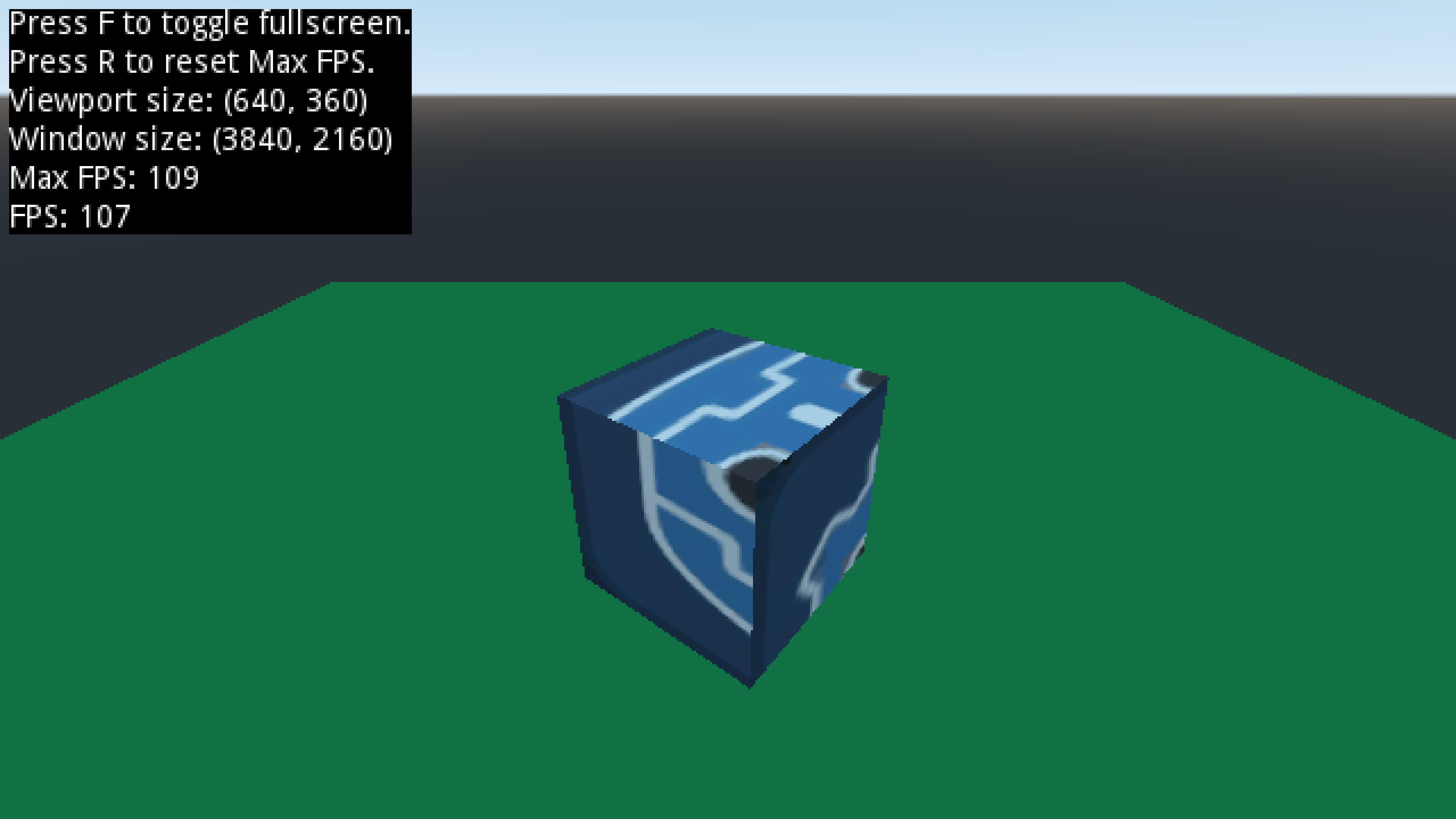
4K resolution with allow HIDPI enabled (200% scaling in windows), window stretch mode = viewport
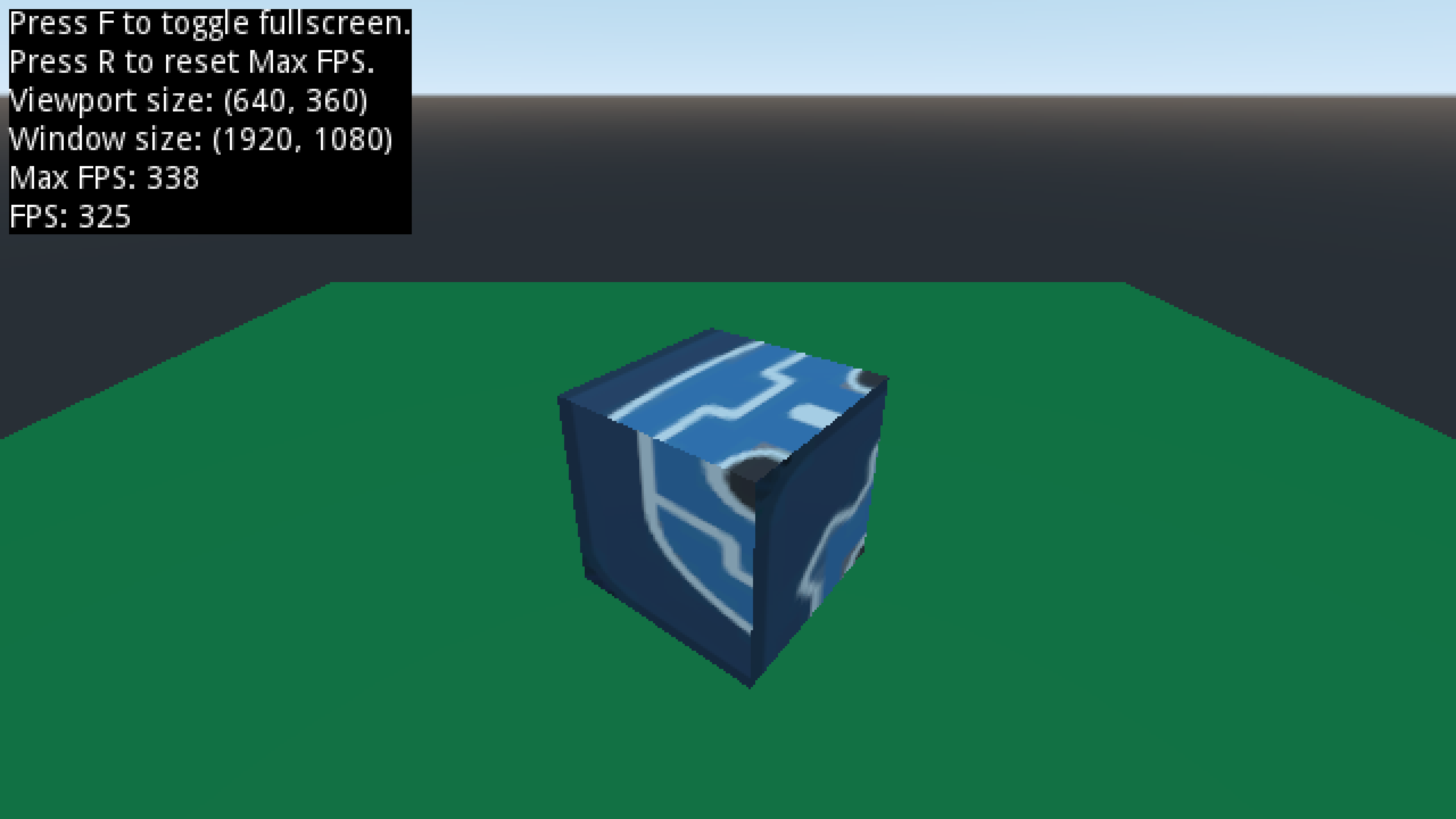
1280 x 720 resolution in windows:
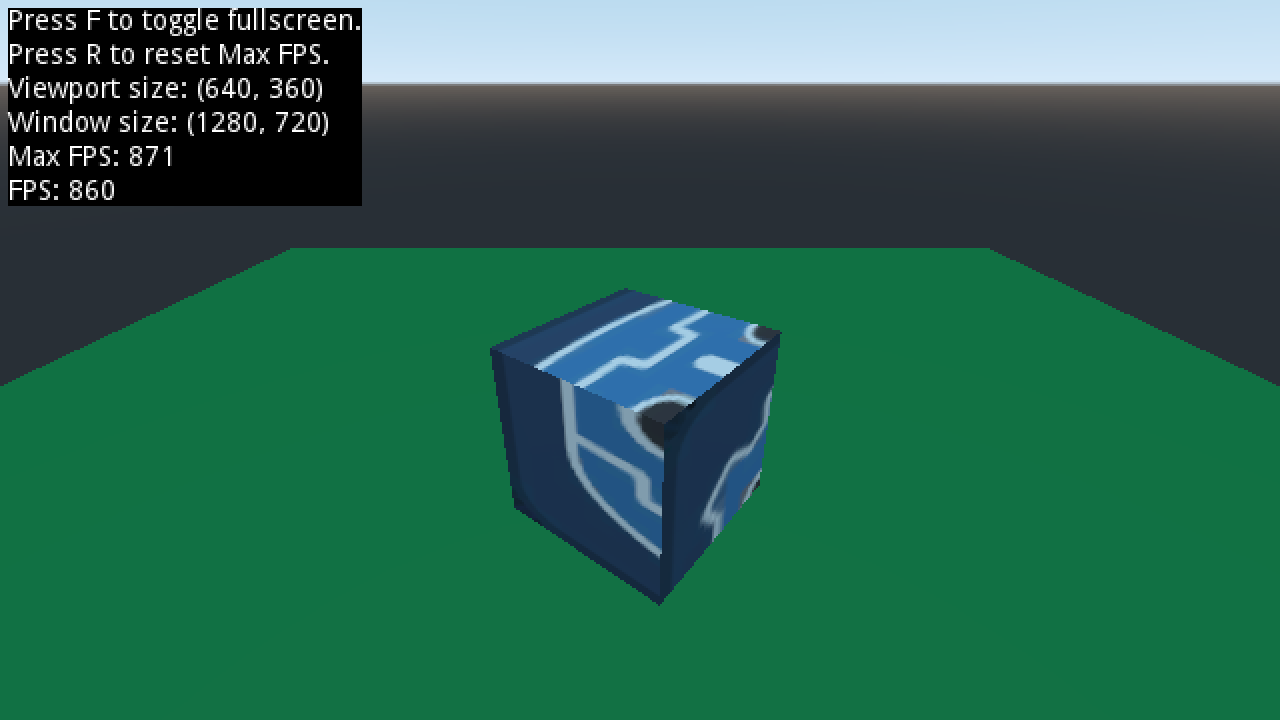
800 x 600 resolution in windows ( distorted, but still proves that FPS increases dramatically):
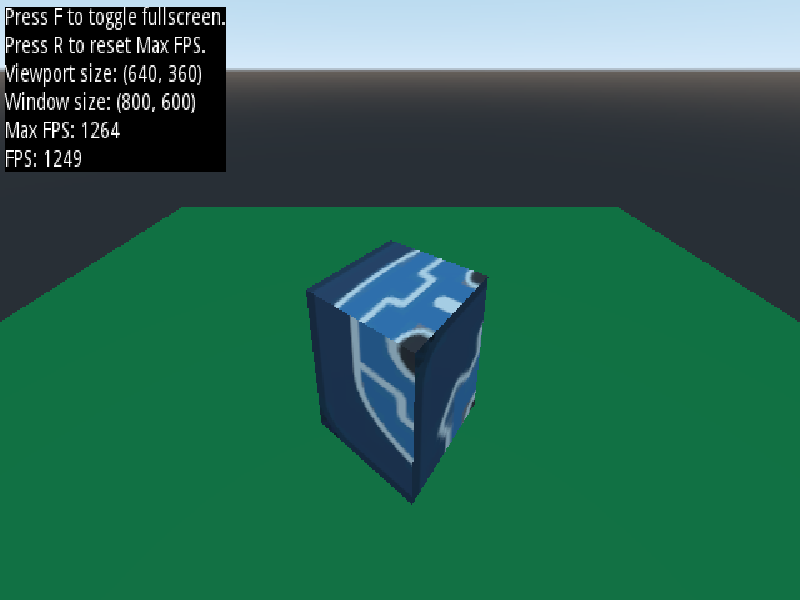
Steps to reproduce:
Open my test project. Experiment with resolution and high dpi scaling in Windows (and other OS's).
Also experiment with toggling "Allow HiDPI" in ProjectSettings.
Minimal reproduction project:
FPS-test.zip
Edit: changed a picture to correct one.
 fossegutten
All 7 comments
Letting the engine scale the viewport will always be slower than switching the desktop resolution, but it's far more convenient and less troublesome down the road. The arguments in favor of viewport scaling also apply to things like color correction: most modern engines use shaders instead of hardware gamma, even though they're slower for that purpose. Since both resolution switching and hardware gamma are rare enough nowadays, I think leaving those to third-party tools is a better idea.
Viewport scaling also opens up new opportunities, such as changing the resolution during gameplay to accodomate for more demanding scenes.
Anyway, I expect the performance difference to be significantly lower in a more complex project. Feel free to test godot-sponza to confirm this.
See #24720 for details.
 Calinou
on 24 Feb 2020
Calinou
on 24 Feb 2020
@fossegutten
I made resolution change(can set any even 64*64)(press Esc-Settings-set Resolutinon autodetect) in this project (itch.io link) link to source code look on that page.
Changing resolution to low decrease GPU usage 2x or more, like on my GPU on 1080p and Shadows On I have 80% GPU usage, on 720p (by changing resolution in Settings) GPU usage ~50%
so on your project, reason why you do not see any change in GPU usage is because - you scene way too simple, so rescaling resolution(from Native) cost GPU same as render this single cube
if you add 500k particles and enable shadows, then youl see that GPU usage go down on changing render resolution.
 danilw
on 24 Feb 2020
danilw
on 24 Feb 2020
Anyway, I expect the performance difference to be significantly lower in a more complex project. Feel free to test godot-sponza to confirm this.
This is a great project for benchmark by the way, thanks! Will use as a reference for my own games :)
I tested the sponza demo with a viewport size of 1280 x 720 pixels, on a 4k screen. This scales perfectly to 4k with a 300% hi dpi scaling in windows. Fps drops from ~150 FPS to ~100 FPS, when enabling the "Allow HiDPI". Not as dramatic change as my simple test project. However, I still think this is a significant FPS drop, when the visual result is identical.
Edit: setting the windows 10 OS resolution to 1280 x 720 increases the FPS further to ~170 FPS.
Hardware:
Intel I7-9750H
Nvidia GeForce GTX 1650 mobile
fossegutten
on 24 Feb 2020
@clayjohn Is there actually a way to fix this, or should we just document it?
Calinou
on 29 Jun 2020
@Calinou I agree with @danilw I doubt this is an actual issue with rendering. Many things contribute to performance beyond pixel fill-rate. On such simple demos (even sponza is overly simple) fill rate will not limit your FPS. Accordingly, the performance metrics here are of very little value. What we would need is GPU timing metrics (which are available in Master). My guess is that something in the HiDPI code (CPU side) is causing a bottleneck (maybe with the window drivers) that is resulting in the FPS changes.
At this point though, there is not enough information to take any action. Raw FPS is a terrible way of measuring performance, and such a simplistic demo tells doesn't assist us.
 clayjohn
on 29 Jun 2020
clayjohn
on 29 Jun 2020
If anyone has spare time, feel free to try comparing Godot's results with other games that feature some kind of viewport scaling. This way, we can determine whether this is something we can actually solve. If not, we'll just document this limitation.
Below, you can find instructions for two open source games that feature relatively modern renderers. In both cases, make sure V-Sync is disabled in the game's settings and your graphics driver.
Tesseract
Uses OpenGL 3.3-4.3 and deferred rendering.
SVN build recommended (but the stable version also supports this).
- Run Tesseract. Press T, enter
/map complexinto the chat box then press Enter. - Press T then enter
/gscale 50to lower the rendering resolution (this doesn't affect 2D elements). - Use W/A/S/D to walk into a spot where you can see most of the level. Look at your FPS in the bottom-right corner and write it down.
- Move into a spot in front of a wall and look towards the wall. This simulates a scene with a lower load on the GPU and CPU. Look at your FPS in the bottom-right corner and write it down.
- Press T then enter
/gscale 100to restore the original rendering resolution. - Quit the game. Change your desktop resolution to half of your native monitor's resolution (e.g. 1280×720 if you use a 2560×1440 monitor).
- Run the game again, follow the same instructions but do not run the
/gscalecommands this time. Write down your FPS in both scenarios again. Make sure to use the exact same positions and angles in the map for testing!
Xonotic
Uses OpenGL 2.1-3.3 and forward rendering.
Stable release recommended. master is unstable as of writing.
- Run Xonotic. Press Shift + Escape, enter
showfps 1; map xoylentinto the console then press Enter. - Press Shift + Escape (if the console has closed) and enter
r_viewscale 0.5into the console. Like Tesseract, this doesn't affect 2D elements. - Use W/A/S/D to walk into a spot where you can see most of the level. Look at your FPS in the bottom-right corner and write it down.
- Move into a spot in front of a wall and look towards the wall. This simulates a scene with a lower load on the GPU and CPU. Look at your FPS in the bottom-right corner and write it down.
- Press Shift + Escape then enter
r_viewscale 1to restore the original rendering resolution. - Quit the game. Change your desktop resolution to half of your native monitor's resolution (e.g. 1280×720 if you use a 2560×1440 monitor).
- Run the game again, follow the same instructions but do not run the
r_viewscalecommands this time. Write down your FPS in both scenarios again. Make sure to use the exact same positions and angles in the map for testing!
Calinou
on 27 Jul 2020
I've done some testing in Tesseract (4K laptop with Windows 10 and Intel HD 620) and can confirm this isn't a Godot-specific issue.
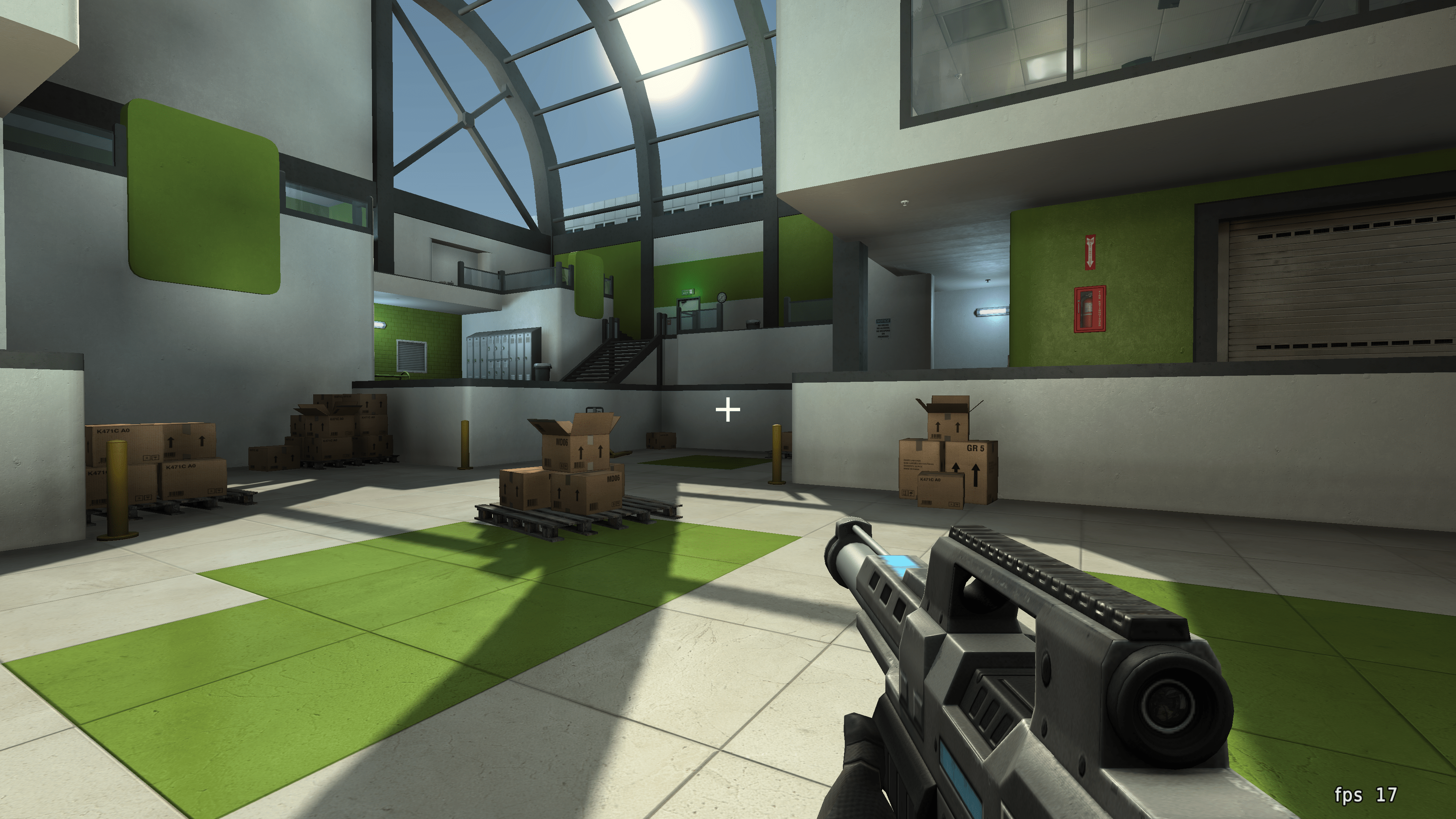
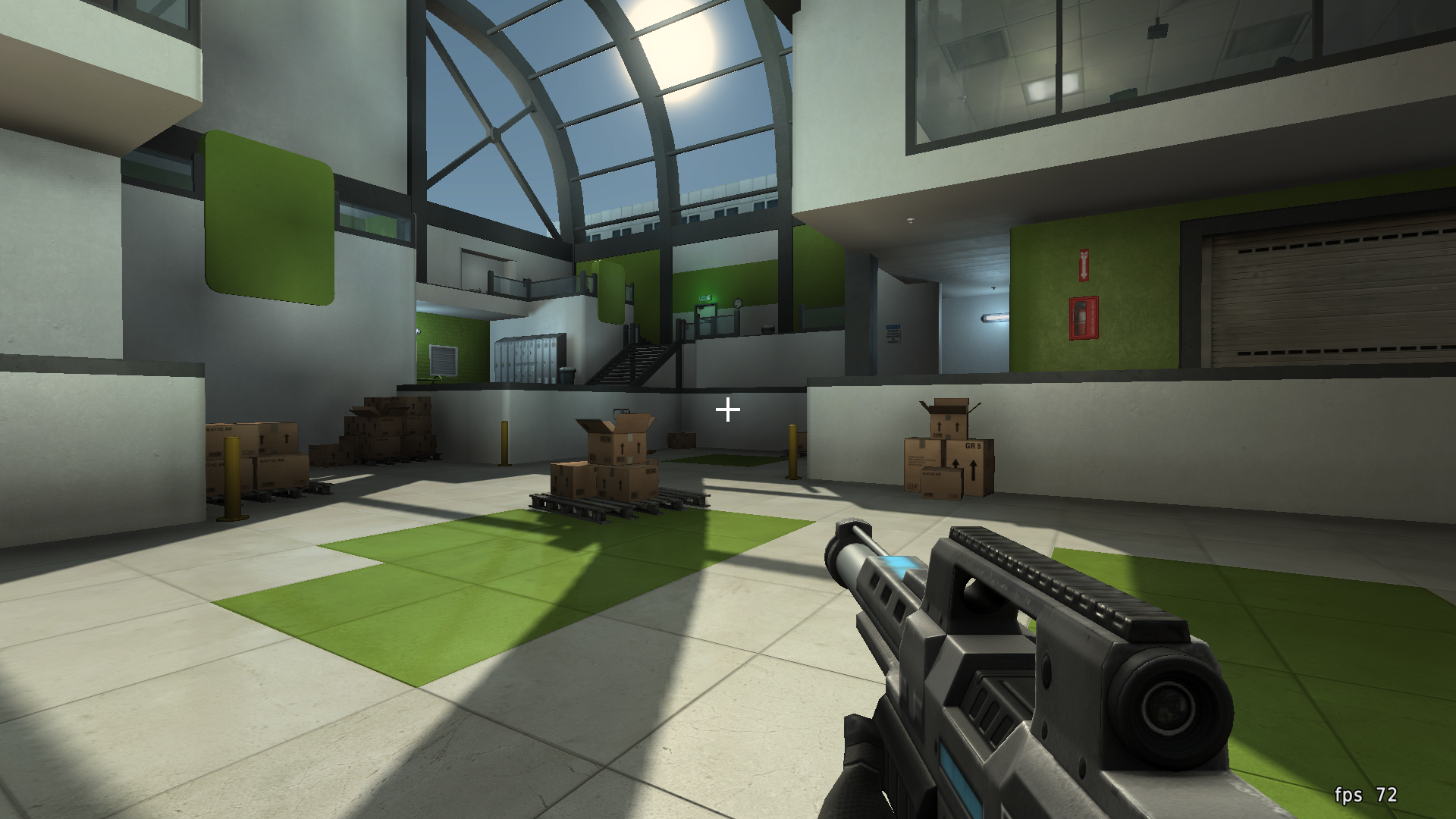
Between native 1080p (72 FPS/13.8 ms) and scaled 1080p (59 FPS/16.9 ms), there's a 3 ms difference in frame time.
Look at the FPS numbers in the bottom-right corner:
2160p native (native display resolution)
1080p native (display resolution manually changed)
1080p on 2160p (/screenres 1920 1080 in-game or /gscale 50)
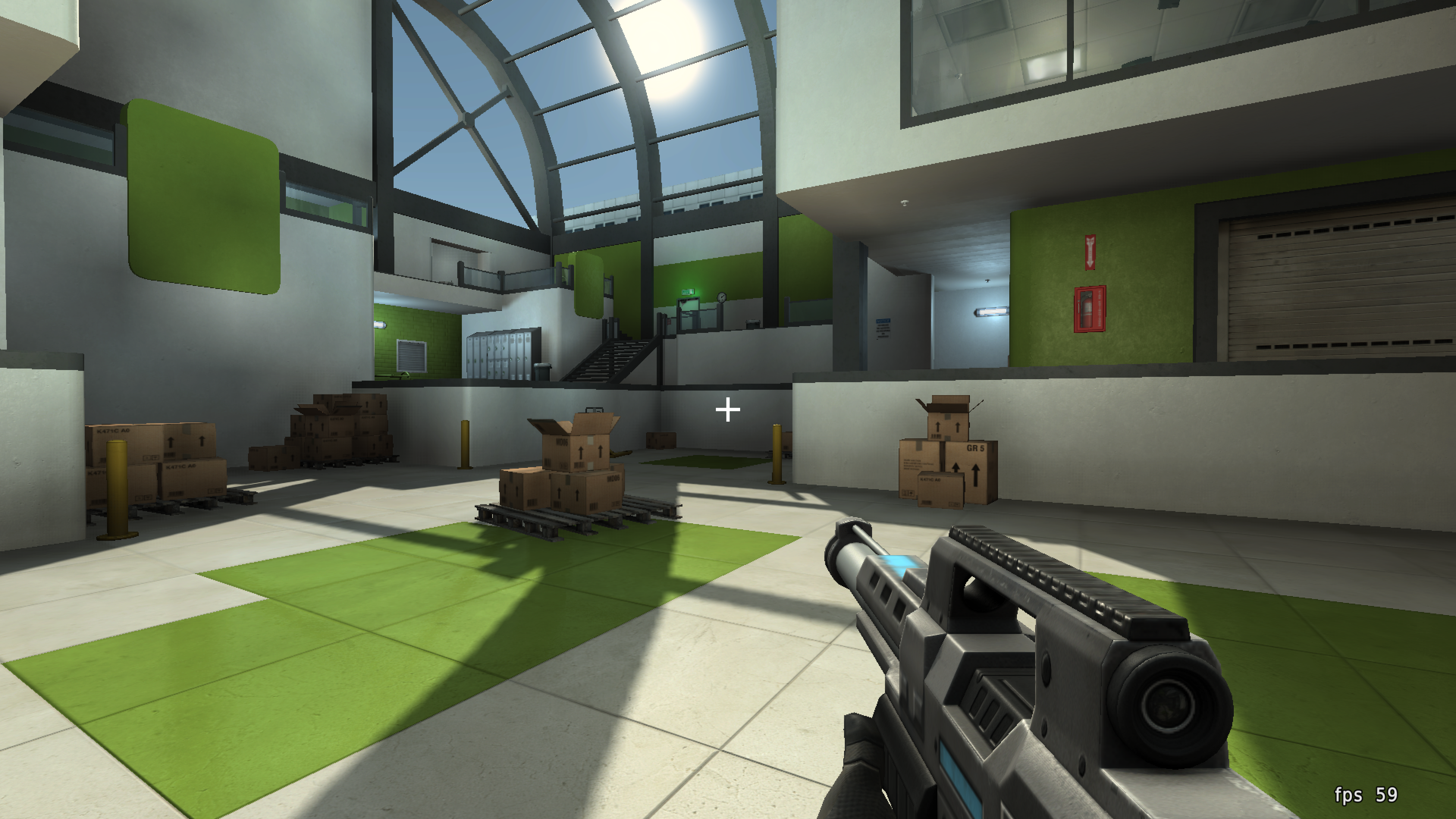
/gscalenearest 1 was used to enable nearest-neighbor filtering when scaling.
Calinou
on 29 Oct 2020
Related issues
 testman42
·
3Comments
testman42
·
3Comments
 ducdetronquito
·
3Comments
ducdetronquito
·
3Comments
 SleepProgger
·
3Comments
SleepProgger
·
3Comments
 ivanskodje
·
3Comments
ivanskodje
·
3Comments
 RayKoopa
·
3Comments
RayKoopa
·
3Comments
Most helpful comment
This is a great project for benchmark by the way, thanks! Will use as a reference for my own games :)
I tested the sponza demo with a viewport size of 1280 x 720 pixels, on a 4k screen. This scales perfectly to 4k with a 300% hi dpi scaling in windows. Fps drops from ~150 FPS to ~100 FPS, when enabling the "Allow HiDPI". Not as dramatic change as my simple test project. However, I still think this is a significant FPS drop, when the visual result is identical.
Edit: setting the windows 10 OS resolution to 1280 x 720 increases the FPS further to ~170 FPS.
Hardware:
Intel I7-9750H
Nvidia GeForce GTX 1650 mobile