Godot-proposals: Option to allow unfiltered texture mipmaps.
Describe the project you are working on:
The project I'm currently working on is a first person adventure game with unfiltered lower resolution textures for a more retro pixelated style look.
Describe the problem or limitation you are having in your project:
Godot allows importing textures without filtering enabled for projects like these, but for as far as I know there is no option to have unfiltered mipmaps, having mipmaps enabled always results in far-off textures appearing filtered, even when the Filter import flag is disabled.

You can of-course decide to disable mipmapping altogether, but this is not an ideal solution for this kinda thing, as textures will start to look ugly the further away from the camera.
Describe the feature / enhancement and how it helps to overcome the problem or limitation:
I don't really know what the best way would be to implement this, or if it is even possible, but an import flag that allows to disable mipmap filtering would be nice, perhaps next to the existing import flags.
Describe how your proposal will work, with code, pseudocode, mockups, and/or diagrams:
I do not have experience with OpenGL rendering programming myself, so I could be wrong on this, but I believe OpenGL has a filtering mode called: GL_NEAREST_MIPMAP_NEAREST, that might allow for the type of thing I'm looking for.
If this enhancement will not be used often, can it be worked around with a few lines of script?:
Not that I know of, there is a project setting that seems to suggest enabling what I'm looking for, but it does not have the expected effect, mipmaps still appear filtered even with it enabled. (rendering/quality/filters/use_nearest_mipmap_filter)
Is there a reason why this should be core and not an add-on in the asset library?:
Not applicable.
 EzraT
EzraT
All 23 comments
You are indeed decribing GL_NEAREST_MIPMAP_NEAREST, but I am worried it still isn't what you want. GL_NEAREST_MIPMAP_NEAREST will result in a sharp change between mip levels. Your further mip level will have texels that are double the size in world space and would be a combination of the 4 pixels that created them.
You would still lose your nice pixel aesthetic because the higher mips would have pixels that are obviously larger and less crisp.
That being said. It might actually look pretty good. The only way to find out is to test. If I make a commit that uses GL_NEAREST_MIPMAP_NEAREST, would you be able to build it and test it out to see if the results look as good as you expect?
 clayjohn
on 19 Jul 2020
clayjohn
on 19 Jul 2020
You are indeed decribing
GL_NEAREST_MIPMAP_NEAREST, but I am worried it still isn't what you want.GL_NEAREST_MIPMAP_NEARESTwill result in a sharp change between mip levels. Your further mip level will have texels that are double the size in world space and would be a combination of the 4 pixels that created them.
Hmmm, chances are Godot might already be making use of this if thats the case, with the project setting I described in the OP, not sure though.
That being said. It might actually look pretty good. The only way to find out is to test. If I make a commit that uses
GL_NEAREST_MIPMAP_NEAREST, would you be able to build it and test it out to see if the results look as good as you expect?
Yes I would, that would be much appreciated.
Its a v3.2.2.stable project in GLES3.
EzraT
on 19 Jul 2020
You would still lose your nice pixel aesthetic because the higher mips would have pixels that are obviously larger and less crisp.
Larger pixels is not a problem in my case, as long as they're not blurry the way filtered textures are.
EzraT
on 19 Jul 2020
Bilinear filtering is already supported. Go to the Project Settings and enable Rendering > Quality > Filters > Use Nearest Mipmap Filter.
However, I don't think using bilinear filtering instead of trilinear filtering will solve your problem. It'll only make mipmap seams more noticeable. There are 3 ways to make textures viewed at oblique angles crisper:
- Enable anisotropic filtering on the textures. This is the best-looking way to do it, but it has a performance cost. To do, select them in the FileSystem dock, go the Import dock, check Anisotropic and click Reimport. This might be enabled by default in the future.
- You can adjust the anisotropic filtering level in the Project Settings; the default is 4×. I'd recommend using 16× if you can afford the performance cost.
- Decrease the mipmap LOD bias to use a negative value. This has no noticeable performance cost (most of the time). Changing the mipmap LOD bias isn't supported in Godot yet, but I made a pull request to implement this: https://github.com/godotengine/godot/pull/38569. This will make textures crisper but will also add visible shimmering depending on the textures. A good starting point is a value between -1 and 0. This is often used in conjunction with low anisotropic filtering (or none at all) to speed up rendering on mobile. Some AAA games even use a negative LOD bias by default, which can confuse players.
- Use custom mipmaps optimized for crispness (instead of smoothness). This has no performance cost whatsoever. You can do this by saving a DDS file with mipmaps which Godot can then load as a texture. Many editors such as GIMP can save DDS files with custom mipmaps.
For future reference, this is how different filtering modes interact with each other:
- Filter enabled, Use Nearest Mipmap Filter disabled:
GL_LINEAR_MIPMAP_LINEAR(default, also called "trilinear filtering") - Filter disabled, Use Nearest Mipmap Filter disabled:
GL_NEAREST_MIPMAP_LINEAR(default) - Filter enabled, Use Nearest Mipmap Filter enabled:
GL_NEAREST_MIPMAP_NEAREST(default, also called "bilinear filtering") - Filter disabled, Use Nearest Mipmap Filter enabled:
GL_LINEAR_MIPMAP_NEAREST(default)
 Calinou
on 19 Jul 2020
Calinou
on 19 Jul 2020
Thanks for those suggestions and explanations @Calinou
Using Anisotropic filtering does indeed yield much nicer results with mipmaps enabled.
I'm curious, is there a specific reason why anisotropic filtering is disabled by default?
Does it have a large impact on performance? I'm not very familiar with it.
EzraT
on 19 Jul 2020
I'm curious, is there a specific reason why anisotropic filtering is disabled by default?
Not really, it's just that nobody has thought about enabling it by default before.
Does it have a large impact on performance? I'm not very familiar with it.
The impact on dedicated GPUs is small, but the impact on integrated GPUs and mobile GPUs is much more significant due to the low memory bandwidth. I'd recommend using 16× anisotropic filtering on dedicated GPUs and 4× anisotropic filtering on IGPs and mobile.
Calinou
on 19 Jul 2020
Alright, thanks again.
EzraT
on 19 Jul 2020
For future reference, this is how different filtering modes interact with each other:
Filter enabled, Use Nearest Mipmap Filter disabled: GL_LINEAR_MIPMAP_LINEAR (default, also called "trilinear filtering")
Filter disabled, Use Nearest Mipmap Filter disabled: GL_NEAREST_MIPMAP_LINEAR (default)
Filter enabled, Use Nearest Mipmap Filter enabled: GL_NEAREST_MIPMAP_NEAREST (default, also called "bilinear filtering")
Filter disabled, Use Nearest Mipmap Filter enabled: GL_LINEAR_MIPMAP_NEAREST (default)
Right now this isn't the case. There is no way to enable NEAREST_MIPMAP_NEAREST Here is the current logic:
if ((texture->flags & VS::TEXTURE_FLAG_MIPMAPS) && !texture->ignore_mipmaps)
    glTexParameteri(texture->target, GL_TEXTURE_MIN_FILTER, config.use_fast_texture_filter ? GL_LINEAR_MIPMAP_NEAREST : GL_LINEAR_MIPMAP_LINEAR);
else {
    if (texture->flags & VS::TEXTURE_FLAG_FILTER) {
        glTexParameteri(texture->target, GL_TEXTURE_MIN_FILTER, GL_LINEAR);
    } else {
        glTexParameteri(texture->target, GL_TEXTURE_MIN_FILTER, GL_NEAREST);
    }
}
So when using mipmaps, you are stuck with either GL_LINEAR_MIPMAP_NEAREST or GL_LINEAR_MIPMAP_LINEAR
To fix this we need to change the logic to:
if ((texture->flags & VS::TEXTURE_FLAG_MIPMAPS) && !texture->ignore_mipmaps)
    if (texture->flags & VS::TEXTURE_FLAG_FILTER) {
    glTexParameteri(texture->target, GL_TEXTURE_MIN_FILTER, config.use_fast_texture_filter ? GL_LINEAR_MIPMAP_NEAREST : GL_LINEAR_MIPMAP_LINEAR);
    } else {
        glTexParameteri(texture->target, GL_TEXTURE_MIN_FILTER, config.use_fast_texture_filter ? GL_NEAREST_MIPMAP_NEAREST : GL_NEAREST_MIPMAP_LINEAR);
    }
} else {
 ...
}
Okay some comparison images


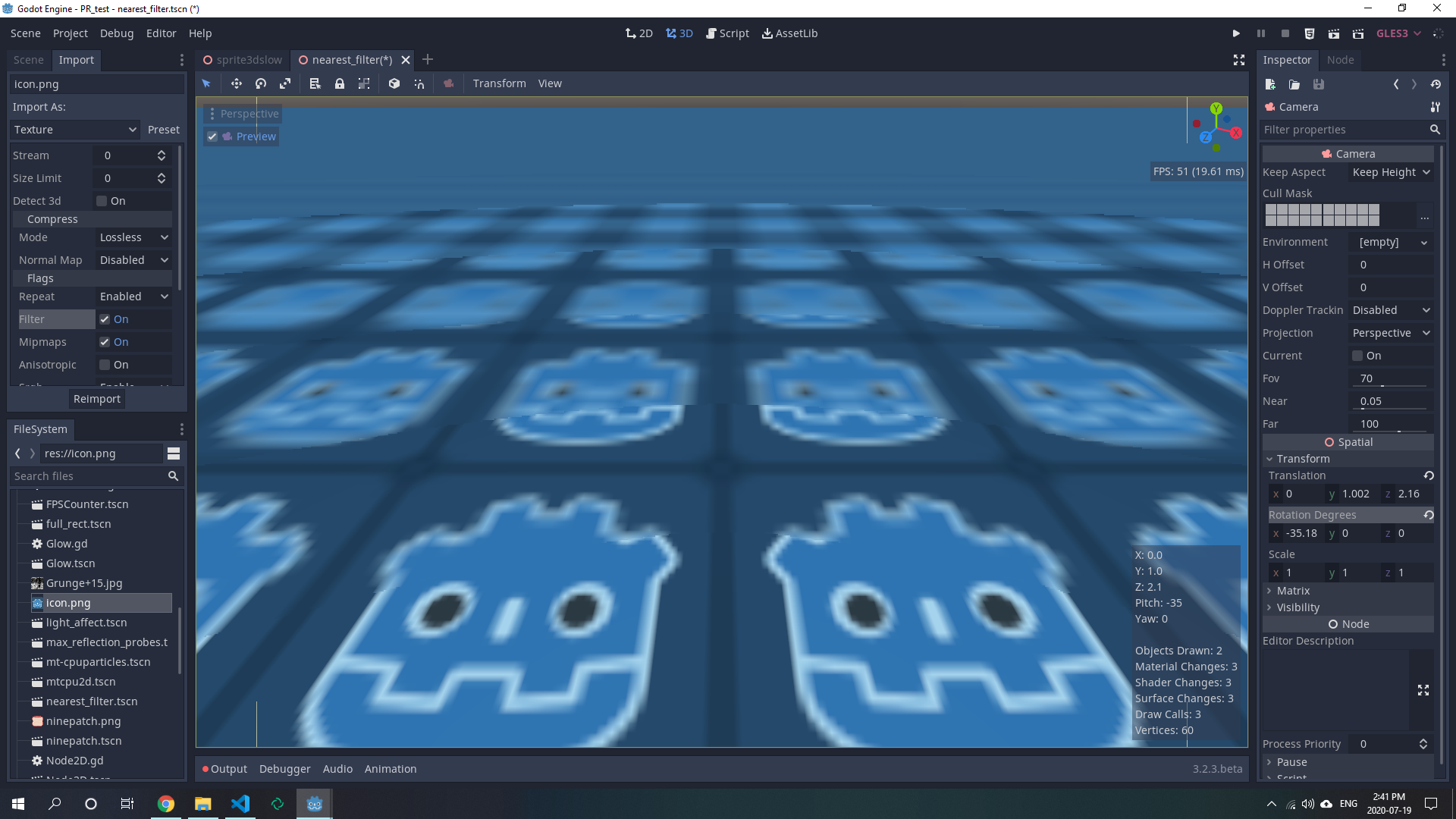
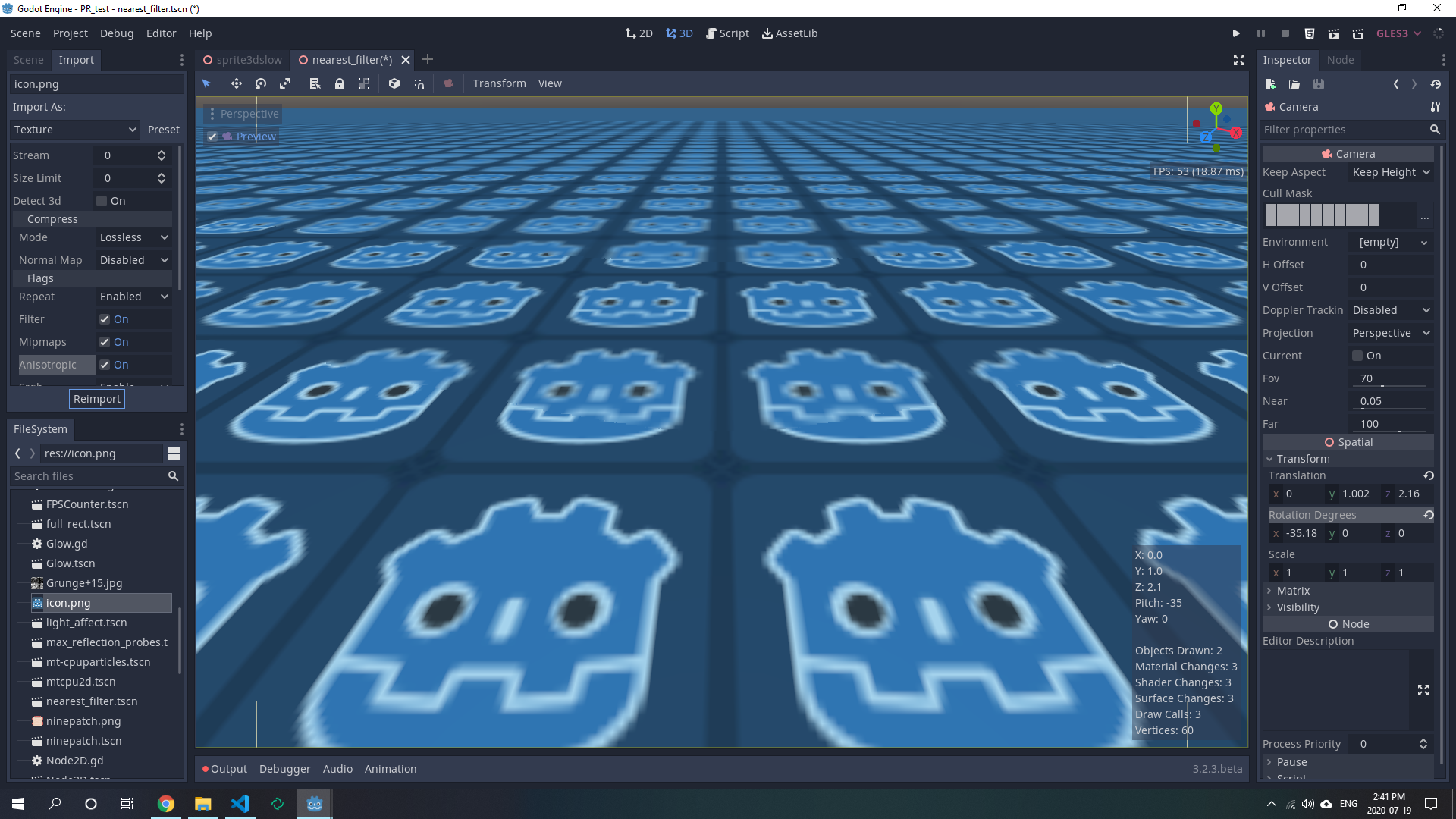
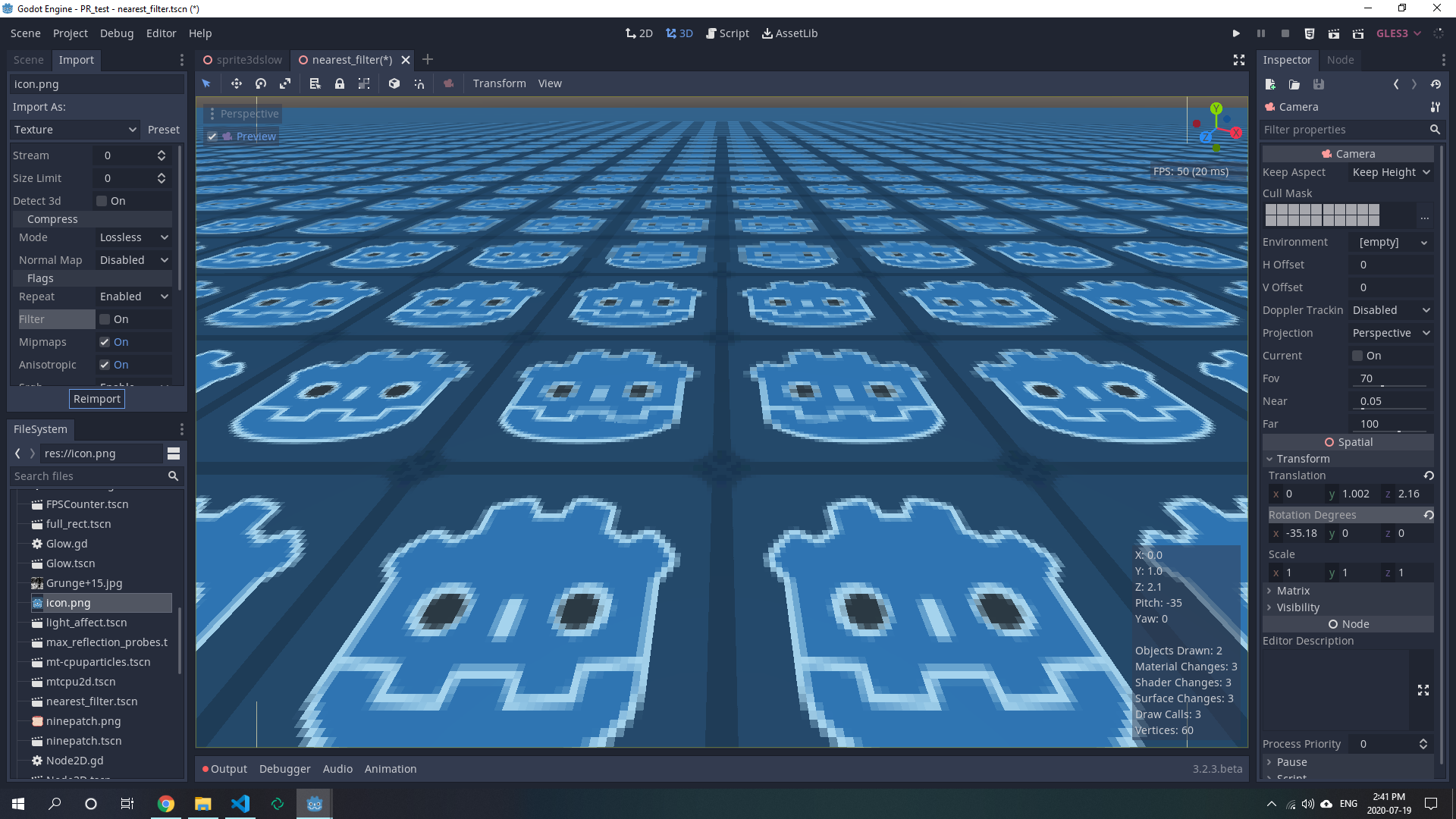
@EzraT My understanding is that you want the last image. Where the texels get larger with distance, but they maintain their pixely aesthetic?
clayjohn
on 19 Jul 2020
@clayjohn Correct, the second and last images are exactly what I'm looking for.
Both of them are with GL_NEAREST_MIPMAP_NEAREST enabled?
EzraT
on 19 Jul 2020
@EzraT Exactly yes. And currently you can't get either one. I had to add the above suggested code to get them. I will make a PR shortly and you can test it for yourself.
clayjohn
on 19 Jul 2020
Thanks a bunch!
How would I enable this in the editor? Is this what the project setting rendering/quality/filters/use_nearest_mipmap_filter was supposed to do?
Or is it going to be a different setting?
EzraT
on 19 Jul 2020
@EzraT It will be a combination of two things: rendering/quality/filters/use_nearest_mipmap_filter, and turning "filter" off.
The main issue previously was that filtering was forced to on when mipmaps were enabled.
clayjohn
on 19 Jul 2020
Alright, great!
EzraT
on 19 Jul 2020
@EzraT PR made, please test it out and let me know how it goes. :)
clayjohn
on 20 Jul 2020
Thanks again for the quick fix @clayjohn !
I'll test it out tommorow as soon as I have the time for it.
EzraT
on 20 Jul 2020
@clayjohn @Calinou
Tested, and working like a charm!
Filter disabled:
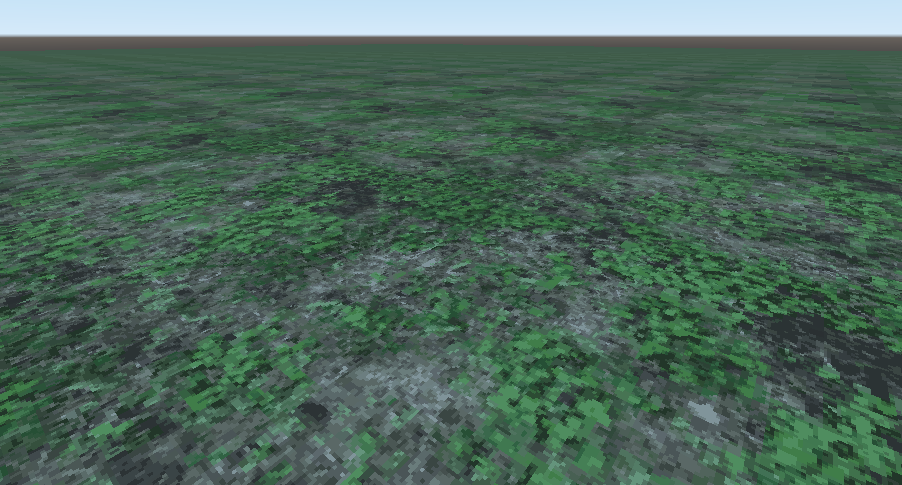
Filter enabled:
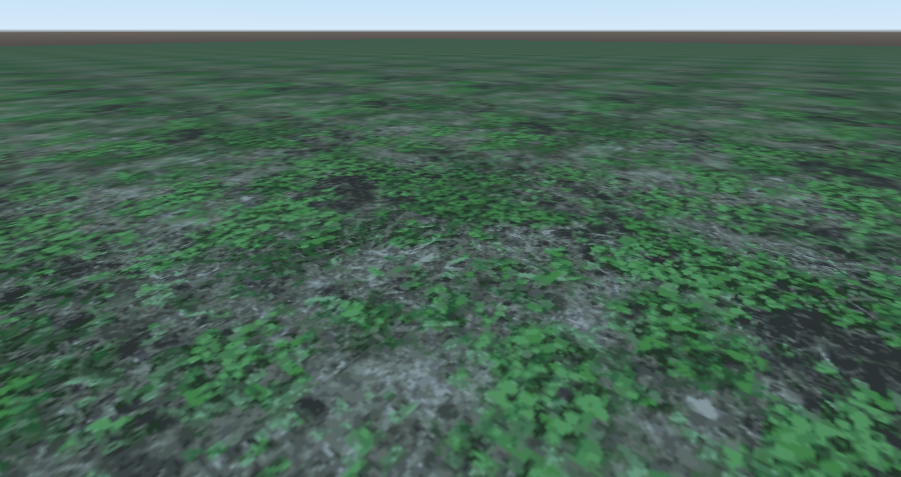
Final result:
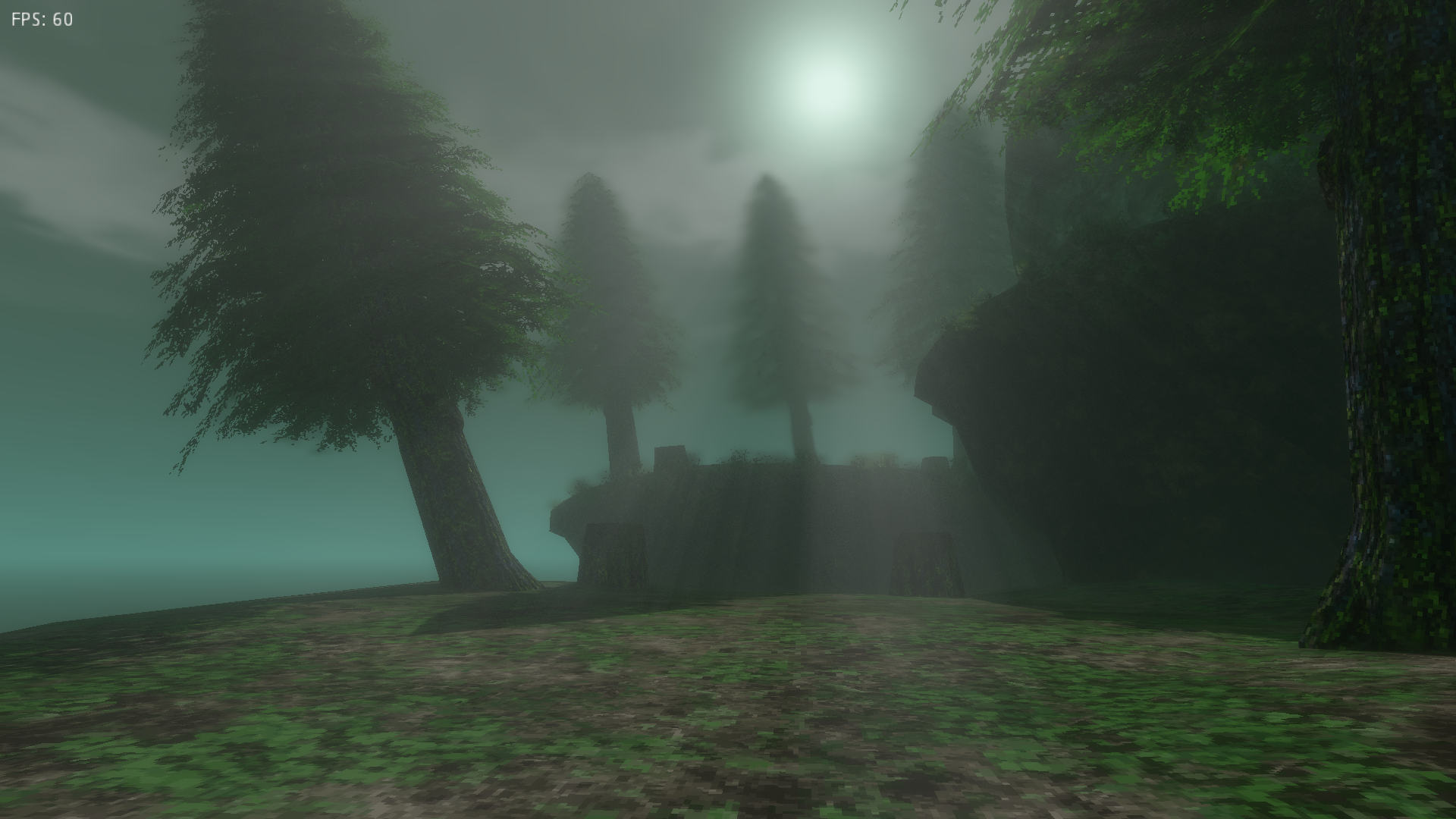
These are all taken without Anisotropic filtering enabled, so you can see the difference better.
EzraT
on 20 Jul 2020
Fixed by godotengine/godot#40523.
 akien-mga
on 20 Jul 2020
akien-mga
on 20 Jul 2020
@clayjohn
Just in case people aren't aware of this, there currently is no option in Godot 4.0 dev to achieve the same filtering described in this proposal, so Godot 4/master suffers from this same problem currently.
None of the StandardMaterial3D sampling options allow you to have nearest filtering in combination with nearest mipmaps.
EzraT
on 14 Nov 2020
@EzraT Thanks.
Added in 3.2. Needs to be added in 4.0
clayjohn
on 14 Nov 2020
Shouldn't nearest mipmaps/bilinear filtering be a project setting (like Use Nearest Mipmap Filter in 3.2)? This is more of a quality setting after all.
In fact, I think it's already a project setting in both 3.2 and master.
The current types available in StandardMaterial3D are:
- Nearest (=
GL_NEAREST) - Linear (=
GL_LINEAR) - MipmapNearest (=
GL_NEAREST_MIPMAP_NEARESTif nearest mipmap filter is enabled,GL_NEAREST_MIPMAP_LINEARotherwise) - MipmapLinear (=
GL_LINEAR_MIPMAP_LINEARif nearest mipmap filter is enabled,GL_LINEAR_MIPMAP_NEARESTotherwise) - MipmapNearestAniso (=
GL_NEAREST_MIPMAP_NEARESTif nearest mipmap filter is enabled,GL_NEAREST_MIPMAP_LINEARotherwise) - MipmapLinearAniso (=
GL_LINEAR_MIPMAP_LINEARif nearest mipmap filter is enabled,GL_LINEAR_MIPMAP_NEARESTotherwise)
Or are you reporting that this bug isn't fixed in master?
The main issue previously was that filtering was forced to on when mipmaps were enabled.
Calinou
on 14 Nov 2020
@Calinou
Yeah, I've tried that project setting before in both 3.2 and 4.0, it does not seem to change anything about the mipmap filtering itself.
I believe it only changes how mipmap levels are transitioned level to level, with the transition being more noticeable with it on.
What I mean to say is that in master there is currently no way to enable NEAREST_MIPMAP_NEAREST.
In 3D pixel art games it makes little sense to have any texture be filtered(blurry), even if they are mipmaps.
Even when using the MipmapNearest option in StandardMaterial3D, the mipmaps still appear filtered.
Screenshot taken from a fresh master build I compiled earlier today.

EzraT
on 14 Nov 2020
@Calinou MipMapping is always linear right now.
clayjohn
on 15 Nov 2020
Related issues
 KoBeWi
·
3Comments
KoBeWi
·
3Comments
 SpyrexDE
·
3Comments
SpyrexDE
·
3Comments
 davthedev
·
3Comments
davthedev
·
3Comments
 sprite-1
·
3Comments
sprite-1
·
3Comments
 arkology
·
3Comments
arkology
·
3Comments
Most helpful comment
@EzraT Exactly yes. And currently you can't get either one. I had to add the above suggested code to get them. I will make a PR shortly and you can test it for yourself.