Enterprise: Toolbar-flex: Sometimes part of button is shown while it also appear in more menu
Describe the bug
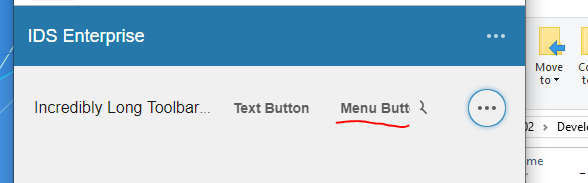
This is not a major thing, but I've noticed that sometimes in smaller browsers (especially often on phone) buttons can become half shown and half hidden. Fortunately they are also often available in the more menu when this happens, but it would have been great if the regular button could also become hidden.
To Reproduce
Steps to reproduce the behavior:
- Go to https://design.infor.com/code/ids-enterprise/latest/demo/components/toolbar-flex/example-more-actions-default-behavior.html
- Make the browser window smaller until only "Menu B" is visible of the "Menu Button" Or only half the Settings icon
- Click '....'
- Note that "More Button" (or settings) is also available in the more menu (...)
Expected behavior
If possible the button (here the More Button or settings button) should be hidden when they are available in the more menu. But it's important that it is available in the more menu, cause sometimes I've ended up with the settings button half hidden but not being available in the ... menu (Perhaps due to margin to Searchfield?).
Version
- ids-enterprise: v. 4.23.0
Screenshots

Platform
- OS Version: Windows 10
- Browser Name: Chrome
- Browser Version: Version 78.0.3904.108 (Official Build) (64-bit)
Additional context
-
 SofiK
SofiK
All 5 comments
Most likely this cannot be fixed. The toolbar flex does not work the exact same as the old toolbar which is more JS based. So at certain sizes the button may be cut off partially using CSS. So we also add it to the overflow menu.
I'll ask @EdwardCoyle to review and comment as i dont think we can do anything better without bring back the issues the old toolbar has.
 tmcconechy
on 3 Dec 2019
tmcconechy
on 3 Dec 2019
This particular issue is one that doesn't seem to have a happy medium that everyone can agree on. I've been attempting to fix this problem in different ways for years without finding a good solution. There are things we could do to mitigate the visual jarring, but most have been tried in the past and reverted due to too many complaints.
- We could add in some JS-based algorithm for resizing the buttonset areas to fit the number of buttons that should be visible. As @tmcconechy pointed out, this goes against the design of the new Toolbar, which is supposed to be Flexbox driven only.
- I've also tried in the past to "hide" the buttons that are overflowed by just making them invisible. The problem with this is it makes the toolbar appear to have "blank" spaces in some spots that don't look visually appealing to everyone, and the issue tracker starts to fill up with "broken toolbar padding" issues.
I can provide a few recommendations for working around this:
- You could try using icon buttons with a text span, which will allow the text to become visually hidden on smaller breakpoints, leaving only the icons behind.
- I also recommend pre-loading the more actions menu with "secondary" actions that don't necessarily need to be present as a button 100% of the time. This can also help with the overflow problems, since your actions are already placed in the menu by default.
- Above all else, use discretion, and be cautious about the type and number of buttons you append to your toolbar. Our toolbar is designed to be flexible, but it doesn't cleanly support every number of buttons/fields you throw at it. Less is more.
 EdwardCoyle
on 3 Dec 2019
EdwardCoyle
on 3 Dec 2019
Hi!
Thanks for the response and for the recommendations. We should definitely use the text spans, I thought we were already doing that, but apparently it's not working, so we will look into that. And we will also consider if some options can be moved into the actions menu by default.
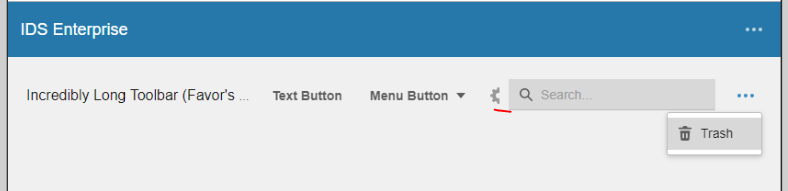
I do still wonder if it would be possible to do something about the issue where the icon button is half hidden, but not available in the actions menu. But perhaps that is still very difficult?
Thank you!
SofiK
on 4 Dec 2019
Yeah i thought it would appear in the menu. Maybe it can appear if it is more than 50% cut off?
tmcconechy
on 4 Dec 2019
Descoping for now - but as we add this to the 5.0 will look at this further
tmcconechy
on 22 Dec 2020
Related issues
 fitzorama
·
3Comments
fitzorama
·
3Comments
 brianjuan
·
3Comments
brianjuan
·
3Comments
 janahintal
·
3Comments
EdwardCoyle
·
4Comments
janahintal
·
3Comments
EdwardCoyle
·
4Comments
 SasiPalanati
·
3Comments
SasiPalanati
·
3Comments
Most helpful comment
This particular issue is one that doesn't seem to have a happy medium that everyone can agree on. I've been attempting to fix this problem in different ways for years without finding a good solution. There are things we could do to mitigate the visual jarring, but most have been tried in the past and reverted due to too many complaints.
I can provide a few recommendations for working around this: