System information:
- Operating system (distribution) and version Linux Mint 19 Tricia
- DBeaver version 6.3.3
- Java version
- Additional extensions
Connection specification:
- Database name and version
- Driver name
- Do you use tunnels or proxies (SSH, SOCKS, etc)?
Describe the problem you're observing:
Steps to reproduce, if exist:
Include any warning/errors/backtraces from the logs
Son como la verga, no está la opción set active y trabajo con multiples bases de datos
 19edison
All 71 comments
Right click on database in Navigator, the Set Active options missing on database and schema.
 ianamac
on 20 Jan 2020
ianamac
on 20 Jan 2020
DBeaver v 6.3.3 installed this morning.
Windows 10
ianamac
on 20 Jan 2020
I have the same issue with DBeaver v 6.3.3
 victor-kachesov
on 20 Jan 2020
victor-kachesov
on 20 Jan 2020
same issue here on windows 10 after install 6.3.3
 herbinator
on 20 Jan 2020
herbinator
on 20 Jan 2020
See #7690 for the answer. Not sure this is an improvement.
ianamac
on 20 Jan 2020
Guys, I'll explain.
Now we open separate database connection for each SQL editor (in addition to the "main" connection which is used to read metadata, view tables ,etc).
Thus each editor has its own "active database". It can be changed in the main toolbar, main menu or by shortcut.
Having "Set active" command in the database navigator doesn't make much sense now. As it is not clear how should it work. Change active database for all SQL editors? Or for currently active editor only?
Taking in the consideration #7638 - global "Set active" becomes even more senseless.
How is it better/more convenient than changing active schema in the main toolbar/menu?
Maybe I don't understand your use-case. Please describe it a bit more.
We can rethink this solution if there will be any better ideas..
 serge-rider
on 20 Jan 2020
serge-rider
on 20 Jan 2020
In my opinion you would only change the connection for the SQL editors which have that same connection.
Looking at the ctrl-0 screen i can select the Instance there. That's what i want to do but from the toolbar i can only select the schema's in that instance(database). The database navigator is always open so that's easy toch go to to change the active database. If i could select that same instance on the toolbar that would be ok also
herbinator
on 20 Jan 2020
Having "Set active" command in the database navigator doesn't make much sense now.
I agree, but currently we have to change the active database every time we open a new editor.
If I select a database in the Database Navigator and then click on New SQL Editor can the new editor be opened using the connection on the selected database? I can still change it via Active catalog/schema if necessary, but having to do it every time when I open a new Editor is really cumbersome.
 LorisZ
on 20 Jan 2020
LorisZ
on 20 Jan 2020
los que usamos multiples bases de datos por los multiples desarrollos que
hacemos tenemos que a menudo cambiar de base de datos, y que molestoso es
no poder hacerlo
El lun., 20 ene. 2020 a las 8:11, LorisZ (notifications@github.com)
escribió:
Having "Set active" command in the database navigator doesn't make much
sense now.I agree, but currently we have to change the active database every time we
open a new editor.If I select a database in the Database Navigator and then click on New
SQL Editor can the new editor be opened using the connection on the
selected database? I can still change it via Active catalog/schema if
necessary, but having to do it every time when I open a new Editor is
really cumbersome.—
You are receiving this because you authored the thread.
Reply to this email directly, view it on GitHub
https://github.com/dbeaver/dbeaver/issues/7693?email_source=notifications&email_token=ADIMBXFEMVC32ZDJBEZSUHDQ6WPHDA5CNFSM4KI4YJE2YY3PNVWWK3TUL52HS4DFVREXG43VMVBW63LNMVXHJKTDN5WW2ZLOORPWSZGOEJMSMKY#issuecomment-576267819,
or unsubscribe
https://github.com/notifications/unsubscribe-auth/ADIMBXHRGPCCYEWVBFLRJY3Q6WPHDANCNFSM4KI4YJEQ
.
19edison
on 20 Jan 2020
If I select a database in the Database Navigator and then click on New SQL Editor can the new editor be opened using the connection on the selected database?
Yes, we have a ticket for this (#4792)
serge-rider
on 20 Jan 2020
Thus each editor has its own "active database". It can be changed in the main toolbar, main menu or by shortcut.
@serge-rider The use case I was used to is the following.
I have a PostgreSQL server with a few databases. I have a script opened in dbeaver with various queries and I execute them one by one in various order depending in what I'm working on (ctrl + enter). I was usee to selecting the active database with ctrl+shift+a then executing the sql command I want against the selected database with ctrl+enter. It was pretty fast, only two shorcuts.
Now with the new behavior, to change the target database for my script, I need to click in the toolbar on the target database button, then open the dropdown, manually scroll to find the database, then double click on the schema. This is a big step backward in terms of user experience. My suggestion is to reintroduce the ctrl+shift+a shortcut but change its behavior. Instead of changing the main metadata connection, it would change the current script's target database.
 idkw
on 20 Jan 2020
idkw
on 20 Jan 2020
Another use case is deleting the entire database. If the one you are trying to delete is the active one it doesn't let you to remove it. Only by switching to another one it works ( For example Postgres Database ).
For now I have to go in the Settings and switch the database to another one but it takes so long compared to just switch the active one.
 igormorse
on 21 Jan 2020
igormorse
on 21 Jan 2020
Yes, I think ticket 4792 will solve it for us. Thanks Serge.
ianamac
on 21 Jan 2020
Debian 9. I have just upgraded to 6.3.3 and find this totally broken. I jump through the (new) hoops to set my active DB, but postgres is still shown in bold in the navigator window and when I try to run a query I still get "schema 'whatever' does not exist" - DBeaver thinks I want the default postgres DB, not my own.
I have reverted back to 6.3.2 so that I can get get things done until this is fixed. I will say though that this is the first serious issue I've had with DBeaver, in general I think it's great - thanks for the effort!
 mickeyjf
on 21 Jan 2020
mickeyjf
on 21 Jan 2020
@serge-rider your comment isn't applicable in 6.3.3 with postgreSQL databases. Running on Windows 10 Enterprise, I have three connections in my navigator; 2 postgreSQL 10 and 1 MSSQL Server 2016. Each has at least two databases, some more, under each connection. The toolbar for MSSQL lets you choose between the databases on that server. There is no such option (at least in 6.3.3) for postgreSQL. Since the "Set active" menu item has been removed, the only way to change between postgreSQL databases under a connection is to set it as the default database and reconnect.
This makes the current version of dBeaver (at least for postgreSQL) a decided step backwards.
dBeaver_error
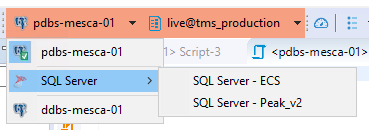
Notice the lack of carrot '>' near the two postgreSQL connections.
 coleman-rik
on 21 Jan 2020
coleman-rik
on 21 Jan 2020
I'm finding this annoying for connections that require 2FA challenges to be accepted (I'm using Snowflake).
I didn't notice the new behaviour and couldn't figure out when/why I was seeing so many 2FA challenges - now I think I understand it was because I was looking through different tabs that previously would've used the same connection but now attempt to create their own.
So yeah in this case I'd prefer that the different tabs did just share a connection.
 nicchristeller
on 22 Jan 2020
nicchristeller
on 22 Jan 2020
So, set active over schema is missing as well, how do I change this now?
 steelxt
on 22 Jan 2020
steelxt
on 22 Jan 2020
Having a separate database connection for each SQL editor is great. I can't wait to use it.
But I have the same issues as @coleman-rik. Something is wrong with the Postgresql implementation.
There's absolutely no way to select a database within a Postgresql connection. Whatever database is set in the connection definition is the one you get. The other databases show up in the navigator pane and you can do some operations there, but no SQL Editor windows.
The database cannot be selected by any of "main toolbar, main menu or by shortcut" as @serge-rider said.
 nsymms
on 22 Jan 2020
nsymms
on 22 Jan 2020
I think it is better to make major version like 7.0.0 rather than 6.3.3 because it impact old behavior. And now i need to make 1 schema 1 connection for 100 schemas. :(
 xyluet
on 23 Jan 2020
xyluet
on 23 Jan 2020
I think everything is said but I want to repeat 2 things:
- Is legit to remove "Set Active" with your explaination... BUT!
- Is a big step backward removing "Set Active", users are used to run scripts with active database and shortcuts to change from one to other are pretty fast. Now, with hundreds of databases, if I need to change to one of the lasts, with that hell of dropdown is clearly impossible. Is faster disconnecting, editing the connection, setting desired db as main and reconnect.
I'm returning to psql, if you fix this annoying thing I will be back with DBeaver...
 oalfonso-o
on 23 Jan 2020
oalfonso-o
on 23 Jan 2020
Anyone know how to download 6.3.2? There's no option to download the previous version on the website, only 6.3.3. I need to continue to work but after the update, I cannot work.
Edit: I found it in my recycle bin, fortunately
 calvindio
on 24 Jan 2020
calvindio
on 24 Jan 2020
@calvindio: Scroll down to the "Archive" section on the download page...
nicchristeller
on 24 Jan 2020
Thanks for the info guys.
Apparently I didn't see several use-cases which need change of active database thru navigator.
What will change in 6.3.4:
- When opening new SQL editor/SQL console we will detect active schema from current database navigator selection (e.g. if some table is selected then default schema will be this table schema (#4792)
- We will return "Set active". It will be renamed into "Set default". And it will affect default schema for new SQL editors - but only if it is impossible to determine schema from database navigator (this ticket)
- We will save active database/schema to the script settings (#7638).
All this fixes are already in the code. You can check them in Early Access version (https://dbeaver.io/files/ea). Please test it - we can add some behavior changes till release.
Any feedback would be very helpful.
serge-rider
on 24 Jan 2020
In 6.3.4 ea;
Select database 1, schema 1 and create a script. It records it on schema 1 when saved.
Change database to database 2, set default to schema 3, but when I load the same script, it tries to return to schema 1, which is not on database 2, and the schema's offered in the toolbar are database 1 schema's, even though the database default is changed. I do not think you should limit a script to a specific database / schema. I need to be able to run a script across multiple schema's, in multiple databases. Hope this helps.
ianamac
on 24 Jan 2020
@ianamac I'm afraid i didn't get. Could you make a short video or screenshots?
serge-rider
on 24 Jan 2020
@serge-rider 6.3.4 ea
Set active schema is actually not switch the active schema. Steps:
- 2 schemas
fooandbar - connect to
foo - set active to
bar
it still use schema foo
xyluet
on 24 Jan 2020
@xyluet How do you switch schema? In order to change schema for SQL editor you need to use main toolbar/main menu. Setting some schema s default in navigator doesn't affect editor (that's why action "Set active" was renamed to "Set default").
serge-rider
on 24 Jan 2020
@serge-rider sorry but this is what everyone here ils complaining about. We were able to switch the active schema of a script by clicking a schema in the left pane explorer and pressing Ctrl+shift+a. This is what was removed and what makes it so annoying . Now you have to do many clicks in the menu to change the script schema. Could you restore the behavior where you can switch the current script's schema just by clicking in the explorer and pressing Ctrl+shift+a or right clicking and clicking and selecting active script schema ?
idkw
on 24 Jan 2020
@idkw please try latest EA version.
You don't need to do many clicks.
DBeaver will use currently selected schema for new SQL editor (you need just one click).
And it will restore previously set schema if you open script directly (e.g. from project explorer). Also just one click.
We can't restore old behavior because now every script has its own connection and its own active schema. So we need to make a way to work with this multi-connections mode conveniently. If you think that new improvement (in EA version) is still not convenient enough - please suggest some improvement.
serge-rider
on 24 Jan 2020
@serge-rider I understand that a script has its own connection. But I don't understand how it prevents from disconnecting and reconnecting with a different connected schema by selecting in the schema explorer and pressing ctrl+shift+a. why should the connection properties be immutable in the script properties ? why couldn't it be disconnected and reassigned a new connection when selecting a different schema and pressing ctrl+shift+a in the schema explorer (left pane) ?
idkw
on 24 Jan 2020
@idkw It doesn't prevent reconnecting. In fact dbeaver does reconnect when you open an SQL script.
The problem: we have many scripts and just one database navigator. We can't change active schema for all SQL scripts.
What is your use-case? Do you need to change active schema for currently active SQL script only? Or you need to manage multiple scripts?
serge-rider
on 24 Jan 2020
Same issue with Ubuntu :(
 NorbertSandor
on 24 Jan 2020
NorbertSandor
on 24 Jan 2020
@serge-rider I just want to change the active schema for the current script by selecting the schema in the navigator and pressing ctrl+shift+a or right click + active schema
My use-case is exactly the same as described here :
Yep, with 6.3.3 it is very cumbersome. If you open a PostgreSQL connection, you see all that nice databases in the navigator. And then you think: "Hey, I am eager to run a script on the nice third database in the list."
But you just can't:
- You have to open a new sql editor.
- This sql editor default to the default database set in the connection profile.
- You must go to the toolbar and make some clicks here and there.
- Finally you can run the script in the database you want.
Well, works but is really cumbersome.
What about a simple additonal menu item in the context menu of the navigator, which enables me to open a new SQL editor for the database I right-clicked on? I think that would solve the problem.
Just my two cents,
James
I don't want to create or open a new or other script. I want to execute parts of the current script with a schema and be able to change the script's schema easily. To do that I want to use the navigator to select the schema. Why use another complicated menu when the schemas are already displayed in the navigator and all I want to do is click on one and set it as active for the current script (or with the shortcut ctrl+shift+a) ?
idkw
on 24 Jan 2020
Well if this is the case do we have a way to remove the active database from the navigator or that the navigator will "bold" the current active database as per your focused script?
 Rombusevil
on 24 Jan 2020
Rombusevil
on 24 Jan 2020
Why would you make it bold in the navigator ? The script's current schema is already displayed above the script in the main toolbar.
idkw
on 24 Jan 2020
Then whats the point of having one database bolded in the navigator?
Rombusevil
on 24 Jan 2020
@idkw I see. Well, we have another command - Set connection from navigator (ctrl+shift+.). Currently it changes only connection itself (leaving active database/schema as is). It can be easily improved so it will change schema as well.
It will solve your case I think.
Or we can change active schema for current SQL editor only by ctrl+shift+a - just like you propose. But this is also confusing. As many people use big number of scripts and changing schema only for a single script isn't what they expect).
@Rombusevil default database/schema in navigator shows which schema will be used when you open a new SQL editor for this database. It the default value. At some moment we thought to remove this bold mark at all (as it may confuse people, just like in your case). Maybe we still should..
serge-rider
on 24 Jan 2020
How about you put the "Set Active" right click option back in but reword it to "Set Active in Current Tab"
This will make it more clear that you're changing the connection in the current tab to the database/schema that you're right clicking on.
 stevepowell2000
on 24 Jan 2020
stevepowell2000
on 24 Jan 2020
@stevepowell2000 this may work..
serge-rider
on 24 Jan 2020
@serge-rider Is it possible to show every database on the toolbar? then if the user wants to change the database he/she is using in the current editor, its only one or two clicks away.
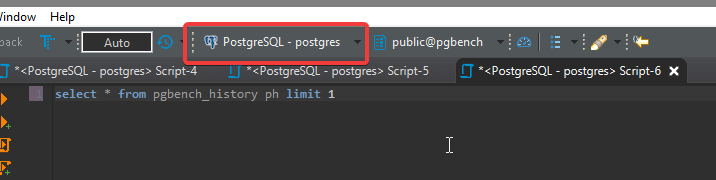
 lrweck
on 25 Jan 2020
lrweck
on 25 Jan 2020
@idkw @Rombusevil @stevepowell2000 Please test latest EA version. Active editor schema change was added. But I'm still not sure it is fully consistent behavior.
serge-rider
on 25 Jan 2020
I have tested the 6.3.4 version found at https://dbeaver.io/files/ea/
To me it seems like the old behavior has been entirely restored, the navigator contextual menu (right click) is back to normal with "set as default" (ctrl+shift+a) which sets the default schema in the navigator and updates the current's script active database too. The button Menu SQL Editor > Set connection from navigator does absolutely nothing, nor the shortcut ctrl+shift+.
So based on the latest discussions I'm not sure if this is the new version or an old one with just a new version number ?
idkw
on 25 Jan 2020
@idkw It is not restored entirely. Previously we changed schema for all editors, now only for the current one (only when current editor is SQL editor).
"Set connection from navigator" changes script connection (you need to select another connection in the navigator otherwise it doesn't make sense).
serge-rider
on 25 Jan 2020
@serge-rider Ok thank you, now I can switch the script's target database with just a simple click or shortcut like before. However for future iterations I think it could be simplified, just a single option select active schema would suffice, I don't get why we need 3 buttons "select active connection", "select active schema", "select connection from navigator". In my opinion one option would suffice which would be to select a database/schema in the navigator and either right click and set active or with the shortcut (Unless there are other usecases I'm not familiar with)
idkw
on 25 Jan 2020
If I have a script open on schema 1 and I select the Set as Default from the navigator to schema 2, my current script stays on schema 1, which I think is correct. Any NEW script I open, opens in the schema 2, which I think is also correct. My point yesterday was when I change databases, the toolbar active schema stays on the previous database schema (which is probably correct ??). It is working great now thanks.
ianamac
on 25 Jan 2020
I've tested 6.3.4 and at least for my use case (Single script per connection and changing between databases with the context menu in the navigator.) is back to normal.
Rombusevil
on 25 Jan 2020
@serge-rider I have tested the EA version.
From my point of view, you have implemented a fine solution. Now everything works intuitiv and as one would expect!
Thank you so much.
 JamesInform
on 25 Jan 2020
JamesInform
on 25 Jan 2020
Without set active database you can't drop database fastly as it was in previous versions.. :(
I use migrations and i need that a lot.
 hansnewton
on 26 Jan 2020
hansnewton
on 26 Jan 2020
If it's possible, can you let both "set active" functionality and the new one you talked about ?
hansnewton
on 26 Jan 2020
My connection is setup to use only one connection across all tabs and also for the metadata, so for myself, removing the "set active" was just thoughtless.
In the cases where you can't decide how your software should act in certain cases, create settings to allow the user to decide.
Set Active Behaviour
- For current tab (I'd select this)
- For all tabs
Presumably now, if we have multiple tabs on different databases (if connection was setup to allow multiple), then the bolded database would switch as you switch tabs right? So setting the active database on something that changes between tabs seems fairly obvious that it is for that tab.
 korrisscontext
on 27 Jan 2020
korrisscontext
on 27 Jan 2020
@korrisscontext having too many config options for every "not obvious" behavior is not a good idea too.
90% of people never change default options. Especially if there are too many of them.
serge-rider
on 27 Jan 2020
@serge-rider It's certainly better than removing a feature and burying your head in the sand...
The database navigator should be bold for the active database of the tab you're on. Maybe some visual distinction for the metadata connection. Then as you switch tabs, the bold database switches too. Switching databases then is done on a per-tab basis as the default.
Maybe some sort of "connection navigator that shows the databases of whatever connection that tab is currently using. Whatever option, its a better idea to fix something than just get rid of it.
korrisscontext
on 27 Jan 2020
@serge-rider: I guess my issues were quite separate from the others here, but I would like to hear your thoughts.
Snowflake has a slightly different connection model than traditional systems - where a single connection can serve all databases for an account. It's also possible (sensible?) to enable 2FA when creating a connection, as is done in my case.
I often have multiple SQL editors open for reference or different collections of scripts. Switching between these now attempts to create multiple connections - and if I'm not actually running the scripts I also often don't notice the 2FA challenge since I don't actually need the connection. This is causing me to fail challenges and occasionally have my 2FA locked.
Is there a better workflow I can be using, or do I just need to be more vigilant in noticing I haven't recently opened a specific SQL editor and therefore realise that doing so will require me to complete the 2FA challenge?
nicchristeller
on 28 Jan 2020
Verified
 kseniiaguzeeva
on 28 Jan 2020
kseniiaguzeeva
on 28 Jan 2020
After all the back and forth about "maybe do this", "how about if we do that" it would be nice if there was a clear, complete summary of what the behavior actually is (or will be as of build x.x.x) when an issue is marked as closed. Especially when comments and suggestions continue after the decision has been made or described somewhere in the middle of the thread. Thanks!
mickeyjf
on 28 Jan 2020
I'm sorry. I still don't know how to run queries on a different database. If I select another database and open a "New SQL Editor", the SQL window is connected to the active (bold) database (which I can't change). The active datasource combobox let me choose the same datasource (which has many databases) and not the only database I want.
Creating new connection for each database solves the problem.
 jgrocha
on 29 Jan 2020
jgrocha
on 29 Jan 2020
Yes, i have the same issue using Postgresql as the backend.
I can only launch sql to the database that was passed in the connection string,
annoying.
https://github.com/dbeaver/dbeaver/wiki/SQL-Editor#active-databaseschema-selection
Withing the database it also possible to change the schema.
I can select another jdbc connection, but this has to be done manually,
so having a cluster with 20 databases, results in manually 20 seperate connection setup. This slows the development down.
I would be nice to able to use only jdbc setup to a cluster,
and then to be able to connect to any database inside the cluster,
as with pgadmin for example.
 wibrt
on 29 Jan 2020
wibrt
on 29 Jan 2020
It seems counterintuitive that opening a context menu on DB1->Schema1->Table1 and clicking "Read data in SQL console" opens a SQL Editor set to the "default" schema, rather than Schema1. This, as somebody above said, may then tell you that Table1 does not exist if the "default" doesn't have a Table1. What's worse, if there is a Table1 in the "default" schema, trying to view DB1->Schema1->Table1 in this way will show you Table1 in the "default" schema instead of the one you clicked, which is a recipe for disaster. Shouldn't editors opened from context menus over a particular schema default to opening in that context?
It feels like, just as a matter of semantics, if I navigate in the Navigator, I expect to be at the place I've gone. As it is, the Navigator no longer takes you anywhere; it's more of a Viewer.
 samuei
on 30 Jan 2020
samuei
on 30 Jan 2020
Hi all. If you want to execute queries from one file on several databases here is what I do:
1-Click on "Active Data source (Ctrl+9)"
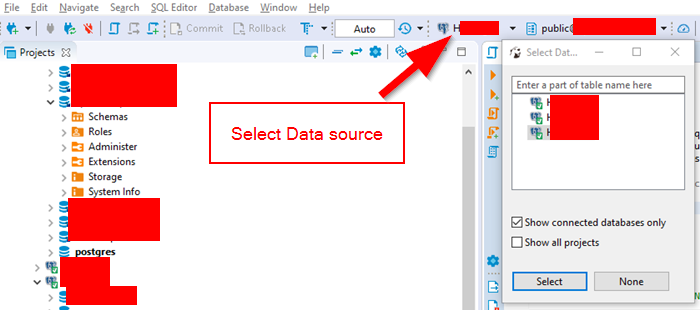
1- Click on "Active/Catalog schema (Ctrl+0)"
2- Choose Instance
3- Do "Enter" on Instance choosen.
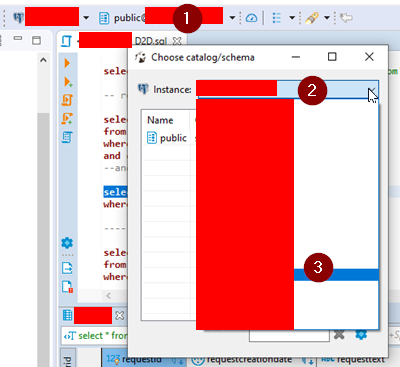
Hope it helps. If you have a better way tell me.
 vanmoorv
on 31 Jan 2020
vanmoorv
on 31 Jan 2020
@vanmoorv I have a better way.... Right click > Set Active ...
korrisscontext
on 31 Jan 2020
And that, kids, how you ruin UX. So sad I need to rollback now.
 unabl4
on 31 Jan 2020
unabl4
on 31 Jan 2020
I'm with Dmitri. Rolling back.
'Right click, set active' was fine.
'Right click, set active in current viewport' would be a bit better.
What is there now is silly
On Fri, Jan 31, 2020, 7:17 AM Ali Sunjaya notifications@github.com wrote:
when 6.3.4 release? it's so painful switching 100+ schemas
—
You are receiving this because you were mentioned.
Reply to this email directly, view it on GitHub
https://github.com/dbeaver/dbeaver/issues/7693?email_source=notifications&email_token=AANN537VUUSHWVRLRG452TDRAQQHPA5CNFSM4KI4YJE2YY3PNVWWK3TUL52HS4DFVREXG43VMVBW63LNMVXHJKTDN5WW2ZLOORPWSZGOEKOTUNY#issuecomment-580729399,
or unsubscribe
https://github.com/notifications/unsubscribe-auth/AANN53YJEX5IK43YZK6M4ELRAQQHPANCNFSM4KI4YJEQ
.
stevepowell2000
on 31 Jan 2020
@korrisscontext :" I have a better way.... Right click > Set Active ..."
Sure, before 6.3.3.
vanmoorv
on 31 Jan 2020
@vanmoorv Indeed, I rolled back to v5.3.5 because DBeaver seemed to go downhill since v6
korrisscontext
on 31 Jan 2020
Serge is doing a great job.
DBeaver is running and getting better with every release.
I agree that 6.3.2 and 6.3.3 were a little cumbersome and buggy concerning PostgreSQL database handling.
BUT, Serge has listened to our feedback and everthing is already fine in 6.3.4. You can already download the current early access version of DBeaver 6.3.4 at
https://dbeaver.io/files/ea/
I am currently using it for production use.
James
JamesInform
on 31 Jan 2020
In last version we had an option to set database active after which we could easily press F3 and start writing SQL command for that particulate database! That was extremely helpful function! Now during last hour I'm trying to figure out hot to make a simple query :/
 gh111
on 1 Feb 2020
gh111
on 1 Feb 2020
How to Set Active Database using Database Connection Settings?
- At Database Navigator, click Connection.
- Right-click on Connection and click Edit Connection (or click F4).

- At Connection settings > General tab, navigate to Database field.
- Change Database field to the database name you wanted to set active.
- Click Test Connection.
- Click OK.
Set Active Database done.
Version Used:
- DBeaver: 6.3.3.202001191557
- PostgreSQL 12
 thomascup
on 2 Feb 2020
thomascup
on 2 Feb 2020
How to Set Active Database using Database Connection Settings?
1. At Database Navigator, click Connection. 2. Right-click on Connection and click Edit Connection (or click F4).  3. At Connection settings > General tab, navigate to Database field. 4. Change Database field to the database name you wanted to set active. 5. Click Test Connection. 6. Click OK.Set Active Database done.
Version Used:
* DBeaver: 6.3.3.202001191557

* PostgreSQL 12
@thomascup That's not Set Active Database. That is Editing connection, that works great and it is a workaround if Set Active Database is not available.
jgrocha
on 2 Feb 2020
Now using version 6.3.4. DBeaver is really amazing :1st_place_medal:
Thanks for the good work!
jgrocha
on 3 Feb 2020
Dbeaver on ubuntu 19 updated to Version 7.0.1.202003211804 and the "set as default" is back as the first item in database context menu.
Nice.
 ejazrasool
on 26 Mar 2020
ejazrasool
on 26 Mar 2020
Running KDE neon User Edition 5.19 on top of Ubuntu 20.04, dbeaver 7.2.2. I still cannot select another catalog/schema (MySQL connection without "default schema" set).
Drop-down menu on toolbar (ctrl+0) show all databases, but cant select any. Checkbox makes nothing, double-click does nothing, and catalog/schema dropdown always display (N/A).
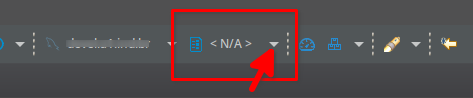
I just cant believe such a show-stopper lives for so long, for so many versions. People complain about that for many years and still cannot use dbeaver since I cannot choose another schema without any counter-productivity workaround.
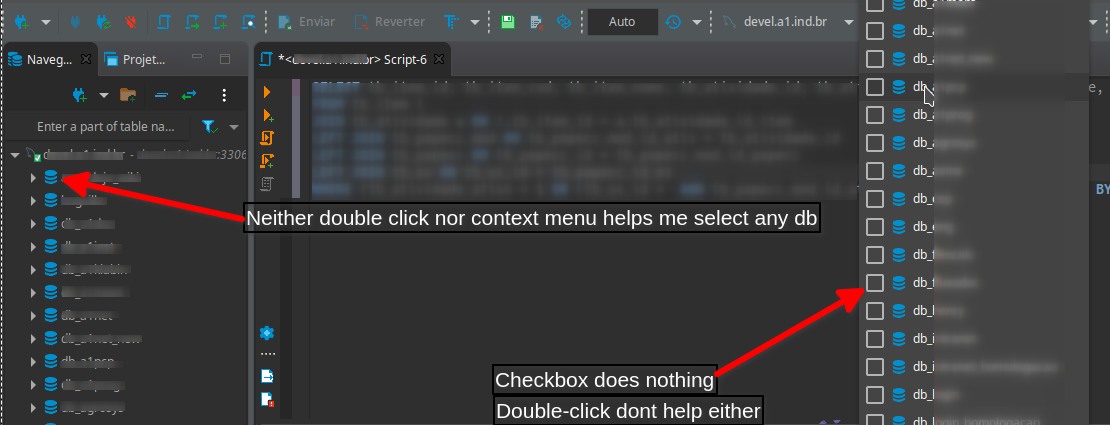
I am probably doing something wrong, or not doing what is right, very frustrated, going back to also buggy but usable mysqlworkbench for now.
Hope this can be fixed soon. Best regards.
 mmerlone
on 6 Oct 2020
mmerlone
on 6 Oct 2020
Related issues
 sonntagd
·
54Comments
sonntagd
·
54Comments
 netroby
·
38Comments
netroby
·
38Comments
 cldscchttn
·
53Comments
cldscchttn
·
53Comments
 levtol
·
31Comments
levtol
·
31Comments
 eladbenami
·
33Comments
eladbenami
·
33Comments
Most helpful comment
@serge-rider The use case I was used to is the following.
I have a PostgreSQL server with a few databases. I have a script opened in dbeaver with various queries and I execute them one by one in various order depending in what I'm working on (ctrl + enter). I was usee to selecting the active database with ctrl+shift+a then executing the sql command I want against the selected database with ctrl+enter. It was pretty fast, only two shorcuts.
Now with the new behavior, to change the target database for my script, I need to click in the toolbar on the target database button, then open the dropdown, manually scroll to find the database, then double click on the schema. This is a big step backward in terms of user experience. My suggestion is to reintroduce the ctrl+shift+a shortcut but change its behavior. Instead of changing the main metadata connection, it would change the current script's target database.