Dash-to-panel: [Feature Request] Width option to create a "dock"
I would like to achieve similar UI as seen on Deepin DE: Have only a dock (that does not span over the whole screen width), with all the items I need: pretty much just clock and status icons.
The problem is I cannot use dash to dock, because it only has app icons.
Is it a possible future feature to add optional width, or just option "do not span over 100% width"?
Thanks
 grissius
All 17 comments
You can update the title to show [Feature Request] and/or someone with write access to this repository should mark this with the correct label. I would also be interested in a similar feature, where the maximum width of the taskbar could be set to a percentage or pixel value.
 AlbinoGeek
on 13 Oct 2019
AlbinoGeek
on 13 Oct 2019
Thanks @AlbinoGeek
grissius
on 14 Oct 2019
I think this makes sense to have as an option..
 jderose9
on 14 Oct 2019
jderose9
on 14 Oct 2019
+1
I recently bought an ultra-wide monitor (highly recommend!) and while I absolutely love the rest of the menu which just works and looks great, having the option to have a lesser width a'la DeepinDE dock would be a real cherry on top!
Example how it currently looks like (3840x1200)
https://imgur.com/XoRgdzK
Deepin reference example
https://arcolinuxd.com/wp-content/uploads/2019/02/acolinuxb-deepin-menu-small-dock.jpg
https://www.youtube.com/watch?v=yrdaiA1pyqk (fast forward through the clip)
https://www.youtube.com/watch?v=bMUet_SYGMI (fast forward through the clip)
I'm new here btw so not overly familiar with this but I could try and work out a fix if I knew which file to modify and if its enough to disable and enable the extension or do I need to do something else to apply/reflect on recently made changes?
Edit: In case anyone wants to give a try to find a possible solution.
Go into "~/.local/share/gnome-shell/extensions/[email protected]" and have a poke with the files (make a backup). I did a few changes with stylesheet.css and Settings.ui but nothing yet that did the desired results of a centered dock.
When you want to reload/reflect the changes you've just made, simply type below code in terminal which shouldn't kick you out to login screen
killall -3 gnome-shell
Edit2:
_For anyone else that really needs this due to an ultrawide screen, try KDE.
It will take a moment to setup to your liking but you can basically get anything (almost) how you want it to be._ https://imgur.com/Vn3BRS8
 cdeebs
on 14 Dec 2019
cdeebs
on 14 Dec 2019
Hi guys, this could be a good candidate to add to the current positioning work. Setting a fixed size (width or height, depending on the panel's orientation) is easy enough, but I'm not sure how to proceed with the variable icons count present in the taskbar. Having a fixed size would make the icons scroll even if there is still available space on the screen, not sure this is ideal. On the other hand, having a dynamic dock size that expands/shrinks with the icons would only work if all panel elements are monitor centered. Please install the feature-panel-positions and let me know if you have ideas on the matter. Thanks!
 charlesg99
on 24 Jun 2020
charlesg99
on 24 Jun 2020
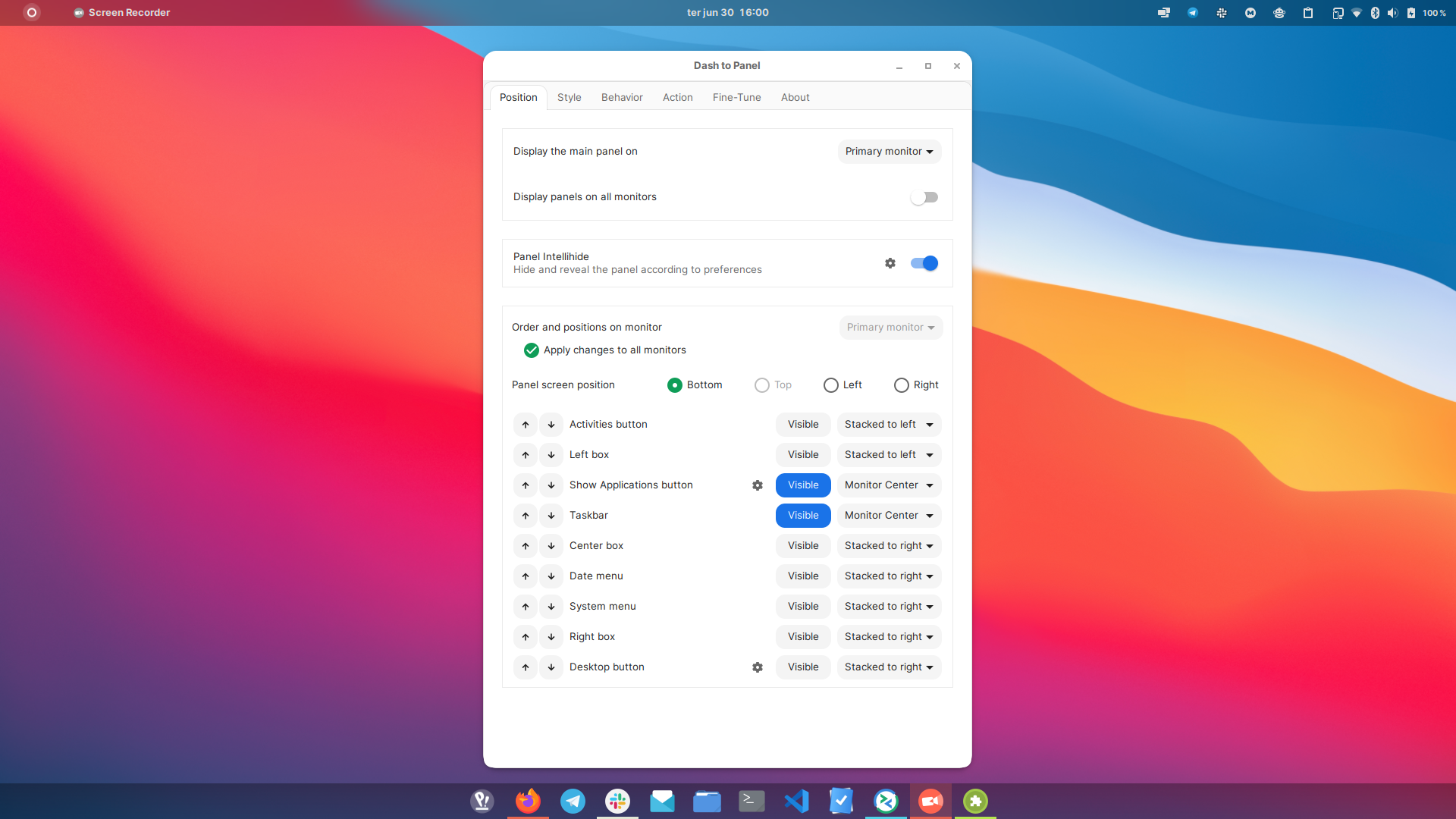
@charlesg99 I've been running feature-panel-positions branch for a while now. I think that it's perfectly valid that, when in "Dock Mode", all elements are automatically changed to "Monitor Center". The panel seems to behave correctly when set this way, and even when there are too many icons, I believe the current behavior of scrolling is also correct.
Current configuration:
Current behavior with many icons:
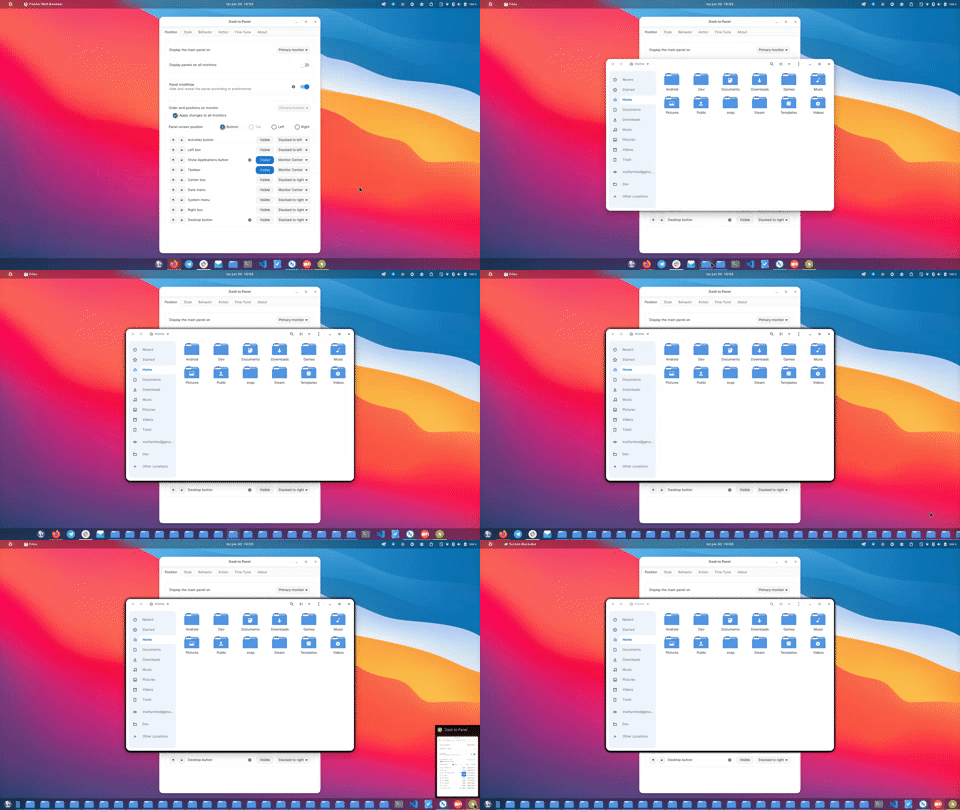
I think the only tweak it needs is visual to meet this request. As in instead of the panel background taking over the entire width of the screen, it would dynamically wrap around all contents (perhaps a max-width setting could exist; this is how Dash to Dock does it currently). Preferably with rounded corners, if possible 😆
 matfantinel
on 30 Jun 2020
matfantinel
on 30 Jun 2020
It is possible, in my case for the apps. CSS class is #dashtopanelTaskbar. Set custom background and border radius.
From DashToPanel settings set custom panel opacity to 0% (it won't affect the Taskbar). Result:
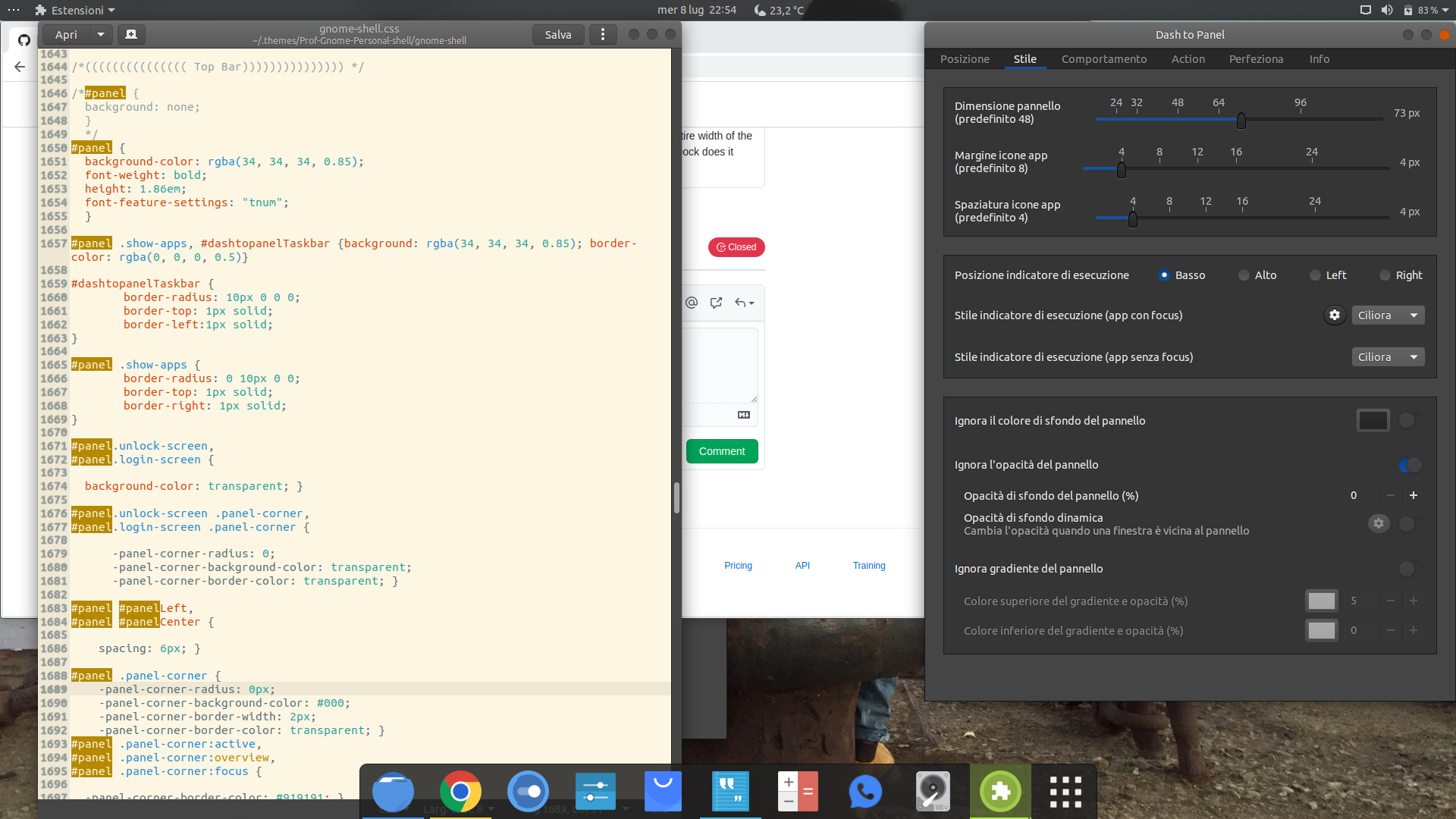
With IntelliHide it will hide when needed
I selected "keep original gnome-shell top panel" and it behaves as the perfect dock I have ever desired!
 antoniomcr96
on 8 Jul 2020
antoniomcr96
on 8 Jul 2020
@antoniomcr96 AWESOME! I had tried fiddling with CSS before but I had a hard time finding out the correct selectors.
This is how mine looks now:
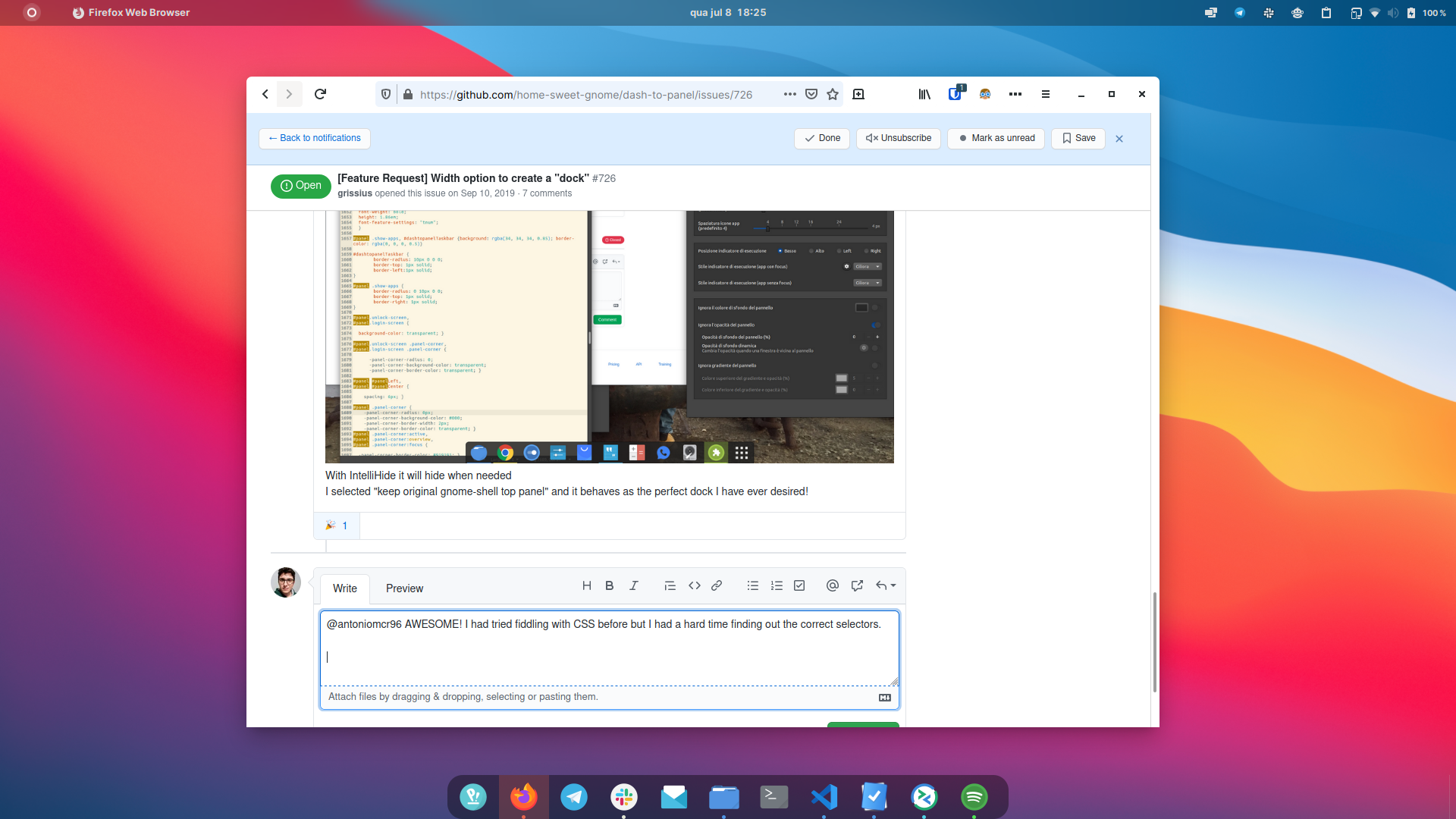
And the CSS I added to my theme's gnome-shell.css file:
#panel .show-apps, #dashtopanelTaskbar {
  background: rgba(0, 0, 0, 0.4);
}

#dashtopanelTaskbar {
  border-radius: 0 20px 20px 0;
  padding-right: 12px;
}

#panel .show-apps {
  border-radius: 20px 0 0 20px;
  padding-left: 12px;
}
Add a blur to the background of the dock too (like in the top panel with Blyr) and I'm in heaven :laughing:
I may eventually write some CSS to make it Deepin-like, without the top bar.
matfantinel
on 8 Jul 2020
That looks great!
charlesg99
on 9 Jul 2020
Tell me if someone manages to set round corners for preview on hover (I tried different classes with no luck) and for the background of icons on hover
antoniomcr96
on 9 Jul 2020
Those selectors should get you started:
.dashtopanelMainPanel .show-apps:hover .overview-icon,
#dashtopanelScrollview .app-well-app:hover .dtp-container,
#dashtopanelScrollview .app-well-app:focus .dtp-container,
#preview-menu,
.preview-header-box,
.preview-container,
.preview-close-btn-container {
    border-radius: 20px;
}
Thanks!
charlesg99
on 9 Jul 2020
@charlesg99 I don't mean to bother, but do you also know the selector for the highlight on selected app?

Making it also rounded would give the dock an even better look, as it looks weird when the selected app is in one of the edges. (I added a large padding just for it not to overlap)
matfantinel
on 9 Jul 2020
Try .dtp-container > StWidget
charlesg99
on 9 Jul 2020
Looks absolutely perfect now! Thanks a lot for the help, and for the extension :)
matfantinel
on 9 Jul 2020
Thanks, it work :100: ! Not to bother, I tried: .dashtopanelMainPanel .show-apps .overview-icon {margin: 0; padding: 0} and .dashtopanelMainPanel .show-apps {margin: 0; padding: 0} but it didn't work.
How to make ".show-apps" icon background look similar to application background on hover?
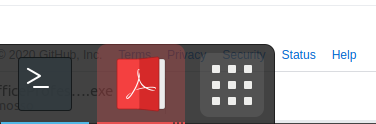
I was unable to remove the icon's background margins on hover.
Thanks a lot for all your work!
antoniomcr96
on 9 Jul 2020
This issue has been automatically marked as stale because it has not had recent activity. It will be closed if no further activity occurs. Thank you for your contributions.
![stale[bot] picture](https://avatars.githubusercontent.com/in/1724?v=4&s=40) stale[bot]
on 9 Jun 2021
stale[bot]
on 9 Jun 2021
This has been implemented.
jderose9
on 9 Jun 2021
Related issues
 LeeGDavis
·
6Comments
LeeGDavis
·
6Comments
 alex285
·
6Comments
alex285
·
6Comments
 simonbcn
·
4Comments
simonbcn
·
4Comments
 bmccorm2
·
5Comments
bmccorm2
·
5Comments
 Steps65
·
5Comments
Steps65
·
5Comments
Most helpful comment
+1
I recently bought an ultra-wide monitor (highly recommend!) and while I absolutely love the rest of the menu which just works and looks great, having the option to have a lesser width a'la DeepinDE dock would be a real cherry on top!
Example how it currently looks like (3840x1200)
https://imgur.com/XoRgdzK
Deepin reference example
https://arcolinuxd.com/wp-content/uploads/2019/02/acolinuxb-deepin-menu-small-dock.jpg
https://www.youtube.com/watch?v=yrdaiA1pyqk (fast forward through the clip)
https://www.youtube.com/watch?v=bMUet_SYGMI (fast forward through the clip)
I'm new here btw so not overly familiar with this but I could try and work out a fix if I knew which file to modify and if its enough to disable and enable the extension or do I need to do something else to apply/reflect on recently made changes?
Edit: In case anyone wants to give a try to find a possible solution.
Go into "~/.local/share/gnome-shell/extensions/[email protected]" and have a poke with the files (make a backup). I did a few changes with stylesheet.css and Settings.ui but nothing yet that did the desired results of a centered dock.
When you want to reload/reflect the changes you've just made, simply type below code in terminal which shouldn't kick you out to login screen
killall -3 gnome-shellEdit2:
_For anyone else that really needs this due to an ultrawide screen, try KDE.
It will take a moment to setup to your liking but you can basically get anything (almost) how you want it to be._ https://imgur.com/Vn3BRS8