Darktable: Filmic: black artifact for over-saturated areas
Describe the bug
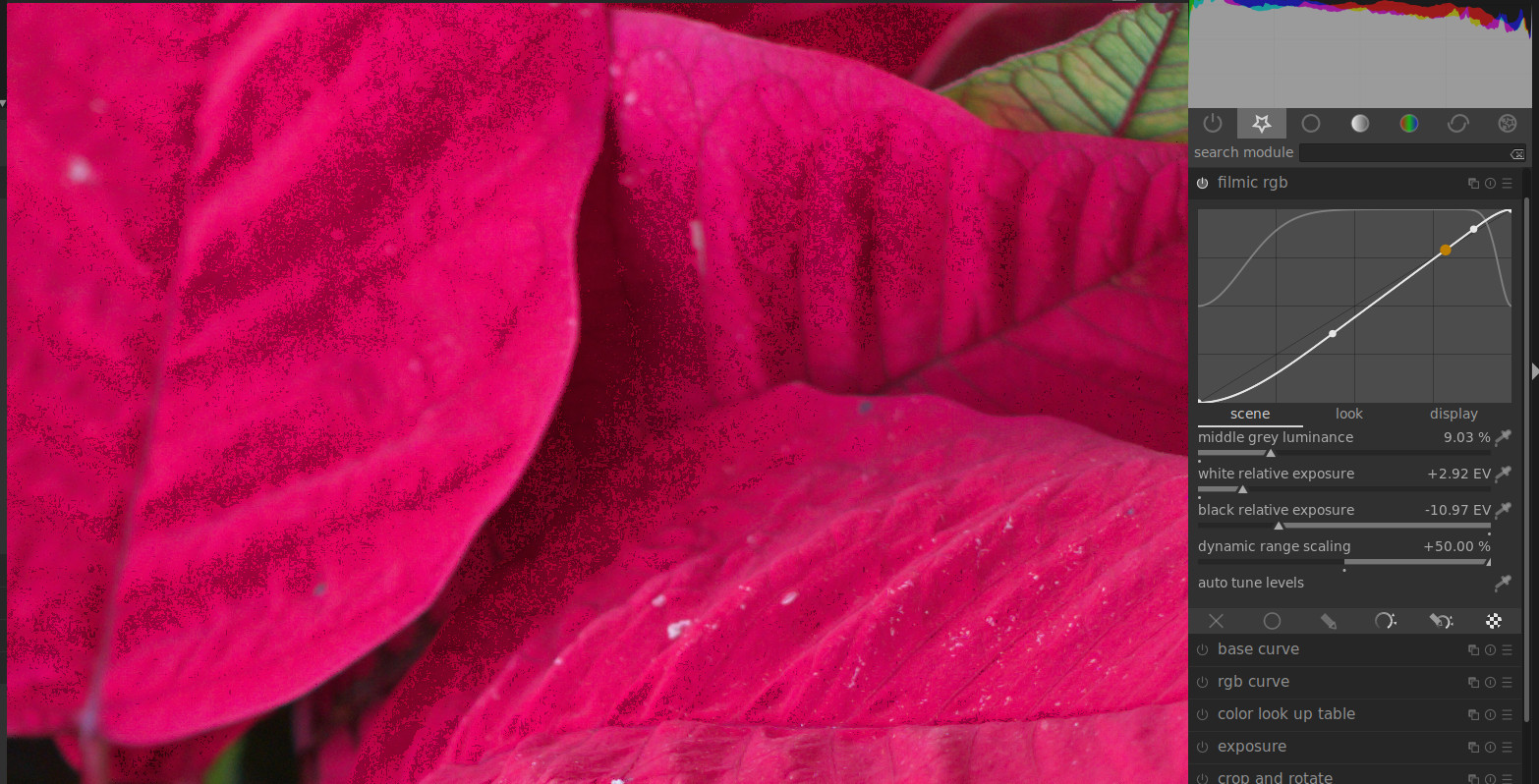
Haven't seen this behavior with the old Filmic in 2.6, only in the new Filmic with the preserve chrominance option. When set preserve chrominance to "no", over-saturated pixels become black. Of course I can fix this by changing the setting to "luminance Y" or "max RGB", but then those settings will also affect the saturation of other areas (e.g. the red dress in the attached screenshots).
"Base Curve" and "rgb curve" for example, doesn't have this problem when setting preserve colors to "none". Thus, I've been reverting back to using Base Curve/rgb curve instead.
To Reproduce
- using this sample RAF file with high saturation colors (especially colored lights):
https://drive.google.com/open?id=1mIaAFT8DQRrw0XW1du7P0yY4mpVx9b3R - apply Filmic with enough brightness and contrast to drive the colors up (to over-saturation?), with
preserve chrominanceset to "no" - the saturated areas become black (see the blue icicle lights in the sample pic)
Expected behavior
The over-saturated areas should stay at max colors (clipped?) instead of becoming black.
Screenshots
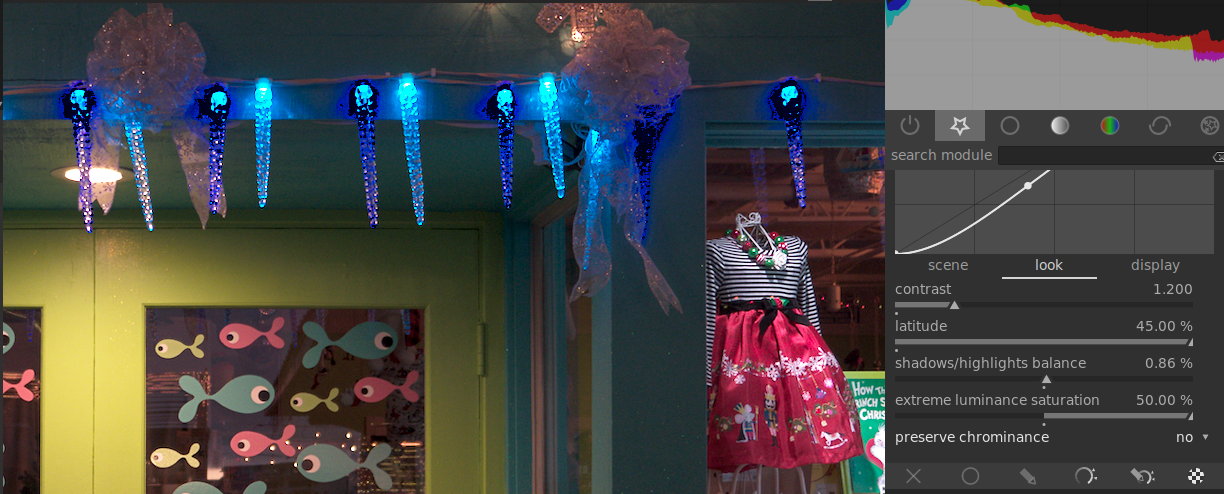
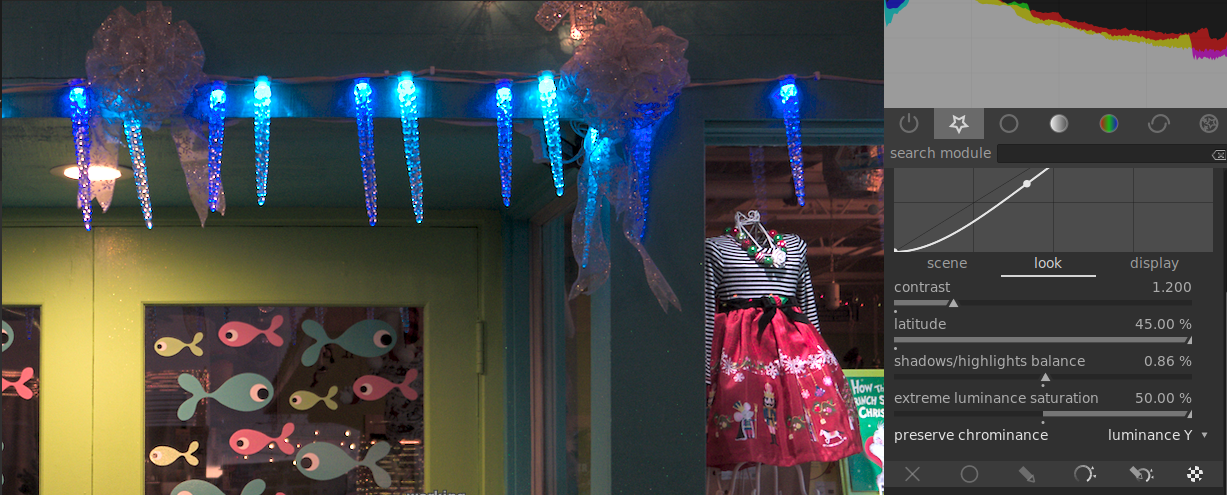
Platform:
- Darktable Version: 3.1.0+239~gff13b55ae
- OS: Ubuntu
- OpenCL activated, GTX 1050Ti (problem is also there with OpenCL disabled)
Additional context
Not sure if it's related to this discussion:
https://discuss.pixls.us/t/darktable-filmic-and-saturation/10622/
 hqhoang
All 7 comments
Got some strange behavior in these blue areas, too. When I use the tone curve with RGB everything looks fine.
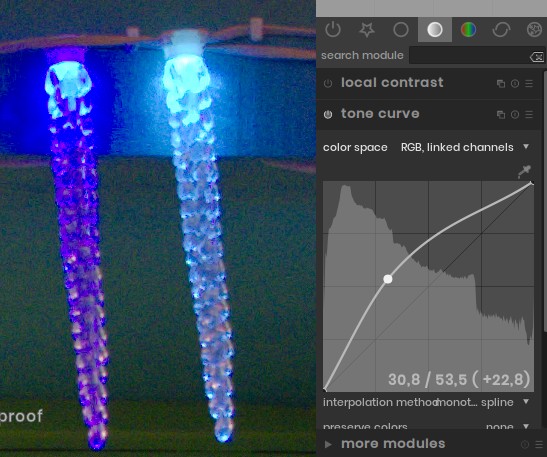
After a switch to LAB there is a pink area.
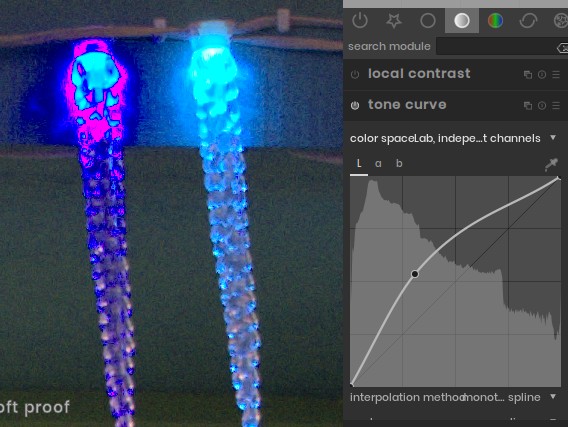
Didn't use other modules. Tried different settings for demosaicing without change.
But these dark blue areas around the highlights look very unnatural. With the color picker I get RGB readings like 0,0,248. Can't go for conclusions since I got no knowledge about clipping with X-Trans sensors.
 pphotography
on 1 Jan 2020
pphotography
on 1 Jan 2020
This is a common issue with blue LED light sources, and can usually be mitigated with the "gamut clipping" feature of the input color profile module: https://darktable.gitlab.io/doc/en/color_group.html#input_color_profile
EDIT: In this extreme case, I found the best results from changing both input color profile and working profile to "linear prophoto RGB". (I've been using this working profile as default lately for reasons similar to this; blue LEDs seem to be everywhere these days.)
 junkyardsparkle
on 1 Jan 2020
junkyardsparkle
on 1 Jan 2020
@junkyardsparkle: I also have some photos with saturated colors clipping as well (especially red), but it's mostly because I had a preset (carried from darktable 2.4) that incorrectly set the Working Profile to "linear Rec709 RGB". Switching to "linear Rec2020 RGB" solved the problem on the red, but the problem with posted blue lights still remain.
I'll start using "linear prophoto RGB" for now, while it isn't completely free of the black pixels, it does reduce the clipping to minimum. Thanks.
hqhoang
on 1 Jan 2020
I'll start using "linear prophoto RGB" for now, while it isn't completely free of the black pixels, it does reduce the clipping to minimum. Thanks.
I found that setting also the input color profile to prophoto RGB did a really good job of cleaning up the mess in that first picture. It might not be strictly "correct" as an input profile, but for a scene like that the concept of "correct" becomes not very meaningful... :-)
junkyardsparkle
on 1 Jan 2020
I found that setting _also_ the input color profile to prophoto RGB did a really good job of cleaning up the mess in that first picture. It might not be strictly "correct" as an input profile, but for a scene like that the concept of "correct" becomes not very meaningful... :-)
Yeah, I tried that, too. But unfortunately, as you mentioned, it's not correct, the colors are off, at least comparing to my specific profile for the X-T20 (calibrated with an X-Rite Passport).
hqhoang
on 2 Jan 2020
I've actually wondered about the idea of using a generic profile like prophoto RGB as the input profile, then doing the calibration from there with the color LUT module, as a way of avoiding these types of artifacts, but I haven't actually tried it yet. The idea of trying to always ETTR for any little LED light which happens to be in the scene just seems absurd. :-/
junkyardsparkle
on 2 Jan 2020
That's out-of-gamut issues. It's classic with saturated coloured lights. As of now, there are only tricks to solve that.
 aurelienpierre
on 13 Jan 2020
aurelienpierre
on 13 Jan 2020
Related issues
 sboukortt
·
3Comments
sboukortt
·
3Comments
 elstoc
·
4Comments
elstoc
·
4Comments
 lapineige
·
4Comments
lapineige
·
4Comments
 lovesegfault
·
3Comments
lovesegfault
·
3Comments
 schwerdf
·
4Comments
schwerdf
·
4Comments
Most helpful comment
This is a common issue with blue LED light sources, and can usually be mitigated with the "gamut clipping" feature of the input color profile module: https://darktable.gitlab.io/doc/en/color_group.html#input_color_profile
EDIT: In this extreme case, I found the best results from changing both input color profile and working profile to "linear prophoto RGB". (I've been using this working profile as default lately for reasons similar to this; blue LEDs seem to be everywhere these days.)