Cropper: Any way to fit the cropper container to the image size ?
Hi,
I'm trying to use this plugin to crop images on my website. However, I don't see how to force an exact fit of the cropper container to the format of my images. There is always a space at the left and right of the image that can be cropped on :

The cropper-wrap-box seems always slightly larger than the cropper-canvas one.
This lead to allow crop outside of the image which is what I don't want.
Am I missing an option or something ?
(I didn't forget to add the max-width: 100% directive)
Thank you :)
 Wharenn
All 25 comments
 fengyuanchen
on 9 Aug 2016
fengyuanchen
on 9 Aug 2016
Thanks for your reply, but I'm sorry to say this still does not work. Whatever the format of my image is, square, greater height or greater width, there is always these borders on left and right.
Wharenn
on 9 Aug 2016
I don't see how that helps either.
 OKNoah
on 20 Sep 2016
OKNoah
on 20 Sep 2016
Have the same "problem" and the responsive-container sample did not solve it.
 pedromamede
on 28 Sep 2016
pedromamede
on 28 Sep 2016
Is there a solution to this?
 kamal0808
on 12 Dec 2016
kamal0808
on 12 Dec 2016
Hi, I found a workaround for the unwanted spaces by increasing the size of the copper container (with the same ratio). This is still not a fix for me as I am not sure how it will behave on smaller screens. However I had other issues with negative coordinates (-1;-1) for the crop top left coordinate when the selection is stretched to the borders. Had to handle it server side to force it to 0.
Wharenn
on 12 Dec 2016
Probably you don't need this anymore, but I was working on a project which integrate this library and dropzone.js and I just developed yesterday what you are asking for.
In my case, I needed to set a fixed values for width (900px) and height (600px) properties, for make sure the image is not too large and ruin my layout. First thing I do is to get the size (width and height) of the original image. After that I compare both values to obtain which is higher (width or height) so I can calculate the coefficient to re-scale the image to my stated values (900/600px).
var img = new Image();
img.src = dataURL; //dataURL is a base64 image data code previusly obtained.
img.onload = function(){
//This is only for load the original image into my modal window,
//no real deal for this example.
$("#crop_image").attr('src', dataURL);
//When the image is loaded I get all the data of original image so I can compare
//and calculate the coeff.
var coef = 0;
img.width>img.height ? coef = calculateCoeff(img.width,"width") : coef = calculateCoeff(img.height,"height");
//When I finally have the coefficient, then I create and load the cropper library.
createCropper((coef*img.width),(coef*img.height));
}
This is the function to calculate the coefficient of reduction (just a simple rule of three):
function calculateCoeff(img_value, property){
var x = 0;
property=="width" ? x=900 : x=600;
return ((x*100)/img_value)*0.01;
}
And this is the function to inicializate cropper library:
function createCropper(width, height){
var image = document.getElementById('crop_image');
var cropper = new Cropper(image, {
viewMode: 2,
aspectRatio: 2 / 3,
movable: false,
zoomable: false,
minContainerHeight: height,
minContainerWidth: width,
minCanvasHeight: height,
minCanvasWidth: width,
preview: ".crop_preview",
crop: function(e) {
console.log(e.detail.x);
console.log(e.detail.y);
console.log(e.detail.width);
console.log(e.detail.height);
console.log(e.detail.rotate);
console.log(e.detail.scaleX);
console.log(e.detail.scaleY);
}
});
}
I hope this can help to you!
 Necare
on 5 Dec 2017
Necare
on 5 Dec 2017
In short:
.img-container {
  /* Never limit the container height here */
  max-width: 100%;
}

.img-container img {
  /* This is important */
  width: 100%;
}
if it's still important for somebody setting viewMode: 1 in options helped me
 mortal-fighter
on 30 Jan 2018
mortal-fighter
on 30 Jan 2018
Do not place any sibling elements next to image container!
<div class="img-container">
    <img src="..."/>
    <!-- DO NOT PLACE ANYTHING HERE -->
</div>
If you want to place any controls, place them into another div like this:
<div class="my-cropper">
    <div class="img-container">
        <img src="..."/>
    </div>
    <div class="controls">
        <!-- CONTROLS -->
    </div>
</div>
 acelot
on 7 Feb 2018
acelot
on 7 Feb 2018
I stil couldn´t apply any solution to my project, nothing works, any tip of something that i could be missing ?
 BugDroid-Duarte
on 17 Feb 2018
BugDroid-Duarte
on 17 Feb 2018
Hi,
If somebody is still interested.
viewMode : 2
solve my problem.
 wsauvage
on 20 Apr 2018
wsauvage
on 20 Apr 2018
Use this
cropper = new Cropper(image, {
viewMode:2,
aspectRatio: 2,
}
 adnanganie
on 18 May 2018
adnanganie
on 18 May 2018
Please how to fix it @fengyuanchen
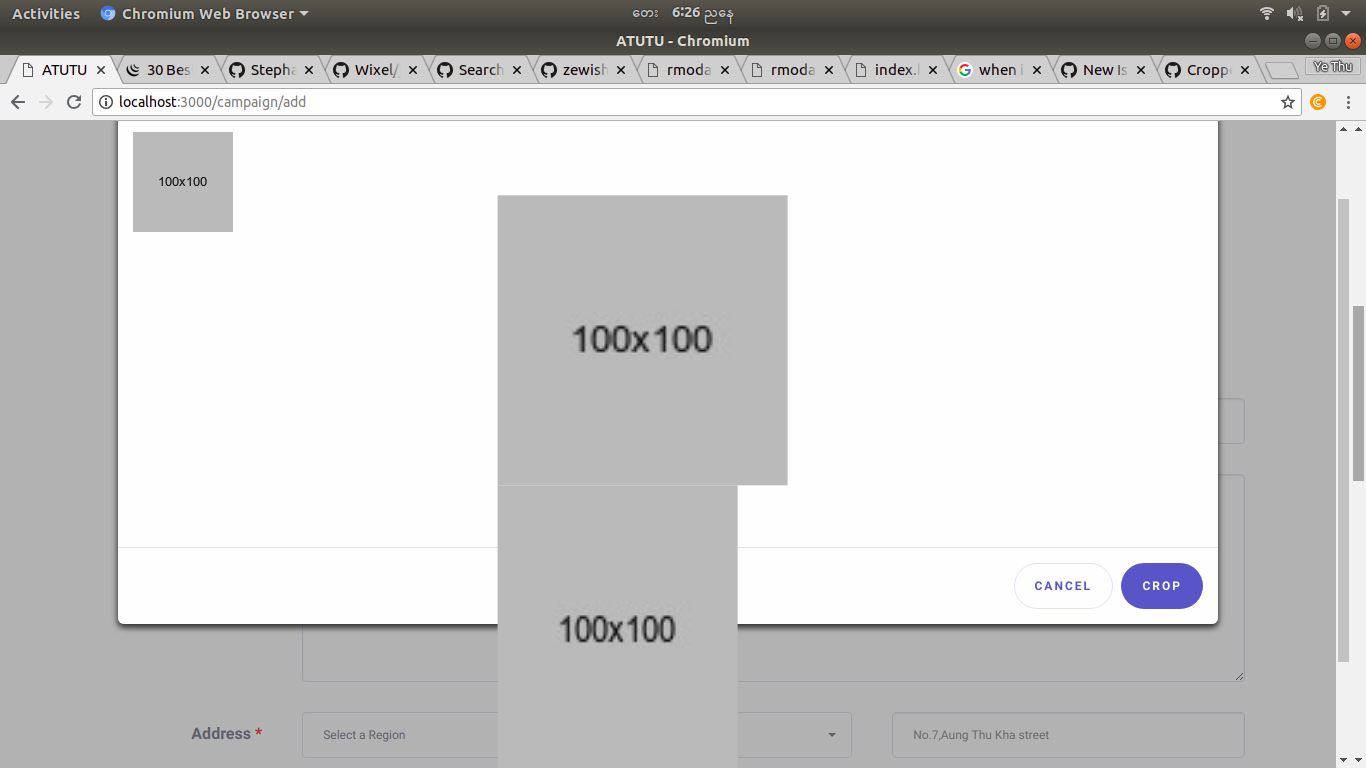
 yethuaungptu
on 7 Jun 2018
yethuaungptu
on 7 Jun 2018
view this link:
https://stackoverflow.com/questions/42377243/how-to-set-crop-box-to-full-width-and-full-height-of-the-container-previewcropp
Put:
var contData = cropper.getContainerData(); //Get container data
cropper.setCropBoxData({ height: contData.height, width: contData.width  }) //set data
in ready event
 u2u4u
on 25 Jun 2018
u2u4u
on 25 Jun 2018
Set the image width as
.img-container img {
  width: 100%;
}
And set options as followed
cropper = new Cropper(image, {
viewMode: 3,
aspectRatio: 1
}
 Rushanf
on 31 Jul 2018
Rushanf
on 31 Jul 2018
Set the image width as
.img-container img {
  width: 100%;
}
And set options as followed
cropper = new Cropper(image, { viewMode: 3, aspectRatio: 1 }
ViewMode 3 and aspect ratio seems to have an impact on how the image fills the canvas. Most others seem to not do much at all.
 kramsram
on 17 Feb 2019
kramsram
on 17 Feb 2019
if it's a full sized image autoCropArea: 1 should do the trick, although it depends on your specific scenario.
 pero5ar
on 18 Feb 2019
pero5ar
on 18 Feb 2019
https://github.com/fengyuanchen/cropper/blob/master/examples/responsive-container.html
https://fengyuanchen.github.io/cropperjs/examples/responsive-container.html
Updated link
 help-me-help-you
on 15 Apr 2019
help-me-help-you
on 15 Apr 2019
I think viewMode: 0 will help to fit any image inside the cropper.
 ashrafali-v
on 2 May 2019
ashrafali-v
on 2 May 2019
if it's a full sized image
autoCropArea: 1should do the trick, although it depends on your specific scenario.
good solution!!! without any hard codes and calculation sizes
 ivansergeevichlobodyuk
on 21 Jun 2019
ivansergeevichlobodyuk
on 21 Jun 2019
In coropper.js there is a variale
autoCropArea which is set to 80%
you can set it to 100%
 ncjoshi
on 26 Nov 2019
ncjoshi
on 26 Nov 2019
@ncjoshi Just set the autoCropArea option to 1 (100%), default to 0.8 (80%).
fengyuanchen
on 30 Nov 2019
I just edited the cropper.css file that is included as part of the plugin. and changed the css line as following:
Changed it from:
.cropper {
max-width: 700px;
}
to this:
.cropper {
max-width: 100%;
}
Fixed my problem straight away.
Make sure your surrounding divs are not restricting the width of the inner divs. (Use chrome/firefox inspect mode to see this)
 jeromesheerin
on 14 Feb 2020
jeromesheerin
on 14 Feb 2020
i think you should try like this
cropper = new Cropper(image, {
  viewMode: 2,
  autoCropArea: 1,
  center: true,
  restore: false,
  zoomOnWheel: false
});
 ozairasmat
on 18 Jun 2020
ozairasmat
on 18 Jun 2020
Related issues
 niklasravnsborg
·
5Comments
niklasravnsborg
·
5Comments
 ghengeveld
·
3Comments
ghengeveld
·
3Comments
 kickthemooon
·
9Comments
kickthemooon
·
9Comments
 hpolonkoev
·
5Comments
hpolonkoev
·
5Comments
 zilions
·
3Comments
zilions
·
3Comments
Most helpful comment
In short: