Cli: Heroku Login: "Error: self signed certificate in certificate chain"
What is the current behavior?
Currently, I am simply trying to login to heroku, but am having continuous struggles doing so. I keep receiving the error: "Error: self signed certificate in certificate chain". There is not a single command I can run from the CLI.
What is the expected behavior?
I expect to be able to login, but this error keeps on showing up. I have tried creating my own certificate, and have looked tirelessly online. I am running heroku/7.16.0 on a 32-bit Windows 7 computer. I have attached the output. Thanks!

 dking74
All 7 comments
Additionally, I am on a company computer and should be behind a proxy. However, cybersecurity checked and my request is not even hitting the proxy. This should not be a firewall issue either.
dking74
on 26 Sep 2018
See https://devcenter.heroku.com/articles/using-the-cli#using-an-http-proxy
On Wed, Sep 26, 2018 at 12:40 PM dking74 notifications@github.com wrote:
Additionally, I am on a company computer and should be behind a proxy.
However, cybersecurity checked and my request is not even hitting the
proxy. This should not be a firewall issue either.—
You are receiving this because you are subscribed to this thread.
Reply to this email directly, view it on GitHub
https://github.com/heroku/cli/issues/1054#issuecomment-424843881, or mute
the thread
https://github.com/notifications/unsubscribe-auth/AANMfB7OuR0Lw1oPDt9fNag9G3hWr88Oks5ue9gXgaJpZM4W7WLm
.
 jdxcode
on 26 Sep 2018
jdxcode
on 26 Sep 2018
i read the link. But where to find my ca_cert.pem?
 liuz229
on 26 Aug 2019
liuz229
on 26 Aug 2019
See https://devcenter.heroku.com/articles/using-the-cli#using-an-http-proxy
…
How I can create my ca_cert.pem?
liuz229
on 27 Aug 2019
The proxy software will provide its CA cert.
 RasPhilCo
on 27 Aug 2019
RasPhilCo
on 27 Aug 2019
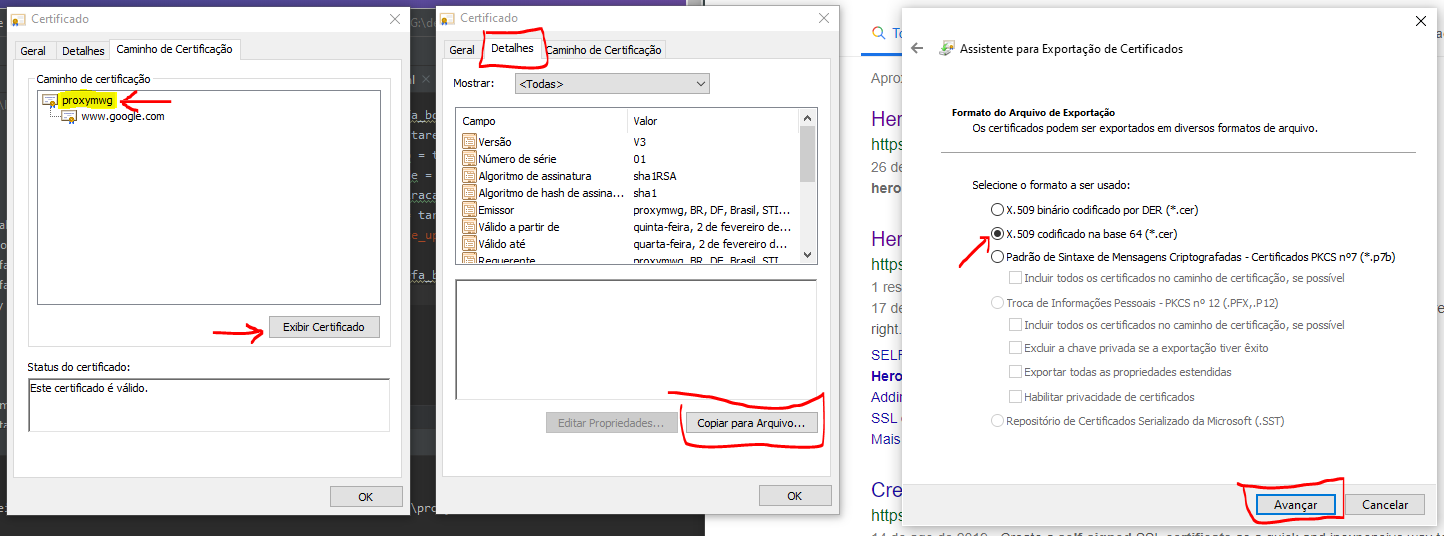
In Windows 10, follow the steps below:
- Open heroku.com on Chrome or Firefox browser and login (or open any other site that uses https (e.g. google.com)).
- Right-click the lock and click Certificate to view certificate issuer details.
- Open the Certification Path tab.
- Choose the first certificate that appears at the top of the list and press the Show Certificate button.
- Open the Details tab and click the Copy to File ... button.
- Choose base64 encoded X.509 format (* .cer) and click Next button.
- Click the Browse button and enter a location and file name. Remember to save with the extension "cer". Example: D: \Users\uendel\Desktop\proxy.cer
- Close the windows and open the Windows command prompt and run the following command line (replace the location with the path where you saved the certificate):
SET NODE_EXTRA_CA_CERTS=D:\Users\uendel\Desktop\proxy.cer - Revert to the old OpenSSL behaviour:
git config --global http.sslBackend "openssl"
git config --global http.sslCAInfo D:\Users\uendel\Desktop\proxy.cer
- Login heroku. A tab will open in the browser. Click the Login button.
heroku login - Verify that the installation was successful by running
heroku whoami
IMPORTANT: After doing test, set NODE_EXTRA_CA_CERTS in the system environment variables!!!

 uendelrocha
on 12 Sep 2019
uendelrocha
on 12 Sep 2019
IMPORTANT: After doing test, set NODE_EXTRA_CA_CERTS in the system environment variables!!!
How do I set the NODE_EXTRA_CA_CERTS in the system environment variables?
Now I'm having this error fatal: unable to access 'https://git.heroku.com/my-app.git/': SSL certificate problem: unable to get local issuer certificate
 fredzerpa
on 28 Apr 2020
fredzerpa
on 28 Apr 2020
Related issues
 mame
·
5Comments
mame
·
5Comments
 edmorley
·
3Comments
edmorley
·
3Comments
 kmulqueen
·
3Comments
kmulqueen
·
3Comments
 JBallin
·
6Comments
JBallin
·
6Comments
 sf-jd
·
5Comments
sf-jd
·
5Comments
Most helpful comment
In Windows 10, follow the steps below:
SET NODE_EXTRA_CA_CERTS=D:\Users\uendel\Desktop\proxy.cerheroku loginheroku whoamiIMPORTANT: After doing test, set NODE_EXTRA_CA_CERTS in the system environment variables!!!