Charts: Bitnami Wordpress Change Volume MountPath
Which chart:
wordpress:latest
Describe the bug
Cannot change the mountPath:
volumeMounts:
            - mountPath: bitnami/wordpress
              name: wordpress-data
              subPath: wordpress
When I change bitnami/wordpress to opt/bitnami/wordpress, my container does not start.
To Reproduce
Steps to reproduce the behavior:
- Go to
deployment.yml - Change
bitnami/wordpresstoopt/bitnami/wordpress - Deploy helm chart to minikube
- Container terminates
Expected behavior
The container runs and lets me use the mountPath: opt/bitnami/wordpress
Version of Helm and Kubernetes:
- Output of
helm version:
2.16.1
- Output of
kubectl version:
1.13.9
Additional context
I am using the wordpress helm chart to create the wordpress site with a PVC mounted at bitnami/wordpress. To update plugins and themes, I am using a Job yaml file in my helm chart to add/delete plugins, add tabs, etc.
 sssarali
All 12 comments
When I change the mountPath to opt/bitnami/wordpress in the Deployment folder, I get this error
Error executing 'postInstallation': PHP Warning:  require_once(/opt/bitnami/wordpress/wp-includes/functions.php): failed to open stream: No such file or directory in /tmp/15917615939950.4269534386582663 on line 12
PHP Fatal error:  require_once(): Failed opening required '/opt/bitnami/wordpress/wp-includes/functions.php' (include_path='.:/opt/bitnami/php/lib/php') in /tmp/15917615939950.4269534386582663 on line 12
Hi @sssarali,
Thanks for posting your issue! Is there a reason you want to change the default mountPath ? By default the container persistence path is located at bitnami/wordpress, which means you should place configuration and data file there. Furthermore, the path /opt/bitnami/wordpress you are trying to use contains sensitive files that are needed for the application to start up. By mounting a volume them, it may invalidate those files and thus, the application can't start properly.
 joancafom
on 10 Jun 2020
joancafom
on 10 Jun 2020
Hi @joancafom,
My current setup is that I am using the bitnami wordpress container and with the default mount at bitnami/wordpress. I am also using a Job within the wordpress helm chart that installs plugins, configures themes and also installs a dependancy from another docker image.
There are a few problems (please correct me if I'm doing anything wrong):
- I cannot run
wpcommands from theJobinside the volume (such aswp plugin install leaky-paywall --activate) because the volume does not havewp coreinstalled. So, when those wp commands run, I get the error:
Error: This does not seem to be a WordPress install.
Pass --path=`path/to/wordpress` or run `wp core download`.
I believe I cannot use --path=path/to/wordpress because the volume does not have access to opt/bitnami/wordpress where the actual wordpress installation is. So, the fix was that I added wp core download to my commands in the Job file and then I was able to run wp commands. However, my wordpress container isn't able to run. Are the core files being invalidated in the wordpress container from the wp core download?
sssarali
on 10 Jun 2020
Hi @sssarali, since it looks like your primary issue is around enabling a plugin, I'll focus on that (and not changing the volume mount path).
If you enable extraVolumeMounts for a file such as /docker-entrypoint-init.d/myscript.sh, with the below contents:
#!/bin/bash

wp plugin install leaky-paywall --activate
Then that should take care of installing the plugin to /bitnami/wp-content/plugins and enabling it in the database.
And in a second initialization, that script would not be executed anymore, but the plugin would be located inside the plugins directory and enabled in the database, so it should continue working.
It looks like this is not documented, even though it is implemented in most of the Bitnami PHP containers (see rootfs/post-init.sh). I've created an internal task for that.
Let us know if you continue to find any issues.
 marcosbc
on 11 Jun 2020
marcosbc
on 11 Jun 2020
Hi @marcosbc,
Thanks for your response.
Could you please clarify how to run wp commands in the wordpress helm chart? When extraVolumeMounts is enabled, where do the commands go?
sssarali
on 17 Jun 2020
Hi @sssarali !
The idea is to do something similar to this:
- Create a script that will be executed at installation time, e.g.
myscript.sh:
#!/bin/bash

wp plugin install leaky-paywall --activate
- Copy that file to your pods under the path
/docker-entrypoint-init.d/myscript.sh. For example, you could create a configMap out of it and mount it:
- Create a ConfigMap from the file:
$ kubectl create configmap script-cm --from-file=./myscript.sh
- Modify
values.ymlto include this brand-new ConfigMap
...
## Additional volume mounts
extraVolumeMounts:
  - name: my-scripts
     mountPath: /docker-entrypoint-init.d/

## Additional volumes
extraVolumes:
  - name: my-scripts
     configMap:
       name: script-cm
...
You actually can write as many commands as you like in the aforesaid myscript.sh 😃
joancafom
on 17 Jun 2020
Thanks @joancafom, that's helpful!
However, the problem I am having is that I need the wp commands to interact with the contents of an image I am using in a Job yaml file. The image has custom settings that would need read/write permissions that only the root user has. For example, I want to append something from the Job's image to the functions.php file in the bitnami/wordpress volume.
Is there a way to run all those wp commands in a Job yaml file (with the volume mounted at bitnami/wordpress) using a non-root user?
sssarali
on 17 Jun 2020
Hi @sssarali
You're welcome! By using a wordpress container in your Job you should be able to run wp commands without any problems. That being said, could you provide us with the .yaml file you are using for your Job so that we can provide you with better feedback?
Thanks!
joancafom
on 18 Jun 2020
Hi @joancafom, this is the Job's yaml file:
To clarify, I am using the bitnami wordpress image in the deployment yaml file. And I'm using wordpress' wp-cli image (that has custom settings like tmp/tracker2.js) in the Job's yaml file.
{{ if and .Release.IsInstall .Values.job.autoCreateCluster }}
apiVersion: batch/v1
kind: Job
metadata:
  name: {{ template "wordpress.fullname" . }}
  labels: {{- include "wordpress.labels" . | nindent 4 }}
  annotations:
    # This is what defines this resource as a hook. Without this line, the
    # job is considered part of the release.
    "helm.sh/hook": post-install
    "helm.sh/hook-weight": "-3"
    "helm.sh/hook-delete-policy": before-hook-creation
spec:
  template:
    metadata:
      name: "{{.Release.Name}}"
      labels:
        app.kubernetes.io/managed-by: {{.Release.Service | quote }}
        app.kubernetes.io/instance: {{.Release.Name | quote }}
        helm.sh/chart: "{{.Chart.Name}}-{{.Chart.Version}}"
    spec:
      {{- if .Values.job.securityContext.enabled }}
      securityContext:
        runAsUser: {{ .Values.job.securityContext.runAsUser }}
        fsGroup: {{ .Values.job.securityContext.fsGroup }}
      {{- end }}
      restartPolicy: OnFailure
      imagePullSecrets:
        - name: {{ .Values.job.pullSecrets }}
      volumes:
        - name: wordpress-data
          {{- if .Values.persistence.enabled }}
          persistentVolumeClaim:
            claimName: {{ .Values.persistence.existingClaim | default (include "wordpress.fullname" .) }}
          {{- else }}
          emptyDir: {}
          {{ end }}
        {{- if .Values.extraVolumes }}
        {{- include "wordpress.tplValue" (dict "value" .Values.extraVolumes "context" $) | nindent 8 }}
        {{- end }}
      containers:
        - name: post-install-job
          image: {{ .Values.job.image }}
          imagePullPolicy: {{ .Values.job.pullPolicy }}
          {{- if .Values.resources }}
          resources: {{- toYaml .Values.resources | nindent 12 }}
          {{- end }}
          volumeMounts:
            - mountPath: bitnami/wordpress
              name: wordpress-data
              subPath: wordpress
          command: ["/bin/sh", "-c", "echo \"start\"
                    && test -e .INSTALLED && sleep 10
                    || (wp core download --allow-root && wp config create --dbhost=wordpress-mysql:3306 --dbuser=root --dbpass=<PASS> --dbname=mysql --force --allow-root
                    && echo \"add_action('wp_head', 'add_this_script_header'); function add_this_script_header() { ?>\" > header.php
                    && cat /tmp/tracker2.js >> header.php
                    && echo \" <?php }\" >> header.php
                    && cat header.php >> ../../../bitnami/wordpress/wp-content/themes/twentytwenty/functions.php
                    && wp rewrite structure '/%postname%/' --allow-root
                    && cat /tmp/ad_widget.html | xargs -0 -I {}  wp widget add custom_html sidebar-1 --title='Ads by test' --content={} --user=<USER> --allow-root
                    && wp post create --porcelain --post_type=page --post_status=publish --post_title='Ad Conversion' /tmp/ad_converted.html > /tmp/p --allow-root
                    && wp plugin install leaky-paywall --activate --allow-root
                    && wp option update issuem-leaky-paywall </tmp/leaky-paywall.json --format=json --allow-root
                    && wp post create --porcelain --post_type=page --post_status=publish --post_title='1' --post_content='[leaky_paywall_login]' > /tmp/p --allow-root
                    && wp option patch update issuem-leaky-paywall page_for_login < /tmp/p --format=json --allow-root
                    && echo done >> .INSTALLED )"]
{{ end }}
- In the Job I had to do
wp core downloadand re-create the wp-config.php file in the Job's file path:/var/www/htmlbecause I got an error saying:
Error: This does not seem to be a WordPress install.
Pass --path=path/to/wordpress or run wp core download.
I am guessing that it is because the Job doesn't have access to the Wordpress installation located at opt/bitnami/wordpress (my original reason for wanting to change the mountPath)
- Right now the job uses user
rootvia the SecurityContext. However, I am trying to not use that user. I have tried using user1001but I get permission errors when creating theheader.phpfile as it does not have write access.
Error: '/var/www/html/' is not writable by current user
Hey @sssarali ,
I am currently thinking of two options to overcome your problem, let me know what are your thoughts about them:
Stick to using wordpress' wp-cli image and use its built-in capabilities to execute commands remotely via ssh to the other pod. By using this approach, you would not even need to mount data volumes, as the commands are intended to be executed remotely.
Use bitnami wordpress image in your Pod, that comes with the correct paths, and used the shared volume to persist and reflect changes performed. By using this approach, I was successfully able to install the plugin you wanted in the main pod (
leaky-paywall) without much struggle. You would need to add envVars for this to work:
          env:
            - name: MARIADB_HOST
              value: {{ include "wordpress.databaseHost" . | quote }}
            - name: MARIADB_PORT_NUMBER
              value: {{ include "wordpress.databasePort" . | quote }}
            - name: WORDPRESS_DATABASE_NAME
              value: {{ include "wordpress.databaseName" . | quote }}
            - name: WORDPRESS_DATABASE_USER
              value: {{ include "wordpress.databaseUser" . | quote }}
            - name: WORDPRESS_DATABASE_PASSWORD
              valueFrom:
                secretKeyRef:
                  name: {{ include "wordpress.databaseSecretName" . }}
                  key: mariadb-password
            - name: WORDPRESS_SKIP_INSTALL
              value: "yes"
As well as your commands to properly initialize the instance:
          command:
            - /bin/bash
            - -c
            - |
              . /wordpress-init.sh
              . /opt/bitnami/base/functions
              . /opt/bitnami/base/helpers
              nami_initialize wordpress
              wp plugin install leaky-paywall --activate
This is the output for my newly created job:
$ k logs beta-wordpress-q5pw2 -f
nami    INFO  Initializing wordpress
wordpre INFO  ==> Preparing Varnish environment
wordpre INFO  ==> Preparing Apache environment
wordpre INFO  ==> Preparing PHP environment
mysql-c INFO  Trying to connect to MySQL server
mysql-c INFO  Found MySQL server listening at beta-mariadb:3306
mysql-c INFO  MySQL server listening and working at beta-mariadb:3306
wordpre INFO  Preparing WordPress environment
wordpre INFO  You provided an already initialized WordPress database.
wordpre INFO  The installation wizard will be skipped and parameters for configuring the user account will be ignored.
wordpre INFO  Upgrading WordPress Database ...
wordpre INFO
wordpre INFO  ########################################################################
wordpre INFO   Installation parameters for wordpress:
wordpre INFO     Skip wizard: yes
wordpre INFO     Table Prefix: wp_
wordpre INFO   This installation requires no credentials.
wordpre INFO  ########################################################################
wordpre INFO
nami    INFO  wordpress successfully initialized
Installing Leaky Paywall for WordPress (4.14.7)
Warning: Failed to create directory '/.wp-cli/cache/': mkdir(): Permission denied.
Downloading installation package from https://downloads.wordpress.org/plugin/leaky-paywall.4.14.7.zip...
Unpacking the package...
Installing the plugin...
Plugin installed successfully.
Activating 'leaky-paywall'...
Plugin 'leaky-paywall' activated.
Success: Installed 1 of 1 plugins.
And if I access the web admin interface, I can see the plugin has been successfully installed as well 😀
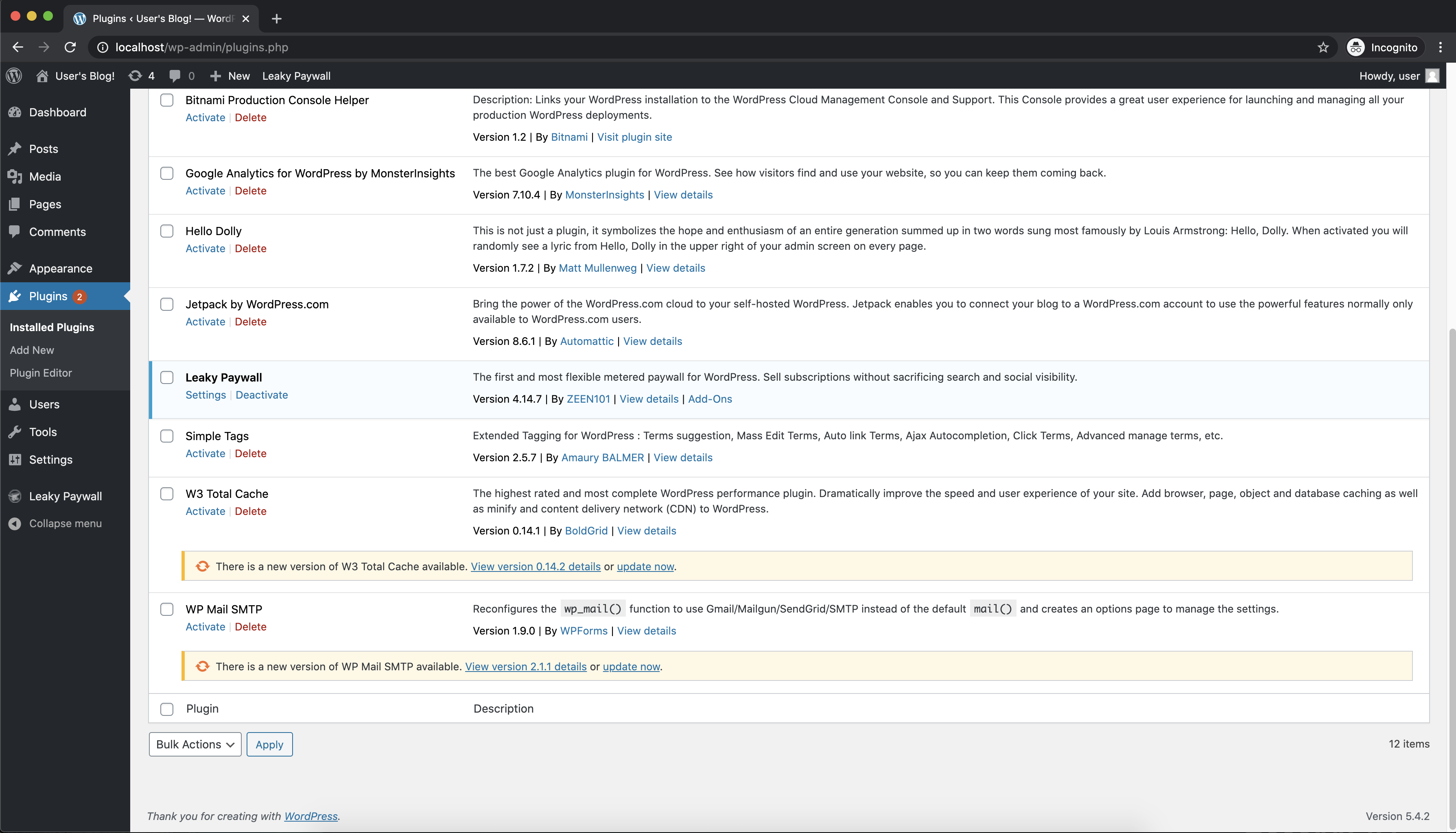
What are your thoughts about it?
joancafom
on 22 Jun 2020
Hi @joancafom
First of all, thank you for your efforts! 🙂I have found a solution that works.
Option 1:
This approach could work. However, I would rather deploy my helm charts and have all the settings and dependancies be taken care of in one go. I'm also not sure if the wp-cli would need root access or not to make changes to the wordpress core files.
Option 2:
This approach would be great. However, my custom settings that are in the Job container would be inaccessible using a non-root user - taking me back to the initial problem.
One question though - what does the `nami_initialize wordpress` do?
My Final Solution:
Initially, I used a wp-cli image (that contained custom files/settings) to run the wp commands that would _append_ my custom settings to the wordpress core files. This was the reason why I thought I had to run the wp-commands in the Job rather than in a config-map or as a command in the deployment.yaml.
This required me to run wp core download and create a wp-config.php file in the wp-cli image as the wp-commands could not access the Wordpress installation located at opt/bitnami/wordpress. This was a hacky solution imo. The wp-cli should not have to re-download the Wordpress core files again when the wordpress container already has those files.
So what I did was use the Job to _add all my custom files in the shared bitnami/wordpress volume_. Then I used a configMap as @marcosbc suggested before to run the wp-commands. Now the wp-commands have access to my custom data in the bitnami/wordpress path.
This also solves my problem of not wanting to use the root user in the Job. I am now using user 1001 to add those custom files in the bitnami/wordpress path.
This might not be the best solution, and defeats the purpose of using a wp-cli image in the first place (as all I am doing is copying the contents of my custom wp-cli image to the bitnami/wordpress volume, so using any image that contains my custom data would work).
Hopefully this helps someone! 😃
sssarali
on 22 Jun 2020
Hey @sssarali
I am glad to see you have come to a solution!! 🎉 Thanks for posting it here so that other people can benefit from it.
One question though - what does the
nami_initialize wordpressdo?
It does run some configuration logic in order to properly initialize the container. This logic is APACHE licensed but it is not public in GitHub or any other public code repository. However, we are changing this approach in favour of bash and for instance, you can see others like https://github.com/bitnami/bitnami-docker-mariadb.
If you are curious about the logic itself, you can find it in the container under the following path:
$NAMI_PREFIX/components/com.bitnami.wordpress/
Thanks for your issue!
joancafom
on 23 Jun 2020
Related issues
 estenssoros
·
3Comments
estenssoros
·
3Comments
 PhoneixS
·
6Comments
PhoneixS
·
6Comments
 alex1989hu
·
4Comments
alex1989hu
·
4Comments
 lexual
·
3Comments
lexual
·
3Comments
 emreberber
·
3Comments
emreberber
·
3Comments
Most helpful comment
Hi @joancafom
First of all, thank you for your efforts! 🙂I have found a solution that works.
Option 1:
This approach could work. However, I would rather deploy my helm charts and have all the settings and dependancies be taken care of in one go. I'm also not sure if the wp-cli would need root access or not to make changes to the wordpress core files.
Option 2:
This approach would be great. However, my custom settings that are in the
Jobcontainer would be inaccessible using a non-root user - taking me back to the initial problem.My Final Solution:
Initially, I used a wp-cli image (that contained custom files/settings) to run the wp commands that would _append_ my custom settings to the wordpress core files. This was the reason why I thought I had to run the wp-commands in the
Jobrather than in a config-map or as a command in the deployment.yaml.This required me to run
wp core downloadand create a wp-config.php file in the wp-cli image as the wp-commands could not access the Wordpress installation located atopt/bitnami/wordpress. This was a hacky solution imo. The wp-cli should not have to re-download the Wordpress core files again when the wordpress container already has those files.So what I did was use the
Jobto _add all my custom files in the shared bitnami/wordpress volume_. Then I used a configMap as @marcosbc suggested before to run the wp-commands. Now the wp-commands have access to my custom data in the bitnami/wordpress path.This also solves my problem of not wanting to use the root user in the Job. I am now using
user 1001to add those custom files in the bitnami/wordpress path.This might not be the best solution, and defeats the purpose of using a wp-cli image in the first place (as all I am doing is copying the contents of my custom wp-cli image to the bitnami/wordpress volume, so using any image that contains my custom data would work).
Hopefully this helps someone! 😃