Calculator: Retarget to Build Tools 142 to support Visual Studio 2019
Retarget the solution to VS2019 Build tools (v142) to allow support for Visual Studio 2019, out-of-the-box.
Problem Statement
Developers cannot use Visual Studio 2019 to build this solution without installing older Visual Studio 2017 Build Tools (v141). These can be hard to find for the everyday dev, requiring you to go to MSDN downloads and search specifically for the required version.
Note: those Build Tools can be quickly found here.
Evidence or User Insights
Steps to Reproduce:
- Clone this repo with only Visual Studio 2019 installed.
- Attempt to Rebuild
=> You are not able to build, due to failed checks for the v141 Toolset
Proposal
Retarget the solution, which is literally a two-click process:
- Open the Solution in Visual Studio 2019 and right click on the solution head
- Select "Retarget" and click OK.
The default toolset version will be preselected as v142 by default.
Goals
- Stay in sync with Microsoft's vision of using modern tooling
- VS2019 is significantly faster to use than VS2017 (this is proven, not just anecdotal).
Considerations
This may affect developers who have not updated to Visual Studio 2019 yet if there's no backwards check in the toolcheck list. This can be mitigated by making sure v141 is still in the list after adding v142.
 LanceMcCarthy
All 17 comments
This is your friendly Microsoft Issue Bot. I've seen this issue come in and have gone to tell a human about it.
 MicrosoftIssueBot
on 17 Apr 2019
MicrosoftIssueBot
on 17 Apr 2019
We should definitely do this; we'll just need to decide _when_. We'll need to update the official builds to target the "Hosted VS2019" pool at the same time.
 mcooley
on 17 Apr 2019
mcooley
on 17 Apr 2019
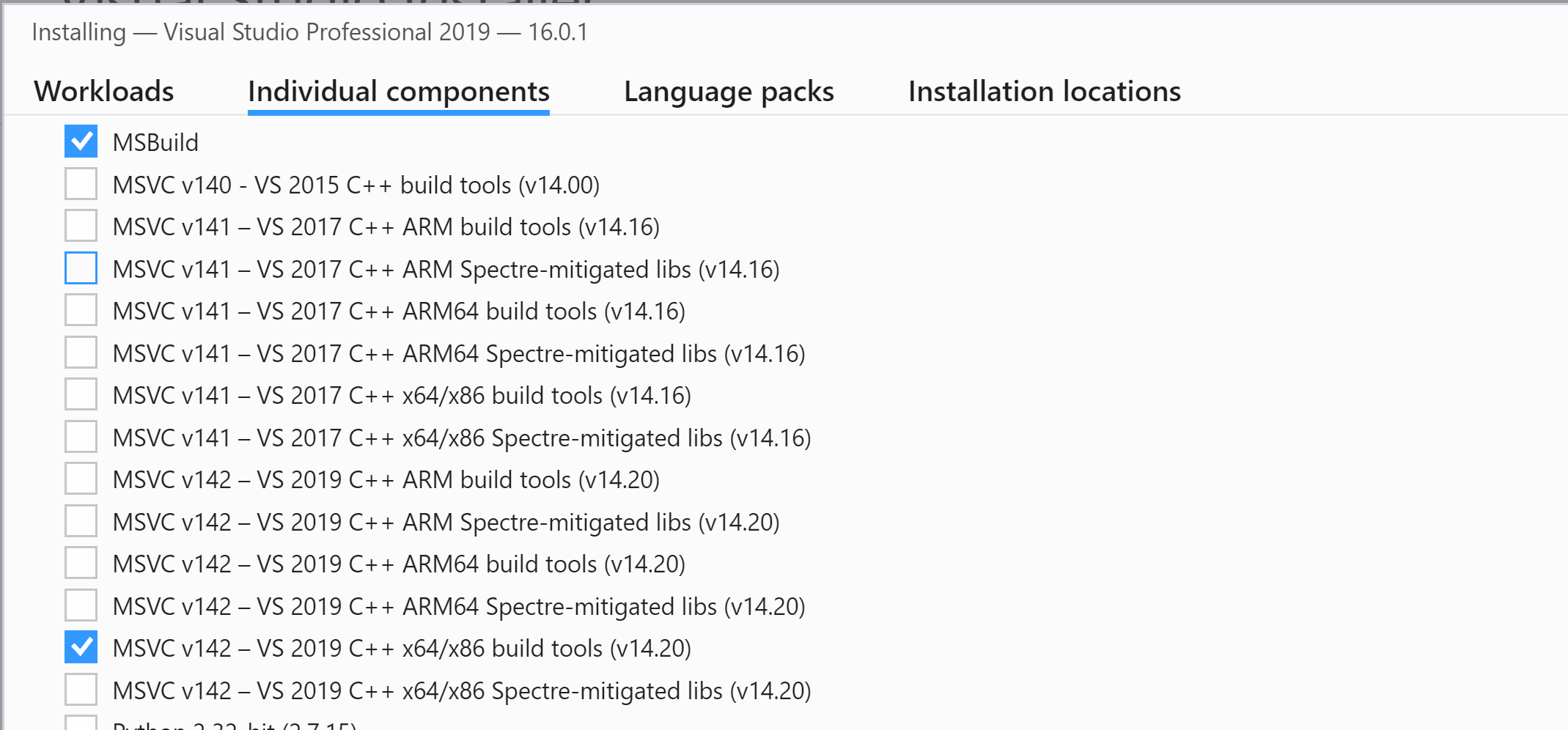
These can be hard to find for the everyday dev, requiring you to go to MSDN downloads and search specifically for the required version.
Easier way, you can install it directly from Visual Studio Installer!
 rudyhuyn
on 18 Apr 2019
rudyhuyn
on 18 Apr 2019
I agree with @mcooley, I would recommend to wait a little (and a couple of VS updates) before really migrating, sorted by importance:
- Not everyone has a MSDN subscription, it can take months before enterprises migrate to VS2019 (a lot of them buy licenses, not subscriptions, VS Community is free but a lot would prefer to use the Pro/Enterprise version if they already use these versions with 2017)
- Visual Studio has always some stability issues with first versions, including 2019 (see dev forums + some mailing-lists 😉)
- IT will need some time to test, whitelist, package and deploy VS2019.
- Not all extensions and plugins are ported for the moment, it can be an issue for accessibility.
- Not all developers have access to a high-speed internet connection (~3GB of data to download), or are traveling, let's them some time to update their systems.
- Developers currently working on a PR should get alerted ~2 weeks in advance, so they can work on their diff without having to manage a VS migration.
IMO we should:
- add a paragraph or a link in README.md explaining how to install 14.1 build tools with VS2019
- Once decided, indicate the migration date minimum 2 weeks before in README.md + a pinned message in the Issues tab
- If possible, create an extra build-agent modifying all .vcxproj files to use v14.2 instead of v14.1 and trying to build the app, so we can track if a PR breaks the compatibility (It should not append, but it can still be interesting to do it). Bonus point: we will already have agents set up when the app will really migrate to v14.2
rudyhuyn
on 18 Apr 2019
Is there a solution to this?
I've run into this issue today, and retargeting the solution is not an option. There needs to be a way to install the v141 platform tools for use with Visual studio 2019. The various build tools are not recognized as (Platform Toolset = 'v141').
 provencher
on 9 May 2019
provencher
on 9 May 2019
@provencher You can quickly add the v141 toolset to VS2019. Here are the steps:
- Open VS Installer
- Change to the Additional components tab
- Scroll down until you see the MSVC 141 tools section and select the desired version (I chose the x86/x64 version because I'm only building for x64 locally)
Here's a screenshot to guide you:

LanceMcCarthy
on 9 May 2019
@LanceMcCarthy I've installed everything marked as v141 build tools on VS2019, but it does not add the VS2017 Platform toolset to the dropdown in my project's properties folder.

I get this error trying to build:
2>C:\Program Files (x86)\Microsoft Visual Studio\2019\Professional\MSBuild\Microsoft\VC\v160\Microsoft.CppBuild.targets(378,5): error MSB8020: The build tools for Visual Studio 2017 (Platform Toolset = 'v141') cannot be found. To build using the v141 build tools, please install Visual Studio 2017 build tools. Alternatively, you may upgrade to the current Visual Studio tools by selecting the Project menu or right-click the solution, and then selecting "Retarget solution".
I've installed the linked VS2017 build tools and added the v141 tools in the individual section as well
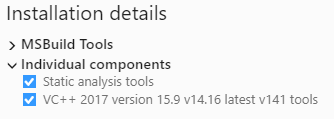
On VS2019 you can see I've added the vs2017 build tools

provencher
on 9 May 2019
Something must be missing, here's what I see (on the Caluclator project):

Do you have the UWP SDK installed for that target release (17763)? Is the current configuration set to x86 or x64?
LanceMcCarthy
on 9 May 2019
Yes I do. I primarily dev for UWP.
I finally got everything working, but it required me fully installing vs2017.
provencher
on 9 May 2019
Good to see that you're not blocked anymore, but VS2017 shouldn't be required (I don't have VS2017 installed anymore).
Here's my VS2019 configuration export (VS installer > VS instance ellipsis menu > Export configuration). You can compare against yours by exporting and see what's different:
{
  "version": "1.0",
  "components": [
    "Microsoft.VisualStudio.Component.CoreEditor",
    "Microsoft.VisualStudio.Workload.CoreEditor",
    "Microsoft.VisualStudio.Component.NuGet",
    "Microsoft.Net.Component.4.6.1.TargetingPack",
    "Microsoft.VisualStudio.Component.Roslyn.Compiler",
    "Microsoft.VisualStudio.Component.Roslyn.LanguageServices",
    "Microsoft.VisualStudio.Component.FSharp",
    "Microsoft.Net.Core.Component.SDK.2.1",
    "Microsoft.NetCore.ComponentGroup.DevelopmentTools.2.1",
    "Microsoft.VisualStudio.Component.FSharp.WebTemplates",
    "Microsoft.VisualStudio.ComponentGroup.WebToolsExtensions",
    "Microsoft.VisualStudio.Component.DockerTools",
    "Microsoft.NetCore.ComponentGroup.Web.2.1",
    "Microsoft.Net.Component.4.7.2.SDK",
    "Microsoft.Net.Component.4.7.2.TargetingPack",
    "Microsoft.Net.ComponentGroup.DevelopmentPrerequisites",
    "Microsoft.VisualStudio.Component.TypeScript.3.3",
    "Microsoft.VisualStudio.Component.JavaScript.TypeScript",
    "Microsoft.VisualStudio.Component.JavaScript.Diagnostics",
    "Microsoft.Component.MSBuild",
    "Microsoft.VisualStudio.Component.TextTemplating",
    "Component.Microsoft.VisualStudio.RazorExtension",
    "Microsoft.VisualStudio.Component.IISExpress",
    "Microsoft.VisualStudio.Component.SQL.ADAL",
    "Microsoft.VisualStudio.Component.SQL.LocalDB.Runtime",
    "Microsoft.VisualStudio.Component.Common.Azure.Tools",
    "Microsoft.VisualStudio.Component.SQL.CLR",
    "Microsoft.VisualStudio.Component.MSODBC.SQL",
    "Microsoft.VisualStudio.Component.MSSQL.CMDLnUtils",
    "Microsoft.VisualStudio.Component.ManagedDesktop.Core",
    "Microsoft.Net.Component.4.5.2.TargetingPack",
    "Microsoft.Net.Component.4.5.TargetingPack",
    "Microsoft.VisualStudio.Component.SQL.SSDT",
    "Microsoft.VisualStudio.Component.SQL.DataSources",
    "Component.Microsoft.Web.LibraryManager",
    "Microsoft.VisualStudio.ComponentGroup.Web",
    "Microsoft.VisualStudio.Component.Web",
    "Microsoft.Net.Component.4.TargetingPack",
    "Microsoft.Net.Component.4.5.1.TargetingPack",
    "Microsoft.Net.Component.4.6.TargetingPack",
    "Microsoft.Net.ComponentGroup.TargetingPacks.Common",
    "Component.Microsoft.VisualStudio.Web.AzureFunctions",
    "Microsoft.VisualStudio.ComponentGroup.AzureFunctions",
    "Microsoft.VisualStudio.Component.Azure.Compute.Emulator",
    "Microsoft.VisualStudio.Component.Azure.Storage.Emulator",
    "Microsoft.VisualStudio.Component.Azure.ClientLibs",
    "Microsoft.VisualStudio.Component.Azure.AuthoringTools",
    "Microsoft.VisualStudio.Component.CloudExplorer",
    "Microsoft.VisualStudio.Component.Debugger.TimeTravel",
    "Microsoft.VisualStudio.Component.Debugger.Snapshot",
    "Microsoft.VisualStudio.ComponentGroup.Web.CloudTools",
    "Microsoft.VisualStudio.Component.IntelliTrace.FrontEnd",
    "Microsoft.VisualStudio.Component.DiagnosticTools",
    "Microsoft.VisualStudio.Component.EntityFramework",
    "Microsoft.VisualStudio.Component.LiveUnitTesting",
    "Microsoft.VisualStudio.Component.AspNet45",
    "Microsoft.VisualStudio.Component.AppInsights.Tools",
    "Microsoft.VisualStudio.Component.WebDeploy",
    "Microsoft.VisualStudio.Component.Debugger.JustInTime",
    "Microsoft.Net.Core.Component.SDK.2.2",
    "Microsoft.NetCore.ComponentGroup.DevelopmentTools.2.2",
    "Microsoft.NetCore.ComponentGroup.Web.2.2",
    "Microsoft.Net.Component.4.6.1.SDK",
    "Microsoft.VisualStudio.Component.CodeClone",
    "Microsoft.VisualStudio.Component.GraphDocument",
    "Microsoft.VisualStudio.Component.CodeMap",
    "Microsoft.VisualStudio.Component.DependencyValidation.Enterprise",
    "Microsoft.VisualStudio.ComponentGroup.ArchitectureTools.Managed",
    "Microsoft.VisualStudio.Workload.NetWeb",
    "Microsoft.VisualStudio.ComponentGroup.Azure.Prerequisites",
    "Microsoft.VisualStudio.Component.Azure.Waverton.BuildTools",
    "Microsoft.VisualStudio.Component.Azure.Waverton",
    "Microsoft.VisualStudio.Component.Azure.ResourceManager.Tools",
    "Microsoft.VisualStudio.ComponentGroup.Azure.ResourceManager.Tools",
    "Microsoft.VisualStudio.ComponentGroup.Azure.CloudServices",
    "Microsoft.VisualStudio.Workload.Azure",
    "Microsoft.VisualStudio.Component.VC.CoreIde",
    "Microsoft.VisualStudio.Component.VC.Tools.x86.x64",
    "Microsoft.VisualStudio.Component.Windows10SDK.17763",
    "Microsoft.VisualStudio.Component.ManagedDesktop.Prerequisites",
    "Microsoft.ComponentGroup.Blend",
    "Microsoft.VisualStudio.Component.PortableLibrary",
    "Microsoft.VisualStudio.Workload.ManagedDesktop",
    "Microsoft.VisualStudio.Component.VC.Redist.14.Latest",
    "Microsoft.VisualStudio.Component.ClassDesigner",
    "Microsoft.VisualStudio.ComponentGroup.ArchitectureTools.Native",
    "Microsoft.VisualStudio.ComponentGroup.NativeDesktop.Core",
    "Microsoft.VisualStudio.Component.Windows10SDK.17134",
    "Microsoft.VisualStudio.Component.Windows10SDK.16299",
    "Microsoft.VisualStudio.Component.VC.v141.x86.x64",
    "Microsoft.Component.NetFX.Native",
    "Microsoft.VisualStudio.ComponentGroup.UWP.NetCoreAndStandard",
    "Microsoft.VisualStudio.Component.Graphics",
    "Microsoft.VisualStudio.ComponentGroup.UWP.Xamarin",
    "Microsoft.VisualStudio.ComponentGroup.UWP.Support",
    "Microsoft.VisualStudio.Component.Windows10SDK.IpOverUsb",
    "Microsoft.VisualStudio.Component.VC.Tools.ARM64",
    "Microsoft.VisualStudio.Component.UWP.VC.ARM64",
    "Microsoft.VisualStudio.Component.VC.Tools.ARM",
    "Microsoft.Component.VC.Runtime.OSSupport",
    "Microsoft.VisualStudio.ComponentGroup.UWP.VC",
    "Microsoft.VisualStudio.Component.VC.v141.ARM",
    "Microsoft.VisualStudio.Component.VC.v141.ARM64",
    "Microsoft.VisualStudio.ComponentGroup.UWP.VC.v141",
    "Microsoft.VisualStudio.Component.Windows10SDK.18362",
    "Microsoft.VisualStudio.Workload.Universal",
    "Microsoft.VisualStudio.Component.MonoDebugger",
    "Microsoft.VisualStudio.Component.Merq",
    "Component.Xamarin.RemotedSimulator",
    "Microsoft.VisualStudio.ComponentGroup.WebToolsExtensions.TemplateEngine",
    "Component.Xamarin",
    "Microsoft.VisualStudio.Workload.NetCrossPlat",
    "Microsoft.VisualStudio.Workload.NetCoreTools"
  ]
}
Thanks @LanceMcCarthy I'll compare this list to mine tomorrow. I appreciate you sharing it
provencher
on 10 May 2019

 BenCoden
on 19 May 2019
BenCoden
on 19 May 2019
We're preparing to make this change in the next few days. We will likely also update to target the Windows SDK version 18362 around the same time as well.
mcooley
on 13 Jun 2019
If you want to build on v141 platform toolset on Visual Studio 2019, you have to install Visual Studio 2017 IDE on the same machine, Microsoft does not treat it as a bug, according to a discussion on the vs developer community.
 yongyanghz
on 4 Jul 2019
yongyanghz
on 4 Jul 2019
Correct, this isn't a bug, it's just tooling feedback for a smoother developer experience. The easier it is for someone to get started, the higher the likelihood theyll move forward with contributing
LanceMcCarthy
on 4 Jul 2019
@yongyanghz that is not correct for v140/v141 (VS 2015/2017), you can install those components into 2019 without ever installing 2017, as described above.
 hmoffatt
on 16 Jul 2019
hmoffatt
on 16 Jul 2019
I do not see any of the options i installed platform tool set 2017 and 2019. I am using Visual Studio 2019 on windows 10. But unable to compile the project that is build to target windows 8. I also do not see retarget platform option when i right click on the solution.
 ssshammi
on 22 Nov 2020
ssshammi
on 22 Nov 2020
Related issues
 drizo72
·
28Comments
drizo72
·
28Comments
 Diggsey
·
20Comments
MicrosoftIssueBot
·
19Comments
Diggsey
·
20Comments
MicrosoftIssueBot
·
19Comments
 g-plane
·
55Comments
g-plane
·
55Comments
 Cerlancism
·
23Comments
Cerlancism
·
23Comments
Most helpful comment
Easier way, you can install it directly from Visual Studio Installer!
