Brave-browser: Windows 7 users experiencing graphics/display issues with Brave after update
Description

The issue initially started with Windows 7 users who had upgraded from Brave Muon --> Core but seems to be consistent whether users migrate or attempt a fresh install.
Threads like these describe Brave launching (after install) a "blank white window" that is unresponsive to input.
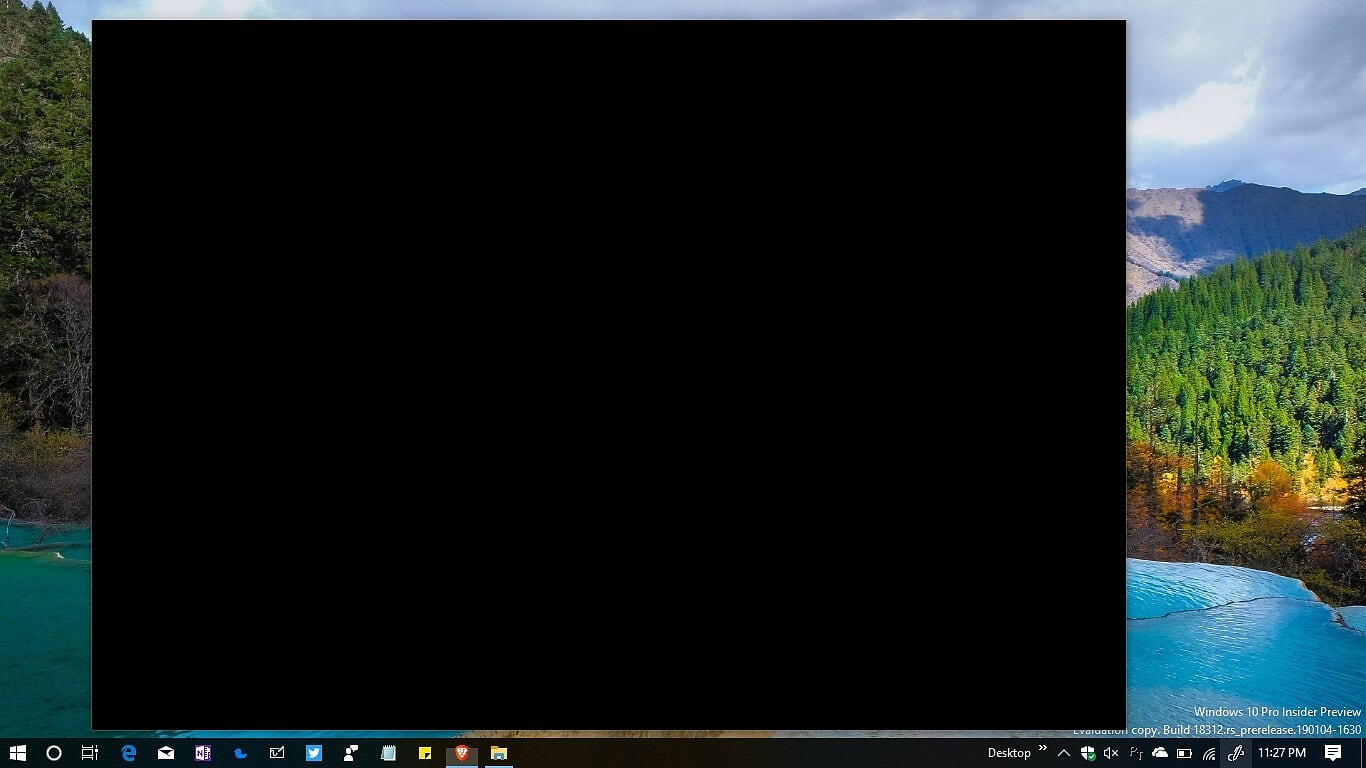
There have also been similar reports, where Win7 users get a Brave window that's "all black", and elements very briefly display when scrolling over them in the window but is also unresponsive.
Another user states that Brave is launched and running but he can't "see" it. His english is bad so it's a little hard to tell exactly what they're saying but from context I believe its a display error very much like the ones above.
Steps to Reproduce
I personally was unable to reproduce the issue when testing on my Win7 VM and there aren't "exact"
steps to reproduce this. It seems as though it just happens when installing Brave on Win7.
Actual result:
Brave installs but launches/displays as a "blank" screen of some kind.
Expected result:
Brave should launch and perform as intended.
Reproduces how often:
Seems to be inconsistent, but more than enough users have reported this to consider it a real issue.
Brave version (brave://version info)
RC build v0.58.18
Reproducible on current release:
- Does it reproduce on brave-browser dev/beta builds?
Yes
Additional Information
Many users have submitted logs for us to view in the threads linked to above. I'll come back later tonight and pull the logs out into individual comments for sake of ease.
 Brave-Matt
All 17 comments
Have you tried adding --disable-gpu in the Target end (Right click on Brave icon -> properties -> Target)?
 avndp
on 1 Jan 2019
avndp
on 1 Jan 2019
@avndp,
Yes, I've tried this both from the terminal and editing the shortcut directly. I've also had other users reporting this attempt those same things with no effect.
Brave-Matt
on 2 Jan 2019
Enclosing a desktop capture of new version on Windows 7 so you can see the exact behavior. In standard theme, Brave seems to have a white overlay, beneath is a black window that does appear to be responsive (just not visually). I was able to hover and click (invisible) links.
brave4.zip
 contemporarysage
on 3 Jan 2019
contemporarysage
on 3 Jan 2019
Two more on this one from Community:
https://community.brave.com/t/58-18-on-windows-7-does-not-work/41550/2
Brave-Matt
on 4 Jan 2019
+1 from Community, black screen: https://community.brave.com/t/solid-black-screen/41180/9
Brave-Matt
on 7 Jan 2019
Looks like the --disable-gpu workaround _does_ work for some users. Testing this now. Taken from this thread:
Workaround for Windows 7 Blank screen:
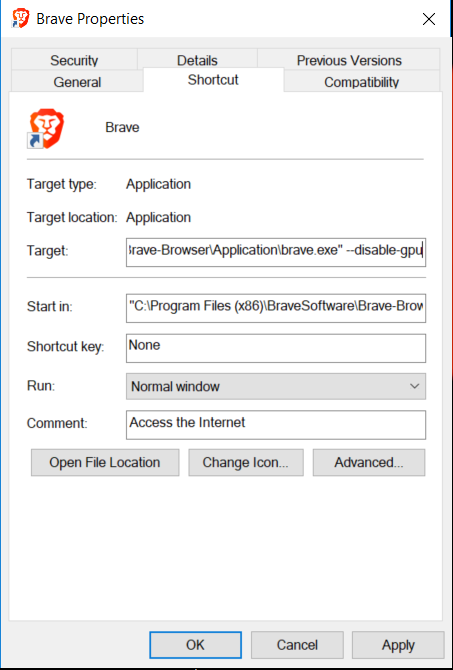
- Find the shortcut for Brave (generally on Desktop), right-click and select Properties from the context menu.
- Click into the “Target” field, and type --disable-gpu at the end of the path. Note that you must type this outside of the quotes with a space between the flag and quotes. It should look something like this:
- Click Apply then OK then open the modified shortcut you just created.
- Assuming this worked and you’re able to view Brave, open the main menu on the top-right
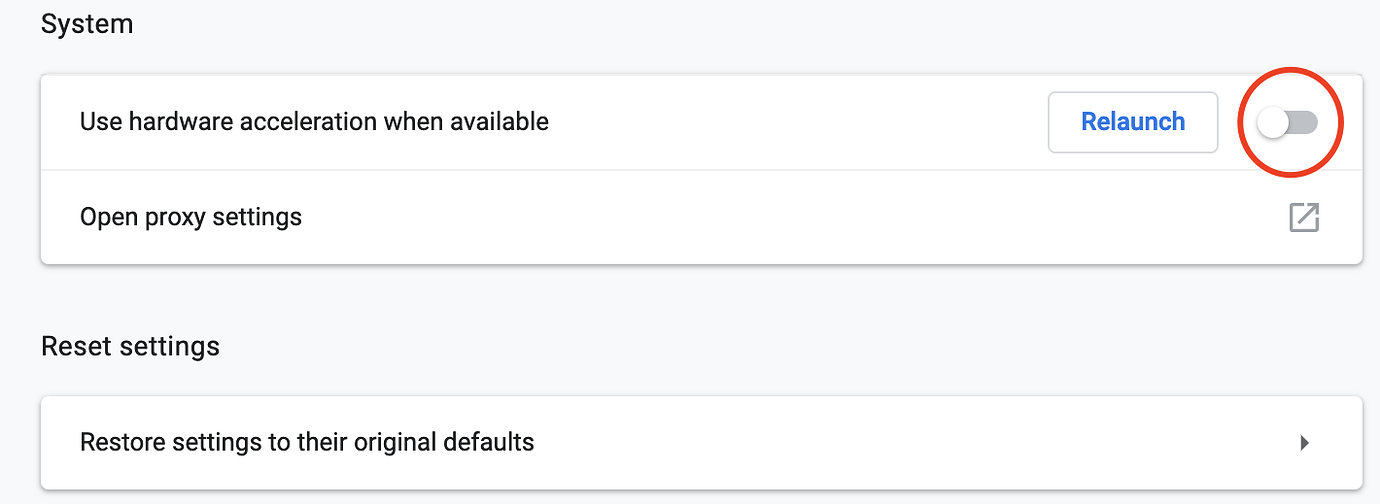
- Navigate to Settings --> Advanced --> System --> Hardware Acceleration
- Ensure this option is off. If not, toggle it off and relaunch:
- Now, return to the modified shortcut, remove the --disable-gpu flag from the Target path and launch Brave using that shortcut.
 Brave-Matt
on 9 Jan 2019
Brave-Matt
on 9 Jan 2019
I just received word from a user on Windows 10 who saw something similar, and had success with the --disable-gpu workaround. This may merit splitting off into its own issue, but for the time being I'll drop the comment here for tracking: https://twitter.com/mani2jeff/status/1083225642630434816. The user also provided a dxdiag dump.
 jonathansampson
on 10 Jan 2019
jonathansampson
on 10 Jan 2019
I have not experienced this issue personally, exactly, but suspect that one I am experiencing may be another symptom of the same problem. I am also using Brave on Windows 7. I still use Muon a lot, but only have this issue with Core. When I click on an external link with Brave Core as the default browser and already running, Brave Core switches itself to the foreground and loads the page in a new tab, but goes white. I can get it to display properly again by minimizing it with the ALT+space menu or taskbar and then restoring it. The issue and workaround a both consistent. EDIT: This seems to only happen after BC has been running for awhile. Closing the browser resolves the issue for awhile.
Do you believe this is the same issue or a different one? If the same, I would rather not create a separate bug.
 SilverPuppy
on 18 Jan 2019
SilverPuppy
on 18 Jan 2019
Repros on:
- Win 10
- AMD Raedon R5 M330
cc: @litsoni004
 jumde
on 14 Feb 2019
jumde
on 14 Feb 2019
I had the same exact issue with a fresh install. using the '--disable-gpu' on launch resolved the issue.
older version of windows 7
 minimeister
on 4 Jun 2019
minimeister
on 4 Jun 2019
Could you try the Nightly Brave build to see if it's an issue (don't pass the cmdline arg though in the test) https://brave.com/download-nightly/
 bbondy
on 4 Jun 2019
bbondy
on 4 Jun 2019
Ok, did that, same issue. One difference was that instead of an all white background it was all black. I presume that is due to it's default dark theme that I was able to see fine when launching with the ' --disable-gpu' option. Other than that same result. The standard version I'm running was just downloaded this morning btw.
A little more about my environment;
32 bit windows 7 ultimate
intel gma 3600 integrated video
So, kind of old hardware with an old version of windows. Also of note is that when hovering the mouse over the background there is 'stuff' there and right clicking shows appropriate options. It looks like something is failing to load/render on start up and it gets stuck. Nothing in windows system event logs.
minimeister
on 4 Jun 2019
Looks like the --disable-gpu workaround _does_ work for some users. Testing this now. Taken from this thread:
Workaround for Windows 7 Blank screen:
- Find the shortcut for Brave (generally on Desktop), right-click and select Properties from the context menu.
- Click into the “Target” field, and type --disable-gpu at the end of the path. Note that you must type this outside of the quotes with a space between the flag and quotes. It should look something like this:
- Click Apply then OK then open the modified shortcut you just created.
- Assuming this worked and you’re able to view Brave, open the main menu on the top-right
- Navigate to Settings --> Advanced --> System --> Hardware Acceleration
- Ensure this option is off. If not, toggle it off and relaunch:
- Now, return to the modified shortcut, remove the --disable-gpu flag from the Target path and launch Brave using that shortcut.
I am a Windows 10 who had something similar, and had success with the --disable-gpu workaround. Thanks !
 pi-eaterVZ
on 25 Jun 2019
pi-eaterVZ
on 25 Jun 2019
I resolved this issue on 2 different Notebooks running Windows 7, 64bit SP1 by setting the executable to run in Windows Vista SP2 "Compatibility mode, hardware acceleration still "Enabled". Before clicking the "Apply" button ensure that you select "Change the settings for all users" to allow all users access.
 Topper1950
on 19 Oct 2019
Topper1950
on 19 Oct 2019
Could you try the Nightly Brave build to see if it's an issue (don't pass the cmdline arg though in the test) https://brave.com/download-nightly/
In Brave nighty also I got the same issue. Passing the command line argument fixed the issue.
 agnelvishal
on 3 Nov 2019
agnelvishal
on 3 Nov 2019
Agnel, thank you for directing me to the download.
- Clean install on Alienware notebook, Intel T9300 @ 2.5 GHZ, 4GB Ram.
2.Operating System:: Windows 7 Ultimate 64bit.
Browser worked fine without command line argument fix or compatibility mode
work around.
Note that after install, the close button on the Installer GUI did not work
but it did close using the (X) top right box option.
Note: I did have two brave browser shortcuts pinned to the Taskbar which
disappear after reboot and starting the application. One was named Brave
Night and the other Brave Night 2.
Thanks again,
Martin
On Sun, Nov 3, 2019 at 10:24 AM Agnel Vishal notifications@github.com
wrote:
Could you try the Nightly Brave build to see if it's an issue (don't pass
the cmdline arg though in the test) https://brave.com/download-nightly/In Brave nighty also I got the same issue. Passing the command line
argument fixed the issue.—
You are receiving this because you commented.
Reply to this email directly, view it on GitHub
https://github.com/brave/brave-browser/issues/2771?email_source=notifications&email_token=ANREX6OUJBWY7LHHPHEZ5ZLQR33MXA5CNFSM4GMW4RX2YY3PNVWWK3TUL52HS4DFVREXG43VMVBW63LNMVXHJKTDN5WW2ZLOORPWSZGOEC5W3DQ#issuecomment-549154190,
or unsubscribe
https://github.com/notifications/unsubscribe-auth/ANREX6ISCJ27HVMVMNTFTBTQR33MXANCNFSM4GMW4RXQ
.
Topper1950
on 4 Nov 2019
For folks experiencing this, I'd like to recommend (if you haven't already) downloading the latest official drivers from Intel / nVidia / AMD. Those may help significantly- I know the ones bundled with Windows aren't always the most recent or most optimized (often the official ones include a control panel for additional tweaking if you have both a built in and discrete video card)
 bsclifton
on 4 Nov 2019
bsclifton
on 4 Nov 2019
Related issues
 Sondro
·
3Comments
Sondro
·
3Comments
 AlexeyBarabash
·
3Comments
bbondy
·
3Comments
AlexeyBarabash
·
3Comments
bbondy
·
3Comments
 fmarier
·
3Comments
fmarier
·
3Comments
 lansana
·
3Comments
lansana
·
3Comments
Most helpful comment
Have you tried adding --disable-gpu in the Target end (Right click on Brave icon -> properties -> Target)?