Azurestorageexplorer: Password manager service command not working in Linux
Storage Explorer Version: Using the latest one from SNAP on 09/23/2019 (1.10.1)
Build Number:
Platform/OS: Linux Ubuntu 18.04
Architecture: x64
Bug Description
After install storage-explorer it keeps saying it needs to be connected to system's password manager service using:
sudo snap connect storage-explorer:password-manager-service :password-manager-service
However, this never works.
Here is one screenshot:

Does anyone have any experience to solve this issue?
Thanks!
 qyouurcs
All 40 comments
@qyouurcs Did you try the command without sudo? If you run snap connections storage-explorer, what output do you get? You should see a line like this somewhere:
Interface                 Plug                                       Slot                       Notes
password-manager-service  storage-explorer:password-manager-service  :password-manager-service  manual
 craxal
on 25 Sep 2019
craxal
on 25 Sep 2019
Hi @craxal Yes, I tried many times with or without sudo. They are the same.
I do see the same line using the command snap connections storage-explorer.

qyouurcs
on 27 Sep 2019
Looks like something may be going wrong with the password manager service test we run when this error message comes up. Unfortunately, that'll take some code changes.
@qyouurcs Let me look into this some more. We'll probably want to produce a preview build and distribute that out for proper testing. Would you be willing to install the snap from the edge channel when that becomes available?
craxal
on 2 Oct 2019
@craxal I'm having sort of the same issue here in Ubuntu and Mint.
In my case the "snap" commands doesn't complete too.
I can test the Edge channel if you give me the steps to run it.

 epomatti
on 3 Oct 2019
epomatti
on 3 Oct 2019
Workaround: Downgrade to 1.9.0. We tested 1.10 too and it is broken in the same way.
We had to download and install it manually from GitHub releases because the package for 1.9.0 is not on Snap anymore... go figure.
epomatti
on 3 Oct 2019
@epomatti I noticed a slight typo in your command. You need a space before the last colon, as in:
sudo snap connect storage-explorer:password-manager-service :password-manager-service
Also, can you verify that your password manager is working correctly? For example, can you open the password manager GUI on Ubuntu, unlock, add, and remove passwords?
craxal
on 3 Oct 2019
@craxal thanks now it is working at my home PC. We'll test tomorrow back at work.
epomatti
on 3 Oct 2019
having the same issue on ubuntu 18.04. Had to downgrade to 1.9.0
 mikkoc
on 7 Nov 2019
mikkoc
on 7 Nov 2019
@mikkoc Can you share the output snap connections storage-explorer here? Can you verify that the password manager service is connected?
Everyone, we recently released version 1.11.0. Please upgrade and try again. If you continue to experience issues, please try the following:
- Open your password manager.
- Look for a service named "Microsoft_StorageExplorer" and account named "test".
- If present, examine the password value, which should be "MASE_PASSWORD_TEST".
If the password is not there, or it doesn't match the above value, please share your findings, so we can investigate further.
craxal
on 7 Nov 2019
I tried v1.11.0, same thing.
$ snap connections storage-explorer
Interface                 Plug                                       Slot                             Notes
browser-support           storage-explorer:browser-support           :browser-support                 -
content[gnome-3-26-1604]  storage-explorer:gnome-3-26-1604           gnome-3-26-1604:gnome-3-26-1604  -
content[gtk-3-themes]     storage-explorer:gtk-3-themes              gtk-common-themes:gtk-3-themes   -
content[icon-themes]      storage-explorer:icon-themes               gtk-common-themes:icon-themes    -
content[sound-themes]     storage-explorer:sound-themes              gtk-common-themes:sound-themes   -
desktop                   storage-explorer:desktop                   :desktop                         -
desktop-legacy            storage-explorer:desktop-legacy            :desktop-legacy                  -
gsettings                 storage-explorer:gsettings                 :gsettings                       -
home                      storage-explorer:home                      :home                            -
mount-observe             storage-explorer:mount-observe             -                                -
network                   storage-explorer:network                   :network                         -
opengl                    storage-explorer:opengl                    :opengl                          -
password-manager-service  storage-explorer:password-manager-service  :password-manager-service        manual
pulseaudio                storage-explorer:pulseaudio                :pulseaudio                      -
removable-media           storage-explorer:removable-media           -                                -
unity7                    storage-explorer:unity7                    :unity7                          -
wayland                   storage-explorer:wayland                   :wayland                         -
x11                       storage-explorer:x11                       :x11                             -
I'm running a bare bone locked down XFCE install, no password manager as far as I know.
I have the following packages installed, as per documentation:
apt install -y libgconf-2-4 libgnome-keyring-common libgnome-keyring0
mikkoc
on 8 Nov 2019
Ok, I installed gnome-keyring and that fixed it on 1.11.0. v1.9.0 runs happily without it.
Please update the snapcraft documentation.
mikkoc
on 8 Nov 2019
@mikkoc Great! I think you mean our Linux documentation on the Azure website? We can certainly update that. Thank's for helping us improve!
craxal
on 8 Nov 2019
unlike @mikkoc i still have the same problem even after installing gnome-keyring.
i am running Kubuntu 18.04, which Snap says is compatible with StorageExplorer. i have made sure the following packages are also installed:
dotnet-sdk-3.0, libgnome-keyring0, gnome-keyring, libgconf-2-4, libgnome-keyring-dev, libgnome-keyring-common, liblttng-ust0, libcurl4, libssl1.0.0, libkrb5-3, zlib1g, libicu60, libcanberra-gtk0
and snap connections storage-explorer shows it is connected:
password-manager-service storage-explorer:password-manager-service :password-manager-service manual
 michaeldrouin
on 8 Nov 2019
michaeldrouin
on 8 Nov 2019
@michaeldrouin Other than a password manager, I wouldn't think you'd need to install all those packages. Are you able to open the password manager application separately?
craxal
on 8 Nov 2019
Have the same issue on Ubuntu 19.10 with KDE Plasma.
gnome-keyring is installed.
 ddska
on 11 Feb 2020
ddska
on 11 Feb 2020
@ddska FYI, we have not yet verified whether Storage Explorer runs correctly on Ubuntu 19.10.
Everyone, we're still trying to get in touch with some Snapcraft experts to determine exactly what libraries are needed for the snap password manager service. This will help us ensure that we add the right libraries to our snap configurations.
We use the keytar npm package to store and retrieve sensitive information. The page linked here suggests making sure you install libsecret-1-dev for Debian/Ubuntu platforms. If you're having problems, try installing that to see if it unblocks you.
craxal
on 14 Feb 2020
In my case I had to launch the keyring command in kubuntu 19.04 in order to get this to work. After executing it storage explorer connected without problem.
 adrianabreu
on 3 Mar 2020
adrianabreu
on 3 Mar 2020
I faced the same issue on Ubuntu 18.04 machine and I tried multiple options among all, the below resolved the issue:
First check if you are able to find the Password Manager installed. Keyring password would be saved as default under this.
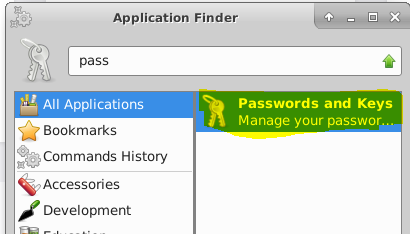
If not able to find than it seems like its not installed, update the Ubuntu machine and install gnome keyring with the below command:
sudo apt-get update
sudo apt-get install -y gnome-keyring
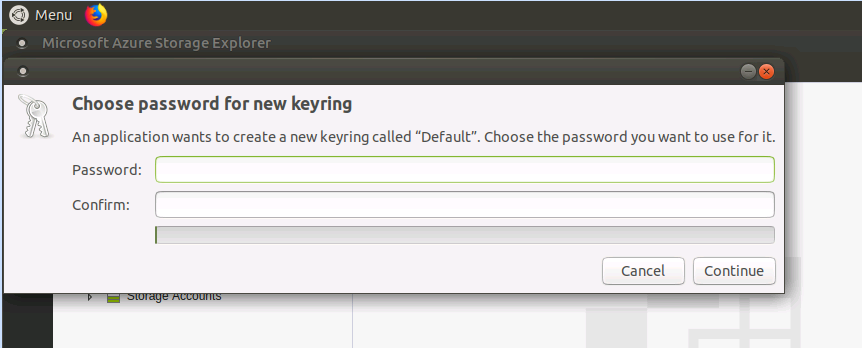
Open Storage Explorer installed after this, it would ask for the keyring password as per below screenshot. Make sure you use one that you'll remember or you can use the same password as for the username you are logged in with, eventually. This is one time activity only.
 ChandraSM
on 10 Mar 2020
ChandraSM
on 10 Mar 2020
@mikkoc @ddska @ChandraSM Thanks all for your help and your patience! I'm curious, how did you get an Ubuntu installation without the password manager? I could have sworn that came with the standard installation.
craxal
on 10 Mar 2020
@craxal
Password manager is installed in my system, and yes, it was installed by default.
The issue is that Storage Explorer does not work with it, and it is still not resolved for me.
As I mentioned, I have gnome-keyring installed, other applications are able to use it, and I can launch it manually.
ddska
on 10 Mar 2020
@mikkoc @ddska @ChandraSM Thanks all for your help and your patience! I'm curious, how did you get an Ubuntu installation without the password manager? I could have sworn that came with the standard installation.
May be the Password Manager might have been installed but I was not able to find it when I checked in the Desktop mode, also used snap command to connect the Password Manager service plug but that does not work. After installing Gnome-keyring I opened the Storage Explorer tool and manually provided the password to update in Password Manager via GUI method.
ChandraSM
on 11 Mar 2020
Hey folks. Here's an update on our investigation.
What we're doing
We have confirmed that the following packages are needed for _standard installations of Ubuntu_ (16.04, 18.04, 19.04):
libgconf-2-4libgnome-keyring-commonlibgnome-keyring0
We are looking into upgrading our use of keytar. We are currently using v3.x, which depends on gnome-keyring, but later versions depend on libsecret. We are also double-checking our snap dependencies and making sure they are properly defined.
We have reached out to Canonical to get more information about the password manager service socket and what requirements it has so that we can correct our documentation if need be.
What you can do
For those of you using standard Ubuntu installations: If you are getting the password manager error when launching Storage Explorer, make sure the above packages are installed and that the password manager service has been connected to the Storage Explorer snap as described above.
For those of you using more customized Ubuntu environments or different distributions: Your requirements may differ from what we've mentioned here. For example, if you installed another desktop environment besides Gnome, you may need other equivalent packages.
If after all this you are still having problems: We highly recommend you join the discussion with Canonical on this forum thread.
And of course, please share with us any additional findings you come across!
craxal
on 18 Mar 2020
any idea on how to get this working on Kubuntu since libconf-2-4, libgnome-keyring-common and libgnome-keyring0 aren't packages in the KDE repo?
michaeldrouin
on 24 Mar 2020
@michaeldrouin I'm afraid I don't know what the equivalents would be for Kubuntu. This is probably good evidence for the case that we need to update to a more recent version of keytar so we don't all have to suffer dependency chaos like this.
Here's something that may help everyone figure out what libraries they're missing:
- Clone or copy the files of the repo at https://github.com/craxal/test-keytar to your local machine.
- Install Node.js.
- Run
npm installfrom the root folder of the cloned repo. Pay attention to any error messages that you receive. You may need to install a library or two before this succeeds. - Run
node ./main.jsfrom the root folder of the cloned repo. If any error is displayed in the command line, let us know! - Check your password manager for a TEST_SERVICE/TEST_ACCOUNT with TEST_PASSWORD saved.
I did the above on a minimal installation of Ubuntu, and strangely enough, once npm install succeeded, the test program worked as expected. After that, Storage Explorer ran just fine. The only additional libraries I needed to install were:
pkg-configlibgnome-keyring-dev
craxal
on 26 Mar 2020
None of the suggestions work with Arch Linux. Evidently there's no such packages:
- libconf-2-4
- libgnome-keyring-common
- libgnome-keyring0
I have gnome-keyring installed and seahorse can find and use the credentials just fine. Also I have libsecret installed.
pgrep -af gnome-keyring
164073 /usr/bin/gnome-keyring-daemon --start --foreground --components=secrets
With both TAR archive of snapshot explorer 1.12.0, and snap version with connected password manager the issue is always the same as below:

 jdevelop
on 3 Apr 2020
jdevelop
on 3 Apr 2020
I am an Arch Linux user and I was having the same problems. I am now able to start storage-explorer without seeing the usual "requires a password manager service" error window. What I did was:
- Install
storage-explorerusingsnap - Run
sudo snap connect storage-explorer:password-manager-service :password-manager-service - Install
gnome-keyring - Install
seahorse - Open
seahorseand toggle the padlock icon for theDefault keyring
After these steps storage-explorer starts successfully.
My guess is that storage-explorer cannot use the Default keyring keyring if never used before and the tests run at startup fail.
I am happy to run other tests and give more information if it helps others.
 alessap
on 14 Apr 2020
alessap
on 14 Apr 2020
@alessap that helped, thanks! looks like the keyring needs to be unlocked. Also I had to add source /etc/X11/xinit/xinitrc.d/50-systemd-user.sh to .xinitrc
jdevelop
on 14 Apr 2020
We have confirmed that the following packages are needed for _standard installations of Ubuntu_ (16.04, 18.04, 19.04):
* `libconf-2-4`
Do you mean libgconf-2-4?
I'm not sure if all of the steps were required, but I had success with this on a standard install of Ubuntu 18.04:
sudo apt-get update && sudo apt-get upgrade -y
sudo apt install -y libgconf-2-4 libgnome-keyring-common libgnome-keyring0
sudo snap install storage-explorer
snap connect storage-explorer:password-manager-service :password-manager-service
 michaeldavie-cyber
on 22 Apr 2020
michaeldavie-cyber
on 22 Apr 2020
I am an Arch Linux user and I was having the same problems. I am now able to start
storage-explorerwithout seeing the usual "requires a password manager service" error window. What I did was:* Install `storage-explorer` using `snap` * Run `sudo snap connect storage-explorer:password-manager-service :password-manager-service` * Install `gnome-keyring` * Install `seahorse` * Open `seahorse` and toggle the padlock icon for the `Default keyring`After these steps
storage-explorerstarts successfully.
My guess is thatstorage-explorercannot use theDefault keyringkeyring if never used before and the tests run at startup fail.
I am happy to run other tests and give more information if it helps others.
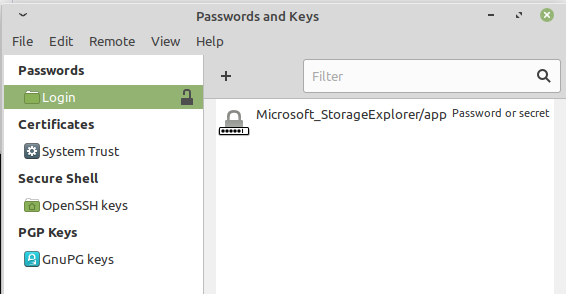
Linux Mint 19.3 XFCE. Oddly enough, I don't have the libgconf-2-4, libgnome-keyring-common, or libgnome-keyring0 libs installed. All I had to do was start seahorse and toggle the padlock to unlock for "Login" and boom, started working. (thanks for suggesting, that never would have occurred to me)
 danielszabo
on 1 May 2020
danielszabo
on 1 May 2020
Hey everyone, thanks for your patience. We've been investigating this issue, and we will be updating our docs soon. Is anyone still encountering this problem after trying the suggestions made here in the comments?
craxal
on 11 Jun 2020
Hi, I just found the same issue on Ubuntu 20.04. I tried to solve the issue by following advice in this thread, but libgnome-keyring0 and libgnome-keyring-common are not available anymore in the repositories.
EDIT: Rebooting my PC strangely fixed it. Sorry about that.
 andreadistefano
on 3 Jul 2020
andreadistefano
on 3 Jul 2020
I still have this issue. Followed every single step mentioned here. I can't even find any login keys using seahorse.
This error has wasted a lot of my time as an intern at Microsoft so far.
 hassanhub
on 1 Aug 2020
hassanhub
on 1 Aug 2020
@hassanhub If you're still having problems, can you open a new bug and fill out the bug template as completely as you can?
craxal
on 3 Aug 2020
@hassanhub
Same as you, but when I started again storage-explorer (after or while seahorse was open) it asked for password for a Default Keyring and started normally (I'm on Manjaro KDE)
 AdrianPaulCarrieres
on 17 Aug 2020
AdrianPaulCarrieres
on 17 Aug 2020
Commenting in case this helps anyone else searching regarding problems with this:
OpenSUSE Tumbleweed /w KDE here. Seahorse did not work. I had to explicitly install gnome-keyring (which fortunately didn't pull a whole ton of dependencies.) Installation of it was enough, storage-explorer launched the keyring on it's own at runtime.
 draeath
on 9 Sep 2020
draeath
on 9 Sep 2020
Solved in Kubuntu 20.04 LTS:
sudo snap remove storage-explorer
sudo apt install gnome-keyring
sudo snap install storage-explorer
 andreylh
on 17 Nov 2020
andreylh
on 17 Nov 2020
I am on arch+KDE and Manjaro+KDE.
Would rather not nstall Gnome-Keyring because KDE is not GNOME and I already have Kwallet for managing credentials.
 sarvasana
on 12 Jan 2021
sarvasana
on 12 Jan 2021
I had the same bug. gnome-keyring worked for me as well. Bit of a shame, I already have kwallet.
 timstokman
on 14 Jan 2021
timstokman
on 14 Jan 2021
There seems to be an integration issue between snap and KWallet. I have started a thread on the snapcraft forum linking to this page - feel free to relay your experience over there as well.
 captainwarptime
on 14 Jan 2021
captainwarptime
on 14 Jan 2021
There seems to be an integration issue between snap and KWallet. I have started a thread on the snapcraft forum linking to this page - feel free to relay your experience over there as well.
Thanks for the link, but the problem I have has nothing to do with Snap. Would rather not use Snap either.
sarvasana
on 14 Jan 2021
Related issues
 amtsha09
·
6Comments
amtsha09
·
6Comments
 ziesemer
·
3Comments
ziesemer
·
3Comments
 olgakorichkovskaya
·
4Comments
olgakorichkovskaya
·
4Comments
 eosho
·
3Comments
eosho
·
3Comments
 OffColour
·
4Comments
OffColour
·
4Comments
Most helpful comment
I am an Arch Linux user and I was having the same problems. I am now able to start
storage-explorerwithout seeing the usual "requires a password manager service" error window. What I did was:storage-explorerusingsnapsudo snap connect storage-explorer:password-manager-service :password-manager-servicegnome-keyringseahorseseahorseand toggle the padlock icon for theDefault keyringAfter these steps
storage-explorerstarts successfully.My guess is that
storage-explorercannot use theDefault keyringkeyring if never used before and the tests run at startup fail.I am happy to run other tests and give more information if it helps others.