Azuredatastudio: Connecting to remote SQL Server from Ubuntu 20.04
Issue Type: Bug
Previously it worked on Ubuntu 18.04, but after upgrading to 20.04 and installing Azure Data Studio, it does not even load the databases after I add the IP address of the server and the credentials.
Azure Data Studio version: azuredatastudio 1.17.1 (814ce88c41e0daaca89afed8b184e795057a6f9d, 2020-04-29T23:48:52.060Z)
OS version: Linux x64 5.4.0-29-generic
System Info
|Item|Value|
|---|---|
|CPUs|Intel(R) Core(TM) i5-8250U CPU @ 1.60GHz (8 x 2478)|
|GPU Status|2d_canvas: enabled
flash_3d: enabled
flash_stage3d: enabled
flash_stage3d_baseline: enabled
gpu_compositing: enabled
multiple_raster_threads: enabled_on
oop_rasterization: disabled_off
protected_video_decode: unavailable_off
rasterization: disabled_software
skia_renderer: disabled_off_ok
video_decode: unavailable_off
viz_display_compositor: enabled_on
viz_hit_test_surface_layer: disabled_off_ok
webgl: enabled
webgl2: enabled|
|Load (avg)|3, 1, 1|
|Memory (System)|7.66GB (2.74GB free)|
|Process Argv|--no-sandbox --unity-launch|
|Screen Reader|no|
|VM|0%|
|DESKTOP_SESSION|ubuntu|
|XDG_CURRENT_DESKTOP|Unity|
|XDG_SESSION_DESKTOP|ubuntu|
|XDG_SESSION_TYPE|x11|
Extensions: none
 igakigongo
All 21 comments
Thanks for submitting this issue. Please also check if it is already covered by an existing one, like:
![adsbot[bot] picture](https://avatars.githubusercontent.com/in/25741?v=4&s=40) adsbot[bot]
on 11 May 2020
adsbot[bot]
on 11 May 2020
Same problem.
Apparently it's TLS connection error.
A connection was successfully established with the server, but then an error occurred during the pre-login handshake. (provider: TCP Provider, error: 35 - An internal exception was caught)
 wesleifreitas
on 16 Jun 2020
wesleifreitas
on 16 Jun 2020
Same problem.
 davidancr
on 3 Jul 2020
davidancr
on 3 Jul 2020
the connection was successful with linux 18.04 but i can't connect the sql from linux 20.04
davidancr
on 24 Jul 2020
the connection was successful with linux 18.04 but i can't connect the sql from linux 20.04
same here
 tholap
on 28 Jul 2020
tholap
on 28 Jul 2020
I'm running 1.20 on fedora 32. I have a similar error:
Microsoft.Data.SqlClient.SqlException (0x80131904): A connection was successfully established with the server, but then an error occurred during the pre-login handshake. (provider: TCP Provider, error: 35 - An internal exception was caught)
---> System.Security.Authentication.AuthenticationException: The remote certificate is invalid according to the validation procedure.
It looks like the recommendations to set TrustServerCertificate to true, worked for me.
 aappddeevv
on 13 Aug 2020
aappddeevv
on 13 Aug 2020
Check this https://github.com/microsoft/azuredatastudio/issues/11367#issuecomment-659614111 this was published in the last update on official page https://docs.microsoft.com/es-es/sql/azure-data-studio/release-notes-azure-data-studio?view=sql-server-ver15 fix URL https://github.com/microsoft/azuredatastudio/issues/11367#issuecomment-659614111
 RD3LE0N
on 18 Aug 2020
RD3LE0N
on 18 Aug 2020
Check this #11367 (comment) this was published in the last update on official page https://docs.microsoft.com/es-es/sql/azure-data-studio/release-notes-azure-data-studio?view=sql-server-ver15 fix URL #11367 (comment)
i checked and tried but the issue persist
davidancr
on 19 Aug 2020
Setting TrustServerCertificate has no effect on the issue. Getting the exact same error. On 18.10 this morning zero issues. Now on 20.04, everything else the same, I cannot connect.
A connection was successfully established with the server, but then an error occurred during the pre-login handshake. (provider: SSL Provider, error: 31 - Encryption(ssl/tls) handshake failed)
Are there any other possible fixes?
 BFalls158
on 2 Sep 2020
BFalls158
on 2 Sep 2020
hello i am so happy to tell you that i have a solution i tested and works perfectly
is a downgrade of openssl
Below are the instructions to follow:
- Open a terminal (Ctrl+Alt+t).
- Fetch the tarball: wget https://www.openssl.org/source/openssl-1.1.1.tar.gz
- Unpack the tarball with tar -zxf openssl-1.1.1.tar.gz && cd openssl-1.1.1
- Issue the command ./config.
- sudo apt install make gcc
- sudo make
- sudo make install
- Run the command sudo ldconfig to update symlinks and rebuild the library cache.
Assuming that there were no errors in executing steps 4 through 10, you should have successfully installed the new version of OpenSSL.
Again, from the terminal issue the command:
openssl version
Your output should be as follows:
OpenSSL 1.1.1 11 Sep 2018Below are the instructions to follow:
Assuming that there were no errors in executing steps 4 through 10, you should have successfully installed the new version of OpenSSL.
Again, from the terminal issue the command:
openssl version
Your output should be as follows:
OpenSSL 1.1.1 11 Sep 2018
davidancr
on 4 Sep 2020
Setting TrustServerCertificate has no effect on the issue. Getting the exact same error. On 18.10 this morning zero issues. Now on 20.04, everything else the same, I cannot connect.
A connection was successfully established with the server, but then an error occurred during the pre-login handshake. (provider: SSL Provider, error: 31 - Encryption(ssl/tls) handshake failed)
Are there any other possible fixes?
i tested and works perfectly
is a downgrade of openssl
Below are the instructions to follow:
- Open a terminal (Ctrl+Alt+t).
- Fetch the tarball: wget https://www.openssl.org/source/openssl-1.1.1.tar.gz
- Unpack the tarball with tar -zxf openssl-1.1.1.tar.gz && cd openssl-1.1.1
- Issue the command ./config.
- sudo apt install make gcc
- sudo make
- sudo make install
- Run the command sudo ldconfig to update symlinks and rebuild the library cache.
Assuming that there were no errors in executing steps 4 through 10, you should have successfully installed the new version of OpenSSL.
Again, from the terminal issue the command:
openssl version
Your output should be as follows:
OpenSSL 1.1.1 11 Sep 2018Below are the instructions to follow:
Assuming that there were no errors in executing steps 4 through 10, you should have successfully installed the new version of OpenSSL.
Again, from the terminal issue the command:
openssl version
Your output should be as follows:
OpenSSL 1.1.1 11 Sep 2018
davidancr
on 5 Sep 2020
@davidancr Thanks for the hint how this can be done on Ubuntu 20.04! On Ubuntu 20.04 (or Linux Mint 20, which I use), it can also be done by just installing the precompiled openssl and libssl packages of Ubuntu Bionic (18.04) - they are exactly at that version:
sudo dpkg -i openssl_1.1.1-1ubuntu2.1~18.04.6_amd64.deb libssl1.1_1.1.1-1ubuntu2.1~18.04.6_amd64.deb libssl1.1_1.1.1-1ubuntu2.1~18.04.6_i386.deb libssl-dev_1.1.1-1ubuntu2.1~18.04.6_amd64.deb
This will downgrade the pre-existing packages, which currently are at version 1.1.1f-1ubuntu2 (Focal).
Of course, before running the above command, you first need to download _all_ the above packages (you find them through https://packages.ubuntu.com or by clicking the direct links below):
- openssl_1.1.1-1ubuntu2.1~18.04.6_amd64.deb
- libssl1.1_1.1.1-1ubuntu2.1~18.04.6_amd64.deb
- libssl1.1_1.1.1-1ubuntu2.1~18.04.6_i386.deb
- libssl-dev_1.1.1-1ubuntu2.1~18.04.6_amd64.deb
Then, run the above dpkg command from the directory where you downloaded these packages.
After that, check installed version:
$ openssl version
OpenSSL 1.1.1  11 Sep 2018
Finally, run:
sudo apt-mark hold openssl libssl-dev libssl1.1:amd64 libssl1.1:i386
This will prevent your update manager from automatically upgrading these packages again.
I hope that the msodbcsql17 package will soon be upgraded in order to work with current openssl on Ubuntu 20.04. In that case, 'unhold' the package versions with sudo apt-mark unhold ....
Further, I must add that I still have a connection issue in azuredatastudio, referring to the Kerberos connection - it says:
Connection failed due to Kerberos error.
Help configuring Kerberos is available at https://aka.ms/sqlopskerberos
If you have previously connected you may need to re-run kinit.
And the top of the 'details' reads as:
Microsoft.Data.SqlClient.SqlException (0x80131904): Cannot authenticate using Kerberos. Ensure Kerberos has been initialized on the client with 'kinit' and a Service Principal Name has been registered for the SQL Server to allow Kerberos authentication.
ErrorCode=InternalError, Exception=Interop+NetSecurityNative+GssApiException: GSSAPI operation failed with error - Unspecified GSS failure. Minor code may provide more information (Server not found in Kerberos database).
But I think this must be some bug - at least it is specific to azurestudio because Kerberos _is_ active, I _can_ login to the database server on the command line, and I _can_ connect to databases from R.
 florisvdh
on 7 Sep 2020
florisvdh
on 7 Sep 2020
I was able to work around this without downgrading OpenSSL. It seems now TLS<1.2 is now disabled by default OpenSSL will throw an error that Azure Data Studio doesn't understand if it tries to connect using TLS1.0, which it does first for unknown reasons - even if the SQL server requires TLS1.2 (verified using Wireshark).
Ironically, re-enabling TLS1.0 allows Azure Data Studio to attempt TLS1.0 first and be rejected by the SQL Server instead, then upgrade the connection to TLS1.2.
Is there a way to instruct Azure Data Studio to try TLS1.2 first?
 tmackay-cenet
on 11 Sep 2020
tmackay-cenet
on 11 Sep 2020
For me the downgraded openssl essentially solved the below server login errors with sqlcmd (using msodbcsql17 and mssql-tools packages), which are the same errors as in https://stackoverflow.com/questions/57265913/error-tcp-provider-error-code-0x2746-during-the-sql-setup-in-linux-through-te/:
$ sqlcmd -S DBServerName -E
Sqlcmd: Error: Microsoft ODBC Driver 17 for SQL Server : TCP Provider: Error code 0x2746.
Sqlcmd: Error: Microsoft ODBC Driver 17 for SQL Server : Client unable to establish connection.
To run without downgrading openssl i use the scipt below, it downloads openssl lib from ubuntu 18.04 and starts azuredatastudio with the downloaded libs:
#!/bin/sh
DEBF=libssl1.1_1.1.1-1ubuntu2.1~18.04.6_amd64.deb
LIBDIR=azure_openssl_lib

if [ ! -d $LIBDIR ] ; then
        mkdir $LIBDIR
        [ ! -f $DEBF ] && wget -nv http://security.ubuntu.com/ubuntu/pool/main/o/openssl/$DEBF
        ar x $DEBF data.tar.xz && rm $DEBF
        tar xf data.tar.xz -C $LIBDIR ./usr/lib/x86_64-linux-gnu --strip-components 4 && rm data.tar.xz
        ln -s libcrypto.so.1.1 $LIBDIR/libcrypto.so
        ln -s libssl.so.1.1 $LIBDIR/libcss.so
fi

LD_LIBRARY_PATH=$LIBDIR  azuredatastudio
 kruzer
on 18 Oct 2020
kruzer
on 18 Oct 2020
To run without downgrading openssl i use the scipt below, it downloads openssl lib from ubuntu 18.04 and starts azuredatastudio with the downloaded libs:
#!/bin/sh
DEBF=libssl1.1_1.1.1-1ubuntu2.1~18.04.6_amd64.deb
LIBDIR=azure_openssl_lib

if [ ! -d $LIBDIR ] ; then
        mkdir $LIBDIR
        [ ! -f $DEBF ] && wget -nv http://security.ubuntu.com/ubuntu/pool/main/o/openssl/$DEBF
        ar x $DEBF data.tar.xz && rm $DEBF
        tar xf data.tar.xz -C $LIBDIR ./usr/lib/x86_64-linux-gnu --strip-components 4 && rm data.tar.xz
        ln -s libcrypto.so.1.1 $LIBDIR/libcrypto.so
        ln -s libssl.so.1.1 $LIBDIR/libcss.so
fi

LD_LIBRARY_PATH=$LIBDIR  azuredatastudio
Works well! thanks you
RD3LE0N
on 19 Oct 2020
To run without downgrading openssl i use the scipt below, it downloads openssl lib from ubuntu 18.04 and starts azuredatastudio with the downloaded libs:
#!/bin/sh
DEBF=libssl1.1_1.1.1-1ubuntu2.1~18.04.6_amd64.deb
LIBDIR=azure_openssl_lib

if [ ! -d $LIBDIR ] ; then
        mkdir $LIBDIR
        [ ! -f $DEBF ] && wget -nv http://security.ubuntu.com/ubuntu/pool/main/o/openssl/$DEBF
        ar x $DEBF data.tar.xz && rm $DEBF
        tar xf data.tar.xz -C $LIBDIR ./usr/lib/x86_64-linux-gnu --strip-components 4 && rm data.tar.xz
        ln -s libcrypto.so.1.1 $LIBDIR/libcrypto.so
        ln -s libssl.so.1.1 $LIBDIR/libcss.so
fi

LD_LIBRARY_PATH=$LIBDIR  azuredatastudio
Master!!!!!
 eliosh
on 4 Nov 2020
eliosh
on 4 Nov 2020
Hi,
It work very well to connect to SQL Server Remote after downgrade of openssl like @davidancr said.
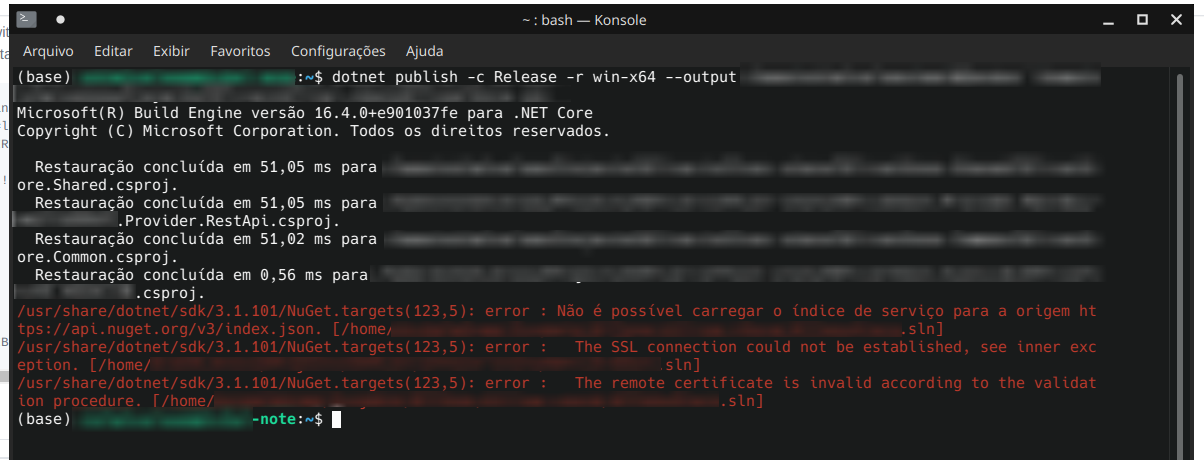
But now, when I try to publish a project using the command dotnet publish, I got this errors:
"The SSL connection could not be established, see inner exception"
"The remote certificate is invalid according to the validation procedure"
Is there a way to fix this?
Regards
 michelveloso
on 6 Jan 2021
michelveloso
on 6 Jan 2021
Hi,
you can try this commands (use the same order):
dotnet dev-certs https --clean
dotnet dev-certs https
dotnet dev-certs https --trust
(please let us know if it working well)
also reading this article may could help you:
https://docs.microsoft.com/en-us/aspnet/core/security/enforcing-ssl?view=aspnetcore-3.0&tabs=visual-studio#trust-the-aspnet-core-https-development-certificate-on-windows-and-macos
davidancr
on 6 Jan 2021
Hi,
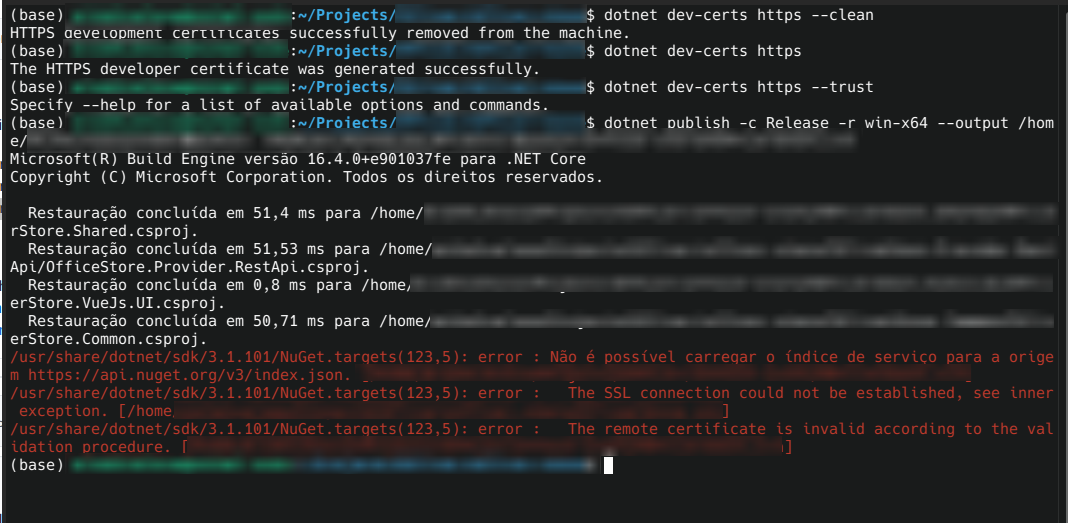
@davidancr, I was be able to only run this commands:
dotnet dev-certs https --clean
dotnet dev-certs https
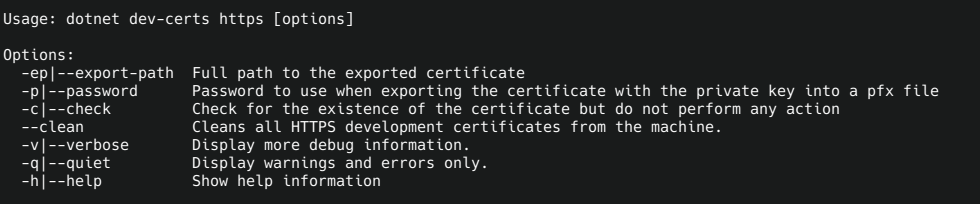
When I tried: dotnet dev-certs https --trust I got:
Specify --help for a list of available options and commands.
These are the only commands available:
If I try to run again, I got the same error.
michelveloso
on 6 Jan 2021
I found this workaround may help you
https://stackoverflow.com/questions/55485511/how-to-run-dotnet-dev-certs-https-trust
davidancr
on 6 Jan 2021
Related issues
 jacobzed
·
3Comments
jacobzed
·
3Comments
 squillace
·
3Comments
squillace
·
3Comments
 blackTay
·
3Comments
blackTay
·
3Comments
 kfrajtak
·
3Comments
kfrajtak
·
3Comments
 stevenreddie
·
3Comments
stevenreddie
·
3Comments
Most helpful comment
hello i am so happy to tell you that i have a solution i tested and works perfectly
is a downgrade of openssl
Below are the instructions to follow:
Assuming that there were no errors in executing steps 4 through 10, you should have successfully installed the new version of OpenSSL.
Again, from the terminal issue the command:
openssl version
Your output should be as follows:
OpenSSL 1.1.1 11 Sep 2018Below are the instructions to follow:
Assuming that there were no errors in executing steps 4 through 10, you should have successfully installed the new version of OpenSSL.
Again, from the terminal issue the command:
openssl version
Your output should be as follows:
OpenSSL 1.1.1 11 Sep 2018