Azure-docs: not possible to geht javascript snippet
Hey,
the way like described in https://docs.microsoft.com/en-us/azure/application-insights/app-insights-javascript#add-the-sdk-script-to-your-app-or-web-pages is not possible anymore. I can not find the snippet under "getting started" where I can get the snippet from to put it into my one page application?
Is there a best practice way to use application insights for react applications which are compiled to only HTML/js files?
Document Details
⚠ Do not edit this section. It is required for docs.microsoft.com ➟ GitHub issue linking.
- ID: d56ecb14-9e66-5313-a381-d2824ec3d1e2
- Version Independent ID: ff056ac8-ae76-be10-6895-757333a28e05
- Content: Azure Application Insights for JavaScript web apps
- Content Source: articles/application-insights/app-insights-javascript.md
- Service: application-insights
- GitHub Login: @mrbullwinkle
- Microsoft Alias: mbullwin
 aumanjoa
All 7 comments
Thanks for reporting! I have assigned the issue to the author to investigate and update as appropriate.
 MohitGargMSFT
on 21 Mar 2018
MohitGargMSFT
on 21 Mar 2018
@aumanjoa When I go to "Getting Started" then click on "Monitor and Diagnose Client Side application" I see the script there. Is that what you were looking for ?
 cecilphillip
on 22 Mar 2018
cecilphillip
on 22 Mar 2018
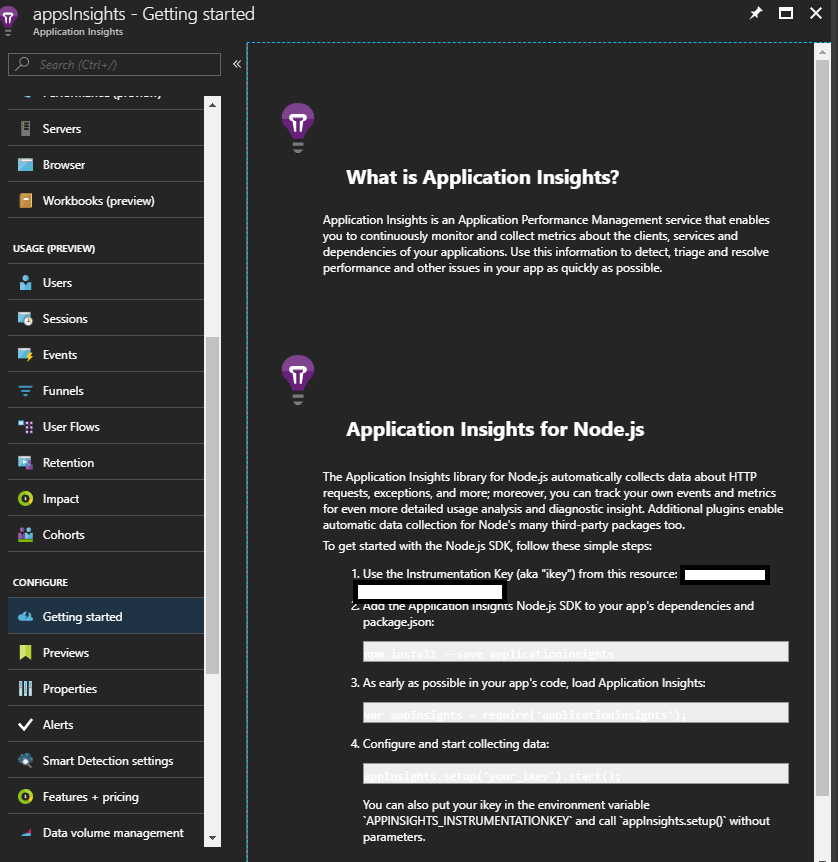
Please finde here my screenshot of the "getting Started" if I select ApplicationInsichts for Node.js
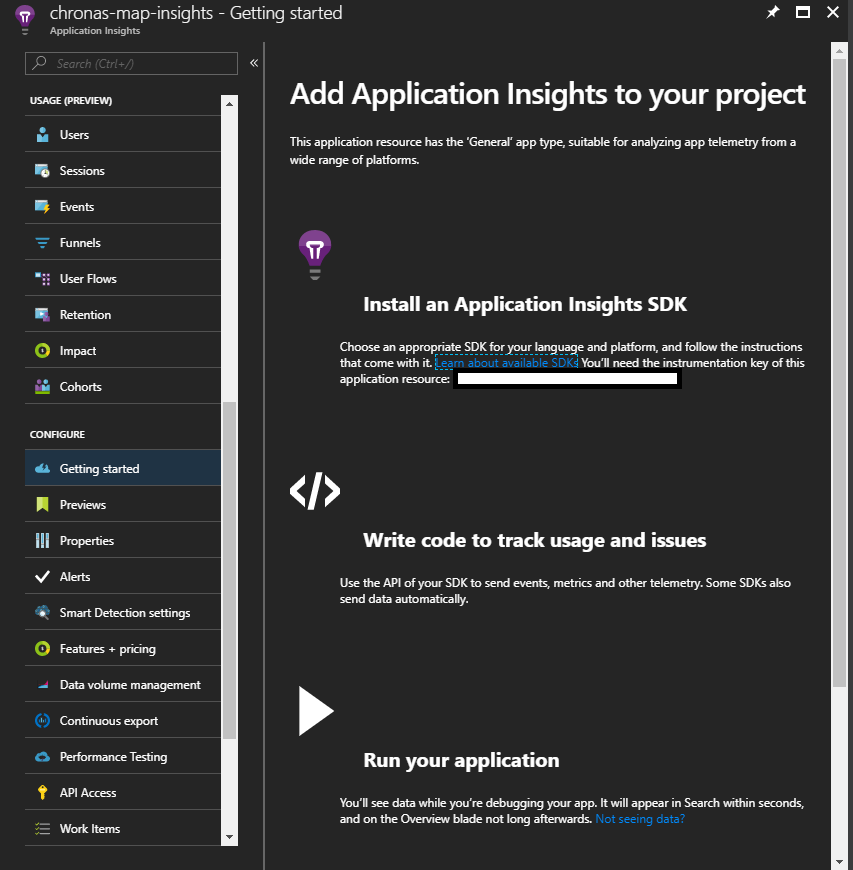
Please finde here my screenshot of the "getting Started" if I select ApplicationInsichts for "General"
aumanjoa
on 22 Mar 2018
in-process
 mrbullwinkle
on 22 Mar 2018
mrbullwinkle
on 22 Mar 2018
@aumanjoa Thank you for the screenshots it helps a lot.
The UI experience varies slightly based on the Application Type selection. Since your Application Insights resource is of the Application Type Node.js your _Getting started_ experience is different than if an alternate application type were selected.
So it looks like at some point between when the doc was originally authored we changed the underlying UI experience for the Node.js app type _Getting started_, but left it the same for the other app types, and didn't properly update the docs to reflect the change.
This is why @cecilphillip commented that he was not seeing an issue as he likely tested with an App Type of .NET.
At the moment, under the hood App Type selection has little to no impact on monitoring of the underlying app with App Insights. So you could technically select an App Type of .NET and then successfully instrument a Node.js app. The only substantial change as of today is certain options get lit up in the UI based on the features that particular App Type's SDK supports. (This of course may change in the future.)
I will update the docs to properly reflect the changes in the UI for that app type. Thank you so much for bringing this to our attention!
In the meantime, the code you are looking for is below, just swap in your instrumentation key and you should be good to go.
```HTML
```
In answer to your second question, we don't currently offer specific best practice guidance around instrumenting React.js based apps, but if there is enough customer interest it is certainly something we would explore documenting in the future.
mrbullwinkle
on 22 Mar 2018
The updates to fix the doc were just merged to the private repo. They should go live tomorrow morning by 10 AM PDT.
mrbullwinkle
on 23 Mar 2018
@aumanjoa
We will now proceed to close this thread. If there are further questions regarding this matter, please reopen it and we will gladly continue the discussion.
 femsulu
on 24 Mar 2018
femsulu
on 24 Mar 2018
Related issues
 jamesgallagher-ie
·
3Comments
jamesgallagher-ie
·
3Comments
 AronT-TLV
·
3Comments
AronT-TLV
·
3Comments
 bdcoder2
·
3Comments
bdcoder2
·
3Comments
 jebeld17
·
3Comments
jebeld17
·
3Comments
 spottedmahn
·
3Comments
spottedmahn
·
3Comments
Most helpful comment
@aumanjoa Thank you for the screenshots it helps a lot.
The UI experience varies slightly based on the Application Type selection. Since your Application Insights resource is of the Application Type Node.js your _Getting started_ experience is different than if an alternate application type were selected.
So it looks like at some point between when the doc was originally authored we changed the underlying UI experience for the Node.js app type _Getting started_, but left it the same for the other app types, and didn't properly update the docs to reflect the change.
This is why @cecilphillip commented that he was not seeing an issue as he likely tested with an App Type of .NET.
At the moment, under the hood App Type selection has little to no impact on monitoring of the underlying app with App Insights. So you could technically select an App Type of .NET and then successfully instrument a Node.js app. The only substantial change as of today is certain options get lit up in the UI based on the features that particular App Type's SDK supports. (This of course may change in the future.)
I will update the docs to properly reflect the changes in the UI for that app type. Thank you so much for bringing this to our attention!
In the meantime, the code you are looking for is below, just swap in your instrumentation key and you should be good to go.
```HTML
```
In answer to your second question, we don't currently offer specific best practice guidance around instrumenting React.js based apps, but if there is enough customer interest it is certainly something we would explore documenting in the future.