Armory: Weird artefacts showing up in the geometry when everything is fine in Blender.
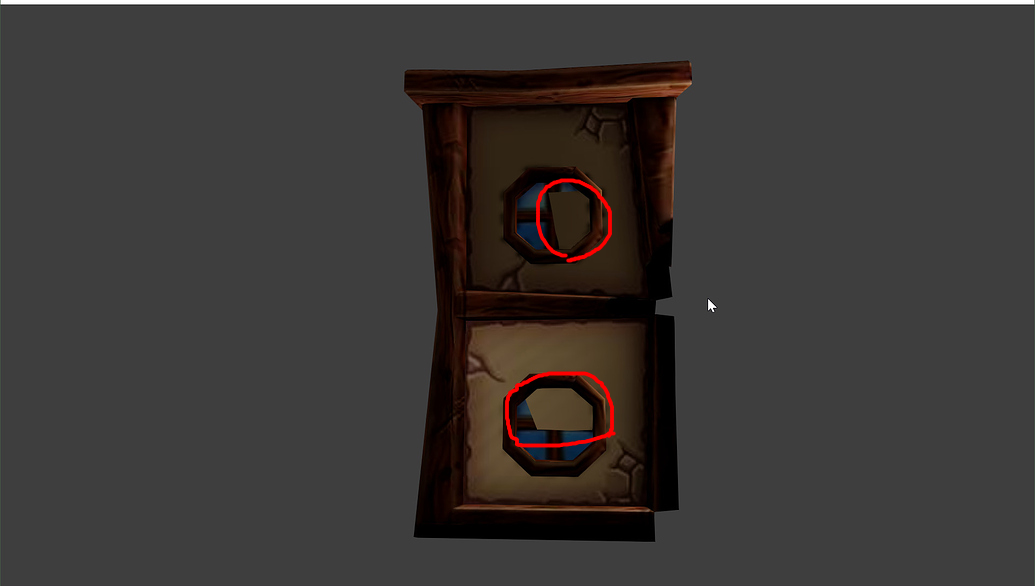
I’ve been tweaking a model in blender, then when I compile the project I have weird artifacts showing in the windows of the model.
Seems like a problem with the geometry in Armory?
(I deleted some vertices, scaled the model, apply some transform, etc...)
See the files :
Blender File : http://forums.armory3d.org/uploads/short-url/r69kKIMpgHjKJCcGDx44hXJnDnA.blend
Texture File : http://forums.armory3d.org/uploads/default/original/2X/0/07b5f3cbb5612eb1c323680c65a37bda80c8f829.jpeg
Blender Viewport : http://forums.armory3d.org/uploads/default/original/2X/e/e46a5f988a98dded4db570d93e3e4a6921d2bf84.jpeg
Armory Output :
http://forums.armory3d.org/uploads/default/optimized/2X/f/fade041e9712f5c6cc8fa49cad2b2f92aa33296b_2_1035x586.jpeg
To Reproduce
Steps to reproduce the behavior.
Expected behavior
Remove the weird artifacts
System
Blender: 2.80 official
 onelsonic
All 8 comments
By artifact you mean those? seems like the wall is overlapping with the window, moving outward the window from the wall fixes the issue:
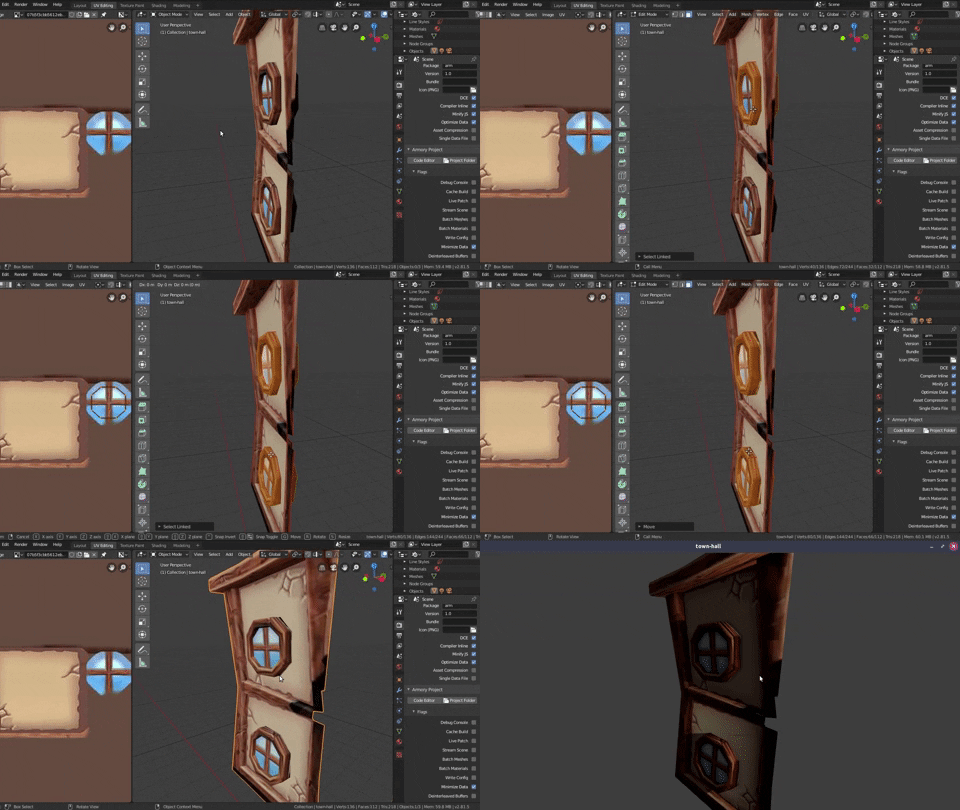
 N8n5h
on 10 Sep 2019
N8n5h
on 10 Sep 2019
Something else that should help: triangulate the object (before exporting).
After downloading your example I got the same artifacts you are getting. Adding a triangulate modifier (leaving it at its default setting "beauty") to the object and applying it solved the issue.
Something else I noticed: if you try out the different options (other than beauty) of the triangulation modifier, you actually get the same artifacts in blender. I guess what is happening here is that armory triangulates your object on export, but the algorithm used by armory produces a "different" triangulation than blender does in its viewport. Since your windows are very close to the wall as @N8n5h pointed out, this difference (although small) makes your windows and wall overlap and create those artifacts.
 zaethan
on 11 Sep 2019
zaethan
on 11 Sep 2019
thank you guys.
the triangulate modifier fixed it. I know now what to do if the issue occur again.
When possible I will try to adjust the modeling directly as well.
Thank you again.
This might be useful for others if they encounter the same issue.
onelsonic
on 11 Sep 2019
Summary :
Armory triangulation probably differs from Blender viewport triangulation creating visual artifacts in Armory.
To resolve :
add a triangulate modifier to your mesh leaving it at its default setting "beauty".
Development discussion :
@luboslenco should armory use the same default triangulation as the blender viewport to avoid the possible appearance of artifacts for particular mesh cases?
onelsonic
on 12 Sep 2019
The mesh exporting is located here:
https://github.com/armory3d/armory/blob/master/blender/arm/exporter.py#L1032
Not sure what is causing the difference though. Check https://github.com/armory3d/armory/issues/1215 for similar issues,
 luboslenco
on 12 Sep 2019
luboslenco
on 12 Sep 2019
This is acutally no Armory issue and only to some expand a blender issue. Blender recalculates the triangles every time you render something. If you have non flat surfaces you might see a difference between your viewport and the render, as the viewport uses a faster alogorithm. Note that this is not only a Blender thing, other 3D software has similar 'problems'.
Try to use no non-flat faces. Not only is there the possibility to get unexpected triangulation, but you might also run into some weird shading. When you are finished with a model always triangulate it to be sure it looks the way you intended to.
Also you should avoid to have faces very close to each other. Especially in game engines the rendering is often faster and less precise wich might lead to surfaces intersecting, even tough they didn't do so in your Blender model.
 KeksMeister
on 23 Sep 2019
KeksMeister
on 23 Sep 2019
Hi @KeksMeister thank you for your feedback. I will triangulate.
onelsonic
on 24 Sep 2019
luboslenco
on 2 Oct 2019
Related issues
luboslenco
·
3Comments
 Bugsbane
·
3Comments
Bugsbane
·
3Comments
 SeleDreams
·
3Comments
SeleDreams
·
3Comments
 AttSee
·
4Comments
AttSee
·
4Comments
 BrahRah
·
3Comments
BrahRah
·
3Comments
Most helpful comment
Something else that should help: triangulate the object (before exporting).
After downloading your example I got the same artifacts you are getting. Adding a triangulate modifier (leaving it at its default setting "beauty") to the object and applying it solved the issue.
Something else I noticed: if you try out the different options (other than beauty) of the triangulation modifier, you actually get the same artifacts in blender. I guess what is happening here is that armory triangulates your object on export, but the algorithm used by armory produces a "different" triangulation than blender does in its viewport. Since your windows are very close to the wall as @N8n5h pointed out, this difference (although small) makes your windows and wall overlap and create those artifacts.