Aerial: 4K video was very clunky, and I used QuickTime in my cache files to play it, too. Is my computer configured too low?
General troubleshooting tips
Before logging an issue please check that:
- [x] You have the latest version installed (There may be a beta version that fixes your issue), see here for the latest releases and bug fixes: https://github.com/JohnCoates/Aerial/releases
- [x] Your issue isn't already mentioned in our issues. You may find a workaround there or a similar request already made.
- [x] Your problem isn't mentioned in the troubleshooting section.
If none of this fixes your issue, tell us about the problem you are experiencing or the feature you'd like to request.
Required information
In order to help us sort your issue, we ask that you provide the following information:
- [x] Mac model:
- [x] macOS version:
- [x] Monitor setup:
If appropriate, please enable Debug mode and Log to disk in Advanced tab and replicate your bug, then attach the AerialLog.txt file (You can access this file through the Advanced tab).
Description of issue / Feature request
{{Replace this}}
My computer is a 13-inch MacBook pro, 2016。
 vivibro
All 6 comments
Hi @vivibro
Short answer, yes, your computer is too old.
4K videos are encoded by Apple in a format called HEVC (also known as H.265). Aerial tries to use hardware acceleration when possible, what that means is your GPU will decode it for free. If that's not available, your CPU will need to decode it, and it's usually too much for a laptop GPU (an very battery draining).
In Aerial, there's a help bubble next to the format selection, if you click it, you can read more on what's to be expected on your mac :
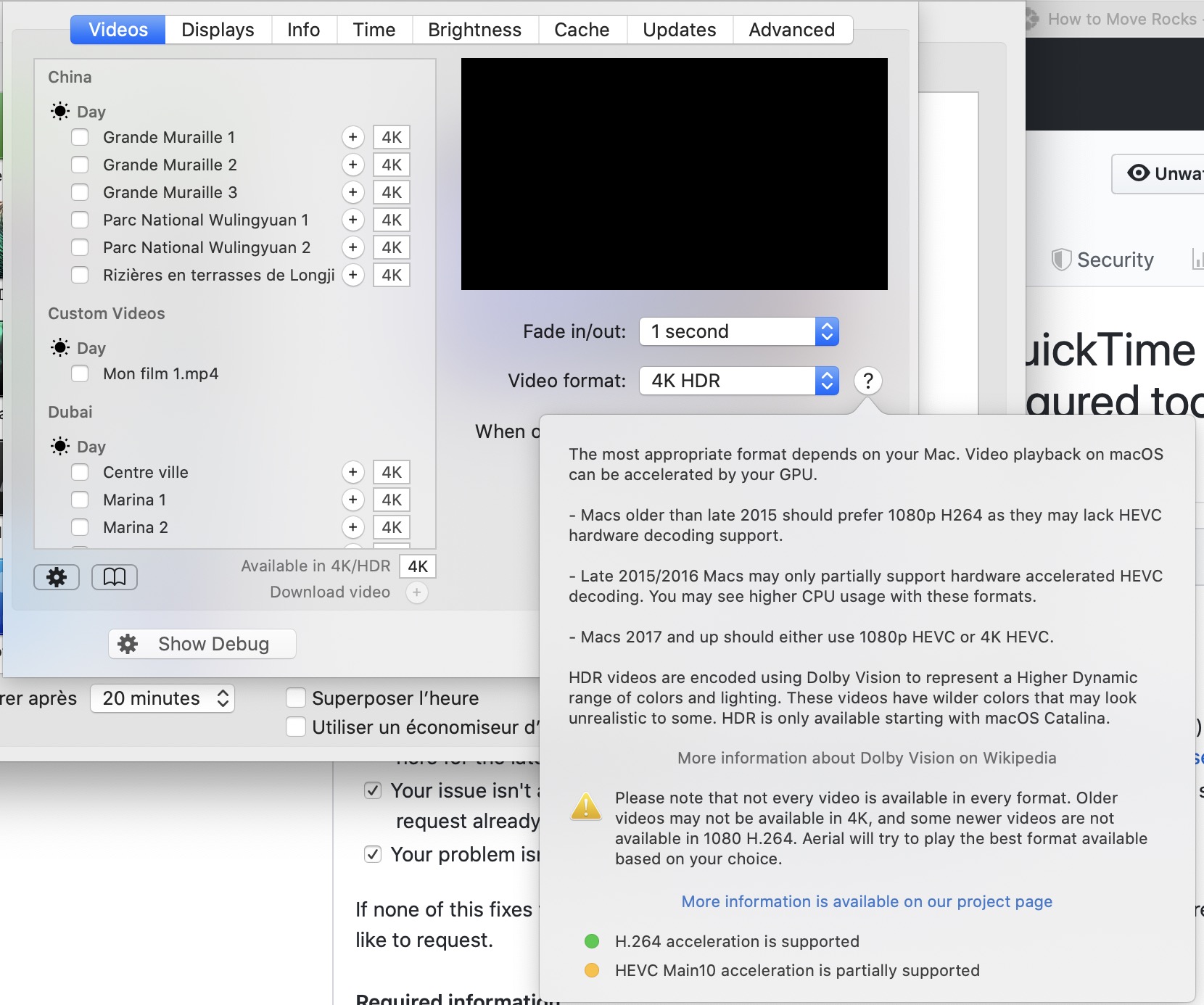
There's also a longer explanation here with a bit more details : https://github.com/JohnCoates/Aerial/blob/master/Documentation/HardwareDecoding.md
If you really want 4K, you could consider transcoding the videos in your cache from HEVC to AVC/H.264, which is supported by your Mac. There are tools like Handbrake that can do that but beware, it's a time consuming process and can take hours per video (depending on quality) on a laptop.
If you want to give it a shot, let me know and I'll guide you through it.
 glouel
on 23 Mar 2020
glouel
on 23 Mar 2020
Hi @vivibro
Short answer, yes, your computer is too old.
4K videos are encoded by Apple in a format called HEVC (also known as H.265). Aerial tries to use hardware acceleration when possible, what that means is your GPU will decode it for free. If that's not available, your CPU will need to decode it, and it's usually too much for a laptop GPU (an very battery draining).
In Aerial, there's a help bubble next to the format selection, if you click it, you can read more on what's to be expected on your mac :
There's also a longer explanation here with a bit more details : https://github.com/JohnCoates/Aerial/blob/master/Documentation/HardwareDecoding.md
If you really want 4K, you could consider transcoding the videos in your cache from HEVC to AVC/H.264, which is supported by your Mac. There are tools like Handbrake that can do that but beware, it's a time consuming process and can take hours per video (depending on quality) on a laptop.
If you want to give it a shot, let me know and I'll guide you through it.
Thanks,transcoding cache from HEVC to h.264 might be a good idea 。Perhaps I will choose 1080p before replacing a computer with a GPU.
vivibro
on 24 Mar 2020
@vivibro you can get Handbrake here : http://handbrake.fr/rotation.php?file=HandBrake-1.3.1.dmg
After installing, at first launch it will ask you to pick a video. Pick one from your cache (most 4K videos end with SDR_4K_HEVC, or HDR_4K_HEVC if you picked HDR.
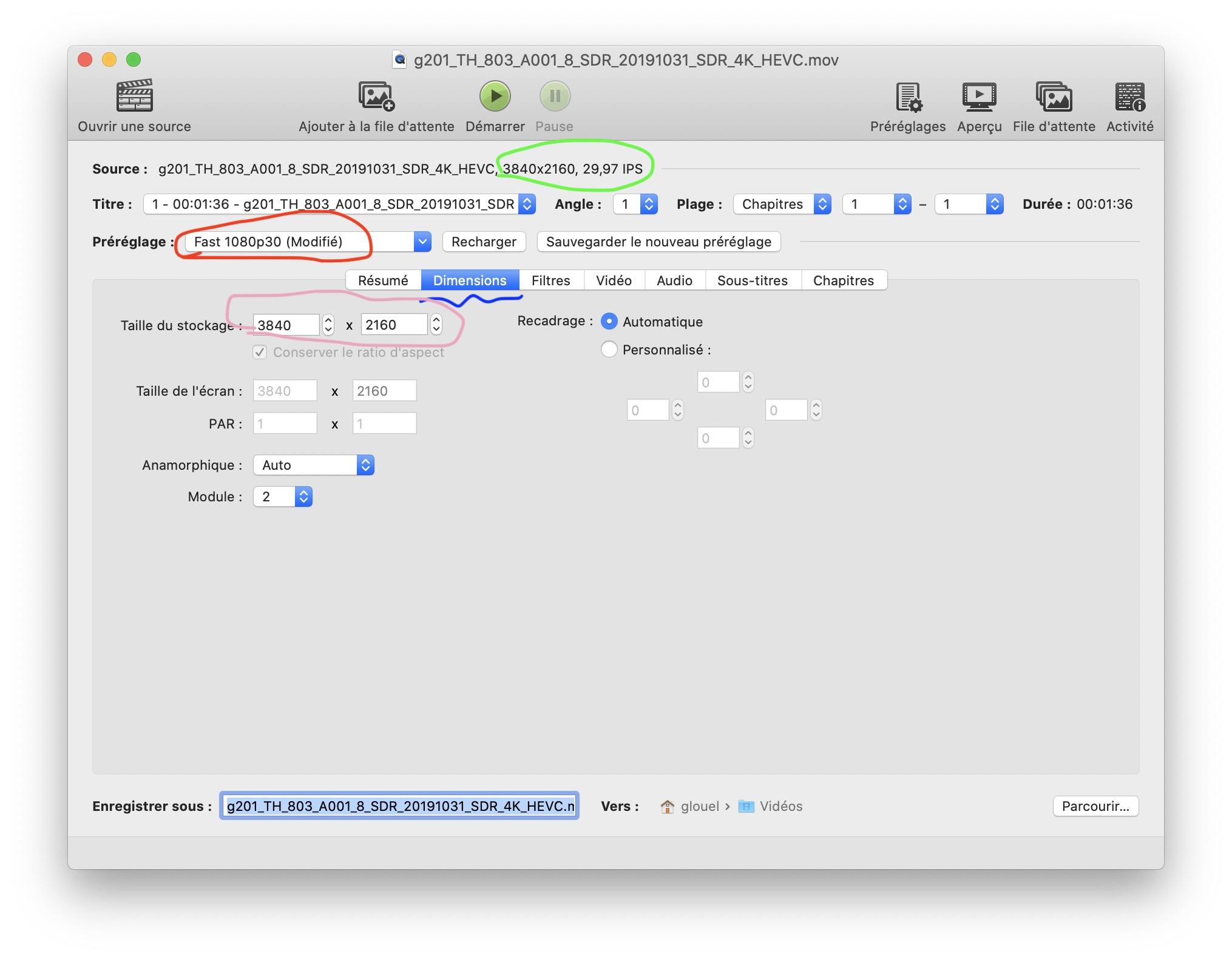
You'll see circled in green some info about the video, I circled the resolution and framerate.
By default after picking, you'll be in the Fast 1080p30 profile (circled in red). It's a good basis but just needs a few tweaks.
- Go into the second tab (called Dimensions here) and change the resolution to 3840 x 2160 (in pink)
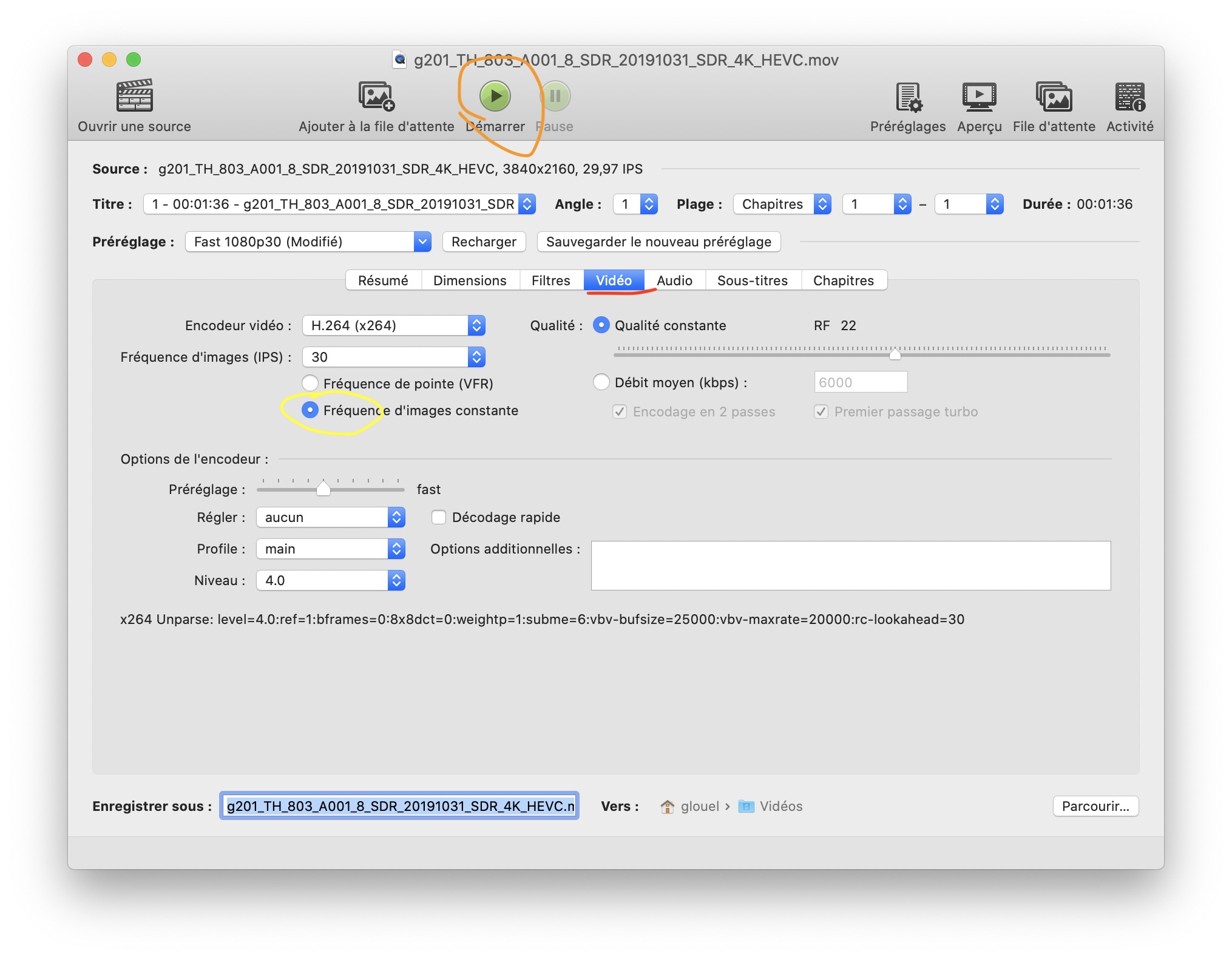
Next go to the Video tab (in red in screenshot above). Make sure you check the Yellow checkbox to make it constant frame rate. Then you are good to go, press the big play button to start transcoding (circled in orange). You can change the location where the files are outputed at the bottom of the window.
It will take a few mins, when it's done, go to the folder, and change the file extension from .mp4 to .mov.
So in my case, it went from: g201_TH_803_A001_8_SDR_20191031_SDR_4K_HEVC.mp4 to g201_TH_803_A001_8_SDR_20191031_SDR_4K_HEVC.mov.
If you open the file in Quicktime, it should play a lot more smoothly. The last step is to move that file from this location to your cache folder (which is ~/Library/Containers/com.apple.ScreenSaver.Engine.legacyScreenSaver/Data/Library/Application Support/Aerial and overwrite the HEVC file with the new one. Go back to Aerial and enable just that video, you should get a smooth 4K playback just like in Quicktime !
Now if all of this work, you can batch all the files. Make sure first to save your preset (give it a name like 4K Aerial and leave as is and save).
Then press open top left, and instead of picking an individual video, go back one level in the filesystem and pick the Aerial folder that contains the videos. Handbrake will take a minute or two to check all the videos. Soon it will be done, make sure your preset is selected, then File menu, and "Add all videos to queue" (cmd-shift+B). Then start the queue and you'll convert all your videos. You'll just have to change their extensions when done and overwrite those in your cache just like above.
glouel
on 24 Mar 2020
@vivibro you can get Handbrake here : http://handbrake.fr/rotation.php?file=HandBrake-1.3.1.dmg
After installing, at first launch it will ask you to pick a video. Pick one from your cache (most 4K videos end with SDR_4K_HEVC, or HDR_4K_HEVC if you picked HDR.
You'll see circled in green some info about the video, I circled the resolution and framerate.
By default after picking, you'll be in the Fast 1080p30 profile (circled in red). It's a good basis but just needs a few tweaks.
- Go into the second tab (called Dimensions here) and change the resolution to 3840 x 2160 (in pink)
Next go to the Video tab (in red in screenshot above). Make sure you check the Yellow checkbox to make it constant frame rate. Then you are good to go, press the big play button to start transcoding (circled in orange). You can change the location where the files are outputed at the bottom of the window.
It will take a few mins, when it's done, go to the folder, and change the file extension from
.mp4to.mov.So in my case, it went from:
g201_TH_803_A001_8_SDR_20191031_SDR_4K_HEVC.mp4tog201_TH_803_A001_8_SDR_20191031_SDR_4K_HEVC.mov.If you open the file in Quicktime, it should play a lot more smoothly. The last step is to move that file from this location to your cache folder (which is
~/Library/Containers/com.apple.ScreenSaver.Engine.legacyScreenSaver/Data/Library/Application Support/Aerialand overwrite the HEVC file with the new one. Go back to Aerial and enable just that video, you should get a smooth 4K playback just like in Quicktime !Now if all of this work, you can batch all the files. Make sure first to save your preset (give it a name like 4K Aerial and leave as is and save).
Then press open top left, and instead of picking an individual video, go back one level in the filesystem and pick the Aerial folder that contains the videos. Handbrake will take a minute or two to check all the videos. Soon it will be done, make sure your preset is selected, then File menu, and "Add all videos to queue" (cmd-shift+B). Then start the queue and you'll convert all your videos. You'll just have to change their extensions when done and overwrite those in your cache just like above.
My problem is solved! Thank you from the bottom of my heart!
vivibro
on 25 Mar 2020
@vivibro you can get Handbrake here : http://handbrake.fr/rotation.php?file=HandBrake-1.3.1.dmg
After installing, at first launch it will ask you to pick a video. Pick one from your cache (most 4K videos end with SDR_4K_HEVC, or HDR_4K_HEVC if you picked HDR.
You'll see circled in green some info about the video, I circled the resolution and framerate.
By default after picking, you'll be in the Fast 1080p30 profile (circled in red). It's a good basis but just needs a few tweaks.
* Go into the second tab (called Dimensions here) and change the resolution to 3840 x 2160 (in pink)
Next go to the Video tab (in red in screenshot above). Make sure you check the Yellow checkbox to make it constant frame rate. Then you are good to go, press the big play button to start transcoding (circled in orange). You can change the location where the files are outputed at the bottom of the window.
It will take a few mins, when it's done, go to the folder, and change the file extension from
.mp4to.mov.So in my case, it went from:
g201_TH_803_A001_8_SDR_20191031_SDR_4K_HEVC.mp4tog201_TH_803_A001_8_SDR_20191031_SDR_4K_HEVC.mov.If you open the file in Quicktime, it should play a lot more smoothly. The last step is to move that file from this location to your cache folder (which is
~/Library/Containers/com.apple.ScreenSaver.Engine.legacyScreenSaver/Data/Library/Application Support/Aerialand overwrite the HEVC file with the new one. Go back to Aerial and enable just that video, you should get a smooth 4K playback just like in Quicktime !Now if all of this work, you can batch all the files. Make sure first to save your preset (give it a name like 4K Aerial and leave as is and save).
Then press open top left, and instead of picking an individual video, go back one level in the filesystem and pick the Aerial folder that contains the videos. Handbrake will take a minute or two to check all the videos. Soon it will be done, make sure your preset is selected, then File menu, and "Add all videos to queue" (cmd-shift+B). Then start the queue and you'll convert all your videos. You'll just have to change their extensions when done and overwrite those in your cache just like above.
Which settings do I have to use to convert HDR videos to H.264 without quality loss (or at least without noticing loss of quality)? I would like to do that because my MacBook always spins up the fans when viewing those videos and I don't like it. Storage on the other hand is not a problem.
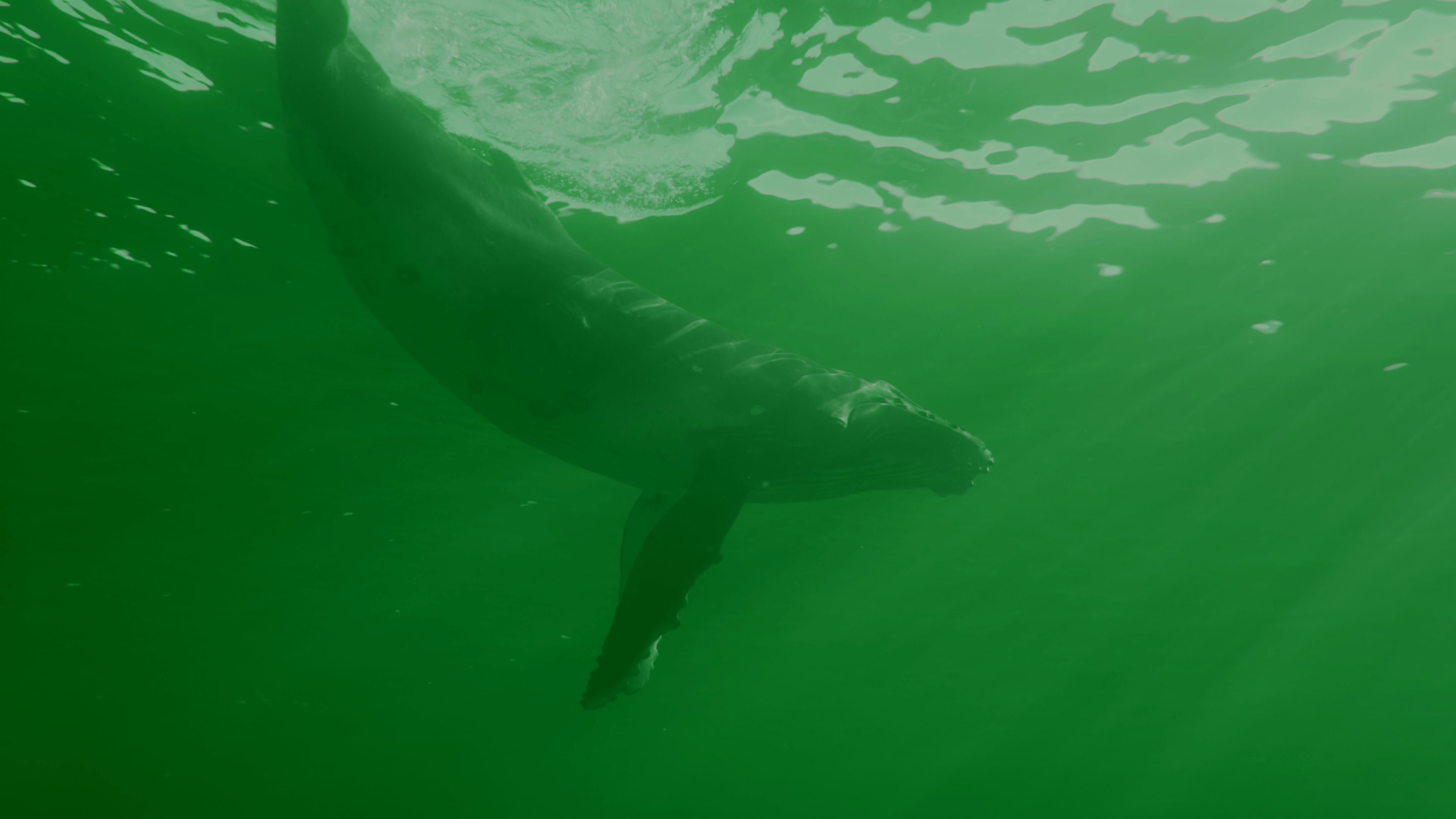
I tried the exact settings you showed and a bunch of others but I always get a video with a strange green overlay.
 daletman
on 13 Aug 2020
daletman
on 13 Aug 2020
@daletman they are encoded with Dolby Vision, the HDR ones. If you check that video in Finder in Thumbnail mode, you'll see the same green tinge, it's been an issue with 2.0.0 that I had to workaround to make the thumbnails (that's why the thumbnails don't look HDR).
So I'm not super sure about how to get that working, there's probably a step in between, will try to have a look but probably not before next week.
glouel
on 13 Aug 2020
Related issues
 tempusthales
·
4Comments
tempusthales
·
4Comments
 arnsangra
·
3Comments
arnsangra
·
3Comments
 sdugoten
·
7Comments
sdugoten
·
7Comments
 vom513
·
6Comments
vom513
·
6Comments
 1st
·
6Comments
1st
·
6Comments