 liuhui931205
All 11 comments
On the main menu, choose File -> Settings for Windows and Linux or press Ctrl+Alt+S
Find Project Interpreter under the Project: [Your Project Name].
Click the green plus(+) and search for Yapf and install package
 sevvalmehder
on 24 Oct 2018
sevvalmehder
on 24 Oct 2018
The best way I've found is to create a File Watcher. That is, go to Preferences -> File Watchers -> + ->
File Type: Python
Scope: Open Files
Program: yapf
Arguments: -i $FilePathRelativeToProjectRoot$
Hope it helps! (Make sure you have installed yapf via pip install yapf in the computer PyCharm runs in.)
 bcollazo
on 26 Oct 2018
bcollazo
on 26 Oct 2018
Hi @sevvalmehder and @bcollazo
I have followed your steps to add a package in the project interpreter and also add it to file watchers. I also pip install yapf and download the plugins. However, when I use Code -> Reformat code with YARF, it always say "YAPF executable is not found." Do I miss any step?
 davislf2
on 14 Nov 2018
davislf2
on 14 Nov 2018
Hey @davislf2, it can be a number of things. Using the 'Reformat Code' seems like you are using the action provided by the plugin. I think that plugin expects yapf to be available in /usr/local/bin/yapf (https://github.com/binh-vu/yapf-pycharm/blob/master/src/ReformatCode.java#L45).
Do you have yapf there? yapf should be at the very least accessible from the command line in a new terminal for you. Also the output for which yapf in your command line should be helpful.
bcollazo
on 15 Nov 2018
See autopep8-on-pycharm, they are the same except that you use yapf instead of autopep8. In addition, isort is configurated the same way. Best Wishes.
 BaksiLi
on 2 Jan 2019
BaksiLi
on 2 Jan 2019
- install it via pip or conda
- install the plugin in pycharm e.g. from marketplace or from file
- Make sure your executable is at the right location:
- In Pycharm choose Preferences->Tools:
- look at YAPF Settings section -> Executable path
- You have to put your yapf executable at this location/path if it isn't already.
 spectralLight
on 13 Jan 2019
spectralLight
on 13 Jan 2019
@spectralLight PyCharm 2018.3 in your step #3 there is no YAPF present anywhere in the settings:
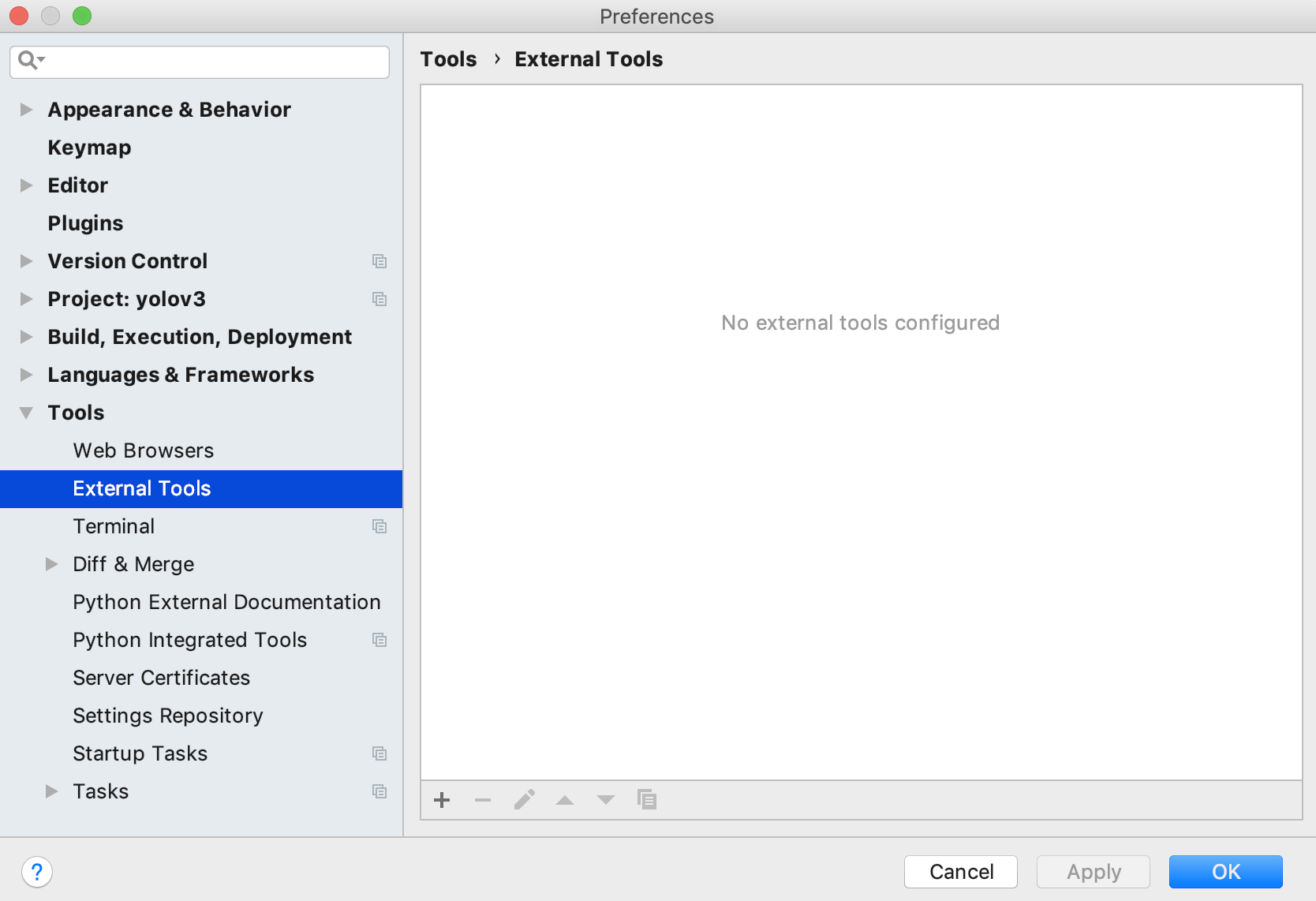
The default location using pip install yapf is:
(base) Glenns-MBP:~ glennjocher$ which yapf
/anaconda3/bin/yapf
 glenn-jocher
on 10 Feb 2019
glenn-jocher
on 10 Feb 2019
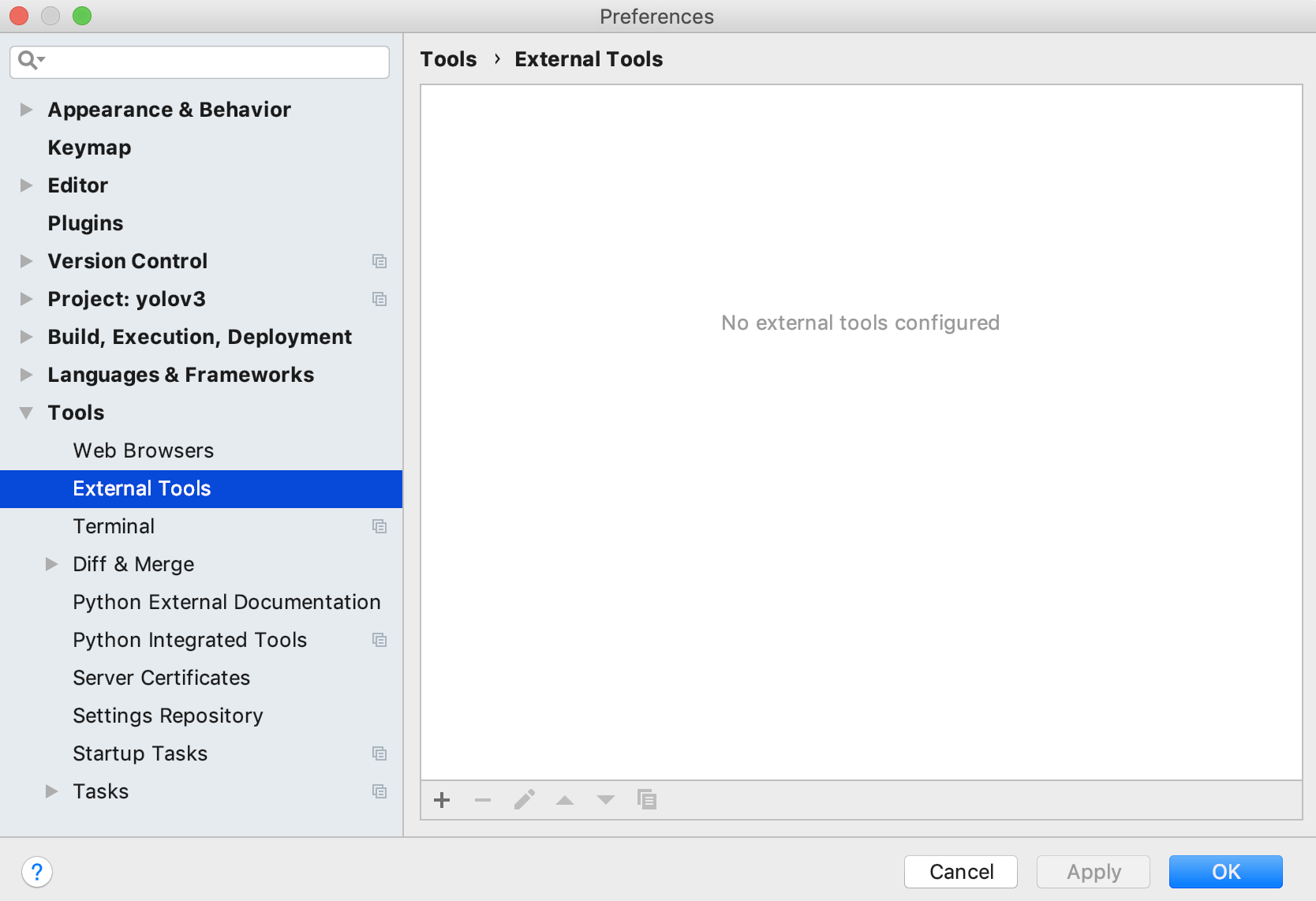
Could not get it to work using any of these suggestions. BTW, @spectralLight in PyCharm 2018.3 Community nothing shows up in this panel after installing the plugin, so I'm quite confused. There is no 'YAPF Settings section' as you mention:
glenn-jocher
on 10 Feb 2019
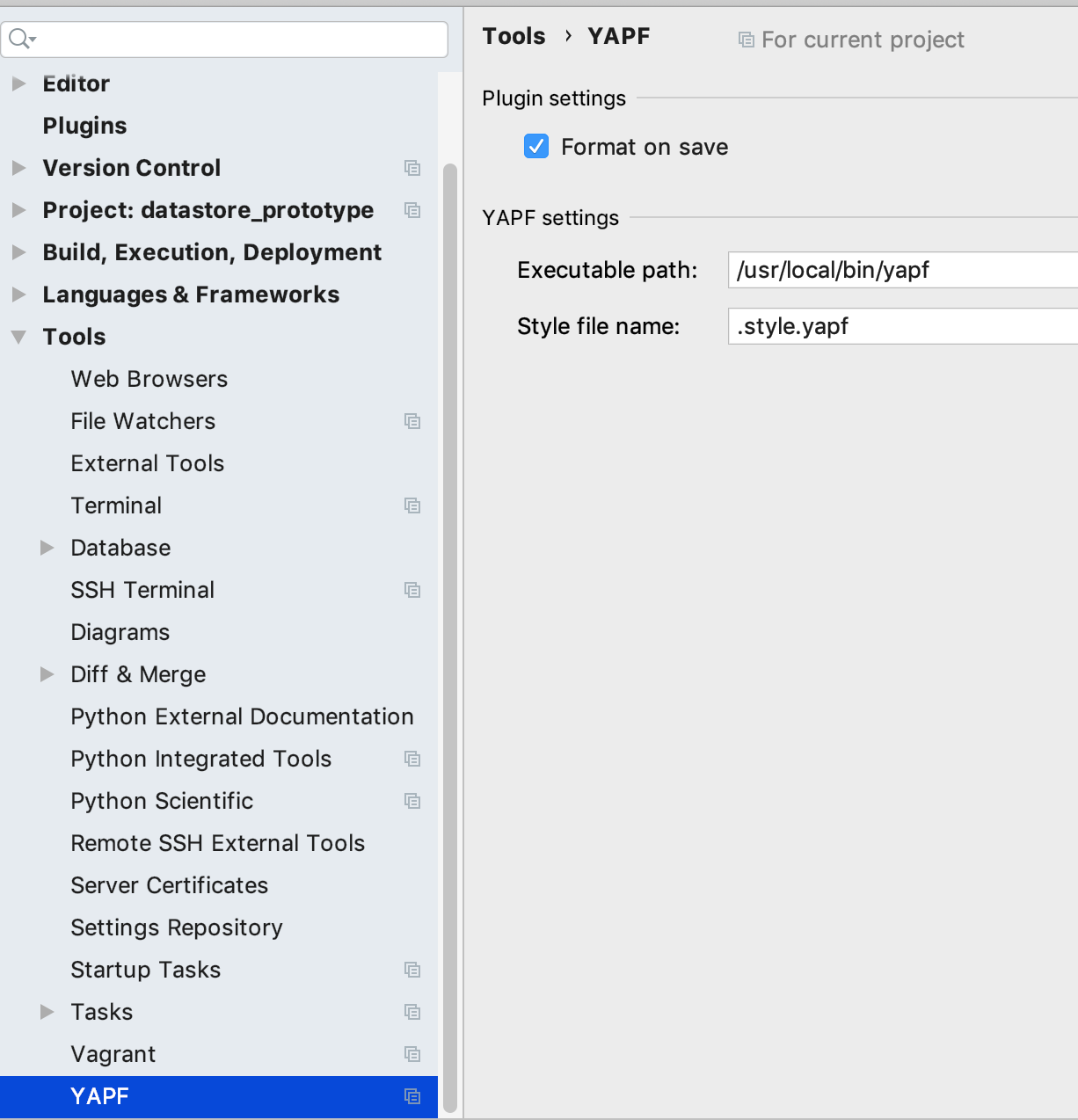
If using the yapf-pycharm plugin (vs. the yapf plugin) then you have to have the yapf executable located at /usr/local/bin/yapf. One way to do this is to create a symbolic link:
ln -s $(which yapf) /usr/local/bin/yapf
 dshurick
on 8 Mar 2019
dshurick
on 8 Mar 2019
I have it installed with anaconda, and I tried both the /usr/local/bin/yapf path with the softlink and the /anaconda3/bin/yapf path, but I'm still not seeing anything change on save. I'm on professional 2019.1
 szeitlin
on 22 Jun 2019
szeitlin
on 22 Jun 2019
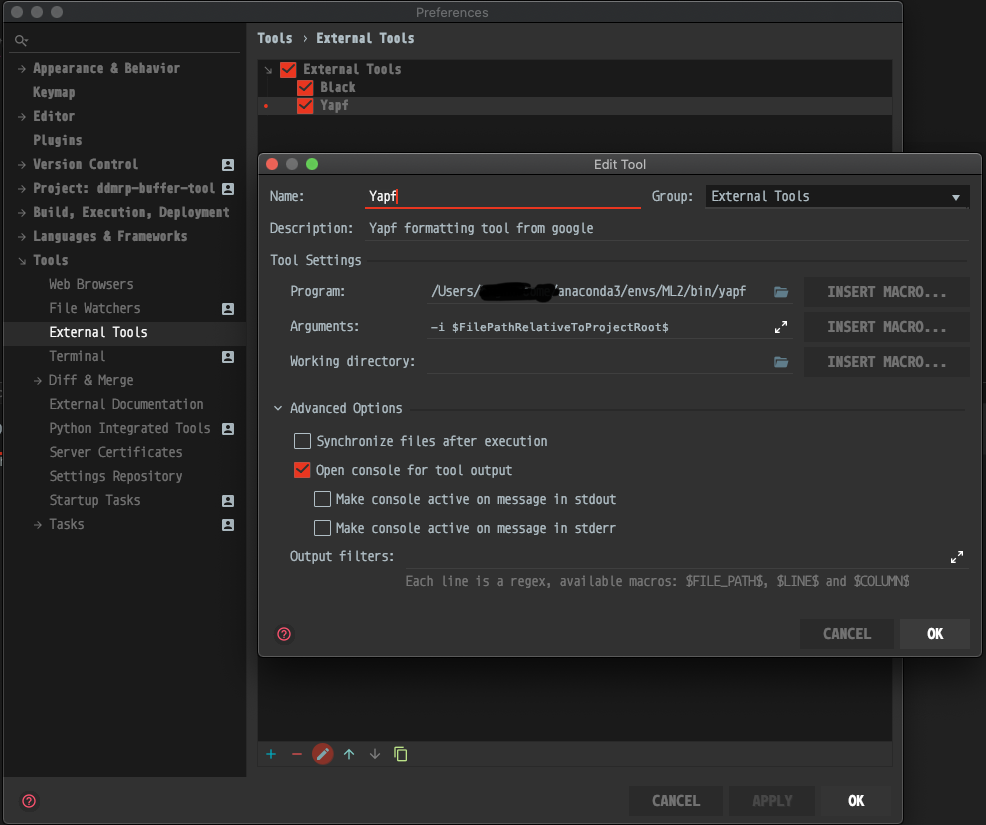
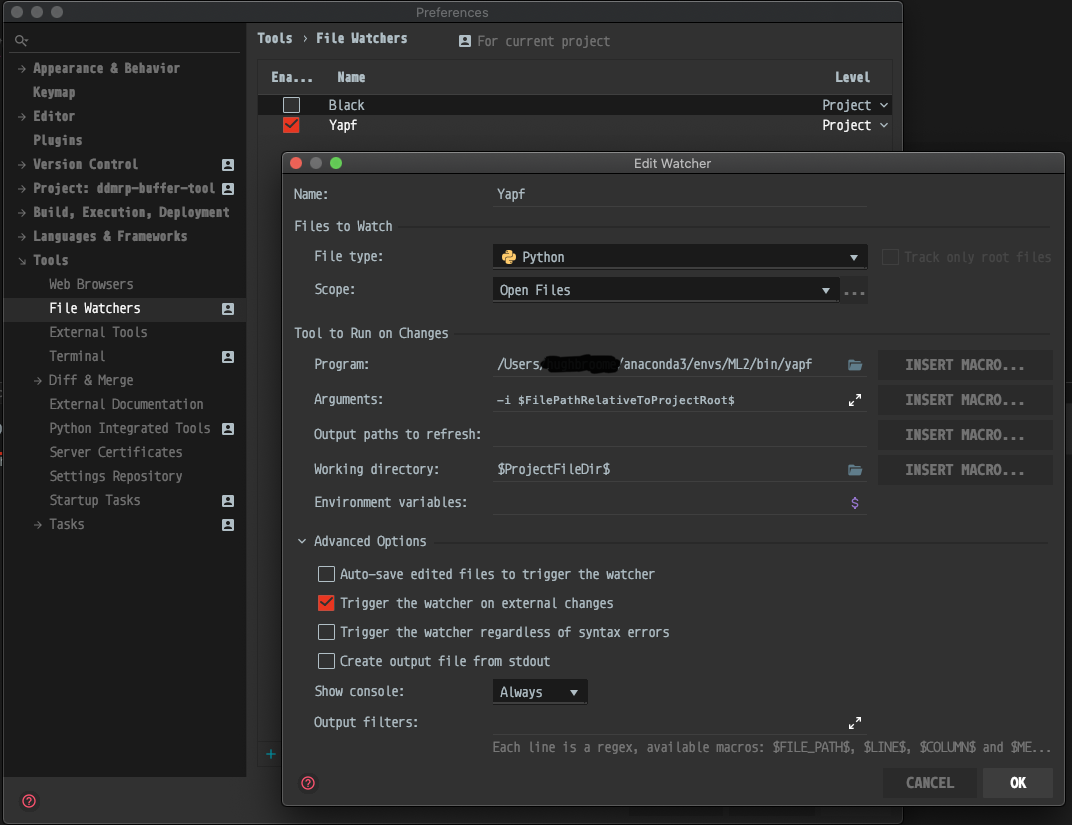
While the "yapf-pycharm" plugin for Pycharm did work for me after creating the symbolic link, I had issues combining it with a file watcher, and the "yapf" plugin simply would not operate the way I desired either.
I eventually added it to my external tools, and created a file watcher using it, and everything works perfectly.
 Lygre
on 26 Feb 2020
Lygre
on 26 Feb 2020
Related issues
 jrwrigh
·
6Comments
jrwrigh
·
6Comments
 haphut
·
3Comments
haphut
·
3Comments
 tschijnmo
·
6Comments
tschijnmo
·
6Comments
 hayd
·
8Comments
hayd
·
8Comments
 Harkirat155
·
7Comments
Harkirat155
·
7Comments
Most helpful comment
While the "yapf-pycharm" plugin for Pycharm did work for me after creating the symbolic link, I had issues combining it with a file watcher, and the "yapf" plugin simply would not operate the way I desired either.
I eventually added it to my external tools, and created a file watcher using it, and everything works perfectly.