Xiaomi-pro-hackintosh: RDY | Automatic Intel Bluetooth firmware uploader
This is a work in progress issue. Feedbacks are welcome!
After a ton of failure attempt soldering Bluetooth, Today I tried to drive intel Bluetooth by using VM, that I think we can automatize it so It runs at boot and wake, similar to ALCPlugFix, but we can use Bluetooth mac address(all zeros if no firmware) to detect if firmware needs to be uploaded again.
Right now I have done VM start and USB attach and detach part, so I can "fix" it by running only commands, with later we can automatize using it(VMware have nogui option so we can run it in the background).
The part that I need to work now is creating a daemon to detect when to run above command.
By the way, the "fix" takes less than 10 seconds(I think good enough), but during that 10 seconds, there's no Bluetooth in macOS.
Also, all feature is supported I think Bluetooth Low Energy Supported: Yes Handoff Supported: Yes Instant Hot Spot Supported: Yes
After all the above, I wanna ask whether I should release a guide right now or wait until the daemon is finished, which may take me a while(I got a lot of school works to do), and also there are any cons from using intel Bluetooth?
 Menchen
All 80 comments
UPDATE:
It seems that after sleep/wake, bt mac address keeps the same value, so we can't use it to detect if bt is working property. The good news is Bluetooth Low Energy Supported: No Handoff Supported: Yes Instant Hot Spot Supported: Yes Bluetooth low energy support if off, so we can use it to detect, or using directly firmware version.
Another con about this method is we can't disable or control bt. There are missing options in bt submenu.

The above image is with firmware uploaded.
TODO list:
- [x] Find a way to upload firmware with command.
- [x] Create a daemon to run it at the boot(with some delay so we don't slow down the system).
- [x] Create a way to detect the current state so we know when "fixing" is needed.
- [x] Run the check at the wake.
- [x] Release a beta version(VMware file and daemon).
- [x] Create a Linux script to detect bt status so we can release bt to host faster.
- [ ] Optimize Linux live cd so it uses less ram and disk space(Right now is 7xxmb) HELP NEEDED!(a minimal Archlinux with only
bluezandbluez-utilsinstalled) - [ ] Find a nice way to automatize install (Still need manual interaction because we can't assume that user have
homebrewand they need to find a way to activateVMware-fusion)
UPDATE: It seem that we can control bt with blueutil
UPDATE2: https://github.com/Menchen/VMBTFirmUploader
UPDATE3: Airdop work fine, handoff/continuity don't seem working... It work
UPDATE4: wifi signal seems affected a bit(packed loss), maybe I need a better antenna configuration. Gone
UPDATE5: see below post.
Menchen
on 16 Sep 2019
EDIT: This post FAQ will always be updated, read before asking.
Q: It stopped working after sleep...
A: Try the latest version (noautosuspend) with kext cache rebuild and shutdown(not directly reboot).
Q: LaunchAgent script can't find vmrun!
A: Use which vmrun to find your vmrun path and pass that to the thrid parameter.
Q: How to install/use this?
A: Install vmware-fusion,download following 7z file(GDrive) and extract it, then run VMBTFirmUploader ./bt.vmwarevm/bt.vmx btpower vmrun
Q: I can't turn off bluetooth!!!
A: As a limitation, this method "can't" turn off bluetooth in macOs, but it should work without a problem.
Q: Firmware is uploaded(version 170.**), but bluetooth not working.
A: Check your EFI file, there's something wrong with it. Also try sudo kextcache -i / and reboot to rebuild kext cache.
Q: There's no bluetooth in settings!
A: Check your EFI file and make sure that you didn't used any thrid party bluetooth driver and you choose Intel bt in install script.
Q: It was working fine and just stopped working!
A: Try to rebuild kext cache using sudo kextcache -i /!
General Information
Well there's a beta build(less than 800mb after unzip)
UPDATE2(noautosuspend): https://drive.google.com/file/d/1PKjLbcYlimpaAeGYigOANIHedNVIFE9P/view?usp=sharing
you need have vmware fusion installed and activated. import VM in vmware and VMBTFirmUploader ./bt.vmwarevm/bt.vmx btpower vmrun
btpower is a snapshot I named, it's faster than booting directly...
DON'T RUN IT AS ROOT/SUDO, as running VM with root is dangerous.
And please write some feedback, even it works like a charm(I double it).
UPDATE: VMBTFirmUploader.zip
replace it with the original one, this version added a third parameter for vmrun binary(you may need to pass full path if you wish to run it with launch agent(Don't use launch daemon, user launch agent is recommended!)).
There's a launchagent script to start it at boot.
<?xml version="1.0" encoding="UTF-8"?>
<!DOCTYPE plist PUBLIC "-//Apple//DTD PLIST 1.0//EN" "http://www.apple.com/DTDs/PropertyList-1.0.dtd">
<plist version="1.0">
<dict>
    <key>KeepAlive</key>
    <true/>
    <key>Label</key>
    <string>io.github.menchen.VMBTFirmUploader</string>
    <key>ProgramArguments</key>
    <array>
        <string> Path to VMBTFirmUploader</string>
        <string>Path to bt.vmx</string>
        <string>btpower</string>
        <string>/usr/local/bin/vmrun</string>
    </array>
    <key>RunAtLoad</key>
    <true/>
    <key>ServiceIPC</key>
    <false/>
    <!--Shuold be directory that hda-verb at-->
    <key>WorkingDirectory</key>
    <string>/usr/local/bin/</string>
    <key>StandardOutPath</key>
    <string>/tmp/vmbtfirmuploader.log</string>
    <key>StandardErrorPath</key>
    <string>/tmp/vmbtfirmuploader.log</string>
</dict>
</plist>
You need to change Path to VMBTFirmUploader and Path to bt.vmx(it's inside of bt.vmwarevm folder) and save it to /User/$USER/Library/LaunchAgents/io.github.menchen.VMBTFirmUploader.plist
Menchen
on 16 Sep 2019
After 4 days of testing, I can say that bt is pretty stable, and wifi signal problem is _almost_ gone(after a reboot, probably was My fault by tweaking network profile and to test continuity..)!
Below is what work(what I personally tested) :
- Airdrop work
- Handoff/continuity work
- BT headphone work
- Discoverable work
- Wake detection and boot time uploading work like a charm.
- Smart upload, will only uploads when it's needed.
- Almost no noticeable delay(And we can still improve it!! by decreasing a delay that I hardcoded, with help of Linux script in above TODO list ).
Below is what doesn't work or cons:
- Ability to power off bt (Maybe I can do it in VM... but I think it's not worth comparing to 800mb disk space)...
- A bit resource-heavy compared to the native solution...(like 500mb ram usage during uploading, but only takes less than 10s and only when it's needed... and 800mb disk space, both two can be improved with a more barebone Linux live cd, hopefully below 500mb).
My personal advice is to solder Bluetooth only if you really care about resource and have good soldering skill.
This solution is for anyone that has no internal wifi, don't want to risk it, bad soldering skill or just wanna save camera/fingerprint for Windows/Linux...
My personal experience about it is perfect, so the rest of TODO list is in low priority(maybe I can do it in Christmas break), but I should able to bugfix/hotfix it ASAP.
Menchen
on 20 Sep 2019
Hello, i imported the virtual machine in vmware and launched it but this message is displayed:
"No operating system found"
Unable to connect the file "/Users/mc/Downloads/archlinux-2019.09.01-x86_64.iso" as a CD-ROM image: Cannot find file

Any idea?
Thanks
 matvada
on 21 Sep 2019
matvada
on 21 Sep 2019
@matvada You can just remove cdrom in setting without a problem, just load snapshot named btpower ..
In case that above don’t work you can try download that iso http://mirrors.evowise.com/archlinux/iso/2019.09.01/archlinux-2019.09.01-x86_64.iso
Menchen
on 21 Sep 2019
dont have much more time to test but had same error to @matvada at first. tried to resume snapshot and received


internet connection is 4g so will try with archlinux iso later
 jackreeves
on 21 Sep 2019
jackreeves
on 21 Sep 2019
ok managed to add archlinux iso is configured as cd but seems to need it to be in the same folder etc as your setup @Menchen . fails to boot.

jackreeves
on 21 Sep 2019
@matvada @jackreeves Thanks for the feedback, I can confirm that archlinux iso is needed, follow this guide:
UPDATE: This post is outdated, now the zip file include archiso.
~~~
- Download archiso http://mirrors.evowise.com/archlinux/iso/2019.09.01/archlinux-2019.09.01-x86_64.iso
- Place somewhere and get full path to that iso
- Open vmware and restore
btpower, but don't resume it yet. - With text editor, open bt.vxm (inside of
bt.vmwarevmfolder, you can open it with right click and show packet content). - Find the line
ide1:0.fileName = "/Users/mc/Downloads/archlinux-2019.09.01-x86_64.iso"(or just searcharchlinux) - Replace that path with your iso path,(you can copy that file in Finder and paste it directly in the text editor)
- Save it
- Save a new snapshot in vmware.
- When you use VMBTFirmUploader(Above have an updated version in attachment), change
btpowerto your snapshot name. - Test it one time by manually running vm, and test it if it works by running
system_profiler SPBluetoothDataType | grep Firmware | tr -s ' 'in the terminal, if the firmware version is not 0.0 then it works, or you can just connect a Bluetooth devices - Prepare a LaunchAgent script(above have an example) to run it at the boot. Remember to use full path ~~~
Feel free to ask anything!
I'm finding a smaller live iso that loads all cd in ram, so we don't need it, but by now, above _should_ work.
Menchen
on 21 Sep 2019
still cant get it to work im afraid. ill try follwo the steps and record my screen another day so you can see where maybe im going wrong but for now seems to either boot clean arch or keep wanting and failing to load your versions of arch.
jackreeves
on 21 Sep 2019
@jackreeves what the error was?
Menchen
on 21 Sep 2019
@jackreeves @matvada I have uploaded a new version that come with archiso incluided, so no need for manual configuration. Feel free to post feedback!
https://drive.google.com/file/d/1-KXqlMmhrf-jOpQdfxwEMwp1YmwQFM6a/view?usp=sharing
You can delete the old one, the VMBTFirmUploader binary is also updated. You should able to run it with VMBTFirmUploader ./BTFirm.vmwarevm/BTFirm.vmx btpower
Menchen
on 21 Sep 2019
thanks fo the effort thus far @Menchen . im here now:

so still not working but got it booted and daemon running. I previously had a USB BT dongle attached but unplugged and restarted. DO i have to change the patches to make this work?
jackreeves
on 22 Sep 2019
@jackreeves make sure that you have default bt in install script(using bash -c "$(curl -fsSL https://raw.githubusercontent.com/daliansky/XiaoMi-Pro-Hackintosh/master/install.sh)" select 1 and when it ask you about bt choose 1, the default one), make sure that you shutdown and don't check to reopen windows, so clover can load kext.
And sorry about my fault for not explaint it more cleary, you need run it with VMBTFirmUploader ./BTFirm.vmwarevm/BTFirm.vmx btpower /usr/local/bin/vmrun or VMBTFirmUploader ./BTFirm.vmwarevm/BTFirm.vmx btpower vmrun, depend on how you have installed vmware, you don't need vmware opened if you use VMBTFirmUploader
Also, can you post the output of system_profiler SPUSBDataType | pbcopy, just paste it after you run the command
Menchen
on 22 Sep 2019
@Menchen thank you for your support.
Before your update i had tried the same way as @jackreeves (downloading archlinux) with the same result.
Now my situation is this:
1) Updated EFI (screen attached, what does the apple kexts error mean?)

2) Restored the default bt (so far i have used a bluetooth usb key)
3) Tried both scripts (VMBTFirmUploader ./BTFirm.vmwarevm/BTFirm.vmx btpower /usr/local/bin/vmrun or VMBTFirmUploader ./BTFirm.vmwarevm/BTFirm.vmx btpower vmrun) without success (screen attached)

Have I made any mistakes?
Thanks!
matvada
on 23 Sep 2019
@matvada make sure that you downloaded https://drive.google.com/file/d/1-KXqlMmhrf-jOpQdfxwEMwp1YmwQFM6a/view?usp=sharing , have been updated.
Menchen
on 23 Sep 2019
@Menchen if it's the same version loaded two days ago (the one in this comment https://github.com/daliansky/XiaoMi-Pro-Hackintosh/issues/262#issuecomment-533823242) then i have already used this.
matvada
on 23 Sep 2019
I have changed the link in all post, so if you don’t have BTFirm folder you need to download again
Menchen
on 23 Sep 2019
@Menchen i downloaded the file BTFirmWirhlISO.7z this morning and used it to do the tests attached in my previous comment.
matvada
on 23 Sep 2019
Then try to find BTFirm.vmx and replace it... the error was complaining that BTFirm.vmx is missing
Menchen
on 23 Sep 2019
@Menchen the BTFirm.vmx is correctly inside the file BTFirm.vmwarevm

But when i launch the script trough terminal it can't find the file. Very strange!

matvada
on 23 Sep 2019
@Menchen I found the error, it was my path error (Sorry for my mistake)
These are the steps I followed, maybe they can help:
1) dragged the file VMBTFirmUploader into the terminal window
2) dragged the file BTFirm.vmwarevm into the terminal window
3) added /BTFirm.vmx btpower vmrun/ at the end of the line
and finally it worked
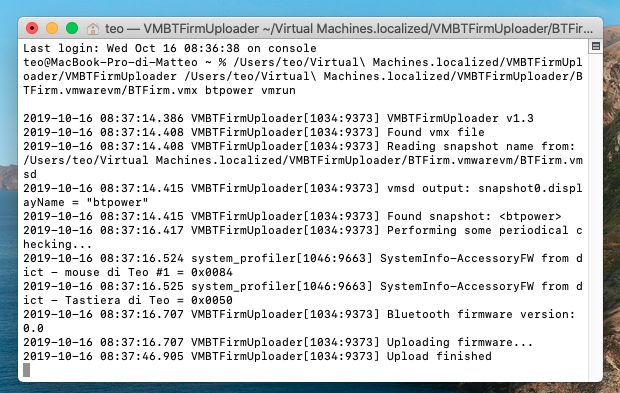
Now i'm on this screen, everything is ok?

matvada
on 23 Sep 2019
@Menchen after a reboot and a rollback of the bluetooth mode (from usb stick to default) now this is the current situation:

As you wrote in this comment https://github.com/daliansky/XiaoMi-Pro-Hackintosh/issues/262#issuecomment-533808733 my Bluetooth firmware is 0.0 and doesn't work.
matvada
on 23 Sep 2019
The firmware output is before uploading, try system_profiler SPBluetoothDataType | grep Firmware | tr -s ' ' and check version in parentheses
Menchen
on 23 Sep 2019
@Menchen now bt firmware version is ok, but mouse and keyboard don't want to connect.


matvada
on 23 Sep 2019
Can you post system_profiler SPUSBDataType | pbcopy? Paste after running that command
Also try to delete mouse and keyboard and sync again
Menchen
on 23 Sep 2019
@Menchen i tried to delete mouse and keyboard bluetooth doesn't find devices...

matvada
on 23 Sep 2019
Sorry to not mention, but also this system_profiler SPBluetoothDataType
Menchen
on 23 Sep 2019
@Menchen
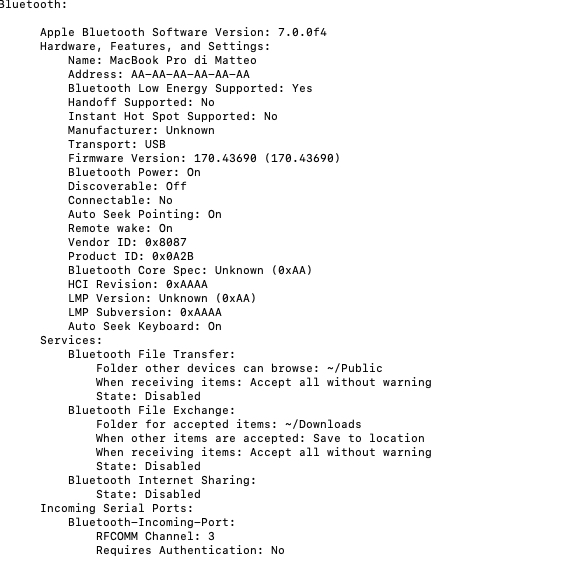
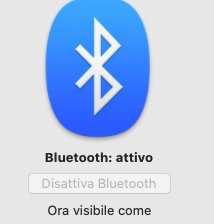
it's as if bluetooth is locked, it does not allow me to disable it from the settings.
matvada
on 23 Sep 2019
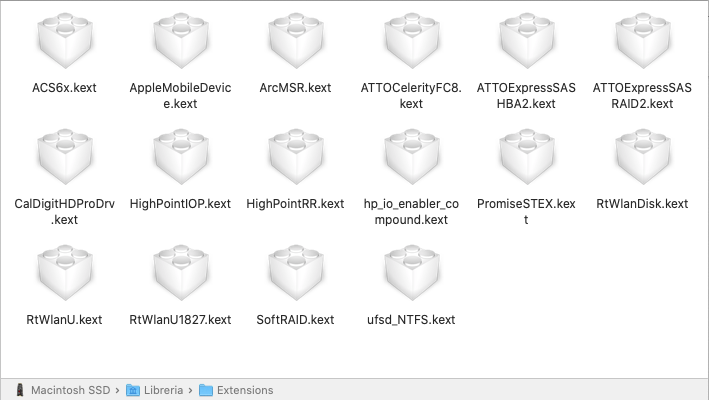
Bluetooth locked is "normal", It seems that you have unclean EFI(Fingerprint sensor shouldn't be there), please delete/undo kext that you installed in /Library/Extensions/ and try to update again with install script...
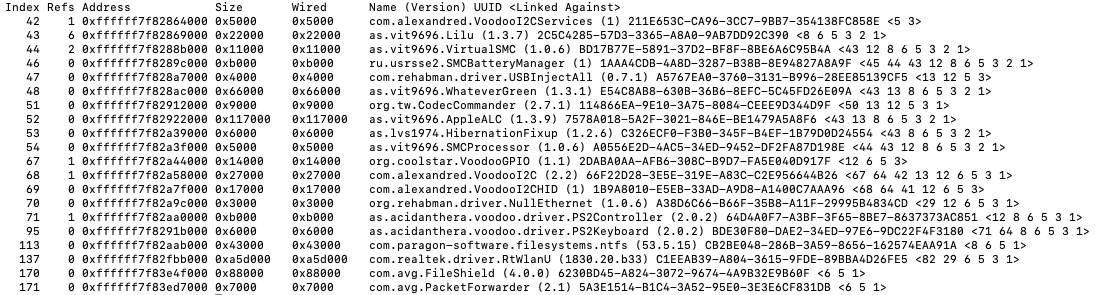
Also, check that you don't have USB bt driver installed. like AirportBrcmFixup, BrcmFirmwareRepo, BrcmPatchRAM2... you can get a list of installed kext in kextstat | grep -v com.apple
Menchen
on 23 Sep 2019
@Menchen this is the content of the /Library/Extensions/ i didn't install anything in that folder.
and this is the result of the kextstat | grep -v com.apple
I had already deleted the all these files manually before starting bt operations.
matvada
on 23 Sep 2019
Can you manually install EFI in this repo? With a reboot.
Menchen
on 23 Sep 2019
@Menchen sorry but i don't understand...
matvada
on 23 Sep 2019
@matvada sorry that I didn’t explain it clearly, am busy right now, but you can try:
Mount efi partition(command line or download clover configurator or google it)
Backup clover folder, delete it and replace it with clover in this repo( go https://github.com/daliansky/XiaoMi-Pro-Hackintosh find download zip. Unzip and find EFI/CLOVER)
after that do a sudo kextcache -i / and reboot.
Feel free to ask anything, but I may respond a little late( using phone right now, no much thing I can do without laptop)
Menchen
on 23 Sep 2019
@Menchen no worry, was an easy operation, i did it before.
Thank you so much, now i can confirm that the bluetooth is running well!!!
The problem was the CLOVER folder.
Thank you!
matvada
on 23 Sep 2019
@matvada I’m glad that you got by working. By the way you can use a launch agent (see https://github.com/daliansky/XiaoMi-Pro-Hackintosh/issues/262#issuecomment-531950100) so you don’t need manually run command every time(at boot). Just make sure that the path is full/absolute path(copy file in Finder and paste in text editor to get full path of a file)
Menchen
on 23 Sep 2019
@Menchen thank you for your great help, i have already created a .plist file and copied it into the LaunchAgents folder for automatic run at boot ;)
By dragging the files onto the plist editor, the path is automatically created for both files.
Now next step Wifi :) 👏
matvada
on 23 Sep 2019
@matvada Ciao potresti fare una guida passo -passo in italiano o anche in inglese perche’ mi sono perso grazie
 bonez77
on 26 Sep 2019
bonez77
on 26 Sep 2019
@bonez77 Certamente!
Facciamo entrambe le lingue così può essere d'aiuto anche ad altri :)
Premetto che non è una guida ufficiale ma quello che ho fatto con il preziosissimo aiuto di @Menchen e tutto funziona.
1) Utilizzavi una USB Bluetooth tramite il workaround?
Se NO puoi passare direttamente al punto 2
Se SI ti consiglio di fare pulizia andando a sostituire la cartella CLOVER contenuta in EFI con quella originale aggiornata scaricabile da questa repository https://github.com/daliansky/XiaoMi-Pro-Hackintosh/archive/master.zip
2) A questo punto scarica il file contenuto nel commento
https://github.com/daliansky/XiaoMi-Pro-Hackintosh/issues/262#issuecomment-534006721
3) Posiziona il contenuto del file .7z in una cartella dal percorso semplice (questo è un mio consiglio ad esempio nomeutente/bt)
4) Scarica VMWare Fusion per Mac dal sito ufficiale ed importa la macchina virtuale (non sarà necessario aprirla)
5) Utilizza da terminale questo script andando a sostituire nomeutente con il tuo e utilizzando il percorso corretto dove hai collocato i due file scaricati in precedenza:
/Users/nomeutente/bt/VMBTFirmUploader
/Users/nomeutente/bt/BTFirm.vmwarevm/BTFirm.vmx btpower vmrun
Se qualcosa non funzionasse e non lo avessi fatto al punto 1 prova a sostituire manualmente il contenuto della cartella CLOVER contenuta in EFI con quella originale aggiornata scaricabile da questa repository https://github.com/daliansky/XiaoMi-Pro-Hackintosh/archive/master.zip
Puoi utilizzare lo script da terminale manualmente ad ogni avvio oppure provare ad automatizzare il processo tramite LaunchAgent https://github.com/daliansky/XiaoMi-Pro-Hackintosh/issues/262#issuecomment-531950100
@Menchen se ho commesso qualche errore nella guida chiedo scusa :)
--------- ENG -----------
@ bonez77 Of course!
We do both languages so it can help others too :)
I state that it is not an official guide but what I did with the great help of @Menchen and everything works.
1) Did you use a USB Bluetooth via the workaround?
If NO you can go directly to point 2
If YES, I suggest you do cleaning by replacing the CLOVER folder contained in EFI with the original updated one you can download from this repository https://github.com/daliansky/XiaoMi-Pro-Hackintosh/archive/master.zip
2) At this point download the file contained in the comment
https://github.com/daliansky/XiaoMi-Pro-Hackintosh/issues/262#issuecomment-534006721
3) Place the contents of the .7z file in a folder with a simple path (this is my suggestion example username/bt)
4) Download and install VMWare Fusion for Mac from the official site and import the virtual machine (It will not be necessary to open it)
5) Use this script from terminal replacing username with your own and using the correct path where you placed the two previously downloaded files:
/Users/username/btsamplefolder/VMBTFirmUploader
/Users/username/btsamplefolder/BTFirm.vmwarevm/BTFirm.vmx btpower vmrun
If something does not work and you did not do it in step 1, try manually replacing the contents of the CLOVER folder contained in EFI with the original updated one you can download from this repository https://github.com/daliansky/XiaoMi-Pro-Hackintosh/archive/master.zip
You can use the script from terminal manually at every startup or try to automate the process via LaunchAgent https://github.com/daliansky/XiaoMi-Pro-Hackintosh/issues/262#issuecomment-531950100
@Menchen if I made some mistakes in the guide I apologize :)
matvada
on 28 Sep 2019
Thanks
bonez77
on 3 Oct 2019
After almost I month testing, I think it's pretty stable and ready to be used, but after updating to Catalina, something weir happened. At first, bt is working fine as before, but in the next day, after sleeping all night(I mean the laptop ;D) Bluetooth is missing from USB in system information but still visible in the Bluetooth tab. So vmware can't see usb bt anymore and VMBTFirmUploader broke.
This was solved with EFI update, and rebuild kextcache. And I hope after a sleep this will still work.
Don't update to Catalina yet if you don't want to risk using bt with this method. I will update this post to see wheter it's safe to update.
Menchen
on 11 Oct 2019
@Menchen i have some problems too since Catalina beta, sometimes after launching the script i need to insert the USB Bt dongle again to make the bluetooth working. I deleted the entire EFI folder and replaced with the original one from this repo but the problem still persist.
matvada
on 11 Oct 2019
@matvada By "insert the USB bt dongle" what you mean? This is made for internal intel bt, external bt shouldn't work because it has a different USB vendor id.
Can you open system information and screenshot USB tab and Bluetooth tab? (when it doesn't work and when it work.)
Menchen
on 11 Oct 2019
@Menchen sorry, maybe a Catalina Beta related issue, now on stable version all is ok.
matvada
on 14 Oct 2019
@matvada I had some issue with Catalina too, but seem a kext cache rebuild sudo kextcache -i / fix it.
Menchen
on 14 Oct 2019
Currently on high sierra, works as described thanks for this @Menchen
 seunlanlege
on 15 Oct 2019
seunlanlege
on 15 Oct 2019
@Menchen this morning the problem has recurred
after launching the script:
the icon has remained in this way:

and I must insert the bluetooth dongle to start it... It's absurd because the EFI folder is the original one from this repo and there is no file for the bluetooth "2" mode!!!
kextcache has been emptied several times...
matvada
on 16 Oct 2019
I need more info, can you run
‘ system_profiler SPUSBDataType’
Menchen
on 16 Oct 2019
@Menchen
USB:
USB 3.0 Bus:

  Host Controller Driver: AppleUSBXHCISPTLP
  PCI Device ID: 0x9d2f
  PCI Revision ID: 0x0021
  PCI Vendor ID: 0x8086

    802.11n NIC:

      Product ID: 0x8179
      Vendor ID: 0x0bda  (Realtek Semiconductor Corp.)
      Version: 0.00
      Serial Number: 00E04C0001
      Speed: Up to 480 Mb/s
      Manufacturer: Realtek
      Location ID: 0x14600000 / 6
      Current Available (mA): 500
      Current Required (mA): 500
      Extra Operating Current (mA): 0

    XiaoMi USB 2.0 Webcam:

      Product ID: 0x03b7
      Vendor ID: 0x05c8  (Foxlink/Cheng Uei Precision Industry Co., Ltd.)
      Version: 0.01
      Speed: Up to 480 Mb/s
      Manufacturer: SunplusIT Inc
      Location ID: 0x14500000 / 7
      Current Available (mA): 500
      Current Required (mA): 500
      Extra Operating Current (mA): 0
      Built-In: Yes

    Bluetooth HCI:

      Product ID: 0x0a2b
      Vendor ID: 0x8087  (Intel Corporation)
      Version: 0.10
      Speed: Up to 12 Mb/s
      Location ID: 0x14400000 / 10
      Current Available (mA): 500
      Current Required (mA): 100
      Extra Operating Current (mA): 0
      Built-In: Yes
@matvada sorry about the late response, had an exam, can you upload system_profiler SPBluetoothDataType too? Also, does this occur every clean boot or only after waking from sleep? By clean boot, I mean no sleep, no hibernation.
Can you also trie to open VMWare manually and load snapshot and resume it. It should output some kind of error, can you screenshot it and upload?.
Right now I'm having the same issue with mine machine in Catalina. It seems some kinds of driver error.
And as it takes me a couple of days to verify as it only happens after a sleep(rebooting fix it) so it's slow to debug.
Menchen
on 17 Oct 2019
@Menchen this is the result of the profiler (in this case the script worked) To debug do you need the same profiler when it fails?:
Apple Bluetooth Software Version: 7.0.1d9
Hardware, Features, and Settings:
Name: MacBook Pro di Matteo
Address: 14-4F-8A-EC-11-EC
Bluetooth Low Energy Supported: Yes
Handoff Supported: No
Instant Hot Spot Supported: No
Manufacturer: Intel
Transport: USB
Firmware Version: 8.256 (8.256)
Bluetooth Power: On
Discoverable: Off
Connectable: Yes
Auto Seek Pointing: On
Remote wake: On
Vendor ID: 0x8087
Product ID: 0x0A2B
Bluetooth Core Spec: 4.2 (0x8)
HCI Revision: 0x100
LMP Version: 4.2 (0x8)
LMP Subversion: 0x100
Device Type (Major): Computer
Device Type (Complete): Mac Portable
Composite Class Of Device: 0x38010C
Device Class (Major): 0x01
Device Class (Minor): 0x03
Service Class: 0x1C0
Auto Seek Keyboard: On
Devices (Paired, Configured, etc.):
mouse di Teo #1:
Address: D8-30-62-3B-33-CB
Major Type: Peripheral
Minor Type: Mouse
Services: Apple Wireless Mouse
Paired: Yes
Configured: Yes
Connected: Yes
Manufacturer: Apple (0x3, 0x31C)
Battery Level: 100%
Bluetooth Core Spec: 2,0
Firmware Version: 0x0084
Vendor ID: 0x05AC
Product ID: 0x030D
Class of Device: 0x05 0x20 0x2580
AFH: On
AFH Map: FEFFF00000FE1
Role: Master
Connection Mode: Active Mode
Interval: 0 ms
Host Connectable: Yes
EDR Supported: No
eSCO Supported: No
SSP Supported: No
Tastiera di Teo:
Address: 10-9A-DD-9B-51-CE
Major Type: Peripheral
Minor Type: Keyboard
Services: Apple Wireless Keyboard
Paired: Yes
Configured: Yes
Connected: Yes
Manufacturer: Apple (0x3, 0x31C)
Battery Level: 65%
Bluetooth Core Spec: 2,0
Firmware Version: 0x0050
Vendor ID: 0x05AC
Product ID: 0x023A
Class of Device: 0x05 0x10 0x2540
AFH: On
AFH Map: FEFFF00000FE1
Role: Master
Connection Mode: Active Mode
Interval: 0 ms
Host Connectable: Yes
EDR Supported: No
eSCO Supported: No
SSP Supported: No
Services:
Bluetooth File Transfer:
Folder other devices can browse: ~/Public
When receiving items: Accept all without warning
State: Disabled
Bluetooth File Exchange:
Folder for accepted items: ~/Downloads
When other items are accepted: Save to location
When receiving items: Accept all without warning
State: Disabled
Bluetooth Internet Sharing:
State: Disabled
Incoming Serial Ports:
Bluetooth-Incoming-Port:
RFCOMM Channel: 3
Requires Authentication: No
The problem occurs randomly, this morning for example after a clean boot the script worked but yesterday with the same procedure it failed. Sometimes after waking from sleep it occurs, but last time I tried to leave the Terminal window open on the script and after waking up the computer the screen updated itself and the bluetooth continued to work.
Next boot i'll try to open VMWare as your advice.
I don't know if the problem was present with older version of the MacOs because i started the procedure just after installing Catalina Beta.
Thank you very much for your help!
matvada
on 18 Oct 2019
I need the log when it fails, before Catalina this was working fine. By clean boot I meant shutdown and wait like a minute and then power on.
Currently I have a new setup and I need to test it before uploading another gigabytes to google drive and wasting your time, which takes days to confirm whether it’s working or not .
Menchen
on 18 Oct 2019
@matvada You need this version to see the error in VMware. (reboot after replace the original binary file)
Edit: I think I got the problems solved
Menchen
on 18 Oct 2019
@Menchen great news! i'll wait for the new google drive link.
Thanks!
matvada
on 22 Oct 2019
@matvada Here you go: EDIT sorry I messed up when packing it, I will upload it tomorrow.
EDIT2: https://drive.google.com/file/d/1X4YixN8J2juz31NYO5izfghx7h8JM7MI/view?usp=sharing
should be fixed
Menchen
on 22 Oct 2019
@Menchen works like a charm! Thank you!
Only one last question: The automatic launch agent doesn't work because it can't find the file /usr/local/bin/vmrun.
Manually searching the vmrun file i can't find it too.
Any idea?
matvada
on 24 Oct 2019
@matvada do which vmrun to find it.
Menchen
on 24 Oct 2019
@Menchen found, replaced the path into the plist file and now all works.
Thank you very much for all the support!!!
matvada
on 24 Oct 2019
It seems that even with the latest version(noautosuspend), there are some issues when uploading firmware can happen(error -110 if you open VMWare.)
The good news is in the next-bluetooth git in Linux kernel they have already fixed it https://lore.kernel.org/linux-bluetooth/[email protected]/T/#t
so either we can build ourselves (if someone wants) or just wait for it to merge into mainstream Linux kernel.
I'm posting this so in the case someone can't use Bluetooth after warm-boot or sleep with the latest release can try to build that from source and see whether that help or not.
Menchen
on 3 Nov 2019
@bonez77 Certamente!
Facciamo entrambe le lingue così può essere d'aiuto anche ad altri :)
Premetto che non è una guida ufficiale ma quello che ho fatto con il preziosissimo aiuto di @Menchen e tutto funziona.
- Utilizzavi una USB Bluetooth tramite il workaround?
Se NO puoi passare direttamente al punto 2
Se SI ti consiglio di fare pulizia andando a sostituire la cartella CLOVER contenuta in EFI con quella originale aggiornata scaricabile da questa repository https://github.com/daliansky/XiaoMi-Pro-Hackintosh/archive/master.zip- A questo punto scarica il file contenuto nel commento
#262 (comment)- Posiziona il contenuto del file .7z in una cartella dal percorso semplice (questo è un mio consiglio ad esempio nomeutente/bt)
- Scarica VMWare Fusion per Mac dal sito ufficiale ed importa la macchina virtuale (non sarà necessario aprirla)
- Utilizza da terminale questo script andando a sostituire nomeutente con il tuo e utilizzando il percorso corretto dove hai collocato i due file scaricati in precedenza:
/Users/nomeutente/bt/VMBTFirmUploader
/Users/nomeutente/bt/BTFirm.vmwarevm/BTFirm.vmx btpower vmrunSe qualcosa non funzionasse e non lo avessi fatto al punto 1 prova a sostituire manualmente il contenuto della cartella CLOVER contenuta in EFI con quella originale aggiornata scaricabile da questa repository https://github.com/daliansky/XiaoMi-Pro-Hackintosh/archive/master.zip
Puoi utilizzare lo script da terminale manualmente ad ogni avvio oppure provare ad automatizzare il processo tramite LaunchAgent #262 (comment)
@Menchen se ho commesso qualche errore nella guida chiedo scusa :)
--------- ENG -----------
@ bonez77 Of course!
We do both languages so it can help others too :)
I state that it is not an official guide but what I did with the great help of @Menchen and everything works.
- Did you use a USB Bluetooth via the workaround?
If NO you can go directly to point 2
If YES, I suggest you do cleaning by replacing the CLOVER folder contained in EFI with the original updated one you can download from this repository https://github.com/daliansky/XiaoMi-Pro-Hackintosh/archive/master.zip- At this point download the file contained in the comment
#262 (comment)- Place the contents of the .7z file in a folder with a simple path (this is my suggestion example username/bt)
- Download and install VMWare Fusion for Mac from the official site and import the virtual machine (It will not be necessary to open it)
- Use this script from terminal replacing username with your own and using the correct path where you placed the two previously downloaded files:
/Users/username/btsamplefolder/VMBTFirmUploader
/Users/username/btsamplefolder/BTFirm.vmwarevm/BTFirm.vmx btpower vmrunIf something does not work and you did not do it in step 1, try manually replacing the contents of the CLOVER folder contained in EFI with the original updated one you can download from this repository https://github.com/daliansky/XiaoMi-Pro-Hackintosh/archive/master.zip
You can use the script from terminal manually at every startup or try to automate the process via LaunchAgent #262 (comment)
@Menchen if I made some mistakes in the guide I apologize :)
Hello
Thanks for you manual on how to install and use this BT option
it seems I can't import the VM , why is that?
 macguru341
on 6 Dec 2019
macguru341
on 6 Dec 2019

macguru341
on 6 Dec 2019
@macguru341 I believe that you can run it without importing it....
Menchen
on 6 Dec 2019
@macguru341 I believe that you can run it without importing it....
When I open it directly it ask if the VM moved or copied
macguru341
on 6 Dec 2019
@macguru341 I mean open it with ./VMBTFirmUploader ./BTFirm.vmwarevm/BTFirm.vmx btpower vmrun
Menchen
on 6 Dec 2019
@macguru341 I mean open it with
./VMBTFirmUploader ./BTFirm.vmwarevm/BTFirm.vmx btpower vmrun
Sorry I’m new with that - you mean I need to run it in terminal ? Just copy what you wrote?
macguru341
on 6 Dec 2019
@macguru341 You need to open your terminal, you need to be in the directory of then file you downloaded. You can also drag ./VMBTFirmUploader and terminal will fill the directory for you...
You need to drag VMBTFirmUploader and BTFirm.vmx (you can find it in Finder by right click on BTFirm.vmwarevm and Show package content). and add btpower vmrun at end(there's a space before btpower).
Menchen
on 6 Dec 2019
@macguru341 You need to open your terminal, you need to be in the directory of then file you downloaded. You can also drag
./VMBTFirmUploaderand terminal will fill the directory for you...You need to drag
VMBTFirmUploaderandBTFirm.vmx(you can find it in Finder by right click onBTFirm.vmwarevmand Show package content). and addbtpower vmrunat end(there's a space beforebtpower).
Thanks a lot for your help.
- I did what you said and I see all the lines in the terminal - can I close the terminal now?
- Also I understand I need to do it every time I’m restarting the PC - is there a way to make it run automatically in boot?
- In some strange way I have the BT on in my PC and I have the original BT in my EFI , why is that ? I mean also before I’m running the script
macguru341
on 6 Dec 2019
@macguru341
- You can close it, but it won't
fixbt after sleep or wake. - You can use user LaunchAgent to run it at boot https://github.com/daliansky/XiaoMi-Pro-Hackintosh/issues/262#issuecomment-531950100 (Make sure to use an absolute path(the same one that terminal fill for you), and use
which vmrunto find the absolute path ofvmrun). - I don't understand very well your question. Do you mean in setting you can see bt before you run the script? That's because macOS does recognize bt, but it lacks firmware.
Menchen
on 6 Dec 2019
@macguru341
- You can close it, but it won't
fixbt after sleep or wake.- You can use user LaunchAgent to run it at boot #262 (comment) (Make sure to use an absolute path(the same one that terminal fill for you), and use
which vmrunto find the absolute path ofvmrun).- I don't understand very well your question. Do you mean in setting you can see bt before you run the script? That's because macOS does recognize bt, but it lacks firmware.
thanks - imaged to make it work but I don't understand the last step with the LaunchAgent:
I see and understand the script that I need but what I need to do with it? to place it on a text file? where do I need to put it?
sorry for the questions but as I said it's new for me
macguru341
on 7 Dec 2019
@macguru341 you place the plist file in /User/$USER/Library/LaunchAgents/io.github.menchen.VMBTFirmUploader.plist, it’s all explained in that post.
Menchen
on 7 Dec 2019
Hello @Menchen how are you?
I encountered a problem with my USB WiFi dongle TP LINK TL-WN725N since update to Catalina 10.15.2.
I don't use the LauchAgent but I manually insert the script in the terminal and before starting the script the WiFi connection works fine, but after activating the script the bluetooth works but the connection stops working or it's really poor.
Thinking it was a dongle problem I replaced it with one of the same model but the problem persists.
Do you use the same dongle or similar to test it?
Is it possible that the script interferes with the operation of the wifi?
As usual thank you very much for your time.
matvada
on 15 Dec 2019
@matvada Any Bluetooth device will interfere 2.4GHz WiFi as Bluetooth use it as well, the solution is switching to 5GHz WiFi....
Another thing I have noticed is after sleep something WiFi stop working about 10 second, switching with airplane mode help.
Personally I use a WiFi card in M.2 Slot, maybe that helps.. usb dongle tend to be unstable.
Menchen
on 15 Dec 2019
Hi! I'm confused. This works on a Lenovo Ideapad s340?
I'm trying to stick to the guide but i got this logs:
➜  VMBTFirmNonsuspend ./VMBTFirmUploader ./BTFirm.vmwarevm/BTFirm.vmx btpower /usr/local/bin/vmrun
2019-12-16 01:00:35.514 VMBTFirmUploader[8466:570935] VMBTFirmUploader v1.4
2019-12-16 01:00:35.539 VMBTFirmUploader[8466:570935] Found vmx file
2019-12-16 01:00:35.539 VMBTFirmUploader[8466:570935] Reading snapshot name from: ./BTFirm.vmwarevm/BTFirm.vmsd
2019-12-16 01:00:35.544 VMBTFirmUploader[8466:570935] vmsd output: snapshot0.displayName = "btpower"
2019-12-16 01:00:35.545 VMBTFirmUploader[8466:570935] Found snapshot: <btpower>
2019-12-16 01:00:37.548 VMBTFirmUploader[8466:570935] Performing some periodical checking...
2019-12-16 01:00:38.842 VMBTFirmUploader[8466:570935] Bluetooth firmware version: 0.0
2019-12-16 01:00:38.842 VMBTFirmUploader[8466:570935] Uploading firmware...
2019-12-16 01:01:27.096 VMBTFirmUploader[8466:570935] Bluetooth firmware version: 0.0
2019-12-16 01:01:27.096 VMBTFirmUploader[8466:570935] Upload finished
Thank you!
 juliangsibecas
on 16 Dec 2019
juliangsibecas
on 16 Dec 2019
@juliangsibecas I think it might work with some tweaking, can you post your ‘ system_profiler SPUSBDataType’?
Menchen
on 16 Dec 2019
@Menchen
`USB 3.1 Bus:
  Host Controller Driver: AppleIntelCNLUSBXHCI
  PCI Device ID: 0x9ded
  PCI Revision ID: 0x0030
  PCI Vendor ID: 0x8086

    Bluetooth HCI:

      Product ID: 0x0aaa
      Vendor ID: 0x8087  (Intel Corporation)
      Version: 0.02
      Speed: Up to 12 Mb/s
      Location ID: 0x14700000 / 3
      Current Available (mA): 500
      Current Required (mA): 100
      Extra Operating Current (mA): 0

    Integrated Camera:

      Product ID: 0x2115
      Vendor ID: 0x5986
      Version: 54.20
      Speed: Up to 480 Mb/s
      Manufacturer: SunplusIT Inc
      Location ID: 0x14500000 / 1
      Current Available (mA): 500
      Current Required (mA): 500
      Extra Operating Current (mA): 0

    802.11n NIC:

      Product ID: 0x8179
      Vendor ID: 0x0bda  (Realtek Semiconductor Corp.)
      Version: 0.00
      Serial Number: 00E04C0001
      Speed: Up to 480 Mb/s
      Manufacturer: Realtek
      Location ID: 0x14200000 / 2
      Current Available (mA): 500
      Current Required (mA): 500
      Extra Operating Current (mA): 0`
@juliangsibecas You need to manually edit the snapshot so your Bluetooth can attach automatically when the virtual machine starts, it should be easy and ask anything if you need help.
- Download
https://ridiculousfish.com/hexfiend/orbrew cask install hex-fiend
- Download
- Open
BTFirm-Snapshot#.vmsn(#is a number ) with hex fiend.
- Open
- In hex fiend search
0x8087:0x0a2bas text, NOT hex.
- In hex fiend search
- Replace that with
0x8087:0x0aaa(As text not hex)
- Replace that with
- Save it.
After running again the script it should work.
Menchen
on 16 Dec 2019
@Menchen Thank you for your prompt reply! I followed the steps that you described but it's not working.
18 11:27:51.918 VMBTFirmUploader[674:28234] Found vmx file
2019-12-18 11:27:51.918 VMBTFirmUploader[674:28234] Reading snapshot name from: ./BTFirm.vmwarevm/BTFirm.vmsd
2019-12-18 11:27:51.924 VMBTFirmUploader[674:28234] vmsd output: snapshot0.displayName = "btpower"
2019-12-18 11:27:51.924 VMBTFirmUploader[674:28234] Found snapshot: <btpower>
2019-12-18 11:27:53.925 VMBTFirmUploader[674:28234] Performing some periodical checking...
2019-12-18 11:27:55.241 VMBTFirmUploader[674:28234] Bluetooth firmware version: 0.0
2019-12-18 11:27:55.241 VMBTFirmUploader[674:28234] Uploading firmware...
2019-12-18 11:28:44.890 VMBTFirmUploader[674:28234] Bluetooth firmware version: 170.43690
2019-12-18 11:28:44.891 VMBTFirmUploader[674:28234] Upload finished

juliangsibecas
on 18 Dec 2019
@juliangsibecas
The vm did tried to upload because bt version changed.
Please check your EFI file and do a Kext cache rebuild. By the way that was covered by FAQ in second post.
Also you need a shutdown and wait like 1 minutes before you boot.
Menchen
on 18 Dec 2019
Hello, thank you for your work. I have downloaded the noautosuspend version and tried to run it in Terminal. However, it stopped responding after checking.
Below is the output of a latest run
evanleo@MacBook-Pro VMBTFirmNonsuspend % ./VMBTFirmUploader ./BTFirm.vmwarevm/BTFirm.vmx btpower /usr/local/bin/vmrun
2020-04-16 18:49:23.529 VMBTFirmUploader[1447:14867] VMBTFirmUploader v1.4
2020-04-16 18:49:23.553 VMBTFirmUploader[1447:14867] Found vmx file
2020-04-16 18:49:23.553 VMBTFirmUploader[1447:14867] Reading snapshot name from: ./BTFirm.vmwarevm/BTFirm.vmsd
2020-04-16 18:49:23.561 VMBTFirmUploader[1447:14867] vmsd output: snapshot0.displayName = "btpower"
2020-04-16 18:49:23.561 VMBTFirmUploader[1447:14867] Found snapshot: <btpower>
2020-04-16 18:49:25.561 VMBTFirmUploader[1447:14867] Performing some periodical checking...
2020-04-16 18:49:26.933 VMBTFirmUploader[1447:14867] Bluetooth firmware version: 8.256
I have waited for 5 mins and nothing happened after that.
Below is my
system_profiler SPUSBDataType | pbcopy
USB:

    USB 3.0 Bus:

      Host Controller Driver: AppleUSBXHCISPTLP
      PCI Device ID: 0x9d2f
      PCI Revision ID: 0x0021
      PCI Vendor ID: 0x8086

        USB Receiver:

          Product ID: 0xc52b
          Vendor ID: 0x046d  (Logitech Inc.)
          Version: 24.11
          Speed: Up to 12 Mb/s
          Manufacturer: Logitech
          Location ID: 0x14600000 / 1
          Current Available (mA): 500
          Current Required (mA): 98
          Extra Operating Current (mA): 0

        XiaoMi USB 2.0 Webcam:

          Product ID: 0xb59a
          Vendor ID: 0x04f2  (Chicony Electronics Co., Ltd.)
          Version: 34.04
          Speed: Up to 480 Mb/s
          Manufacturer: Chicony
          Location ID: 0x14500000 / 2
          Current Available (mA): 500
          Current Required (mA): 500
          Extra Operating Current (mA): 0
          Built-In: Yes

        Bluetooth HCI:

          Product ID: 0x0a2b
          Vendor ID: 0x8087  (Intel Corporation)
          Version: 0.10
          Speed: Up to 12 Mb/s
          Location ID: 0x14400000 / 8
          Current Available (mA): 500
          Current Required (mA): 100
          Extra Operating Current (mA): 0
          Built-In: Yes

        802.11ac NIC:

          Product ID: 0xc811
          Vendor ID: 0x0bda  (Realtek Semiconductor Corp.)
          Version: 2.00
          Serial Number: 123456
          Speed: Up to 480 Mb/s
          Manufacturer: Realtek
          Location ID: 0x14200000 / 4
          Current Available (mA): 500
          Current Required (mA): 500
          Extra Operating Current (mA): 0
Is there anything I can do with this issue?
 Evan-Leo
on 17 Apr 2020
Evan-Leo
on 17 Apr 2020
Bt firmware was already uploaded... (8.256) also this issue is outdated. As there’s a Kext that can do this job.
Menchen
on 18 Apr 2020
Bt firmware was already uploaded... (8.256) also this issue is outdated. As there’s a Kext that can do this job.
Hi, I know that the topic has closed, but can you please advise about the Kext that can upload the firmware to bluetooth? I only managed to my AR3011 working using the ArchLinux VM image. All my attempts using the script failed so I would like to try the Kext solution if possible. I have found an old BLUETOOTH FIRMWARE UPLOADER kext and guide from 2013 but doesn't work. I have MacOS Catalina installed and my Wifi+Bluetooth card is Atheros AR5B195( AR9285 Wifi + AR3011 Bluetooth). Any help or advise will be much appreciated. Thank you very much.
 geoal1973
on 8 Dec 2020
geoal1973
on 8 Dec 2020
Related issues
 johnnync13
·
4Comments
johnnync13
·
4Comments
 paajake
·
8Comments
paajake
·
8Comments
 Detrous
·
3Comments
Detrous
·
3Comments
 rajibxo
·
7Comments
johnnync13
·
4Comments
rajibxo
·
7Comments
johnnync13
·
4Comments
Most helpful comment
@bonez77 Certamente!
Facciamo entrambe le lingue così può essere d'aiuto anche ad altri :)
Premetto che non è una guida ufficiale ma quello che ho fatto con il preziosissimo aiuto di @Menchen e tutto funziona.
1) Utilizzavi una USB Bluetooth tramite il workaround?
Se NO puoi passare direttamente al punto 2
Se SI ti consiglio di fare pulizia andando a sostituire la cartella CLOVER contenuta in EFI con quella originale aggiornata scaricabile da questa repository https://github.com/daliansky/XiaoMi-Pro-Hackintosh/archive/master.zip
2) A questo punto scarica il file contenuto nel commento
https://github.com/daliansky/XiaoMi-Pro-Hackintosh/issues/262#issuecomment-534006721
3) Posiziona il contenuto del file .7z in una cartella dal percorso semplice (questo è un mio consiglio ad esempio nomeutente/bt)
4) Scarica VMWare Fusion per Mac dal sito ufficiale ed importa la macchina virtuale (non sarà necessario aprirla)
5) Utilizza da terminale questo script andando a sostituire nomeutente con il tuo e utilizzando il percorso corretto dove hai collocato i due file scaricati in precedenza:
/Users/nomeutente/bt/VMBTFirmUploader
/Users/nomeutente/bt/BTFirm.vmwarevm/BTFirm.vmx btpower vmrun
Se qualcosa non funzionasse e non lo avessi fatto al punto 1 prova a sostituire manualmente il contenuto della cartella CLOVER contenuta in EFI con quella originale aggiornata scaricabile da questa repository https://github.com/daliansky/XiaoMi-Pro-Hackintosh/archive/master.zip
Puoi utilizzare lo script da terminale manualmente ad ogni avvio oppure provare ad automatizzare il processo tramite LaunchAgent https://github.com/daliansky/XiaoMi-Pro-Hackintosh/issues/262#issuecomment-531950100
@Menchen se ho commesso qualche errore nella guida chiedo scusa :)
--------- ENG -----------
@ bonez77 Of course!
We do both languages so it can help others too :)
I state that it is not an official guide but what I did with the great help of @Menchen and everything works.
1) Did you use a USB Bluetooth via the workaround?
If NO you can go directly to point 2
If YES, I suggest you do cleaning by replacing the CLOVER folder contained in EFI with the original updated one you can download from this repository https://github.com/daliansky/XiaoMi-Pro-Hackintosh/archive/master.zip
2) At this point download the file contained in the comment
https://github.com/daliansky/XiaoMi-Pro-Hackintosh/issues/262#issuecomment-534006721
3) Place the contents of the .7z file in a folder with a simple path (this is my suggestion example username/bt)
4) Download and install VMWare Fusion for Mac from the official site and import the virtual machine (It will not be necessary to open it)
5) Use this script from terminal replacing username with your own and using the correct path where you placed the two previously downloaded files:
/Users/username/btsamplefolder/VMBTFirmUploader
/Users/username/btsamplefolder/BTFirm.vmwarevm/BTFirm.vmx btpower vmrun
If something does not work and you did not do it in step 1, try manually replacing the contents of the CLOVER folder contained in EFI with the original updated one you can download from this repository https://github.com/daliansky/XiaoMi-Pro-Hackintosh/archive/master.zip
You can use the script from terminal manually at every startup or try to automate the process via LaunchAgent https://github.com/daliansky/XiaoMi-Pro-Hackintosh/issues/262#issuecomment-531950100
@Menchen if I made some mistakes in the guide I apologize :)