Xamarin.forms: UWP- titleView causes Primary ToolbarItems being secondary
Description
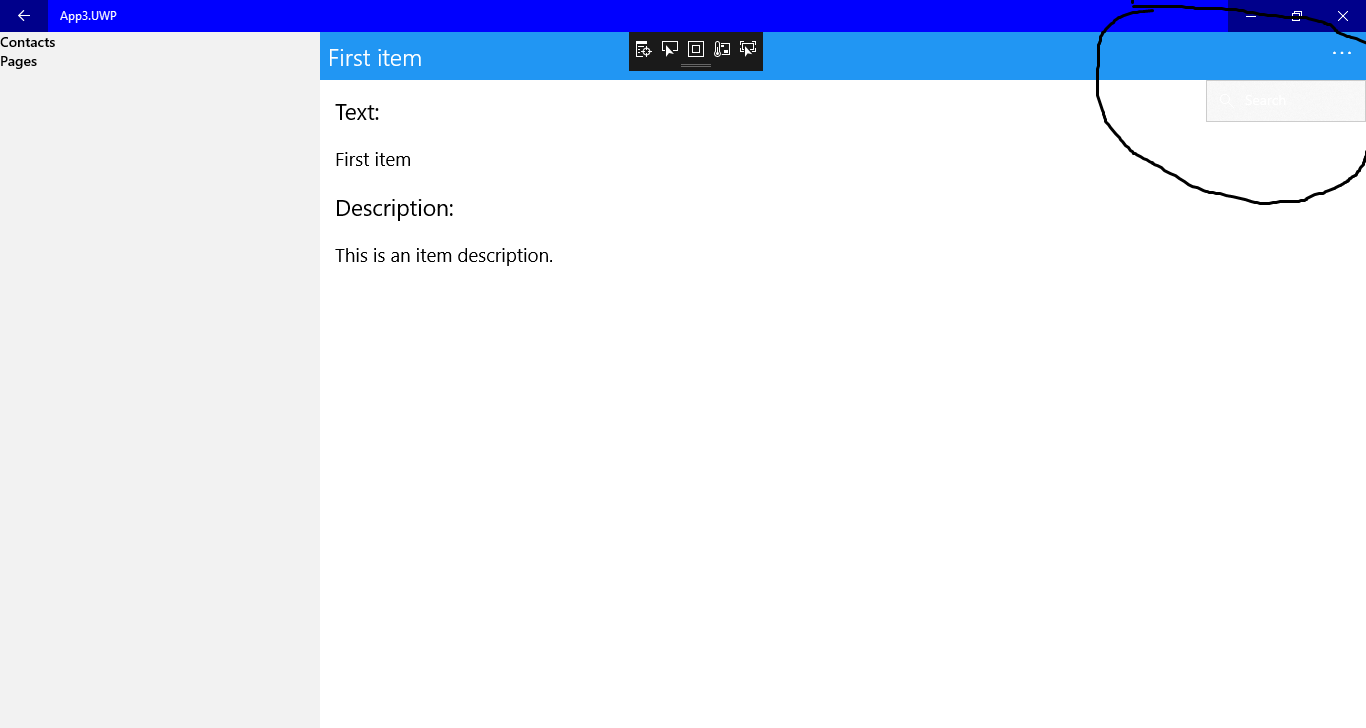
When i use titelView in UWP, all my primary toolbaritems becomes secondary, it is regardless of page implements titleview but also on all other pages
Steps to Reproduce
- Download attached repro
- ItemsListpage has titleview, select and item in the list
- You will be redirect to ItemDetailsPage which has toolbaritem as Search.png, you can see that this toolbar item although primary is, it displays as secondary as in the screenshot below.
- simply remove the titleview in the Itemspage and run again to see that it is working as primary toolbaritem.
problem might not occur for big screen sizes. But i can simply reproduce it on any screen size smaller than 14 inch. I am guessing that it somehow causes OverFlow although there is plenty of space on the screen still. I played around with new feature SetToolbarDynamicOverflowEnabled on 3.5 but it didnt help
 EmilAlipiev
All 13 comments
I have the same issue in my UWP application. From my point of view this problem exists at least since Xamarin.Forms 3.0. When will it be solved? Thx.
 dontspeak
on 18 Apr 2019
dontspeak
on 18 Apr 2019
Anybody? Do you still habe this bug in mind or is it forgotten?
dontspeak
on 2 May 2019
I'm also facing the same issue
 bhanupradeept
on 20 May 2019
bhanupradeept
on 20 May 2019
Hello,
a lot uf developers do not understand that Xamarin Forms has a tons of bugs which prevent developers of using XF for their products. You release "fantastic" new XF versions almost each month with a lot of new features, but do not solve bugs that exists since years or since XF exists. You also can not even say when a bug will be fixed. I really liked XF, but I see more and more that you have no prio on bugsolving. I cant understand this kind of strategie at all, and I think there are a lot developers that also cant...
Regards Vasilios
dontspeak
on 27 Sep 2019
I agree it's a bit confusing, but there is a way around this. If you set the SetToolbarDynamicOverflowEnabled to false, the toolbar items won't go into the overflow button. You need to set this on the container page so your NavigationPage, MasterDetailPage etc. in the reproduction, if you go to your App.xaml.cs add this line on line 38 (the usings on top of your class of course):
using Xamarin.Forms.PlatformConfiguration;
using Xamarin.Forms.PlatformConfiguration.WindowsSpecific;

38: masterDetailNav.On<Windows>().SetToolbarDynamicOverflowEnabled(false);
Now the toolbar icons will remain visible.
 jfversluis
on 18 Oct 2019
jfversluis
on 18 Oct 2019
If this ever needs fixing, we probably want to look at TitleViewManager.UpdateTitleViewWidth and take a look at how the primary items and dynamic overflow work together.
jfversluis
on 18 Oct 2019
Gerald, you are amazing! SetToolbarDynamicOverflowEnabled(false) really works. I hope settings this attribute does not have any drawbacks.
Thank you very much!
Regards Vasilios
dontspeak
on 18 Oct 2019
Glad it worked for you! It shouldn't have any other side-effects. If you do find anything while using this, please don't hesitate to let us know!
jfversluis
on 18 Oct 2019
I agree it's a bit confusing, but there is a way around this. If you set the
SetToolbarDynamicOverflowEnabledto false, the toolbar items won't go into the overflow button. You need to set this on the container page so yourNavigationPage,MasterDetailPageetc. in the reproduction, if you go to yourApp.xaml.csadd this line on line 38 (the usings on top of your class of course):using Xamarin.Forms.PlatformConfiguration; using Xamarin.Forms.PlatformConfiguration.WindowsSpecific; 38: masterDetailNav.On<Windows>().SetToolbarDynamicOverflowEnabled(false);Now the toolbar icons will remain visible.
Not working for me without icons, or not placed on the right place... I tried placing "On
using Models;
using System;
using Xamarin.Forms;
using Xamarin.Forms.Xaml;
using Xamarin.Forms.PlatformConfiguration;
using Xamarin.Forms.PlatformConfiguration.WindowsSpecific;

namespace Views
{
    [XamlCompilation(XamlCompilationOptions.Compile)]
    public partial class Login : ContentPage
    {
        public Login()
        {
            InitializeComponent();
            On<Windows>().SetToolbarDynamicOverflowEnabled(false);
             ....
            ToolbarItems.Add(new ToolbarItem("Configuración", "", () => Navigation.PushAsync(new SettingsView())));


 Borjamao
on 23 Jan 2020
Borjamao
on 23 Jan 2020
Borjamao,
you need to put the usings and the Platform Specific setting into the Navigation Page to get this work.
I took me days, no weeks, to play around with the AppBarButton and uwp:FormsCommandBar Styles, overriding system colors and never got it working. Give it a try!
 MichaelStgt
on 21 Mar 2020
MichaelStgt
on 21 Mar 2020
Borjamao,
you need to put the usings and the Platform Specific setting into the Navigation Page to get this work.
I took me days, no weeks, to play around with the AppBarButton and uwp:FormsCommandBar Styles, overriding system colors and never got it working. Give it a try!
Oh!! thanks a lot!! i'll play with it
Borjamao
on 24 Mar 2020
Gerald, you are amazing!
SetToolbarDynamicOverflowEnabled(false)really works. I hope settings this attribute does not have any drawbacks.Thank you very much!
Regards Vasilios
how did you make it working? can you share your code? I updated my sample but it doesnt work on masterdetailpage
EmilAlipiev
on 10 May 2020
how did you make it working? can you share your code? I updated my sample but it doesnt work on masterdetailpage
I have 2 projects, the XAMARIN FORMS project and the according *.UWP project.
In Constructor of MainPage.xaml.cs (file of XAMARIN FORMS Shared project!), Ive added
this.On<Windows>().SetToolbarDynamicOverflowEnabled(false);
Maybe you have added it to the wrong MainPage file?
dontspeak
on 11 May 2020
Related issues
 leobragatti
·
3Comments
leobragatti
·
3Comments
 MartinWegner
·
3Comments
MartinWegner
·
3Comments
 samhouts
·
3Comments
samhouts
·
3Comments
 deakjahn
·
3Comments
deakjahn
·
3Comments
 sonic1015
·
3Comments
sonic1015
·
3Comments