Wpf: Can't move the IDE window to a monitor "above" my primary
I have an external monitor positioned "above" my primary laptop monitor, such that I can drag windows up to move them to my secondary...except for VS2019. When I try to move it up through my primary to my secondary, it either tries to maximize (since it's reaching the edge) or the mouse loses capture and the IDE window is restored to the last position before I started the drag operation.
_This issue has been moved from https://developercommunity.visualstudio.com/content/problem/529499/cant-move-the-ide-window-to-a-monitor-above-my-pri.html
VSTS ticketId: 845603_
_These are the original issue comments:_
Visual Studio Feedback System on 4/12/2019, 01:44 AM (104 days ago):
We have directed your feedback to the appropriate engineering team for further evaluation. The team will review the feedback and notify you about the next steps.
Visual Studio Feedback System on 4/12/2019, 10:16 AM (104 days ago):
Thank you for sharing your feedback! Our teams prioritize action on product issues with broad customer impact. See details at: https://docs.microsoft.com/en-us/visualstudio/ide/report-a-problem?view=vs-2017#faq . In case you need answers to common questions or need assisted support, be sure to use https://visualstudio.microsoft.com/vs/support/ . We'll keep you posted on any updates to this feedback.
steve terepin on 6/12/2019, 04:38 AM (43 days ago): I have exactly the same issue, on VS 16.1.3 ; cannot drag VS window onto another monitor (although this works fine with any other application). We have directed your feedback to the appropriate engineering team for further evaluation. The team will review the feedback and notify you about the next steps.
Visual Studio Feedback System on 7/23/2019, 01:15 AM (2 days ago):
_These are the original issue solutions:_
(no solutions)
 vsfeedback
All 15 comments
Copied from internal AzDO: 846867
 grubioe
on 25 Jul 2019
grubioe
on 25 Jul 2019
This is my bug! Let me know if you have any questions about the repro.
 jevansaks
on 26 Jul 2019
jevansaks
on 26 Jul 2019
Not sure if it's the same issue, but I will chime in with my experience. If I click and drag the window to the second monitor above, the window gets stuck on the first screen and I "lose capture" as you describe.
If I release the mouse however, then it moves to the second monitor without issue. So for me the issue is related to rendering the window, and not functionality.
I also get this behaviour if I drag and move the window around too quickly, my mouse loses capture, but when I release the mouse button, the window changes position correctly.
 inkysquid
on 31 Jul 2019
inkysquid
on 31 Jul 2019
Same problem here with VS 15.9.14 on Windows 1903 18362.239
The monitor is 'above' my surface pro 4 and starting Visual Studio on surface pro it can't be dragged up, Only the mouse moves to the top monitor leaving VS behind. All other apps move across screens fine.
The (Samsung) Monitor is set as the "Main Display" in Display settings. Disconnecting the monitor, then reconnecting it switches all apps including VS up to the monitor, which means at least I can get VS there. If I then drag VS down to the bottom (Surface) screen it can't be dragged back up.
 PriceyCoder
on 3 Aug 2019
PriceyCoder
on 3 Aug 2019
Update - for me it has to do with the Windows Taskbar. Visual Studio can't drag UP through a Taskbar.
I usually have the Windows Taskbar at the top of both monitors. In this layout I cannot drag VS UP.
If I move the Taskbar on the bottom monitor (Surface Pro 4) to the bottom or side of the screen then dragging Visual Studio Up to the top monitor works fine.
But if the Taskbar on the top monitor is at bottom of that screen, then Mostly I can't drag up. But it seems sometimes if I drag very slowly VS pauses, the mouse move to the top screen, and then VS catches up. I can't work out exactly how to get this to work regularly, so in general terms having the Top monitor Taskbar at the bottom of it's screen, or having the Bottom monitors Taskbar at the top of it's screen is the problem.
Annoying, but at least I have found a straight forward work-around, don't drag VS UP through a Taskbar.
Windows 1903 18362.295
Visual Studio Pro 2017 v15.9.15
PriceyCoder
on 17 Aug 2019
@PriceyCoder Do you have any touch or stylus devices connected to your machine?
 rladuca
on 17 Aug 2019
rladuca
on 17 Aug 2019
@rladuca
Do you have any touch or stylus devices connected to your machine?
Only the Surface Pen, which I am not using for dragging.
For what it is worth, both mouse and keyboard are Bluetooth.
UPDATE 2:
I did some more testing and the 'sometimes' working drag issue seems related to mouse position on the title bar. (I can still Never drag up to the top screen if the bottom screen has Windows Taskbar at the top.)
However, with the Taskbar at the bottom of the top monitor only, dragging VS to the top monitor DOES work if I start with the mouse cursor not too close tot the top of the VS Titlebar. If the cursor pointer is more than a few pixels above the height of say the 'Microsoft Visual Studio...' text, then the drag fails.
Screenshots illustrating mouse position attached.
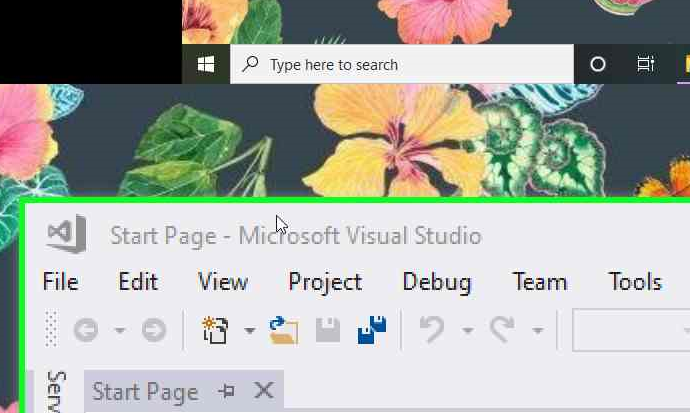
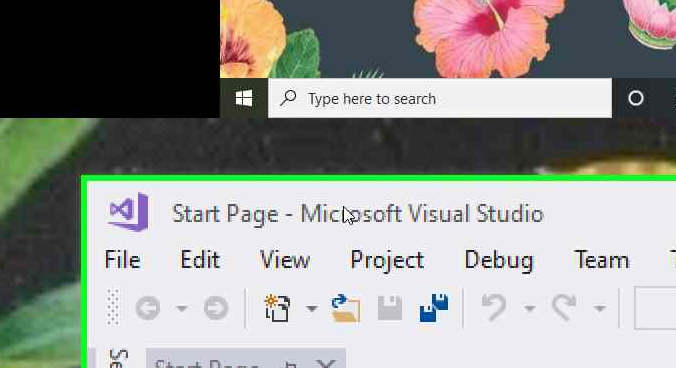
So it seems to be related to the general mouse and window rendering issue @inkysquid mentioned above. When dragging up quickly even on the same monitor the mouse loses connection to the VS window as it is not rendered. Letting go of the mouse the window catches up. Perhaps when dragging up to the top screen, because Windows does the 'do you want to make this app full screen' animation, in that time the mouse moves up beyond the titlebar, and losing that connection between mouse and app window means the drag no longer works. Just a thought.
Hope this can be sorted out soon, since this issue is only with VS and not other apps.
PriceyCoder
on 18 Aug 2019
@PriceyCoder I was more interested in the presence of the touch device, not the use of it.
We have a known regression in Windows 10 that has to do with mouse messages being sent to a delegate thread when dragging outside of a window. This includes resizing and dragging a window around. Basically, if your mouse moves outside the window border while performing these actions, the mouse messages are not getting to the proper place (the delegate thread). WPF only uses input delegation when touch or stylus is enabled. It gets this via the Windows Inking Services Platform (WISP).
I want to make sure that this issue isn't related to #1323. Can you do the following?
- Verify if this reproduces with a plain basic WPF application
- If so, shut off touch support in WPF using this flag and re-verify the repro.
Basically, when touch is shut off (either via WPF disabling its touch stack or all touch/stylus devices disconnected from the system) the above mentioned drag issue no longer occurs.
This could be unrelated, but I think it's a good idea to just be sure you're not affected by the same problem.
rladuca
on 18 Aug 2019
I can't get to that right now @rladuca, but I'll try and test it out at another time.
PriceyCoder
on 18 Aug 2019
We have several confirmations of similar reports being fixed via the OS Update mentioned in https://github.com/microsoft/dotnet-framework-early-access/issues/57. I am going to set this to autoclose pending feedback, but I believe that disabling touch in WPF or getting the build mentioned above should fix this. The corresponding servicing update should be available in early October.
rladuca
on 11 Sep 2019
As mentioned in the opening comments, this happens on every WPF application - even one I created from New Project, compiled, and ran without modification. This isn't limited to just VS, and happens on my desktop with two external monitors that do not have touch capability.
 heaths
on 11 Sep 2019
heaths
on 11 Sep 2019
@heaths Are you sure there are no touch devices attached to your system? Have you tried the workaround I suggested by disabling WPF touch support? The monitor itself does not have to be a touch monitor, there merely needs to be a touch device present on the system.
rladuca
on 11 Sep 2019
I haven't, no, but that doesn't seem like a viable workaround long-term. Windows's touch support is not only useful for some apps - some of which may be WPF - but necessary for others.
heaths
on 11 Sep 2019
@heaths Maybe I was unclear. I am not suggesting this as a long-term workaround, this is intended to:
- Give short-term relief from the problem
- Add further confirmations that the fix we have is the right fix (though we have many confirmations at this point).
The actual fix is in the OS update I talked about (and is mentioned in microsoft/dotnet-framework-early-access#57 and #1323) that is already in flighting builds and is coming in early October as a servicing fix. The bug itself is not a WPF bug, it is an OS bug that affects WPF due to the way WPF gets touch input.
At this point, I consider this bug a duplicate and thus I set it to close automatically unless someone has a reproduction and has ruled out any current suggested workarounds.
rladuca
on 11 Sep 2019
This issue has been automatically marked as stale because it has marked as requiring author feedback but has not had any activity for 4 days. It will be closed if no further activity occurs within 3 days of this comment. Thank you for your contributions!
![msftbot[bot] picture](https://avatars2.githubusercontent.com/in/26612?v=4&s=40) msftbot[bot]
on 15 Sep 2019
msftbot[bot]
on 15 Sep 2019
Related issues
 lisberPontes
·
3Comments
lisberPontes
·
3Comments
 guytp
·
3Comments
guytp
·
3Comments
 skanvk15
·
3Comments
skanvk15
·
3Comments
 stevenbrix
·
3Comments
stevenbrix
·
3Comments
 Pzixel
·
3Comments
Pzixel
·
3Comments
Most helpful comment
@heaths Maybe I was unclear. I am not suggesting this as a long-term workaround, this is intended to:
The actual fix is in the OS update I talked about (and is mentioned in microsoft/dotnet-framework-early-access#57 and #1323) that is already in flighting builds and is coming in early October as a servicing fix. The bug itself is not a WPF bug, it is an OS bug that affects WPF due to the way WPF gets touch input.
At this point, I consider this bug a duplicate and thus I set it to close automatically unless someone has a reproduction and has ruled out any current suggested workarounds.