Winforms: Control.DeviceDPI always returns 96 in .Net 5 Preview 8
Control.DeviceDPI always returns 96 in .Net 5 Preview 8. It's critical regression in HighDPI support
.NET Core Version:
5.0.0-preview.8.20407.11Have you experienced this same bug with .NET Framework?:
No
Problem description:
After migration from .Net 5 Preview 7 to .Net 5 Preview 8 we found that our code which handles DPI scaling is broken. In debugger we see that when Control.RescaleConstantsForDpi is executed, it has correct values in deviceDpiOld and deviceDpiNew parameters (different from Control.DeviceDPI property value).
Also, in Preview 8 Control.RescaleConstantsForDpi is not called in some cases, like changing DPI from 192 to 96, while still executing when DPI is changed from 96 to 192.
Expected behavior:
Control.DeviceDPI property should return actual DeviceDPI, not constant
Control.RescaleConstantsForDpi method should be called for all DPI changes, from 96 to something and in other direction as well.
Minimal repro:
run attached sample, check what DPI is shown. Then change your monitor scaling and see whether both Control.DeviceDPI and DpiChangedEventArgs.DeviceDpiNew show the same value. Also, you might notice that attached sample uses standard Lables on the form and they are not scaled properly with DPI changes.
DPITest.zip
 IrinaPykhova
All 22 comments
I've looked at the sample, and it appears to lack an app.manifest that opts the app into PerMonitor awareness.
When I added a manifest everything worked as expected:
<ApplicationManifest>app1.manifest</ApplicationManifest>
app1.manifest
<?xml version="1.0" encoding="utf-8"?>
<assembly manifestVersion="1.0" xmlns="urn:schemas-microsoft-com:asm.v1">
  <assemblyIdentity version="1.0.0.0" name="MyApplication.app"/>

  <compatibility xmlns="urn:schemas-microsoft-com:compatibility.v1">
    <application>
      <!-- A list of the Windows versions that this application has been tested on
           and is designed to work with. Uncomment the appropriate elements
           and Windows will automatically select the most compatible environment. -->

      <!-- Windows Vista -->
      <!--<supportedOS Id="{e2011457-1546-43c5-a5fe-008deee3d3f0}" />-->

      <!-- Windows 7 -->
      <!--<supportedOS Id="{35138b9a-5d96-4fbd-8e2d-a2440225f93a}" />-->

      <!-- Windows 8 -->
      <!--<supportedOS Id="{4a2f28e3-53b9-4441-ba9c-d69d4a4a6e38}" />-->

      <!-- Windows 8.1 -->
      <!--<supportedOS Id="{1f676c76-80e1-4239-95bb-83d0f6d0da78}" />-->

      <!-- Windows 10 -->
      <supportedOS Id="{8e0f7a12-bfb3-4fe8-b9a5-48fd50a15a9a}" />

    </application>
  </compatibility>

  <!-- Indicates that the application is DPI-aware and will not be automatically scaled by Windows at higher
       DPIs. Windows Presentation Foundation (WPF) applications are automatically DPI-aware and do not need
       to opt in. Windows Forms applications targeting .NET Framework 4.6 that opt into this setting, should
       also set the 'EnableWindowsFormsHighDpiAutoResizing' setting to 'true' in their app.config. -->
  <!--
  -->
  <application xmlns="urn:schemas-microsoft-com:asm.v3">
    <windowsSettings>
      <dpiAwareness xmlns="http://schemas.microsoft.com/SMI/2016/WindowsSettings">PerMonitorV2</dpiAwareness>
    </windowsSettings>
  </application>

</assembly>
Tested against Microsoft.WindowsDesktop.App:
- 5.0.100-preview.8.20417.9
- 5.0.100-rc.1.20425.5
DPITest.runtimeconfig.json
{
  "runtimeOptions": {
    "tfm": "net5.0",
    "framework": {
      "name": "Microsoft.WindowsDesktop.App",
      "version": "5.0.0-rc.1.20417.4"
    }
  }
}
I also tested the repro against .NET Core 3.1 and it works as expected without a manifest added explicitly, so this likely an indication that .NET 5.0 binaries do not embed our default manifest.
 RussKie
on 8 Sep 2020
RussKie
on 8 Sep 2020
ok, adding manifest manually might work as workaround for a while. I'll try it on our bigger applications and see whether it covers all scenarios.
But IMO, it is still a regression. It worked in Preview 7 without manifest. Also .Net 5 WinForms C# application template in VS creates application without manifest. If someone thinks that manifest is obligatory, then VS templates should be updated accordingly. But personally, I think that as far as there is a way to set DPI mode from code, it should work regardless of manifest existence.
IrinaPykhova
on 8 Sep 2020
We are looking into it. Manifest is not needed as we made 'SystemAware' a default for .Net core applications.
 dreddy-work
on 8 Sep 2020
dreddy-work
on 8 Sep 2020
Here is what is happening: We removed the manifest dependency for Dpi settings for winforms in the netcore and introduced a public API ( Application.SetHighDpiMode(..) ) to set process DpiAwareness. We also updated the winforms template to call this API to set default "SystemAware" mode before the application is launched ( before creating handles for any UI components in the app). Limitation of this API is, it needs to be called before creating any UI components( controls) at the runtime. When manifest is included, Process DPI is set ( Not by this API) before launching the app.
In the back ground, when calling this API, We check if any of the UI components created ( i.e: Any controls 'handle' created) and if none, we set the DpiAwareness. Otherwise, the API will skip and return false. 'DPIHelper' is a static class that holds DPI related properties for the process/application and is expected to initialize its process level properties at appropriate time ( ideally after the Process DPI is set by the API).
As part of refactoring and improving the performance in this PR, We altered when the 'DpiHelper.DeviceDPi' will be initialized. Because of its static nature, it was not updated after the process DPI was set by the API mentioned above.
Will get out the fix soon.
dreddy-work
on 8 Sep 2020
Fix is in for RC2.
 JeremyKuhne
on 9 Sep 2020
JeremyKuhne
on 9 Sep 2020
I made some checks with manifest applied and can tell that I get different results depending on the moment when DPI is changed. Everything is scaling quite good if DPI is changed when applicaiton is already running. But if I run application with high DPI, then Control.DeviceDPI returns correct values, but Form.DeviceDPI property is always 96 and there are no DPI changng events for the form.
Please make sure that your fix gives the same results for both scenarios:
- when application is starting on HighDPI device
- when DPI is changing after application start
IrinaPykhova
on 9 Sep 2020
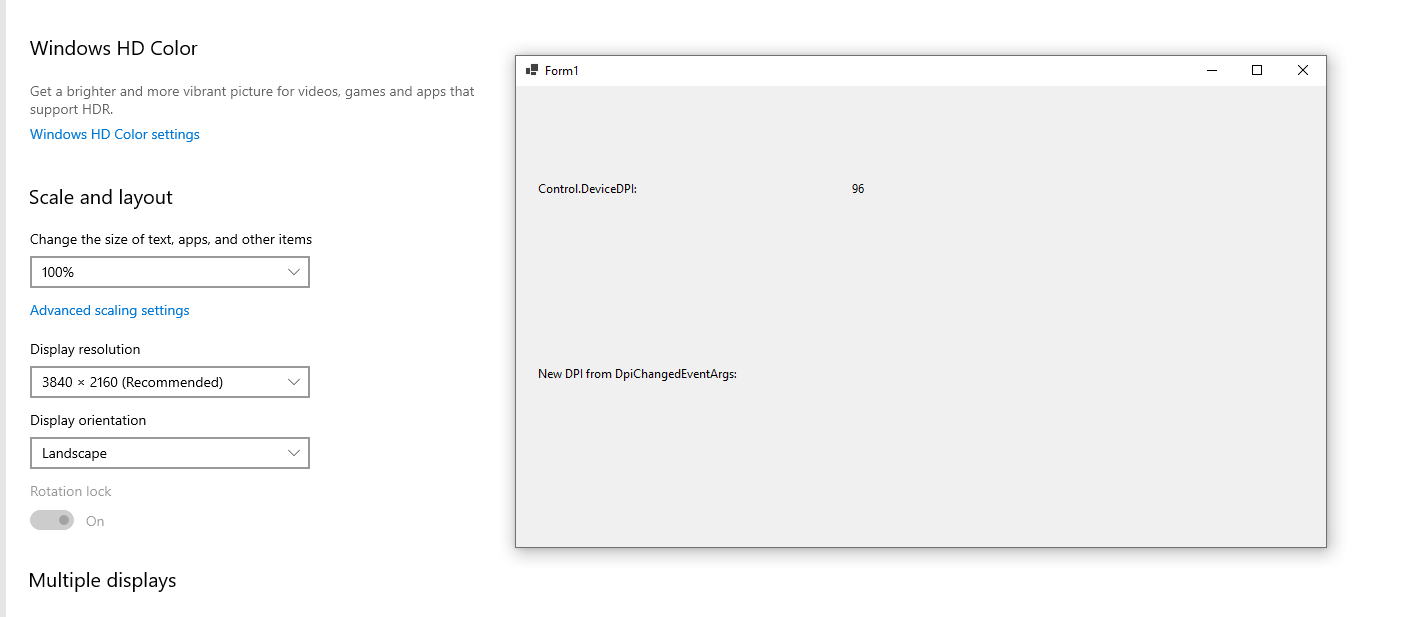
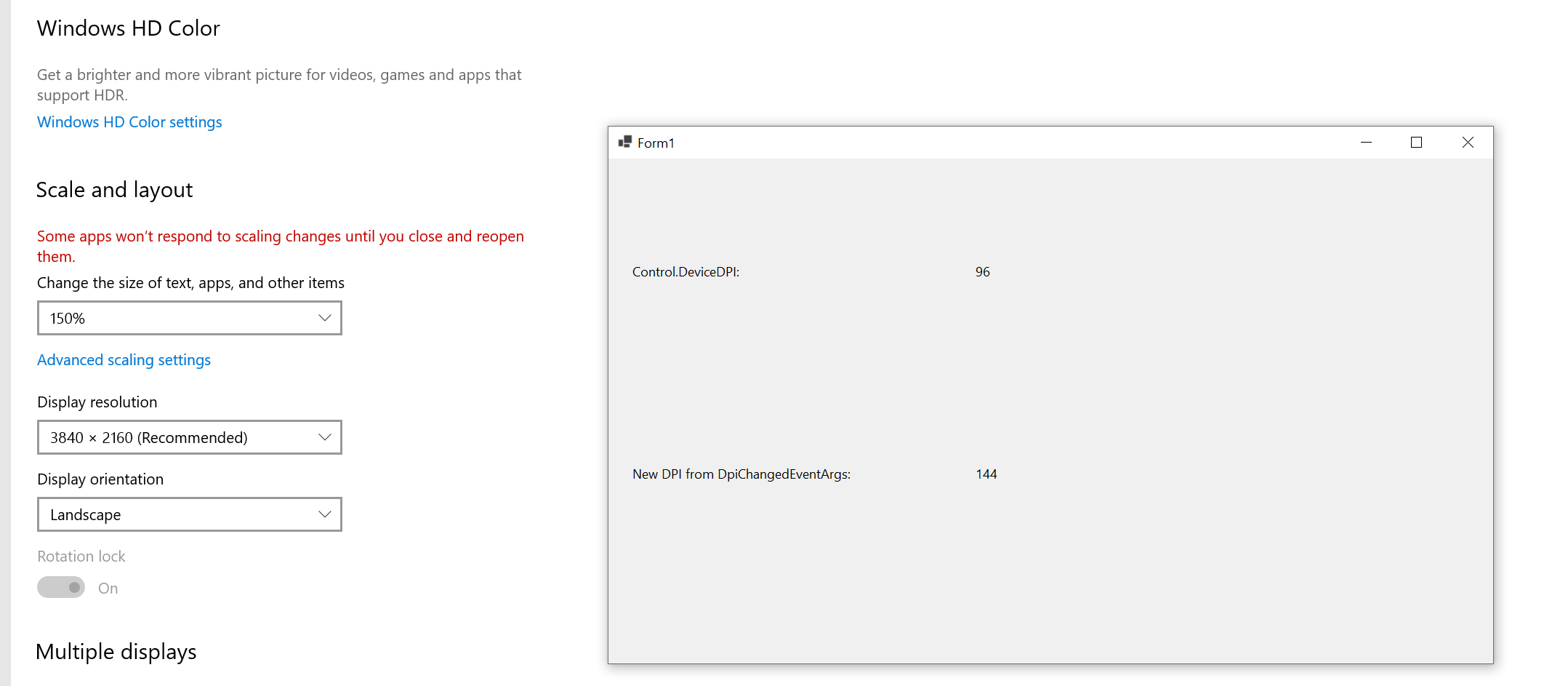
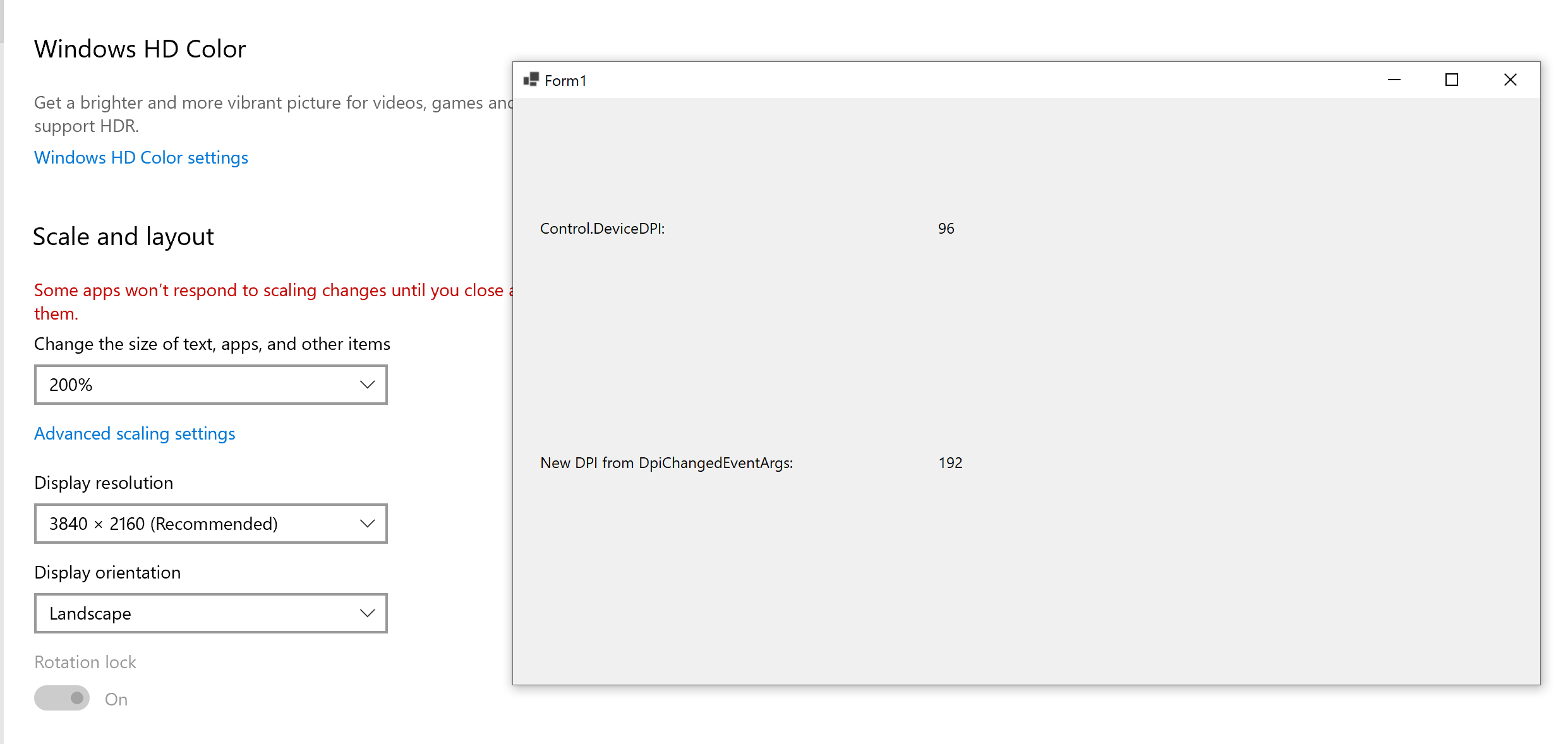
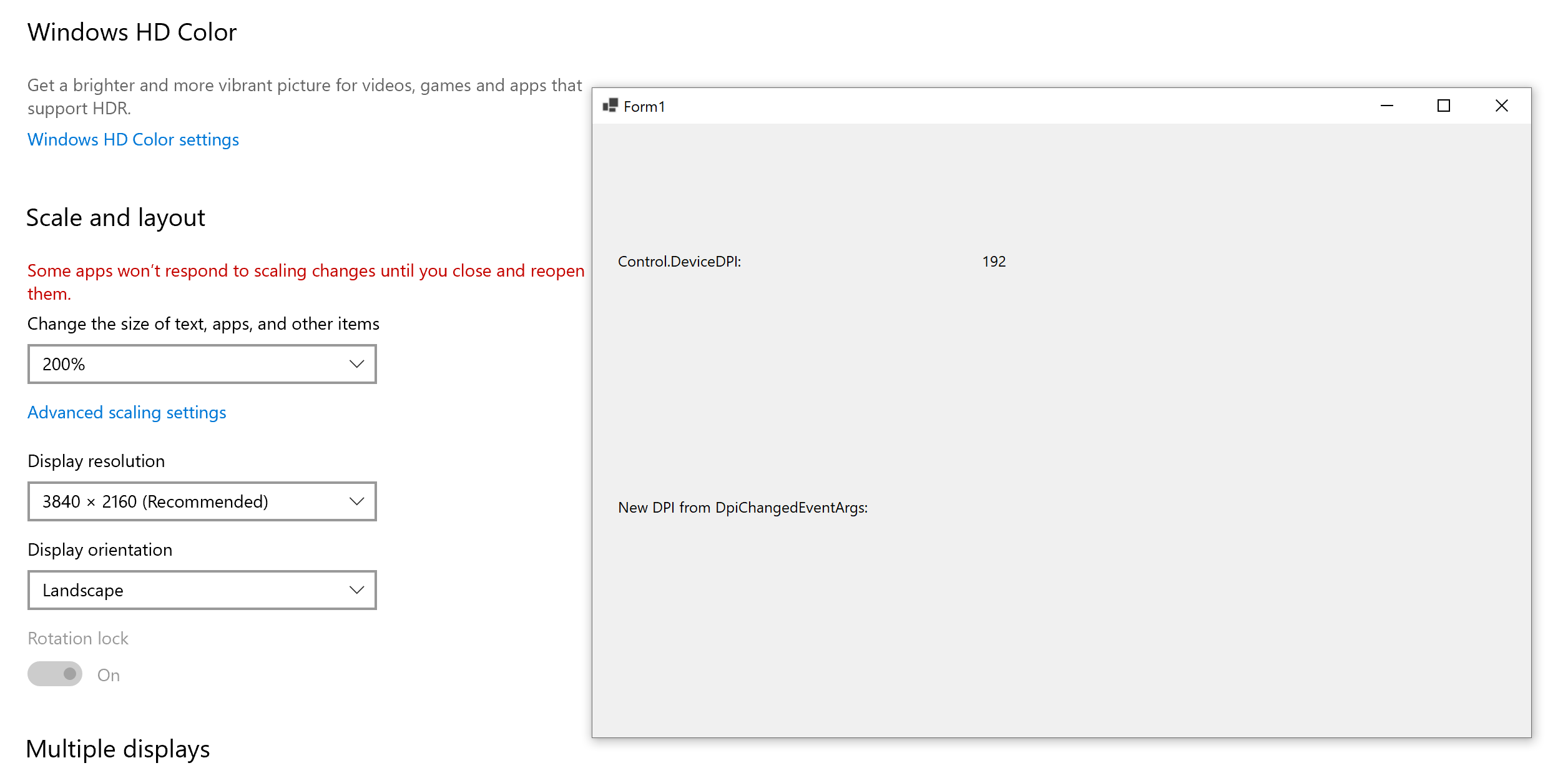
@JeremyKuhne Verified this issue in .NET 5.0.100-rc.2.20459.18 SDK, please check and confirm the below test result, does it the expected result?
When start the DPITest project on 100% scaling, the Control.DeviceDPI is 96, and the New DPI is not triggered.
Then change the scaling from 100% to 150% and not restart DPITest project, the Control.DeviceDPI is still 96, and the New DPI is 144.
Then change the scaling from 150% to 200% and not restart DPITest project, the Control.DeviceDPI is still 96, and the New DPI is 192.
On 200% scaling, if stop and restart the DPITest project, the Control.DeviceDPI is 192, and the New DPI is not triggered.
 John-Qiao
on 10 Sep 2020
John-Qiao
on 10 Sep 2020
We'll have another look at it.
RussKie
on 11 Sep 2020
Sorry, missed another part of this. Putting the rest of the fix up shortly.
JeremyKuhne
on 11 Sep 2020
Should be ok now and the update has been put in RC2.
JeremyKuhne
on 12 Sep 2020
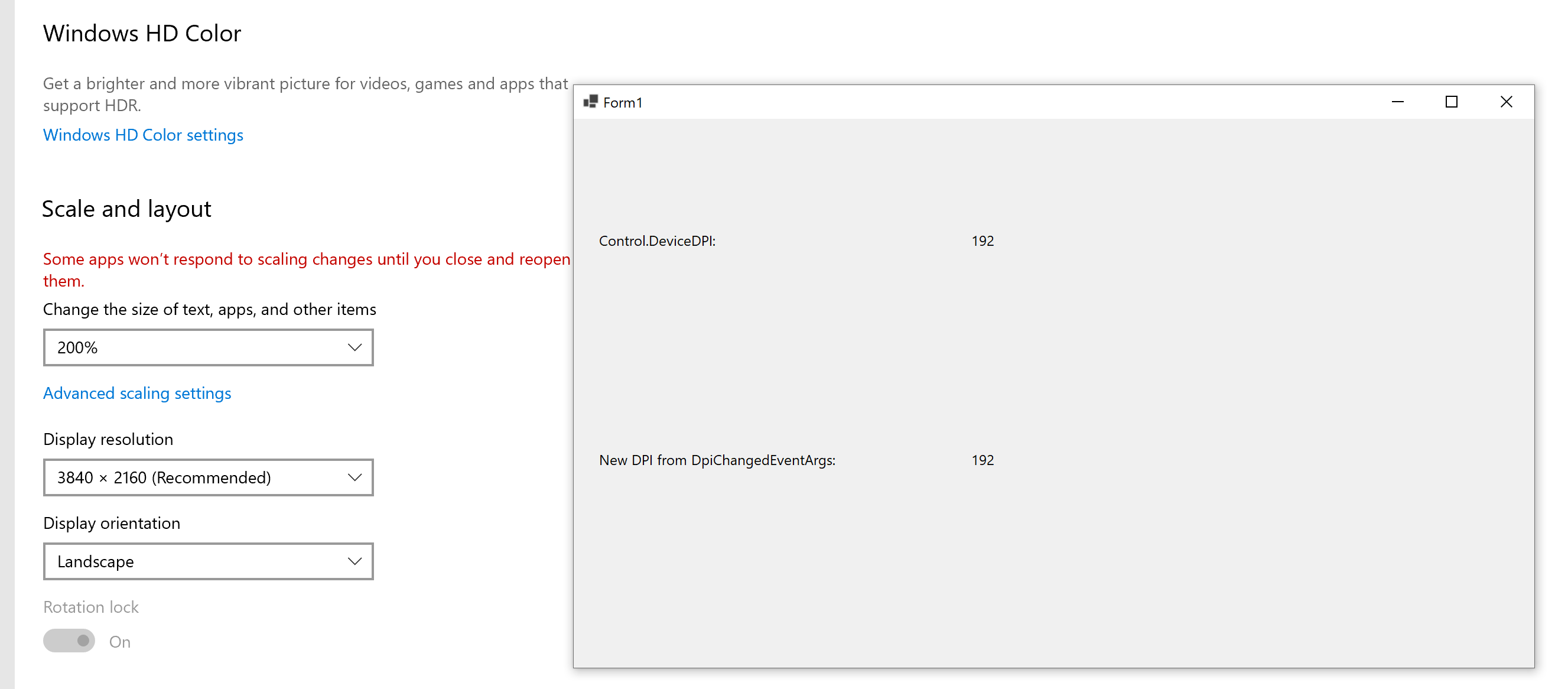
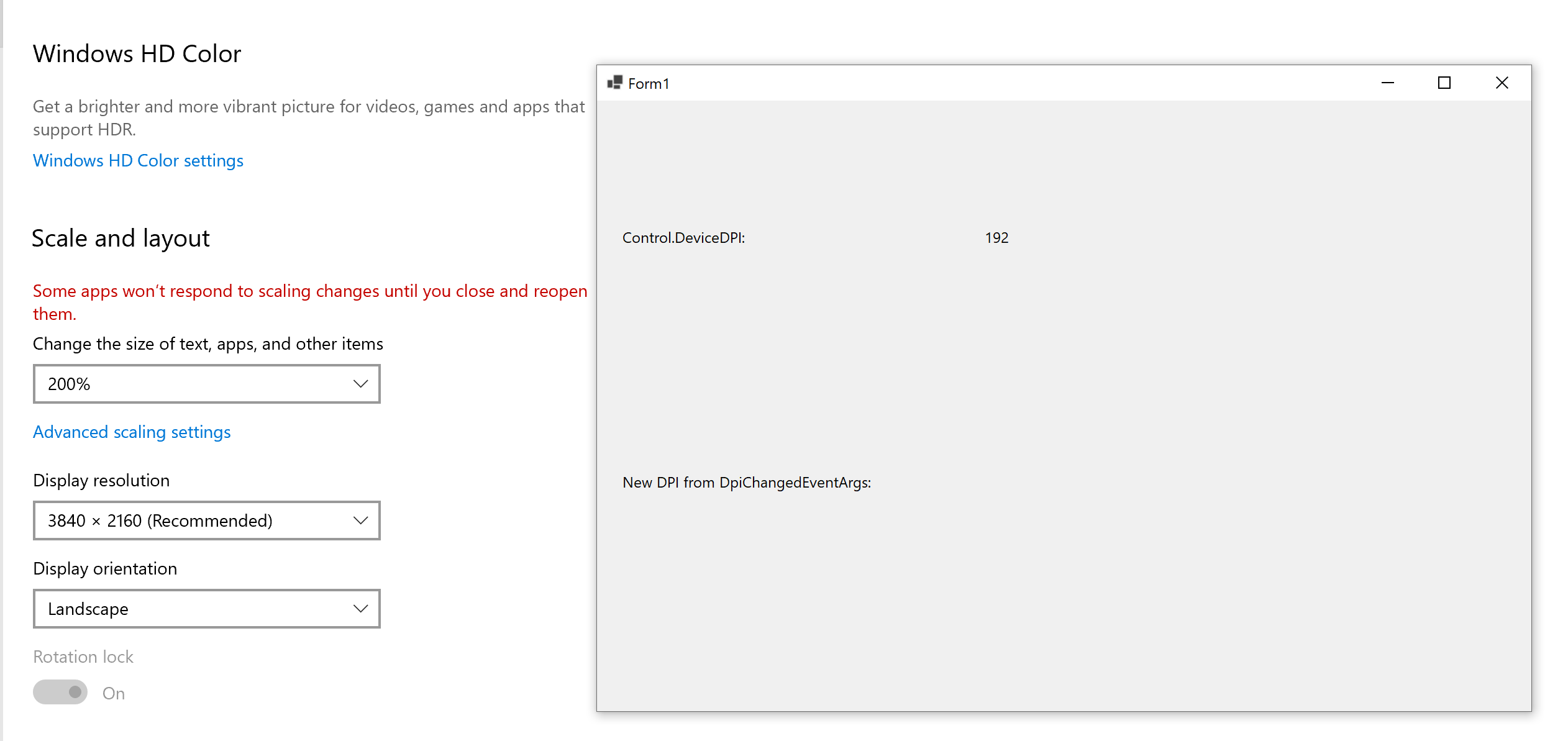
Verified in .NET SDK 5.0.100-rc.2.20465.34 + Dev16 16.8.0 Preview 4.0 [30514.195.main], this issue has been fixed. Please check below test results:
- When start the DPITest project on 100% scaling, the Control.DeviceDPI is 96, and the New DPI is not triggered.
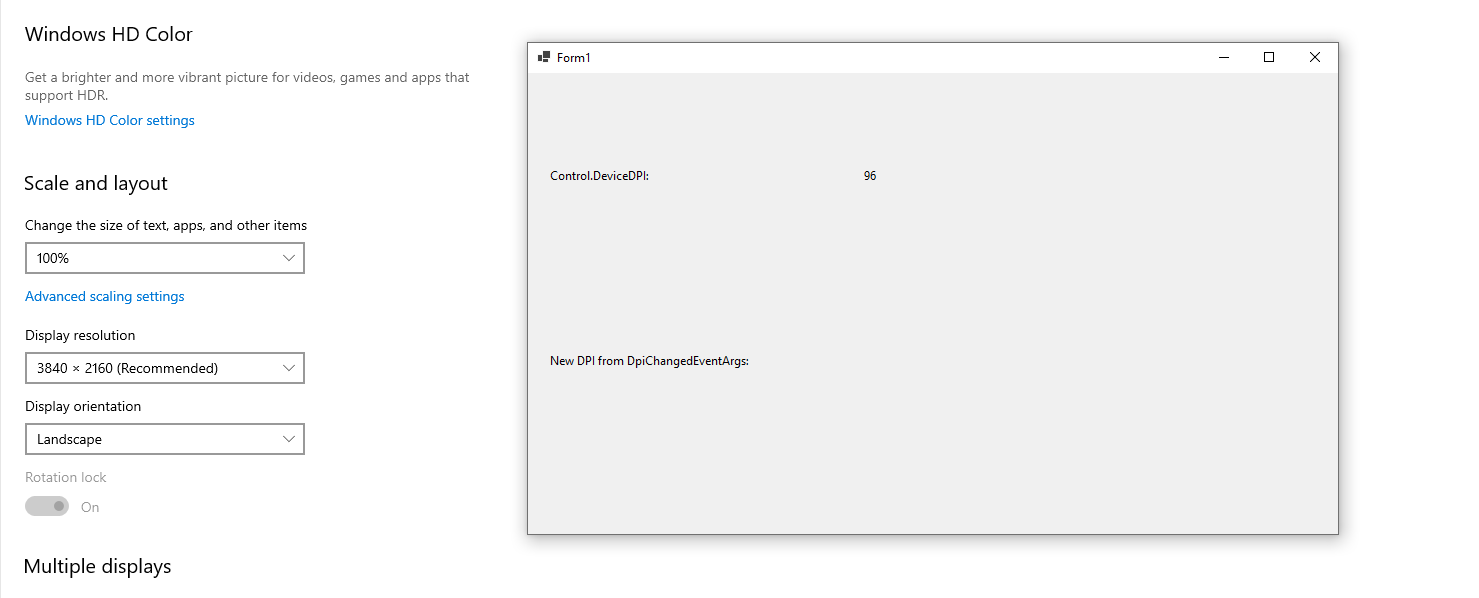
- Then change the scaling from 100% to 150% and not restart DPITest project, the Control.DeviceDPI is 144, and the New DPI is 144 too.

- Then change the scaling from 150% to 200% and not restart DPITest project, the Control.DeviceDPI is 192, and the New DPI is 192 too.
- On 200% scaling, if stop and restart the DPITest project, the Control.DeviceDPI is 192, and the New DPI is not triggered.
John-Qiao
on 16 Sep 2020
I installed RC2 and checked it again. System info:
.NET SDK (reflecting any global.json):
Version: 5.0.100-rc.2.20465.34
Commit: 7e7de71fc4
Runtime Environment:
OS Name: Windows
OS Version: 10.0.19041
Updated test application:
DPITest.zip
I still see 2 problems:
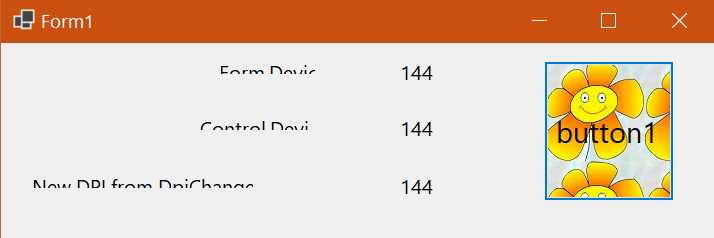
- when start application in with 96 DPI and then scale screen to some higher value, fonts scale properly, but standard labels don't scale, so text is cut in the bottom:
- when start application in environment with more that 96 DPI, then application still shows 96 DPI in all places:
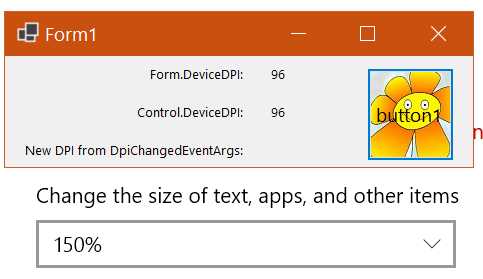
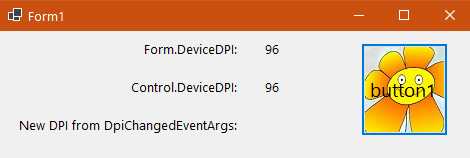
In this case the only thing which scales properly is the form title. For comparison, here is how it looks when application runs with 96 DPI:
IrinaPykhova
on 16 Sep 2020
@IrinaPykhova
- Sadly, but this is _normal_ .net behavior with dpi changes on the fly :( For now
HighDpiMode.SystemAwareis the only thing that somehow working (see point 2)... - For DPI scaling (strictly speaking even if you enable
PerMonitorV2, after app restart it's becomeSystemAwareany way :) ) to work properly You need to enable this setting:


 kirsan31
on 16 Sep 2020
kirsan31
on 16 Sep 2020
this setting doesn't fix anything for me. My previous experience tells that it somehow works for non-dpi-aware apps.
And anyway it has nothing to do about case when I set scaling to 150%, then run applicaiton and it shows me 96 DPI
IrinaPykhova
on 16 Sep 2020
And anyway it has nothing to do about case when I set scaling to 150%, then run applicaiton and it shows me 96 DPI
I speak exactly about this case. When this setting is off - it's behave like you described in point 2. And with on - like it must.
My previous experience tells that it somehow works for non-dpi-aware apps.
And my experience tells that .net dpi aware apps not working at all on Win 10 with this setting is off :)

kirsan31
on 16 Sep 2020
I have the same results as @kirsan31 with this project. We do recommend that it's turned on for the best WinForms scaling performance.
 merriemcgaw
on 17 Sep 2020
merriemcgaw
on 17 Sep 2020
@IrinaPykhova I thing I learnt many years ago as a Windows Forms user is never use Font-scaling mode because of issues like this, and use DPI scaling instead. In Git Extensions project (which I am a part of) we had a fair share of high dpi and scaling issues, which we had to deal with.
Improving and correcting the layout engine is on our roadmap for .NET 6.0 (and beyond).
RussKie
on 17 Sep 2020
@merriemcgaw
ok, using scaling on DPI and turning on this Windows setting makes the trick. But I got lost here. We are selling components for developers. When we get support issues about the matter, we should know how we can help our customers who indeed want to make per monitor dpi-aware applications working for arbitrary end-user on machine with unknown settings. So, I have 2 questions:
- Font scaling is the default setting when you create new formor UserControl. If it should go away with HighDPI monitors, probably the default should be changed. And it should be mentioned somewhere in documentation about HighDPI apps development
- Does it mean that without this Windows setting scaling should not work? Is that by design? Please note that it's not about performance, it's about scaling or not. Can you show me some doc with clear explanation of how it is supposed to work?
The text in windows settings is telling about blurry applications, not about enabling/disabling scaling
IrinaPykhova
on 17 Sep 2020
thing I learnt many years ago as a Windows Forms user is never use Font-scaling mode because of issues like this
@RussKie I agree with this. I used to use DPI scaling in old WinForms apps. But for .Net 5 which should have better HighDpi support I think it worth trying how default settings work. I can't expect that all the people will dig into all these details and change defaults
IrinaPykhova
on 17 Sep 2020
But for .Net 5 which should have better HighDpi support
I agree on "should" part, but we haven't worked on anything specific related to high dpi support. It is slated for .NET 6.0 at this stage.
RussKie
on 17 Sep 2020
I absolutely agree that we have some work ahead of us to make the HDPI experience better in .NET 6. The windows setting should only impact apps that are not set to PMv2 and _could_ make things a bit blurry. But in talking with the Windows team this setting can help System Aware apps to behave more like PMv2 and they'd done a lot of work on fonts to make Windows based scaling look better. My theory on your app is that since the app manifest didn't set Win10 as the Supported Version that Windows did the highest DPI setting it could be sure your app targeted, which was system aware. Then the DPI scaling setting took over and did a great job of making everything look as it should.
HDPI support beyond System Aware is a high priority task for us in .NET 6. Our focus in .NET 5 has been continued progress in the designer and some performance improvements in WinForms. When we consider things like changing defaults we have to worry about apps that are porting to make sure the work they've done to work around HDPI limitations aren't broken when we update our processes. We'll keep the community posted and I'm sure spend time working with our community to find out what you need most.
merriemcgaw
on 17 Sep 2020
@IrinaPykhova
We have a long rout with DPI scaling in our app. I can say only, that we end with FONT scaling )))) : System.Windows.Forms.AutoScaleMode.Font and
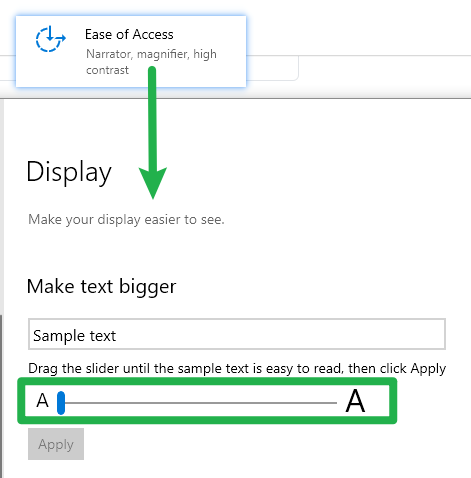
The main reason for this was many problems with switching dpi of target machine over rdp. DPI scaling work too with this approach (System.Windows.Forms.AutoScaleMode.Font). And yes even SystemAware DPI / FONT scaling have many problems in WinForms and you will have to bypass them manually :(
I really hope that with the release of the 6th version everything will be much better and both DPI and FONT scaling will work on the fly.
kirsan31
on 17 Sep 2020
Related issues
RussKie
·
5Comments
 Vino-Wang
·
4Comments
Vino-Wang
·
4Comments
 Jenna-Zheng
·
3Comments
Jenna-Zheng
·
3Comments
 lonitra
·
5Comments
kirsan31
·
4Comments
lonitra
·
5Comments
kirsan31
·
4Comments
Most helpful comment
I absolutely agree that we have some work ahead of us to make the HDPI experience better in .NET 6. The windows setting should only impact apps that are not set to PMv2 and _could_ make things a bit blurry. But in talking with the Windows team this setting can help System Aware apps to behave more like PMv2 and they'd done a lot of work on fonts to make Windows based scaling look better. My theory on your app is that since the app manifest didn't set Win10 as the Supported Version that Windows did the highest DPI setting it could be sure your app targeted, which was system aware. Then the DPI scaling setting took over and did a great job of making everything look as it should.
HDPI support beyond System Aware is a high priority task for us in .NET 6. Our focus in .NET 5 has been continued progress in the designer and some performance improvements in WinForms. When we consider things like changing defaults we have to worry about apps that are porting to make sure the work they've done to work around HDPI limitations aren't broken when we update our processes. We'll keep the community posted and I'm sure spend time working with our community to find out what you need most.