Winappdriver: Failed to locate opened application
Hello,
Using Robotframework+appiumLibrary and WinAppDriver, I am trying to launch a Windows Desktop app that is made using WinForms but it is consistently giving me a "Failed to locate opened application window with appId: C:/xxx/xxx/installer-win46.exe, and processId: 280. The app launches successfully and displayed on-screen but this message indicated to me that it is unable to get the sessionId and the framework is unable to interact with it. I checked the Task Manager and found the process and processId matching what WinAppDriver claimed that it cannot locate.
It will also fail at the Tear Down step, saying that "No application is open". Why is it not detecting the app? I saw some other posting about this issue, but they have a workaround for this issue because they are using a full fledged programming language. Is there any workaround for this for Robotframework?
My Robotframework launch script looks like this:
${REMOTE_URL}     http://127.0.0.1:4723
${APP}  C:/xxx/xxx/installer-win64.exe

    Open Application  ${REMOTE_URL}  platformName=Windows  deviceName=mymachine  app=${APP}  automationName=appium
The below is the Inspect.exe output indicating that the app is a WindowsForm 10 app.
How found:  Mouse move (712,398)
    hwnd=0x00030694 ??bit class="WindowsForms10.Window.8.app.0.34f5582_r6_ad1" style=0x16C80000 ex=0x50101
ChildId:    0
Interfaces: IEnumVARIANT IOleWindow IAccIdentity
Impl:   Local oleacc proxy
AnnotationID:   0100008094060300FEFFFFFF00000000
Name:   [null]
Value:  "Management Services"
Role:   title bar (0x1)
State:  focusable (0x100000)
Location:   {l:431, t:377, w:468, h:23}
Selection:
Description:    "Displays the name of the window and contains controls to manipulate it"
Kbshortcut: [null]
DefAction:  [Error: hr=0x80020003 - Member not found.]
Help:   [null]
HelpTopic:  ""
ChildCount: 5
Window: 0x30694
FirstChild: "Close" : push button : normal
LastChild:  "Close" : push button : normal
Next:   "Management Services" : client : focusable
Previous:   [Error: hr=0x80004005 - Unspecified error]
Left:   [Error: hr=0x80004005 - Unspecified error]
Up: [null]
Right:  [null]
Down:   "Management Services" : client : focusable
IsContentElement:   false
Other Props:    Object has no additional properties
Children:   "IME" : push button : invisible
    "Minimize" : push button : invisible
    "Maximize" : push button : invisible
    "Context help" : push button : invisible
    "Close" : push button : normal
Ancestors:  "Management Services" : window : moveable,focusable
    "Desktop" : client : focusable
    "Desktop" : window : focusable
    [ No Parent ]
Screenshot:

My environment:
Windows 10 x64
Python 2.7.13
WinAppDriver running on Administrator console
Robot Framework 3.0.2
AppiumLibrary 1.4.5.4
Thanks for any help/info given.
 auyong
All 24 comments
Hi @auyong,
It is possible that the process you launched started a different process that ultimately own the application window you see on screen. The error message you posted seems to indicate that this is the case. You can use the inspect tool or Task Manager to see the process id associated with the application window. It is very likely a different process id than the one you are trying to match. Let us know if this is not the case.
The good news is you can create a session by attaching to this application window. This should enable you to have a working session to perform all the operations you need on WinAppDriver.
 timotiusmargo
on 17 Oct 2017
timotiusmargo
on 17 Oct 2017
Hello @timotiusmargo ,
Thanks for getting back so quickly. I used Task Manager, found the process (which has a different name in the Process tab from the Details tab), right clicked on it-> "go to details" and confirmed that the PID and Process Name in Details tab are the same as the one that is reported by the failure. Please see screenshot:
The main "Process" tab of Task Manager shows a different name for the Process:

Go to Details tab of Task Manager, shows correct Process Name and PID, that matches cmd console error:

So, the question now is, which Process Name is being used by WinAppDriver/AppiumLibrary? WinAppDriver's appium server reported the name for the Details tab in the Task Manager, but if you manually look in the Processes tab, it has a different name.
For attaching to the application window, I am not sure how that can be done in Robotframework using the appiumLibrary, as I do not see any keywords to set the capability. It only has a "Get Capability" keyword.
auyong
on 17 Oct 2017
Hi @auyong
Can you describe a little bit more the architecture of the application that you're trying to automate? Are you installing it when you launch it or is it already installed? Is the Console-5.4.2-win64 application a WinForms application or a console application? Having the application in Task Manager doesn't necessarily imply that that process has a window associated with it.
Is there any way for us to replicate this in house?
 khouzam
on 18 Oct 2017
khouzam
on 18 Oct 2017
Hi @khouzam
Thanks for looking into this. The application that I am trying to automate is an installer. Actually there are multiple ways to install the app. One way is using a setup.exe file that calls a WinForm10 application to do the installation (Inspect.exe output at the top of this thread).
Another way is the xxx_Console-5.4.2-win64.exe file that creates an "MsiDialogCloseClass" window (according to Inspect: see below) to do the installation. However, both ways I tried to automate, I am facing the same error message of "failed to locate opened application window...".
How found: Mouse move (721,327)
hwnd=0x000B039A 64bit class="MsiDialogCloseClass" style=0x14CA0000 ex=0x40100
RuntimeId: "[42.721818.1.-2147483647.721818.-2.0]"
BoundingRectangle: {l:628 t:315 r:1105 b:338}
ProcessId: 6488
ControlType: UIA_TitleBarControlTypeId (0xC375)
LocalizedControlType: "title bar"
HasKeyboardFocus: false
IsKeyboardFocusable: true
IsEnabled: true
IsContentElement: false
IsPassword: false
IsOffscreen: false
ProviderDescription: "[pid:6232,hwnd:0x0 Annotation:Microsoft: Annotation Proxy (unmanaged:uiautomationcore.dll); Main(parent link):Microsoft: MSAA Proxy (unmanaged:uiautomationcore.dll)]"
Value.IsReadOnly: false
Value.Value: "Access Manager 5.4.2.648 Setup"
IsDockPatternAvailable: false
IsExpandCollapsePatternAvailable: false
IsGridItemPatternAvailable: false
IsGridPatternAvailable: false
IsInvokePatternAvailable: false
IsMultipleViewPatternAvailable: false
IsRangeValuePatternAvailable: false
IsScrollPatternAvailable: false
IsScrollItemPatternAvailable: false
IsSelectionItemPatternAvailable: false
IsSelectionPatternAvailable: false
IsTablePatternAvailable: false
IsTableItemPatternAvailable: false
IsTextPatternAvailable: false
IsTogglePatternAvailable: false
IsTransformPatternAvailable: false
IsValuePatternAvailable: true
IsWindowPatternAvailable: false
IsItemContainerPatternAvailable: false
IsVirtualizedItemPatternAvailable: false
FirstChild: "System" menu bar
LastChild: "Close" button
Next: [null]
Previous: "Welcome to the Access Manager 5.4.2.648 Setup Wizard" image
Other Props: Object has no additional properties
Children: "System" menu bar
"Minimize" button
"Maximize" button
"Close" button
Ancestors: "Access Manager 5.4.2.648 Setup" window
"Desktop" pane
[ No Parent ]
I did a little more digging and also discovered that by running the xxx_Console-5.4.2-win64.exe file, it also generated 3X Windows Installer processes in the Task Manager. I believe with a high degree of confidence that one of these Windows Installer processes is the owner of this MsiDialogCloseClass window, as I tested by ending the tasks one by one, and the MsiDialogCloseClass window only closed after I closed one of the Windows Installer process.
The suggestion to do "attaching to this application window" by @timotiusmargo , I do not think that it will work for me because of this issue filed by vickywyy (we are both using robotframework):
https://github.com/appium/appium/issues/9106
Thanks
auyong
on 18 Oct 2017
Latest Update:
I am finally able to identify the app using the "Attaching to this application window" technique, in Robotframework.
Here's the code snippet that worked for me:
#Open the application - the app will open but WinAppDriver/Appium will say it failed.
Run Keyword and Continue on Failure  Open Application  ${REMOTE_URL}  platformName=Windows deviceName=mymachine  app=${APP}
#The workaround is to go back to Root (Desktop)
Open Application  ${REMOTE_URL}  platformName=Windows  deviceName=mymachine app=Root  automationName=appium
#Put the App's Name into a variable
${element}  Get Webelement  name="<the Name parameter of your app in Inspect>"
#Open the app using the variable
Open Application  ${REMOTE_URL}  platformName=Windows  deviceName=mymachine  appTopLevelWindow=${element}    automationName=appium
Thanks for the info and help!
auyong
on 18 Oct 2017
Hello,
It seems my joy is shortlived. Somehow, the "Open Application ${REMOTE_URL} platformName=Windows deviceName=mymachine appTopLevelWindow=${element} automationName=appium" line is failing with "Could not find any recognizable digits". I can workaround it by using the keyword "Run Keyword and Ignore Error" so that the test keeps running.
See the screenshot below. It is pretty obvious ${element} is valid but it encounters the "could not find recognizable digits" when I am trying to point to that app using appTopLevelWindow. Thoughts?

Correct me if I am wrong. The workaround means that while the test keeps running, it will be searching for elements from the Root/Desktop level instead of the app-level, making the execution slower.
auyong
on 23 Oct 2017
Hi @auyong,
Can you please paste the WinAppDriver.exe logs that you can get from the console? We will need to see what is being passed into WinAppDriver, which command/API endpoint, and the error returned to understand the issue.
timotiusmargo
on 23 Oct 2017
Hi @timotiusmargo,
Here is the log:
C:\WinAppDriver>WinAppDriver.exe
Windows Application Driver listening for requests at: http://127.0.0.1:4723/
Press ENTER to exit.
==========================================
POST /session HTTP/1.1
Accept: application/json
Accept-Encoding: identity
Connection: close
Content-Length: 508
Content-Type: application/json;charset=UTF-8
Host: 127.0.0.1:4723
User-Agent: Python http auth
{"capabilities": {"alwaysMatch": {"deviceName": "ranAuto", "app": "C:/temp/Suite-2017.2-mgmt-win64/Manage/Access Manager/Console-5.4.2-win64.exe", "platformName": "Windows", "appWorkingDir": "C:/testFramework/testScripts"}, "firstMatch": []}, "desiredCapabilities": {"deviceName": "ranAuto", "app": "C:/temp/Suite-2017.2-mgmt-win64/Manage/Access Manager/Console-5.4.2-win64.exe", "platformName": "Windows", "appWorkingDir": "C:/testFramework/testScripts"}}
HTTP/1.1 500 Internal Error
Content-Length: 239
Content-Type: application/json
{"status":13,"value":{"error":"unknown error","message":"Failed to locate opened application window with appId: C:/temp/Suite-2017.2-mgmt-win64/Manage/Access Manager/Console-5.4.2-win64.exe, and processId: 6908"}}
==========================================
POST /session HTTP/1.1
Accept: application/json
Accept-Encoding: identity
Connection: close
Content-Length: 268
Content-Type: application/json;charset=UTF-8
Host: 127.0.0.1:4723
User-Agent: Python http auth
{"capabilities": {"alwaysMatch": {"deviceName": "ranAuto", "app": "Root", "platformName": "Windows", "automationName": "appium"}, "firstMatch": []}, "desiredCapabilities": {"deviceName": "ranAuto", "app": "Root", "platformName": "Windows", "automationName": "appium"}}
HTTP/1.1 200 OK
Content-Length: 111
Content-Type: application/json
{"sessionId":"78D3A0E6-86B4-4194-A98B-DA30B7B89880","status":0,"value":{"app":"Root","platformName":"Windows"}}
==========================================
POST /session/78D3A0E6-86B4-4194-A98B-DA30B7B89880/elements HTTP/1.1
Accept: application/json
Accept-Encoding: identity
Connection: close
Content-Length: 122
Content-Type: application/json;charset=UTF-8
Host: 127.0.0.1:4723
User-Agent: Python http auth
{"using": "name", "sessionId": "78D3A0E6-86B4-4194-A98B-DA30B7B89880", "value": "Access Manager 5.4.2.648 Setup"}
HTTP/1.1 200 OK
Content-Length: 97
Content-Type: application/json
{"sessionId":"78D3A0E6-86B4-4194-A98B-DA30B7B89880","status":0,"value":[{"ELEMENT":"42.787810"}]}
==========================================
POST /session HTTP/1.1
Accept: application/json
Accept-Encoding: identity
Connection: close
Content-Length: 436
Content-Type: application/json;charset=UTF-8
Host: 127.0.0.1:4723
User-Agent: Python http auth
HTTP/1.1 500 Internal Error
Content-Length: 99
Content-Type: application/json
{"status":13,"value":{"error":"unknown error","message":"Could not find any recognizable digits."}}
==========================================
GET /session/78D3A0E6-86B4-4194-A98B-DA30B7B89880/screenshot HTTP/1.1
Accept: application/json
Accept-Encoding: identity
Connection: close
Content-Type: application/json;charset=UTF-8
Host: 127.0.0.1:4723
User-Agent: Python http auth
HTTP/1.1 200 OK
Content-Length: 293078
Content-Type: application/json
giB0ER887BahaQIWKyucPXsWq1YO3DH26tUrdAg77HzV1T1GjBhxyW5jx5NtzNlms50/fx58oHzHHXdAFQrwQ6qkpOTkyZN4RBqM4I+jgCcU2G0o13lRm0YLtEJhwIABY8eOhcK5c+c2bNiwdetWKEAc3rGlufk8xIM533vvPWPGjIEuMAr4HDp0aOTIkUOGDIGxICZO4/rrr58+fXrPnj0hwhdffLFu3bp33nnn008/PXjwIGrEPKZYBfTCCeCSWVndGXTj7kE8NTNzuP760VOnpl59da9z5y7s2P7F3/72t+LiYgh++PBhVORtFpblA7tDfLBgELDImFCAphtvvBEmCeV//GP3u+8V1365T7ppM0FrYTFdxWyiI3A5oUwQnZW4KVP6Htr8KmN9lXJ7hpoDWgmJG6Ps5vZXq/pOkebOTEpe3SJlM [...]
==========================================
POST /session HTTP/1.1
Accept: application/json
Accept-Encoding: identity
Connection: close
Content-Length: 508
Content-Type: application/json;charset=UTF-8
Host: 127.0.0.1:4723
User-Agent: Python http auth
{"capabilities": {"alwaysMatch": {"deviceName": "ranAuto", "app": "C:/temp/Suite-2017.2-mgmt-win64/Manage/Access Manager/Console-5.4.2-win64.exe", "platformName": "Windows", "appWorkingDir": "C:/testFramework/testScripts"}, "firstMatch": []}, "desiredCapabilities": {"deviceName": "ranAuto", "app": "C:/temp/Suite-2017.2-mgmt-win64/Manage/Access Manager/Console-5.4.2-win64.exe", "platformName": "Windows", "appWorkingDir": "C:/testFramework/testScripts"}}
HTTP/1.1 500 Internal Error
Content-Length: 239
Content-Type: application/json
{"status":13,"value":{"error":"unknown error","message":"Failed to locate opened application window with appId: C:/temp/Suite-2017.2-mgmt-win64/Manage/Access Manager/Console-5.4.2-win64.exe, and processId: 8240"}}
==========================================
GET /session/78D3A0E6-86B4-4194-A98B-DA30B7B89880/screenshot HTTP/1.1
Accept: application/json
Accept-Encoding: identity
Connection: close
Content-Type: application/json;charset=UTF-8
Host: 127.0.0.1:4723
User-Agent: Python http auth
HTTP/1.1 200 OK
Content-Length: 313410
Content-Type: application/json
kzw/+eST1IDsixYt6j/Rt+WmG6kZnX3hhRe6urrOP//8G2+88ciRI93d3VQgO03p+eefpy40veXLl3/hC1+gvsRjjz22cuXK1NRUKre3t7///vtf/OIXW1pahAb9sY99jCamj3QWArEOD/lYxau9cRSCV8ff/va311xzjTBqSUsEZKRqfDy7LRAAYDZx1113LVmyZP78+fPmzaMXfk9Pz3XXXTcwMNDW1vbKK6/ccccd1CZKRXQJzODRhoPKpk2rZJVBpiNxunQc4YGfQiAiiN90dNQY84Qso6OjIyMjw8PD9Obh9OnTn2+IOnnXStEdzGxStu1nKriWXiNn96HtSoUuEhoAMG4gQAMAAAAgYky8AO2tkAbEYpQKY9++fSkpKWvWrBFVOkufLeko7KtXrxb2MBnjH2KDe5Nl4ZOiuVF7MQ36fEvwk [...]
==========================================
POST /session HTTP/1.1
Accept: application/json
Accept-Encoding: identity
Connection: close
Content-Length: 268
Content-Type: application/json;charset=UTF-8
Host: 127.0.0.1:4723
User-Agent: Python http auth
{"capabilities": {"alwaysMatch": {"deviceName": "ranAuto", "app": "Root", "platformName": "Windows", "automationName": "appium"}, "firstMatch": []}, "desiredCapabilities": {"deviceName": "ranAuto", "app": "Root", "platformName": "Windows", "automationName": "appium"}}
HTTP/1.1 200 OK
Content-Length: 111
Content-Type: application/json
{"sessionId":"10419D48-B95B-425B-A8B2-844EDE03D9D6","status":0,"value":{"app":"Root","platformName":"Windows"}}
==========================================
POST /session/10419D48-B95B-425B-A8B2-844EDE03D9D6/elements HTTP/1.1
Accept: application/json
Accept-Encoding: identity
Connection: close
Content-Length: 122
Content-Type: application/json;charset=UTF-8
Host: 127.0.0.1:4723
User-Agent: Python http auth
{"using": "name", "sessionId": "10419D48-B95B-425B-A8B2-844EDE03D9D6", "value": "Access Manager 5.4.2.648 Setup"}
HTTP/1.1 200 OK
Content-Length: 121
Content-Type: application/json
{"sessionId":"10419D48-B95B-425B-A8B2-844EDE03D9D6","status":0,"value":[{"ELEMENT":"42.329272"},{"ELEMENT":"42.787810"}]}
==========================================
POST /session HTTP/1.1
Accept: application/json
Accept-Encoding: identity
Connection: close
Content-Length: 436
Content-Type: application/json;charset=UTF-8
Host: 127.0.0.1:4723
User-Agent: Python http auth
{"capabilities": {"alwaysMatch": {"deviceName": "ranAuto", "automationName": "appium", "platformName": "Windows", "appTopLevelWindow": {"element-6066-11e4-a52e-4f735466cecf": "42.329272", "ELEMENT": "42.329272"}}, "firstMatch": []}, "desiredCapabilities": {"deviceName": "ranAuto", "automationName": "appium", "platformName": "Windows", "appTopLevelWindow": {"element-6066-11e4-a52e-4f735466cecf": "42.329272", "ELEMENT": "42.329272"}}}
HTTP/1.1 500 Internal Error
Content-Length: 99
Content-Type: application/json
{"status":13,"value":{"error":"unknown error","message":"Could not find any recognizable digits."}}
==========================================
GET /session/10419D48-B95B-425B-A8B2-844EDE03D9D6/screenshot HTTP/1.1
Accept: application/json
Accept-Encoding: identity
Connection: close
Content-Type: application/json;charset=UTF-8
Host: 127.0.0.1:4723
User-Agent: Python http auth
HTTP/1.1 200 OK
Content-Length: 279546
Content-Type: application/json
I1NEp2kbIQnORm1dqynQUaJVdlve9PioNbP2iTkY99U+YY4KI0eP2yYi7n9vjTZJ00/27pk0dhRtHk0QBEEQBEG0B+0rQFcsm9MusqdVv+2VTzvBhqtD6jNBEAQRVVBdEyecgFOJC36YROw7efIk+qCIXF9ff6jqsObxujXv3/f8DaoSE6/p06cPb6Q1Nja6OAMHDvznf/7nvLy80aNHDx8+HAq4hrqsrAyagAMcUYPu0aPHgw8+OGrUqGuvHX3//fejJv7FF19AFXD99df/7Gc/mzp1anJK6qjR1+bn52NHFRUVbGmzpu3du/fo0aPQZMyYMffeMyM1NfWWSTdPmzYN3cCOAjoTvjUtLi5u9uzZ0Be45c+4t2fPnmDcvnUbOLBHAmps72m3u9uNN96Ym3NbctKwvLumQw7gA6necuvNE7+fOWLEi [...]
auyong
on 24 Oct 2017
Hi @timotiusmargo
did you find anything that looks out of place within the logs?
auyong
on 27 Oct 2017
Hi @auyong,
Below is the line that I am interested in:
POST /session HTTP/1.1
Accept: application/json
Accept-Encoding: identity
Connection: close
Content-Length: 436
Content-Type: application/json;charset=UTF-8
Host: 127.0.0.1:4723
User-Agent: Python http auth
{"capabilities": {"alwaysMatch": {"deviceName": "ranAuto", "automationName": "appium", "platformName": "Windows", "appTopLevelWindow": {"element-6066-11e4-a52e-4f735466cecf": "42.329272", "ELEMENT": "42.329272"}}, "firstMatch": []}, "desiredCapabilities": {"deviceName": "ranAuto", "automationName": "appium", "platformName": "Windows", "appTopLevelWindow": {"element-6066-11e4-a52e-4f735466cecf": "42.329272", "ELEMENT": "42.329272"}}}
HTTP/1.1 500 Internal Error
Content-Length: 99
Content-Type: application/json
{"status":13,"value":{"error":"unknown error","message":"Could not find any recognizable digits."}}
The appTopLevelWindow capabilities needs to be the window handle (e.g. 0xB822E2) that is typically retrieved by getting the window handle attribute from the Access Manager element you found. Consider the following example from https://github.com/Microsoft/WinAppDriver#attaching-to-an-existing-app-window:
```c#
var CortanaWindow = DesktopSession.FindElementByName("Cortana");
var CortanaTopLevelWindowHandle = CortanaWindow.GetAttribute("NativeWindowHandle");
CortanaTopLevelWindowHandle = (int.Parse(CortanaTopLevelWindowHandle)).ToString("x"); // Convert to Hex
// Create session by attaching to Cortana top level window
DesiredCapabilities appCapabilities = new DesiredCapabilities();
appCapabilities.SetCapability("appTopLevelWindow", CortanaTopLevelWindowHandle);
```
In your test, you seemed to provide the element id as top level window. Can you replace it value with the element window handle attribute?
timotiusmargo
on 27 Oct 2017
hi @timotiusmargo
I am also facing the same issue as @auyong .Here are the error logs -
==========================================
POST /session HTTP/1.1
Accept-Encoding: gzip,deflate
Connection: Keep-Alive
Content-Length: 178
Content-Type: application/json; charset=utf-8
Host: 127.0.0.1:4723
User-Agent: Apache-HttpClient/4.4.1 (Java/1.8.0_121)
{"desiredCapabilities":{"app":"C:\temp\xyz\Desktop-abc\QAConsole\QAconsole.exe","takesScreenshot":true,"platformName":"Windows","deviceName":"WindowsPC","platformVersion":"1.0"}}
HTTP/1.1 500 Internal Error
Content-Length: 183
Content-Type: application/json
{"status":13,"value":{"error":"unknown error","message":"Failed to locate opened application window with appId: C:\temp\xyz\Desktop-abc\QAConsole\QAconsole.exe, and processId: 6912"}}
As you have mentioned process id associated with the application window do not match. In the task manager PID is 2880 and but WinAppDriver PID is 6912 .

Windows10 x64
Java.version: 1.8
WinAppDriver running on console
AppiumLibrary 5.0.0
Thanks
Deepak
 DeepakJadon
on 2 Nov 2017
DeepakJadon
on 2 Nov 2017
hi @timotiusmargo @auyong
Can you help me to resolve this issue?
Thanks
Deepak
DeepakJadon
on 6 Nov 2017
Hi @DeepakJadon,
As suggested above, you need to attach to an existing window once your application window is launched. Typically your application startup will look like below:
- Create a session for your application (this will launch the process and the main window even though locating window may fail)
- Wait until your application window shows up
- Create a desktop session through which you can locate the application window you are interested
- Retrieve the window handle of the application window you located
- Create a session by providing the application top level window above
timotiusmargo
on 7 Nov 2017
Thanks @timotiusmargo - Let me try your solution!
DeepakJadon
on 9 Nov 2017
Hi @timotiusmargo
Case 1
I am using vbscript to launch my application as an administrator and can able to launch app successfully but getting this error ->>>org.openqa.selenium.WebDriverException: Failed to locate opened application window with appId
Case 2
If i directly use the exe of the application , cannot able to launch the application and getting this error ->>> org.openqa.selenium.WebDriverException: The requested operation requires elevation (WARNING: The server did not provide any stacktrace information)
As you said i need to attached to an existing window once my application is launched. With the vb script i am able to launch ... but getting error [case 1 and case 2] while instantiating the driver
DesiredCapabilities capabilities = new DesiredCapabilities();
capabilities.setCapability("platformName", "Windows");
capabilities.setCapability("deviceName", "WindowsPC");
capabilities.setCapability("platformVersion", "1.0");
capabilities.setCapability("app", "Root");
capabilities.setCapability("app", "C:\Users\Desktop\test\console.exe"); [Case 2]
capabilities.setCapability("app", "C:\Users\Desktop\test\final.vbs"); [Case 1 ]
DesktopDriver = new WindowsDriver
DesktopDriver.manage().timeouts().implicitlyWait(60, TimeUnit.SECONDS);
String Handle = DesktopDriver.getWindowHandle();
WebElement ConsoleWindow = DesktopDriver.findElementByName("Log in");
String QAConsoleTopLevelWindowHandle = ConsoleWindow.getAttribute(Handle);
DesiredCapabilities appCapabilities = new DesiredCapabilities();
appCapabilities.setCapability("appTopLevelWindow",QAConsoleTopLevelWindowHandle);
ConsoleSession = new WindowsDriver
After my application gets launched i need to click on google image button.Here is the snapshot of my application

Whats is wrong with the code?
Thanks Deepak
DeepakJadon
on 17 Nov 2017
Hi @DeepakJadon,
Sorry for the delay. This issue completely slipped out from our radar. Assuming that the DesktopDriver is successfully created with Root app capability, and the ConsoleWindow is successfully located, you would need to get NativeWindowsHandle attribute instead of Handle that you used on your snippet above. In addition, you would need to convert this value to Hex string as shown in the example below taken from the readme.
```c#
var CortanaWindow = DesktopSession.FindElementByName("Cortana");
var CortanaTopLevelWindowHandle = CortanaWindow.GetAttribute("NativeWindowHandle");
CortanaTopLevelWindowHandle = (int.Parse(CortanaTopLevelWindowHandle)).ToString("x"); // Convert to Hex
// Create session by attaching to Cortana top level window
DesiredCapabilities appCapabilities = new DesiredCapabilities();
appCapabilities.SetCapability("appTopLevelWindow", CortanaTopLevelWindowHandle);
CortanaSession = new WindowsDriver
Hence, your code should look like:
```c#
WebElement ConsoleWindow = DesktopDriver.findElementByName("Log in");
String QAConsoleTopLevelWindowHandle = ConsoleWindow.getAttribute("NativeWindowHandle");
QAConsoleTopLevelWindowHandle = (int.Parse(QAConsoleTopLevelWindowHandle)).ToString("x"); // Convert to Hex

DesiredCapabilities appCapabilities = new DesiredCapabilities();
appCapabilities.setCapability("appTopLevelWindow",QAConsoleTopLevelWindowHandle);
ConsoleSession = new WindowsDriver(new URL("http://127.0.0.1:4723"), appCapabilities);
I tried as above but it does not find the window using FindElementbyName.
Here is what I am trying to do.
1.Launch my application . 2. Wait for a few seconds for the splash screen to go away 3. Attach to the application to login [The login is a dialog with edit fields username and password and a Login button
When I try to reattach, I get an error - System.InvalidOperationException: System.InvalidOperationException: An element could not be located on the page using the given search parameters..
Here is the WinAppdriverlog -
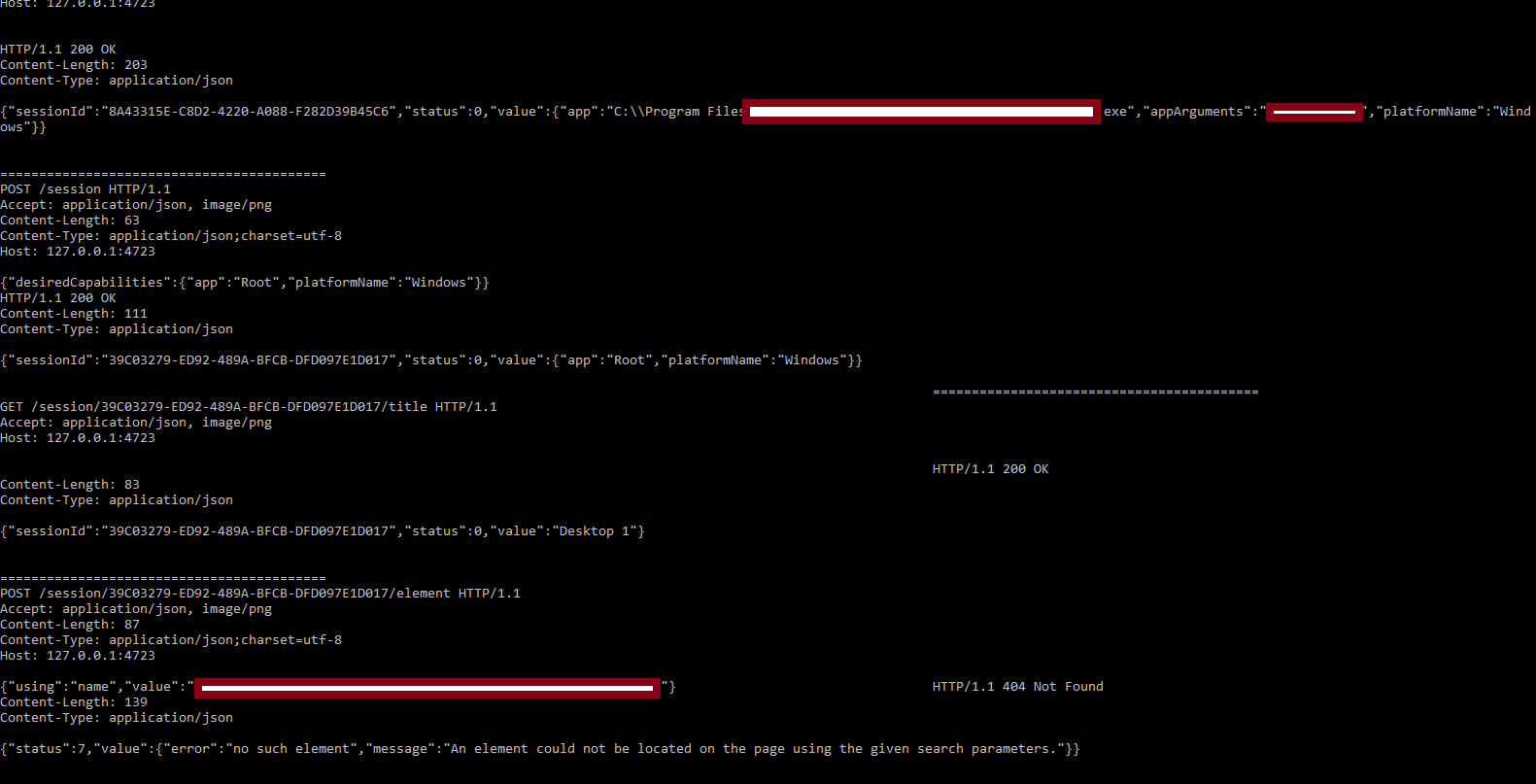
Here is my code -
```using Microsoft.VisualStudio.TestTools.UnitTesting;
using OpenQA.Selenium.Appium.Windows;
using OpenQA.Selenium.Remote;
using OpenQA.Selenium;
using System;
using System.Threading;
namespace QA_automation
{
public class QASession
{
protected const string WindowsApplicationDriverUrl = "http://127.0.0.1:4723";
private const string QAAppId = @"C:\Program Files\myData\mykit\0.1\setup\QA.exe";
private const string QAAppArgs = @"-product=qamode";
    protected static WindowsDriver<WindowsElement> session;
    protected static WindowsElement userName;
    protected static WindowsElement passWord;

    public static void Setup(TestContext context)
    {
        if (session == null)
        {
            DesiredCapabilities appCapabilities = new DesiredCapabilities();
            appCapabilities.SetCapability("app", QAAppId);
            appCapabilities.SetCapability("appArguments", QAAppArgs);
            appCapabilities.SetCapability("deviceName", "WindowsPC");
            appCapabilities.SetCapability("platformName", "Windows");
            session = new WindowsDriver<WindowsElement>(new Uri(WindowsApplicationDriverUrl), appCapabilities);

            // wait for splash screen to disappear
            Thread.Sleep(TimeSpan.FromSeconds(8));

            //Desktop root attach
            DesiredCapabilities desktopCapabilities = new DesiredCapabilities();
            desktopCapabilities.SetCapability("app", "Root");
            var DesktopSession = new WindowsDriver<WindowsElement>(new Uri(WindowsApplicationDriverUrl), desktopCapabilities);


            //attach to original window
            var QAWindow = DesktopSession.FindElementByName("(Beta) QAkit Version: 0.1.0.101");
            String QAConsoleTopLevelWindowHandle = QAWindow.GetAttribute("NativeWindowHandle");
            QAConsoleTopLevelWindowHandle = (int.Parse(QAConsoleTopLevelWindowHandle)).ToString("x"); // Convert to Hex

            DesiredCapabilities QAappCapabilities = new DesiredCapabilities();
            appCapabilities.SetCapability("appTopLevelWindow", QAConsoleTopLevelWindowHandle);
            var QASession = new WindowsDriver<WindowsElement>(new Uri("WindowsApplicationDriverUrl"), QAappCapabilities);

            // Enter userName and passWord which are in hierarchy
            // window[(Beta) QAkit Version: 0.1.0.101]/Dialog[Login]
            QASession.FindElementByName("User Name:").SendKeys("UserA");
            QASession.FindElementByName("Password:").SendKeys("sample");```
Not sure why it is not attaching the window. Please help.Thank you!
 madhavankumar
on 30 Apr 2018
madhavankumar
on 30 Apr 2018
When I ran the test in debug mode, the desktopSession had the following exceptions :

madhavankumar
on 2 May 2018
Hi @madhavankumar,
//attach to original window
                var QAWindow = DesktopSession.FindElementByName("(Beta) QAkit Version: 0.1.0.101");
                String QAConsoleTopLevelWindowHandle = QAWindow.GetAttribute("NativeWindowHandle");
                QAConsoleTopLevelWindowHandle = (int.Parse(QAConsoleTopLevelWindowHandle)).ToString("x"); // Conv
Can you use Inspect to confirm if the correct Window is being targeted?
 hassanuz
on 16 May 2018
hassanuz
on 16 May 2018
Hi, this thread is very, veru useful. Thanks to all who participates in the discussion. Now it is my turn to ask for help.
I'm using Appium, WinAppDriver 1.1, Python, Windows 10. Need to test a Qt application. For the first launch the app is shown as a dialog with 'Continue' and 'Cancel' buttons. The problem is inspect.exe doesn't provide NativeWindowHandle attribute for the tested app (to be more exact NativeWindowHandle = 0 due to console log). How is it possible to catch of the app?
Maybe the answer is to use Window property in MSAA mode (this property exists and has value according to inspect.exe output). But I did not find how to turn WinAppDriver to such mode.
There are two screens from inspect.exe (one screen for 'UI Automation' mode, another for 'MSAA' mode).
UI Automation:
How found:  Mouse move (652,343)
    hwnd=0x03820700 32bit class="Qt5QWindowIcon" style=0x96080000 ex=0x80000
BoundingRectangle:  {l:359 t:272 r:663 b:495}
ProcessId:  908
Name:   ""
AccessKey:  ""
HasKeyboardFocus:   false
IsKeyboardFocusable:    false
IsEnabled:  true
HelpText:   ""
IsPassword: false
IsOffscreen:    false
ProviderDescription:    "[pid:908,providerId:0x0 Main(parent link):Microsoft: MSAA Proxy (unmanaged:uiautomationcore.dll)]"
IsDockPatternAvailable: false
IsExpandCollapsePatternAvailable:   false
IsGridItemPatternAvailable: false
IsGridPatternAvailable: false
IsInvokePatternAvailable:   false
IsMultipleViewPatternAvailable: false
IsRangeValuePatternAvailable:   false
IsScrollPatternAvailable:   false
IsScrollItemPatternAvailable:   false
IsSelectionItemPatternAvailable:    false
IsSelectionPatternAvailable:    false
IsTablePatternAvailable:    false
IsTableItemPatternAvailable:    false
IsTextPatternAvailable: false
IsTogglePatternAvailable:   false
IsTransformPatternAvailable:    false
IsValuePatternAvailable:    false
IsWindowPatternAvailable:   false
IsItemContainerPatternAvailable:    false
IsVirtualizedItemPatternAvailable:  false
FirstChild: ""
LastChild:  ""
Next:   [null]
Previous:   [null]
Other Props:    Object has no additional properties
Children:   ""
    ""
    ""
Ancestors:  "<font color="red"><b>WARNING!</b></font>" pane
    "Desktop 1" pane
    [ No Parent ]
MSAA:
How found:  Mouse move (652,417)
    hwnd=0x03820700 32bit class="Qt5QWindowIcon" style=0x96080000 ex=0x80000
ChildId:    0
Interfaces: IOleWindow
Impl:   Remote native IAccessible
Name:   [null]
Value:  [null]
Role:   client (0xA)
State:  normal (0x0)
Location:   {l:359, t:272, w:304, h:223}
Selection:
Description:    [null]
Kbshortcut: [null]
DefAction:  [null]
Help:   [null]
HelpTopic:  ""
ChildCount: 3
Window: 0x3820700
FirstChild: none : client : normal
LastChild:  none : client : normal
Next:   [null]
Previous:   [null]
Left:   [null]
Up: [null]
Right:  [null]
Down:   [null]
Other Props:    Object has no additional properties
Children:   none : client : normal
    none : client : normal
    none : client : normal
Ancestors:  "<font color="red"><b>WARNING!</b></font>" : dialog : sizeable,moveable
    "My app" : application : normal
    [ No Parent ]
Also, there is the test:
import unittest
from appium import webdriver

class SimpleTests(unittest.TestCase):
    def setUp(self):
        path_to_app = "C:\\Program Files (x86)\\My app\\myapp.exe"
        app_name = "My app"
        desired_caps = {}
        desired_caps["app"] = path_to_app
        desired_caps["platformName"] = "Windows"
        desired_caps["deviceName"] = "WindowsPC"
        try:
            self.driver = webdriver.Remote('http://127.0.0.1:4723/wd/hub', desired_caps)
        except:
            print("An exception is caught. Possible cannot locate the app. Continue execution.")
            # Create desktop session
            desired_caps["app"] = "Root"
            desktop_session = webdriver.Remote('http://127.0.0.1:4723/wd/hub', desired_caps)
            app_window = desktop_session.find_element_by_name(app_name)
            # Trying to find a handle of the app
            app_top_level_handle = app_window.get_attribute("NativeWindowHandle")
            app_top_level_handle = hex(int(app_top_level_handle))
            desired_caps2 = {}
            desired_caps2["appTopLevelWindow"] = app_top_level_handle
            desired_caps2["platformName"] = "Windows"
            desired_caps2["deviceName"] = "WindowsPC"
            # Initialize app session
            self.driver = webdriver.Remote('http://127.0.0.1:4723/wd/hub', desired_caps2)

    def tearDown(self):
        self.driver.quit()

    def test_simple_actions(self):
        #just exit from the app by clicking cancel button
        self.driver.find_element_by_name("Cancel").click()

if __name__ == '__main__':
    suite = unittest.TestLoader().loadTestsFromTestCase(SimpleTests)
    unittest.TextTestRunner(verbosity=2).run(suite)
@timotiusmargo can you help, please?
 vnabokit
on 23 Jan 2019
vnabokit
on 23 Jan 2019
Hi,
@timotiusmargo @hassanuz @auyong
most of the examples (in this ticket, other tickets, and the WAD docs) are missing one very crucial part: retrying and waiting.
in the example for Robot Framework https://github.com/Microsoft/WinAppDriver/issues/283#issuecomment-337701304 there should be
${element}= Wait Until Succeeds 3 min 10 secs Get Webelement name="<the Name parameter of your app in Inspect>"
after that you may get the windowHandle and convert to Hex:
${appTopLevelWindow}= Convert To Hex ${element.get_attribute("NativeWindowHandle")} prefix=0x
also all the examples which have something like this:
var CortanaWindow = DesktopSession.FindElementByName("Cortana");
or
var QAWindow = DesktopSession.FindElementByName("(Beta) QAkit Version: 0.1.0.101");
...there should be a retry loop, because in most cases the application was started in some previous steps, and it's never immediate, so it will take some arbitrary time for the window to appear. There might even be some splash screen before the actual application window appears. The driver probably implicitly waits for some time - but for slow operations such as applications start, the dead slow xpath evaluation in WAD (especially from "Root") ...they are most probably not enough.
In general, for any UI testing, one of the most critical issues is to design and build a proper retry-strategy, because you are dealing with an asynchronous interface. Don't use sleeps, don't expect anything to happen immediately.
 karniemi
on 31 Jan 2019
karniemi
on 31 Jan 2019
@timotiusmargo
Hi, I'm trying to start an application using winappdriver but the PID numbers are different from each other. The target application is triggered via a program that we do not have the right to start directly after doing a little investigation, so how can I make the application started automatically after the pid numbers are different.
 bsakizli
on 18 Oct 2019
bsakizli
on 18 Oct 2019
Hi, I am encounter the same issue, the PID number changed after WinAppDriver started the application, what is the best way to let WinAppDriver retrieve the child PID number after the parent existed. Thanks
 xueli1994
on 18 Jan 2020
xueli1994
on 18 Jan 2020
Hi,
@timotiusmargo @hassanuz @auyong
most of the examples (in this ticket, other tickets, and the WAD docs) are missing one very crucial part: retrying and waiting.
in the example for Robot Framework #283 (comment) there should be
${element}= Wait Until Succeeds 3 min 10 secs Get Webelement name="<the Name parameter of your app in Inspect>"after that you may get the windowHandle and convert to Hex:
${appTopLevelWindow}= Convert To Hex ${element.get_attribute("NativeWindowHandle")} prefix=0xalso all the examples which have something like this:
var CortanaWindow = DesktopSession.FindElementByName("Cortana");
or
var QAWindow = DesktopSession.FindElementByName("(Beta) QAkit Version: 0.1.0.101");...there should be a retry loop, because in most cases the application was started in some previous steps, and it's never immediate, so it will take some arbitrary time for the window to appear. There might even be some splash screen before the actual application window appears. The driver probably implicitly waits for some time - but for slow operations such as applications start, the dead slow xpath evaluation in WAD (especially from "Root") ...they are most probably not enough.
In general, for any UI testing, one of the most critical issues is to design and build a proper retry-strategy, because you are dealing with an asynchronous interface. Don't use sleeps, don't expect anything to happen immediately.
If it failed to find ByName first time, what is the best way to retry for the 2nd and 3nd time?
xueli1994
on 20 Jan 2020
Related issues
 Blank517
·
4Comments
Blank517
·
4Comments
 sandeepdroid
·
3Comments
sandeepdroid
·
3Comments
 sky205
·
3Comments
sky205
·
3Comments
 tomw93
·
4Comments
tomw93
·
4Comments
 Iziksh
·
3Comments
Iziksh
·
3Comments
Most helpful comment
Latest Update:
I am finally able to identify the app using the "Attaching to this application window" technique, in Robotframework.
Here's the code snippet that worked for me:
Thanks for the info and help!