Vue-awesome-swiper: move pagination outside of <swiper></swiper>
In all the examples, even with custom pagination, the pagination html is contained within the <swiper></swiper> block like so...
<swiper>
  <swiper-slide></swiper-slide>
  <div class="swiper-pagination"  slot="pagination"></div>
</swiper>
Is it possible to move the pagination outside the <swiper></swiper> block? For instance, move it into the footer
<swiper>
  <swiper-slide></swiper-slide>
</swiper>
<footer>
  <div class="swiper-pagination"  slot="pagination"></div>
</footer>
 thedanotto
All 10 comments
any ideas? @surmon-china
thedanotto
on 25 Aug 2017
In fact you can do this, but the .pagination style you need to manually write, because swiper.css in the relevant style is positioned according to sub-elements.
 surmon-china
on 25 Aug 2017
surmon-china
on 25 Aug 2017
Ah, thanks.
The other issue I'm running into is populating the pagination.
When I move the pagination div outside the swiper block, it doesn't populate <span class="swiper-pagination-bullet"></span> for each slide. Any thoughts on getting that to populate?
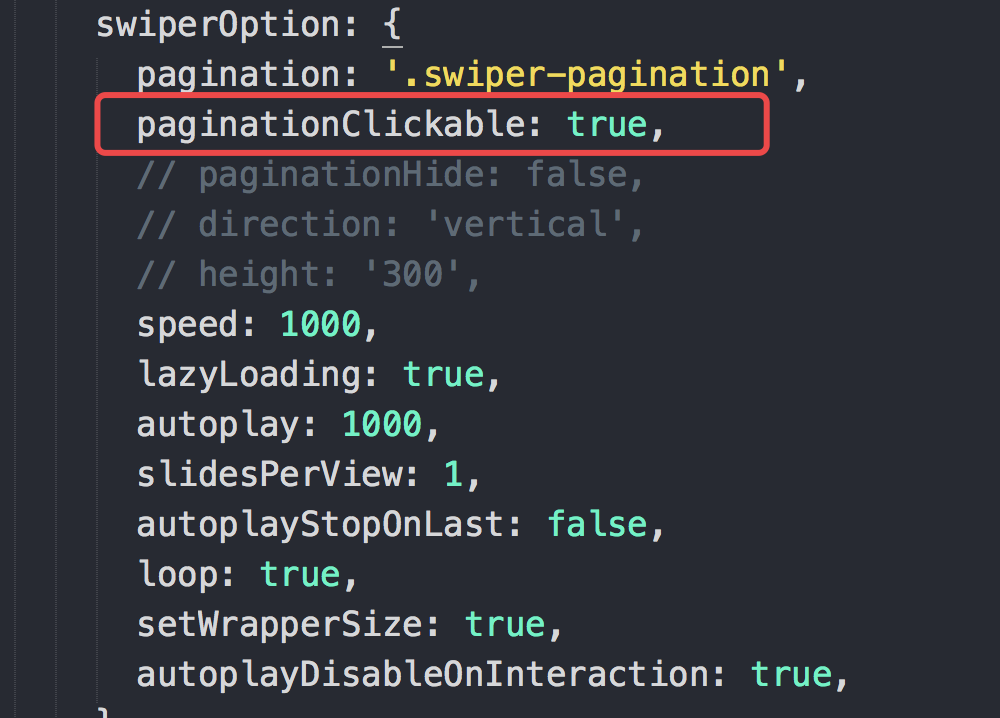
Just for shiggles, I populated the pagination myself and wrote the css to get it to show up, but when I click on a pagination bullet, it doesn't change the slide. I must be missing something.
thedanotto
on 30 Aug 2017
paginationClickable: true


surmon-china
on 30 Aug 2017
I wanted to present a simple solution that seems to get the job easily with some css changes.
.swiper-container {
    overflow: visible;
}
.swiper-pagination {
    position: absolute;
    bottom: -25px; // should be fine as is, but adjust to your liking
}
assuming your html structure is the same as in the docs
<!-- Slider main container -->
<div class="swiper-container">
    <!-- Additional required wrapper -->
    <div class="swiper-wrapper">
        <!-- Slides -->
        <div class="swiper-slide">Slide 1</div>
        <div class="swiper-slide">Slide 2</div>
        <div class="swiper-slide">Slide 3</div>
        ...
    </div>
    <!-- If we need pagination -->
    <div class="swiper-pagination"></div>

    <!-- If we need navigation buttons -->
    <div class="swiper-button-prev"></div>
    <div class="swiper-button-next"></div>

    <!-- If we need scrollbar -->
    <div class="swiper-scrollbar"></div>
</div>
 cdrandin
on 6 Apr 2019
cdrandin
on 6 Apr 2019
I wanted to present a simple solution that seems to get the job easily with some css changes.
.swiper-container {
    overflow: visible;
}
.swiper-pagination {
    position: absolute;
    bottom: -25px; // should be fine as is, but adjust to your liking
}
assuming your html structure is the same as in the docs
<!-- Slider main container -->
<div class="swiper-container">
    <!-- Additional required wrapper -->
    <div class="swiper-wrapper">
        <!-- Slides -->
        <div class="swiper-slide">Slide 1</div>
        <div class="swiper-slide">Slide 2</div>
        <div class="swiper-slide">Slide 3</div>
        ...
    </div>
    <!-- If we need pagination -->
    <div class="swiper-pagination"></div>

    <!-- If we need navigation buttons -->
    <div class="swiper-button-prev"></div>
    <div class="swiper-button-next"></div>

    <!-- If we need scrollbar -->
    <div class="swiper-scrollbar"></div>
</div>
Didn't work for view groups...
 marissagroves
on 23 Apr 2020
surmon-china
on 29 Apr 2020
marissagroves
on 23 Apr 2020
surmon-china
on 29 Apr 2020
Here's how I do it:
- It works for both
paginationandnavigation. - It should keep all the functionality they provided.
- It works with multiple instances.
- You can style
paginationandnavigationwith deep selector in SCSS/CSS. - The concept is really simple. I dont even need to explain :p
Just search for "customClassName" in the following code and you'll get the idea.
--
mySwiper.vue
<template>
  <div class="my-wrapper">
    <div v-swiper:mySwiper="swiperOption" class="swiper">
       <div class="swiper-wrapper">
        <div class="swiper-slide" v-for="slide in slides" :key="slide.key">
             // show slide
        </div>
      </div>
    </div>

    <!-- pagination -->
    <div class="swiper-pagination" :class="customClassName+'__pagination'"></div>

    <!-- navigation -->
    <div class="swiper-button-prev" :class="customClassName+'__prev'"></div>
    <div class="swiper-button-next" :class="customClassName+'__next'"></div>
  </div>
</template>

<script>
import { Swiper, SwiperSlide } from 'vue-awesome-swiper'
import 'swiper/css/swiper.css'

export default {
  components: {
    Swiper,
    SwiperSlide,
  },

  props: {
    slides: {
      type: Array,
      required: true
    },
    customClassName: {
      type: String,
      required: true
    }
  },

  data() {
    return {
      swiperOption: {
        slidesPerView: 4,
        spaceBetween: 20,
        pagination: {
          el: '.' + this.customClassName + '__pagination',
          clickable: true
        },
        navigation: {
          nextEl: '.' + this.customClassName + '__next',
          prevEl: '.' + this.customClassName + '__prev'
        },
      }
    }
  },
}
</script>

<style lang="scss" scoped>

.swiper-pagination {
  bottom: -25px;
  left: 50%;
  transform: translateX(-50%);
}

.swiper-pagination /deep/.swiper-pagination-bullet {
  margin: 0 6px;
}

.swiper-button-prev {
  display: none;

  @include rwd('lg') {
    display: block;
    top: 35%;
    left: -40px;
    z-index: 2;

    &:focus {
      outline: none;
    }
  }
}

.swiper-button-next {
  display: none;

  @include rwd('lg') {
    display: block;
    top: 35%;
    right: -40px;
    z-index: 2;

    &:focus {
      outline: none;
    }
  }
}
</style>
--
mySectionA.vue
<template>
  <section>
    <IndexSwiper :slides="slides" customClassName="sectionA" />
  </section>
</template>

<script>
import IndexSwiper from '../IndexSwiper.vue'

export default {
  components: {
    IndexSwiper,
  },
}
--
mySectionB.vue
<template>
  <section>
    <IndexSwiper :slides="slides" customClassName="sectionB" />
  </section>
</template>

<script>
import IndexSwiper from '../IndexSwiper.vue'

export default {
  components: {
    IndexSwiper,
  },
}
Hope it helps!
 johnyluyte
on 29 Apr 2020
johnyluyte
on 29 Apr 2020
I moved pagination outside the swiper with absolute positioning. I added padding to the bottom of the container to get around needing to set overflow to visible.
.swiper-container {
  padding-bottom: 35px;
}
.swiper-container-horizontal > .swiper-pagination {
    position: absolute;
    bottom: 0;
}
 tbenbow
on 2 May 2020
tbenbow
on 2 May 2020
solved last answer html and css
 zkmark
on 13 Jun 2020
zkmark
on 13 Jun 2020
Related issues
 LJade
·
6Comments
LJade
·
6Comments
 zhaoFangyi
·
7Comments
zhaoFangyi
·
7Comments
 wuxiaobin1995
·
4Comments
wuxiaobin1995
·
4Comments
 bourhaouta
·
3Comments
bourhaouta
·
3Comments
 pfasang
·
5Comments
pfasang
·
5Comments
Most helpful comment
paginationClickable: true