Vscode: issue with creating and opening .ipynb files
- VSCode Version: 1.49.0
- OS Version: Windows_NT x64 10.0.18363
I have an issue with creating/opening Jupiter notebook files (.ipynb).
Steps to Reproduce:
- Python: Create New Blank Jupiter Notebook
- this pops up: "Unable to open 'Untitled-1.ipynb': [UriError]: If a URI contains an authority component, then the path component must either be empty or begin with a slash ("/") character."
attaching a screenshot for more details.

I did not have this problem before in VSCode.
Does this issue occur when all extensions are disabled?: Yes
 arezaz
All 70 comments
Same:
- VSCode Version: 1.49.0
- OS Version: Windows_NT x64 10.0.18363
I'm having the same problem!
It started after I update the VS code version form 1.48 to 1.49.
I just made a plot, closed the window and when returned, this error appeared.
Also, when I try to open saved jupyter notebooks, it don't stop loading.
 DominguesPH
on 12 Sep 2020
DominguesPH
on 12 Sep 2020
I have same problem as well!
 rahul-raj
on 12 Sep 2020
rahul-raj
on 12 Sep 2020
I don't know if it's related, but I can't open an existing notebook either. I tried creating a new one just to see what would happen and this error popped up!
 FuriouStyles
on 12 Sep 2020
FuriouStyles
on 12 Sep 2020
Unable to open any Python Jupyter Notebooks (.ipynb) following upgrade to VSCode Version: 1.49.0
When trying to open a notebook there is a cylon progress bar circulating at the top of the frame with the notebook name, however, no notebook contents. Doesn't appear to time out.
The problem manifested when I switched to a different project/workspace, up until that point I was able to open notebooks under 1.49.0 in the project I was working on prior to the upgrade without problem.
 DiaAzul
on 12 Sep 2020
DiaAzul
on 12 Sep 2020
I am having similar issue! Updated to 1.49.0 and the notebook simply keeps loading the ipynb file without any response.
Tried uninstalling and reinstalling the older 1.48.2 version. Still the same problem. Notebook simply keeps loading.
Screenshot:
the notebook doesn't timeout
Unfortunately this happened during a presentation. :-[]
 SharoonSaxena
on 12 Sep 2020
SharoonSaxena
on 12 Sep 2020
Same problem here.
Tried using vscode-insiders, didn't work either.
 Sricharan2402
on 12 Sep 2020
Sricharan2402
on 12 Sep 2020

Attaching screenshot for reference.
rahul-raj
on 12 Sep 2020
me too I have the same problem.
 RSalu
on 12 Sep 2020
RSalu
on 12 Sep 2020
I did this and was able to pull up a Jupyter notebook in the VSCode insider release:
(not sure what the logic is!)
- uninstall VSCode
- press win + R, type in _%appdata%_
- find the Code folder and delete it
- install the VSCode Insider
arezaz
on 12 Sep 2020
I did this and was able to pull up a Jupyter notebook in the VSCode insider release:
(not sure what the logic is!)
- uninstall VSCode
- press win + R, type in _%appdata%_
- find the Code folder and delete it
- install the VSCode Insider
I did the same, the problem persists
DominguesPH
on 12 Sep 2020
i also did it but still facing same problem .
 Meet19aug
on 12 Sep 2020
Meet19aug
on 12 Sep 2020
some solution?
 edinsonAC
on 12 Sep 2020
edinsonAC
on 12 Sep 2020
Same problem Here as well.
I was actually a version earsling of the 1.49.
I updated hoping that was it.
No luck.
Tried a fresh install but it doesn't work either.
Error:
Unable to open 'Untitled-1.ipynb': [UriError]: If a URI contains an authority component, then the path component must either be empty or begin with a slash ("/") character.
It won't even load the cells

 dshot92
on 13 Sep 2020
dshot92
on 13 Sep 2020
Same problem,
 Rajwantmishra
on 13 Sep 2020
Rajwantmishra
on 13 Sep 2020
I download only insider (https://code.visualstudio.com/insiders/) and python extension, but now I have a different VS code (VS Insider ) that works.
Is VS Code being replaced by VS insider?
Rajwantmishra
on 13 Sep 2020

still facing issue
Meet19aug
on 13 Sep 2020
Same problem
 jfbldevs
on 13 Sep 2020
jfbldevs
on 13 Sep 2020
I have the same issue on one system which uses version 3.8.5, but the version 3.8.2 works on my other system works.
 calbertrov
on 13 Sep 2020
calbertrov
on 13 Sep 2020
I am facing the same issue. With the latest vscode version.
 aman17ashray
on 13 Sep 2020
aman17ashray
on 13 Sep 2020
Spoke toooo Soon... Still locked out of Jupyter NB
calbertrov
on 13 Sep 2020
My vscode version is 1.49 and I'm still having the issue.
No one from the vscode team checked this issue yet.
rahul-raj
on 13 Sep 2020
Have got the same Problem on a machine with W10, Python 3.8.5, VSC 1.49.0 and Python extension v2020.8.108011.
On a different machine I have no problems: W10, Python 3.7.0, VSC 1.49.0 and Python extension v2020v8v108011.
It seems to be an issue of the combination of versions of VSC and python.
Update:
On that machine, on that I had no problems, I installed python 3.8.5, created a virutal environment with pipenv and was able to use "Python: Create New Blank Jupyter Notebook" without any problem.
Crazy!
 fuzzyudo
on 13 Sep 2020
fuzzyudo
on 13 Sep 2020
Just uninstalled everything and then reinstalled everything, problem still persists
 shashwatk1
on 13 Sep 2020
shashwatk1
on 13 Sep 2020
after resetting completly my Python installation and make a fresh install of anaconda, the problem still persist.
Notebook doesn't run under VS Code! On the other side Anaconda Notebook run perfectly without issue.
The issue is by VS Code, I hope MS will corect this next week.
RSalu
on 13 Sep 2020
The same problem here. What's happening? Is there a way to solve?
Unable to open 'Untitled-2.ipynb': [UriError]: If a URI contains an authority component, then the path component must either be empty or begin with a slash ("/") character.
 mcaires2
on 13 Sep 2020
mcaires2
on 13 Sep 2020
I've just installed the insider Version: [https://code.visualstudio.com/insiders/]. It's work fine
RSalu
on 13 Sep 2020
@RSalu can see the screenshot which i have shared in these conversation is from vscode insider but still facing same issue
Meet19aug
on 13 Sep 2020
I'm having the same problem in any version of VS Code I've tried. I uninstalled VS Code completely and installed the Insider version and it still didn't work. I tried downloading the older 1.48.2 version and that still doesn't work. It was working fine up until yesterday.
I've tried running Jupyter notebooks in both plain Windows and in Ubuntu-20.4 WSL and both have the same issue of the notebook preview never loading. Running the same notebooks from the command line and accessing in a browser works fine.
 haclark30
on 13 Sep 2020
haclark30
on 13 Sep 2020
I've opened a similar issue here. Any solutions?
I've tried to downgrade VS Code from 1.49 to 1.46 but problem still persists. Other with the blue bar forever loading (1.49) and with this error unable to open jupyter notebook file (1.46).
 HenriqueAJNB
on 13 Sep 2020
HenriqueAJNB
on 13 Sep 2020
Had the same problem while trying to ssh into the server. The .ipynb file never opens.
 jonykarki
on 13 Sep 2020
jonykarki
on 13 Sep 2020
Same issue, with Ubuntu 20.04.1 LTS.
Tried uninstalling VS Code and Installing VS Code Insiders, but still does not work.
 sarossilli
on 14 Sep 2020
sarossilli
on 14 Sep 2020
I encountered the same problem. I tried to use the previous version: VSCode Version: 1.48.2 (user setup); Pylance: 2020.9.0; python version: 2020.8.106424/2020.8.105045; It still does not work;
My environment: OS: Windows_NT x64 10.0.18362;
VSCode-insider can use it successfully.
error: _Unable to open 'Untitled-1.ipynb': [UriError]: If a URI contains an authority component, then the path component must either be empty or begin with a slash ("/") character._
 jill123-cc
on 14 Sep 2020
jill123-cc
on 14 Sep 2020
Same issue today when I opened VS Code.
The Version of VS Code is : 1.49.0
System Platform: Windows 10
Updated the VS Code was the only thing I did before this issue came up.
 smallbal
on 14 Sep 2020
smallbal
on 14 Sep 2020
Same problem here, downgrade doesn't work, neither does vs code insiders
 czescmateusz
on 14 Sep 2020
czescmateusz
on 14 Sep 2020
Same problem - restart, downgrade, vscode-insiders - nothing works
 saurabhv1
on 14 Sep 2020
saurabhv1
on 14 Sep 2020
Same problem here. Tried deleting vscode and installing insider version, did not work.
I got the notebooks working again by doing this:
- Deleted vscode. I am on Linux so I did
sudo apt remove code - Manually deleted vscode appdata folder from
$HOME/.config/Code/ - Downloaded and Installed vscode insiders
sudo dpkg -i code-insiders_1.50.0-1600060713_amd64.deb - Opened vscode and an .ipynb file before syncing settings and it worked as excpected.
- Synced settings and it is still working as expected.
Removing the appdata folder seemed to be the answer. I do not know why it worked or if it is safe to delete it, but for me it fixed the problem.
On Windows the folder should be at: %APPDATA%\Code\
And on macOS it should be at: $HOME/Library/Application Support/Code/
 emilrwx
on 14 Sep 2020
emilrwx
on 14 Sep 2020
Same problem here. Tried deleting vscode and installing insider version, did not work.
I got the notebooks working again by doing this:
- Deleted vscode. I am on Linux so I did
sudo apt remove code- Manually deleted vscode appdata folder from
$HOME/.config/Code/- Downloaded and Installed vscode insiders
sudo dpkg -i code-insiders_1.50.0-1600060713_amd64.deb- Opened vscode and an .ipynb file before syncing settings and it worked as excpected.
- Synced settings and it is still working as expected.
Removing the appdata folder seemed to be the answer. I do not know why it worked or if it is safe to delete it, but for me it fixed the problem.
On Windows the folder should be at: %APPDATA%\Code
And on macOS it should be at: $HOME/Library/Application Support/Code/
Thank you - following exactly these steps on MacOS resolved (or better: circumvents) the issue
 justinstolzenberg
on 14 Sep 2020
justinstolzenberg
on 14 Sep 2020
Same problem here. Tried deleting vscode and installing insider version, did not work.
I got the notebooks working again by doing this:
- Deleted vscode. I am on Linux so I did
sudo apt remove code- Manually deleted vscode appdata folder from
$HOME/.config/Code/- Downloaded and Installed vscode insiders
sudo dpkg -i code-insiders_1.50.0-1600060713_amd64.deb- Opened vscode and an .ipynb file before syncing settings and it worked as excpected.
- Synced settings and it is still working as expected.
Removing the appdata folder seemed to be the answer. I do not know why it worked or if it is safe to delete it, but for me it fixed the problem.
On Windows the folder should be at: %APPDATA%\Code
And on macOS it should be at: $HOME/Library/Application Support/Code/Thank you - following exactly these steps on MacOS resolved (or better: circumvents) the issue
Can you please elaborate a little more ?
On my macOS Catalina, I am unable to find appdata directory inside $HOME/Library/Application Support/Code
saurabhv1
on 14 Sep 2020
Same problem here. Tried deleting vscode and installing insider version, did not work.
I got the notebooks working again by doing this:
- Deleted vscode. I am on Linux so I did
sudo apt remove code- Manually deleted vscode appdata folder from
$HOME/.config/Code/- Downloaded and Installed vscode insiders
sudo dpkg -i code-insiders_1.50.0-1600060713_amd64.deb- Opened vscode and an .ipynb file before syncing settings and it worked as excpected.
- Synced settings and it is still working as expected.
Removing the appdata folder seemed to be the answer. I do not know why it worked or if it is safe to delete it, but for me it fixed the problem.
On Windows the folder should be at: %APPDATA%\Code
And on macOS it should be at: $HOME/Library/Application Support/Code/Thank you - following exactly these steps on MacOS resolved (or better: circumvents) the issue
Can you please elaborate a little more ?
On my macOS Catalina, I am unable to findappdatadirectory inside$HOME/Library/Application Support/Code
delete the whole folder $HOME/Library/Application Support/Code (which is the appdata folder)
justinstolzenberg
on 14 Sep 2020
Same problem here. Tried deleting vscode and installing insider version, did not work.
I got the notebooks working again by doing this:
- Deleted vscode. I am on Linux so I did
sudo apt remove code- Manually deleted vscode appdata folder from
$HOME/.config/Code/- Downloaded and Installed vscode insiders
sudo dpkg -i code-insiders_1.50.0-1600060713_amd64.deb- Opened vscode and an .ipynb file before syncing settings and it worked as excpected.
- Synced settings and it is still working as expected.
Removing the appdata folder seemed to be the answer. I do not know why it worked or if it is safe to delete it, but for me it fixed the problem.
On Windows the folder should be at: %APPDATA%\Code
And on macOS it should be at: $HOME/Library/Application Support/Code/Thank you - following exactly these steps on MacOS resolved (or better: circumvents) the issue
Can you please elaborate a little more ?
On my macOS Catalina, I am unable to findappdatadirectory inside$HOME/Library/Application Support/Code
Sorry, I was unclear earlier. As @justinstolzenberg said, delete the whole Code folder.
It might be a good idea to create a backup of it first, just to be sure. The folder contains backups, caches, user settings, extensions etc. I am using Settings Sync so I just loaded the settings and extensions again after the install.
emilrwx
on 14 Sep 2020
Same problem here. Tried deleting vscode and installing insider version, did not work.
I got the notebooks working again by doing this:
- Deleted vscode. I am on Linux so I did
sudo apt remove code- Manually deleted vscode appdata folder from
$HOME/.config/Code/- Downloaded and Installed vscode insiders
sudo dpkg -i code-insiders_1.50.0-1600060713_amd64.deb- Opened vscode and an .ipynb file before syncing settings and it worked as excpected.
- Synced settings and it is still working as expected.
Removing the appdata folder seemed to be the answer. I do not know why it worked or if it is safe to delete it, but for me it fixed the problem.
On Windows the folder should be at: %APPDATA%\Code
And on macOS it should be at: $HOME/Library/Application Support/Code/Thank you - following exactly these steps on MacOS resolved (or better: circumvents) the issue
Can you please elaborate a little more ?
On my macOS Catalina, I am unable to findappdatadirectory inside$HOME/Library/Application Support/CodeSorry, I was unclear earlier. As @justinstolzenberg said, delete the whole Code folder.
It might be a good idea to create a backup of it first, just to be sure. The folder contains backups, caches, user settings, extensions etc. I am using Settings Sync so I just loaded the settings and extensions again after the install.
This is not working properly on a remote-ssh setup.
After deleting the 'code' dir in my local machine, I was able to create new jupyter-notebook.
However, on doing a remote-ssh, the problem persists on remote machine.
Then, after restarting vs-code, the problem came back even to my local machine
saurabhv1
on 14 Sep 2020
Same problem here. Tried deleting vscode and installing insider version, did not work.
I got the notebooks working again by doing this:
- Deleted vscode. I am on Linux so I did
sudo apt remove code- Manually deleted vscode appdata folder from
$HOME/.config/Code/- Downloaded and Installed vscode insiders
sudo dpkg -i code-insiders_1.50.0-1600060713_amd64.deb- Opened vscode and an .ipynb file before syncing settings and it worked as excpected.
- Synced settings and it is still working as expected.
Removing the appdata folder seemed to be the answer. I do not know why it worked or if it is safe to delete it, but for me it fixed the problem.
On Windows the folder should be at: %APPDATA%\Code
And on macOS it should be at: $HOME/Library/Application Support/Code/Thank you - following exactly these steps on MacOS resolved (or better: circumvents) the issue
Can you please elaborate a little more ?
On my macOS Catalina, I am unable to findappdatadirectory inside$HOME/Library/Application Support/CodeSorry, I was unclear earlier. As @justinstolzenberg said, delete the whole Code folder.
It might be a good idea to create a backup of it first, just to be sure. The folder contains backups, caches, user settings, extensions etc. I am using Settings Sync so I just loaded the settings and extensions again after the install.This is not working properly on a remote-ssh setup.
After deleting the 'code' dir in my local machine, I was able to create new jupyter-notebook.
However, on doing a remote-ssh, the problem persists on remote machine.
Then, after restarting vs-code, the problem came back even to my local machine
You are correct. I just tested restarting vscode and indeed the problem came back.
I tested this further and found out that Pylance was the cause of this problem (at least for me).
The following steps helped for now:
- Disable Pylance.
- Quit vscode.
- Delete the Code folder again.
- Restart vscode and sync settings. Now it is working as expected.
- Quit and start vscode again and it still works as expected.
Tried restarting vscode many times and opening different .ipynb files and the problem stays away as long as Pylance is disabled.
If I enable Pylance the problem comes back. Can anyone confirm?
Unfortunately, I do not know about the remote-ssh situation.
emilrwx
on 14 Sep 2020
Same problem here. Tried deleting vscode and installing insider version, did not work.
I got the notebooks working again by doing this:
- Deleted vscode. I am on Linux so I did
sudo apt remove code- Manually deleted vscode appdata folder from
$HOME/.config/Code/- Downloaded and Installed vscode insiders
sudo dpkg -i code-insiders_1.50.0-1600060713_amd64.deb- Opened vscode and an .ipynb file before syncing settings and it worked as excpected.
- Synced settings and it is still working as expected.
Removing the appdata folder seemed to be the answer. I do not know why it worked or if it is safe to delete it, but for me it fixed the problem.
On Windows the folder should be at: %APPDATA%\Code
And on macOS it should be at: $HOME/Library/Application Support/Code/Thank you - following exactly these steps on MacOS resolved (or better: circumvents) the issue
Can you please elaborate a little more ?
On my macOS Catalina, I am unable to findappdatadirectory inside$HOME/Library/Application Support/CodeSorry, I was unclear earlier. As @justinstolzenberg said, delete the whole Code folder.
It might be a good idea to create a backup of it first, just to be sure. The folder contains backups, caches, user settings, extensions etc. I am using Settings Sync so I just loaded the settings and extensions again after the install.This is not working properly on a remote-ssh setup.
After deleting the 'code' dir in my local machine, I was able to create new jupyter-notebook.
However, on doing a remote-ssh, the problem persists on remote machine.
Then, after restarting vs-code, the problem came back even to my local machineYou are correct. I just tested restarting vscode and indeed the problem came back.
I tested this further and found out that Pylance was the cause of this problem (at least for me).
The following steps helped for now:
- Disable Pylance.
- Quit vscode.
- Delete the Code folder again.
- Restart vscode and sync settings. Now it is working as expected.
- Quit and start vscode again and it still works as expected.
Tried restarting vscode many times and opening different .ipynb files and the problem stays away as long as Pylance is disabled.
If I enable Pylance the problem comes back. Can anyone confirm?Unfortunately, I do not know about the remote-ssh situation.
I'm having this problem without installing Pylance
saurabhv1
on 14 Sep 2020
Unverified by me, but https://github.com/microsoft/vscode-python/issues/13901#issuecomment-691625412 seems to offer a workaround.
 gjsjohnmurray
on 14 Sep 2020
gjsjohnmurray
on 14 Sep 2020
Unverified by me, but microsoft/vscode-python#13901 (comment) seems to offer a workaround.
Worked for me. Thanks.
 saaltfiish
on 14 Sep 2020
saaltfiish
on 14 Sep 2020
Still having issues opening existing notebooks and attempting to create new ones...
 JoshyB14
on 14 Sep 2020
JoshyB14
on 14 Sep 2020
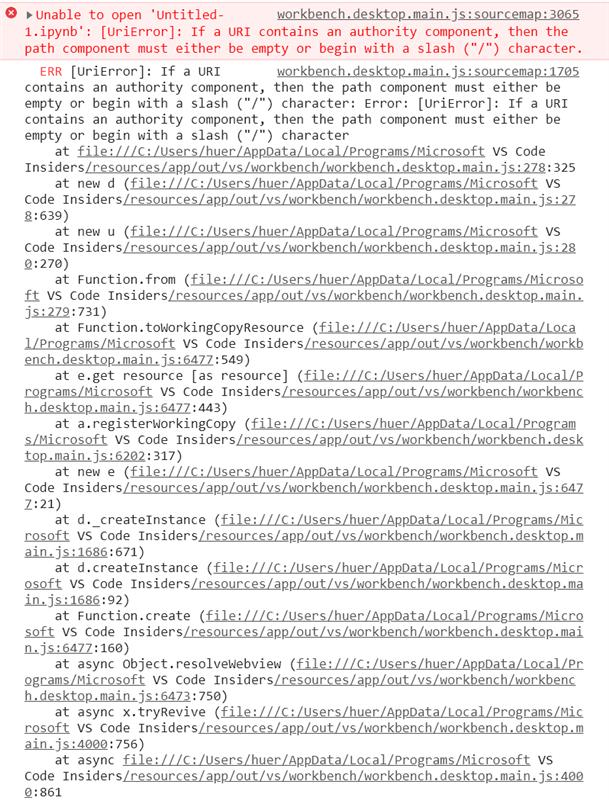
@mjbvz stack trace links toWorkingCopyResource which dangerously creates URI. E.g if the path isn't rooted then this error happens.
 jrieken
on 14 Sep 2020
jrieken
on 14 Sep 2020
Work with VS insider. Install (https://code.visualstudio.com/insiders/) and install python extension, it works, while we wait for real fix.
Rajwantmishra
on 14 Sep 2020
What i think is strange that it works for me on windows but not on linux...
 Loligplayer33
on 14 Sep 2020
Loligplayer33
on 14 Sep 2020
@jrieken That looks like a bug on the VS Code side but people also are reporting this in 1.48 and we haven't touched that code recently
@joyceerhl or someone from the Python team: was there a new python release that enabled new functionality that trigged this bug (such as the release on the 9th)? Also this may be related to an experiment. Is there a way to force the extension into the broken state?
 mjbvz
on 14 Sep 2020
mjbvz
on 14 Sep 2020
@mjbvz yes I believe it was a change to our experiments that might have caused it.
You can set this in your user settings.json to repro I believe:
    "python.experiments.optInto": [
        "CustomEditorSupport - experiment"
    ],
That experiment was enabled on Friday by mistake.
 rchiodo
on 14 Sep 2020
rchiodo
on 14 Sep 2020
Also explains why not everybody is hitting this. That experiment turns on our usage of the custom editor API.
rchiodo
on 14 Sep 2020
@rchiodo I can reproduce with experiment optInfo posted above, is there any way for me to opt out after adding that setting? I removed it but it still tries to ope with custom editor.
 rebornix
on 14 Sep 2020
rebornix
on 14 Sep 2020
Turning off that setting is supposed to opt out, but if that doesn't work you might also have to remove the python extension and reinstall it.
Turning on that setting modifies the python package's package.json on disk (or at least it used to).
rchiodo
on 14 Sep 2020
Thanks, removing the optInfo and uninstalling the extension then re-install fixes this problem. It can be a workaround recommended to users before we ship the recovery build.
rebornix
on 14 Sep 2020
Thanks, removing the optInfo and uninstalling the extension then re-install fixes this problem. It can be a workaround recommended to users before we ship the recovery build.
Confirmed works
DiaAzul
on 14 Sep 2020
@rchiodo Can you please revert the experiment change on the Python side? Again, while there does seem to be a bug on the VS Code side, it does not appear to be a VS Code regression. I'd prefer avoiding the risk of a patch fix in VS Code 1.49. Better to fix this in insiders so we get additional testing before it goes out with 1.50
mjbvz
on 15 Sep 2020
That requires us to ship a fix then too (as it doesn't seem that undoing the experiment is enough - experiment is actually downloaded from github on startup). Our next shipping date should be a week from today
rchiodo
on 15 Sep 2020
Or we can try and fix a patch release just to fix the bug where the experiment requires a reinstall.
rchiodo
on 15 Sep 2020
Actually just revving the version number should fix the problem. That should be easier to get out.
rchiodo
on 15 Sep 2020
I too faced the URIError day before yesterday. The jupyter notebooks won't open in VS code. Wasted considerable time in uninstalling the current version and reinstalling the older version but the error persisted. Today I updated by windows 10 and problem has gone automatically. Don't know what happened but now with VS Code I can open both saved notebooks and new notebooks.
 anupampydey
on 15 Sep 2020
anupampydey
on 15 Sep 2020
Python extension released a new version. That should alleviate the problem for most people.
rchiodo
on 15 Sep 2020
@rchiodo It works for me when I use the latest version of python extension (2020.8.109390), thank you!
jill123-cc
on 16 Sep 2020
@rchiodo I pushed a fix into VS Code insiders. However I still don't see the Python custom editor successfully loading after pushing this (it looks like it never resolves). I also can't get it working on MacOS using VS Code 1.49, so this may be an issue with the custom editor implementation.
Please test out the next insiders build and let me know if you think something is off on the VS Code side
mjbvz
on 17 Sep 2020
I have try the insider release, however the .ipynb is still show as blank

 songpr
on 17 Sep 2020
songpr
on 17 Sep 2020
@mjbvz the latest insider's build still repros the problem. To repro:
- Install python extension (not the insiders version of this as the insiders is disabling custom editor at the moment)
- Set this in your global user settings:
    "python.experiments.optInto": [
        "CustomEditorSupport - experiment"
    ],
- Open a python file
- Reload VS code when it asks (if it doesn't, do it manually). This step is necessary because enabling the custom editor experiment will rewrite our package.json.
- Try opening a notebook.
You should end up with the screen like @songpr had. If you run Toggle Maximize Panel and reopen the notebook, it will open correctly.
However the other bug - creating a new blank notebook, that has been fixed. The notebook just hits the same problem where you have to maximize the panel first.
rchiodo
on 17 Sep 2020
The blank ipynb is really this issue here (which for us is more important than fixing the URI problem).
https://github.com/microsoft/vscode/issues/106673
rchiodo
on 17 Sep 2020
@rchiodo so you mean if I turn off custom editor it will work right?
Could you let me know how to do it I search the setting but cannot found the option that you show.
songpr
on 18 Sep 2020
Custom editor is an opt in only scenario at the moment.
We accidentally enabled it for 20% of users on the 11th. If you reinstall the python extension it should go back to not being enabled.
If that still doesn't work, double check this value isn't set in your settings.json:
    "python.experiments.optInto": [
        "CustomEditorSupport - experiment"
    ],

@rchiodo the value is not in setting.json.
However the jupyter file still cannot open
Updated 21 Sep 2020.
Finally, it work now.
Python 2020.8.109390
VS Code 1.49.1
songpr
on 20 Sep 2020
Related issues
 omidgolparvar
·
3Comments
omidgolparvar
·
3Comments
 chrisdias
·
3Comments
chrisdias
·
3Comments
 vsccarl
·
3Comments
vsccarl
·
3Comments
 borekb
·
3Comments
borekb
·
3Comments
 NikosEfthias
·
3Comments
NikosEfthias
·
3Comments
Most helpful comment
Python extension released a new version. That should alleviate the problem for most people.