Vscode: 1.40 update: Font rendering is blurry (Linux, Windows)
- VSCode Version: 1.40
- OS Version: Windows 7 64-bit
Steps to Reproduce:
- Open VS Code.
- Look at editor window.
Does this issue occur when all extensions are disabled?: Yes
I updated my video card drivers, and tried a complete uninstall re-install. Neither fixed the issue.
I was able to restore the normal font sharpness by downgrading back to 1.39.2. This tells me that something definitely changed with the font rendering in 1.40.
(The difference was subtle, but enough to be annoying, considering we look at these windows for hours on end. Gotta be sharp!)
UPDATE: Screenshots -- Hopefully you can see the difference.
1.39.2

1.40.0

 varunj166
All 86 comments
Same problem here with Macbook (MacOS Mojave 10.14.6)
 rigobauer
on 8 Nov 2019
rigobauer
on 8 Nov 2019
@rigobauer Check the photos I just attached to make sure my issue is similar enough to your issue. I know MacOS have been having an issue with antialiasing that can be fixed by changing a setting that Windows users don't have access to.
varunj166
on 8 Nov 2019
They've changed from RGB subpixel antialiasing to grayscale subpixel antialiasing for the Editor. Which unfortunately looks blurry especially on non-high-dpi LCD panels.
It also makes the colors of colored text look very washed out.
 Eldaw
on 8 Nov 2019
Eldaw
on 8 Nov 2019
@Eldaw Would that cause the difference I see? (See the photos I attached for reference.) Is there a fix that you know of?
(My monitor is 22inch 1680 x 1050 - 90.05 ppi.)
varunj166
on 8 Nov 2019
@varunj166 Yes, that causes the difference. Use a screen magnifier to have a look closely at the text in both screenshots. In v1.39.2 you can see colored subpixels forming the antialising along the edges of the text. On the v1.40 screenshot you will see grayscale subpixels forming the antialiasing along the edges of the text.
I don't know if anything can be done for it. Maybe it's because of the upgrade to Electron 6. Anyway, I've downgraded to v1.39.2.
Eldaw
on 8 Nov 2019
This is probably https://github.com/microsoft/vscode/issues/84154
 bpasero
on 8 Nov 2019
bpasero
on 8 Nov 2019
@bpasero Yes it is. Thank you for the reference.
@Eldaw Wow, that's... very unfortunate. Thanks for the detailed answer.
If I can ask, why would any rendering setting prefer grayscale subpixel antialiasing over RGB in a UI that's otherwise full color? Is it performance? Style choice? It seems to me its main effect is losing sharpness, which is never desirable.
varunj166
on 8 Nov 2019
I have the same problem with 1.40 update on Windows 10.
It looks that disabling/changing position: relative at .monaco-workbench in devtools makes everything sharp again.
https://github.com/microsoft/vscode/blob/master/src/vs/workbench/browser/media/style.css#L52
 thermarthae
on 8 Nov 2019
thermarthae
on 8 Nov 2019
Out of curiosity, we recently started to build VSCode with the latest Electron 7.x that comes with Chrome 78. Does something change in those versions?
Download:
bpasero
on 8 Nov 2019
Out of curiosity, we recently started to build VSCode with the latest Electron 7.x that comes with Chrome 78. Does something change in those versions?
No, looks the same
 marijaninjo
on 8 Nov 2019
marijaninjo
on 8 Nov 2019
@thermarthae I see that 1.40.0 has that style rule enabled, whereas in 1.39.2 it's crossed out, but when I disable the rule in 1.40.0, I don't see anything sharpen up. How did you come to your conclusion?
@bpasero I can also confirm, the fuzziness is still there in the 1.41.0 you linked.
varunj166
on 8 Nov 2019
bpasero
on 8 Nov 2019
Thanks for creating this issue! We figured it's covering the same as another one we already have. Thus, we closed this one as a duplicate. You can search for existing issues here. See also our issue reporting guidelines.
Happy Coding!
![vscodebot[bot] picture](https://avatars2.githubusercontent.com/in/2406?v=4&s=40) vscodebot[bot]
on 8 Nov 2019
vscodebot[bot]
on 8 Nov 2019
I am reopening this issue as I believe it may not be the same as https://github.com/microsoft/vscode/issues/84154 but rather is about the font appearing blurry and not crisp anymore.
bpasero
on 8 Nov 2019
Thanks for re-opening and giving this issue your attention.
Btw, I tried the fix you mentioned in #84154 about changing "disable-color-correct-rendering" in the runtime preferences, but it didn't do anything for me on Windows.
varunj166
on 8 Nov 2019
@bpasero 'Eldaw' seems to be quite sure the issue is related to subpixel antialiasing rather than some sort of color correction. No idea how to go about fixing something like that though.
varunj166
on 8 Nov 2019
Yes agreed and quite possible this is a regression from the Electron 6 update which brings a much newer Chrome version.
Does it change anything if you configure: "editor.disableLayerHinting": true
bpasero
on 8 Nov 2019
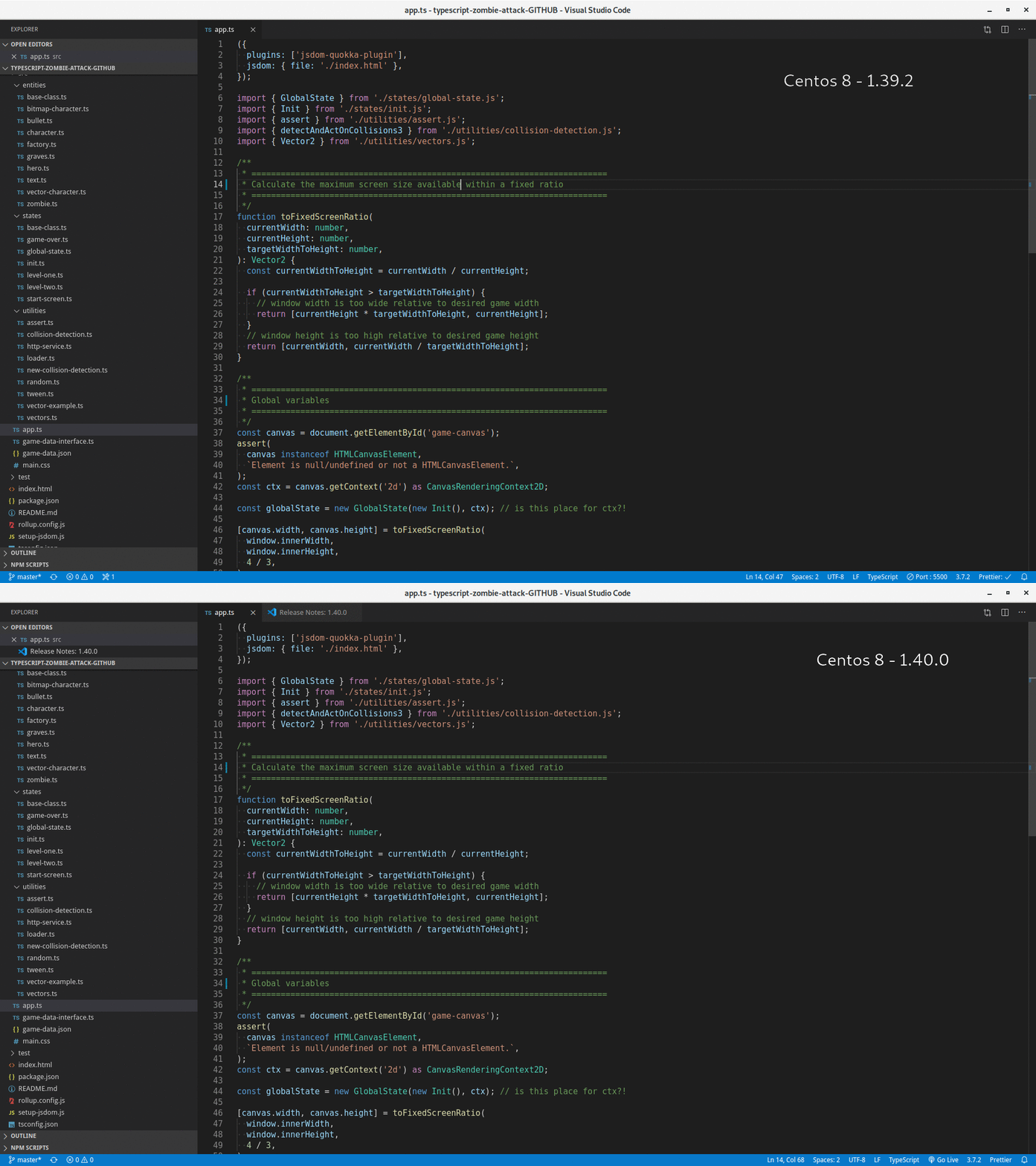
I am certain it is the sub pixel rendering causing this, I have had experience with these problems in Fedora/Centos before it was officially enabled in FreeType due to Microsoft patent relaxation.
Please download this GIF, make it full screen, and it reveals the difference perfectly. You need to focus on letters, particularly the m's , watch how they go spidery and thin without the subpixel rendering (or with different/wrong settings in 1.40.0)
NOTE: On my system you need to download it first or it is slightly blurry due to the browser rendering, not the actual GIF.
 David-Else
on 8 Nov 2019
David-Else
on 8 Nov 2019
@David-Else Does it change anything if you configure: "editor.disableLayerHinting": true
bpasero
on 8 Nov 2019
@bpasero My settings don't recognize "editor.disableLayerHinting" as a valid configuration setting. Neither in settings.json nor argv.json.
varunj166
on 8 Nov 2019
@bpasero editor.disableLayerHinting": true says "Unknown Configuration Setting" in settings.json
David-Else
on 8 Nov 2019
@varunj166 @David-Else yes that is OK, please configure it, save and restart VSCode.
bpasero
on 8 Nov 2019
@bpasero No change.
varunj166
on 8 Nov 2019
Any luck with changing "window.titleBarStyle": "native"? At least on Windows, that should have a visual impact in the title area (Linux ships default with native menu).
bpasero
on 8 Nov 2019
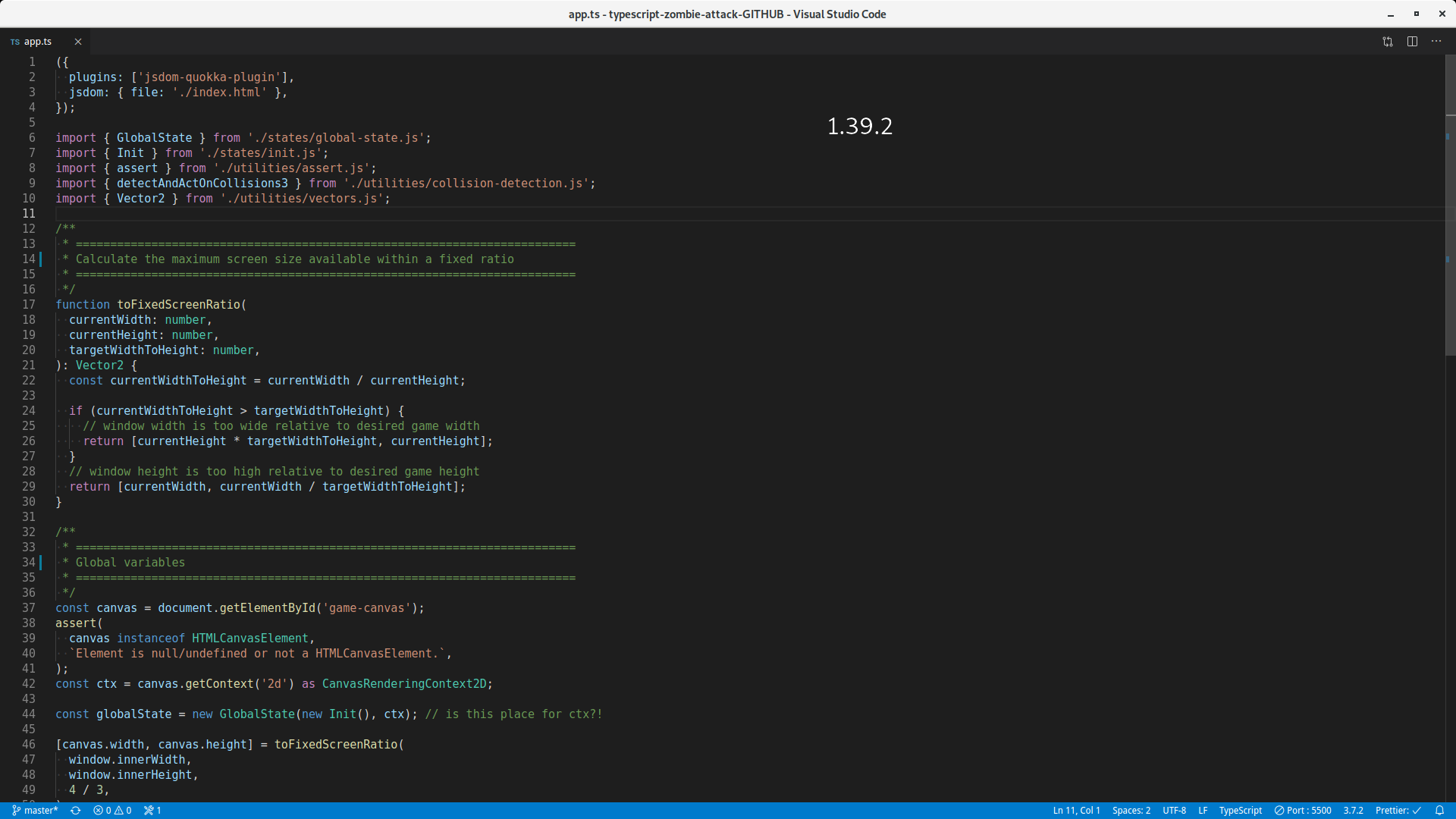
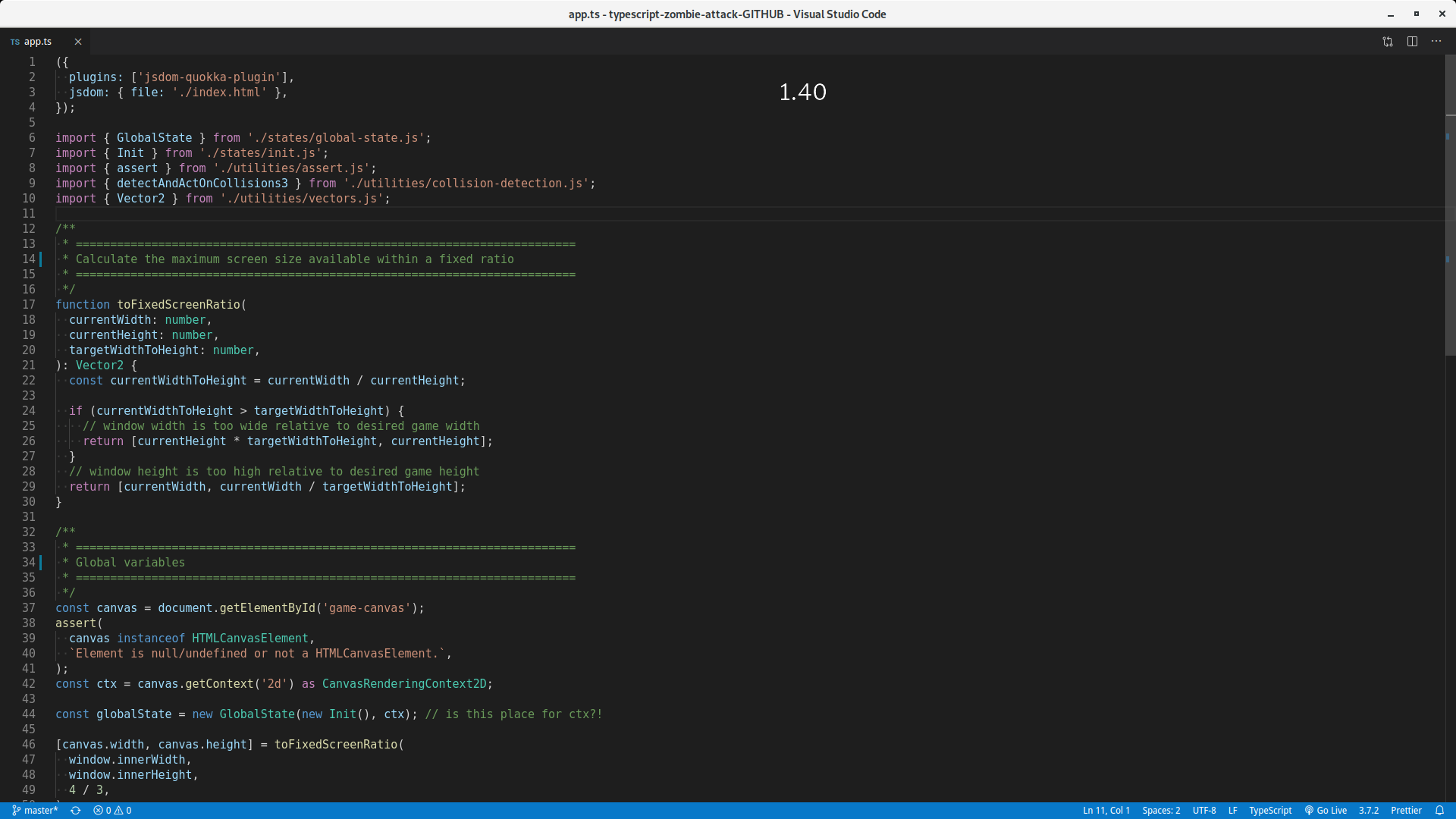
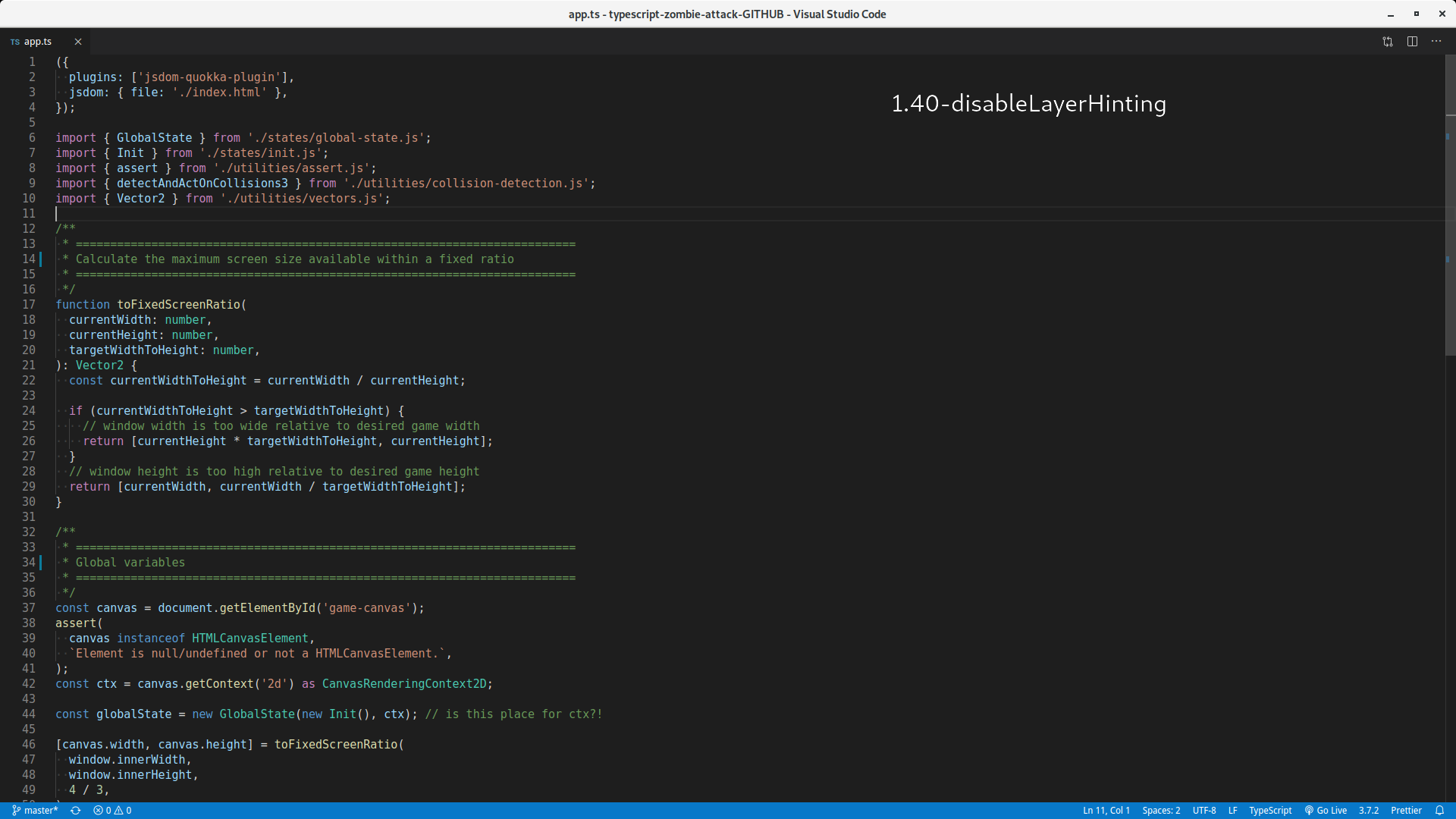
Yes!! Setting "editor.disableLayerHinting": true made the rendering almost identical to 1.39.2. You need to flick back and forth between these attached images to see the difference. Some letters don't change at all, but others have a big improvement. Look at the m in jsdom on line 2.
Can you guys confirm you are seeing this? I am on a 1080p monitor, I understand things look different with different systems. Download these, put them full screen and go between them:
David-Else
on 8 Nov 2019
@bpasero It did not change anything in regards to the font there (both proposed workarounds).
I'm on standard DPI (1920x1200 @ 24 in.)
 mathieupothier
on 8 Nov 2019
mathieupothier
on 8 Nov 2019
@David-Else yeah I do see a difference in the screenshots you post. 1 and 3 are identical for me, 2 is not.
bpasero
on 8 Nov 2019
Some related info from a similar issue we noticed from Chrome devs: https://bugs.chromium.org/p/chromium/issues/detail?id=1016062
bpasero
on 8 Nov 2019
@bpasero Great! I hope this gets into the recovery built along with the color related fix.
Not sure what your workaround does? It seems to be disabling hinting, but does sub pixel hinting remain in a different form? Things look better, like 1.39.2, so not sure why turning off hinting would help? Can things be improved further? Cheers.
David-Else
on 8 Nov 2019
@varunj166 After the update my code was blurred, so I thought that it might be related to a new disable-hardware-acceleration flag, but it wasn't. I also discovered that editor.disableLayerHinting can help, but it also falied.
Then, I found this: https://github.com/microsoft/vscode/issues/68556#issuecomment-543094017
I thought that maybe there is a transform somewhere, but I didn't found anything. I removed everything in <body> and inserted some random text and check for a change.
Text was properly antialiased, so I restarted VSCode and started to look what's wrong.
After I disabled position: relative, text started to be sharp as it should be.
With position: relative:
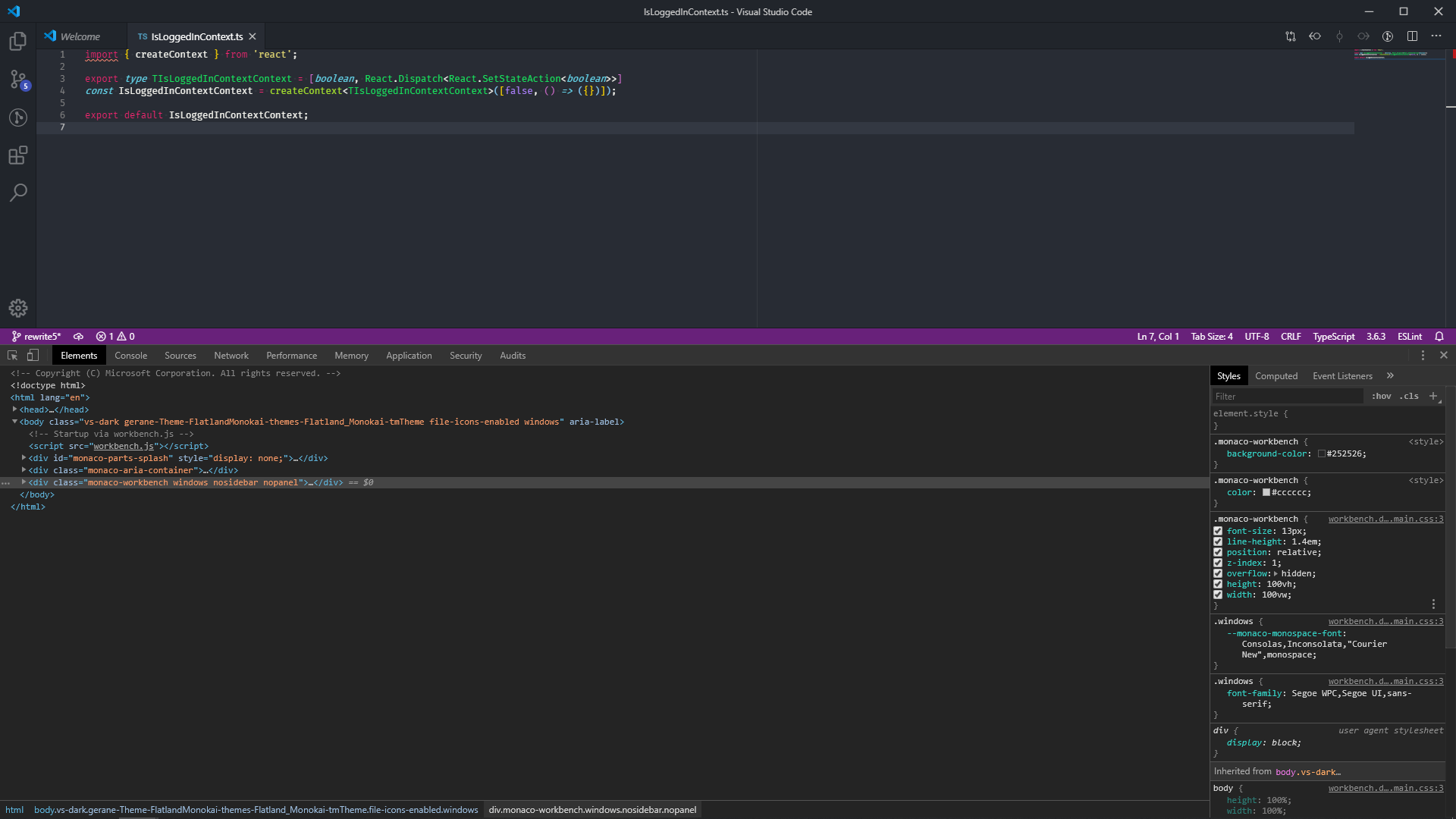

Without position: relative:
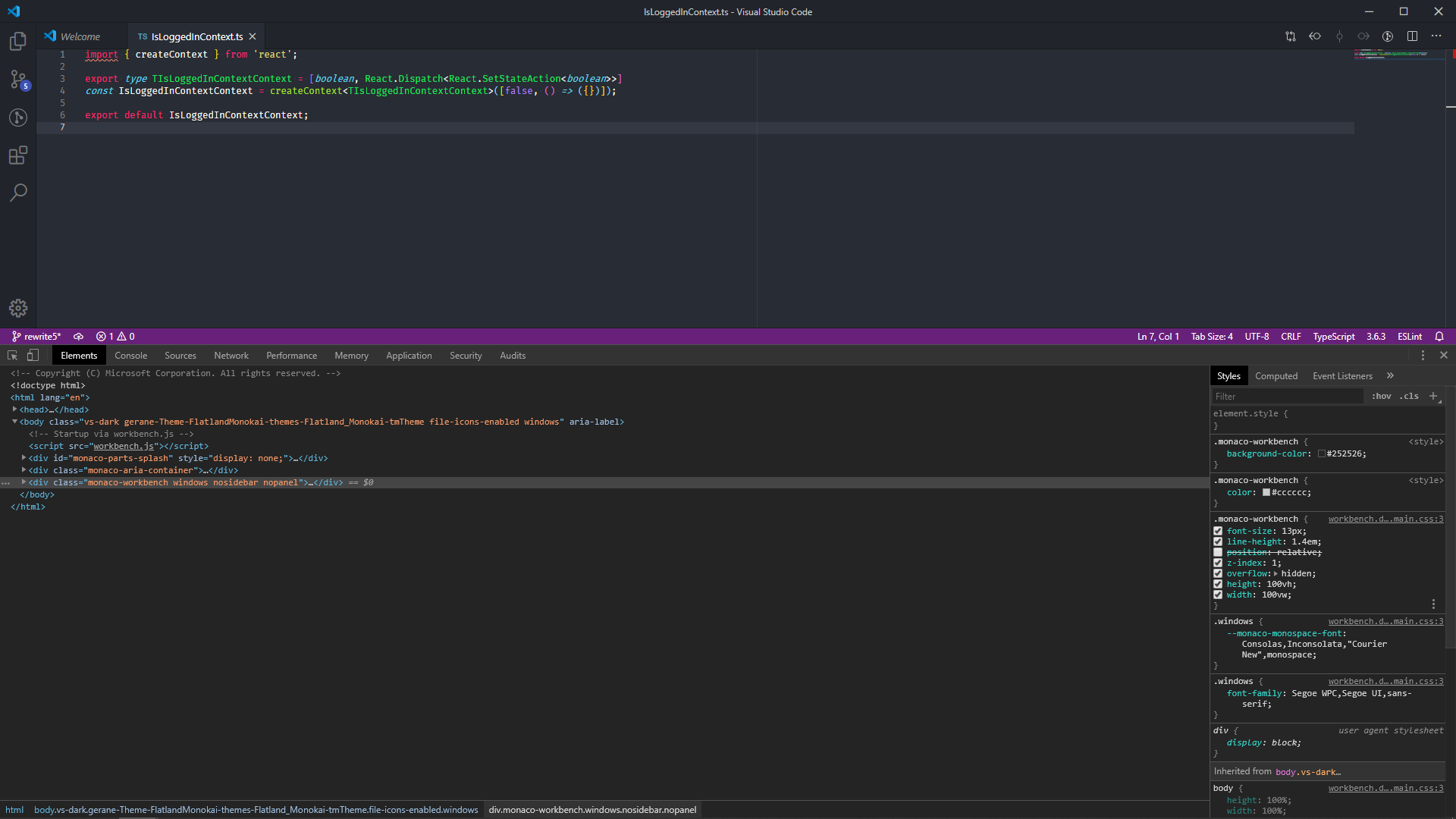

If you look closely, you can see the difference.
At the first two images text is blurred and desaturated. At the other two text is sharp, because of subpixel antialiasing.
thermarthae
on 8 Nov 2019
Just another data point: setting "editor.disableLayerHinting": true restored subpixel antialiasing for me on linux.
 paol
on 8 Nov 2019
paol
on 8 Nov 2019
@bpasero It seems that Windows and Linux users are seeing different results to your proposed workarounds. Linux users above are saying disableLayerHinting: true did the trick, but for me it does nothing. Maybe it would make sense to branch the Windows and Linux issues into separate threads.
Absolutely unexpectedly, setting "window.titleBarStyle": "native" actually improves the sharpness of the editor text a lot! I don't think it's quite up to 1.39.2 standard, but very very close. This is obviously not a fix because now the title bar is small and ugly, but maybe it'll give you a hint where the problem may lay. Very interesting!
varunj166
on 9 Nov 2019
@thermarthae Wow that makes a big difference on your screen. I'm just not seeing any difference at all on my screen by toggling that position rule. Odd.
Could you also try the "window.titleBarStyle": "native" setting proposed by @bpasero? For some reason that restored nearly all the sharpness in my editor text. See if it does the same for you. If so, it may help them further isolate the problem. Or maybe you and I are having similar but different issues.
varunj166
on 9 Nov 2019
To further isolate the problem, can you anyone try https://microsoft.github.io/monaco-editor/ with the following
- Chrome latest stable v78
- Chrome v76 - http://commondatastorage.googleapis.com/chromium-browser-snapshots/Win_x64/652793/chrome-win.zip
- Chrome v69 - http://commondatastorage.googleapis.com/chromium-browser-snapshots/Win_x64/576753/chrome-win32.zip
Also can you try launching VS Code latest insiders in Windows compatibility mode and see what results it gives. It would help us to report an issue on chromium end.
 deepak1556
on 9 Nov 2019
deepak1556
on 9 Nov 2019
@bpasero
UPDATE:
Further testing reveals that "editor.disableLayerHinting": true is REQUIRED for "window.titleBarStyle": "native" to sharpen up the editor text to almost 1.39.2 level. That is, if I only have "window.titleBarStyle": "native" without the disableLayerHinting setting, the text is unchanged. But with both rules TOGETHER, the text sharpens up.
Hope that helps.
varunj166
on 9 Nov 2019
@deepak1556 I've already diverted way too much of my time away from my work to this issue. I'm free for quick tests and settings changes, but someone else will have to do the exploratory work like what you've requested.
varunj166
on 9 Nov 2019
@varunj166 no problem, thanks! its hard to narrow down the cause because I am unable to repro on my windows setup.
deepak1556
on 9 Nov 2019
@deepak1556 Well the fact that you're not seeing this issue on your Windows setup, whereas we are, is odd in and of itself.
Does it tell you anything that these two settings together (and only together):
{
  "editor.disableLayerHinting": true,
  "window.titleBarStyle": "native",
}
greatly sharpen the text back up to aaalmost 1.39.2 levels, at least on my screen? Does that suggest where the problem may be?
("only together", meaning that individually, those settings do nothing. But together, they produce the sharpness effect.)
Specs:
Version: 1.40.0 (system setup)
Commit: 86405ea23e3937316009fc27c9361deee66ffbf5
Date: 2019-11-06T17:02:13.381Z
Electron: 6.1.2
Chrome: 76.0.3809.146
Node.js: 12.4.0
V8: 7.6.303.31-electron.0
OS: Windows_NT x64 6.1.7601
varunj166
on 9 Nov 2019
The following are the outputs I got on my windows 10 machine with 1920 x 1200 resolution
Insiders v1.41
https://user-images.githubusercontent.com/964386/68521017-a447d900-0251-11ea-9e94-54d99aa585f6.png
Insiders v1.41 with native titlebar and layer hinting disabled
https://user-images.githubusercontent.com/964386/68521030-c17ca780-0251-11ea-84a1-16f6cb97616d.png
Stable 1.39.2
https://user-images.githubusercontent.com/964386/68521035-ce999680-0251-11ea-9056-ea68e86b76a4.png
Exploration based on chromium 78
https://user-images.githubusercontent.com/964386/68521040-e07b3980-0251-11ea-99d6-a52cd7f9b9bd.png
VS Code web version on chrome 78
https://user-images.githubusercontent.com/964386/68521048-f12baf80-0251-11ea-8855-52d98e42dd36.png
VS Code web version on chrome 69 which is the runtime of desktop version 1.39.2
https://user-images.githubusercontent.com/964386/68521061-086a9d00-0252-11ea-9ada-80f842069970.png
deepak1556
on 9 Nov 2019
@deepak1556 Based on those images, you ARE able to repro the issue we're having, though perhaps the difference isn't apparent on your high res monitor (mine is 1680x1050).
Comparing 1.39.2 to 1.41 is night and day (is the difference not visible on your monitor? Because the difference is very clear viewing your screenshots on my monitor). Disabling the layer hinting and using native title bar brings you close to 1.39.2, but not quite there. Exploration on chromium 78 and web version on chrome 78 are both similar to 1.41 with layer hinting off and using native title bar.
And finally, the web version on chrome 69 is EXACTLY the same as 1.39.2 -- perfect sharpness.
Does this mean chrome 76 is the culprit somehow?
varunj166
on 9 Nov 2019
The problem wasn't visible until I had to use a magnifier, but I see the difference now. I believed the fonts were better than before on my display. Thanks!
Does this mean chrome 76 is the culprit somehow?
Yeah seems to be the case. Most likely caused by https://chromium-review.googlesource.com/c/chromium/src/+/1588359
deepak1556
on 9 Nov 2019
@deepak1556 Hmm, okay so I guess downgrading to 1.39.2 is the only fix since the issue is inside chromium? Although I don't see anything off in my actual chrome browser (Version 78.0.3904.97).
Anyway, at least we figured something out here.
varunj166
on 9 Nov 2019
@varunj166 can you try launching vscode from command line with code-insiders.exe --enable-features="PlatformFontSkiaOnWindows"
deepak1556
on 9 Nov 2019
@deepak1556 "Option 'enable-features' is unknown. Ignoring." Printed on my terminal when trying to open with that flag.
Also the exe in my "Microsoft VS Code Insiders" dir is "Code - Insiders.exe".
So the command I'm running is (in gitbash):
./Code\ -\ Insiders.exe --enable-features="PlatformFontSkiaOnWindows"
VS code opens, error printed on gitbash terminal, and editor text fuzzy as ever.
varunj166
on 9 Nov 2019
Thanks for trying, not sure why the switch is not respected. I will look further into this and get back over the next few days.
deepak1556
on 9 Nov 2019
@deepak1556 is "code-insiders.exe" located somewhere outside of the main vs code insiders directory? Like I said, mine is Code - Insiders.exe. Maybe that's the problem with the flag not being respected.
varunj166
on 9 Nov 2019
@deepak1556 I downloaded my insider's version from here: https://code.visualstudio.com/insiders/
varunj166
on 9 Nov 2019
Explanation of why window.titleBarStyle and editor.disableLayerHinting works (as far as I can tell):
1) will-change css property. This property hints to browsers how an element is expected to change.
In chromium (and Electron) it prevents enabling sub-pixel AA on that gpu layer as an optimization. editor.disableLayerHinting works because it disables will-change. _IMO, will-change shouldn't be enabled 100% of the time, only a few ms before actual transform. MDN docs link_
2) The non-native title bar. When using non-native title bar (default behaviour on Windows) there is empty div (css selector: ".monaco-workbench .part.titlebar>.titlebar-drag-region") with z-index: -1. Changing z-index of that element to any non-negative value enables subpixel AA on elements that are not affected by will-change from №1. "window.titleBarStyle": "native" setting disables non-native titlebar.
Possible workarounds: set that div to z-index: 1, siblings to z-index: 2.
Or: .monaco-workbench { z-index: initial; } source: https://github.com/microsoft/vscode/issues/24957#issuecomment-453727596
 zxdx
on 9 Nov 2019
zxdx
on 9 Nov 2019
@zxsx
I can't find where the
will-changecss property is being applied. Which element(s) have it?You are absolutely right about the
z-indexproperty on.monaco-workbench(directly). Disabling it or changing it's value to 'initial' immediately sharpens the text up. Same for changing.monaco-workbench .part.titlebar>.titlebar-drag-regiontoz-index: 1. That also sharpens the text up (same result as changingz-indexon.monaco-workbench). Great catch there!
varunj166
on 9 Nov 2019
Though even with these discoveries, it still doesn't become quite as crisp as 1.39.2. So this is progress, but there's still something else going on, somewhere.
varunj166
on 9 Nov 2019
@varunj166
The will-change is applied to many elements. Most important are .lines-content (that's main editor) and .overflow-guard > .margin. You can observe the effect of will-change with this code:
1) First, in your VSCode's settings.json make sure you have "window.titleBarStyle": "native", and DON'T have "editor.disableLayerHinting": true. (So z-index stuff will not interfere)
2) Look at your VSCode (Title bar text should be sharp, but text in the main editor - not)
3) Open DevTools and paste the following code
for (const el of document.body.getElementsByTagName("*")) {
    if (window.getComputedStyle(el).willChange != "auto") {
        el.style.willChange = "auto";
    }
}
or minimal (both elements are important):
document.querySelector(".overflow-guard > .margin").style.willChange = "auto";
document.querySelector(".lines-content").style.willChange = "auto";
4) Now text in the main editor area should be sharp and crisp. Note: text will become blurry again if you change active tab in VSCode editor due to style reset.
zxdx
on 9 Nov 2019
@zxdx You're absolutely right on all counts. will-change is definitely the main cause, if not the only cause.
It's possible that the additional visual difference I see between the will-change-disabled 1.40.0 and the 1.39.2 is in the color rendering (even though I'm comparing with the same theme) rather than the anti-aliasing, though it still really seems just a hair fuzzier than the ultra-crisp 1.39.2.
Are you able to achieve the identical visual standard of 1.39.2 with your will-change change applied?
varunj166
on 9 Nov 2019
@varunj166
I did a test with VSCode 1.39.2 vs 1.40.0 on Windows 10 x64. Theme is Light+.
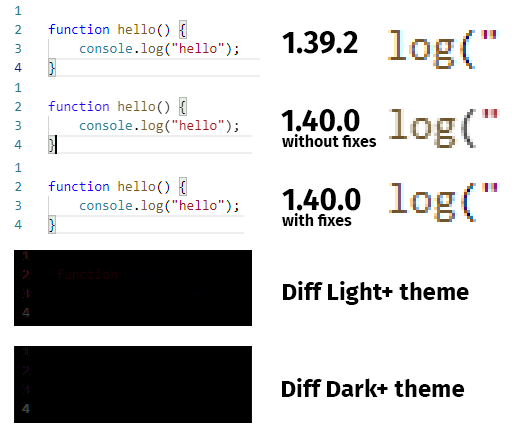
Diff shows that there is slight difference in line numbers (because line numbers was not AA'ed in 1.39.2). (And even smaller difference in word "function" in light theme) Other than that, for my setup I can't see big difference with the naked eye between pure vanilla 1.39.2 and 1.40.0 with all fixes.
zxdx
on 9 Nov 2019
@zxdx @deepak1556 @bpasero Alright, I also ran a diff check (see image) and it does look like 1.39.2 and 1.40.0-with-fixes are identical (or very very very close), apart from the line numbers.
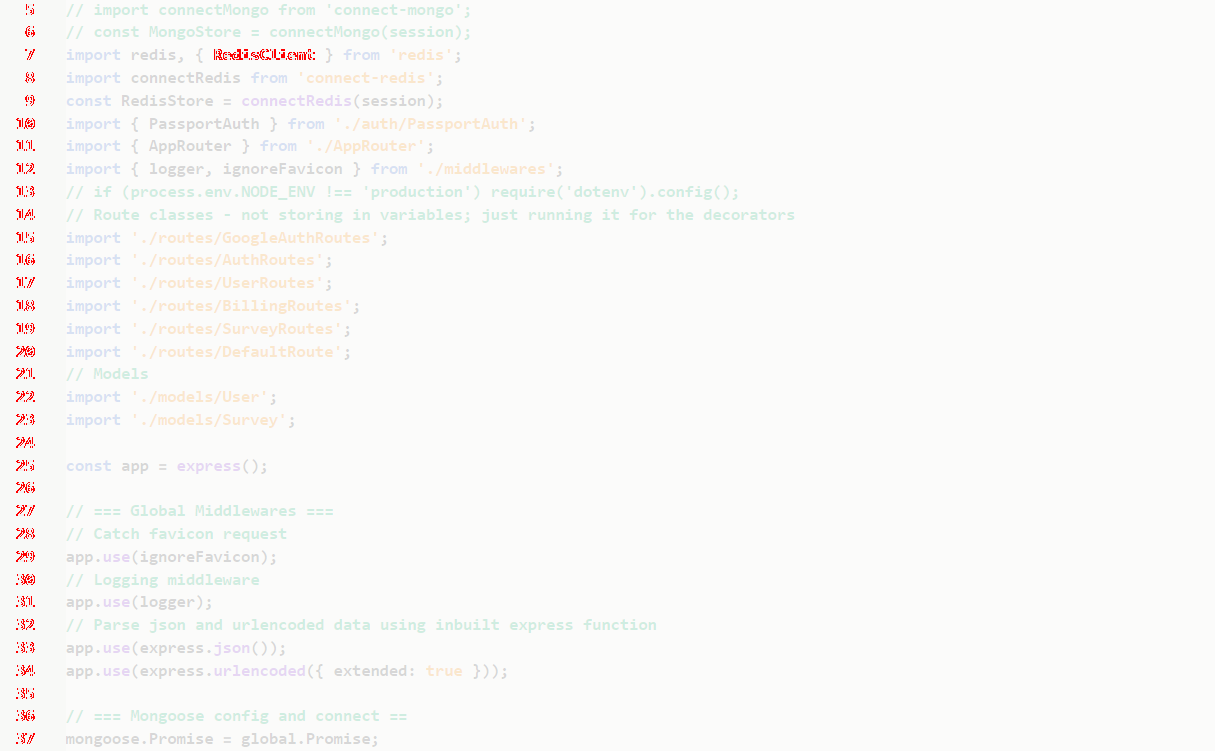
So it looks like @zxdx is absolutely right that the performance optimization caused by the will-change css rule, which results in chromium disabling anti-aliasing on all affected elements, is the root cause of our issue.
However, I do see that will-change: transform is scattered throughout 1.39.2 also:
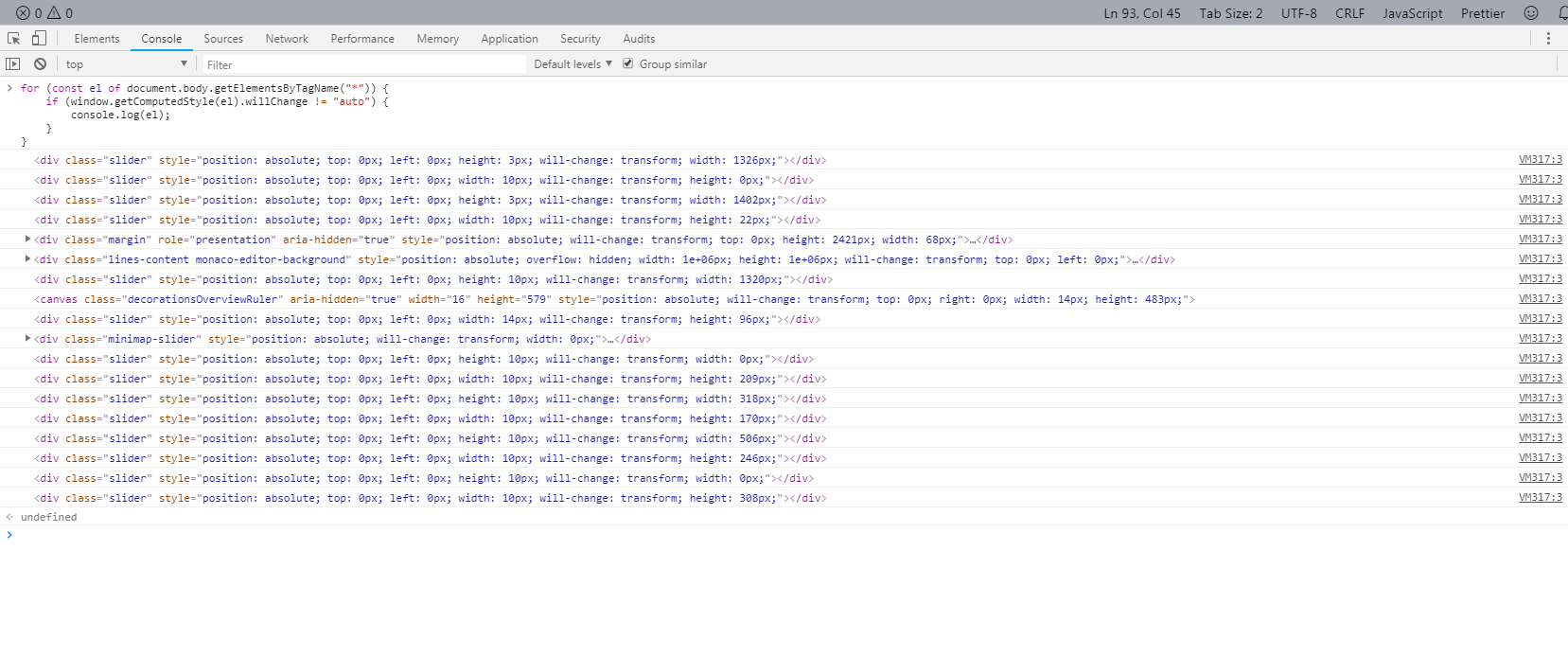
And it doesn't seem to be causing the same performance-optimization-based disabling of the editor text anti-aliasing.
I guess that means chromium is now handling will-change differently in 76 compared to 69.
So that leaves us with the following summary fix, thanks to @zxdx:
1) "editor.disableLayerHinting": true (to disable the will-change css property)
2) Adjusting the z-index value of .monaco-workbench .part.titlebar>.titlebar-drag-region to a non-negative number (like 1), and then changing the z-index of any siblings, which depend on being beneath that drag region, to some value greater than 1.
Those two fixes sharpen the text back to 1.39.2 levels.
Nice to have this all sorted out!
varunj166
on 10 Nov 2019
That only helps for Windows. On macOS Catalina on non-retina screens it is still bad.
I was able to replicate old font settings from 1.39.2 on 1.40 by installing vscode-custom-css and loading this custom css:
body,
.editor {
  -webkit-text-stroke: .05em;
}
 nklmilojevic
on 10 Nov 2019
nklmilojevic
on 10 Nov 2019
I can confirm that at least on Windows and Linux, the editor font is no longer rendered with subpixel-anti-aliasing, but grey-scale. I also see this is not a regression from the work we did during 1.40 but rather something that seems to come from the Electron 6 update.
Below is screenshots from VSCode insiders running in
Electron 4
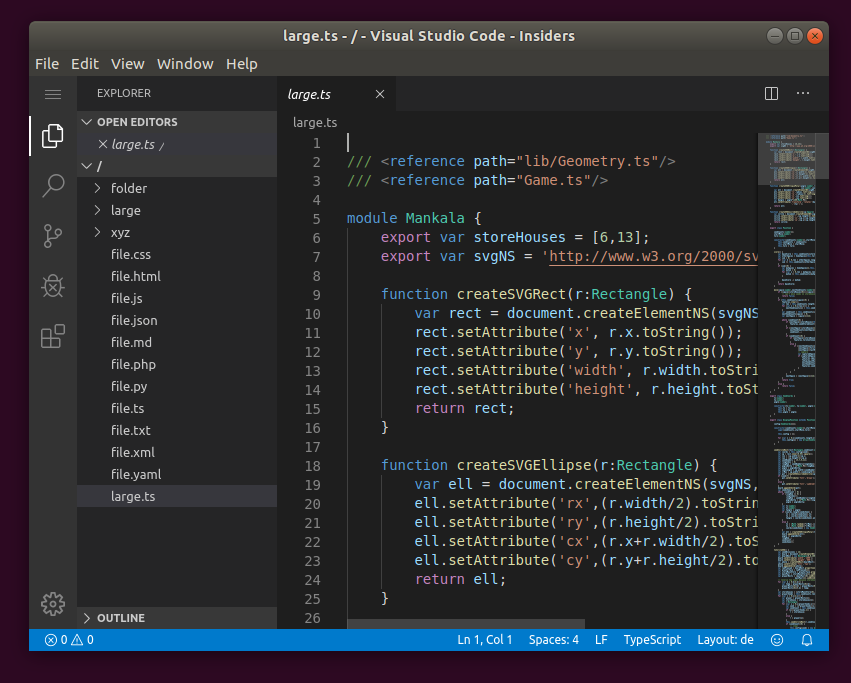
Electron 6
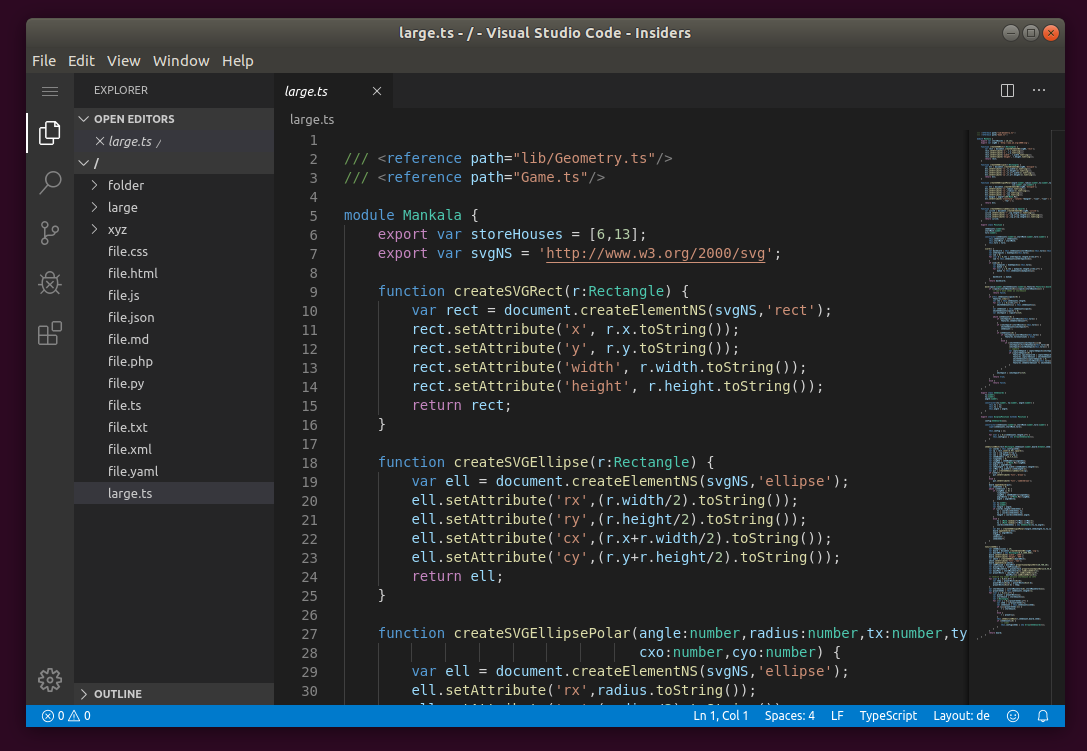
Zooming in, the AA issue is showing clearly:
Electron 4
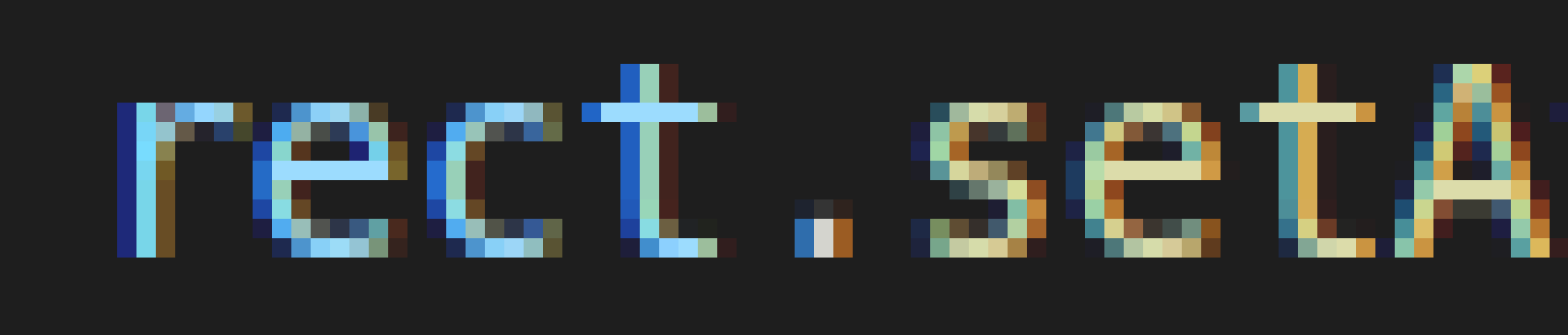
Electron 6

I think it would be good to involve Chrome devs here to get a better understanding of what could have changed from Chrome 69 to 76 that could have caused this.
bpasero
on 10 Nov 2019
Agreed, it is most surely related to Electron v6. I just tried Atom 1.41 (they have updated to Electron v4 in that release) and font rendering is using subpixel AA.
nklmilojevic
on 10 Nov 2019
I'm on Windows 10, and there's absolutely no improvement in the 1.41.0-insiders build. It looks identical to 1.40.0:
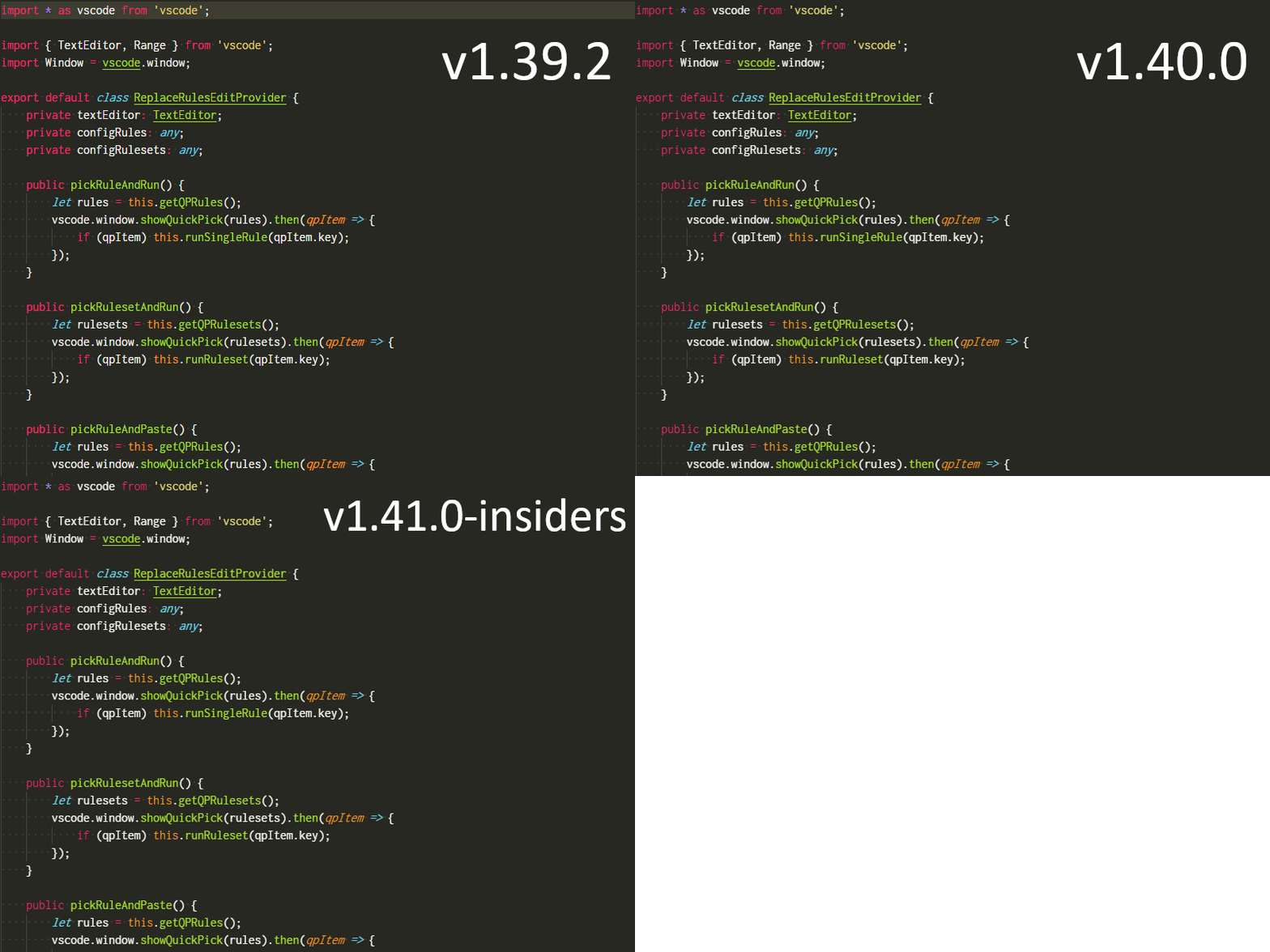
I tried everything mentioned:
- disable-hardware-acceleration: true
- disable-color-correct-rendering: false
- editor.disableLayerHinting: true
- window.titleBarStyle: "native"
Please let me know if there's anything else I can do to narrow this down.
 bhughes339
on 10 Nov 2019
bhughes339
on 10 Nov 2019
@bhughes339 Inexplicably, the 1.41.0 insider's doesn't respond to the fixes I outlined, but 1.40.0 does, at least on my machine.
On your 1.40.0 install, does:
{
  "editor.disableLayerHinting": true
  "window.titleBarStyle": "native"
}
not make everything sharp again?
varunj166
on 10 Nov 2019
I have bisected this on Chromium's side and is indeed directly caused by our use of will-change: transform.
I have reached out for help to the Chromium developers at https://bugs.chromium.org/p/chromium/issues/detail?id=1016062#c24
 alexdima
on 11 Nov 2019
alexdima
on 11 Nov 2019
@deepak1556 Pending a reply from the Chromium developers, is it realistic for us to "undo" https://chromium.googlesource.com/chromium/src/+/a30af5840e9ab6666e45ce43903a0ef30a05b5b4 in our build for the recovery release ?
alexdima
on 11 Nov 2019
The following are the outputs I got on my windows 10 machine with 1920 x 1200 resolution
Insiders v1.41
https://user-images.githubusercontent.com/964386/68521017-a447d900-0251-11ea-9e94-54d99aa585f6.pngInsiders v1.41 with native titlebar and layer hinting disabled
https://user-images.githubusercontent.com/964386/68521030-c17ca780-0251-11ea-84a1-16f6cb97616d.pngStable 1.39.2
https://user-images.githubusercontent.com/964386/68521035-ce999680-0251-11ea-9056-ea68e86b76a4.pngExploration based on chromium 78
https://user-images.githubusercontent.com/964386/68521040-e07b3980-0251-11ea-99d6-a52cd7f9b9bd.pngVS Code web version on chrome 78
https://user-images.githubusercontent.com/964386/68521048-f12baf80-0251-11ea-8855-52d98e42dd36.pngVS Code web version on chrome 69 which is the runtime of desktop version 1.39.2
https://user-images.githubusercontent.com/964386/68521061-086a9d00-0252-11ea-9ada-80f842069970.png
I don't know if it's related, but notice that activity bar icons are thicker since 1.40. It seems Mac and Linux (after looking at some screenshots) are not affected but i got this too on win10.
Saw nothing about it in release note, and gifs showed usual sharper & thinner icons. Related ?
 Guema
on 11 Nov 2019
Guema
on 11 Nov 2019
@bhughes339 Inexplicably, the 1.41.0 insider's doesn't respond to the fixes I outlined, but 1.40.0 does, at least on my machine.
On your 1.40.0 install, does:
{
  "editor.disableLayerHinting": true
  "window.titleBarStyle": "native"
}
not make everything sharp again?
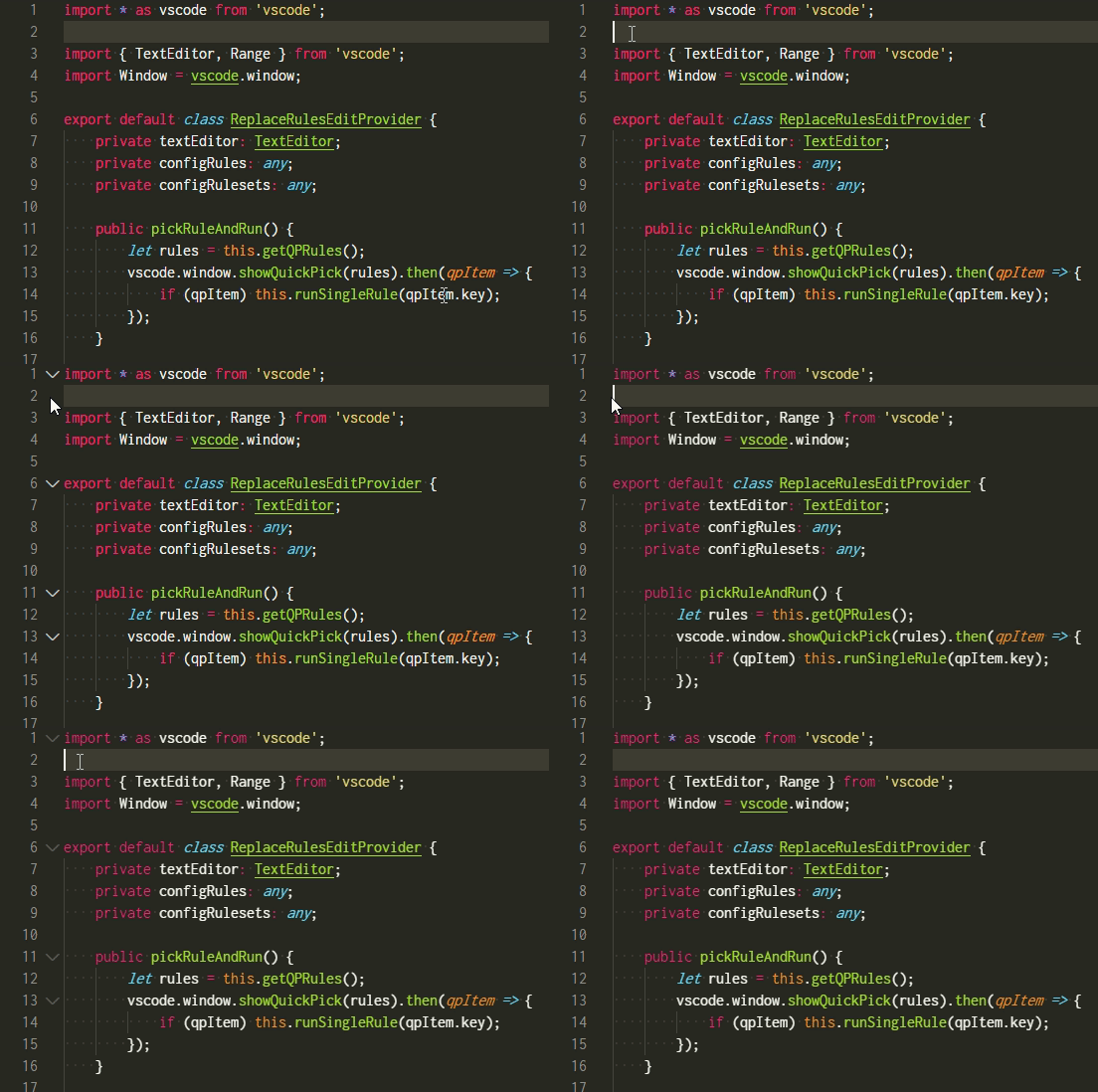
This did work on 1.40.0, thanks! I can also confirm that it does not work in 1.41.0-insiders.
EDIT: Although these two settings in tandem worked on 1.40.0, the issue persists for about a second when you mouse over the TextEditor gutters, as shown here:
bhughes339
on 11 Nov 2019
The following are the outputs I got on my windows 10 machine with 1920 x 1200 resolution
Insiders v1.41
https://user-images.githubusercontent.com/964386/68521017-a447d900-0251-11ea-9e94-54d99aa585f6.png
Insiders v1.41 with native titlebar and layer hinting disabled
https://user-images.githubusercontent.com/964386/68521030-c17ca780-0251-11ea-84a1-16f6cb97616d.png
Stable 1.39.2
https://user-images.githubusercontent.com/964386/68521035-ce999680-0251-11ea-9056-ea68e86b76a4.png
Exploration based on chromium 78
https://user-images.githubusercontent.com/964386/68521040-e07b3980-0251-11ea-99d6-a52cd7f9b9bd.png
VS Code web version on chrome 78
https://user-images.githubusercontent.com/964386/68521048-f12baf80-0251-11ea-8855-52d98e42dd36.png
VS Code web version on chrome 69 which is the runtime of desktop version 1.39.2
https://user-images.githubusercontent.com/964386/68521061-086a9d00-0252-11ea-9ada-80f842069970.pngI don't know if it's related, but notice that activity bar icons are thicker since 1.40. It seems Mac and Linux (after looking at some screenshots) are not affected but i got this too on win10.
Saw nothing about it in release note, and gifs showed usual sharper & thinner icons. Related ?
Can someone tell me if it is related ? i don't want to open an other issue if it is, or if it is intentional. But as i didn't see anything about it in release note, i'm not sure
Guema
on 11 Nov 2019
@alexandrudima yes I can get that reverted for our internal builds.
deepak1556
on 11 Nov 2019
@deepak1556 It would be great if we could try with the revert change. It is not clear to me if that change alone would fix things because when I run from source and remove all the usages in our code base of will-change: transform, the text in layers is still rendered with grayscale antialising.
alexdima
on 11 Nov 2019
@alexandrudima I also found this regressing CL in my investigation as well, tried a local build with that reverted but didn't see any visible changes (but maybe due to my hiDPI monitor). I didn't try
remove all the usages in our code base of will-change: transform
once internal builds are available lets check with that.
deepak1556
on 11 Nov 2019
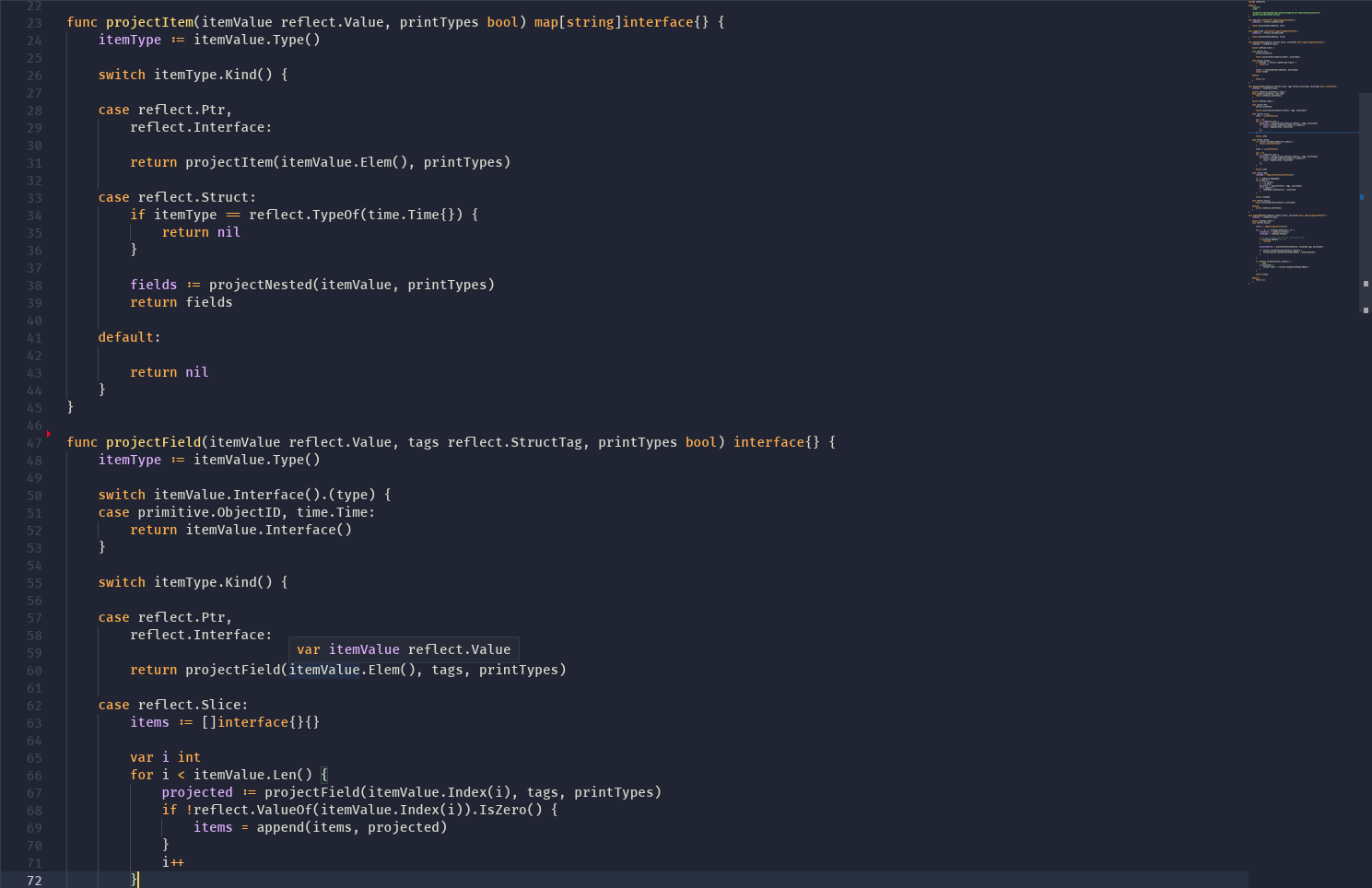
I have the same issue on Arch Linux
1.40:
1.39:
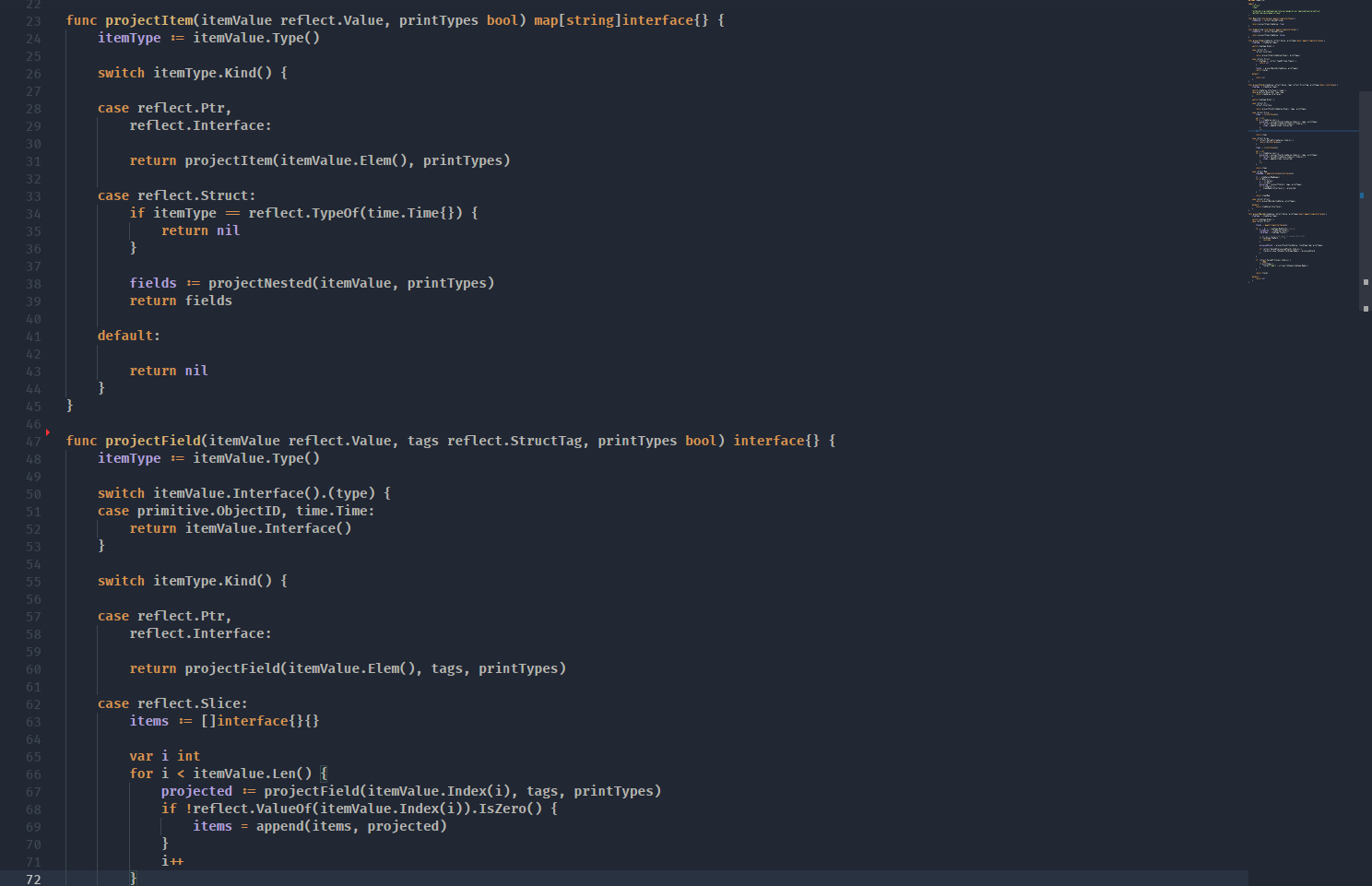
1.39 is way better than 1.40 idk why
Also 1.40 has wrong background color in the editor (i use the same setup on both screenshots)
 sorenvonsarvort
on 11 Nov 2019
sorenvonsarvort
on 11 Nov 2019
@sorenvonsarvort Do you have any problem with integrated terminal?
 felipebraga
on 11 Nov 2019
felipebraga
on 11 Nov 2019
@sorenvonsarvort Do you have any problem with integrated terminal?
No, the integrated terminal is okay
sorenvonsarvort
on 11 Nov 2019
@alexandrudima The first fix was to remove the will-change css property, but that alone didn't fix 1.40.0. We had to set the title bar to native because using the non-native title bar, the z-index = -1 on .monaco-workbench .part.titlebar>.titlebar-drag-region was also disabling subpixiel AA. Changing the z-index on that element to 1, and then changing the z-index on all elements 'above' it to 2 or more should fix that.
Also note, these fixes worked on 1.40.0, but didn't work on 1.41.0-insiders, at least as of 2 days ago.
(The above seems to apply to Windows 7/10. Not sure about Linux/Mac.)
varunj166
on 11 Nov 2019
I just want to throw my hat in the ring here - we at Discord have been tracking these issues for a while. I don't know which specific version things started going awry, however AFTER Electron 4, the heuristic for falling back to normal font anti-aliasing got really bad. The stable version of our client is on Electron 4 currently, but some of our test builds are running electron 7 and 8 and we started noticing these issues.
After doing a bunch of research, I started to find some very interesting cases where subpixel anti-aliasing should be preserved, but after some scroll interactions, immediately falls back to anti-aliasing and the bug won't correct itself until you re-mount the component.
I've provided an issue and a test case to the chromium team, but it hasn't gotten much activity in a while. I do believe there may be a few different bugs that need to get squashed around this heuristic, or you will see very inconsistent cases where subpixel anti-aliasing is enabled or disabled.
https://bugs.chromium.org/p/chromium/issues/detail?id=1006525
 amadeus
on 13 Nov 2019
amadeus
on 13 Nov 2019
@varunj166 @bhughes339
The fixes that worked for 1.40.0 work for 1.41.0-insider for me.
{
  "editor.disableLayerHinting": true,
  "window.titleBarStyle": "native"
}
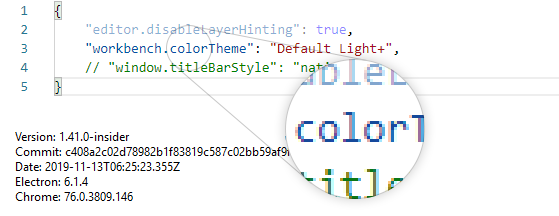
(Instead of "window.titleBarStyle": "native" I changed z-index of .titlebar-drag-region, but "window.titleBarStyle": "native" also works fine)
zxdx
on 13 Nov 2019
Because this issue contains complaints about multiple areas (not just the code editor), to fix the grayscale rendering in all the places, more changes are needed.
For the recovery release, we have opted to have a smaller, targeted fix for the code editor text. This is tracked in https://github.com/microsoft/vscode/issues/84698
alexdima
on 13 Nov 2019
I set "workbench.fontAliasing": "antialiased" and it seemed to help a little
 i6mi6
on 13 Nov 2019
i6mi6
on 13 Nov 2019
@alexandrudima as I commented here https://github.com/microsoft/vscode/issues/84698#issuecomment-553615502 it doesn't fix it on macOS Catalina.
nklmilojevic
on 13 Nov 2019
@zxdx @bhughes339 On the most current insider's build, yes the two fixes do work for me also. There must have been something going on with that one insider's build we tried on. Anyway, I think the dev's now have enough info to sort this out. For now, I've no reason to switch away from 1.39.2.
varunj166
on 14 Nov 2019
@alexandrudima pushed a fix for the editor fonts in today's recovery stable release, please update your stable, remove the workarounds mentioned in this thread and verify if the fonts are better. Thanks!
deepak1556
on 14 Nov 2019
Removed the workarounds and here is 1.39.2 vs 1.40.1 in a gif, the fonts are still thinner in 1.40.1.
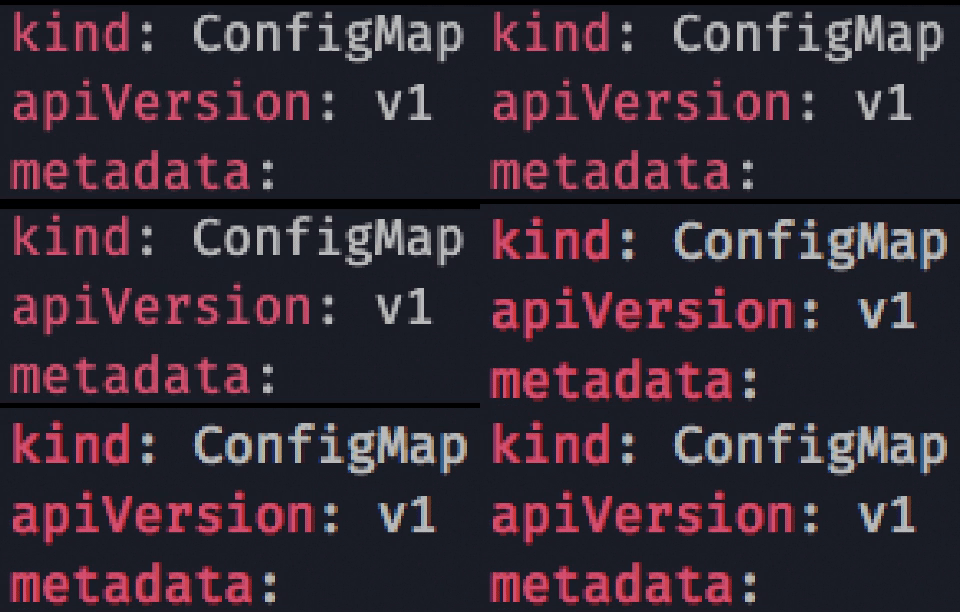
It is the same as in 1.40.0.
nklmilojevic
on 14 Nov 2019
@deepak1556 @alexandrudima 1.40.1 (latest stable) looks good on my Windows 7 x64, at least in terms of subpixel AA. I'll have to take your word for it that nothing else about the editor text rendering is different with the fixes you applied in this version. My eyes are getting very tired from staring at edges of lettering on my screen from 5 inches away.
varunj166
on 14 Nov 2019
1.40.1 looks good to me. Per pixel comparison with 1.39.2 shows no differences for the editor area.
zxdx
on 14 Nov 2019
Integrated Terminal still blurry 1.40.1.
ZSH
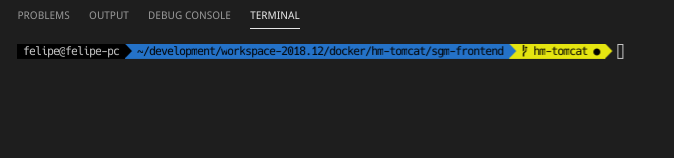
Bash

felipebraga
on 14 Nov 2019
To sum things up:
1. The state of VS Code Stable 1.40.x
Just a couple of fixes have been backported to the stable branch and are available in 1.40.1. Not all areas in our UI have been fixed in 1.40.1 because we have found that to be too risky. If you are on 1.40.x and are not happy with the antialiasing, then please switch to Insiders which contains a lot more fixes.
2. The state of VS Code Insiders
The first build that has all the changes related to antialiasing is 29b99f85e54aa5af6cd4edf918a67d4f70a10aea (2019-11-19T10:22:27.162Z) from one hour ago. Please make sure to update to it and then please make sure to remove "editor.disableLayerHinting" from your settings, it is no longer necessary. As far as we are aware, all issues caused by our update to Electron 6.x have been resolved starting with this Insiders build.
If you have updated to the latest insiders version and continue to be unhappy with the font antialiasing, please open a new issue. It is possible we have missed something, but we believe we are now as good (or better) as we were in 1.39.x.
TL;DR Update to latest insiders, remove workarounds from your settings and file new specific issues about what area doesn't look good for you. If you are on 1.40.1 and feel unhappy with the antialiasing, switch to insiders.
alexdima
on 19 Nov 2019
Hello, the 1.41.0 is still blurry for me. I'm on the latest Fedora 31 Gnome Wayland.
_Others details:
Version: 1.41.0
Commit: 9579eda04fdb3a9bba2750f15193e5fafe16b959
Date: 2019-12-11T18:32:17.711Z
Electron: 6.1.5
Chrome: 76.0.3809.146
Node.js: 12.4.0
V8: 7.6.303.31-electron.0
OS: Linux x64 5.3.15-300.fc31.x86_64_
 clementlesne
on 16 Dec 2019
clementlesne
on 16 Dec 2019
For me the terminal is also still blurry
Version: 1.41.0
Commit: 9579eda04fdb3a9bba2750f15193e5fafe16b959
Date: 2019-12-11T17:58:38.338Z
Electron: 6.1.5
Chrome: 76.0.3809.146
Node.js: 12.4.0
V8: 7.6.303.31-electron.0
OS: Darwin x64 18.7.0
 dvic
on 17 Dec 2019
dvic
on 17 Dec 2019
It's better, but still blurry.
Version: 1.41.0
Commit: 9579eda04fdb3a9bba2750f15193e5fafe16b959
Date: 2019-12-11T18:32:17.711Z
Electron: 6.1.5
Chrome: 76.0.3809.146
Node.js: 12.4.0
V8: 7.6.303.31-electron.0
OS: Linux x64 5.4.2-1-MANJARO
Related issues
 mariusa
·
219Comments
mariusa
·
219Comments
 jez9999
·
234Comments
jez9999
·
234Comments
 Tyriar
·
314Comments
Tyriar
·
314Comments
 hsdk123
·
263Comments
hsdk123
·
263Comments
 fabiopicchi
·
192Comments
fabiopicchi
·
192Comments
Most helpful comment
I can confirm that at least on Windows and Linux, the editor font is no longer rendered with subpixel-anti-aliasing, but grey-scale. I also see this is not a regression from the work we did during 1.40 but rather something that seems to come from the Electron 6 update.
Below is screenshots from VSCode insiders running in
Electron 4

Electron 6

Zooming in, the AA issue is showing clearly:
Electron 4

Electron 6

I think it would be good to involve Chrome devs here to get a better understanding of what could have changed from Chrome 69 to 76 that could have caused this.