Vscode: Some Ctrl+Alt shortcuts no longer work
I have several shortcuts defined using Ctrl+Alt+
Version: 1.31.1 (user setup)
Commit: 1b8e8302e405050205e69b59abb3559592bb9e60
Date: 2019-02-12T02:20:54.427Z
Electron: 3.1.2
Chrome: 66.0.3359.181
Node.js: 10.2.0
V8: 6.6.346.32
OS: Windows_NT x64 6.1.7601
The keyboard shortcuts that no longer work
{
"key": "ctrl+alt+e",
"command": "cursorLineEnd",
"when": "editorTextFocus"
},
{
"key": "ctrl+alt+a",
"command": "cursorLineStart",
"when": "editorTextFocus"
},
I've tried this with extensions disabled and in insiders and the result is the same. When I try to add the shortcut using the "Define Keybinding" button, when I type the 'e', the Ctrl and Alt disappear from the editor and only the 'e' is left. The language set in the OS has not changed, nor has the keyboard setup - standard UK keyboard.
How do I restore the shortcuts and remove the accented characters?
Thanks
Craig
 Gooseman
All 34 comments
@Gooseman This happens on the right Alt key? Or on both?
 kieferrm
on 15 Feb 2019
kieferrm
on 15 Feb 2019
On both.
On Fri, Feb 15, 2019 at 6:55 PM Kai Maetzel notifications@github.com
wrote:
@Gooseman https://github.com/Gooseman This happens on the right Alt
key? Or on both?—
You are receiving this because you were mentioned.
Reply to this email directly, view it on GitHub
https://github.com/Microsoft/vscode/issues/68787#issuecomment-464159568,
or mute the thread
https://github.com/notifications/unsubscribe-auth/AD0GOJgo8TlQAzpJYxQ1aGaOvEPljXT2ks5vNwK3gaJpZM4a9zsl
.
Gooseman
on 16 Feb 2019
I have the same problem with the PlatformIO extension. It uses CTRL+ALT+u to upload code to an Arduino. On my old laptop this works (outside of the App I get ú when I press those keys, but in the app, the shortcut takes precedence.
On a fresh install of Windows 10 Pro, with a fresh install of VS Code, and the PlatformIO extension I get ú when I press the shortcut keys.
On the OS that works, I have v10.0.17134, and the one that doesn't work has v10.0.17763. All other apsects of VS Code are exactly the same as in the original post
 richard-scott
on 17 Feb 2019
richard-scott
on 17 Feb 2019
I also have the same problem: the right CTRL+ALT keys doesn't work for a shortcut. It works if I press the left CTRL+ALT keys.
 leandro86
on 17 Feb 2019
leandro86
on 17 Feb 2019
Leandro - not quite the same problem. I get the same behaviour regardless
of which Ctrl and Alt keys I use. Also, for combinations that don't result
in accented characters in other applications, I get the configured shortcut
executing in VS Code. It's only some Ctrl+Alt shortcuts that don't work.
On Sun, Feb 17, 2019 at 2:55 PM Leandro notifications@github.com wrote:
I also have the same problem: the right CTRL+ALT keys doesn't work for a
shortcut. It works if I press the left CTRL+ALT keys.—
You are receiving this because you were mentioned.
Reply to this email directly, view it on GitHub
https://github.com/Microsoft/vscode/issues/68787#issuecomment-464466794,
or mute the thread
https://github.com/notifications/unsubscribe-auth/AD0GOI5qqh1FwA5wVhGCyoLaVHJhdefrks5vOW17gaJpZM4a9zsl
.
Gooseman
on 17 Feb 2019
It seems to be the shortcuts that would have inputted a unicode character that now fail.
Such as:
CTRL+ALT+o = ó
CTRL+ALT+a = á
CTRL+ALT+o = é
CTRL+ALT+u = ú
However, CTRL+ALT+u is a short cut for "upload" with the PlatformIO extension.
On a different (older) Windows 10 install with VS Code, the shortcut works, but on a fresh install -completed in the last couple of days - the shortcut doesn't work, and the unicode character overrides it.
richard-scott
on 19 Feb 2019
With the latest release, 1.32.0, Ctrl+alt+
Ctrl+alt+shift+
On Tue, Feb 19, 2019 at 8:20 PM Richard Scott notifications@github.com
wrote:
It seems to be the shortcuts that would have inputted a unicode character
that now fail.
Such as:CTRL+ALT+o = ó
CTRL+ALT+a = á
CTRL+ALT+o = é
CTRL+ALT+u = ú
However, CTRL+ALT+u is a short cut for "upload" with the PlatformIO
extension.On a different (older) Windows 10 install with VS Code, the shortcut
works, but on a fresh install -completed in the last couple of days - the
shortcut doesn't work, and the unicode character overrides it.—
You are receiving this because you were mentioned.
Reply to this email directly, view it on GitHub
https://github.com/Microsoft/vscode/issues/68787#issuecomment-465293808,
or mute the thread
https://github.com/notifications/unsubscribe-auth/AD0GONqIx9w5eVIfQEHm5zwkL-i8RBQQks5vPFx0gaJpZM4a9zsl
.
Gooseman
on 8 Mar 2019
I've had to write a new windows keyboard map to get round this ;-(
On here it suggests this procedure to create a new keyboard layout.
Download The Microsoft Keyboard Layout Creator. It is a simple tool that lets you modify your keyboard layout. (Download link)
Open to tool and File -> Load Existing Keyboard and choose your keyboard layout.
- Select File -> Save source as and give it a new name.
- Tick the Alt+Ctrl (AltGr). You might want to select File -> Save as Image to make a note of the original assignments.
- Remove all assigned keys, by clicking them, deleting the symbol, and click OK. Do not clear any dead keys! (The grey ones). Check for all modifiers i.e. AltGr, Ctrl, Alt, or none!
- Go to Project -> Properties and give it a decent name and description.
- Save it: File -> Save Source File so you can edit it later
- Export setup: Project -> Build DLL and Setup Package
Then we need to apply this new keyboard layout.
- Find the exported setup files in you Documents folder, and double click setup.exe. This will install your new keyboard layout.
- Open the input setting by going to Control Panel -> Change keyboards and other input methods -> Change keyboards.
- Click Add select you own keyboard and make it default.
richard-scott
on 12 Mar 2019
Intricate solution @richard-scott, but perhaps a little bit of overkill..
For example, with the Platformio issue, you could just re-assign the keyboard shortcut to ctrl-alt-y or whatever.
Publishing a plugin with a shortcut always comes with the risk of OS incompatibility for one daft reason or another
 entozoon
on 5 Oct 2019
entozoon
on 5 Oct 2019
My problem was related to run MySQL queries inside VSCode, by pressing ctrl + alt + E. My solution was to change the keyboard shortcut from ctrl + alt + E to ctrl + alt + backspace, which is easier to type. =]
I followed the instructions on this video (image): https://cloud.githubusercontent.com/assets/5047891/25484174/38f5b004-2b59-11e7-994b-dfa96ef043ce.gif
 brunorodriguesdecarvalho
on 10 Oct 2019
brunorodriguesdecarvalho
on 10 Oct 2019
This issue is still happening as of today (i.e. using shortcuts like Ctrl+Alt+Aor Ctrl+Alt+E inserts á and é). I'm using the "United Kingdom Extended keyboard" layout in Windows.
What is strange is that I have the same exact layout in a different computer, and this problem does NOT happen there. Is this something that can be fixed/broken by a Windows update? I currently have no clue about what could fix this.
VSCode info;
Version: 1.41.1 (user setup)
Commit: 26076a4de974ead31f97692a0d32f90d735645c0
Date: 2019-12-18T14:58:56.166Z
Electron: 6.1.5
Chrome: 76.0.3809.146
Node.js: 12.4.0
V8: 7.6.303.31-electron.0
OS: Windows_NT x64 10.0.18362
 CanisLupus
on 5 Jan 2020
CanisLupus
on 5 Jan 2020
This doesn't seem to be a VS Code issue. Rather, Windows seems to have made it a bit easier to input regional Unicode characters. Any sort of 'extended' or 'international' version of the keyboard will reproduce this issue with specific characters. Just change keyboard layout to 'US' or 'United Kingdom' to at least have access to non-vowel shortcuts.
Steps to fix consonants:
- Go to 'Advanced keyboard settings'. Ensure the drop-down menu option under 'Override for default input method' is set to 'Use language list (Recommended)'.
- Go to 'Language settings', Make sure under 'Preferred languages', first option is set to 'English (United States)'. or 'English (United Kingdom)' Click on it. Click on 'Options'.
- Under 'Keyboards', remove whatever keyboard is there, and add 'US' or 'United Kingdom' keyboard instead.
At least the consonants should be fixed now.
 nishnat-rishi
on 31 Jan 2020
nishnat-rishi
on 31 Jan 2020
Nishnat-Rishi - I haven't seen anyone complaining about problems with
consonants, only vowels.
The problem is not related to the keyboard layout. I don't switch my
keyboard layout and sometimes when I use a key combination that includes
Ctrl, Alt and a vowel I don't get the shortcut I've configured, but rather
an accented vowel. Sometimes I get the keyboard shortcut. I can go for
hours or days having no problems and then I'll have hours or days during
which all my keyboard shortcuts that include Ctrl, Alt and a vowel give me
the accented vowel instead. This behaviour is also happening across
keyboards as well as computers. I'm not changing keyboard layouts while
I'm working and my computers use the same UK keyboard layout. The idea of
doing things like changing keyboard layouts was brought up when I first
reported this problem. Changing keyboard layouts and languages didn't work
then and it doesn't work now. There's also the fact that VS Code is the
only application in which this happens. All my shortcuts in Visual Studio
work as expected all the time. All my shortcuts in IntelliJ work as
expected all the time. All my shortcuts in VIM work as expected all the
time.
The consonants work anyway in general since Ctrl + Alt + consonant doesn't
generally give an accented consonant, it'll just run the shortcut if one is
configured.
On Fri, Jan 31, 2020 at 5:45 AM nishnat-rishi notifications@github.com
wrote:
This doesn't seem to be a VS Code issue. Rather, Windows seems to have
made it a bit easier to input regional Unicode characters. Any sort of
'extended' or 'international' version of the keyboard will reproduce this
issue with specific characters. Just change keyboard layout to 'US' or
'United Kingdom' to at least have access to non-vowel shortcuts.Steps to fix consonants:
- Go to 'Advanced keyboard settings'. Ensure the drop-down menu option
under 'Override for default input method' is set to 'Use language list
(Recommended)'.- Go to 'Language settings', Make sure under 'Preferred languages',
first option is set to 'English (United States)'. or 'English (United
Kingdom)' Click on it. Click on 'Options'.- Under 'Keyboards', remove whatever keyboard is there, and add 'US'
or 'United Kingdom' keyboard instead.At least the consonants should be fixed now.
—
You are receiving this because you were mentioned.
Reply to this email directly, view it on GitHub
https://github.com/microsoft/vscode/issues/68787?email_source=notifications&email_token=AA6QMOEUBCV7UGOIYU42QLTRAO3I3A5CNFSM4GXXHMS2YY3PNVWWK3TUL52HS4DFVREXG43VMVBW63LNMVXHJKTDN5WW2ZLOORPWSZGOEKNR77Y#issuecomment-580591615,
or unsubscribe
https://github.com/notifications/unsubscribe-auth/AA6QMOFGZDVLWCLIFQLLSWLRAO3I3ANCNFSM4GXXHMSQ
.
Gooseman
on 31 Jan 2020
it's 2020 3.7 .it has the same question.
Version: 1.43.0
Commit: 78a4c91400152c0f27ba4d363eb56d2835f9903a
Date: 2020-03-09T19:44:52.965Z
Electron: 7.1.11
Chrome: 78.0.3904.130
Node.js: 12.8.1
V8: 7.8.279.23-electron.0
OS: Linux x64 5.3.0-40-generic snap
 moluoyu
on 16 Mar 2020
moluoyu
on 16 Mar 2020
Other programs, like CLion, are able to discern between Ctrl+Alt and AltGr, VSCode should do the same.
Being unable to reach shortcuts because of the keyboard layout is a bug, and changing it isn't really a solution. The layout is there to _write_, a text editor is exactly where I would want to use it.
 Lucide
on 18 Mar 2020
Lucide
on 18 Mar 2020
Just to add this problem is biting me too - almost certain it is caused by a windows update / rebuild... I am now on version 1909, (build 18363.836)
thx.
 colski
on 3 Jun 2020
colski
on 3 Jun 2020
This issue is still happening as of today (i.e. using shortcuts like
Ctrl+Alt+AorCtrl+Alt+Einsertsáandé). I'm using the "United Kingdom Extended keyboard" layout in Windows.What is strange is that I have the same exact layout in a different computer, and this problem does NOT happen there. Is this something that can be fixed/broken by a Windows update? I currently have no clue about what could fix this.
VSCode info;
Version: 1.41.1 (user setup)
Commit: 26076a4de974ead31f97692a0d32f90d735645c0
Date: 2019-12-18T14:58:56.166Z
Electron: 6.1.5
Chrome: 76.0.3809.146
Node.js: 12.4.0
V8: 7.6.303.31-electron.0
OS: Windows_NT x64 10.0.18362
Just change your keyboard to US layout. It works for me.
 ank1traj
on 4 Jun 2020
ank1traj
on 4 Jun 2020
" Just change your keyboard to US layout. It works for me."
Ah, yes, the old, "Do the wrong thing to sort out a problem that shouldn't
exist." I mean, it's not like anyone should expect software to work, after
all. I'm going to try that with my employer. "Just type in the correct
numbers, that works for me when the calculated value is incorrect."
On Thu, Jun 4, 2020 at 6:36 AM Ankit Raj notifications@github.com wrote:
This issue is still happening as of today (i.e. using shortcuts like
Ctrl+Alt+Aor Ctrl+Alt+E inserts á and é). I'm using the "United Kingdom
Extended keyboard" layout in Windows.What is strange is that I have the same exact layout in a different
computer, and this problem does NOT happen there. Is this something that
can be fixed/broken by a Windows update? I currently have no clue about
what could fix this.VSCode info;
Version: 1.41.1 (user setup)
Commit: 26076a4de974ead31f97692a0d32f90d735645c0
Date: 2019-12-18T14:58:56.166Z
Electron: 6.1.5
Chrome: 76.0.3809.146
Node.js: 12.4.0
V8: 7.6.303.31-electron.0
OS: Windows_NT x64 10.0.18362
Just change your keyboard to US layout. It works for me.
—
You are receiving this because you were mentioned.
Reply to this email directly, view it on GitHub
https://github.com/microsoft/vscode/issues/68787#issuecomment-638613225,
or unsubscribe
https://github.com/notifications/unsubscribe-auth/AA6QMOGBIUXENCJ5JCN32EDRU4XGZANCNFSM4GXXHMSQ
.
Gooseman
on 4 Jun 2020
Just change your keyboard to US layout. It works for me.
well that's a work around, thanks for mentioning it.
colski
on 5 Jun 2020
Nishnat-Rishi - I haven't seen anyone complaining about problems with consonants, only vowels. The problem is not related to the keyboard layout. I don't switch my keyboard layout and sometimes when I use a key combination that includes Ctrl, Alt and a vowel I don't get the shortcut I've configured, but rather an accented vowel.
I can confirm this problem with consonants. For example, on a US International keyboard Ctrl+K Ctrl+Alt+S does not work if the right Alt key is used.
 atifraza
on 27 Jul 2020
atifraza
on 27 Jul 2020
I see this is still open. Any ETA on a fix? I use InteliJ's shortcuts and ctrl + alt + L to format a file ends up inserting an ø...
 lfdversluis
on 23 Aug 2020
lfdversluis
on 23 Aug 2020
I amhaving the issue aswell. I tried what @nishnat-rishi said here but it didn't worked out.
 ViniDalvino
on 29 Aug 2020
ViniDalvino
on 29 Aug 2020
I amhaving the issue aswell. I tried what @nishnat-rishi said here but it didn't worked out.
This is the same for me, I have also tried this. I am unable to bind CTRL + ALT + UP and the same with CTRL + ALT + DOWN.
It works with numpad up & down keys though.
Would be nice to see a solution to this!
Although I'm not entirely sure if my issue is related, might not be 🤔. I can bind UP + DOWN separately, but not when using CTRL + ALT
 kebbleytea
on 4 Sep 2020
kebbleytea
on 4 Sep 2020
I amhaving the issue aswell. I tried what @nishnat-rishi said here but it didn't worked out.
This is the same for me, I have also tried this. I am unable to bind CTRL + ALT + UP and the same with CTRL + ALT + DOWN.
It works with numpad up & down keys though.Would be nice to see a solution to this!
Although I'm not entirely sure if my issue is related, might not be 🤔. I can bind UP + DOWN separately, but not when using CTRL + ALT
I'm having the exact same issue as @kebbleytea. I can bind UP and DOWN separately, but I can't bind then when using CTRL+ALT.
 adam-stamand
on 5 Sep 2020
adam-stamand
on 5 Sep 2020
I noticed the issue also happened in visual studio. I think it's not related to vs code. It somehow got fixed after the latest windows update.
ViniDalvino
on 5 Sep 2020
I amhaving the issue aswell. I tried what @nishnat-rishi said here but it didn't worked out.
This is the same for me, I have also tried this. I am unable to bind CTRL + ALT + UP and the same with CTRL + ALT + DOWN.
It works with numpad up & down keys though.
Would be nice to see a solution to this!
Although I'm not entirely sure if my issue is related, might not be 🤔. I can bind UP + DOWN separately, but not when using CTRL + ALTI'm having the exact same issue as @kebbleytea. I can bind UP and DOWN separately, but I can't bind then when using CTRL+ALT.
Facing the same problem, but LEFT and RIGHT are also affected
 hugoblanc
on 11 Sep 2020
hugoblanc
on 11 Sep 2020
FYI @hugoblanc, I had the same problem in Microsoft Terminal, reported in the respective repo issue #7556.
The strange thing is that either a Windows update fixed this or maybe a restart did the trick, but the problem went away after a couple of days.
atifraza
on 11 Sep 2020
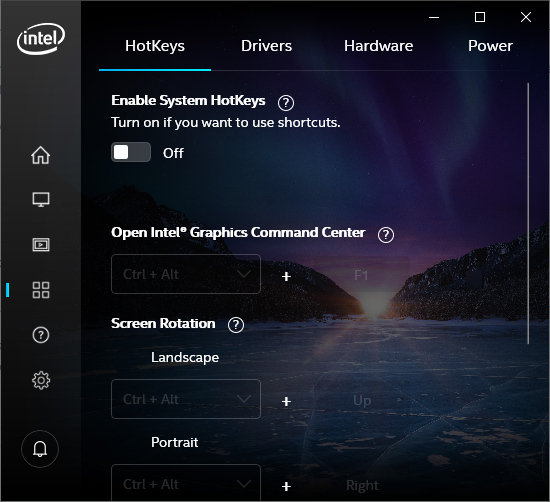
Intel Graphic Commands Center uses ✲ Ctrl ⎇ Alt commands, try to disable or toggle these commands. Check here
 yedhrab
on 11 Sep 2020
yedhrab
on 11 Sep 2020
I'm having the same problem, this has something to do with the input method. Currently, I'm using a customized version of US-Intl, changing to US fixes the problem.
 mukaschultze
on 12 Sep 2020
mukaschultze
on 12 Sep 2020
Intel Graphic Commands Center uses ✲ Ctrl ⎇ Alt commands, try to disable or toggle these commands. Check here
💥 although i had those options already OFF, after i have turned them ON and then back OFF, issue was solved in VSCode without restarting it even :)) 💥
 carct
on 14 Sep 2020
carct
on 14 Sep 2020
Intel Graphic Commands Center uses ✲ Ctrl ⎇ Alt commands, try to disable or toggle these commands. Check here
💥 although i had those options already OFF, after i have turned them ON and then back OFF, issue was solved in VSCode without restarting it even :)) 💥
You both saved my day !! Thanks a lot
hugoblanc
on 22 Sep 2020
Intel Graphic Commands Center uses ✲ Ctrl ⎇ Alt commands, try to disable or toggle these commands. Check here
💥 although i had those options already OFF, after i have turned them ON and then back OFF, issue was solved in VSCode without restarting it even :)) 💥
You both saved my day !! Thanks a lot
👍; Found out this myself then found this thread to report then found people had the same solution.
sigh Thanks Intel 💩
 ethzero
on 12 Oct 2020
ethzero
on 12 Oct 2020
Intel Graphic Commands Center uses ✲ Ctrl ⎇ Alt commands, try to disable or toggle these commands. Check here
💥 although i had those options already OFF, after i have turned them ON and then back OFF, issue was solved in VSCode without restarting it even :)) 💥
Super annoying. Same thing helped me.
EDIT - After contacting Intel:
We are working with Microsoft to provide updates as soon as possible.
and I got referred to an existing intel article
 PheelaV
on 22 Oct 2020
PheelaV
on 22 Oct 2020
Came here to report the same. I got a new Dell laptop and Ctrl+Alt refused to work. I figured it might be a BIOS thing, but yep, it's Intel. Turning "Enable System HotKeys" on and then off fixed it.
 clshortfuse
on 22 Oct 2020
clshortfuse
on 22 Oct 2020
Related issues
 vsccarl
·
3Comments
vsccarl
·
3Comments
 NikosEfthias
·
3Comments
NikosEfthias
·
3Comments
 biij5698
·
3Comments
biij5698
·
3Comments
 philipgiuliani
·
3Comments
philipgiuliani
·
3Comments
 DovydasNavickas
·
3Comments
DovydasNavickas
·
3Comments
Most helpful comment
Intel Graphic Commands Center uses ✲ Ctrl ⎇ Alt commands, try to disable or toggle these commands. Check here