Vscode: Keyboard actions in file explorer not working and is stuck in fancy tree filter mode
- VSCode Version: 1.31.0-insider
- OS Version: macOS 10.14.1 (18B75)
Steps to Reproduce:
Edit: These keyboard shortcuts are provided by the VSCode vim plugin.
- Use any action in file explorer
A,a,j,k, etc... - This should create file, folder, navigate, etc...

Other information:
Looks like this is introduced with: #66669


Looks like the option to configure what mode to use is not correctly working or fully exposed yet. After setting this option, the behavior is the same.
Does this issue occur when all extensions are disabled?: Yes
 admosity
All 21 comments
@joaomoreno I see that in the PR it was mentioned that workbench.tree.keyboardNavigation was the option, but in the code: https://github.com/Microsoft/vscode/blob/306feb428aaaca054afb97b80360972a00f71bd8/src/vs/platform/list/browser/listService.ts#L116
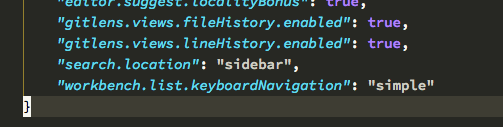
It is listed as workbench.list.keyboardNavigation. Is this a mistake/typo? Setting this option to "simple" restores the original functionality.
admosity
on 23 Jan 2019
I decided to call it workbench.list.keyboardNavigation because it will apply to all lists, and trees are basically lists too.
It is listed as workbench.list.keyboardNavigation. Is this a mistake/typo? Setting this option to "simple" restores the original functionality.
So, setting workbench.list.keyboardNavigation = simple works for you?
 joaomoreno
on 24 Jan 2019
joaomoreno
on 24 Jan 2019
@isidorn Verified that simple works great. So we just need to find a way to either automate this for VIM users, or communicate to the VIM extension that it should set keyboard navigation to simple and/or announce it in the release notes.
cc @jpoon
joaomoreno
on 24 Jan 2019
Sorry, what is this? Don't have context.
So we just need to find a way to either automate this for VIM users, or communicate to the VIM extension that it should set keyboard navigation to simple and/or announce it in the release notes.
At the minimum, we can add it to the VIM readme. Maybe I'm a purist, but I'm not a fan of extensions auto-setting workspace/workbench-scoped configurations (ie. I don't want extensions mucking with my settings).
 jpoon
on 24 Jan 2019
joaomoreno
on 24 Jan 2019
jpoon
on 24 Jan 2019
joaomoreno
on 24 Jan 2019
my 2 cents: filtering should only kick in if a key is pressed that is not associated with a command. this behaviour is now broken not only for users of the VIM extension but anyone that changed keybindings to "printable" characters, if I am not mistaken?
 bpasero
on 24 Jan 2019
bpasero
on 24 Jan 2019
EDIT: oops it is vim providing these defaults
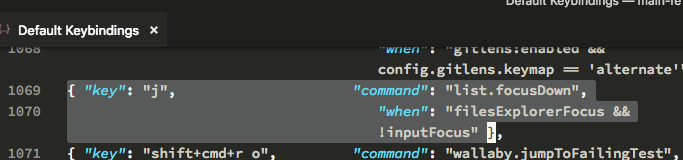
@joaomoreno @bpasero The screenshot I took above was with all extensions disabled and these are alternative keyboard shortcuts that come with vscode for list navigation:
I don't think this has anything to do with the vim extension.
@joaomoreno Yep setting to "simple" restores the original functionality.
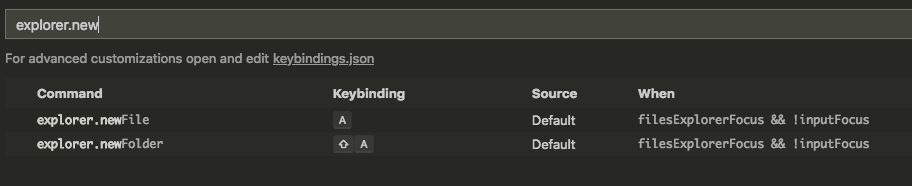
This also interferes with keyboard actions pertaining to creating new files:

 admosity
on 24 Jan 2019
admosity
on 24 Jan 2019
@joaomoreno I like the fancy lists and I think maybe a hotkey toggle when the file explorer is focused would be really nice. Or better yet, as VIM users we could get the benefits of both worlds by toggling into the mode to do filtering and then go back to simple navigation.
admosity
on 24 Jan 2019
Will introduce exactly that: a keybinding/command which enables that mode, cancellable by Escape, in which users can use the filter. This behaviour would be regulated by a setting like workbench.list.manualKeyboardNavigation, defaulting to false. VIM users would have to switch it to true. Any user could switch it to true.
The golden hammer would be to have this working automatically if VIM is enabled... thinking more about it... 🤔
joaomoreno
on 24 Jan 2019
Was looking around and found a nice little article with a small extension:
settings.json:
    "settings.cycle": [
        {
            "id": "listMode", // must be unique
            "overrideWorkspaceSettings": false,
            "values": [
                {
                    "workbench.list.keyboardNavigation": "simple"
                },
                {
                    "workbench.list.keyboardNavigation": "filter"
                }
            ]
        }
    ],
keybindings.json:
  { "key": "cmd+shift+l", "command": "settings.cycle.listMode",
    "when": "explorerViewletVisible && filesExplorerFocus"
  },
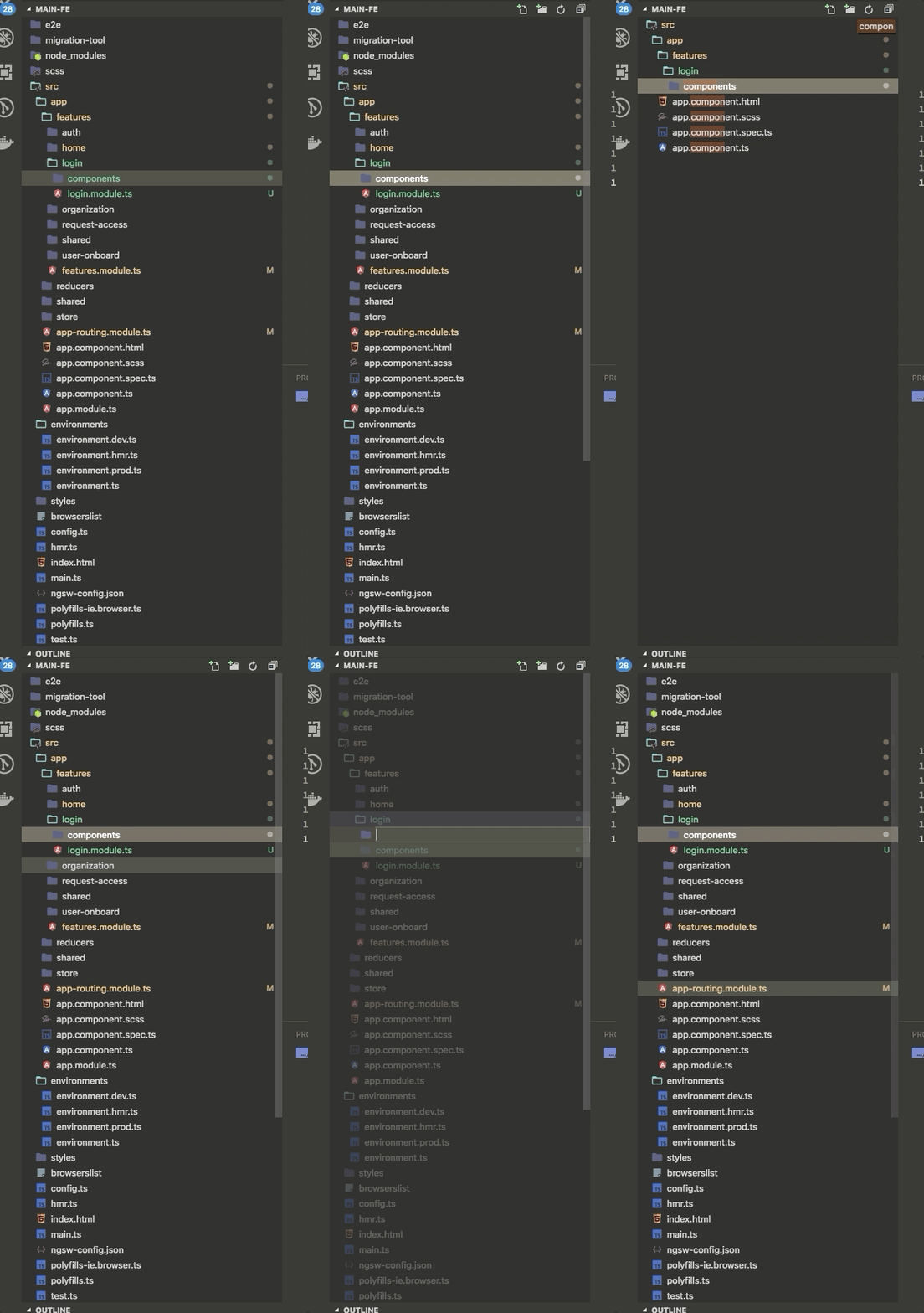
I'm able to toggle modes while the explorer is active and be able to go between each. Unfortunately I can't use the VIM navigation when I toggle it back to simple:
admosity
on 24 Jan 2019
Actually, simple also doesn't work for VIM since both the keyboard navigation and the vim keybindings kick in in sequence.
joaomoreno
on 25 Jan 2019
Proposal 1
- Introduce a new context key
manualKeyboardNavigationwhich, when set totrue, would require the user to press a certain keybinding to enable type filtering. - Contribute that same keybinding
- Have VIM set that context to
truein their activation function (usingexecuteCommand('setContext', ...
Proposal 2
- Introduce a new setting
workbench.list.manualKeyboardNavigationwhich, when set totrue, would require the user to press a certain keybinding to enable type filtering. - Contribute that same keybinding
- Have VIM change that setting to
truein their activation function.
cc @jpoon Thoughts?
joaomoreno
on 25 Jan 2019
I would prefer a solution that does not change settings simply because a user is stuck with this setting once VIM is uninstalled again.
bpasero
on 25 Jan 2019
Fixed by introducing a new command list.toggleKeyboardNavigation and a new context key listAutomaticKeyboardNavigation which, when set to false`, requires the aforementioned command to be run in order to go into _filter_ mode.
joaomoreno
on 31 Jan 2019
Created Vim PR: https://github.com/VSCodeVim/Vim/pull/3432
joaomoreno
on 31 Jan 2019
I verified that setting the listAutomaticKeyboardNavigation context key disables the keyboard navigation and that it can be re-enabled with the keyboard shortcut
 mjbvz
on 1 Feb 2019
mjbvz
on 1 Feb 2019
I verified that setting the
listAutomaticKeyboardNavigationcontext key disables the keyboard navigation and that it can be re-enabled with the keyboard shortcut
@mjbvz would you please tell me where should i write this setting in vscode settings? Can't find out.
Tried settings.json, didn't worked for me.
 cherninely
on 10 Feb 2019
cherninely
on 10 Feb 2019
@cherninely Hi~ I have found how to fix your problem!
You just need to set the
"workbench.list.keyboardNavigation": "filter" or
"workbench.list.keyboardNavigation": "highlight"
Since list.toggleKeyboardNavigation is to toggle navigation mode to filter or highlight. While you just set to simple, so the navigation mode is just simple after toggling(whether it is on or off).

 Molunerfinn
on 14 Feb 2019
Molunerfinn
on 14 Feb 2019
So for those of us who don't use the VIM extension, is it possible for us to have a similar thing? I.e. only filter the tree if we toggle that filter mode with another shortcut?
If so how do we set it up? I don't have a setting for enabling/disabling automatic keyboard navigation (which I assume is the filter thing)?
@joaomoreno perhaps you can clarify?
 redders6600
on 28 Feb 2019
redders6600
on 28 Feb 2019
Since
list.toggleKeyboardNavigationis to toggle navigation mode tofilterorhighlight. While you just set tosimple, so the navigation mode is justsimpleafter toggling(whether it is on or off).
It looks we should wait for release of this option to try this out, cause i can't find it in my settings. Or somehow build vscode from master
cherninely
on 28 Feb 2019
https://github.com/Microsoft/vscode/issues/68233 Introduced a workbench.list.automaticKeyboardNavigation setting for people who have single letter keybindings for lists/trees. When false, you must run the list.toggleKeyboardNavigation command to enter filter mode, for which you can configure a keybinding.
This is already out in Insiders. It will come out next stable and I'll document it in the release notes.
joaomoreno
on 1 Mar 2019
Related issues
 chrisdias
·
3Comments
chrisdias
·
3Comments
 mrkiley
·
3Comments
mrkiley
·
3Comments
 borekb
·
3Comments
borekb
·
3Comments
 v-pavanp
·
3Comments
v-pavanp
·
3Comments
 shanalikhan
·
3Comments
shanalikhan
·
3Comments
Most helpful comment
Will introduce exactly that: a keybinding/command which enables that mode, cancellable by Escape, in which users can use the filter. This behaviour would be regulated by a setting like
workbench.list.manualKeyboardNavigation, defaulting to false. VIM users would have to switch it to true. Any user could switch it to true.The golden hammer would be to have this working automatically if VIM is enabled... thinking more about it... 🤔