Vscode: New titleBarStyle breaks top left double click to close
Issue Type: Bug
On Windows there is an area in the top left of the title bar that traditionally showed an icon. It has become popular to hide the icon but Microsoft applications have so far preserved the functionality of that part of the title bar. Windows Explorer, MS Office and Internet Explorer all allow you to fling the mouse cursor to the top left and double click to close the window. Even though they hide the icon. There is a menu there too if you single click.
VS Code with the new title bar style does not maintain this functionality.
Steps to reproduce:
- Set "window.titleBarStyle" to "custom"
- Restart VS Code
- Maximise window to make next steps easy (should work without too)
- Move cursor to top left corner of screen
- Double click
Expected result:
Window closes like Windows Explorer and other programs do
Actual result:
Window resizes as if I'd double clicked on the middle of the title bar
VS Code version: Code 1.27.1 (5944e81f3c46a3938a82c701f96d7a59b074cfdc, 2018-09-06T09:21:18.328Z)
OS version: Windows_NT x64 6.1.7601
 JosephDaly
All 23 comments
@JosephDaly This decision was intentional as many modern applications on Windows do not implement this. It was causing some confusion to users and the functionality is not lost. Closing windows can be done many ways and the context menu can be accessed by right clicking the title bar or using alt+space. Unless we see a strong voice for recovering this behavior, the current behavior will likely remain.
 sbatten
on 7 Sep 2018
sbatten
on 7 Sep 2018
Boo. That stinks. The Windows 10 File Explorer has it and so does Visual Studio 2017. It is just confusing to have an icon up there.
 daniel-white
on 26 Sep 2018
daniel-white
on 26 Sep 2018
This was a bad decision on the part of the metro/modern/uwp design team. It's one of many reasons that I don't use those types of apps outside of the Windows 10 Settings app.
Anyway, why are we making this app act like a metro app when it's not one?
Furthermore, where's the strong voice of the users asking for this functionality?
 waynebloss
on 8 Oct 2018
waynebloss
on 8 Oct 2018
Apparently back in 2006 there were strong voices when the Office team did an experiment to see whether people still used the feature. [1] I'd like to see this being an option.
It is just confusing to have an icon up there.
Exactly. Why have the icon there at all if it's designed to not act like a regular Windows app?
[1] https://blogs.msdn.microsoft.com/jensenh/2006/06/08/you-windows-3-1-lovers/
 GMMan
on 9 Oct 2018
GMMan
on 9 Oct 2018
VSCode should also be a good cross-platform citizen and at least disable this behavior for Linux because the same thing happens there when you choose custom titlebar - the window resizes instead of closing.
In XFCE and Gnome the correct behavior is that double-clicking the upper left corner of application windows closes the window.
waynebloss
on 14 Oct 2018
Please fix this @sbatten, because it is very annoying.
It keeps happening again and again: I double click the icon, the window unmaximizes and it just confuses me. Then it annoys me. No other app that I know of maximizes/restores its window when double clicking the titlebar icon.
I have a wide screen, and I got used to double clicking the icon to close a maximized window when the cursor is on the left part of the screen. That Windows feature is very convenient, and now VSCode broke it for no good reason.
Today I got annoyed enough that I decided to look for an existing issue, but don't expect many people to find a closed issue to express their opinion on this.
Please reconsider.
 ltrzesniewski
on 16 Oct 2018
ltrzesniewski
on 16 Oct 2018
@ltrzesniewski You can get the preferred behavior by switching the window title bar style to "native" in settings e.g. "window.titleBarStyle": "native", in settings.json.
However, Chrome 69 even copies this bad behavior now, so I feel like this is probably a losing battle.
waynebloss
on 16 Oct 2018
@waynebloss yes thanks, but I like the new window style and I'd like it to work consistently with the expected Windows UI experience.
It doesn't really bother me on Chrome, since there's no titlebar at all, and no icon. I tend to close tabs by mid-clicking on them. I never really want to close a whole Chrome window.
ltrzesniewski
on 16 Oct 2018
As the double-click launches the default action of the menu. Maybe you should offer the possibility to the set this in the preferences.
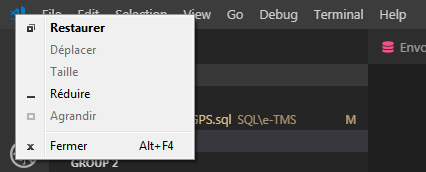
VS Code version: Code 1.28.1 (3368db6750222d319c851f6d90eb619d886e08f5, 2018-10-11T18:13:53.910Z)
OS version: Windows_NT x64 6.1.7601
 AlexBillon07
on 19 Oct 2018
AlexBillon07
on 19 Oct 2018
@AlexBillon07 The issue with that is there's no separation between the icon and the rest of the title bar, so if the default action was set to close, it would be applied to the blank space where you expect maximize/restore.
GMMan
on 19 Oct 2018
@GMMan, ok I understand. Anyway, in the majority of the Windows apps have Close as the default action in the System Menu / Control Menu so that is disturbing to have a different default action in VS Code.
I switched back to the native style for the moment.
AlexBillon07
on 19 Oct 2018
Then a separation must be created.
This is about semantics and visual language: having a system icon means having the system icon semantics. which defaults to close-on-doubleclick.
 AdmiralSnyder
on 22 Oct 2018
AdmiralSnyder
on 22 Oct 2018
I miss being able to double click in the top left corner of the screen and have it close the application :(
Office apps have a custom title bar and whacky menus, but they still honour the double click.. just sayin'
 davidwengier
on 25 Oct 2018
davidwengier
on 25 Oct 2018
So, here's my solution for every program that refuses to do this: Use AutoHotkey to detect clicks in the upper left corner and then send the Alt+F4 keys to close that window. This simple solution works for every type of window, even the new Metro/UWP/Windows Store apps. It also works for Chrome 69+ and of course, VSCode with the custom drawn titlebar.
Here are the instructions if you've never used AutoHotkey:
- Download and install AutoHotKey.
- Create the default script file at
C:\Users\%USERNAME%\Documents\AutoHotKey.ahk. - Place the following code in that file: (See my next comment in this thread for a much safer script, that targets specific application windows only.)
; ## Click in upper left corner sends Alt+F4
~LButton::
MouseGetPos,MouseX, MouseY
If (MouseX <= 8 and MouseY <= 8)
  Send !{F4}
return
- Save the file and start AutoHotkey if its not already running in your system tray. If it is already running, you can right click its icon and choose
Reload This Script. The script should now be running. - Set AutoHotkey to run at startup by placing a shortcut to
AutoHotkey.exein theC:\ProgramData\Microsoft\Windows\Start Menu\Programs\StartUpfolder.
Some notes about this solution, which may have some bugs:
- It detects single clicks in the upper left corner
of your primary screen only. (If you use the script from my next comment, it works on any screen.) However, since a single-click is part of a double-click, you can just use your normal workflow and double-click away... - If any app shows a system menu when you single-click the upper left corner, the single-click detection doesn't work. However for all of those apps - double clicking does close the window anyway.
- I tried detecting double-clicks, but ran into too many problems with that technique. For instance, since AutoHotkey doesn't _intercept_ the clicks and instead just detects them, the programs would still react to the double-click causing the window to resize.
- Generally, the only time I click in the extreme upper left hand corner is when I slam my mouse up there to close a window. So, I figured detecting a single click up there will be fine for my workflow.
- A value of 8 pixels is used to detect the upper left corner position. This value was derived from testing.
- This solution is far from perfect. However, AutoHotkey is great! You can tweak this script a lot, for instance you can use something like
#IfWinActiveto apply this solution only to certain windows if you want. I only spent 20 minutes researching and playing around to get this solution (and probably 20 minutes typing this post), perhaps someone with more experience can do even better. - If you're a gamer - I'm not sure what happens if you run this script while you're playing a full-screen game. Please let us know if you try it out!
If you like this sort of hacking and you run XFCE on Linux, check out my XFCE hotcorners which I used to fix the clickability of the "whiskermenu" (start menu for XFCE). Also, this comment shows my AutoHotkey script to auto-hide the Peek editor after you hit F12.
waynebloss
on 27 Oct 2018
Here's a safer script that targets specific application windows only:
; ## The following GroupAdd lines must be at the very top of your script.
GroupAdd CornerClickClose, ahk_exe Chrome.exe
GroupAdd CornerClickClose, ahk_exe Code.exe
; The following targets ALL Metro/UWP style apps such as Settings and Microsoft Edge
GroupAdd CornerClickClose, ahk_exe ApplicationFrameHost.exe
; This doesn't seem to work at all for Slack! :(
GroupAdd CornerClickClose, ahk_exe slack.exe
; Example to show multiple groups:
GroupAdd EscWindowClose,Calculator

; ## Group Definitions (these can be at the bottom of your script)
; ### Click in left corner sends Alt+F4
#IfWinActive ahk_group CornerClickClose
~LButton::
#IfWinActive
MouseGetPos,MouseX, MouseY
If (MouseX <= 8 and MouseY <= 8)
  Send !{F4}
return

; ## EscWindowClose (this is just an example to show multiple groups)
; - Closes a window when the user to presses the `Esc` key.
; - Usage: GroupAdd EscWindowClose,TitleOfTheWindow
#IfWinActive ahk_group EscWindowClose
Escape::
#IfWinActive
WinClose
return
@sbatten If someone was to work on this and make a pull request, would it get rejected on grounds of "design decision"?
I'd also like to see where this decision was made, if available.
GMMan
on 27 Oct 2018
Thanks everyone for their feedback. During the time this decision was made, the menu bar was not yet the default on Windows and thus the amount of feedback we got was smaller, however two issues come to mind when making the original decision. This issue https://github.com/Microsoft/vscode/issues/52904 which explains the current trade-off and this issue https://github.com/Microsoft/vscode/issues/54929 which explains that not all apps continue this behavior, though office does sneakily. If you come to this issue with a desire to see the behavior changed with the trade-off, please upvote this comment.
sbatten
on 29 Oct 2018
@sbatten is it a bug with the electron or blink layers? why can't both happen?
daniel-white
on 30 Oct 2018
I'd like that the default is the same cross-platform (as someone who switches development between Windows and Mac, might include Linux VM for some workloads soon). It's not much more work to right-click and then click "_Close" from the "system menu". (Aside: Windows UI element names are so bad.)
I'd prefer you leave the current default and give the windows users an option to switch.
 yzorg
on 30 Oct 2018
yzorg
on 30 Oct 2018
I'd prefer you leave the current default and give the windows users an option to switch.
IMO it's better to follow the current platform's GUI guidelines by default, so I'd prefer the opposite. Unless the goal is to make things look the same on all platforms, e.g. Chrome, in which case we wouldn't be having this discussion.
GMMan
on 30 Oct 2018
@yzorg Every window on my Linux desktop closes with a double-click to the upper left corner. (I'm running XFCE.) The vast majority of Windows apps also behave like this.
VSCode is one of the few apps that behaves differently.
waynebloss
on 30 Oct 2018
@daniel-white the system menu we get there is by making the element a drag region. as i understand it, electron then forwards mouse events to the OS which gives us the system menu on right click. It also makes it easy to drag the window from this fixed location if your window is small and the menu is in the way. In order to receive mouse events on the icon and handle them (like dbl click to close), we have to make it a non-drag region and then lose the system menu.
sbatten
on 30 Oct 2018
aside: visual studio 2017 still does the double click to close.
daniel-white
on 30 Oct 2018
Related issues
 jez9999
·
234Comments
jez9999
·
234Comments
 ghost
·
234Comments
ghost
·
234Comments
 lw-schick
·
229Comments
lw-schick
·
229Comments
 Tekbr
·
191Comments
Tekbr
·
191Comments
 Brakkar
·
364Comments
Brakkar
·
364Comments
Most helpful comment
Thanks everyone for their feedback. During the time this decision was made, the menu bar was not yet the default on Windows and thus the amount of feedback we got was smaller, however two issues come to mind when making the original decision. This issue https://github.com/Microsoft/vscode/issues/52904 which explains the current trade-off and this issue https://github.com/Microsoft/vscode/issues/54929 which explains that not all apps continue this behavior, though office does sneakily. If you come to this issue with a desire to see the behavior changed with the trade-off, please upvote this comment.