Vscode: Electron 2.0.x : extreme blur around the entire application (Windows 10)
Issue Type: Bug
All views and their text is super blurred to the point that it makes things mostly unusable.
VS Code version: Code - Insiders 1.25.0-insider (583f1e4934c5fd3b62c2ca5bf177c728b31b9605, 2018-06-13T05:18:10.709Z)
OS version: Windows_NT x64 10.0.17686
System Info
|Item|Value|
|---|---|
|CPUs|Intel(R) Core(TM) i7-6700K CPU @ 4.00GHz (8 x 4008)|
|GPU Status|2d_canvas: enabled
checker_imaging: disabled_off
flash_3d: enabled
flash_stage3d: enabled
flash_stage3d_baseline: enabled
gpu_compositing: enabled
multiple_raster_threads: enabled_on
native_gpu_memory_buffers: disabled_software
rasterization: enabled
video_decode: enabled
video_encode: enabled
webgl: enabled
webgl2: enabled|
|Memory (System)|31.94GB (25.85GB free)|
|Process Argv|C:\Program Files\Microsoft VS Code Insiders\Code - Insiders.exe D:\Development\Schule\Testing|
|Screen Reader|no|
|VM|0%|
Extensions (27)
Extension|Author (truncated)|Version
---|---|---
yaml|ada|0.0.9
cake-vscode|cak|0.10.1
path-intellisense|chr|1.4.2
vscode-markdownlint|Dav|0.18.0
vscode-eslint|dba|1.4.12
docs-authoring-pack|doc|0.0.3
docs-markdown|doc|0.0.3
xml|Dot|2.3.0
gitlens|eam|8.3.5
tslint|eg2|1.0.30
beautify|Hoo|1.3.2
rest-client|hum|0.18.4
theme-monokai-pro-vscode|mon|1.1.8
DocFX|ms-|0.1.3
csharp|ms-|1.15.2
PowerShell|ms-|1.7.0
debugger-for-chrome|msj|4.6.0
gradle-language|nac|0.2.3
chef|Pen|0.7.0
vscode-docker|Pet|0.0.27
java|red|0.26.0
vscode-icons|rob|7.23.0
msbuild-project-tools|tin|0.2.38
vscode-java-debug|vsc|0.9.0
vscode-java-pack|vsc|0.3.0
vscode-java-test|vsc|0.6.1
vscode-maven|vsc|0.9.0
 MeikTranel
All 93 comments
(Experimental duplicate detection)
Thanks for submitting this issue. Please also check if it is already covered by an existing one, like:
![vscodebot[bot] picture](https://avatars2.githubusercontent.com/in/2406?v=4&s=40) vscodebot[bot]
on 13 Jun 2018
vscodebot[bot]
on 13 Jun 2018
Here are some examples:

I installed a regular code instance in parallel to show a comparison.

MeikTranel
on 13 Jun 2018
The granular image is from the GIF converter. The blur itself is the real image i see in front of me.
MeikTranel
on 13 Jun 2018
@MeikTranel do you have window.zoomLevel in your settings.json?
 Tyriar
on 14 Jun 2018
Tyriar
on 14 Jun 2018
This seems to be like a nightly Windows 10 build if I am not mistaken (https://changewindows.org/build/17686/pc) so maybe this should also get reported to Windows team. Does it reproduce with Chrome too?
 bpasero
on 14 Jun 2018
bpasero
on 14 Jun 2018
No. Havent seen this within chrome, yet.
What makes me think it's a vscode thing is that it's not happening at all in 0.24.0 (that's why i showed the non-insider version in the screencap too)
MeikTranel
on 14 Jun 2018
@MeikTranel @Mehgugs can you try out a bare Electron application to see if you see the blurriness too. Just download and run: https://github.com/electron/electron/releases/download/v2.0.2/electron-v2.0.2-win32-x64.zip
bpasero
on 15 Jun 2018
@MeikTranel @Mehgugs also if you are up for a little experiment:
- quit any running VSCode Insiders
- open
C:\Program Files\Microsoft VS Code Insiders\resources\app\out\main.js - find the place where it reads
app.commandLine.appendSwitch("disable-mojo-local-storage");
right after paste this:app.commandLine.appendSwitch('force-color-profile', 'srgb'); - save (you will need to save as admin I guess)
- start VSCode Insiders again
=> does the issue still reproduce?
bpasero
on 15 Jun 2018
@bpasero from what i'm seeing electron itself doesn't show any symptoms (the bare electron client really doesn't have that much to test with tho)
Checking out the other thing now.
BTW.: I updated to 17692 yesterday from 17686, so that i can play csgo again 😄 https://changewindows.org/build/redstone5/17692/pc
Issue is persisting through
MeikTranel
on 15 Jun 2018
@MeikTranel thanks. to test another application that is similar to VS Code and uses the same Electron version, can you try with Atom beta too: https://atom.io/beta
bpasero
on 15 Jun 2018
I tested the electron srgb command line switch; Didn't help -___-
At first i thought it did but when i moved the window around it started right back again :/
MeikTranel
on 15 Jun 2018
Oh hell yeah, progress! Atom has the same issue @bpasero

[Weird colors is the GifCam Compression, don't worry about those]
Do both use Electron 2.0 ?
MeikTranel
on 15 Jun 2018
@MeikTranel good to know 👍. does it reproduce if you run code-insiders --disable-gpu
Do both use Electron 2.0 ?
Yes
bpasero
on 15 Jun 2018
--disable-gpu seems to mitigate it.
i assume this disables hardware acceleration?
MeikTranel
on 15 Jun 2018
@MeikTranel yes it does. What kind of GPU are you running with?
bpasero
on 15 Jun 2018
@MeikTranel yes. From your original report this is what GPU features were enabled:
2d_canvas: enabled
checker_imaging: disabled_off
flash_3d: enabled
flash_stage3d: enabled
flash_stage3d_baseline: enabled
gpu_compositing: enabled
multiple_raster_threads: enabled_on
native_gpu_memory_buffers: disabled_software
rasterization: enabled
video_decode: enabled
video_encode: enabled
webgl: enabled
webgl2: enabled
So one of these must be to blame.
Tyriar
on 15 Jun 2018
@bpasero this machine runs a GTX1080 and a 6700k (which comes integrated with a Intel® HD Graphics 530)
MeikTranel
on 15 Jun 2018
It's running on the GTX 1080 tho

MeikTranel
on 15 Jun 2018
@MeikTranel does it reproduce when no editor is opened and maybe only the explorer?
Also, can you share your settings file with us?
bpasero
on 15 Jun 2018
User Settings
{
    "workbench.iconTheme": "vscode-icons",
    "msbuildProjectTools": {
        "logging": {
            "level": "Information",
            "seq": {},
            "file": "",
            "trace": false
        },
        "language": {
            "disableFeature": {},
            "useClassicProvider": false,
            "disable": {
                "hover": false
            }
        },
        "nuget": {
            "newestVersionsFirst": true,
            "includePreRelease": true,
            "disablePrefetch": false
        },
        "schemaVersion": 1
    },
    "java.errors.incompleteClasspath.severity": "ignore",
    "rest-client.enableTelemetry": false,
    "rest-client.followredirect": false,
    "rest-client.includeAdditionalInfoInResponse": true,
    "gitlens.keymap": "none",
    "gitlens.advanced.messages": {
        "suppressShowKeyBindingsNotice": true
    }
}
Workspace Settings (although irrelevant considering this isn't a workspace specific issue)
{
    "files.exclude": {
        "**/.git": true,
        "**/.svn": true,
        "**/.hg": true,
        "**/CVS": true,
        "**/.DS_Store": true,
        "**/bin": true,
        "**/obj": true
    }
}
@bpasero by explorer you mean the vscode explorer? as in no code file open?
As for the other question: I tested and reproduced it specifically without chrome or other apps related also with only vscode running.
MeikTranel
on 15 Jun 2018
@MeikTranel are your Nvidia drivers up to date? If that doesn't change anything then I'm guessing this is an issue in the version of Chromium under the hood.
Tyriar
on 15 Jun 2018
@MeikTranel yeah I am trying to figure out which action in the UI triggers the blurriness. My understanding is that it only happens when you do something specific, like opening an editor?
bpasero
on 15 Jun 2018
I'm updating drivers right. But i don't think thats gonna help.
The current driver's from january.

MeikTranel
on 15 Jun 2018
@bpasero so i updated my driver now (didnt help) and tested some of your scenarios:
- It seems to be related to code file tabs; If i start vscode without preloading the workspace and thus not opening one of my files, it seems to be cool.
- If i open code insiders with a file at launch its going nuts right at the start
- I'm pretty sure it has something to do with my DPI
- on being moved the issue gets worse
MeikTranel
on 15 Jun 2018
I'm facing the same issue since a few days ago. I updated to latest nightly insiders build (back then) and the blurry display came out.
It's been persistent between two new nightly updates. I just checked some options and the result is quite the same, no differences at all.
I updated my GTX 970 drivers and now I'm checking out if this solves the issue.
p.s: The blurry screen appeared in the GeforceExperience main screen application, which makes me think that my issue is most likely related to Windows rather than VSCode itself.
p.s2: The VSCode shows the terminal (Bash-like) pretty bad rendered, the whole background is black.

 xLobito
on 16 Jun 2018
xLobito
on 16 Jun 2018
@xLobito so you are saying that the (same) blurry screen shows up for you also in other applications?
bpasero
on 16 Jun 2018
@bpasero
Only GeforceExperience (which I don't know if anyone has been getting the same blurry screen like myself) when I was downloading the driver for installation. Although I think it got fixed when I allowed to Windows avoid blurriness (I have two monitors with different resolutions, so it could be that).
On the other hand, the VSCode still presents the blurry screen, when I create a new file or use the bash-like terminal. So, updating to latest driver didn't fix the issue.
xLobito
on 16 Jun 2018
I have had exactly the same issue, it occurs for me whenever I open a dialog except the top menus (File, Edit etc...)
ShareX mp4 capture of it happening upon opening ctrl+f dialog:
https://streamable.com/wze59
I also have a nvidia card (a gtx 960M) has the latest drivers. This doesn't happen for me in other applications. This happens for me using my integrated card as well as my nvidia one.
 Mehgugs
on 16 Jun 2018
Mehgugs
on 16 Jun 2018
@Mehgugs that video is interesting, I wonder if this could be related to having animations on the screen (the find widget box seems to animate in). Can you reproduce the blurriness when you work with VSCode but not use elements that cause animation (like the find box)?
bpasero
on 16 Jun 2018
Randomly, the issue appears. Right now, I closed and opened it three times and the blurriness is intact.
The issue this time started right after I copied some text from the right side, and then pasting it in the left side. It was working fine before it, during some hours.

xLobito
on 17 Jun 2018
@xLobito
I closed and opened it three times and the blurriness is intact.
What does "intact blurriness" mean? Is that good or bad?
Does it reproduce if you:
- close all editors
- open one editor
- open search viewlet
- start a long running search (or refresh git viewlet) so that the progress bar spins (animation)
?
bpasero
on 17 Jun 2018
@bpasero. Apologies for not being too accurate with my description.
About the "intact blurriness" that I was talking about, refers the fact that it kept continued with the blurriness after even three attempts of opening the VSCode editor.
And, about repro your suggestion. I can confirm it happens after re open the editor and inmediately look for anything (Just by opening the search viewlet).

xLobito
on 17 Jun 2018
@MeikTranel @xLobito does it change anything if you change the "Let Windows try to fix apps so they are not blurry" from this Advanced Scaling page:

Was this setting on or off if changing it makes a change for you?
bpasero
on 18 Jun 2018
I tested all the other combinations with those Settings On and Off. It doesn't seem to have any impact. Same with the application specific settings inside the compatibility settings when right-clicking the app shortcut itself.
MeikTranel
on 18 Jun 2018

Tested the same as @MeikTranel, but it doesn't work.
xLobito
on 18 Jun 2018
@bpasero I don't know how to describe the type of menus, but things like alert popups, command palette, theme picker. Any menu that is coloured using the editor's theme causes the issue for me (doesn't matter what theme it is either), so things like the right click context menu do not cause the bug.
Mehgugs
on 19 Jun 2018
FYI: I've since upgraded to Windows RS6 Fast Ring Build 17704.1000 and the problem persists.
MeikTranel
on 30 Jun 2018
I hadn't updated vscode itself for some days on that machine.
I no longer can reproduce the issue.
@bpasero any changes? or did you guys unmigrate from electron 2.0 again?
VS Code version: Code - Insiders 1.25.0-insider (6ca99aca80e80224f1c0bd4370c6ec4941c3bc54, 2018-06-29T09:03:04.490Z)
OS version: Windows_NT x64 10.0.17704
System Info
|Item|Value|
|---|---|
|CPUs|Intel(R) Core(TM) i7-6700K CPU @ 4.00GHz (8 x 4008)|
|GPU Status|2d_canvas: enabled
flash_3d: enabled
flash_stage3d: enabled
flash_stage3d_baseline: enabled
gpu_compositing: enabled
multiple_raster_threads: enabled_on
native_gpu_memory_buffers: disabled_software
rasterization: disabled_software
video_decode: enabled
video_encode: enabled
vpx_decode: enabled
webgl: enabled
webgl2: enabled|
|Memory (System)|31.94GB (23.26GB free)|
|Process Argv|C:\Program Files\Microsoft VS Code Insiders\Code - Insiders.exe|
|Screen Reader|no|
|VM|0%|
Extensions (32)
Extension|Author (truncated)|Version
---|---|---
yaml|ada|0.0.9
cake-vscode|cak|0.10.1
path-intellisense|chr|1.4.2
vscode-markdownlint|Dav|0.18.0
vscode-eslint|dba|1.4.12
docs-article-templates|doc|0.1.2
docs-authoring-pack|doc|0.1.1
docs-markdown|doc|0.1.1
docs-preview|doc|0.3.12
xml|Dot|2.3.1
gitlens|eam|8.4.1
tslint|eg2|1.0.33
dotnet-test-explorer|for|0.3.1
beautify|Hoo|1.3.2
rest-client|hum|0.19.0
theme-monokai-pro-vscode|mon|1.1.8
DocFX|ms-|0.1.3
csharp|ms-|1.15.2
PowerShell|ms-|1.7.0
debugger-for-chrome|msj|4.7.0
gradle-language|nac|0.2.3
chef|Pen|0.7.0
vscode-docker|Pet|0.0.27
java|red|0.27.0
vscode-icons|rob|7.24.0
vscode-coverage-gutters|rya|2.0.0
code-spell-checker|str|1.6.10
msbuild-project-tools|tin|0.2.39
vscode-java-debug|vsc|0.10.0
vscode-java-pack|vsc|0.3.0
vscode-java-test|vsc|0.7.0
vscode-maven|vsc|0.9.0
MeikTranel
on 30 Jun 2018
@MeikTranel yes we did go back to Electron 1.7.x
bpasero
on 1 Jul 2018
Well damn, i was kinda hyped this got resolved. We are only moving back to 1.7 for june end game right? When current insider is being released we're moving back to electron 2.0 right?
MeikTranel
on 1 Jul 2018
@MeikTranel yes the idea is to ship with Electron 2.0 eventually. It is still unclear to me if this is a Windows 10 insiders issue or not. I plan to install Windows 10 insiders to find out more soon.
bpasero
on 1 Jul 2018
@MeikTranel do you still see this? I now installed a Windows Insiders (Version 1803, OS Build 17711.1000) and I do not see this issue when I try with this build: https://az764295.vo.msecnd.net/exploration/163e64ca7bbd0a69c727cfd9f5610e7546207a71/VSCodeSetup-x64-1.24.0-exploration.exe
bpasero
on 9 Jul 2018
Still have the issue. By now this is happening in more and more apps. The same effect happens to me in the regular Visual Studio Installer right now.

I fear it has something to do with my dpi/resolution setup. I use 2560x1440(125% scaling) and 1680x1050(100% scaling), if that helps.
MeikTranel
on 9 Jul 2018
@MeikTranel is this the regular installer? Are you still on Electron @? Can you check in the Help > About menu?
Tyriar
on 9 Jul 2018
In VSCode or in the VS2017 Installer?
MeikTranel
on 9 Jul 2018
VS Code version: Code - Exploration 1.24.0-exploration (163e64ca7bbd0a69c727cfd9f5610e7546207a71, 2018-05-17T05:34:34.725Z)
OS version: Windows_NT x64 10.0.17711
System Info
|Item|Value|
|---|---|
|CPUs|Intel(R) Core(TM) i7-6700K CPU @ 4.00GHz (8 x 4008)|
|GPU Status|2d_canvas: enabled
checker_imaging: disabled_off
flash_3d: enabled
flash_stage3d: enabled
flash_stage3d_baseline: enabled
gpu_compositing: enabled
multiple_raster_threads: enabled_on
native_gpu_memory_buffers: disabled_software
rasterization: enabled
video_decode: enabled
video_encode: enabled
webgl: enabled
webgl2: enabled|
|Memory (System)|31.94GB (23.82GB free)|
|Process Argv|C:\Program Files\Microsoft VS Code Exploration\Code - Exploration.exe|
|Screen Reader|no|
|VM|0%|
Extensions: none
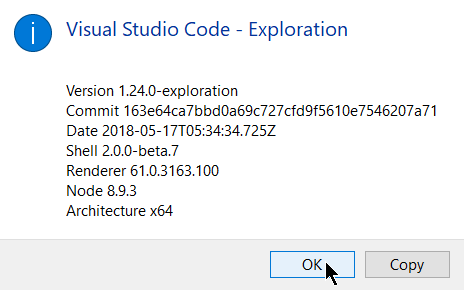
EDIT: Just noticed, there's no electron info in the auto system info print from vscode. Have a screenshot:
MeikTranel
on 9 Jul 2018
Same effect in terminus... Has this issue been raised in electron yet?

MeikTranel
on 9 Jul 2018
@MeikTranel yeah let's try to file this to them, but for that we need a repro in a simpler app. Can you try to reproduce with their standard application: https://github.com/electron/electron/releases/download/v2.0.4/electron-v2.0.4-win32-x64.zip
If that does not reproduce, can you try to reproduce with Electron Fiddle (which is a bit more complex example):
git clone https://github.com/electron/fiddle.gitcd fiddlenpm installnpm start
bpasero
on 10 Jul 2018
@MeikTranel any luck?
bpasero
on 12 Jul 2018
Well the standalone electron has nothing to show this really. It looks a bit like the issue is visible but it's really hard to see.
As for the fiddle application, yes i can reproduce it there.

MeikTranel
on 12 Jul 2018
@MeikTranel well the issue is clearly visible I would say. Can you report this as bug to https://github.com/atom/electron and state that you can reproduce with the Electron fiddle application?
Also, did you ever have a chance to reproduce this with a Windows 10 stable version?
bpasero
on 12 Jul 2018
@bpasero if you have anything to add, i created the issue here: https://github.com/electron/electron/issues/13646
MeikTranel
on 12 Jul 2018
@MeikTranel thanks, let's see what Electron folks have to say.
bpasero
on 12 Jul 2018
This issue has been closed automatically because it needs more information and has not had recent activity. See also our issue reporting guidelines.
Happy Coding!
vscodebot[bot]
on 19 Jul 2018
I don't think this should be closed :smile: @bpasero help :D
MeikTranel
on 19 Jul 2018
Greetings.
I updated to latest version of VS Code Insiders which eventually ported Electron 2.0.5 and the issue remains the same. Even the blurriness is worse than before. Happens right after I open the VS Code Insiders.
Also, the only way to prevent this behavior is by disabling GPU Acceleration (Like before).
I posted the same thing into Electron's issue place, though no response was given or anything. So, in the meantime I just leave this report here with the respective screenshots.
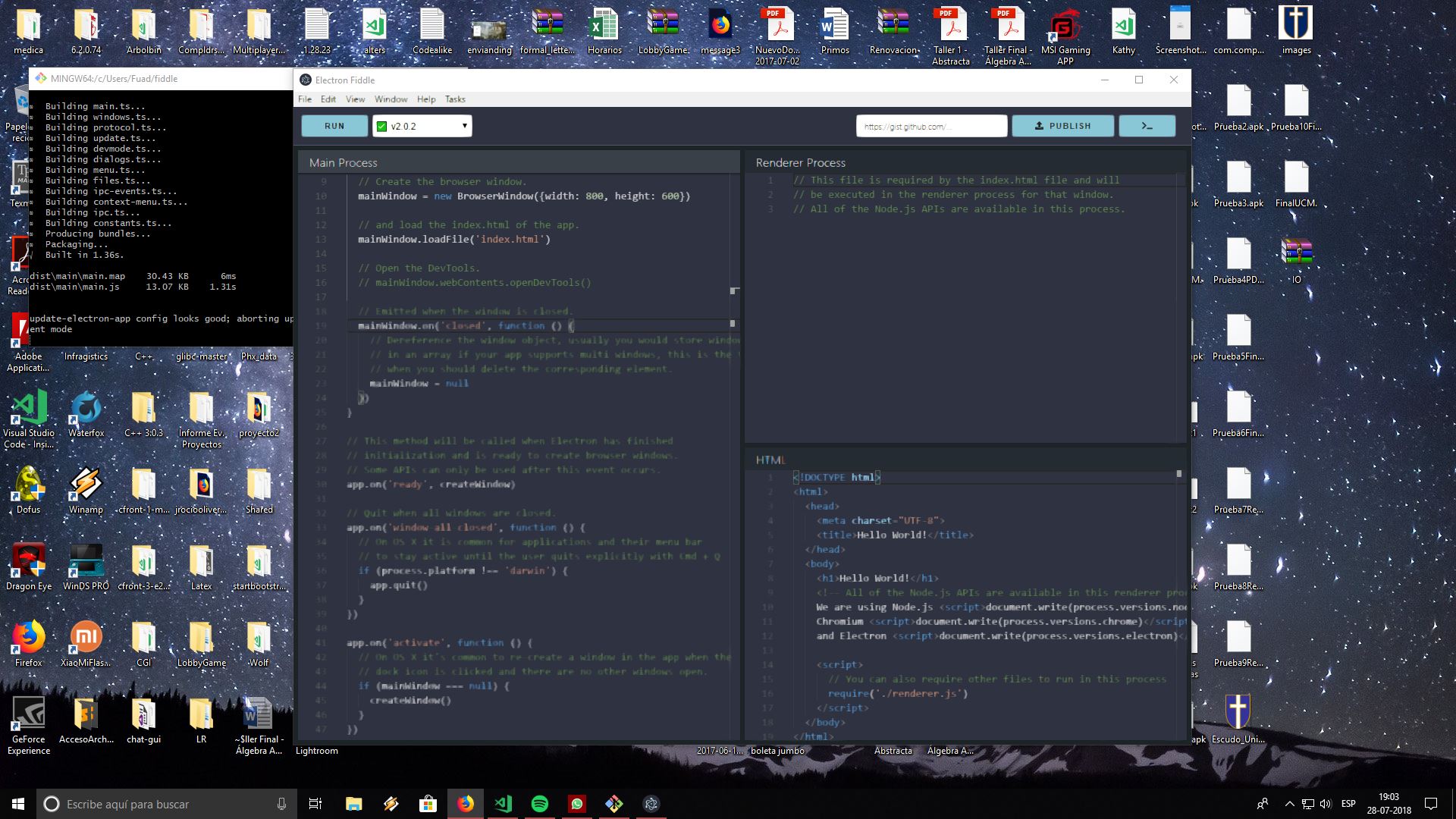

Both screenshots were made with a Windows 10 / Compilation 17134.
xLobito
on 4 Aug 2018
@MeikTranel @xLobito would you be willing to give some feedback if you can still reproduce this issue with a newer build that uses a newer Chrome version? You can download it from here. You will notice a new "VS Code Exploration" application with an orange icon.
Thanks!
bpasero
on 10 Aug 2018
@bpasero.
I just install it, and this issue is not appearing anymore. I opened the same project as before and no rendering issue is found, not even if I look for anything (which was the first approach to the related issue).
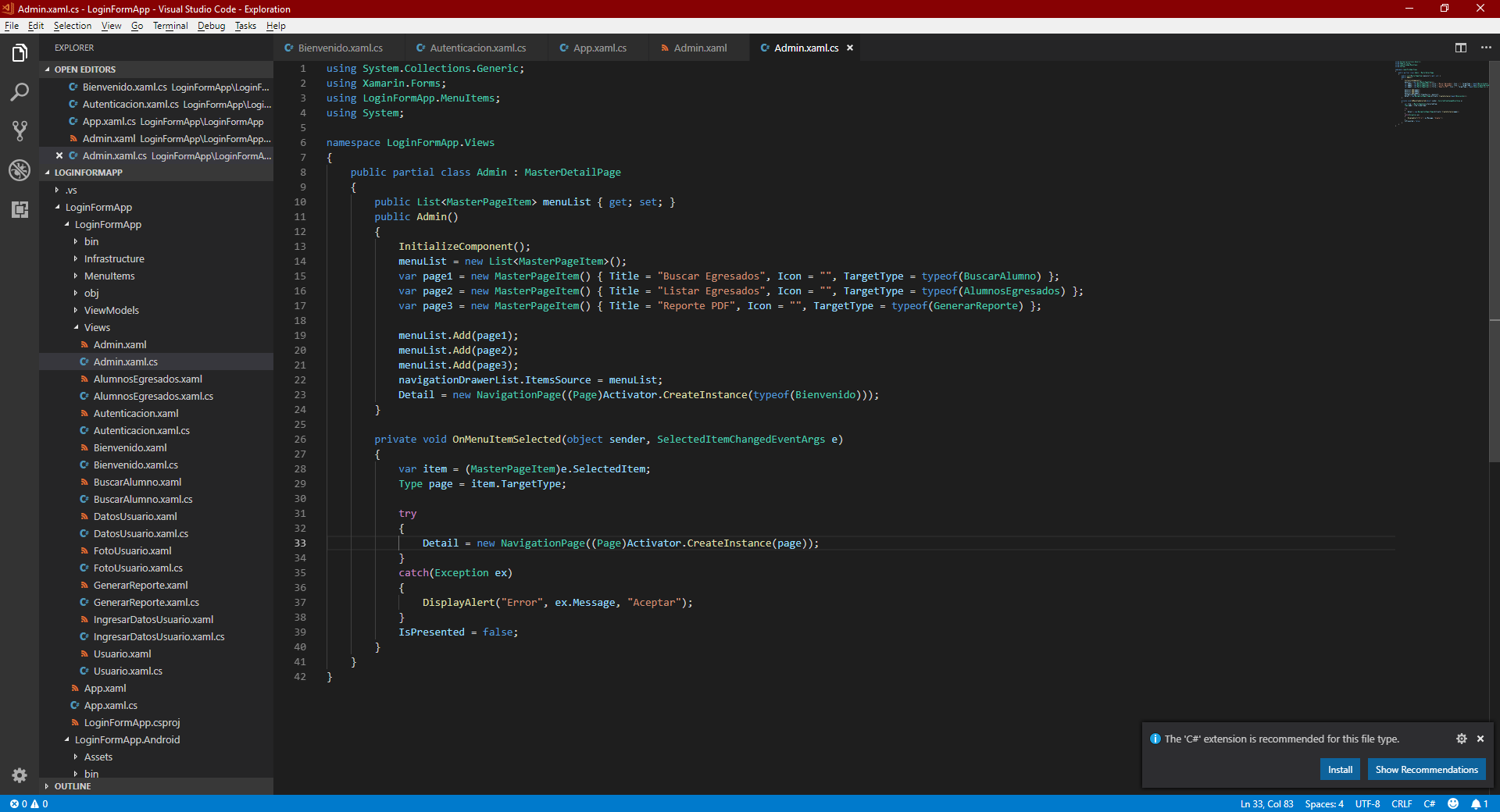
I will keep using this VS Code which it's based on Electron 3 for the time being. Thanks for this!
xLobito
on 11 Aug 2018
@bpasero I can still reproduce this issue with the new one in minutes.
OS: Windows10 1803 17134.191
Good: It looks like hovering some elements of the editor (like gifs above) won't trigger blur.
Bad: But losing focus for a while you can still observe the blur.
Here I'm sure it must be some issue between the NVIDIA driver and electron. Few days ago I just clean installed my laptop. Before that everything worked ok. The major difference is that I installed the latest display driver (398.82 released at 8.1) for my 950M. Now Visual Studio Installer, Visual Studio 2017 Community, Visual Studio Code are all facing this same issue.
Quick Fix: disable GPU acceleration
Just start vscode with the flag --disable-gpu.
 hyrious
on 11 Aug 2018
hyrious
on 11 Aug 2018
@xLobito thanks and you can still reproduce with our insiders version which is based on Electron 2.0.x right (you can give our preview releases a try from: https://code.visualstudio.com/insiders/)?
@hyrious yeah I do think it is GPU driver related
bpasero
on 11 Aug 2018
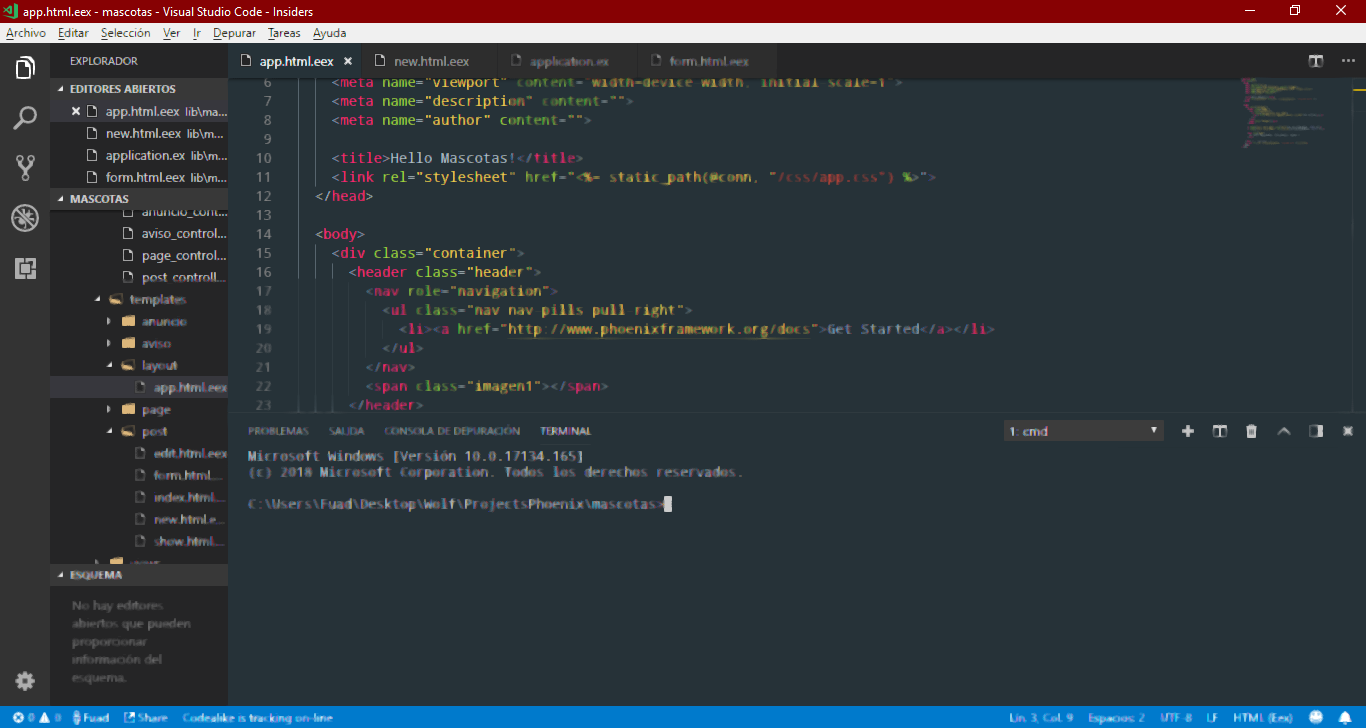
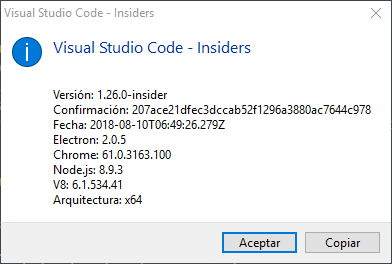
Well, by hovering or go to definition into C# (Xamarin.Forms) project doesn't trigger the issue in VS Code Exploration. Not even Visual Studio 2017 triggers the issue with my Nvidia Driver (I have one update to go, but I haven't updated yet).
The issue persists on VS Code Insiders, though. So, I will keep on using Exploration which runs fine for now.
xLobito
on 11 Aug 2018
I just noticed this as well... Getting blurriness upon loss of focus in VSC and Github Desktop as well. Sometimes distinct sections of each application will blur separately, while I'm still actively working in the app. Any fix beyond disabling GPU acceleration yet?
 michaeljblum
on 16 Aug 2018
michaeljblum
on 16 Aug 2018
@michaeljblum.
@bpasero left an install package for VS Code Exploration which is based on Electron 3.0.x. In that build, there aren't errors related to rendering or blurriness, at least for the time we've been using it.
You can dowload it from this link.
In the case of 2.0.x (The actual Insiders build), no solution is provided instead of disabling GPU Acceleration.
xLobito
on 16 Aug 2018
@xLobito
Ah, thanks, I'll give it a try.
michaeljblum
on 16 Aug 2018
@bpasero
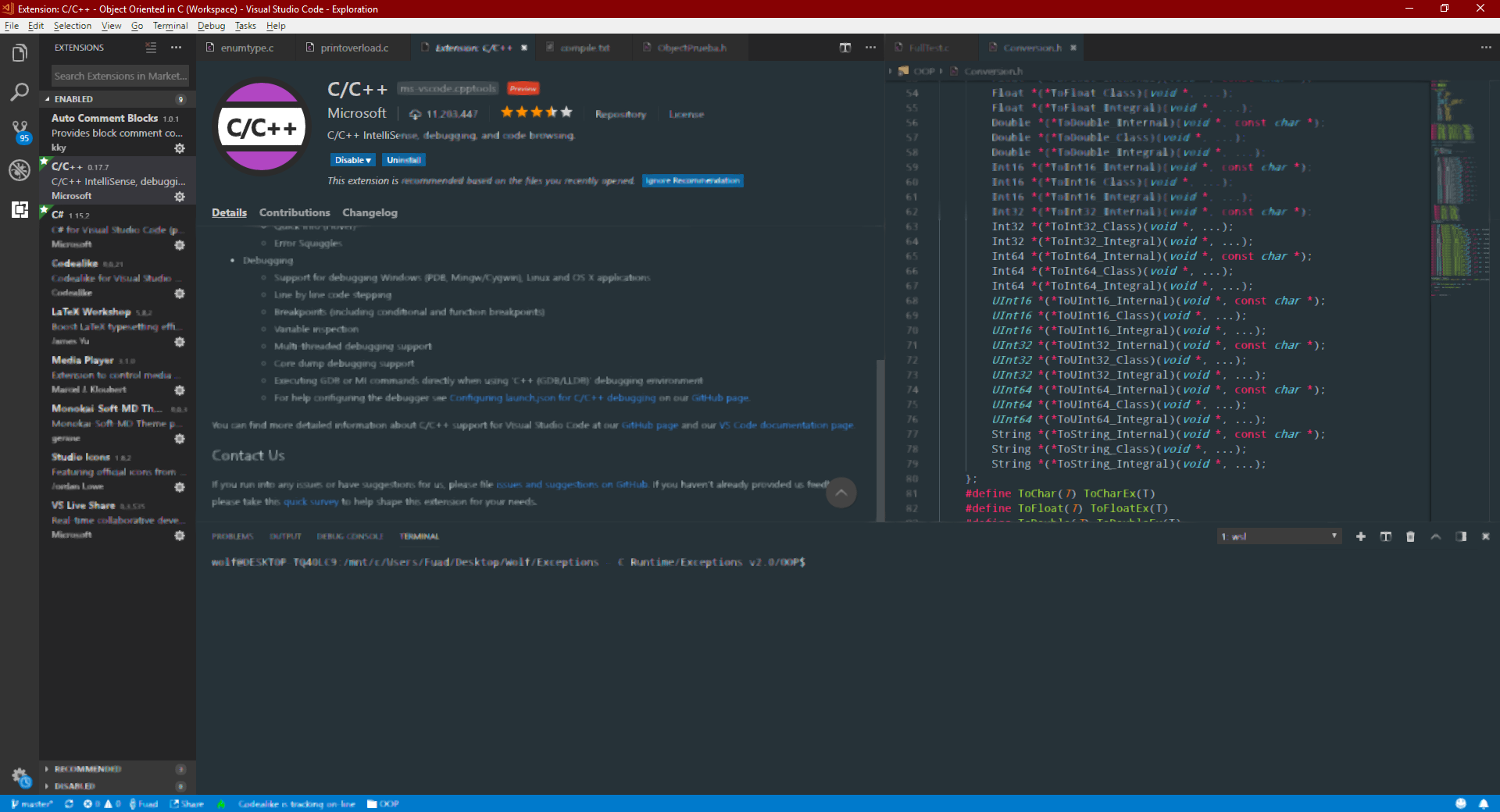
It seems the issue gets triggered if I open one extension to do anything with it (Install, Reload, Unistall, etc). If I don't do that, everything works as expected.
xLobito
on 16 Aug 2018
Hi there, having the same problem. I disabled the gpu but once i change files, move/resize the window or breath to heavy (Sorry kidding) it comes back at me. It even blinks a bit bright. Any way I would be glad to share any information I have that you might require. Having said that, i don't think at this point it will do to much good. I have found the latest Atom does it even worse. So I suspect my settings won't fix electron`
On to the next subject, I see you shared a link to VSCodeUserSetup-x64-1.27.0-exploration.exe above. Would you happen to have the link to the 64 bit zip ? Again feel free to boss me around and i will put up any items I have that will help .
 DanaMW
on 19 Aug 2018
DanaMW
on 19 Aug 2018
@DanaMW Windows 64bits: https://az764295.vo.msecnd.net/exploration/57d01751b88c89046b33be3f1d55f860041fd27b/VSCodeUserSetup-x64-1.27.0-exploration.exe
bpasero
on 19 Aug 2018
Thank you.
DanaMW
on 20 Aug 2018
Having the same issue. Did @bpasero's fix help?
 eshack94
on 22 Aug 2018
eshack94
on 22 Aug 2018
Still getting the issue even with the explorer build. I'm noticing, strangely, that the worst blurriness happens when I'm working with JS, and while using live server. When I've been working with Python, I haven't noticed any blurring.

michaeljblum
on 25 Aug 2018
i just fix the issue on my side !!!!
i try for 30 minute now, and no blur showed !!
I randomly tested setting and i get it.
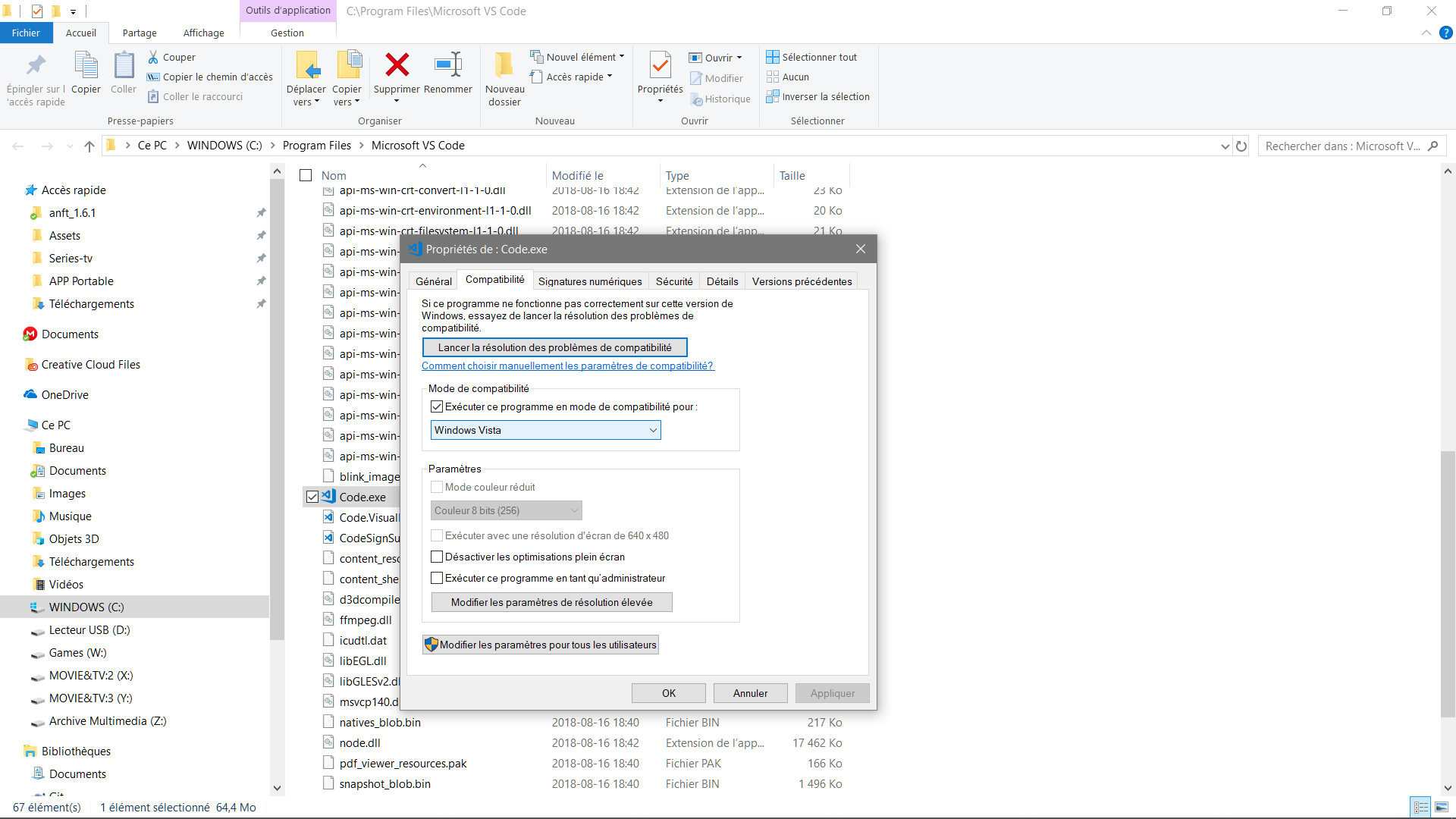
Just active window vista compatibilty !!
it the only one make not blur screen for me ! .
 djmisterjon
on 27 Aug 2018
djmisterjon
on 27 Aug 2018
@djmisterjon beware that could break other things, the terminal may not work under compatibility mode for example.
Tyriar
on 27 Aug 2018
Tried it, the terminal doesn't work the language would not load ,,, gave up on that idea...
DanaMW
on 27 Aug 2018
oh yes , it's true, am lucky , i don't use vscode terminal in my projet.
I also notice vscode seem run little slow down.
but it ok for temp fix, it allow me to work.
Waiting vscode team publish a update.
djmisterjon
on 27 Aug 2018
Just to notify. Visual Studio Live Share gets damaged if you change the compatibility mode.
Besides, the issue is not triggered while coding or edit some settings/preferences. But, if you use continously the extension block (To install something), then the blurry appears.
In the meantime, to avoid everything you should open vscode with gpu acceleration disabled.
xLobito
on 28 Aug 2018
In my case it is blurry while in the editor only when the mouse is in the panel ON the text is it not. And GPU disabled does not work completely. Unless something else is going on here, after a time it begins to blur again for me
DanaMW
on 28 Aug 2018
ok i found another way and work for me.
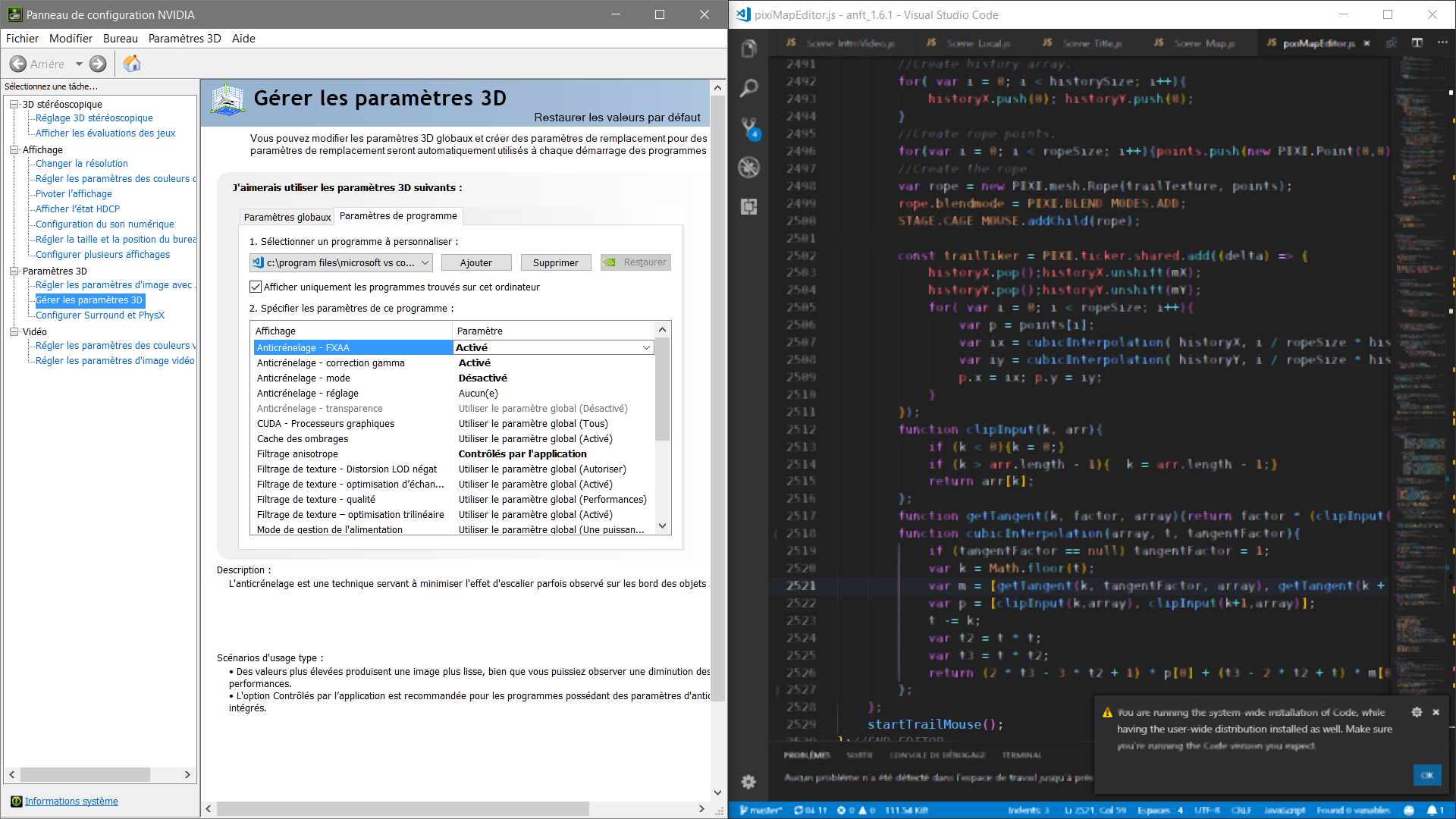
Disable this %#$%^ FXAA.
Work for me.
BEFORE
AFTER FIX
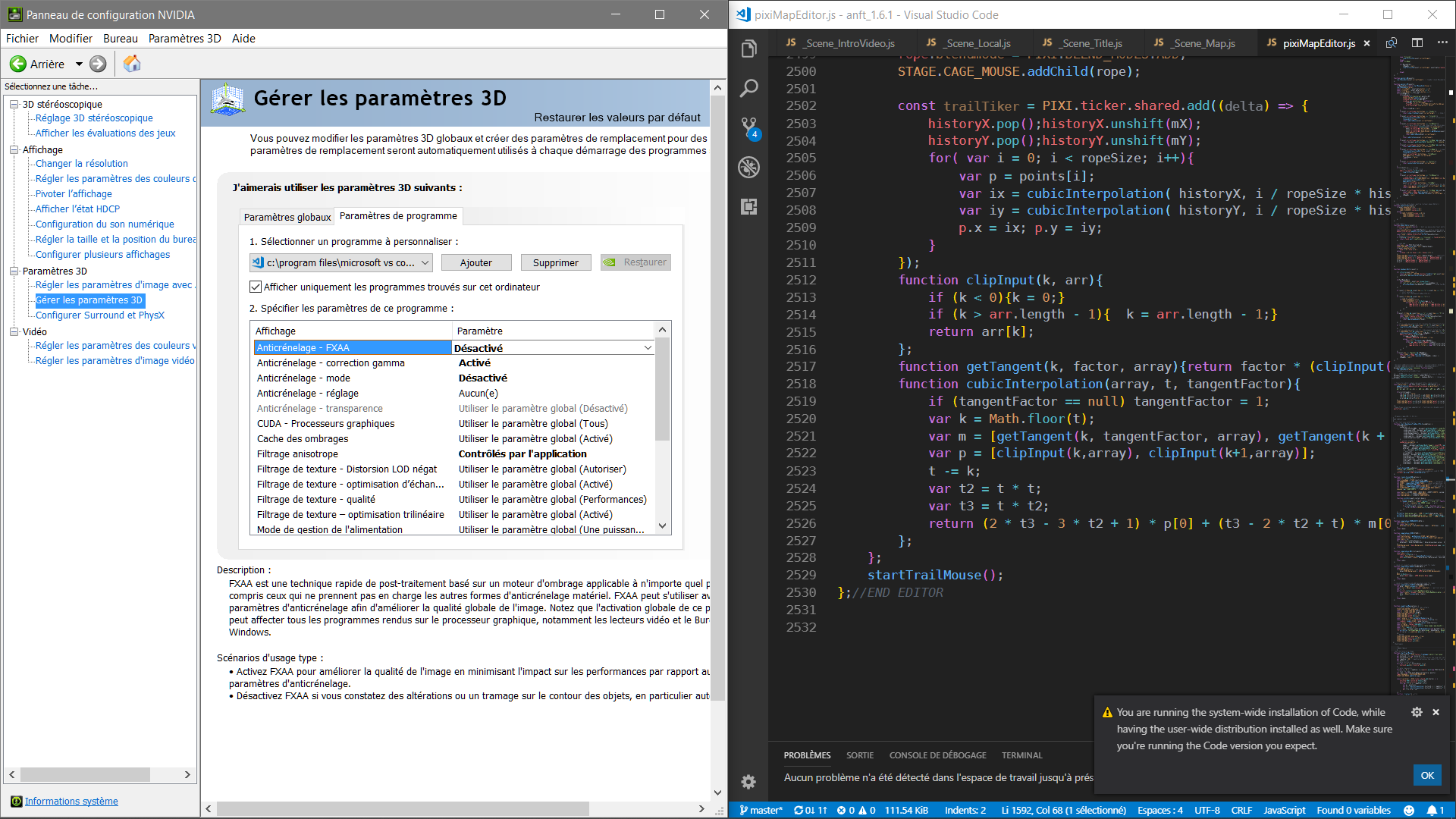
So for nvidia user and also amd but you need search how , add vscode.exe in the custom manager mode , and force disable FXAA for this app.
Also play around other features if not work.
Am happy now and you can keep gpu acceleration.
Also i notice it happen sometime on slack and github desktop, so you can do same thing here for those.
djmisterjon
on 29 Aug 2018
@djmisterjon Disabling FXAA worked for me, thank you. Make sure to set it for the right version, user vs system-wide (or both).
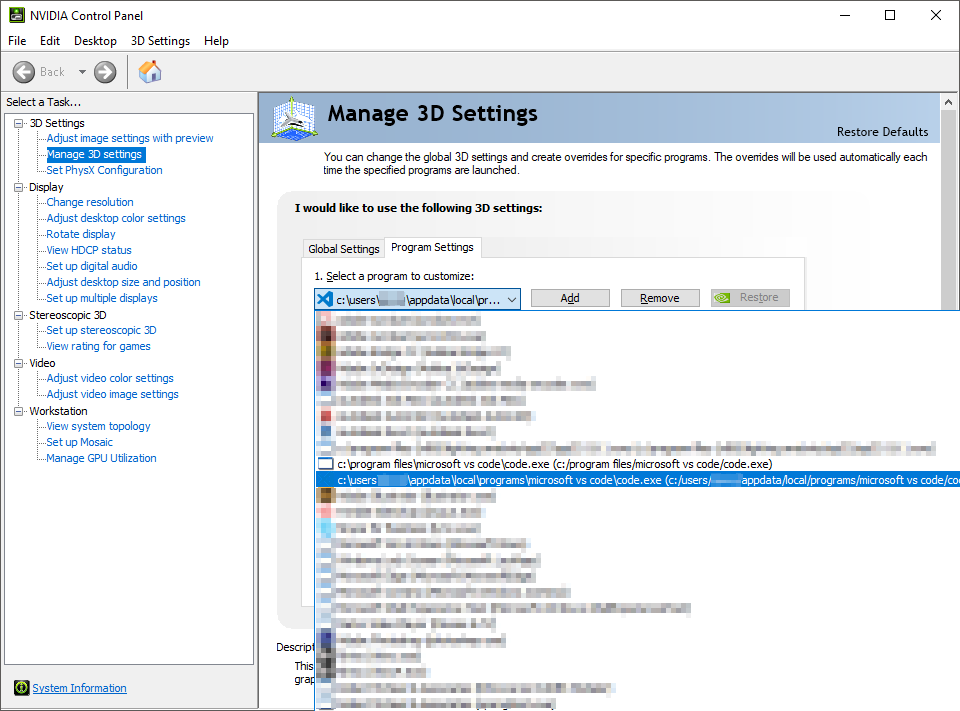
Also, for me it didn't start getting blurry until there was an overlay, like a message or the command pallette.
 Lumenade
on 29 Aug 2018
Lumenade
on 29 Aug 2018
I will try to confirm this on my machine later today and then update the electron issue if this proves to be related.
This should not be regarded as fixed though. Force disabling FXAA for certain apps isn't really handy in all situations.
MeikTranel
on 29 Aug 2018
this seem a issue for many engine with shadder.
http://pixijs.download/dev/docs/PIXI.filters.FXAAFilter.html

djmisterjon
on 29 Aug 2018
After an hour of testing @djmisterjon 's fix is the most effective. It appears to have worked here (so far) thank you.
Note: On nvida card Control panel, Manage 3D settings ,Adding Code.exe Turning FXAA Off for code.
DanaMW
on 29 Aug 2018
For me at least, the FXAA fix doesn't work. See screenshot:

 ripvannwinkler
on 29 Aug 2018
ripvannwinkler
on 29 Aug 2018
@ripvannwinkler It looks like you set the global setting, try adding settings for code.exe explicitly as specified in the other comments.
 Arcanemagus
on 30 Aug 2018
Arcanemagus
on 30 Aug 2018
It doesn't matter. Off is off, whether it's for one app or the whole system.
ripvannwinkler
on 30 Aug 2018
@ripvannwinkler
Don't forget to click on APPLY, the button are _hidden bottom Right_ of the window panel.
Also reboot vscode after apply setting.
I dont test with global parameter! , so i don't know if nvidia know the vscode app and able to force change the native anti-aliasing setting of the app.
Also try to disable or play with other anti-aliasing setting if this dont help you.
djmisterjon
on 30 Aug 2018
I can verify that 2 options for temporarily resolving the issue at hand:

- Set compatibility to Vista - resolved the issue at hand but seems to be draining the performance
- Disable FXAA for code - resolved it for me without visible performance issues:
a. Make sure to quit all vscode instances before checking if it works.
I will pass this onto the guys at electron in https://github.com/electron/electron/issues/13646
MeikTranel
on 30 Aug 2018
I did end up disabling FXAA for VS Code specifically as opposed to the global setting and have not seen any blurry text since (4+ hours of coding since last reported). It appears disabling FXAA for VS Code specifically is in fact a workable solution.
ripvannwinkler
on 30 Aug 2018
I just realized that if I start VS Code via Command line (cmd => code) I don't have this problem at all. When I start VS Code via shortcut in the Start Menu it is back again. What I also noticed is, that when I start via cmd the NVidia Experience Overlay Popup on the top right appears, which indicates that Nvidia recognized this application to be GPU accelerated. This doesn't happen when I start VS Code via start menu.
And then I noticed, that I have two installations of VS-Code. One User one System. When I enter "code" in the command line the "system installation" is started, from the start menu the user installation is started.
So I uninstalled the user installation and now everthing is fine now!
 TheMasterFX
on 13 Oct 2018
TheMasterFX
on 13 Oct 2018
Can confirm as of VS Code 1.30.1, Win 10.0.17763 and GeForce 960 with the latest drivers:
Disabling FXAA for VS Code specifically resolves blurrines on losing focus or context menus opening.
 gabaruga
on 21 Dec 2018
gabaruga
on 21 Dec 2018
Got a new laptop with a 1060 and intel integrated graphics, and the blurriness happened to me too. It's not vs code, because the blurriness also happens on edex-ui, another electron project. However, after reading this thread, I turned off FXAA like @gabaruga did in Nvidia Control panel, and now both edex-ui and vs code work perfectly.
Help info:
Version: 1.30.1 (user setup)
Commit: dea8705087adb1b5e5ae1d9123278e178656186a
Date: 2018-12-18T18:12:07.165Z
Electron: 2.0.12
Chrome: 61.0.3163.100
Node.js: 8.9.3
V8: 6.1.534.41
OS: Windows_NT x64 10.0.17763
 why-does-ie-still-exist
on 5 Jan 2019
why-does-ie-still-exist
on 5 Jan 2019
if you are run vs-code on mac-os, please run npm install electron -g ,it will solve your problem
 Mrdapeng
on 14 Jan 2019
Mrdapeng
on 14 Jan 2019
Closing this issue given that we plan to release VSCode stable early February with Electron 3.x. If you want to benefit from the fix already, consider to use our insiders version that already contains the fix: https://code.visualstudio.com/insiders/
bpasero
on 25 Jan 2019
Related issues
 omidgolparvar
·
3Comments
omidgolparvar
·
3Comments
 vsccarl
·
3Comments
vsccarl
·
3Comments
 ryan-wong
·
3Comments
ryan-wong
·
3Comments
 v-pavanp
·
3Comments
v-pavanp
·
3Comments
 villiv
·
3Comments
villiv
·
3Comments
Most helpful comment
ok i found another way and work for me.

Disable this %#$%^ FXAA.
Work for me.
BEFORE
AFTER FIX

So for nvidia user and also amd but you need search how , add vscode.exe in the custom manager mode , and force disable FXAA for this app.
Also play around other features if not work.
Am happy now and you can keep gpu acceleration.
Also i notice it happen sometime on slack and github desktop, so you can do same thing here for those.