Vscode: Paths separators in build config being escaped/stripped out prior to build command being run
- VSCode Version: 1.16.1
- OS Version: Windows 10 Version 1703 Build 15063.608
Steps to Reproduce:
- Create
launch.jsonwith the following contents:
{
    "version": "0.2.0",
    "configurations": [
        {
            "type": "typescript",
            "tsconfig": "tsconfig.json",
            "group": {
                "kind": "build",
                "isDefault": true
            }
        }
    ]
}
- Run the build task
- Produces:
/usr/bin/bash: c:UsersrobertCodeNodegraphicsnode_modules.bintsc.cmd: command not found- (notice how all the directories are run together with no directory separator) in the console(I have the shell set to use git bash, rather thancmd.exe)
Reproduces without extensions: Yes
 robertmain
All 46 comments
This works for me using the following setup:
settings.json
{
    "terminal.integrated.shell.windows": "C:\\Program Files\\Git\\bin\\bash.exe"
}
tasks.json
{
    // See https://go.microsoft.com/fwlink/?LinkId=733558
    // for the documentation about the tasks.json format
    "version": "2.0.0",
    "tasks": [
        {
            "type": "typescript",
            "tsconfig": "tsconfig.json",
            "problemMatcher": [
                "$tsc"
            ],
            "group": {
                "kind": "build",
                "isDefault": true
            }
        }
    ]
}
Can you please provide a setup that I could clone that demos your problem.
 dbaeumer
on 5 Oct 2017
dbaeumer
on 5 Oct 2017
Sure thing.
settings.json:
{
    "terminal.integrated.shell.windows": "C:\\Program Files\\Git\\bin\\bash.exe",
    "window.zoomLevel": 0,
    "gist.oauth_token": "[REDACTED]",
    "editor.detectIndentation": false,
    "editor.multiCursorModifier": "ctrlCmd",
    "editor.lineHeight": 25,
    "terminal.external.windowsExec": "C:\\Program Files\\Git\bin\\bash.exe --login -i",
    "window.menuBarVisibility": "default",
    "workbench.colorTheme": "Atom One Dark"
}
tasks.json:
{
    "version": "2.0.0",
    "tasks": [
        {
            "type": "typescript",
            "tsconfig": "tsconfig.json",
            "problemMatcher": [
                "$tsc"
            ],
            "group": {
                "kind": "build",
                "isDefault": true
            }
        }
    ]
}
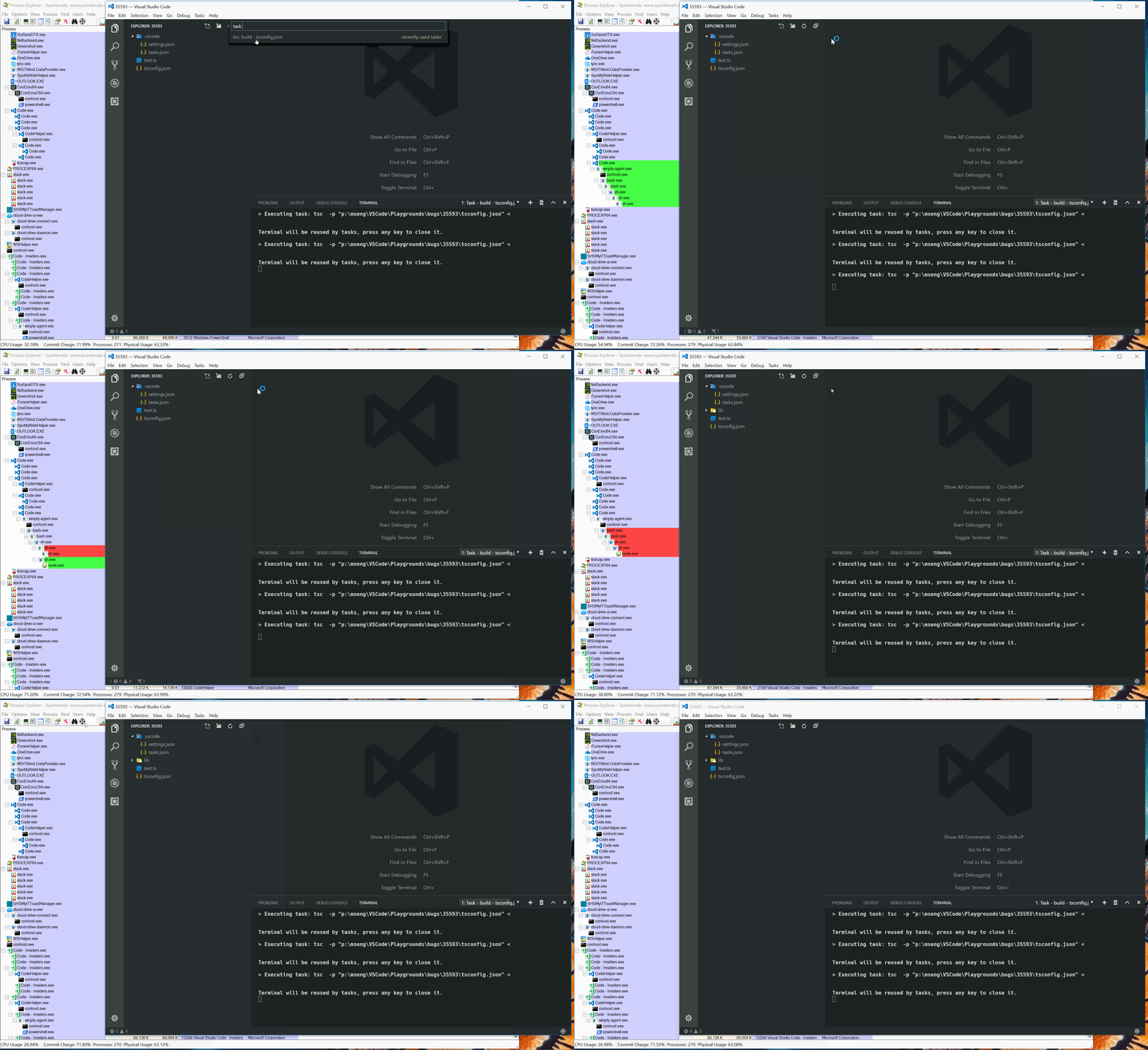
It kind of looks like the slashes are being somehow stripped away from the command before it hits the bash shell? Or perhaps that's a red herring and the response from bash is having the slashes stripped...not sure - either way it looks like something is awry..
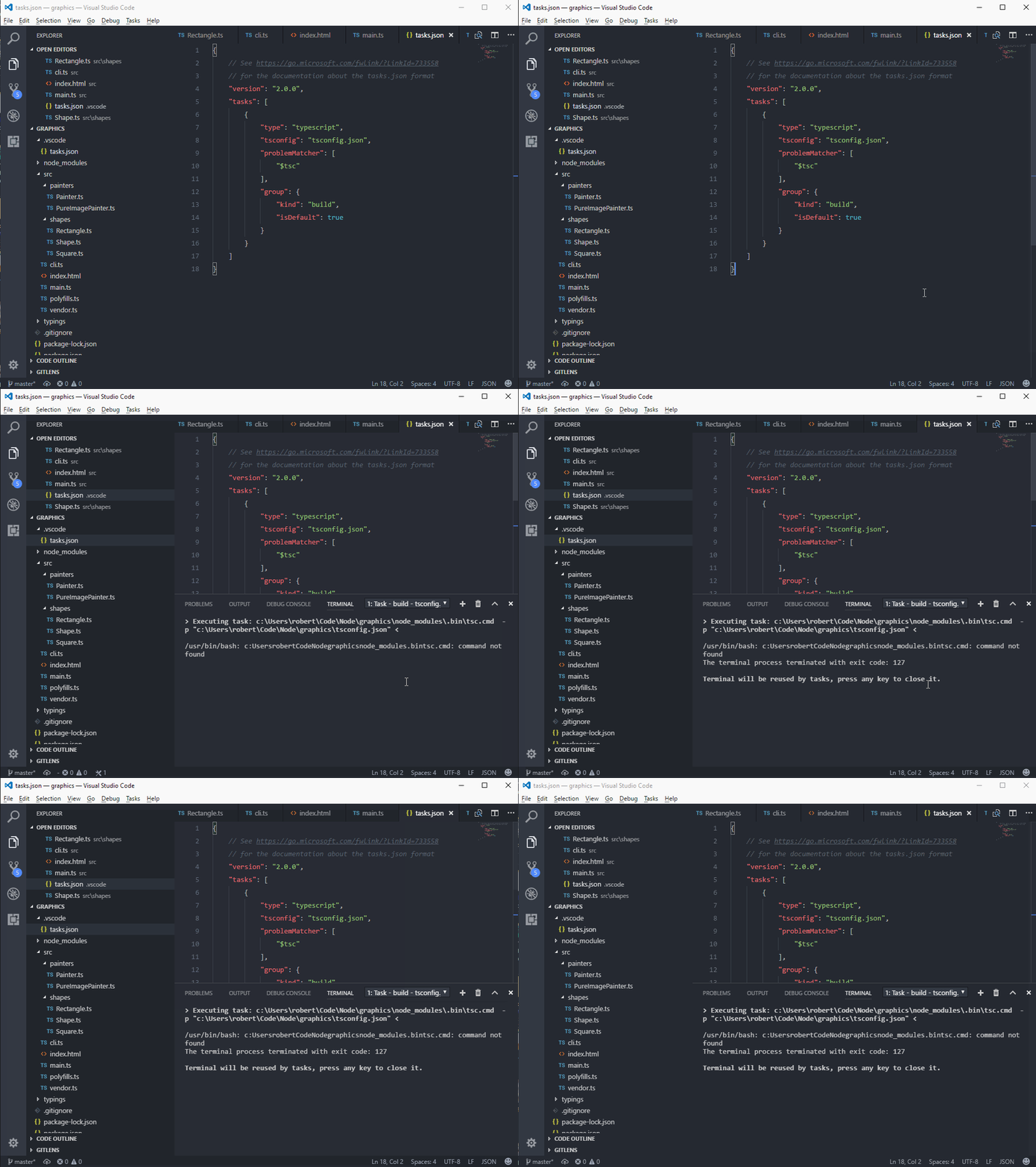
If I remove "terminal.integrated.shell.windows": "C:\\Program Files\\Git\\bin\\bash.exe", (presumably causing VSCode to fall back to cmd.exe) the command works perfectly.
robertmain
on 5 Oct 2017
OK. The trick is to have TypeScript installed locally in the workspace.
dbaeumer
on 6 Oct 2017
The problem is that "p:\mseng\VSCode\Playgrounds\bugs\35593\node_modules.bin\tsc.cmd" is not a valid path under Git Bash and it is not under WSL Bash either. I will make the item as WSL since we need to tackle this together. The underlying problem is that running under Windows is not a good enough indication to use . When running a bash under Windows you still need to use /
dbaeumer
on 6 Oct 2017
OK. The trick is to have TypeScript installed locally in the workspace.
Presumably by this you mean npm install typescript instead of npm install -g typescript? Can I ask why this is? Surely it should work globally and locally? Especially since the instructions here say to install it globally like that. Plus, would you not need to have it globally installed in order to have the command-line utility?
I will make the item as WSL since we need to tackle this together.
I'm afraid I'm very new to VSCode and the Windows development ecosystem, Might I assume you're referring to Windows Subsystem for Linux?
If so, it might be worth noting that I'm not actually using WSL - but Git Bash (unless git bash wraps WSL, that is)
The underlying problem is that running under Windows is not a good enough indication to use
.When running a bash under Windows you still need to use/
I'm not quite sure what you mean by this
robertmain
on 6 Oct 2017
Sorry a character missing. When running under Windows we assume \ is the path separator. But this is not correct when using WSL-bash or git bash since both use '/' as the path separator. This is why they should be tackled together since the fix is the same for both.
dbaeumer
on 6 Oct 2017
Regarding global versus local. If installed locally we use a full path to the local install which contains \ as the path separator and therefore fails. When TS is only installed globally we use tsc only whithout a qualifying path hence no \ in the path.
dbaeumer
on 6 Oct 2017
Well it's installed globally for me - are you saying I should have it local instead, because the TypeScript website says to install it globally
robertmain
on 6 Oct 2017
It looks like you have it locally and globally installed. You local version is here:
c:\Users\Robert\Code\Node\graphics\node_modules\typescript
dbaeumer
on 11 Oct 2017
That's weird - not sure how that's happening...this is the package.json for my project:
{
  "name": "backend",
  "version": "1.0.0",
  "description": "Backend for node jukebox",
  "main": "index.js",
  "scripts": {
    "test": "echo \"Error: no test specified\" && exit 1"
  },
  "author": "Robert Main",
  "license": "ISC",
  "repository": {
    "type": "git",
    "url": "[email protected]:robertmain/jukebox.git"
  },
  "dependencies": {
    "@types/fluent-ffmpeg": "^2.1.4",
    "@types/node": "^8.0.33",
    "fluent-ffmpeg": "^2.1.2",
    "speaker": "^0.4.0"
  }
}
I just verified that TypeScript build fails in exactly the same way as I described in #40954:
> Executing task: d:\projects\[redacted]\node_modules\.bin\tsc.cmd -p "d:\projects\[redacted]\tsconfig.json" <

bash: d:projects[redacted]node_modules.bintsc.cmd: command not found
The terminal process terminated with exit code: 127

Terminal will be reused by tasks, press any key to close it.
I tried with ONLY the following two lines in my user settings:
    "terminal.integrated.shell.windows": "C:\\devel\\msys64\\usr\\bin\\bash.exe",
    "terminal.integrated.shellArgs.windows": ["--login", "-i"]
Same result. Also same if I remove the shellArgs line.
I also just now tried:
"terminal.integrated.shell.windows": "C:\\Devel\\Git\\bin\\bash.exe",
That points to a recent Git bash install (which is based on MSYS2 as well; older Git bash was MSYS1). Same result.
I do note that my Git bash isn't installed in the default location, though @dbaeumer above has an example with Git bash in the default install location. VS Code wouldn't be doing something uncool like pattern matching the full install path, would it?
 TimMensch
on 30 Dec 2017
TimMensch
on 30 Dec 2017
I seem to recall that the error messages I was getting seemed to point toward something stripping the slashes from the path...so something like C:\\path\\to\\git\\bash.exe would get mangled into C:pathtogitbash.exe which windows would (understandably) get upset about
robertmain
on 30 Dec 2017
What would be the consequences of making VS Code use forward slashes for all Windows paths? That way they would work in CMD, PowerShell and Bash, no?
 geirsagberg
on 10 Feb 2018
geirsagberg
on 10 Feb 2018
Changing "terminal.integrated.shell.windows" to CMD works. What is the workaround for using bash?
 sagarpomal
on 7 Mar 2018
sagarpomal
on 7 Mar 2018
I think that in the meantime you can warn us that chosing "terminal.integrated.shell.windows" to bash is useless with tsc
 emilioplatzer
on 12 Apr 2018
emilioplatzer
on 12 Apr 2018
Windows is perfectly happy with / so let's standardize on that.
 genifycom
on 3 May 2018
genifycom
on 3 May 2018
I'd like to be able to set terminal.integrated.shell.windows to C:\\Windows\\sysnative\\bash.exe so that I can use the bash shell from Windows Subsystem for Linux. When I do this and try to run the tsc: build task, it fails with:
> Executing task: tsc -p c:\Users\Justin\workspace\tsconfig.json <

error TS5058: The specified path does not exist: 'c:UsersJustinworkspacetsconfig.json'.
The terminal process terminated with exit code: 1
From my limited understanding, the Windows file system and APIs are fine with / as a path separator; it's only the CMD command line that has a problem with it.
Perhaps if VS Code could expose a setting which is which path separator to use, people affected by this problem could enable /, without confusing other Windows users who may be surprised to see forward-slash paths.
 jcrites
on 23 Jun 2018
jcrites
on 23 Jun 2018
There are two issues here:
- Path separators
- Picking which "batch file" to run (node_modules/,bin/xxx OR node_modules/,bin/xxx.cmd)
I suspect both are caused by internal code which checks what the underlying OS is prior to submitting commands to the terminal.
I would suggest adding a method to the terminal manager "getOS" which returns an object similar to NodeJS "os" - but primed with the correct information based on the shell type rather than the underlying OS (and then use that variant whenever sending commands to the terminal).
Since I know nothing of the vscode internals, the above should be easy!!!
 GordonSmith
on 29 Jul 2018
GordonSmith
on 29 Jul 2018
I had the same issue today, but only for one project.
After debugging a little bit I realized that the other projects only worked because they had a space in the path somewhere which triggerd VS Code to quote the path.
I added a space to the name of the project directory and it works now.
Doesn't work:
Executing task: tsc -p e:\project\tsconfig.json
Works:
Executing task: tsc -p 'e:\my project\tsconfig.json'
This is obviously just a workaround, but it might still be useful to some.
 anreinha
on 14 Sep 2018
anreinha
on 14 Sep 2018
I have a very hacky way of dealing with this. I certainly don't recommend this for normal projects -- it should really be fixed properly by the vscode team and other extensions that swap out the supplied paths with their own.
My setup: Using Cygwin bash with conda. Visual studio required me to select a python interpreter, but would only use a Windows path on the bash terminal for activation. Thus:
MINGW64 /d/Grar/str-bbb/TF (master)
$ D:\Conda\Scripts\activate tf_gpu
bash: D:CondaScriptsactivate: command not found
I worked around this by defining a script called D:CondaScriptsactivate
$ cat D:CondaScriptsactivate
#!/bin/bash

/d/Conda/Scripts/activate $1
I then added the current directory to my path via bashrc:
$ cat ~/.bashrc
export PATH=$PATH:"/d/Conda Lo/Scripts":/d/Grar/str-bbb/TF
A last thing I did was to make a symbolic link to Conda that contained a space -- this turned out to be unnecessary for my application, but it may help for others where Visual Code substitutes paths with quotes directly due to spaces in directory names. Thus the path contains "/d/Conda Lo/Scripts"
I offer this as a temporary workaround... It's certainly not a thing I would normally do, but the other solutions posted were more work for a variety of reasons.
 jnclayiii
on 25 Nov 2018
jnclayiii
on 25 Nov 2018
Well, in the newly downloaded version 1.30 of Code, it does not respect the Terminal Internal/External settings and use the internal terminal not matter if it is set in workspace or user settings. Isn't it Code that launche the terminal and hence also should know if forward or backward slashes should be used. It is pretty annoying you can't use Bash as integrated terminal on Windows.
 hoegge
on 13 Dec 2018
hoegge
on 13 Dec 2018
@hoegge what exactly do you mean by
Code, it does not respect the Terminal Internal/External settings and use the internal terminal not matter if it is set in workspace or user settings
task could never be executed in an external terminal. They always ran in an internal terminal.
dbaeumer
on 14 Dec 2018
I try to execute my tsc watch build, but as noted above, it strips all the backslashes and does not work. Does not seem to be the case in all projects. What is the solution that works on Windows, using bash or not and having Typescript installed globally or locally. All scenarios should always work, right?
hoegge
on 15 Dec 2018
As pointed out earlier currently tasks assume Windows paths when run under Windows. We agree that it should work with bash as well this is why we are tracking this in this issue.
dbaeumer
on 17 Dec 2018
Depends on #38381
 xtqqczze
on 18 Jan 2019
xtqqczze
on 18 Jan 2019
How to Fix: "Visual Code Removes Slashes in Path during Build Task" (March 18, 2019)
This issue is related to Build task removes slashes in path #48149.
Background
I am on a windows 10 system. I installed Visual Code (VC). I want to run my git bash shell as the integrated shell used by VC (see #7286 Make Git-Bash my Integrate Shell in Visual Code). After, I integrated the bash shell into VC, I noticed that the slashes were being consumed.
In Bash, in order to preserve the literal string value, you enclose the string value within double quotes, e.g, "HelloWorld" (see Purpose of Single- Double- Quote(s) in Bash). Also, the $ bash-command in $file is an expansion command. It will expand, .i.e, inject, the filename. Hence, the expansion of the filename into double quotes will preserve the literal value of each character in the filename string.
Method
In build task change the wrong command of "command": "/c/ProgramData/Anaconda3/python ${file}", to the right command of "command": "/c/ProgramData/Anaconda3/python \"${file}\"".
Result
{
    // See https://go.microsoft.com/fwlink/?LinkId=733558
    // for the documentation about the tasks.json format
    "version": "2.0.0",
    "tasks": [
        {
            "label": "py3",
            "type": "shell",
            "command": "/c/ProgramData/Anaconda3/python \"${file}\"",
            "group": {
                "kind": "build",
                "isDefault": true
            }
        }
    ]
}
Note that the following is my VC settings json.
{
    "python.pythonPath": "C:\\Users\\Constantine\\Anaconda3\\pythonw.exe",
    "workbench.colorTheme": "Solarized-dark",
    "telemetry.enableTelemetry": false,
    "telemetry.enableCrashReporter": false,
    "editor.multiCursorModifier": "ctrlCmd",
    "terminal.integrated.shell.windows": "C:\\Program Files\\Git\\bin\\bash.exe",
}
Discussion
This worked on my Windows 10 System.
Reference
Appendix
Run Bash Script
The following is a sample build task for executing a bash script. To avoid issues with visual code, do not use a path that contains spaces. If the path contains spaces, then an unexpected end of file error will be thrown. This error arises when there exists a mismatch in the open and close of a code structure such as a missing double quotation (see Shell Script Syntax Error: Unexpected End of File). It is important to use the short version of the path. In windows10, the short version of the program files directory are as follows: (a) C:\PROGRA~1 is C:\Program Files and (b) C:\PROGRA~2 is C:\Program Files (x86). Below is an example of a build task to run a bash script in visual code. As observed the short version of the path to the bash interpreter is used.
Build Task to Run Bash Script in Visual Code
{
    // See https://go.microsoft.com/fwlink/?LinkId=733558
    // for the documentation about the tasks.json format
    "version": "2.0.0",
    "tasks": [
        {
            "label": "py3",
            "type": "shell",
            "command": "/c/ProgramData/Anaconda3/python \"${file}\"",
            "group": "build"
        },
        {
            "label": "sh",
            "type": "shell",
            "command": "/c/PROGRA~1/Git/bin/bash.exe \"${file}\"",
            "group": {
                "kind": "build",
                "isDefault": true
            }
        }
    ]
}
 Atomfighter10101
on 18 Mar 2019
Atomfighter10101
on 18 Mar 2019
@Atomfighter10101 has a great explanation, but I've found a simpler fix is just to do this:
{
  // See https://go.microsoft.com/fwlink/?LinkId=733558
  // for the documentation about the tasks.json format
  "version": "2.0.0",
  "tasks": [
    {
      "label": "sh",
      "type": "shell",
      "command": "tsc -w -p .",
      "group": {
        "kind": "build",
        "isDefault": true
      }
    }
  ]
}
Since the command is already executed in the context of your set terminal (git-bash, in this case) it already assumes "/bin/bash" at the command prompt; you don't need to specify the path.
If you run the build task in VS Code from the working directory you intend to compile TS from, it will work as though you executed the command directly in the terminal.
> Executing task: tsc -w -p . <

[10:07:22] Starting compilation in watch mode...

[10:07:27] Found 0 errors. Watching for file changes.

[10:10:18] File change detected. Starting incremental compilation...

[10:10:18] Found 0 errors. Watching for file changes.
 methodbox
on 30 Mar 2019
methodbox
on 30 Mar 2019
If you don't have to use bash.exe as your shell for tasks, you can set a tasks specific shell in your individual tasks in tasks.json:
                        "windows": {
                "options": {
                    "shell": {
                        "executable": "cmd.exe",
                        "args": ["/d", "/c"]
                    }
                },
            }
 alexr00
on 2 May 2019
alexr00
on 2 May 2019
We just announced remote development with VS Code, check out the blog post for details https://code.visualstudio.com/blogs/2019/05/02/remote-development
 RMacfarlane
on 2 May 2019
RMacfarlane
on 2 May 2019
@RMacfarlane Sorry, but this bug is _not_ the same as the Remote Development feature.
This bug is about running Bash as a WINDOWS app, not Bash in Ubuntu. As in, using MSYS/MinGW/Cygwin Bash.
Please reopen.
TimMensch
on 2 May 2019
@RMacfarlane thanks for the tip, though! The problem that solves is the reason I use a Mac, but it makes Windows a bit more attractive.
I’m curious if that integration might solve the issues we see trying to use git-bash (or others listed above) in the Windows environment, in addition to its target usage.
methodbox
on 2 May 2019
Any arbitrary parameters can be used in tasks. These parameters can include whatever paths you want. But, tasks doesn't have a way of telling which of these parameters are paths and which just have slashes in them. For tsc.cmd, that comes from the typescript extension. The typescript extension creates the path to tsc.cmd. The typescript extension only knows that it's running on Windows, it doesn't care which shell you are using, so it uses Windows path separators. The tasks system doesn't know that this is path, it only knows that it has a task that came from the typescript extension*.
Since there isn't a good way to deal with paths like this, our best answer to you is that you have two options that will "just work":
- Keep using git bash or your favorite shell for non-task terminals and add this to your tasks.json.
- Use the full WSL environment: https://code.visualstudio.com/blogs/2019/05/02/remote-development
* Yes, we could enable the typescript extension to know that the path separators are different, but this doesn't scale well since _every_ extension that contributes a task would need to do the same thing. We could also have tasks authors mark paths as paths, and the do the separator conversion in the tasks system. However, tasks can already be very complicated to author, and this will only make them more complicated. I am open to suggestions though!
alexr00
on 3 May 2019
Just so we are clear, my solution fixes this in Windows; I’m usually a Mac user but I have to work in Windows often, too.
I’ve used that task config to solve this (and this is a behavior caused by git-bash not VS Code) and have been using it for weeks without issue.
The task runs in git-bash just fine, but git-bash turns paths in Windows into Unix-like paths and this is what “breaks” it; it’s not relevant though, since the command can work off your relative project path.
methodbox
on 3 May 2019
Having this and may a special variable to convert a path to cygwin would help as well.
dbaeumer
on 8 May 2019
@alexr00 are there steps to verify?
dbaeumer
on 8 May 2019
No, this is one of the tasks that we closed because the best solution is to use VS Code Remote WSL.
alexr00
on 8 May 2019
@alexr00 Incorrectly closed out, unless there's a tracking bug in a TypeScript extension repository that I'm not aware of.
VS Code Remote WSL doesn't solve the problem. I don't want to (and am not trying to) run remote to the Bash subsystem. I want to run the Windows MSYS shell, which is a Windows app.
Just saying that "it's a hard problem" (i.e., each extension would need a fix) doesn't mean that it's not a real problem that needs to be solved. _And_ it doesn't mean that it's not VS Code's responsibility to _just work_.
This is still a VS Code bug, and "brushing it under the rug because it's hard" isn't a good look.
TimMensch
on 8 May 2019
@alexr00 the best solution is the extremely simple one I posted like 10 posts ago and is a heck of a lot more simple to implement than converting operating systems.
In fact, I’d say “use WSL” is probably the worst solution as it isn’t one at all for those of us working in a Windows Server VDI environment (which I’m unfortunately stuck with instead of my Mac, at work).
It’s completely unnecessary to use WSL for this.
@TimMensch
@dbaeumer
Install git-bash for Windows (it uses Cygwin under the hood). Follow the instructions in the VS Code docs to enable it as your primary terminal (I think you can just use regular settings now vs. settings.json).
Then modify the default build task in your project with the settings I posted here (earlier in this thread that no one apparently read): https://github.com/microsoft/vscode/issues/35593#issuecomment-478254538
This isn’t a bug in VS Code. It’s a problem with how Cygwin/git-bash handle relative paths and slashes in Windows.
VS Code team could feasibly account for this in a build task provided for this kind of setup, but not all bash for Windows programs have the exact same issue.
On saving the build task, VS Code will create a .vscode folder in your working directory.
I simply commit this along with a tsconfig.json, tslint and prettier config and have a repo that I pull down when starting a new TS project.
I have been using this since that post on multiple projects with no issue.
methodbox
on 8 May 2019
@methodbox Your fix works for starting the tsc watch task manually, but not as a dependency of a launch task.
When I set "preLaunchTask": "tsc-api", in launch.json, it never actually gets to the launch task -- it just spins forever.
So yes, I _could_ use that workaround, but then I couldn't have my debug task actually depend on it. Unless you have a workaround for that as well?
TimMensch
on 8 May 2019
@methodbox Your fix works for starting the tsc watch task manually, but not as a dependency of a launch task.
When I set
"preLaunchTask": "tsc-api",inlaunch.json, it never actually gets to the launch task -- it just spins forever.So yes, I _could_ use that workaround, but then I couldn't have my debug task actually depend on it. Unless you have a workaround for that as well?
There's no need to get snarky with someone trying to help you. I'd also encourage you to remember that while this is a Microsoft creation, it's also open-source software with community collaborators.
Your issue also (per your own post) isn't related to Bash, unless that's changed. You may want to open a separate issue, because it sounds like a completely different problem that may happen to have some similarities to this one.
If you aren't using Git-Bash or Cygwin or MinTTY, this issue probably doesn't relate to you.
_From the original post:_
Produces: /usr/bin/bash: c:UsersrobertCodeNodegraphicsnode_modules.bintsc.cmd: command not found - (notice how all the directories are run together with no directory separator) in the console(I have the shell set to use git bash, rather than cmd.exe)
That said, my example is the simplest form of a build task. Maybe compare it with the docs to add the functionality you're looking for.
Don't expect your custom environment to work out of the box.
methodbox
on 8 May 2019
@methodbox Not snark. Serious question. If you had a workaround for that, I'd be happy with a fix. Sorry if it came out snarky.
If you'll note, way above I posted my own experience:
> Executing task: d:\projects\[redacted]\node_modules\.bin\tsc.cmd -p "d:\projects\[redacted]\tsconfig.json" <

bash: d:projects[redacted]node_modules.bintsc.cmd: command not found
The terminal process terminated with exit code: 127

Terminal will be reused by tasks, press any key to close it.
See the example with all the directories running together? Because Bash treats the backslashes as escapes? Yeah, that's the exact same issue as the original bug reported. And it's not fixed, and WSL is not a workaround.
It's not any more of a "custom environment" than you're suggesting -- using MSYS as the internal terminal. Because I don't want to use CMD or PowerShell ever, and I'm far from alone in that desire.
My note was just pointing out that I can't use your workaround because it doesn't work with launch.json dependencies. A typescript task can notify launch.json tasks that the first build is done, and a shell task apparently can't.
There _is_ another related issue having to do with path handling, and I did in fact file a bug for it: https://github.com/microsoft/vscode/issues/68812 -- in that case the problem is that the typescript tasks fail to recognize forward vs. reverse slashes, and if I _could_ add a ${pathSeparator}, I could at least fix _that_ issue.
If the bug is in the TypeScript plugin, then so be it -- fix it in the TypeScript plugin. But closing it without fixing it? That's not cool.
TimMensch
on 8 May 2019
A member of the community has created a PR for #68812 which I will merge when we are done with endgame.
A shell task can be used as a prelaunch task in launch.json. It either needs to be a task that has a definite start and end (i.e., not a watching task), or you just need to use an appropriate problem matcher so that we can tell when the task is "done".
alexr00
on 9 May 2019
I'm kind of confused, though: why do we need to pass the command to a shell here, anyway?
In other words, why not just use ProcessExecution instead of ShellExecution? It's not like the TypeScript tasks want any shell expansion done or anything: the program/arguments are even pre-split!
If there's not a good reason, then there we are, should be a simple fix.
If there is a good reason, then that reason should be discussed (or at least mentioned and linked) on https://code.visualstudio.com/api/extension-guides/task-provider.
 SamB
on 26 May 2019
SamB
on 26 May 2019
I'm kind of confused, though: why do we need to pass the command to a shell here, anyway?
In other words, why not just use
ProcessExecutioninstead ofShellExecution? It's not like the TypeScript tasks want any shell expansion done or anything: the program/arguments are even pre-split!If there's not a good reason, then there we are, should be a simple fix.
If there is a good reason, then that reason should be discussed (or at least mentioned and linked) on https://code.visualstudio.com/api/extension-guides/task-provider.
Correct me if I'm wrong, but wouldn't ProcessExecution execute a native process in the context of the OS?
I believe the tsc command has to be executed in the context of the shell. However, if this isn't the case, I'm all for not opening a second shell session just to run the compiler in the background.
Hell, I'm all for having the compiler be integrated directly with VSCode.
methodbox
on 27 May 2019
I believe the
tsccommand has to be executed in the context of the shell. However, if this isn't the case, I'm all for not opening a second shell session just to run the compiler in the background.
Hmm. You may be right; I'm still used to the way it works on *nix, where the calling process doesn't need to do anything special to run a script, as long as the script starts with an appropriate shebang line. I mean, I'm quite aware that that's not how Windows does it, that command lines are passed as a single string, and that when you run a script from the command line, the interpreter is looked up in the registry based on the file extension ...
But I forgot that this isn't part of CreateProcess's contract, but is (supposed to be) done elsewhere, e.g. ShellExecuteEx. (Which, by the way, refers to an entirely different kind of shell.)
I'm not really sure what ProcessExecution actually does, though. I suppose I could try looking at the implementation ...
SamB
on 27 May 2019
@SamB
When a sh or bash script is run on *nix, this initiates a session in the respective shell, too, but that shell doesn’t replace your current session.
methodbox
on 27 May 2019
Related issues
 NikosEfthias
·
3Comments
NikosEfthias
·
3Comments
 DovydasNavickas
·
3Comments
DovydasNavickas
·
3Comments
 omidgolparvar
·
3Comments
omidgolparvar
·
3Comments
 trstringer
·
3Comments
trstringer
·
3Comments
 borekb
·
3Comments
borekb
·
3Comments
Most helpful comment
Windows is perfectly happy with / so let's standardize on that.