Vscode: Environment variables in path are not expanded in integrated terminal or Code-launched command prompt
- VSCode Version: 1.12.1
- OS Version: Windows 10 Pro 1607 14393.969
Steps to reproduce
- Have node installed and on your path.
- Launch integrated terminal (PowerShell).
- Type
node, press enter.
The terminal output is node : The term 'node' is not recognized [...].
Recognition of node still fails if I instead first enter cmd (which works and opens a subshell) and try it there.
More details
Also occurs for npm and nvm, but not for git. Built-ins and other standard things (like dir, cmd, notepad, etc) work fine.
I use nvm-windows. It's managing 7.4.0 and 7.9.0 for me. This behavior happens when using either.
Was occurring in non-integrated CMD and PS terminals until I restarted my computer. After restarting my computer, non-integrated terminals do not show this behavior (and so are a workaround for me right now). I had not restarted my computer since initially updating from 1.11 to 1.12.0 a few days ago, and I hadn't tried any of this since before that.
 rummelsworth
All 56 comments
@wrummler What's the output of this?
Get-ChildItem Env:Path
Also can you share your settings.json file?
 Tyriar
on 5 May 2017
Tyriar
on 5 May 2017
Within integrated terminal (unexpanded NVM path variables):
> $Env:Path
C:\Python27\;C:\Python27\Scripts;C:\Windows\system32;C:\Windows;C:\Windows\System32\Wbem;C:\Windows\System32\WindowsPowerShell\v1.0\;C:\Program Files (x86)\Windows Kits\10\Windows Performance Toolkit\;C:\Program Files\Microsoft SQL Server\130\Tools\Binn\;C:\Program Files\dotnet\;%NVM_HOME%;%NVM_SYMLINK%;C:\Users\wrummler\AppData\Local\Microsoft\WindowsApps;C:\Users\wrummler\AppData\Local\Programs\Git\cmd;C:\Users\wrummler\AppData\Local\atom\bin
Within standalone terminal (correctly expanded path variables):
> $Env:Path
C:\Python27\;C:\Python27\Scripts;C:\Windows\system32;C:\Windows;C:\Windows\System32\Wbem;C:\Windows\System32\WindowsPowerShell\v1.0\;C:\Program Files (x86)\Windows Kits\10\Windows Performance Toolkit\;C:\Program Files\Microsoft SQL Server\130\Tools\Binn\;C:\Program Files\dotnet\;C:\Users\wrummler\AppData\Roaming\nvm;C:\Program Files\nodejs;C:\Users\wrummler\AppData\Local\Microsoft\WindowsApps;C:\Users\wrummler\AppData\Local\Programs\Git\cmd;C:\Users\wrummler\AppData\Local\atom\bin
Same contrasting behavior when I switch to CMD as integrated terminal shell.
User settings:
{
"editor.renderWhitespace": "all",
"editor.rulers": [80],
"editor.minimap.enabled": true,
"workbench.iconTheme": "vs-seti",
"terminal.integrated.shell.windows": "C:\\Windows\\Sysnative\\WindowsPowerShell\\v1.0\\powershell.exe",
"window.zoomLevel": 0
}
Workspace settings:
{
"files.exclude": {
"**/.git": true,
"src/**/*.js": true
}
}
@daviwil @joaomoreno have you ever seen this? Environment variables in the %PATH% not being expanded?
Tyriar
on 5 May 2017
Another possibly interesting detail:
When I launch a standalone terminal from within Code via Ctrl+Shift+C and run echo %path%, the output shows the unexpanded variables.
When I launch a standalone terminal otherwise (e.g. Windows key; "cmd"; Enter key) and run echo %path%, the output shows the correct expansions.
rummelsworth
on 5 May 2017
Never seen this, no.
 joaomoreno
on 8 May 2017
joaomoreno
on 8 May 2017
Another detail:
When I run Code as administrator, this doesn't happen. Environment variables expand as expected.
Why would this behavior have changed from 1.11 to 1.12? Is it really a change with Code or is it some coincidence with my particular machine and account configuration? (Not demanding answers, just trying to actively rubberduck.)
rummelsworth
on 8 May 2017
I'm seeing a different symptom of what is probably the same issue...
The following in settings.json fails to start the shell with error code 1, replacing the environment variable with the hard-coded path works, as does putting "%GIT_HOME%\git-cmd.exe" --command=usr/bin/bash.exe into Start > Run...
"terminal.integrated.shell.windows": "%GIT_HOME%\\git-cmd.exe",
"terminal.integrated.shellArgs.windows": ["--command=usr/bin/bash.exe"],
Work-around, of course, is to hard-code the path, but I'm syncing settings between different computers where that path is on different drives, which makes integrated-terminal a non-starter for me until either this is fixed or VSCode supports multiple terminals on a platform.
 af4jm
on 9 May 2017
af4jm
on 9 May 2017
@af4jm that one is a separate issue and needs VS Code to expand the variables, I suspect the OP's issue is related to PowerShell misbehaving.
Tyriar
on 9 May 2017
@Tyriar Command Prompt terminals demonstrate this behavior as well. The common factor is that the affected terminals are all launched by Code. Terminals launched outside of Code expand variables normally. Also, Code's terminals expand variables normally when running Code as an administrator (with a local machine account, vs. my "normal" account on my corporate domain).
rummelsworth
on 10 May 2017
have you folks noticed that powershell user-defined functions and aliases are also not read when invoking a powershell from inside vscode?
I'm thinking that this may be a related issue and wanted to check with you before registering a new issue.
user alises are defined in user\Documents\WindowsPowerShell\Microsoft.PowerShell_profile.ps1
ctrl-shift c creates powershell window, but user aliases are not read
 sdwarwick
on 5 Jun 2017
sdwarwick
on 5 Jun 2017
I am having the same issue with my home PC.
I just downloaded VS code on my work PC this morning and no troubles with environment variables in integrated terminal. Tonight I downloaded the same version of VS code on my home PC and environment variables are not expanding, same issue as OP described.
Both PCs are Windows 10 and up-to-date, the only different I can tell is that my work PC is AD joined and my home PC has an MS account.
 tyelford
on 9 Jun 2017
tyelford
on 9 Jun 2017
Today, after upgrading to VS Code 1.13 and also this Windows update "2017-06 Update for Windows 10 Version 1607 for x64-based Systems (KB3150513)" (and restarting my machine), I can no longer reproduce this issue.
Unfortunately, I did not check with 1.13 prior to installing the Windows update, so I don't know whether it was 1.13 by itself.
I could still reproduce the problems even just a few days ago, i.e. after I'd received "2017-05 Update for Windows 10 Version 1607 for x64-based Systems (KB3150513)" on May 31.
I got some other updates a couple days ago, all of them for Office 2016 32-bit. Probably irrelevant, but mentioning it anyway for the sake of quasi-completeness.
rummelsworth
on 9 Jun 2017
@wrummler what you mentioned also fixed my issue. I already had that windows update installed and version 1.13. The restart is what did it for me. The strange thing is that I did not have to restart my work PC.
tyelford
on 11 Jun 2017
I can reproduce the issue again after updating to Code 1.13.1. Restarting my machine will "fix" it for a couple hours, but then the behavior comes back.
rummelsworth
on 20 Jun 2017
I have this same problem. commands like npm, node, ng etc all work from a command prompt launched from windows. However the integrated terminal does not work. I'm using 1.15.1
 meldommer
on 2 Sep 2017
meldommer
on 2 Sep 2017
@wrummler
Hi, I see you've mentioned about the environment variables not expanding correctly when the VSCode is not running in admin mode.
Can you elaborate as to why this may be and if there's any solution to it?
I am working on an application and I'm having the same issues.
 TechMky
on 11 Sep 2017
TechMky
on 11 Sep 2017
@TechMky I have no idea, unfortunately. I haven't had it happen again in quite a while, maybe a month or more now. My only guesses are either (a) it was fixed incidentally with some change to the integrated terminal (which has seen a lot of activity in the past couple months), or (b) it was due to some opaque and perhaps quasi-random corporate policy setting on my workstation at my job, and my employer's IT folks changed something in the automatic remote configuration they perform over their network. Sorry to not be able to help!
rummelsworth
on 12 Sep 2017
It seems I'm having this issue too. npm, nvm & node aren't recognized in the integrated terminal unless I run Code as Administrator, pretty much exactly what wrummler said. I'm running the latest Windows, and the issue started overnight, no desktop restart or anything or the sort.
 notAlaanor
on 27 Sep 2017
notAlaanor
on 27 Sep 2017
I also happen to have this problem. I am using the wsl bash as integrated terminal and have defined a variable "SOME_VAR" : "/some/path/to/somewhere" in settings.json (terminal.integrated.env.windows) which I use as a home directory in tasks.json. But ${env:SOME_VAR} will not be resolved / resolved to nothing. I tried running as administrator but it did not work for me.
 davidgiessing
on 2 Oct 2017
davidgiessing
on 2 Oct 2017
Not sure if this will help but I was able to set environment variables and append to the integrated terminal Path variable by adding the following settings, (using Windows PowerShell as the terminal):
Add new environment variables:
"terminal.integrated.env.windows": {
"PYTHONPATH":"C:/Miniconda2/envs/Advisor/python.exe",
"PYTHONHOME": "C:/Miniconda2/envs/Advisor"
},
Prepend c:\test to the Path environment variable:
"terminal.integrated.shellArgs.windows": ["-ExecutionPolicy", "RemoteSigned", "-NoExit", "$env:path=\"c:\\test;$env:path\""],
Append c:\test to the Path environment variable:
"terminal.integrated.shellArgs.windows": ["-ExecutionPolicy", "RemoteSigned", "-NoExit", "$env:path+=\";c:\\test\""]
 pmullhaupt
on 28 Nov 2017
pmullhaupt
on 28 Nov 2017
I'm having the exact same issue. Windows 10, VS code version 1.18.1. Could it be an issue with the IDE impersonating your user context to launch the session? I do have UAC set on medium settings. I haven't tried disabling UAC yet but it may get to that point if nothing else works.
 danhyman
on 6 Dec 2017
danhyman
on 6 Dec 2017
Try that
"terminal.integrated.shell.windows": "C:\\Windows\\System32\\cmd.exe",
"terminal.integrated.shellArgs.windows": ["/k","C:\\Program Files\\nodejs\\nodevars.bat"]
 dofun12
on 29 Dec 2017
dofun12
on 29 Dec 2017
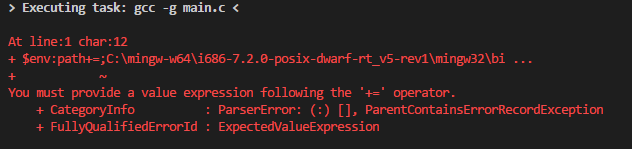
I'm also having the same issue 😢 doing what pmullhaupt suggested works. I added the MinGW bin to my shellArgs. When I open an integrated terminal I have access to gcc. When I try and build using vscode
{
"version": "2.0.0",
"tasks": [
{
"label": "build ",
"type": "shell",
"command": "gcc",
"args": [
"-g",
"main.c"
],
"group": {
"kind": "build",
"isDefault": true
}
}
]
}
I get the following error:
 Jragon
on 15 Jan 2018
Jragon
on 15 Jan 2018
I had the same issue (using Git Bash as integrated terminal) and had to run VS CODE as admin, but noticed this fix I had in my Hyper config that fixed the issue for me (setting env variable TERM=cygwin):
{
"terminal.integrated.shell.windows": "C:\\Program Files\\Git\\git-cmd.exe",
"terminal.integrated.shellArgs.windows": [
"--command=usr/bin/bash.exe",
"-l",
"-i"
],
"terminal.integrated.env.windows": {
"TERM": "cygwin"
}
}
 tolu
on 8 Mar 2018
tolu
on 8 Mar 2018
@tolu interesting, you might run into issues by setting TERM to cygwin though.
Tyriar
on 9 Mar 2018
@Tyriar Oh thanks! I haven't noticed anything problematic yet but are there anything specific you were thinking might be an issue?
tolu
on 16 Mar 2018
@tolu just that everything is designed to work using xterm-256color, not tested with other TERM values.
Tyriar
on 16 Mar 2018
Repro the issue, with VS Code 1.22.2, install VS code first, then install Node runtime v8.11.1.
Can't execute node in VS Code terminal, check Path in VS Code terminal, Node path is missed there.
But outside of VS Code, I can find Node path in Path environment variable.
Any update on the issue?
 dylanwa
on 15 Apr 2018
dylanwa
on 15 Apr 2018
I've also encountered this Issue on a newly setup mac os 10.13.4 and vs 1.22.2.
I am using zsh as shell and anaconda for my python environment and inside the vs integrated terminal at least the the anaconda path bit is missing.
I manually added
"terminal.integrated.env.osx":{
"PATH": "/Users/user/anaconda3/bin:/usr/local/bin:/usr/bin:/bin:/usr/sbin:/sbin"
}
to my vs settings to get it work.
Still weird behaviour.
 nevotheless
on 2 May 2018
nevotheless
on 2 May 2018
you need
    "terminal.integrated.env.windows": {
        "PATH": "C:\\yourpath\\bin\\;${env:PATH}"
    }
this works, expands fine.
 justin-romano
on 4 Jun 2018
justin-romano
on 4 Jun 2018
Reading over this again I'm going to close as it looks like a problem with Windows plus there is the workaround @justin-romano suggests now.
Tyriar
on 21 Jun 2018
This issue is being closed to keep the number of issues in our inbox on a manageable level, we are closing issues that have been on the backlog for a long time but have not gained traction: We look at the number of votes the issue has received and the number of duplicate issues filed. If you disagree and feel that this issue is crucial: We are happy to listen and to reconsider.
If you wonder what we are up to, please see our roadmap and issue reporting guidelines.
Thanks for your understanding and happy coding!
![vscodebot[bot] picture](https://avatars2.githubusercontent.com/in/2406?v=4&s=40) vscodebot[bot]
on 21 Jun 2018
vscodebot[bot]
on 21 Jun 2018
"terminal.integrated.env.windows": { "PATH": "C:\\Go\\bin\\;${env:PATH}" }
Wroks well.
Worth to say also that in external terminal you can use just your my_script_filename as a command (directly) to execute:
my_script_filename
but in the internal terminal only this works:
go run my_script_filename
 mfazer
on 8 Mar 2019
mfazer
on 8 Mar 2019
Running Visual Studio Code "As Administrator" fixed this for me also. Thanks!
 nickdecastro
on 1 Jun 2019
nickdecastro
on 1 Jun 2019
@Tyriar Command Prompt terminals demonstrate this behavior as well. The common factor is that the affected terminals are all launched by Code. Terminals launched outside of Code expand variables normally. Also, Code's terminals expand variables normally when running Code as an administrator (with a local machine account, vs. my "normal" account on my corporate domain).
Huge thank you on this. I had been searching for a resolution for a few days until I found this post. I was running a Google Cloud Platform library (via Node.js) that was to retrieve service account credentials from a json file on my machine. The path to the json file is set by an environment variable and the Google library reads this path based on the predetermined environment variable name. When I ran node.js through a normal cmd terminal, everything worked as expected. When I tried to run node fro the cmd terminal embedded in Visual Code, I was seeing an error that it could not locate the file/path specified. Running VS Code as an Administrator resolved my issue.
 MattWilliard
on 26 Jun 2019
MattWilliard
on 26 Jun 2019
I just tested this and variables are definitely expanded on Windows, my guess is that NVM_* were not set at the time the expanding happened. Regardless if there was an issue it would likely be an issue in Windows.
Tyriar
on 7 Oct 2019
@tyelford Wtf? I recently subscribed to this issue because seen exact same magical behavior when variables are not available UNTIL computer restart. VS Code restart didn't help. It's definitely not an issue of Windows, because in any other place such as cmd or power shell everything worked as expected.
 inliquid
on 8 Oct 2019
inliquid
on 8 Oct 2019
@inliquid are you certain you closed all VS Code windows? The terminal environment is derived from the single "main process" of VS Code which only goes down and gets a refreshed environment after all windows are closed down.
There is also another issue open around fetching a fresh environment block on Windows for terminals which won't be closing 👉 https://github.com/microsoft/vscode/issues/47816
Tyriar
on 8 Oct 2019
@Tyriar I'm pretty sure of what I'm doing.
inliquid
on 8 Oct 2019
@inliquid the next time it happens you can open devtools (via Help menu), go to the console and check process.env to see if the variable is there. You can also see what environment the terminal is being launched with by enabling trace logging (https://github.com/microsoft/vscode/wiki/Terminal-Issues#enabling-trace-logging) and opening a terminal. Both of those would be useful to see.
Tyriar
on 8 Oct 2019
Similar issue here, VSCode doesn't correctly expand system environment variables. Latest VSCode version, Windows 10.
Partial output of process.env.Path in the dev tools, note the un-expanded %LOCALAPPDATA%:
"%LOCALAPPDATA%\Microsoft\WindowsApps;C:\WINDOWS\system32\config\systemprofile\.cargo\bin;%LOCALAPPDATA%\Programs\Python\Python37\;%LOCALAPPDATA%\Programs\Python\Python37\Scripts\;"
Also of note is that USERPROFILE is resolved to C:\WINDOWS\system32\config\systemprofile instead of the actual user profile directory.
The referenced variable does exist and is also listed by VSCode under process.env. USERPROFILE is also the correct one there.
Same with $env:Path in an integrated terminal:
%LOCALAPPDATA%\Microsoft\WindowsApps;C:\WINDOWS\system32\config\systemprofile\.cargo\bin;%LOCALAPPDATA%\Programs\Python\Python37\;%LOCALAPPDATA%\Programs\Python\Python37\Scripts\;
In an external, regularly launched terminal (Powershell or CMD) everything is expanded like expected:
C:\Users\Chris\AppData\Local\Microsoft\WindowsApps;C:\Users\Chris\.cargo\bin;C:\Users\Chris\AppData\Local\Programs\Python\Python37\;C:\Users\Chris\AppData\Local\Programs\Python\Python37\Scripts\;
I will check if I notice anything in trace log when I get the time.
Looking at the USERPROFILE resolution, it looks like the expansion somehow happens before the other variables are loaded, which I think is not the right approach?
 Systemcluster
on 10 Oct 2019
Systemcluster
on 10 Oct 2019
@joaomoreno @deepak1556 @bpasero have you ever got reports on the main processes' environment variables not being resolved properly? This definitely isn't a terminal issue as the window process.env has the problem.
Tyriar
on 10 Oct 2019
main processes' environment variables not being resolved properly
You mean our call to getShellEnvironment()?
 bpasero
on 10 Oct 2019
bpasero
on 10 Oct 2019
@bpasero not sure if that's to blame but it does fetch the environment. I've never reproduced this problem but %VARS% are popping up in process.env for some users when they are meant to be resolved when we fetch the env.
Tyriar
on 10 Oct 2019
getShellEnvironment() is a noop in Windows, it's only for Linux/macOS.
I believe this is a Windows issue: https://stackoverflow.com/questions/25324354/windows-batch-files-what-is-variable-expansion-and-what-does-enabledelayedexpa Not sure each process is responsible to compute the expansion if they are spawned in an environment in which vars aren't already expanded...
joaomoreno
on 10 Oct 2019
@joaomoreno should it not be a noop and we expand there just in case they're not already for some reason?
Tyriar
on 10 Oct 2019
I'm pretty sure you'd break other stuff by doing that: variable values containing two % characters in them, not meant to be expanded, for one.
joaomoreno
on 10 Oct 2019
How do regularly launched CMD and Powershell have properly expanded variables then? There has to exist a standard mechanism that Microsoft is using for those I assume.
I also think that %USERPROFILE% is resolved to the non-existing path C:\WINDOWS\system32\config\systemprofile in VSCode when it is used in the system variables instead of the user variables is relevant to look at. VSCode simply seems to not take user-variables into account which are supposed to overwrite system variables, and instead falls back to the system defaults.
I noticed the user profile directory is stored in the Computer\HKEY_LOCAL_MACHINE\SOFTWARE\Microsoft\Windows NT\CurrentVersion\ProfileList\<user-profile> key as a REG_EXPAND_SZ value which is different for each user. The value VSCode uses is the system default value for this key instead of the user key.
On that page is a reference to the ExpandEnvironmentStringsA function that is supposed to "Expand environment-variable strings and replaces them with the values defined for the current user".
It might be as simple as calling that function on startup? It would then only be important to call it with the raw unexpanded strings instead of those already expanded with system defaults as is happening now.
Systemcluster
on 11 Oct 2019
@Systemcluster might have something to do with it; are you using the system install or the user install?
Tyriar
on 16 Oct 2019
@Tyriar I'm using the user install (in AppData).
Systemcluster
on 16 Oct 2019
@TylerLeonhardt might have asked you before but do you know why some env variables would not get resolved properly by the time we get them? If we try to resolve them potentially again we could break things (eg. have %FOO% as a already resolved value of an environment variable?).
Tyriar
on 16 Oct 2019
This issue might be related. It's a bit older, but describes the same observation as in my comment above and contains some additional context.
Systemcluster
on 16 Oct 2019
Since it happens erratically, with expandable variables that contains other expandable variables, maybe it's related to the behavior of CreateEnvironmentBlock that is described here:
MS KB2480007: CreateEnvironmentBlock(,,FALSE) function does not expand REG_EXPAND_SZ type environment variables on Windows Server 2008 R2.
"This is by design. It is not guaranteed that the CreateEnvironmentBlock function will fully expand the REG_EXPAND_SZ environment variables that require the expansion of other REG_EXPAND_SZ environment variable (...) In order to ensure the full expansion of the environment variables in the block, use the ExpandEnvironmentStrings or ExpandEnvironmentStringsForUser functions."
 mestriga
on 22 Oct 2019
mestriga
on 22 Oct 2019
It's looking more and more like this is not something we can fix on our end. On Windows we just use the environment we're given by node in electron afaik, if it's not expanded as expected it should be fixed where ever the native calls are that are creating the environment block in the first place.
Tyriar
on 26 Oct 2019
This issue has been closed automatically because it needs more information and has not had recent activity. See also our issue reporting guidelines.
Happy Coding!
vscodebot[bot]
on 2 Nov 2019
Sorry to barge in here but it seems VSCode's PowerShell instance sees neither my own User Environment Variables not the System Environment variables. How can I set an environment variable once and for all which VSCode sees??
 cawoodm
on 22 Nov 2019
cawoodm
on 22 Nov 2019
Related issues
 hsdk123
·
263Comments
Tyriar
·
187Comments
hsdk123
·
263Comments
Tyriar
·
187Comments
 Brakkar
·
364Comments
Tyriar
·
314Comments
Brakkar
·
364Comments
Tyriar
·
314Comments
 Tekbr
·
191Comments
Tekbr
·
191Comments
Most helpful comment
you need
this works, expands fine.