Vscode: Ctrl+D should match whole words instead of substrings
Is there a way to highlight matching whole words of the word under cursor instead of all substrings?
In VScode, the current behaviour:

What I want (as seen in Sublime):

This is actually the default behaviour in Sublime Text and IntelliJ based IDEs.
 xiaochuanyu
All 29 comments
Simply toggle that option in the find widget.

 joaomoreno
on 8 Jul 2016
joaomoreno
on 8 Jul 2016
Wow I didn't expect Find box to be related to the cursor highlighting words. Shouldn't these be two separate settings? I'd like to highlight whole words but search for substrings.
For example when I'm searching for something I may not necessarily know the entire word that I'm searching for so I type in a substring, but for highlighting words under cursor, the entire word is known.
xiaochuanyu
on 8 Jul 2016
cc @alexandrudima
joaomoreno
on 11 Jul 2016
I agree that it is possible to wish to search for a substring and then wish to highlight only a full-word selection both at the same time, but I think this is quite uncommon and inventing separate UI affordances for "whole word" find and "whole word" selection highlight and "whole word" Ctrl+D would not offset their cognitive cost.
I personally use alt+w in this case. It works even if the find widget is not revealed.
@xiaochuanyu Do you have other ideas around this that would make for a better user experience?
 alexdima
on 11 Jul 2016
alexdima
on 11 Jul 2016
@alexandrudima , what do you think about the following scheme?
- Find box settings are independent of the highlighting string under cursor (HSUC for short) settings.
- Highlight whole word under cursor if there are no text selected, otherwise highlight substrings matching selected text.
This is similar to scheme in Sublime Text except that Sublime Text doesn't actually highlight substrings when you select some text but will allow you to select them via multi-cursor (ctrl-D). Sublime Text only highlights whole words.
xiaochuanyu
on 11 Jul 2016
cc @joaomoreno as the initial author of HSUC.
@xiaochuanyu I am open to disconnecting the HSUC feature from ctrl-D and making it not be configurable (i.e. it always matches case sensitive, it never matches whole words, it auto-expands to the current word if the selection is collapsed).
HSUC is not impacting anything actually, it just adds visual decorators to the text. I made the leap of thinking those visual decorators would work great with Ctrl-D. i.e. I've made HSUC have the exact same search criteria as Ctrl-D, such that HSUC can be used as a preview of what Ctrl-D would select next or as a preview of what Ctrl-F2 will select entirely. Here I am playing with different test cases (whole words, case sensitivity). I sort of like how HSUC tells me what Ctrl-D will do ambientally, but again, I am willing to drop this connection, given @joaomoreno agrees too:
I am sorry the screen capture tool does not capture keypresses. But I'm using:
alt+cto toggle case sensitivity- HSUC tells me immediately where
ctrl-dwill go alt+wto toggle whole words- HSUC tells me immediately what matches there are
- at one point near the end I use
ctrl-f2too, to quickly select all matches. - I do all of this without any other visual indicators except HSUC

Maybe it's just me using HSUC as a preview of ctrl-d and maybe that does not feel natural. Long story short, now that you've understood my rationale, do you still think they should be separated?
alexdima
on 12 Jul 2016
Having disliked it once introduced, I grew fonder of the currently implemented behaviour.
joaomoreno
on 12 Jul 2016
@alexandrudima , I understand your reasoning here to use HSUC as a preview for ctrl+d and in fact that is what I use HSUC for much of the time.
The main point for the scheme I described above is that it saves me from manually toggling the setting to use (whole word or substring) when I do ctrl+d. It's determined from whether I highlighted a whole word or some substring (point 2).
Consequently, Find settings must then be separated from HSUC (point 1).
Another point I'd like to make is that I use whole word in Find very rarely relative to using whole word in ctrl+d so I have to toggle off whole word for Find after I use it for ctrl+d very often. This is because I'm usually using Find to search for something that I don't know the spelling exactly so I don't use whole word so that I don't miss any results. On the other hand, I know exactly what pattern to search for when using ctrl+d because I can see it and I'd like to avoid editing more than I should so I toggle whole word on a lot of the time (well maybe like half the time).
The bad thing about this scheme is that you can't do case sensitive ctrl+d now.
Would be interesting if some statistics can be collected about what settings Find and ctrl+d are used with. Perhaps my habits are exceptional rather than common.
I quote my comment above for reference:
- Find box settings are independent of the highlighting string under cursor (HSUC for short) settings.
- Highlight whole word under cursor if there are no text selected, otherwise highlight substrings matching selected text.
xiaochuanyu
on 15 Jul 2016
I am also anxiously hoping the selection highlight and find settings are separated.
 Kongsea
on 29 Sep 2016
Kongsea
on 29 Sep 2016
I'd like to join the chorus with @xiaochuanyu: I'm using Ctrl+D and HSUC _exclusively_ case sensitive and whole word, as opposed to Find, which is _mostly_ case insensitive and partial word. I came here by googling for that exact feature.
 craPkit
on 24 Oct 2016
craPkit
on 24 Oct 2016
I came from Sublime and these are the default behaviors, case sensitive and whole word.
 azlan
on 26 Oct 2016
azlan
on 26 Oct 2016
I came from Visual Studio (and a couple of great extensions) and would love to see all instances of the currently selected word highlighted in the scrollbar without having to use Ctrl+f.
 RoyTinker
on 8 Nov 2016
RoyTinker
on 8 Nov 2016
Definitely want to see the sublime behavior implemented. It is indispensable when working in HTML.
 third774
on 15 Dec 2016
third774
on 15 Dec 2016
The same is also being used by atom I hope it gets resolved quickly
 sreeram-boyapati
on 15 Dec 2016
sreeram-boyapati
on 15 Dec 2016
👍
 thearegee
on 15 Dec 2016
thearegee
on 15 Dec 2016
I'm just going to voice up and say that I love having substring matching (that is what I use in Atom and ST - can't remember if I configured it or not).
 brendanzab
on 15 Dec 2016
brendanzab
on 15 Dec 2016
I have to agree with all of the above that cmd-D/ctrl-D is not "Find". Atom and Sublime's behaviour is inuitive and requires fewer keystrokes — and VSCode doesn't offer a good story to justify deviating from that behaviour.
 atombender
on 15 Dec 2016
atombender
on 15 Dec 2016
Any updates on this?
 fandy
on 14 Mar 2017
fandy
on 14 Mar 2017
Can we close this and create a new issue to disconnect editor selections and HSUC from find selections? I believe this will solve all problems.
In other words ALT+C/+W in editor won't affect find's setting. This way everyone will be able to set selections and HSUC vs find to their preferences and be happy once again.
 ackvf
on 24 Apr 2017
ackvf
on 24 Apr 2017
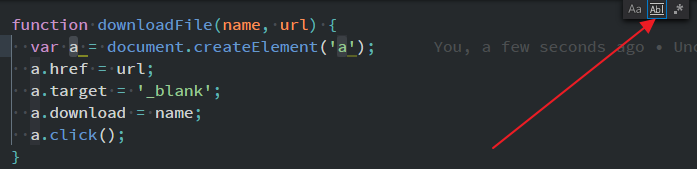
ctrl + f and use regular expression:

then ctrl + d will match whole words instead of substrings:
 StephenKingg
on 19 Jun 2017
StephenKingg
on 19 Jun 2017
Still one "issue": When anyone ctrl + D in VS CODE at any variable: USD sign ($) followed by some characters, the whole variable gets selected, thus, including the USD sign ($). In Sublime, the behavior is different by only selecting the characters, forgetting about selecting the $. How is this behavior achieved?

 tino2kp
on 19 Oct 2017
tino2kp
on 19 Oct 2017
@tino2kp: That's related to some very idiosyncratic choices in various VSCode grammars. For example, in Ruby, :foo is considered a whole word (i.e., it includes the colon, which is _not_ appropriate), and in JSON, quoted strings are considered a whole word (i.e. it includes the quotes). The latter is particularly egregious. Looks like PHP is equally weird.
atombender
on 19 Oct 2017
I will look into making the following changes to Ctrl+D and the selection highlights. The selection highlights will continue to match 100% what Ctrl+D will do; they will remain a reliable preview of what Ctrl+D will select next. Here is the mechanism:
Ctrl+D temporary overwriting of the find widget toggles
- only when starting with a collapsed selection on a word, Ctrl+D will override the find widget flags:
wholeWords: true, matchCase:true, isRegex: false. - for as long as Ctrl+D is pressed again, continuously, those flags will remain the effective search flags.
- if a find widget toggle is explicitly changed (e.g. pressing alt+w or alt+c or clicking on a toggle), or if editor focus is lost, or if the selection changes explicitly, the overrides will be reset.
Finally, @tino2kp , Ctrl+D today honors the word definition that comes in via language configuration (as @atombender pointed out). Let's discuss if Ctrl+D should better use editor.wordSeparators instead of the language word definition in #15774.
alexdima
on 21 Oct 2017
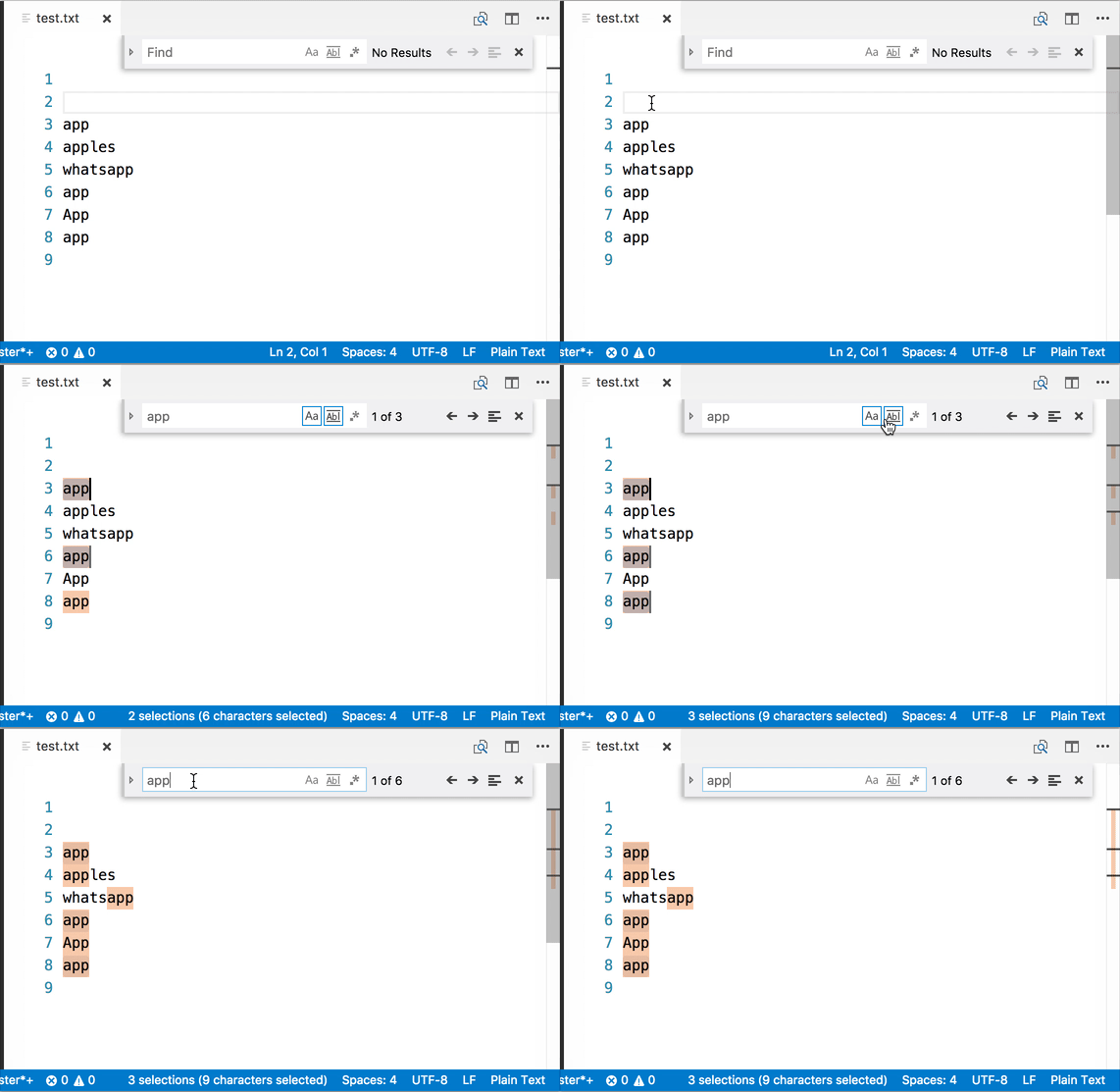
Some flows:
- in all cases the selection highlighter shows what Ctrl+D will do next
Find widget closed - starting with a collapsed selection
- Ctrl+D uses
wholeWords: true and caseSensitive: true - the find options are briefly shown to reflect the temporary overriden settings

Find widget closed - starting with a non-collapsed selection
- Ctrl+D uses the find options
- the find options are briefly shown

Find widget opened - starting with a collapsed selection
- Ctrl+D uses
wholeWords: true and caseSensitive: true - the find options reflect the temporary overriden settings
- as soon as the editor loses focus, the find options rollback to their pre-Ctr+D values.
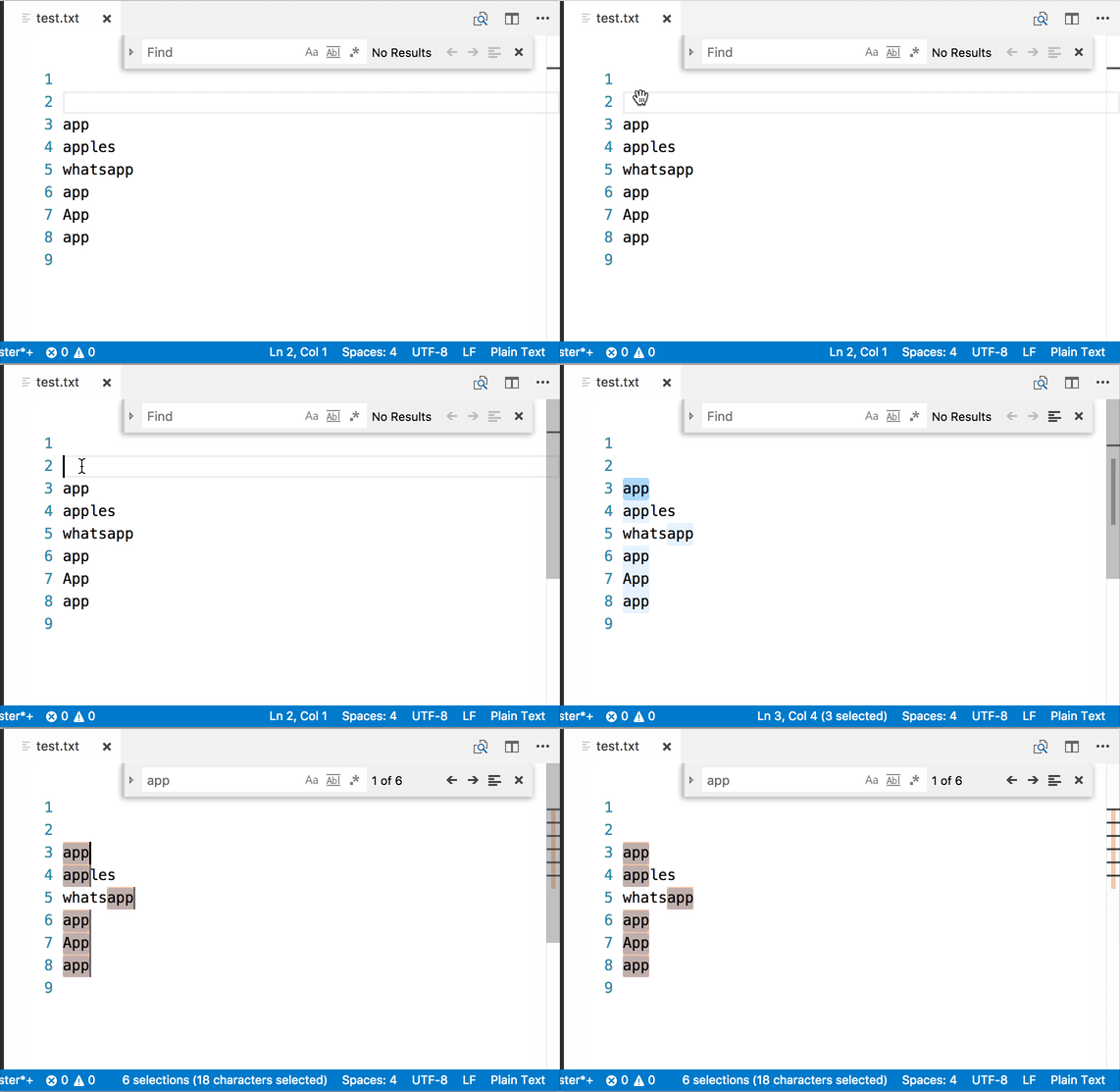
Find widget opened - starting with a non-collapsed selection
- Ctrl+D uses the find options
alexdima
on 23 Oct 2017
@alexandrudima This is fantastic, and exactly what I was wishing for. Thank you for your efforts!
atombender
on 23 Oct 2017
@alexandrudima Pardon my ignorance.. but what do you mean by "collapsed selection"? I can't see any visual difference in the first two animated GIFs above. How does one make Cmd+D override the 'Find' settings?
 ffxsam
on 9 Nov 2017
ffxsam
on 9 Nov 2017
@ffxsam A collapsed selection is just a technical way of saying "no selection". Technically, it's a selection where the start and end are the same position.
atombender
on 9 Nov 2017
Got it! Thanks, and thanks to the VS Code team for this awesome update!
ffxsam
on 9 Nov 2017
Wow I've been annoyed by this for so long, really glad to see it fixed!
 aybabtme
on 11 Nov 2017
aybabtme
on 11 Nov 2017
Related issues
 v-pavanp
·
3Comments
v-pavanp
·
3Comments
 omidgolparvar
·
3Comments
omidgolparvar
·
3Comments
 villiv
·
3Comments
villiv
·
3Comments
 borekb
·
3Comments
borekb
·
3Comments
 sijad
·
3Comments
sijad
·
3Comments
Most helpful comment
Wow I didn't expect Find box to be related to the cursor highlighting words. Shouldn't these be two separate settings? I'd like to highlight whole words but search for substrings.
For example when I'm searching for something I may not necessarily know the entire word that I'm searching for so I type in a substring, but for highlighting words under cursor, the entire word is known.