Vscode-project-manager: Support open remote projects from your local installation
Project path is saved with the wrong slash, rather than saving with / it saves with \\:
``` {
"name": "monitoring",
"rootPath": "\home\maurgi\go\src\monitoring",
"paths": [],
"group": "",
"enabled": true
},
then when I try to open it fails:
Path does not exist
The path '\home\maurgi\go\src\monitoring' does not seem to exist anymore on disk.
```
 MaurGi
All 45 comments
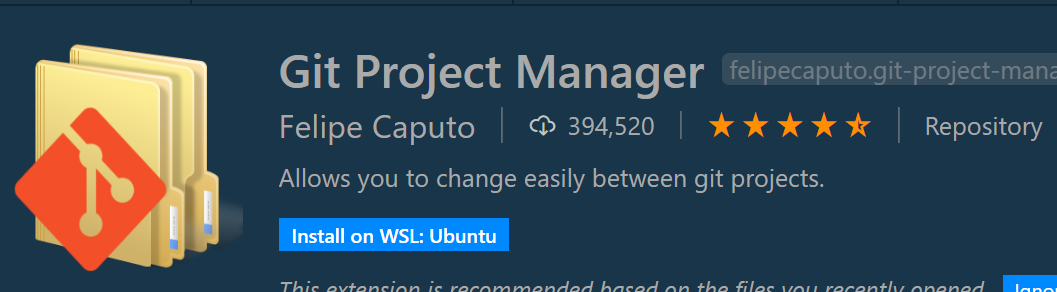
A second issue - after the latest upgrade to VS Code 1.43 - Project Manager is no longer available for installing in the WSL remote
Only available is install locally:

while others can be installed in Git Project Manager:
MaurGi
on 17 Mar 2020
Hi @MaurGi ,
Are you trying to save a _remote folder/project_ using the _local installation_?
About not being able to install it on remote (button not available), this happens because the extension itself _now supports_ remote development. It will be available no matter if you are using it with local or remote folders/workspaces. Extensions that does not support/embraced remote development yet, has the install on ... button. At least, this is how I understand it works.
If you want to install it on remotes, you have to use the proper _remote installation_ setting/command for each kind of remote development. When in Docker, you have to add it to devcontainer.json. I’m not sure about WSL.
Hope this helps
 alefragnani
on 17 Mar 2020
alefragnani
on 17 Mar 2020
Thanks @alefragnani -
The local installation does not work, does not understand the remote file system, even if I edit manually the config file and add /home/mauro/... as my path the project won't open when I am using WSL from Windows.
Going back to 10.9.1, with VS Code 1,42,1, I can see the "install on WSL:Ubuntu" and now I can install it and it is working fine.
MaurGi
on 18 Mar 2020
That's the expected behaviour (for now), as you can see in in this comment in #323. But it's not how I expect it to work 😞
I would like to allow _direct access_ to remote projects, but I didn't have the time and resources to learn/test how each remote extension work, and if/how I can detect and open remotes. This issue has been opened by another user in VSCode repo and this comment from @aeschli tells a bit about WSL. Unfortunately, I don't have a WSL environment to test.
If I knew how to _detect_ the proper scheme and path from each remote kind, this could be done. For instance, how an extension can detect the folder Uri (ie vscode-remote://wsl+Ubuntu/home/joe/project) when you open a WSL remote.
I played a bit with Container remotes back then, but didn't have success. I'm planning to try again, when preparing the next release.
alefragnani
on 18 Mar 2020
As a workaround I usually add to the rootPath this prefix:
\\\\wsl$\\Ubuntu followed by the path created by the extension and it's accessible.
(This is for the Ubuntu WSL, but I guess this should work for all of them)
 Maraat
on 30 Mar 2020
Maraat
on 30 Mar 2020
Hi @Maraat and @MaurGi ,
I still didn't need to use WSL nor SSH, but I can confirm that adding a similar prefix to Docker containers worked.
I would like to have a better/cleaner solution, but I guess it depends how each remote defines its path. Unfortunately I didn't find any documentation to know _for sure_ these is how remote works.
Do you have experience/samples with SSH?
alefragnani
on 12 Apr 2020
Hi @MaurGi
Can you confirm the workaround described by @Maraat works for you?
alefragnani
on 12 Apr 2020
\\\\wsl$\\Ubuntu nor vscode-remote:\\\\wsl+Ubuntu seem to work for me.
Both give me the does not seem to exist anymore on disk. error
 Christilut
on 13 Apr 2020
Christilut
on 13 Apr 2020
@Christilut ,
Are you using the Command Palette or the Side Bar to open the project?
I’m not sure, but I guess @Maraat has used the Side Bar. I mean, the Command Palette has some additional steps, which checks if the path exists (and \\\\wsl$.... does not), and will probably fail. The Side Bar, on the other hand, does not check anything (I‘m not sure why 😕 ).
But for me, while testing Containers, it didn’t work as well. I had do make a small change (use a different API) while opening container based Paths), but as @Maraat said it’s working, I guess WSL may be supported by the original API.
Hope this helps
alefragnani
on 13 Apr 2020
They both give an error for me.
Through the command palette it shows this:

Christilut
on 13 Apr 2020
That’s the expected behavior when opening _not found_ projects. It let’s you update the project path or delete the project.
That’s something that should not be evaluated when working with remotes (I’ll bypass), because only the remote extension itself knows if a project is still available/accessible.
alefragnani
on 13 Apr 2020
Just to update here that My configuration below is able to open folder exists in wsl (assuming your wsl name is Ubuntu below), the issue is it opens the project with the vscode in the host OS. not vscode-remote.
I am not familiar with plugin development but i think it can simply be done by checking the starting substring of \\wsl$ and then run vscode-remote rather than vscode
    "name": "example_project_in_wsl",
    "rootPath": "\\\\wsl$\\Ubuntu/path/to/example_project",
    "paths": [],
    "group": "",
    "enabled": true
 shelper
on 26 Apr 2020
shelper
on 26 Apr 2020
@shelper , thank you for the update!
To open the remote folder _as remote_ the extension needs to use a different API to _construct_ the path. Based on what I've learned, it should be the same I'm using with Docker.
So, I HOPE it would be the same for WSL and SSH 😬 .
alefragnani
on 29 Apr 2020
humm...did some research and i think there may not be a simple solution...
i will just leave as it is for now...
shelper
on 29 Apr 2020
For Docker, it was a simple solution. I hope the same would be used for WSL and SSH.
alefragnani
on 29 Apr 2020
I tested again, and using \\wsl$\Ubuntu is not a good solution, because it opens the project under Windows file system and context, not under WSL2 context.
I can confirm this still reproes on WSL2, Windows 2004 build and VSCode 1.41.1.
Also, reinstalling 10.9.1 version of Project Manager, it continues to work fine. I am reverting to that build again.
MaurGi
on 4 May 2020
Hi @MaurGi ,
Just out of curiosity, did you try using _doubled backslash_ values, as described by @Maraat (https://github.com/alefragnani/vscode-project-manager/issues/345#issuecomment-606039342). But to @Christilut didn’t work either.
In my tests (with Docker),simply adding doubled backslashes didn’t work. I had to use _other API_ to mount the Uri to be opened.
The new release with this update, should be in launched next week.
Stay tuned
alefragnani
on 4 May 2020
Hi,
I have same issue. For me adding _doubled backslash_ works, but as @MaurGi said, it doesn't open it under WSL context.
For example if i open terminal it will try to use Windows PowerShell with the path:
PS Microsoft.PowerShell.Core\FileSystem::\wsl$Ubuntu-18.04\home
 Yevgeniuz
on 7 May 2020
Yevgeniuz
on 7 May 2020
This will be released tomorrow, in version 11.0.0
I was able to test Docker, MacOS host only, but I think it should also work on Windows/Linux.
I also think WSL and SSH should work as well, but I don’t have the resources to test, so I count on you to validate 😬 .
Stay tuned
alefragnani
on 14 May 2020
Thanks for great job!
I can confirm than remote-ssh works well on mac and windows host!
 zzjin
on 15 May 2020
zzjin
on 15 May 2020
Thank you @zzjin !
That’s great to hear it’s working on SSH too. Really happy about it.
Enjoy
alefragnani
on 15 May 2020
How does WSL remote work now? I tried the methods I described earlier but they show the same message
Christilut
on 15 May 2020
Thanks for the effort @alefragnani
I just tested this with Windows 10 using WSL2 and it's not working out of the box.
I've tried with one of the projects I previously had (Removing and adding it again) and this is the config generated:
vscode-remote://wsl+Ubuntu/home/...
instead of the old one I had to modify manually:
\\\\wsl$\\Ubuntu\\\\home\\...
I've tried adding double backslash with no luck.
There's anything I cant try to test for you since you don't have Windows?
Maraat
on 15 May 2020
Hi @Christilut ,
I can say how I did on Docker, and that’s how I expect to work on SSH and WSL.
The extension now supports save Remotes as Projects, just like regular folders/workspaces. Do you remember previous releases when I _disabled_ the Save Project command? It was _re-enabled_ and now it supports saving remotes too.
So, that’s how it works with Docker:
- Open Remote extension Side Bar
- Connect to some Docker Container remote project
- VS Code will connect to that Dockerize project (in same or new window)
- Use the
Project Manager: Save Projectto save _the current Dockerized project_ - Now, the Project Manager Side Bar will show the newly created Dockerized project (different icon, btw)
- Close the Dockerized project, returning to some _normal_ VS Code project
- Open that previously saved project, via Project Manager
- It will _automatically connect_ to that Dockerized project
I’m not sure how the Remote WSL extension works, but I suggest you to Save Project first, instead of fixing/updating the rootPath in projects.json for yourself. For Dockerized projects, the rootPath has really weird Values (I guess are the Container ID).
Hope this helps
alefragnani
on 15 May 2020
Hi @alefragnani,
Yep, i can confirm that i have same case as @Maraat .
I have: Ubuntu under WSL2 which contains project files
What I do: Open a project that is under WSL2 (it also shows that in VS Code)
I save the project. now it is saved with the path: "rootPath": "vscode-remote://wsl+Ubuntu-18.04/home/user/projects/projectX".
Then i close this project and open any other project.
And when i try to use Project Manager to open saved projectX, it says that path does not exist.
Yevgeniuz
on 15 May 2020
Hi @Maraat and @Yevgeniuz ,
I’m not sure, but maybe SSH open folders on its own way.
I had found this issue https://github.com/microsoft/vscode-remote-release/issues/473 , talking about a different remote-containers.openFolder command, but since the _basic_ vscode.openFolder Command did work on Docker, I expected it to work for WSL and SSH. It appears WSL doesn’t.
I’ll look a bit more in WSL repo for info.
Thank you for the infos
alefragnani
on 15 May 2020
vscode-remote:\wsl$Ubuntu-18.04\home\user\projects\projectX - this i believe should be the correct path, just the extension thinks its invalid one.
Yevgeniuz
on 15 May 2020
I did a Save Project for one of my WSL projects. This shows up in the sidebar and I can use it, but only if I'm already on a WSL project.
So if I switch to a normal project without a remote connection, then my WSL project does not exist in the Project Manager sidebar.
Christilut
on 15 May 2020
@Christilut ,
Have you installed the extension “inside the remote”? Because it shouldn’t _disapear_ from the Side Bar when you disconnect from it.
alefragnani
on 15 May 2020
I had it in both. Just uninstalled in both, reloaded VSCode. Installed Project Manager again and added a WSL project. Then changed to a normal project and tried to open my WSL project from the sidebar but I got the error Path does not exist
The path '\vscode-remote:\\wsl+ubuntu-18.04\home\...etc' does not seem to exist anymore on disk.
Christilut
on 15 May 2020
Well, both installations won’t share the projects, so this scenario won’t be possible.
If you install it on remote, the projects will be stored on that remote, and unavailable on Host. You will be able to switch projects on that remote, but only when connected to it. This was the desired scenario reported in #323.
The idea for this release is to allow you to save projects on Host, projects that refers to remotes (Docker, WSL and SSH), and be able to open them, directly from Project Manager commands. So, you can, on you local machine, connect to any remote project.
Unfortunately, merging host and remote projects isn’t available, and I guess not even possible, based on my researches on VS Code APIs. I didn’t find any API (at all) available to work with the VS Code Remote extension 😞 .
Hope this helps
alefragnani
on 15 May 2020
@Yevgeniuz The path is returned from VSCode, so as you described it says: ”vscode-remote://wsl+Ubuntu-18.04/home/user/projects/projectX", and I just use this path to tell VS Code to open it.
When you changed to vscode-remote:\...., the extension doesn’t recognize it as remote anymore.
Unfortunately, I don’t have a Windows machine available to install WSL, so I can’t test/validate ideas. I’ll think about how we could validate this WSL issue.
alefragnani
on 15 May 2020
Thanks for all the effort. Still weird that VSCode has trouble with this.
But shouldn't we leave this issue open then? This is exactly the problem stated in the issue, but it's not possible yet.
Maybe create an issue on the VSCode github? I did that a while ago and they were quite responsive. You have much more knowledge about that problem, maybe they can help or mark it as a feature request.
Christilut
on 15 May 2020
Just found a bug. (running in windows 10). I can save a remote or WSL project after opening using the remotes sidebar.
The rootPath saved is
"rootPath": "vscode-remote://wsl+debian/home/user/repos/SOMEREPO
But if I rename the project using Right Click "Rename Project" the path is changed to:
"rootPath": "vscode-remote:\\\\wsl+debian\\home\\user\\repos\\SOMEREPO"
and the link stops working giving the error: The path 'vscode-remote:\wsl+debian\home\user\repos\SOMEREPO' does not seem to exist anymore on disk.
Edit: do you want me to open a different issue for it ?
Edit2: the initially saved path doesn't work either, same error.
 silviuvulcan
on 18 May 2020
silviuvulcan
on 18 May 2020
Hi @Christilut , it’s not exactly the same, but either way, I updated the description to have a wider objective (support open remotes from local) and is working for Docker and SSL, I prefer creating a new issue specially to support the same scenario, now for WSL. Opened #373
@silviuvulcan , Yes, I prefer a new issue, so it should be tracked properly.
Thank you
alefragnani
on 19 May 2020
@Christilut about opening issues on VS Code repo, I have a lot already 😁. From time to time I ask/require something. Sometimes via GitHub issues, sometimes on Slack or Gitter channel. But, in this case, it may not be a VS Code issue, but from the remote extension.
I’m thinking about the better way to handle this, but it’s hard to me because I don’t use those scenarios (remotes) that much, and I don’t have computers/VMs available. It’s the same difficulty when I had only a Windows PC and wanted to make something work on MacOS 😞 .
alefragnani
on 19 May 2020
I get the same issue as @silviuvulcan with regards to path separators changed for SSH remote projects on WIndows.
 wongjn
on 19 May 2020
wongjn
on 19 May 2020
so vscode can open remote by something like"code --remote wsl+Ubuntu /home/username/project_folder", I wonder if this helps
shelper
on 19 May 2020
@silviuvulcan @wongjn I guess I found the reason behind the _rename_ issue.
It should be fixed with #377 . I'll release an update later today.
Stay tuned
alefragnani
on 20 May 2020
Hi @shelper ,
Yes, I noticed that, but _I hope_ I could use a native VS Code command, instead of depending on _shell_. But that's an alternative.
Thank you
alefragnani
on 20 May 2020
Just remember to re-save the projects, to properly update its path.
alefragnani
on 20 May 2020
@alefragnani I updated to 11.0.1 and checked both ssh and wsl and any combinations of save,r ename, exit vscode, rename again and everything works fine. Big thanks !!
silviuvulcan
on 20 May 2020
@alefragnani Works for me as well, just small issue, that it says "Path does not exist" in the switching window. But, that's a minor issue for me.
Thanks for the work!
Yevgeniuz
on 20 May 2020
Autodiscovery config options (git etc) don't seem to work with remote paths — not sure if that is in the scope of this issue.
wongjn
on 20 May 2020
That’s great to hear it’s working!
@Yevgeniuz It _shouldn’t_ display any “Path does not exist” message at all. Have you re-saved the remote projects, so the extension could its path properly in projects.json?
@wongjn This is not a supported scenario. If you need the extension to discover git/etc projects _inside_ the remote, you have to install/activate it inside that remote. But in this case, you lose your local references. Unfortunately, you can’t have both.
alefragnani
on 20 May 2020
Related issues
 Idealien
·
4Comments
Idealien
·
4Comments
 johnbillion
·
3Comments
johnbillion
·
3Comments
 Gama11
·
6Comments
Gama11
·
6Comments
 Aukstkalnis
·
4Comments
Aukstkalnis
·
4Comments
 jrial
·
4Comments
jrial
·
4Comments