Vscode-powershell: PowerShell extension (and Integrated Console) never starts
System Details
System Details Output
### VSCode version: 1.30.1 dea8705087adb1b5e5ae1d9123278e178656186a x64

### VSCode extensions:
[email protected]
[email protected]
[email protected]
[email protected]
[email protected]
[email protected]
[email protected]
[email protected]
[email protected]
[email protected]
[email protected]
[email protected]
[email protected]
[email protected]
[email protected]


### PSES version:

### PowerShell version:

Name                           Value
----                           -----
PSVersion                      5.1.16299.666
PSEdition                      Desktop
PSCompatibleVersions           {1.0, 2.0, 3.0, 4.0...}
BuildVersion                   10.0.16299.666
CLRVersion                     4.0.30319.42000
WSManStackVersion              3.0
PSRemotingProtocolVersion      2.3
SerializationVersion           1.1.0.1
Issue Description
All right click console options fail (i.e. Run Selection).
Expected Behaviour
If I highlight code and press F8 (or right click and Run Selection), I expect the command(s) to be run in the terminal window.
Actual Behaviour
A pop-up appears stating <ConsoleFeature>: Unable to instantiate; language client undefined.
Attached Logs
There are _no_ logs in the extension logs folder (even with logs set to Diagnostic) and the lines below are the only output in the PowerShell Extension console:
12/26/2018 10:34:57 AM [NORMAL] - Visual Studio Code v1.30.1 64-bit
12/26/2018 10:34:57 AM [NORMAL] - PowerShell Extension v1.10.2
12/26/2018 10:34:57 AM [NORMAL] - Operating System: Windows 64-bit
12/26/2018 10:35:10 AM [ERROR] - <ConsoleFeature>: Unable to instantiate; language client undefined.
 dtbiedrzycki
All 41 comments
Can you confirm that the PowerShell Integrated Console is open?
 TylerLeonhardt
on 26 Dec 2018
TylerLeonhardt
on 26 Dec 2018
I don't believe it is. When I try to open it via the command palette, nothing happens either.
dtbiedrzycki
on 26 Dec 2018
@dtbiedrzycki it would be helpful to know what command you were trying to run when you reached this error, a screenshot of your VSCode environment when this occurred would be even better, thanks!
 SydneyhSmith
on 3 Jan 2019
SydneyhSmith
on 3 Jan 2019
@dtbiedrzycki this should be fixed by a recent PR in #1690
SydneyhSmith
on 10 Jan 2019
Here an approaching issue trying to open new Terminal after default crashes:
1/16/2019 5:38:54 PM [ERROR] - The language service could not be started:
1/16/2019 5:38:54 PM [ERROR] - Timed out waiting for session file to appear.
1/16/2019 5:39:33 PM [ERROR] - <ConsoleFeature>: Unable to instantiate; language client undefined.
 EduardCloud
on 16 Jan 2019
EduardCloud
on 16 Jan 2019
Here an approaching issue trying to open new Terminal after default crashes:
1/16/2019 5:38:54 PM [ERROR] - The language service could not be started: 1/16/2019 5:38:54 PM [ERROR] - Timed out waiting for session file to appear. 1/16/2019 5:39:33 PM [ERROR] - <ConsoleFeature>: Unable to instantiate; language client undefined.
Ok, I solved this changing the loglevel on VSCode settings from Warning to Normal. Maybe a Powershell modules update broke it?
Thanks
EduardCloud
on 17 Jan 2019
@dtbiedrzycki Closing as the update to the extension that should fix this is out, will re-open if this issue is still happening!
SydneyhSmith
on 24 Jan 2019
Hey @SydneyhSmith, my apologies for the extremely long delay. I've updated the PowerShell extension to version 1.11.0 and my problem remains. See the attached gif showing the issue:

dtbiedrzycki
on 25 Jan 2019
I had this exactly same issue. Disabling, enabling then reload solved it for me.
 IzzyRise
on 30 Jan 2019
IzzyRise
on 30 Jan 2019
Thanks for reporting this, it could be from being on a restricted system, is your environment restricted in any way (group policy etc.), if so this could be the cause--try this https://docs.microsoft.com/en-us/powershell/scripting/components/vscode/using-vscode?view=powershell-6#installing-the-powershell-extension-on-restricted-systems and let us know if that helps at all.
SydneyhSmith
on 31 Jan 2019
I had this exactly same issue. Disabling, enabling then reload solved it for me.
This did not work for me :(.
dtbiedrzycki
on 1 Feb 2019
Thanks for reporting this, it could be from being on a restricted system, is your environment restricted in any way (group policy etc.), if so this could be the cause--try this https://docs.microsoft.com/en-us/powershell/scripting/components/vscode/using-vscode?view=powershell-6#installing-the-powershell-extension-on-restricted-systems and let us know if that helps at all.
I ran the command provided in the link, was not prompted, and the command executed successfully. I also tried running VS Code as an administrator and still get the same behavior.
dtbiedrzycki
on 1 Feb 2019
I've also tried uninstalling and re-installing VS Code and get the same result as well.
dtbiedrzycki
on 1 Feb 2019
@dtbiedrzycki we are trying to diagnose this issue, would you mind looking in the logs file, they should be at ~/.VSCode/extensions/ms-vscode.powershell-1.11.0/logs ? Thanks!
SydneyhSmith
on 7 Feb 2019
The directory is empty :(
I also double checked and I have the "powershell.developer.editorServicesLogLevel" set to "Diagnostic".
dtbiedrzycki
on 11 Feb 2019
We're having the same issue running any commands through powershell terminal. This was working fine for a few days and now nothing. Are there any updates on this issue?
 chrisalimiller
on 1 Mar 2019
chrisalimiller
on 1 Mar 2019
For me the problem appeared literally over lunch yesterday. Everything was working in the morning, not so in the afternoon. My machine did not do Windows updates yesterday, I did not install or remove any software, no group policies whatsoever, execution policy is set zu unrestricted systemwide.
My setup:
Version: 1.32.3 (user setup)
Commit: a3db5be9b5c6ba46bb7555ec5d60178ecc2eaae4
Date: 2019-03-14T23:43:35.476Z
Electron: 3.1.6
Chrome: 66.0.3359.181
Node.js: 10.2.0
V8: 6.6.346.32
OS: Windows_NT x64 10.0.17763
Name: PowerShell
Id: ms-vscode.powershell
Description: Develop PowerShell scripts in Visual Studio Code!
Version: 1.12.0
Publisher: Microsoft
VS Marketplace Link: https://marketplace.visualstudio.com/items?itemName=ms-vscode.PowerShell`
PSVersion 5.1.17763.316
PSEdition Desktop
PSCompatibleVersions {1.0, 2.0, 3.0, 4.0...}
BuildVersion 10.0.17763.316
CLRVersion 4.0.30319.42000
WSManStackVersion 3.0
PSRemotingProtocolVersion 2.3
SerializationVersion 1.1.0.1`
When I open any .ps1 file in editor, the lower right corner of vs code displays "Starting Powershell". It stays like this for about a minute (did not measure it) then a notification informs me that it could not be startet and the text changes to "Initialization Error".
I set the log level to diagnostic but information remains a bit sparse.
vscode-powershell.log
2019-4-2 07:49:48 [NORMAL] - Language server starting --
2019-4-2 07:49:48 [NORMAL] -     exe: C:\Windows\System32\WindowsPowerShell\v1.0\powershell.exe
2019-4-2 07:49:48 [NORMAL] - Path specified by 'powerShellExePath' setting - '' - not found, reverting to default PowerShell path.
2019-4-2 07:49:48 [NORMAL] -     args: c:\Users\TK\.vscode\extensions\ms-vscode.powershell-1.12.0\modules\PowerShellEditorServices\Start-EditorServices.ps1 -HostName 'Visual Studio Code Host' -HostProfileId 'Microsoft.VSCode' -HostVersion '1.12.0' -AdditionalModules @('PowerShellEditorServices.VSCode') -BundledModulesPath 'c:\Users\TK\.vscode\extensions\ms-vscode.powershell-1.12.0\modules' -EnableConsoleRepl -LogLevel 'Diagnostic' -LogPath 'c:\Users\TK\.vscode\extensions\ms-vscode.powershell-1.12.0\logs\1554184188-29843e1a-63c5-4aee-ae2c-77e45359917a1554156943801\EditorServices.log' -SessionDetailsPath 'c:\Users\TK\.vscode\extensions\ms-vscode.powershell-1.12.0\sessions\PSES-VSCode-9712-407966' -FeatureFlags @()
2019-4-2 07:49:48 [NORMAL] - powershell.exe started, pid: 9036
2019-4-2 07:49:50 [NORMAL] - powershell.exe terminated or terminal UI was closed
2019-4-2 07:51:48 [NORMAL] - Language server startup failed.
2019-4-2 07:51:48 [ERROR] - The language service could not be started:
2019-4-2 07:51:48 [ERROR] - Timed out waiting for session file to appear.
Start-EditorServices-EditorServices.log
I can run the Start-EditorServices.ps1 script with the same parameters as in the log file above manually, it outputs "Powershell Integrated Console" and stays like this. I don't know if that is the expected behavior but there is no error.
If I do install any older version of the PowerShell extension, it works as normal once.
I can reproduce with an newly created Windows user account on my machine and a clean install of vs code and the extension. I cannot get my handy on another machine at the moment.
 tkre
on 2 Apr 2019
tkre
on 2 Apr 2019
If everyone could please update the extension and let us know if that solved your issues that would be really helpful!
@tkre your issue seems related to #1835
SydneyhSmith
on 2 Apr 2019
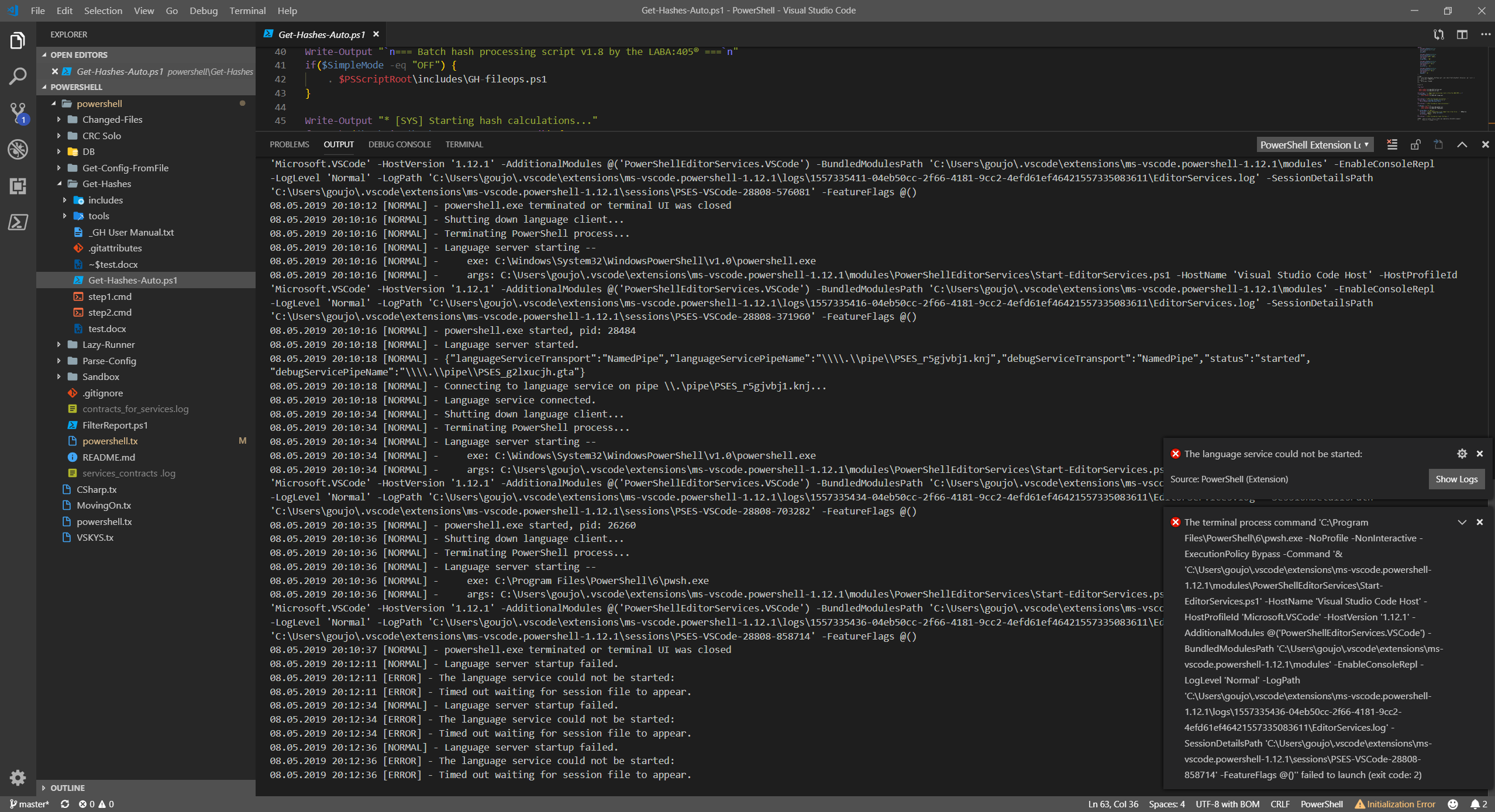
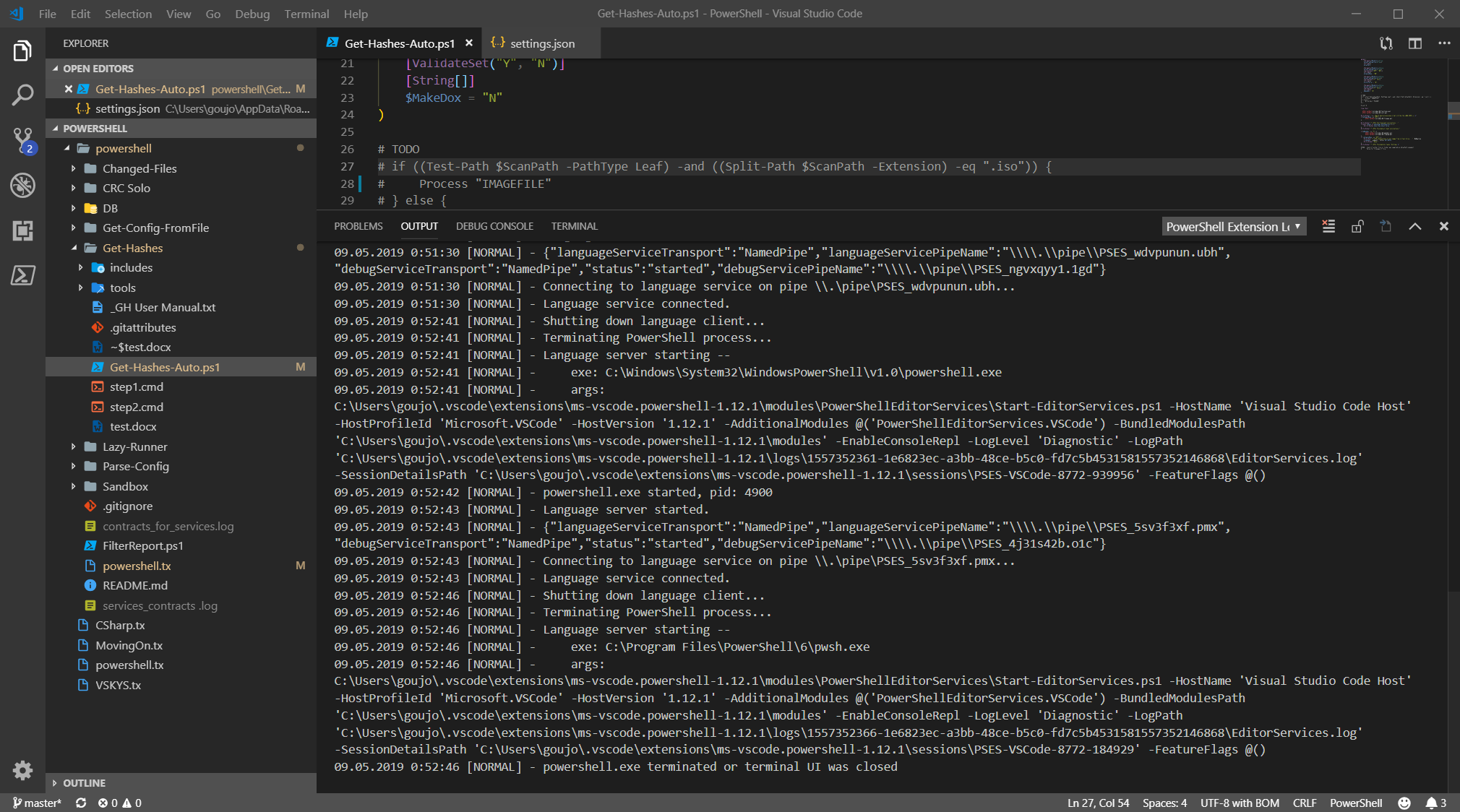
I have similar problem. On PS 6.1.0 it worked perfectly. After updating to 6.2.0 Switching from Windows Powershell session to PS Core 6 one, gives me Initialization Error message in status bar and some error info in Output. Check attached image.
 illusive-man
on 8 May 2019
illusive-man
on 8 May 2019
Exit code 2 seems to be file not found. Did this startup output logs?
Can you verify the location of your pwsh installation? Should be possible in a terminal with where.exe pwsh
 rjmholt
on 8 May 2019
rjmholt
on 8 May 2019
Yep.
Did nothing at all, just updated PS to 6.2.0. VS Сode itself and extension are always up to date.
Here's location of pwsh.exe according to where.exe: C:Program FilesPowerShell6pwsh.exe
illusive-man
on 8 May 2019
Would you be able to set your log level to Diagnostic and upload any logs generated here (or send them through to the email address in the troubleshooting docs)?
rjmholt
on 8 May 2019
If you mean this one - "powershell.developer.editorServicesLogLevel": "Diagnostic" it was already enabled at the time I've posted the screenshot. So there's no additional info in logs I'm afraid.
When I switch from Windows Powershell (x64) to Powershell Core 6 (x64) which is PS 6.2.0, I can't switch to terminal panel at all. It closes instantly. Switching back to Windows Powershell works fine. Terminal panel is accessible and shows common PS (5.1) prompt. Reinstalled everything to no avail...
illusive-man
on 8 May 2019
I assume you can run PS 6.2 in the console without error?
rjmholt
on 8 May 2019
Also which PowerShell extension do you have installed? Can you report the output of code --list-extensions --show-versions?
rjmholt
on 8 May 2019
The first mystery is that if diagnostic logging is already enabled, I'd expect verbose output from PowerShell in the startup script.
Do you have verbose logs for the successful startup of the extension with PowerShell 5.1?
rjmholt
on 8 May 2019
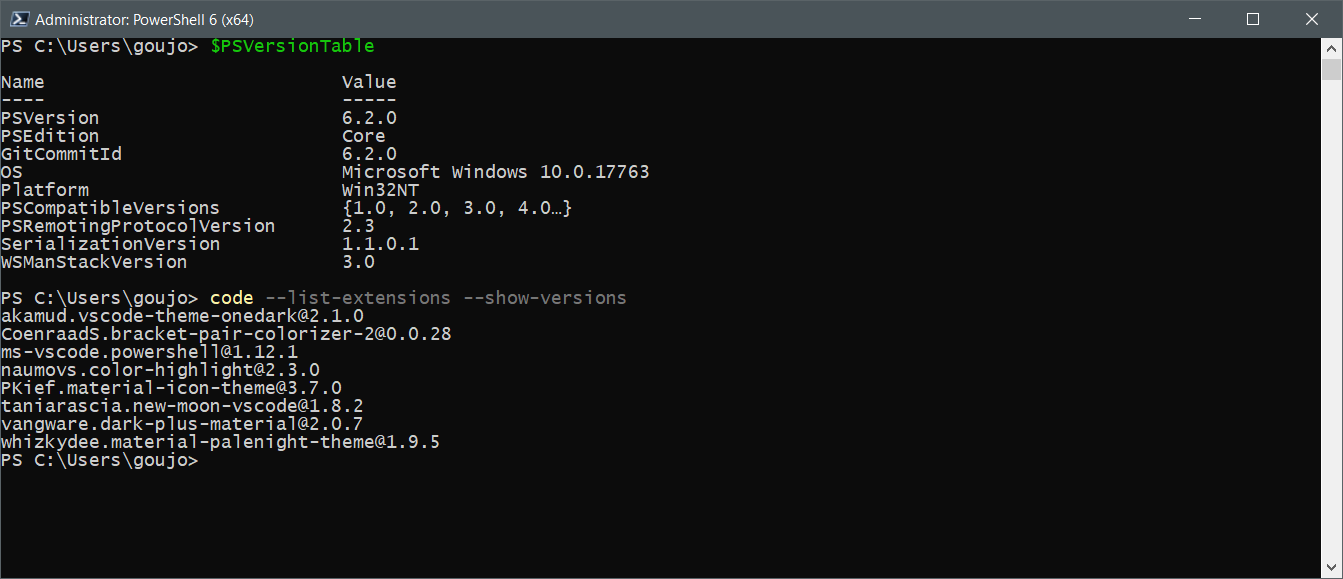
Yes. For 5.1 there's VERBOSE output in terminal.
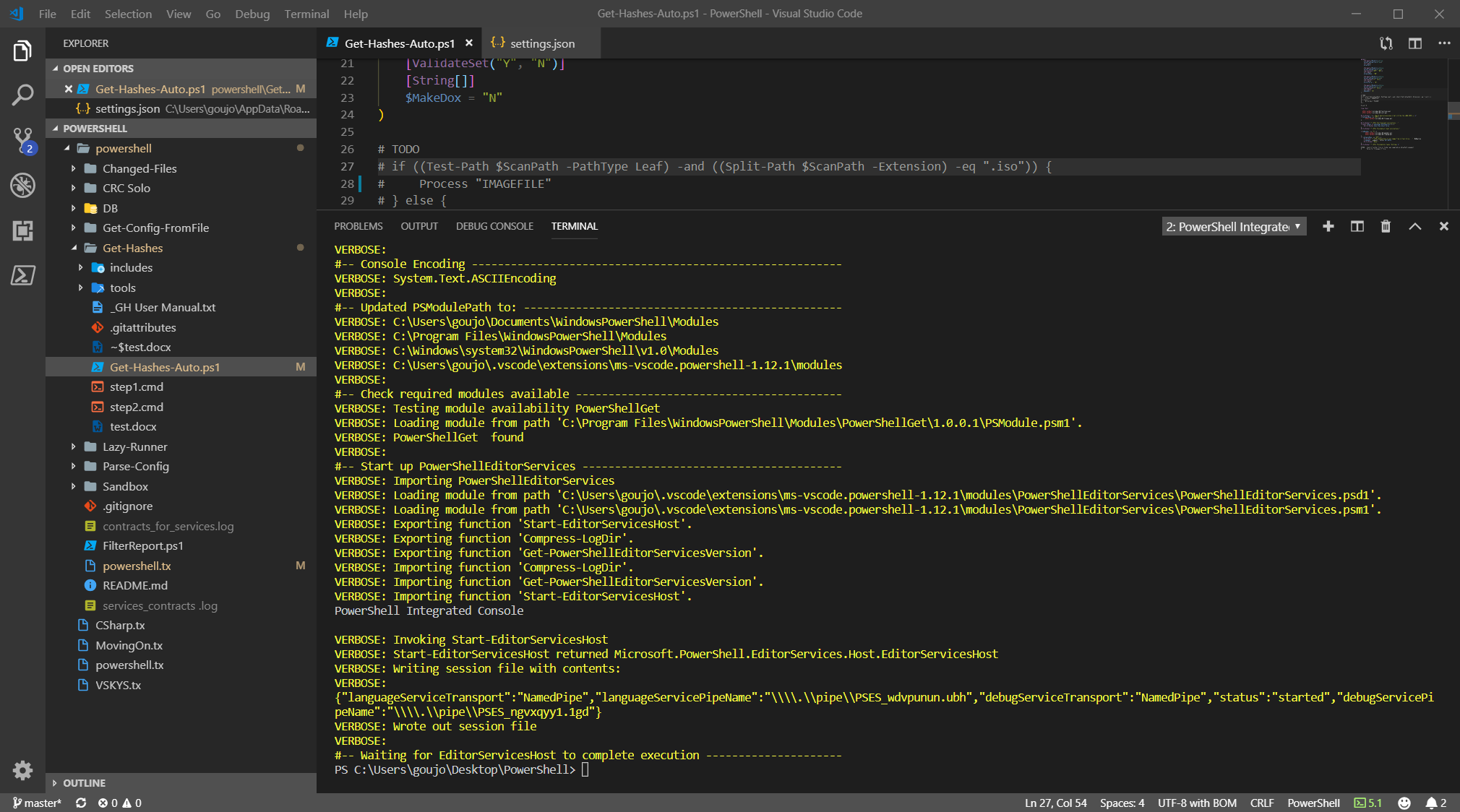
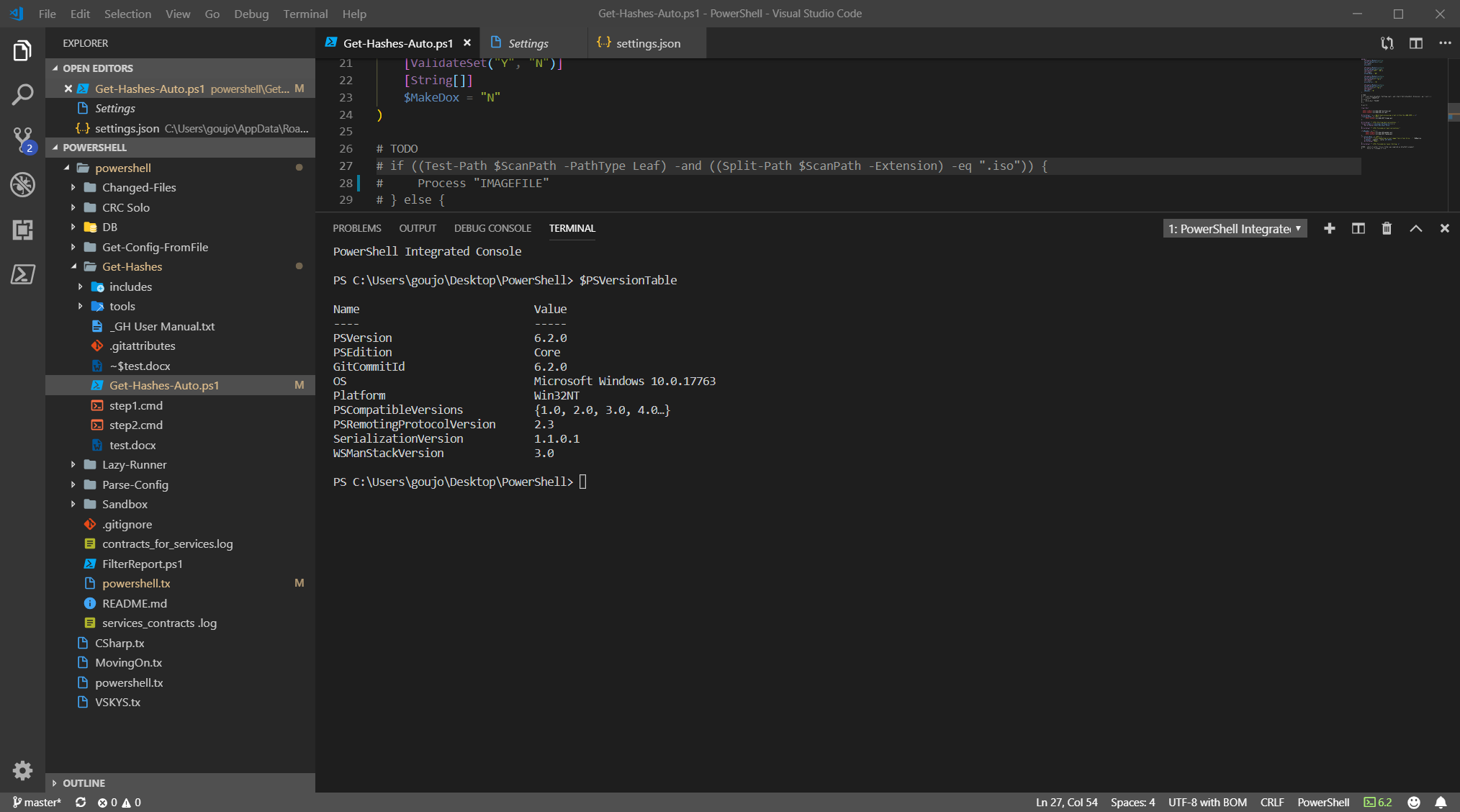
Somehow I've got terminal panel in PS Core 6 session, and there is VERBOSE output for it (last paragraph). Don't pay attention to PS Prompt because it's unresponsive.
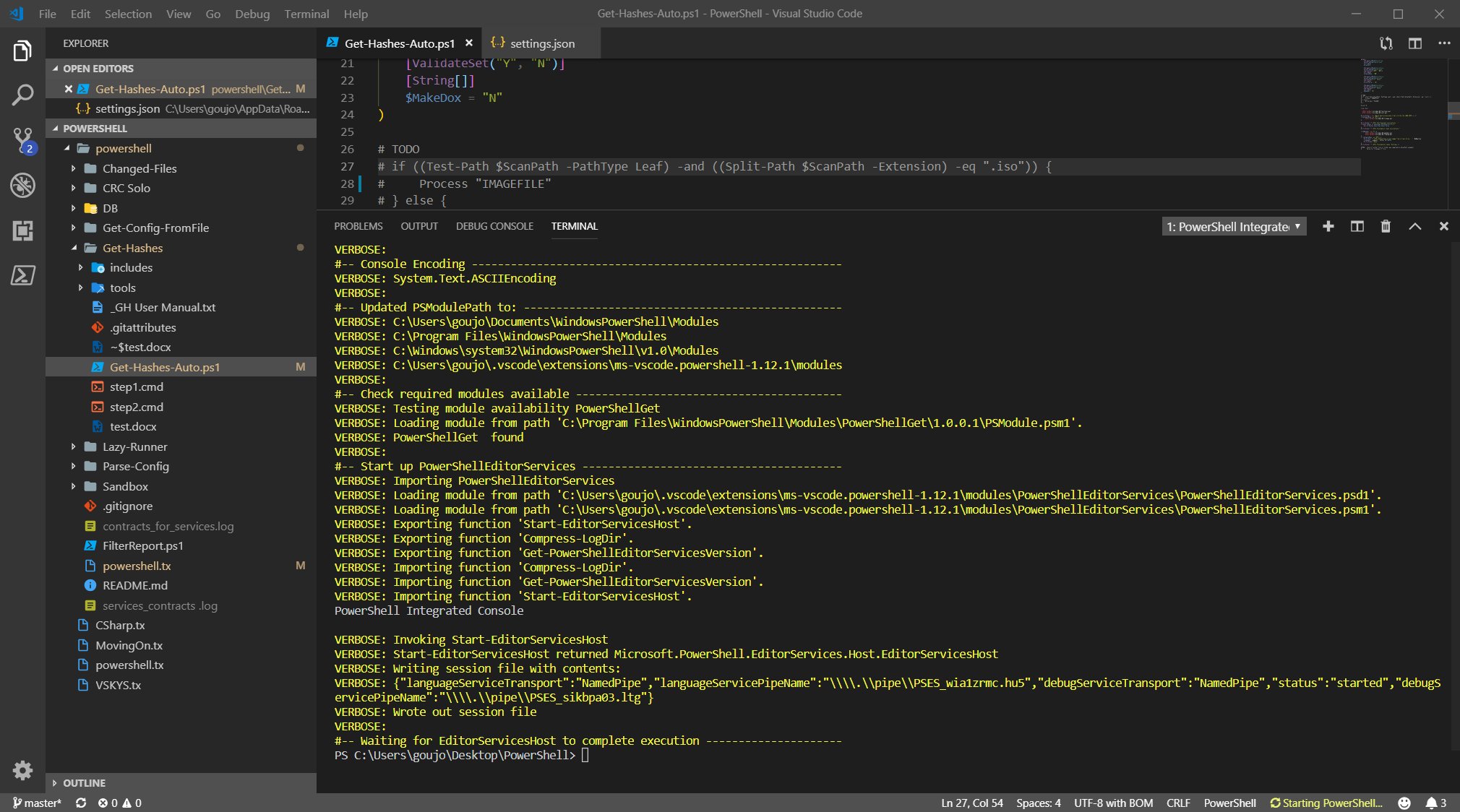
Here's Output panel content for 6.2.0:
illusive-man
on 8 May 2019
Unfortunately this looks most like https://github.com/microsoft/vscode/issues/62953. VSCode is not good about sending through error messages, but there's some problem occurring when it tries to start the PowerShell process to run the extension on.
Maybe there's a permissions problem with the PS 6.2 executable?
rjmholt
on 9 May 2019
Well, I logged in as a local administrator and all Administrators rights for pwsh.exe were there. I added Read & Execute (there was only Read) for my Usergoujon user and restarted the PC. After that it VSC extension and terminal started to work fine. Not sure it was what I did lately, but definitely helped in my case. Thank you very much, @rjmholt!!! You're the saviour! :)
illusive-man
on 9 May 2019
Great news! Glad I was able to help
rjmholt
on 9 May 2019
Assuming this is resolved for everyone since there has been no activity since my last check-in, please let us know if this is not the case, thanks!
SydneyhSmith
on 14 May 2019
I was having this issue and reverting to 2019.5.0 fixed it for me.
 pgemme
on 4 Oct 2019
pgemme
on 4 Oct 2019
I was having this issue and reverting to 2019.5.0 fixed it for me.
Even running VS Code under SYSTEM account does not help.
+1. Need a fix.
 ActionExpress50
on 25 Nov 2019
ActionExpress50
on 25 Nov 2019
@ActionExpress50 thanks for commenting on this issue, it would be great if you could open a new issue in our repo with logs/detailed explanation of the issue you are hitting so we can diagnose what is going on since the issue described that the root of the thread seems to have been resolved--thanks!
SydneyhSmith
on 26 Nov 2019
I installed PowerShell 7 from here and it fixed the problem for me.
 mabead
on 10 Mar 2020
mabead
on 10 Mar 2020
I installed PowerShell 7 from here and it fixed the problem for me.
Yeah, this likely means that the issue is what I think it is in https://github.com/PowerShell/vscode-powershell/issues/2538. Resolving the right dependency in .NET Core is much much easier, so we have a well-defined solution that works for PS 6 and 7.
rjmholt
on 10 Mar 2020
I also ran into this on a completely clean install and can confirm that installing PowerShell 7 fixed mine as well.
 js82jumper
on 4 Apr 2020
js82jumper
on 4 Apr 2020
I had the same "language service could not be started" issue in VS Code. I have both PowerShell and PowerShell Core 7 on Windows. In both with elevated PowerShell commands I set-executionpolicy unrestrected and no longer have an issue.
 steveaf
on 22 Apr 2020
steveaf
on 22 Apr 2020
I had this exactly same issue. Disabling, enabling then reload solved it for me.
This did not work for me :(.
didn't work for me either.
 clouditgirl
on 18 May 2020
clouditgirl
on 18 May 2020
Hello
I have the same issue

 Meron-cloud
on 3 Sep 2020
Meron-cloud
on 3 Sep 2020
@Meron-cloud thanks--looks like you may be hitting a new issue could you please open a new issue with the information requested in the template it would be really helpful if you could also attach the logs--instructions for how to do that are here
SydneyhSmith
on 25 Sep 2020
Related issues
 MiYanni
·
3Comments
MiYanni
·
3Comments
 inthemedium
·
3Comments
inthemedium
·
3Comments
 AWahlqvist
·
3Comments
AWahlqvist
·
3Comments
 bgelens
·
3Comments
bgelens
·
3Comments
 guidooliveira
·
3Comments
guidooliveira
·
3Comments
Most helpful comment
I had this exactly same issue. Disabling, enabling then reload solved it for me.