Vscode-powershell: Integrated console does not write output on Windows Insider build 16193
System Details
- Operating system name and version: Microsoft Windows [Version 10.0.16193.1001]
- VS Code version: 1.12.1
- PowerShell extension version: 1.0.0
- Output from
$PSVersionTable:

Issue Description
VSCode cannot launch integrated powershell and stuck at showing "starting powershell..." like this:

Attached Logs
 yhvicey
All 31 comments
I have the same issue on the 10.0.16193.1001 build and also on the previous Insider Fast Ring build. Does anyone know of a workaround for this issue?
Just realized killing the integrated PowerShell session and pressing CTRL + ` will open a powershell.exe session. This one does not get stuck at loading and seems to be a workaround until we get an insider build that doesn't have this issue.
 jaapbrasser
on 15 May 2017
jaapbrasser
on 15 May 2017
I was able to repro the issue on Friday, looks like Windows broke the console APIs that I use to read input. I was trying to install a newer canary build to test with but it kept rolling back. I'll try again today to see if the latest builds fix the issue.
 daviwil
on 15 May 2017
daviwil
on 15 May 2017
Just tried this with internal canary build 16199 and I'm still seeing the problem. I'll try to debug the issue and see where it's coming from.
/cc @bgelens @jdhitsolutions
daviwil
on 15 May 2017
Thanks for following up on this @daviwil, I appreciate that!
jaapbrasser
on 15 May 2017
@jaapbrasser How are you killing the integrated console? Mine comes back whenever I try to debug. Having no luck trying to work around this issue.
 mud5150
on 16 May 2017
mud5150
on 16 May 2017

This is what I do, click this button and then hit CTRL + `

I do end up with this error message, so it is not a full workaround as this blocks me from seeing my open files.
jaapbrasser
on 16 May 2017
I still see this issue with VSCode 1.12.2
 jdhitsolutions
on 16 May 2017
jdhitsolutions
on 16 May 2017
Updates to VS Code won't fix this unfortunately, it's an issue that manifests in PowerShell Editor Services.
daviwil
on 16 May 2017
Workaround
OK folks, I've got a workaround for this issue. Open up your VS Code profile at one of the following paths (create the file if it doesn't already exist):
Windows PowerShell 5.1
$HOME\Documents\WindowsPowerShell\Microsoft.VSCode_profile.ps1
PowerShell Core 6.0
$HOME\Documents\PowerShell\Microsoft.VSCode_profile.ps1
Insert this line at the top of the file:
[System.Console]::OutputEncoding = [System.Text.Encoding]::ASCII
Now restart VS Code. When the Integrated Console appears, you should start to see output again.
Explanation
Something happened in the latest Windows Insider builds to cause output in the Integrated Console to not be written inside of VS Code's integrated terminal. My guess is that there's some specific set of factors that contribute to this issue since it doesn't happen when you set powershell.exe to use UTF-8 output encoding inside of VS Code. I'll continue investigating this issue to try and find a real solution, but the workaround should suffice for now.
daviwil
on 16 May 2017
@daviwil Thanks man. That got me going.
mud5150
on 16 May 2017
Thanks for confirming, glad it helped!
daviwil
on 16 May 2017
Thanks worked for me. . . well after I enabled the profile again.
"powershell.enableProfileLoading": true
Seems faster ;)
 brwilkinson
on 17 May 2017
brwilkinson
on 17 May 2017
Also resolved it for me, you are a legend @daviwil, thanks for looking into this!
jaapbrasser
on 17 May 2017
Thank you @daviwil, workaround worked a treat.
 Graham-Beer
on 19 May 2017
Graham-Beer
on 19 May 2017
Aha! It works, now I can start moving away from the ConEmu 😄 .
 DexterPOSH
on 19 May 2017
DexterPOSH
on 19 May 2017
@daviwil ! Thanks for the workaround. It work on both VS Code April release and in the latest VS Code Insider.
:)
 MaximoTrinidad
on 19 May 2017
MaximoTrinidad
on 19 May 2017
Bit late to the party, but thanks for the workaround (y)
 michelderooij
on 22 May 2017
michelderooij
on 22 May 2017
Workaround doesn't help me at work because the script is blocked by group policy.
Will this be fixed in the next release?
 ZodmanPerth
on 30 May 2017
ZodmanPerth
on 30 May 2017
Even without administrative right you can change your ExecutionPolicy on the system, if you run the following you should be fine:
Set-ExecutionPolicy -ExecutionPolicy Bypass -Scope CurrentUser
@ZodmanPerth not much I can personally do about it right now, this is an issue caused by changes to Windows' console implementation in the latest Insider builds. I'm still waiting for a fix on their side.
daviwil
on 30 May 2017
Actually, I could possibly do a temporary fix inside of the language server to change the thing I'm doing that's triggering Windows console's bug, let me look into it for this week's release.
daviwil
on 30 May 2017
Wanted to provide an update on this from the end-user exp:
without workaround it still doesn't work on Windows build 16215 with vs code 1.13.0 and PS Ext 1.3.1
An update though which didn't work before. I am now able to get a descent working prompt again by first setting ASCII mode and after setting Unicode mode.

No more question marks is worth a lot for me!
Note that I cannot go to Unicode directly for some reason.
 bgelens
on 11 Jun 2017
bgelens
on 11 Jun 2017
Awesome, thanks Ben! So is the output fixed for the rest of the session after that? I might be able to just make that the fix internally.
daviwil
on 11 Jun 2017
Yes, the rest of the session look normal now
bgelens
on 11 Jun 2017
@daviwil I got some Chinese chars in the mix when doing stuff with git now.. maybe better to sit out Windows Insider builds until fixed!
bgelens
on 13 Jun 2017
Thanks for the update! I agree, seems like the console components are undergoing a lot of change at the moment so it might be best to avoid the latest Windows Insider builds.
daviwil
on 13 Jun 2017
Just an FYI
Still happening with PowerShell extension 1.3.2.

MaximoTrinidad
on 13 Jun 2017
Still a problem on 1.4.1 on Build 16237

 Jaykul
on 15 Jul 2017
Jaykul
on 15 Jul 2017
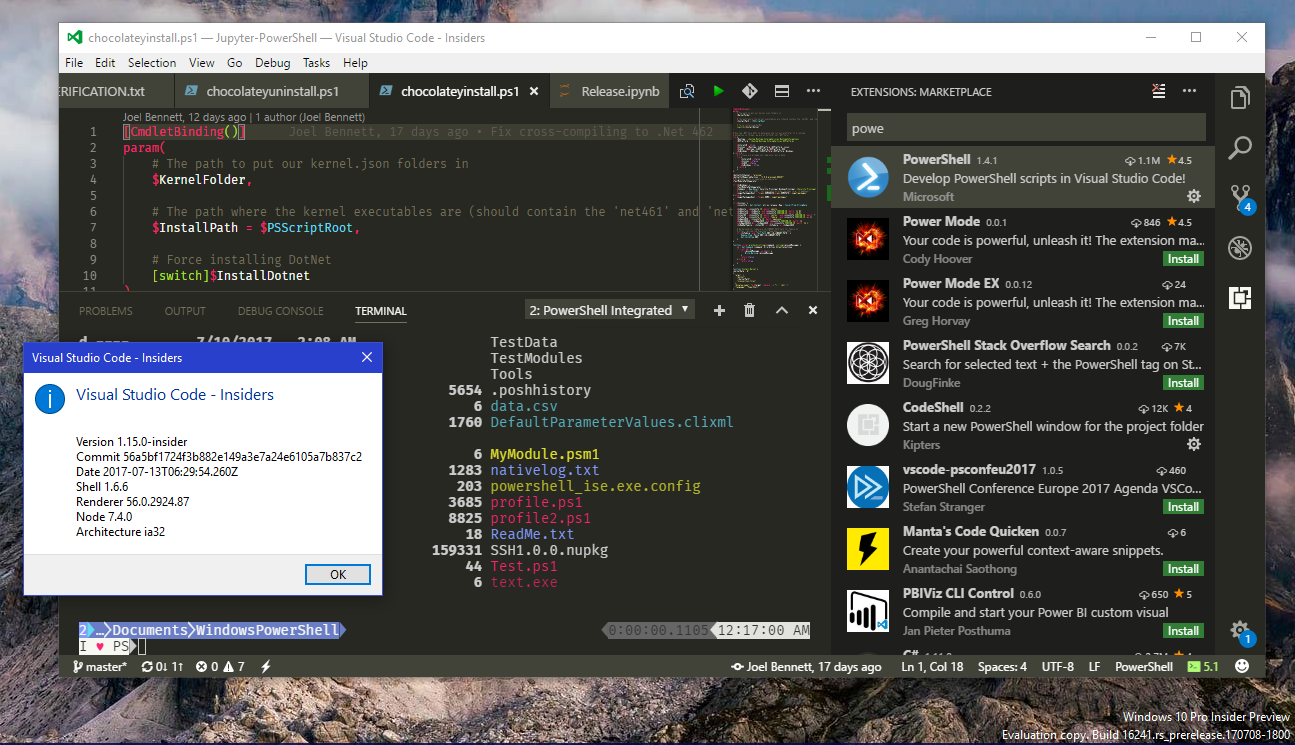
But it's fixed in 16241 👍
Jaykul
on 15 Jul 2017
Confirm fix 👍
bgelens
on 15 Jul 2017
That's excellent news, thanks a lot for letting me know!
daviwil
on 15 Jul 2017
Related issues
 lukegriffith
·
3Comments
lukegriffith
·
3Comments
 timoline
·
3Comments
timoline
·
3Comments
 CJHarmath
·
3Comments
CJHarmath
·
3Comments
 guidooliveira
·
3Comments
guidooliveira
·
3Comments
 borisimple
·
3Comments
borisimple
·
3Comments
Most helpful comment
Workaround
OK folks, I've got a workaround for this issue. Open up your VS Code profile at one of the following paths (create the file if it doesn't already exist):
Windows PowerShell 5.1
PowerShell Core 6.0
Insert this line at the top of the file:
Now restart VS Code. When the Integrated Console appears, you should start to see output again.
Explanation
Something happened in the latest Windows Insider builds to cause output in the Integrated Console to not be written inside of VS Code's integrated terminal. My guess is that there's some specific set of factors that contribute to this issue since it doesn't happen when you set powershell.exe to use UTF-8 output encoding inside of VS Code. I'll continue investigating this issue to try and find a real solution, but the workaround should suffice for now.