Vscode-powershell: Feature request: intellisense in integrated terminal (like ISE)
System Details
any/any
any/any
Issue Description
I am experiencing a problem with... syntax in the integrated terminal. ISE has intellisense not just in the editor, but also in the integrated terminal. That would be extremely useful in VS Code as well.
Attached Logs
none
 ahubbard
All 22 comments
+1, and colorful characters is also needed.
 wellsluo
on 27 Feb 2017
wellsluo
on 27 Feb 2017
Both IntelliSense in the terminal and colored output are coming as part of the "integrated console" feature, #10. This work is completing soon, subscribe to that issue to be notified when it's done.
 daviwil
on 27 Feb 2017
daviwil
on 27 Feb 2017
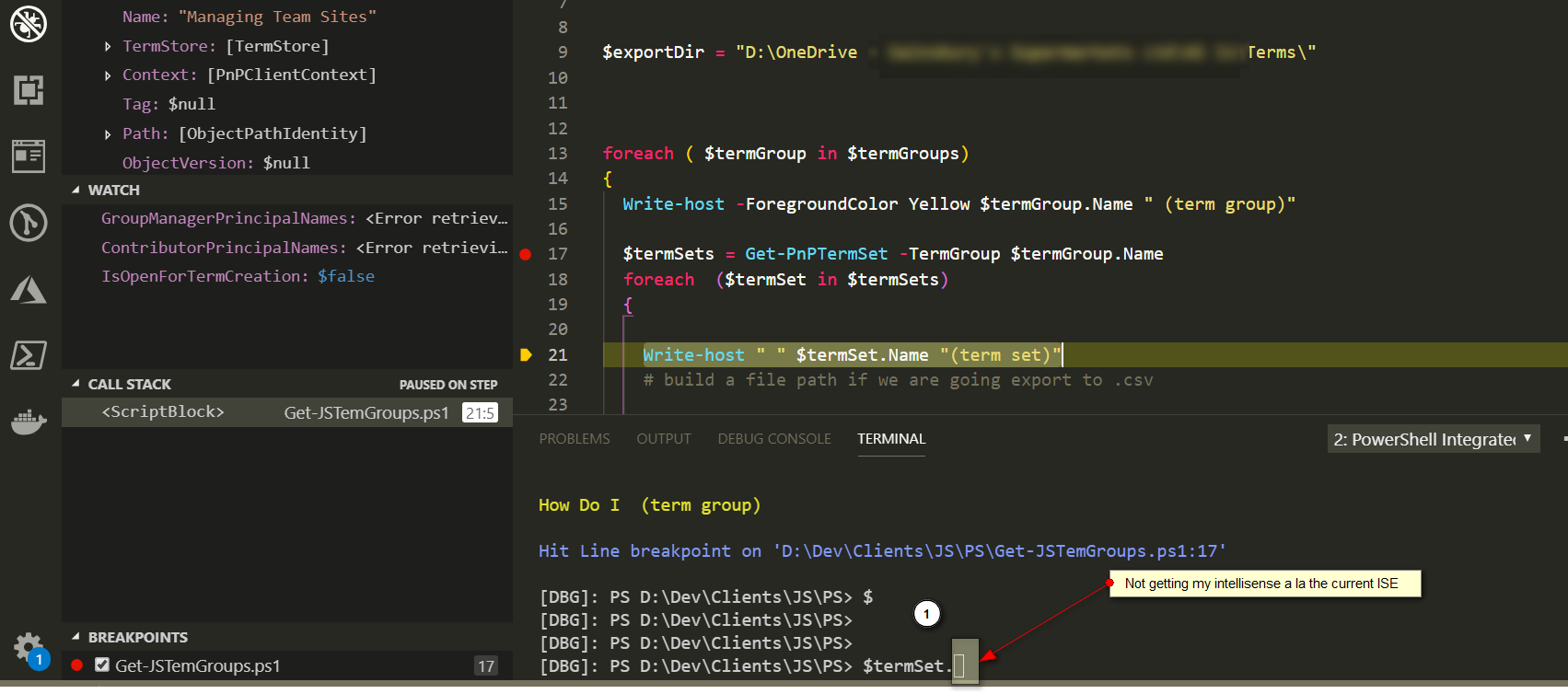
Hi, I know this issue as been closed but for some reason I am really struggling to get intellisense in my terminal or indeed debug window. You can see this the img below. I won't move from the ISE until this is resolved.
 westerdaled
on 14 Mar 2019
westerdaled
on 14 Mar 2019
@westerdaled Have you tried the PowerShell Preview extension? It has PSReadLine support in the integrated terminal.
 TylerLeonhardt
on 14 Mar 2019
TylerLeonhardt
on 14 Mar 2019
Thanks done now. I had to disable the existing PowerShell Extension, so I am guessing I will be loosing the intellisense and code analysing in the code editor windows.
westerdaled
on 14 Mar 2019
@TylerLeonhardt . I had to reinstall the PowerShell Extension to the debugger to work again. I then disabled it to allow the PowerShell Preview to work . Unfortunately, I am still not getting intellisense to work in the PowerShell integrated terminal .
westerdaled
on 14 Mar 2019
@westerdaled sorry to make this so complicated, but PSReadLine actually needs to be enabled with a feature flag to work:
To enable PSReadLine support in the Preview version on Windows, please add the following to your user settings:
"powershell.developer.featureFlags": [ "PSReadLine" ]
 SydneyhSmith
on 14 Mar 2019
SydneyhSmith
on 14 Mar 2019
@SydneyhSmith Alas the gods are against me! Run he debugger till my break point . Var is populated but cannot get the intellisense to work. Is there a different key combination I should use?
 "window.zoomLevel": 2,
    "terminal.integrated.shell.windows": "C:\\WINDOWS\\System32\\WindowsPowerShell\\v1.0\\powershell.exe",
    "powershell.developer.featureFlags": [ "PSReadLine" ],
    "git.autofetch": true,
@westerdaled what is the output of $PSVersionTable for you?
SydneyhSmith
on 14 Mar 2019
@westerdaled intellisense in the editor or in the terminal? (screenshots are helpful 😄 )
TylerLeonhardt
on 14 Mar 2019
@SydneyhSmith
Here you go
PSVersion 5.1.17134.590
PSEdition Desktop
PSCompatibleVersions {1.0, 2.0, 3.0, 4.0...}
BuildVersion 10.0.17134.590
CLRVersion 4.0.30319.42000
WSManStackVersion 3.0
PSRemotingProtocolVersion 2.3
SerializationVersion 1.1.0.1
westerdaled
on 14 Mar 2019
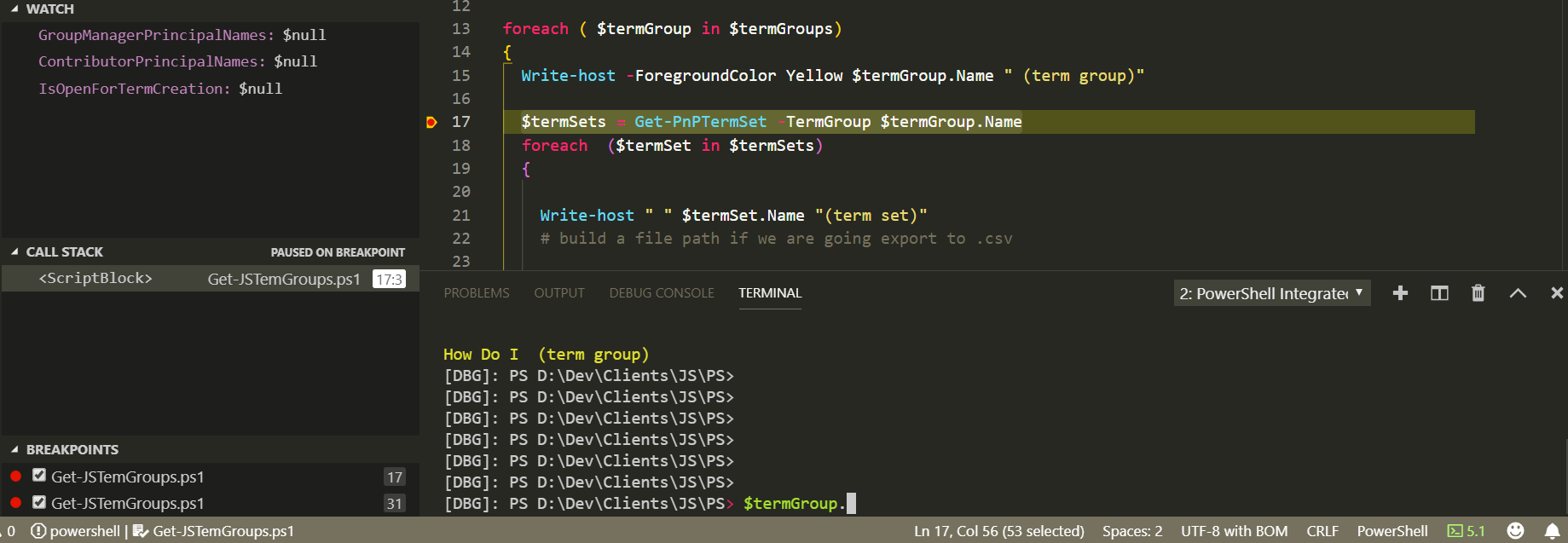
Here is a screen dump whereby I pause the debugger and see if I can inspect any of my vars - here I have written the term name to standard output so I should be able inspect any of the other property values.
westerdaled
on 14 Mar 2019
@westerdaled does nothing happen when you hit TAB?
TylerLeonhardt
on 15 Mar 2019
@TylerLeonhardt
Doh! Ok that works but no pop up scrollable list like the ISE just each function shown on each Tab
westerdaled
on 15 Mar 2019
@westerdaled Unfortunately, we cannot have that kind of a dialog in vscode (vscode limitation - not powershell extension limitation) like the ISE... However, you can rely on PSReadLine's MenuComplete!
Set-PSReadLineKeyHandler -Chord 'Ctrl+@' -Function MenuComplete
and then do $termGroup. and hit Ctrl+SPACE. You should see the PSReadLine experience which is identical to what you get in regular pwsh.exe.
Here are a few others that a useful - which can go right into your profile:
if ($env:TERM_PROGRAM -eq "vscode") {
    Set-PSReadLineKeyHandler -Chord 'Ctrl+w' -Function BackwardKillWord
    Set-PSReadLineKeyHandler -Chord 'Alt+D' -Function KillWord
    Set-PSReadLineKeyHandler -Chord 'Ctrl+@' -Function MenuComplete
}
@TylerLeonhardt
This looks good
D:\Dev\PS> $profile
C:\Users\[MYNAME}\Documents\WindowsPowerShell\Microsoft.VSCode_profile.ps1
D:\PS> notepad $profile
I pasted your lines in , saved and hit F1 (Command Palette) and selected Reload Window. My profile is now active.
Liking Ctrl Space as you suggested . The other two PSReadLine commands I guess I will need to use more.
westerdaled
on 17 Mar 2019
@westerdaled quick tip:
Open-EditorFile $profile
Opens the file in vscode :)
New-EditorFile $profile
Creates the file if it doesn't exist and opens it in vscode :)
TylerLeonhardt
on 18 Mar 2019
Btw, I have started to use this more instead of ISE as the editing experience is good. The only issues I have is that the debug doesn't always start quickly and VSCode just seem to hang. Indeed you sometimes get a timeout message. I stop, then flip back to ISE if I am in a hurry.
westerdaled
on 18 Mar 2019
Thanks for the info! When this happens, can you open up a new issue and also attach the logs to the new issue so we can get a better idea of what's going on?
TylerLeonhardt
on 18 Mar 2019
@TylerLeonhardt yes will do.
westerdaled
on 18 Mar 2019
I am really liking the preview experience which I gather has taken a lot of effort by the team. Is the intention to enable the full PSReadline experience as referenced in Scott Hanselman's blog post?
westerdaled
on 26 Mar 2019
That's the intention. It's the same PSReadLine module that Scott points out so the experience should be almost identical to what you expect in the regular console.
TylerLeonhardt
on 26 Mar 2019
Related issues
 itfranck
·
3Comments
itfranck
·
3Comments
 borisimple
·
3Comments
borisimple
·
3Comments
 bgelens
·
3Comments
daviwil
·
3Comments
bgelens
·
3Comments
daviwil
·
3Comments
 MiYanni
·
3Comments
MiYanni
·
3Comments