Vscode-neovim: ctrl-e and ctrl-y won't update the cursor position when it is out of the editing window.
Summary
First of all, sorry that I don't know the exact terms for what I'm trying to describe, so hopefully I can still get my points across.
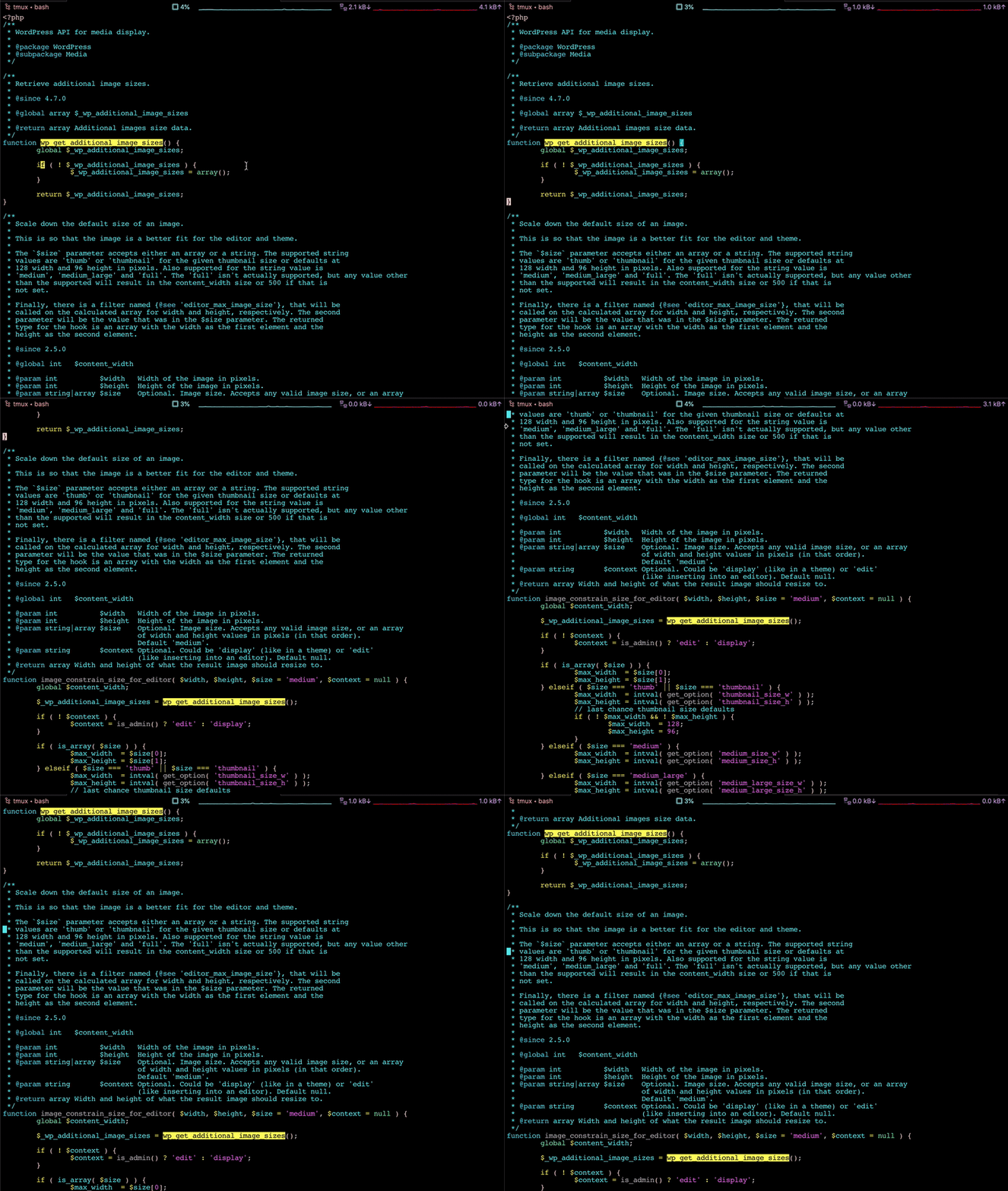
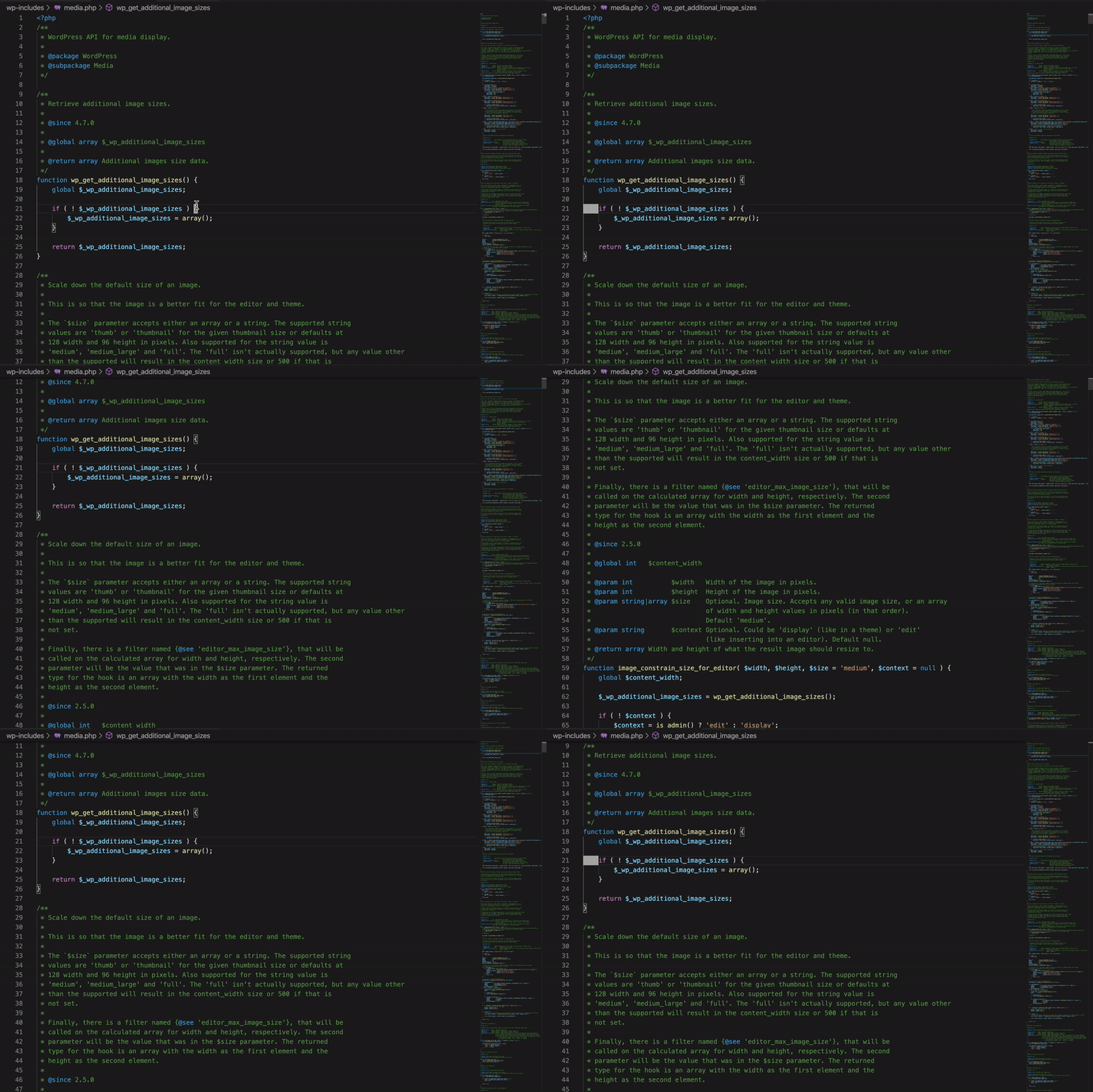
When on a native neovim, we can scroll the editing window upwards/downwards for one line by ctrl-e/ctrl-y, without changing the cursor position. When the editing window goes beyond the cursor position, it will "push" the cursor along with the boundary. However, on vscode-neovim, the cursor will always stay at the same position, disregards the window. Please refer to the screencasts below for clearer demonstration.
I'd love to work on a patch if you can help me with some pointers :)
Expected result
Here is what happened in a native neovim:
What happens instead
Here is what happened in vscode-neovim:
 southp
All 8 comments
Should be easy as uncommenting/revisiting these lines. The jumplist note is no longer relevant. There should be an option to toggle old behavior
 asvetliakov
on 13 Jan 2020
asvetliakov
on 13 Jan 2020
@asvetliakov since you say that uncommenting the lines to make this work will no longer break the jumplist, any chance they could be uncommented for the next release?
 nwaywood
on 12 Sep 2020
nwaywood
on 12 Sep 2020
@nwaywood, try it yourself to help us to improve the plugin. The file was moved here. Uncomment, build the extension and test. If it works - sand a PR.
 Shatur95
on 12 Sep 2020
Shatur95
on 12 Sep 2020
@Shatur95 thanks for the link to the new file location. I would be more than happy to test and submit a PR for this. However I have zero experience with developing VSCode extensions and the readme for the project doesn't have any instructions on how to build/run a local version of the extension.
I am assuming that to build I would just need to run this https://github.com/asvetliakov/vscode-neovim/blob/master/package.json#L1073. But then how do I get vscode to use the local version?
nwaywood
on 12 Sep 2020
@nwaywood, I very new even for TS, but let me try to help you:
- Download the repo.
- Open the project folder in VSCode.
- Execute
yarn installin terminal. (you should haveyarninstalled vianpm) - Run the project.
You will have a new instance of VSCode with local version of the plugin available for debugging.
If you want to build it and test for daily use, then you need to install vsce via npm. Then just run vsce package in the project folder.
Shatur95
on 12 Sep 2020
@Shatur95 I'm not sure how to do step 4, there is no "run" script in the package.json file
nwaywood
on 13 Sep 2020
@nwaywood, I meant to execute "Run: Start without debugging" or "Debug: Start debugging" from command palette in VSCode.
Shatur95
on 13 Sep 2020
After doing some coding today I have noticed that this issue doesn't happen all the time. I haven't been able to figure out how to reliably reproduce this bug. I'll pay attention to what I did next time it happens and hopefully will be able to reproduce it so I can test.
nwaywood
on 13 Sep 2020
Related issues
 anhyeast
·
5Comments
anhyeast
·
5Comments
 trkoch
·
3Comments
trkoch
·
3Comments
 joshua7v
·
4Comments
joshua7v
·
4Comments
 DrakeXiang
·
4Comments
Shatur95
·
4Comments
DrakeXiang
·
4Comments
Shatur95
·
4Comments