Vscode-live-server: vs code is not opening browser directly when live server gets on
Hi
When i am running my html file on vs code through "open with live server option" vs code is not opening browser directly when live server gets on its says "server is started at 5500"
and then i have to go to my browser and type "localhost:5500" to get my folder and files .
 niharikaarora1997
All 115 comments
ok ok! I understand.! I need few details.
you said
"open with live server option" vs code is not opening browser directly"
Have you try 2nd time.?
 ritwickdey
on 18 Jan 2018
ritwickdey
on 18 Jan 2018
I have tried many times. I even installed lite server. and same issue is there. it shows which server port gets on. and then i have to open my browser myself and type localhost:port to view my page
niharikaarora1997
on 18 Jan 2018
I mean by 2nd time -> Right Click on html file and click Open with Live Server and again repeat the step without stopping the server. If it's NOT works for you! I've another workaround for you.
Try this, if it not works, tell me about few things -
- OS Name?
- Which browser you want to start?
ritwickdey
on 18 Jan 2018
tried this. not working.
Using Windows
and i want to start Chrome
niharikaarora1997
on 18 Jan 2018
Ok, Let me know, if you have a changed any setting, if not, try following....
Open your User Settings and setup the settings
For 64bit system.
    {
        "liveServer.settings.AdvanceCustomBrowserCmdLine: ": "C:\\Program Files (x86)\\Google\\Chrome\\Application\\chrome.exe",
        "liveServer.settings.NoBrowser": false
    }
For 32bit system.
    {
        "liveServer.settings.AdvanceCustomBrowserCmdLine: ": "C:\\Program Files\\Google\\Chrome\\Application\\chrome.exe",
        "liveServer.settings.NoBrowser": false
    }
"git.path": null,
"workbench.iconTheme": "vscode-icons",
"liveServer.settings.CustomBrowser": "chrome",
"liveServer.settings.NoBrowser": true,
"liveServer.settings.ChromeDebuggingAttachment": true
These are my changes settings
niharikaarora1997
on 18 Jan 2018
changed*
niharikaarora1997
on 18 Jan 2018
Oops!
"liveServer.settings.NoBrowser": true, => means NO BROWSER.
make it false.
ritwickdey
on 18 Jan 2018
Yes changed it
Still not working
niharikaarora1997
on 18 Jan 2018
The same issue, the browser won't open!!
 MouniBoug
on 2 Mar 2018
MouniBoug
on 2 Mar 2018
I am also facing same issue. Can someone help?
 gauravcap01
on 4 Apr 2018
gauravcap01
on 4 Apr 2018
Any progress on this issue of the browser not opening when o the source page right clicking and selecting, "Open With Live Server"?
- Windows 10 Pro and latest VSCode.
- All my install setting are defaults
Works on other like Windows 10 installs.
 ghost
on 9 Apr 2018
ghost
on 9 Apr 2018
I would also like to hear if anyone figures this out. On OSX and it does the same.
 sambgordon
on 10 Apr 2018
sambgordon
on 10 Apr 2018
I have the same problem. My User settings:
{
"liveServer.settings.AdvanceCustomBrowserCmdLine: ": "C:\\Program Files (x86)\\Google\\Chrome\\Application\\chrome.exe",
"liveServer.settings.NoBrowser": false
}
My VS code version 1.22.2
OS: Windows 7
Any new solutions ?
 OstapHetman
on 14 Apr 2018
OstapHetman
on 14 Apr 2018
I have a DIFFERENT problem! It seems whenever I try to open a live server, it opens a completely ... different HTML file. I've even closed all the other associated files and it still opens a completely unrelated one.
 30ozSteak
on 16 Apr 2018
30ozSteak
on 16 Apr 2018
Same here, however i'm looking for help with firefox. I made no changes whatsoever to the settings file.
Here's my code:
C:\\Program Files\\Firefox Developer Edition\\firefox.exe --private-window
  "liveServer.settings.AdvanceCustomBrowserCmdLine": null,
Also note that the Go Live button is no longer there.
Right clicking the Html file brings up going live, however nothing happens.
 Azhorabai
on 19 Apr 2018
Azhorabai
on 19 Apr 2018
Anyone found a solution for this problem? It opens my code tree instead or the actual HTML code. Not sure what to do.
VSC Version: 1.23.1
OS: Windows 10 Pro
 mjyousse
on 12 May 2018
mjyousse
on 12 May 2018
@mohammadsf i think there is no index.html that's why it opens your code tree when server started.
 rjoydip
on 13 May 2018
rjoydip
on 13 May 2018
@rjoydip Yea thanks for that.. I'm assuming that sometimes the HTML file doesn't have to necessarily be names"index.html", is there a work around that or not really?
I appreciate i.
mjyousse
on 18 May 2018
If any html file opened in your vscode active window then it will open that otherwise it will open a file explore from the you can pick any html and live reload will works as well.
rjoydip
on 18 May 2018
∫ this is what I am getting when I try to use option b with mac. The html file won't open in browser. Uninstalled, disabled it and the opposite. Also deleted visual studios and reinstalled that as well still no avail.
Anyone else having this issue?
 Cshivers1
on 18 Aug 2018
Cshivers1
on 18 Aug 2018
@cshivers1
You have to open the project directory in vs code, and not the file itself
-Folder <—— open this in the terminal with code Folder
—index.html
—style.css
—index.js
Then you’ll be able to open in Live server
30ozSteak
on 18 Aug 2018
I use to be able to just press option b and it would load directly from the html file
Cshivers1
on 18 Aug 2018
Wow! I was having same issue of not being able to open my file in Live server. But now, I can after opening the project directory in VS Code and not the file itself.
Big thanks to you @30ozSteak
 ODINAKACHUKWU
on 4 Sep 2018
ODINAKACHUKWU
on 4 Sep 2018
close all opened windows in VS and close the program then run as administrator.
now select the folder to open and go live.
it worked for me.
 ehsanyousefi
on 24 Sep 2018
ehsanyousefi
on 24 Sep 2018
I was having the same problem. alt+l alt+o, the browser didn't open. I would have to go to the browser and type in localhost:port, or 127.0.0.1:port. Well, it was annoying. I had it working until I mess with python installation.
So then I started looking for issues, made the changes like:
{ "liveServer.settings.AdvanceCustomBrowserCmdLine: ": "C:\Program Files (x86)\Google\Chrome\Application\chrome.exe",
"liveServer.settings.NoBrowser": false }
and so on(there is at least 5 issues on github for you to look). I also created a new user for windows and installed VS Code there, and live server still had the same problem.
After trying and trying, I decided to format/reset Windows 8.
After formatting the Discs(C:/ and D:/), I installed windows, then installed Google Chrome, then VS CODE, and finally the Live Server Extension.
Then I tested live server and it worked fine.
After installing a couple of softwares, since I reseted Windows 8, I also installed Avast Antivirus, with all the components.
One component called Avast Browser Secure(something like that) was opening it's own browser. And that component really suck, and after a couple of times I opened live server, it started to cause an error.
Then I uninstalled that component Avast Browser Secure, and live server is working fine as it should be.
So my point here is if you are having issues with the live server, and you've looked the issues here on GitHub, and the issue is still happening, then it might be another software that is interfering, in my case, it was a component of Avast.
My configs:
Windows 8.1 Pro
VS Code Version: 1.27.2 (user setup)
Commit: f46c4c469d6e6d8c46f268d1553c5dc4b475840f
Date: 2018-09-12T16:17:45.060Z
Electron: 2.0.7
Chrome: 61.0.3163.100
Node.js: 8.9.3
V8: 6.1.534.41
Architecture: x64
Google Chrome: 69.0.3497.100 (Versão oficial) 64 bits
 erike1
on 24 Sep 2018
erike1
on 24 Sep 2018
@erike1 Thanks for the tip. I had this issue with avast on my laptop (Windows 10) and disabling it got it to work fine for me. Kaspersky also caused the issue on my Desktop (Windows 7).
mjyousse
on 24 Sep 2018
Had this too, fixed it by opening a new vscode and importing the workspace folder again. I think this is due to Explorer pointing to untitled for my workspace directory....not sure how that happened. Anyways it looks like Atom client also had this issue https://github.com/jas-chen/atom-live-server/issues/89
 GNouchi
on 30 Nov 2018
GNouchi
on 30 Nov 2018
same with mine... I used to use it for one project and after that any other project dont allow me to do it.
There is an error..
 robert0525
on 9 Dec 2018
robert0525
on 9 Dec 2018
Same problem tried everything. Frustrating. Has anyone solved this?
 SirAndrewDillon
on 23 Dec 2018
SirAndrewDillon
on 23 Dec 2018
@majik895 can you please share a screenshot of vscode window?
are you using stable version of vscode?
ritwickdey
on 23 Dec 2018
@majik895 can you please share a screenshot of vscode window?
are you using stable version of vscode?
I fixed it by switching versions of Windows. About fed up and going to start using Linux full time. Thanks for replying. Any chance we can converse. I am studying JavaScript to become a full stack developer and have no to talk to about it. Always running into problems. Doing this on my own.
SirAndrewDillon
on 23 Dec 2018
Hi @majik895. Live Server should work in Linux too... If you're still facing issue.
You can do a text chat with me in Hangout/Skype.
Hangout: [email protected]
Skype: ritwickdey
ritwickdey
on 23 Dec 2018
my buddy had the issue, l just told him to unistall the extenstion and delete all the liveserver configurations in settings.json and restart VSCode. he reinstalled the live server ext and it started to work
 RJardine
on 2 Mar 2019
RJardine
on 2 Mar 2019
Oops!
"liveServer.settings.NoBrowser": true, => means NO BROWSER.
make it false.
i have the same problem i`ve tried several times but no changes happen
 Abdelrhmangad
on 19 Apr 2019
Abdelrhmangad
on 19 Apr 2019
I have also encountered the same problem recently, and the reinstallation of vscode has not solved this problem. How to deal with this problem?
 LFlifeng
on 5 May 2019
LFlifeng
on 5 May 2019
@LFlifeng check @Abdelrhmangad post right above you. It should fix it.
mjyousse
on 5 May 2019
I have tried pretty much everything in this thread and nothing worked so far. I do get the "Live" button but when I click nothing opens (the button does change to "port:5500" and I get a pop-up, but that's about it).
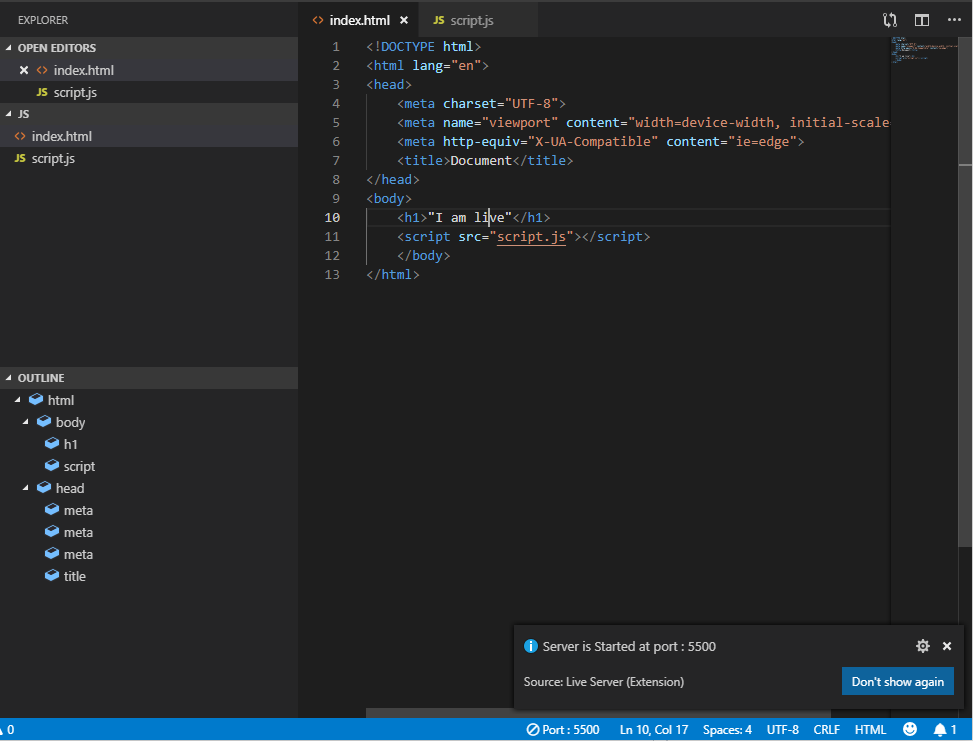
Any idea of what might be causing the problem?
I've tried with both Chrome and Firefox, and even tried installing the "View in Browser" extension and have exactly the same issue (nothing happens).
If I I manually type http://127.0.0.1:5500/index.html in Chrome everything seems to be working fine, so the (rather annoying) only issue is Live Server not being able to directly open the file in the browser when in VS Code I right-click -> "open with live server".
I have:
- Windows 10 x64
- No antivirus (Default Windows Defender)
- Allowed VS Code through the firewall.
- Tried reinstalling the extension, removing the live server config, installing the chrome browser extension...
- Tried disabling Ad Blockers in chrome.
 ndeamador
on 21 May 2019
ndeamador
on 21 May 2019
@ndeamador did you find the solution yet? If yes, please share. I having the same issue... This force me to use webpack dev-server. I wish I can continue using live server directly in vscode
 ansonlowzf
on 22 Jun 2019
ansonlowzf
on 22 Jun 2019
I started seeing this issue with the latest Chrome release (version 75.0.3770.100). I tried changing my default browser in windows and it worked just fine with Edge, FF and Brave.
Also, I noticed that my add blockers and ghostery extensions have not just been disabled but are gone completely. Time to move away from Google?
 davispe
on 4 Jul 2019
davispe
on 4 Jul 2019
User Settings > search Custom browser settings and set it to your Fav Custom browser
 itsmeusama
on 11 Jul 2019
itsmeusama
on 11 Jul 2019
Me too, I had the same problem, the solution is quite simple, well it worked for me, just change the 127.0.0.1 to 127.0.0.7 or the number you want. Verify that port 5500 was being used but it was the same VSC and decided to change the IP that comes out when loading the pages. I tried again the IP ending in 127.0.0.1 to discard and let it work, so just change the last number of the IP and it will work again
 HyperionZ
on 4 Aug 2019
HyperionZ
on 4 Aug 2019
My Live extension stopped working after I messed with the system and user variables. If you are facing the same issue using windows 10, doing a reset back to default settings cleared up the issue. This process takes about 15 minutes. I would imagine resetting your PC back to default will get everything working again, regardless of the OS. I tried googling around, changing paths through environment variables and session managers, didn't work until I did a reset. Hope this helps.
 Odeh76
on 5 Aug 2019
Odeh76
on 5 Aug 2019
Encountered this issue. The current workaround that works for me was to select Chrome as my default browser. Firefox wasn't managing to open. Not sure why this issue was closed in January 2018. This thread is the top google result and is still getting comments.
 sam-spain
on 9 Aug 2019
sam-spain
on 9 Aug 2019
Liver Server worked perfectly fine until i updated VSC. Now it doesn't work at all. We need a solution from the developer/s.
 islandgeek06
on 13 Aug 2019
islandgeek06
on 13 Aug 2019
simple solution, you may not open the server it self using npm start in your power shall.
 M-Helmy
on 26 Aug 2019
M-Helmy
on 26 Aug 2019
same problem. installed it yesterday. it worked once for me after asking it to a few times. today, nothing. gave up. there are other options to go with.
 DonP199
on 11 Sep 2019
DonP199
on 11 Sep 2019
What are the other options? I am tired of trying with live server.
On Wed, Sep 11, 2019 at 4:04 PM DonP199 notifications@github.com wrote:
same problem. installed it yesterday. it worked once for me after asking
it to a few times. today, nothing. gave up. there are other options to go
with.—
You are receiving this because you commented.
Reply to this email directly, view it on GitHub
https://github.com/ritwickdey/vscode-live-server/issues/65?email_source=notifications&email_token=AIERTMZEOXLU7HQF2MNE4ZLQJFMMTA5CNFSM4EMFUP62YY3PNVWWK3TUL52HS4DFVREXG43VMVBW63LNMVXHJKTDN5WW2ZLOORPWSZGOD6P4ONA#issuecomment-530564916,
or mute the thread
https://github.com/notifications/unsubscribe-auth/AIERTM7NOU7F2EVE5M36NIDQJFMMTANCNFSM4EMFUP6Q
.
islandgeek06
on 14 Sep 2019
Server is started at 5500 but failed to open in Browser Preview. Got Browser Preview extension installed?
 patelrohan750
on 4 Oct 2019
patelrohan750
on 4 Oct 2019
i solved it:
Search for settings.json in C:\users\
delete live server settings.json file (this is not deleted when u reinstall vsc)
voila!
 messi618
on 3 Nov 2019
messi618
on 3 Nov 2019
I am having some issue with visual studio code.i installed visual studio code and i wrote html css and js
code.But i am not able to install extensions. while installing it is showing an error.not able run code on browser.please can any one help me out.
 Nandamma
on 6 Nov 2019
Nandamma
on 6 Nov 2019
This is live server have real issues
 Dmitry567
on 25 Nov 2019
Dmitry567
on 25 Nov 2019
This live server have real problems
Dmitry567
on 25 Nov 2019
why not working live server in window 7
 aa226
on 25 Nov 2019
aa226
on 25 Nov 2019
Hey I finally found a solution. I was stuck with this problem for days and after few fixes everything worked.
First: add the following lines to your USER settings.json section (ignore curly brackets if they already exist)
{
"liveServer.settings.AdvanceCustomBrowserCmdLine": "C:\Program Files (x86)\Google\Chrome\Application\chrome.exe",
"liveServer.settings.NoBrowser": false,
"liveServer.settings.port":8080,
"liveServer.settings.proxy":127.0.0.1_
}
Then click on workspace and add the following to setting.json
{
_"liveServer.settings.CustomBrowser": "chrome",
"liveServer.settings.host": "127.0.0.1",
"liveServer.settings.port":8080,
"liveServer.settings.showOnStatusbar": true_
}
After adding these lines make sure VS Code is allowed through Windows firewall. Also you may want to disable any VPNs or IP Maskers.For my case I had CyberGhost which was somehow causing the issue. After everything done RESTART your system. Let me know if it worked
 kipruto
on 30 Nov 2019
kipruto
on 30 Nov 2019

just select the browser :-)
 Priyanshu-kumar-Singh
on 16 Dec 2019
Priyanshu-kumar-Singh
on 16 Dec 2019
After reading through the posts I tried this which worked for me. I change the address from 127.0.0.1 to 127.0.0.7 and liveserver began working again. No proxy or firewall changes required.
"liveServer.settings.CustomBrowser": "chrome",
"liveServer.settings.host": "127.0.0.7"
 GeekMustHave
on 9 Jan 2020
GeekMustHave
on 9 Jan 2020
i am also facing the same problem don't know what to do tried everything from the above. But it is not solving .
 Rickey07
on 16 Jan 2020
Rickey07
on 16 Jan 2020
I was having this problem too. You need to save as "Example".html after you do that the colors will change on VSC and then you can Alt B to Open in Default Browser. Hope that helps
 jmh947
on 19 Jan 2020
jmh947
on 19 Jan 2020
I was having the same problem. Restarted VSC a few times with no success. Settings.json fixed it: "liveServer.settings.CustomBrowser": "chrome"
 donfre
on 2 Feb 2020
donfre
on 2 Feb 2020
I was having the same problem. Restarted VSC a few times with no success. Settings.json fixed it: "liveServer.settings.CustomBrowser": "chrome"
Are you using windows? If yes, please check your environment variable in the setting whether system32 had been added to the path...
ansonlowzf
on 3 Feb 2020
I was having the same problem. Restarted VSC a few times with no success. Settings.json fixed it: "liveServer.settings.CustomBrowser": "chrome"
Are you using windows? If yes, please check your environment variable in the setting whether system32 had been added to the path...
It Works!!!!!!!
 judenethub
on 7 Feb 2020
judenethub
on 7 Feb 2020
I have this problem: when I try to open a file.html in my browser can't open. I installed again vs code and google chrome but doesn't work. The messages appear are:
- Open browser failed!! Please check if you have installed the browser correctly!
- Server is started at 5500 but failed to open in Browser Preview. Got Browser Preview extension installed?

Can someone help me?
Thanks
- Windows 10 x 64
- No antivirus (Default Windows Defender)
- Tried reinstalling the extension, removing the live server config, installing the chrome browser
extension...
 Nisanech
on 16 Feb 2020
Nisanech
on 16 Feb 2020
Try this
Open File Folder Settings then include this on the _settings.json_ file.
_{
"liveServer.settings.CustomBrowser": "chrome",
"liveServer.settings.ChromeDebuggingAttachment": true,
}_
Reopen Live Server. Enjoy!
Note:
-I am using google chrome as my browser. Modify CustomBrowser to the browser you desire to use.
 BryndellTorio
on 21 Feb 2020
BryndellTorio
on 21 Feb 2020
Are you using windows? If yes, please check your environment variable in the setting whether system32 had been added to the path...
This worked for me!
 ppshdev
on 16 Mar 2020
ppshdev
on 16 Mar 2020
ok ok! I understand.! I need few details.
you said
"open with live server option" vs code is not opening browser directly"
Have you try 2nd time.?
when i click on GO LIVE, browser is not opening and showing some msg like:"Server is started at 81 but failed to open in Browser Preview. Got Browser Preview extension installed?" help me bro......
 ShivShrivas
on 9 Apr 2020
ShivShrivas
on 9 Apr 2020
I have this problem: when I try to open a file.html in my browser can't open. I installed again vs code and google chrome but doesn't work. The messages appear are:
Open browser failed!! Please check if you have installed the browser correctly!
The server is started at 5500 but failed to open in Browser Preview. Got Browser Preview extension installed?
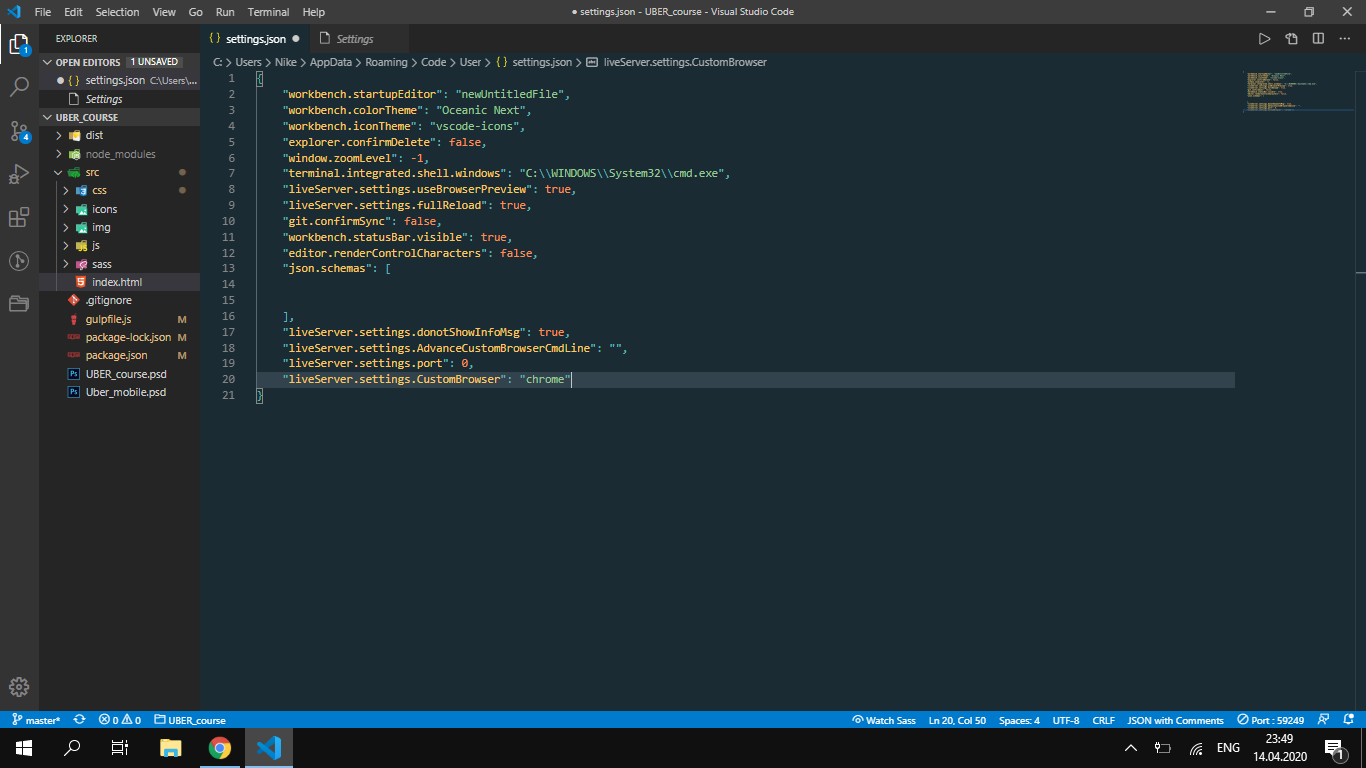

Help me, please!!!!!!!!!!!!
 cowboy-willy
on 14 Apr 2020
cowboy-willy
on 14 Apr 2020
use the ' open in browser ' extension by TechER and the headache will disappear . After that right-click and choose open in default browser (Alt+B) and you are done.
 NabeelMansour
on 17 Apr 2020
NabeelMansour
on 17 Apr 2020
I also faced a similar problem.I tried to open the live server but it showed a error that said---"Application not found"
This is a simple error. Just go to control panel>default programs>select chrome and set it as your default browser in all.
This solved my problem.Hope this helps.
 AbbasRuder
on 22 Apr 2020
AbbasRuder
on 22 Apr 2020
Hello,
I changed my laptop and my Live server thru VSC is not pulling all the content:
below picture shows the missing things running thru Live Server:
(https://user-images.githubusercontent.com/57165289/80160384-85d56000-859b-11ea-83d3-133af628cb94.JPG
The full content of the page running thru Git Bash:
https://user-images.githubusercontent.com/57165289/80160385-85d56000-859b-11ea-80da-986c25a60dee.JPG
css content & images are not loading, can you please let me know the reason or am I missing any extensions on VS Code
thanks in advance, really appreciate it.
 nirgunjoshi
on 24 Apr 2020
nirgunjoshi
on 24 Apr 2020
Solved.
First unistall vsCode then delete \roamingcode.
Install vsCode then first install theme (if you use) then install LiveServer
(i have 2 extensions) i think... if you install the extensions after LiveServer, doesnt work.
 do-Va
on 26 Apr 2020
do-Va
on 26 Apr 2020
I updated my visual studio code and since then my live server is messed up, now my vsc doesn't bring "go live" option , someone pls help
 phemmyjunior
on 26 Apr 2020
phemmyjunior
on 26 Apr 2020
Solved.
First unistall vsCode then delete \roamingcode.
Install vsCode then first install theme (if you use) then install LiveServer
(i have 2 extensions) i think... if you install the extensions after LiveServer, doesnt work.
thanks,
did it but its the same.
nirgunjoshi
on 26 Apr 2020
The issue appeared after I stupidly deleted some environment variables.
Fixed by adding a missing variable "Path" pointing to "C:\Windows\System32" folder. This solution was mentioned previously in the thread, but without detailed info.
See screenshot of my Windows10 variable added that was missing.

On other versions of Windows path may be different.
 jurijus01
on 6 May 2020
jurijus01
on 6 May 2020
Default browser set to Chrome still Its not launching the browser.
But http://127.0.0.1:port number/ works fine.
 elspnm
on 9 May 2020
elspnm
on 9 May 2020
I have this problem: when I try to open a file.html in my browser can't open. I installed again vs code and google chrome but doesn't work. The messages appear are:
Open browser failed!! Please check if you have installed the browser correctly!
The server is started at 5500 but failed to open in Browser Preview. Got Browser Preview extension installed?
Help me, please!!!!!!!!!!!!
Uninstall the vs code fully and delete .vscode folder and Code folder from appdata\Roaming
download and Install the visualstudio User installer setup file not the System installer then install the live server and check. I had same problem in win10 and chrome v81. Now with user installer its working live
elspnm
on 10 May 2020
I have this problem: when I try to open a file.html in my browser can't open. I installed again vs code and google chrome but doesn't work. The messages appear are:
Open browser failed!! Please check if you have installed the browser correctly!
The server is started at 5500 but failed to open in Browser Preview. Got Browser Preview extension installed?
Help me, please!!!!!!!!!!!!Uninstall the vs code fully and delete .vscode folder and Code folder from appdata\Roaming
download and Install the visualstudio User installer setup file not the System installer then install the live server and check. I had same problem in win10 and chrome v81. Now with user installer its working live
live server still not working
 Gunjan-ma
on 21 May 2020
Gunjan-ma
on 21 May 2020
open the folder of your project in vscode and then open the file and run live server, will surely work.
 Starkeyofficial
on 5 Jun 2020
Starkeyofficial
on 5 Jun 2020
Hello guys, getting ''Application not found'' error when i tried running code via Live server. Kindly assist.

 scriptScribe
on 17 Jun 2020
scriptScribe
on 17 Jun 2020
Ok, Let me know, if you have a changed any setting, if not, try following....
Open your User Settings and setup the settings
For 64bit system.
  {
      "liveServer.settings.AdvanceCustomBrowserCmdLine: ": "C:\\Program Files (x86)\\Google\\Chrome\\Application\\chrome.exe",
      "liveServer.settings.NoBrowser": false
  }
For 32bit system.
  {
      "liveServer.settings.AdvanceCustomBrowserCmdLine: ": "C:\\Program Files\\Google\\Chrome\\Application\\chrome.exe",
      "liveServer.settings.NoBrowser": false
  }
Facing the same issue live server says it started but i have to manually type localhost:5500 performed all the steps you mentioned above.. but the issue is still unsolved.. please help
 aaryanchaubey
on 20 Jun 2020
aaryanchaubey
on 20 Jun 2020
I had a same problem and i solve it (I use Windovs 7, but it is same procedure as for Windovs 10). Just follow this steps:
Go to system variables, then go to enviroment variables, then go to system variables find Path and click edit.
After that add C:\Windows\System32.
Good luck!
 sale1234
on 11 Aug 2020
sale1234
on 11 Aug 2020
ok ok! I understand.! I need few details.
you said"open with live server option" vs code is not opening browser directly"
Have you try 2nd time.?
when i click on GO LIVE, browser is not opening and showing some msg like:"Server is started at 81 but failed to open in Browser Preview. Got Browser Preview extension installed?" help me bro......
run VS Code as an admisintrator and then try. Only this thing helped me nothing else.
 prayas1998
on 12 Aug 2020
prayas1998
on 12 Aug 2020
okay i have the solution now. its all about path
 muneebkamboh
on 20 Aug 2020
muneebkamboh
on 20 Aug 2020
i click on go live on status bar and also done "run with live server" from title bar but still my program is not running. even no any error coming ,so what is the problem and how can i solve it?
 jinayy
on 20 Aug 2020
jinayy
on 20 Aug 2020
I had also the problem and I solve it (I use Windows 7, but it is the same procedure as for Windovs 10). Guys just follow these steps and go live :
just Go to system variables, then go to environment variables, then go to system variables find Path and click edit.
After that add C:\Windows\System32.
Good luck!
thanks for discussion everyone but this is the thing only works
 mohitguptaprojects
on 21 Aug 2020
mohitguptaprojects
on 21 Aug 2020
The issue appeared after I stupidly deleted some environment variables.
Fixed by adding a missing variable "Path" pointing to "C:\Windows\System32" folder. This solution was mentioned previously in the thread, but without detailed info.
See screenshot of my Windows10 variable added that was missing.
On other versions of Windows path may be different.
Thank you so much my live server started working
 shreyashsharma2001
on 1 Sep 2020
shreyashsharma2001
on 1 Sep 2020
Thank you so much my live server started working
shreyashsharma2001
on 1 Sep 2020
The issue appeared after I stupidly deleted some environment variables.
Fixed by adding a missing variable "Path" pointing to "C:\Windows\System32" folder. This solution was mentioned previously in the thread, but without detailed info.
See screenshot of my Windows10 variable added that was missing.
On other versions of Windows path may be different.
Thanks, man you save my life
 Jobayerdev
on 5 Sep 2020
Jobayerdev
on 5 Sep 2020
issue solved! big thanks to u
 UdayDevnani
on 6 Oct 2020
UdayDevnani
on 6 Oct 2020
The issue appeared after I stupidly deleted some environment variables.
Fixed by adding a missing variable "Path" pointing to "C:\Windows\System32" folder. This solution was mentioned previously in the thread, but without detailed info.
See screenshot of my Windows10 variable added that was missing.
On other versions of Windows path may be different.
You Saved My Life.
UdayDevnani
on 6 Oct 2020
Thanks Buddy.
UdayDevnani
on 6 Oct 2020

I am not able to open with live server in VS code. I uninstalled it and again installed live server, but also i am unable to open live server. Can anyone please help me @ritwickdey
 Nagasandesh
on 13 Oct 2020
Nagasandesh
on 13 Oct 2020
I had a same problem and i solve it (I use Windovs 7, but it is same procedure as for Windovs 10). Just follow this steps:
Go to system variables, then go to enviroment variables, then go to system variables find Path and click edit.
After that add C:\Windows\System32.
Good luck!
How to do this on ubuntu
 gladwinK
on 9 Nov 2020
gladwinK
on 9 Nov 2020
for anyone who still can't open browser automatically after turn on the live server, i have a solution for you. just change/delete the space on your name file. ex: your file name is "live server.html", just change it to "live_server.html" or "live-server.html" or "liveserver.html".
hope this works on you. sorry for my bad english.
 ArhamZaldin
on 17 Nov 2020
ArhamZaldin
on 17 Nov 2020
You just need to set your environmental variable to the default one. Here's the better one:
C:\Windows\System32; C:\Program Files; C:\Program Files (x86);%SystemRoot%\system32;%SystemRoot%;%SystemRoot%\System32\Wbem;
Just click on your path and edit paste this and voila you're good
 BetaxxxCross
on 30 Nov 2020
BetaxxxCross
on 30 Nov 2020
Hi
When i am running my html file on vs code through "open with live server option" vs code is not opening browser directly when live server gets on its says "server is started at 5500"
and then i have to go to my browser and type "localhost:5500" to get my folder and files .
Ok, Let me know, if you have a changed any setting, if not, try following....
Open your User Settings and setup the settings
For 64bit system.
  {
      "liveServer.settings.AdvanceCustomBrowserCmdLine: ": "C:\\Program Files (x86)\\Google\\Chrome\\Application\\chrome.exe",
      "liveServer.settings.NoBrowser": false
  }
For 32bit system.
  {
      "liveServer.settings.AdvanceCustomBrowserCmdLine: ": "C:\\Program Files\\Google\\Chrome\\Application\\chrome.exe",
      "liveServer.settings.NoBrowser": false
  }
I was having the same issue for quite some days, I tried many things but nothing seemed to work until I realised that the culprit was the environment variables. I don't know how but I corrupted the environment variables on my windows 10 machine, Some of them were deleted. I had an iso file of windows 10 which using which I installed windows 10 in virtual box and exported the environment registry entries from their and then slightly edited them according to my current system configuration and merged them into the registry. Since then, I did not have any issue with live server. Actually it was not the issue with the live server, I also tried to install Atom editor, But extensions similar to live server were not working there as well.
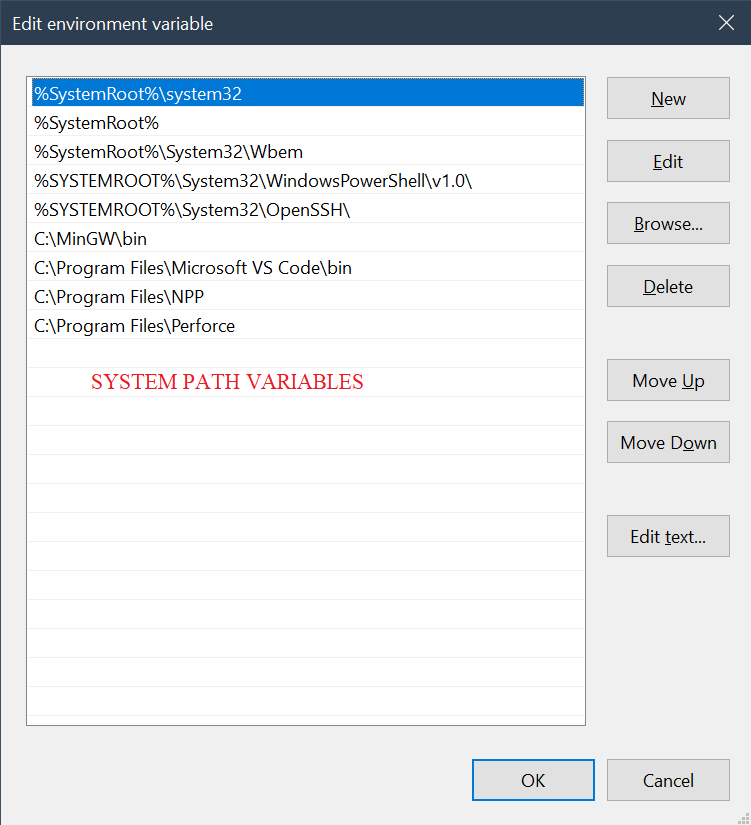
 aystic
on 14 Dec 2020
aystic
on 14 Dec 2020
I selected "Go Live" from my html file under Open Editor. I'm not sure if it was just time that I needed to get the file to work and if the time had finally come for me or if that was the actual solution.
 razzlepazzle
on 14 Dec 2020
razzlepazzle
on 14 Dec 2020
The issue appeared after I stupidly deleted some environment variables.
Fixed by adding a missing variable "Path" pointing to "C:\Windows\System32" folder. This solution was mentioned previously in the thread, but without detailed info.
See screenshot of my Windows10 variable added that was missing.
On other versions of Windows path may be different.
Thank you so much. It works!! :')
 yustinayasin
on 2 Jan 2021
yustinayasin
on 2 Jan 2021
The issue appeared after I stupidly deleted some environment variables.
Fixed by adding a missing variable "Path" pointing to "C:\Windows\System32" folder. This solution was mentioned previously in the thread, but without detailed info.
See screenshot of my Windows10 variable added that was missing.
On other versions of Windows path may be different.
thank you very much! It works :D
 ngotaiduy
on 11 Jan 2021
ngotaiduy
on 11 Jan 2021
The issue appeared after I stupidly deleted some environment variables.
Fixed by adding a missing variable "Path" pointing to "C:\Windows\System32" folder. This solution was mentioned previously in the thread, but without detailed info.
See screenshot of my Windows10 variable added that was missing.
On other versions of Windows path may be different.
finally it worked, thanks a lot.
issue was pressing the live button didn't directly redirect to chrome, but it was working fine if I manually go to localhost:5500 (auto refresh was also not working)
 jyothisable
on 20 Jan 2021
jyothisable
on 20 Jan 2021
I encounter the same problem but when I go to the live server setting. at the Live Server › Settings: Https I changed the value of enable to false. Then it works fine with chrome. Otherwise you have to change the https to http because others browser use http for the link .
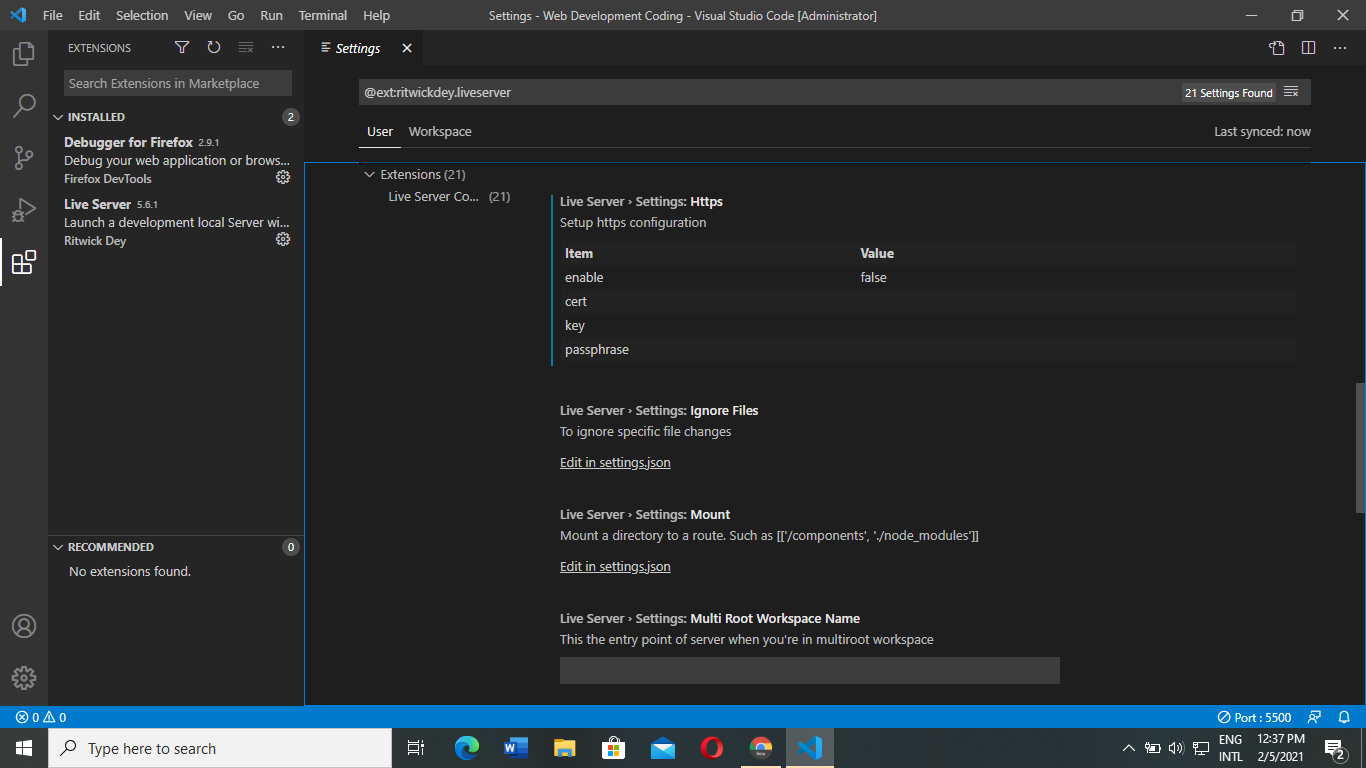
 usmanklasan
on 5 Feb 2021
usmanklasan
on 5 Feb 2021
started at 5500"
and then i have to go to my browser and type "localhost:5500" to get my folder and files .
 kavyachinnuu
on 13 Feb 2021
kavyachinnuu
on 13 Feb 2021
Even am facing d same issue ,plz help anyone! Thanks in advance
kavyachinnuu
on 13 Feb 2021
Hi
When i am running my html file on vs code through "open with live server option" vs code is not opening browser directly when live server gets on its says "server is started at 5500"
and then i have to go to my browser and type "localhost:5500" to get my folder and files .
Same issue am facing
kavyachinnuu
on 15 Feb 2021
Yes changed it
Still not working
Did ur issue solved ? Plz lemme knw wt changes u hav made even am facing same issue😟 @niharikaarora1997
kavyachinnuu
on 15 Feb 2021
U can try
https://motbit.com/huong-dan-cach-thiet-lap-bien-moi-truong-path-voi-windows-10.html
C:\Program Files;
C:\Winnt;
C:\Windows\System32;
Good luck!
Vào Th 2, 15 thg 2, 2021 vào lúc 12:01 kavyachinnuu <
[email protected]> đã viết:
Yes changed it
Still not workingDid ur issue solved ? Plz lemme knw wt changes u hav made even am facing
same issue😟 @niharikaarora1997 https://github.com/niharikaarora1997—
You are receiving this because you commented.
Reply to this email directly, view it on GitHub
https://github.com/ritwickdey/vscode-live-server/issues/65#issuecomment-778939358,
or unsubscribe
https://github.com/notifications/unsubscribe-auth/AJRY2DBB6CEKOQKZKHH3NYDS7CTEJANCNFSM4EMFUP6Q
.
--
Ngô Tài Duy
Email: Dl.[email protected]
Dl.bestfriend@gmail.comSDT: (+84) 395100977
ngotaiduy
on 15 Feb 2021
I have a problem with VsC, when i open my html with live server i can see my page with all my changes but when i try open with the visual estudios' path all the change that i made it's not there, i don't know what happens. Sorry if my English is not perfect.
 WildavidDuran
on 18 Feb 2021
WildavidDuran
on 18 Feb 2021
U can try
https://motbit.com/huong-dan-cach-thiet-lap-bien-moi-truong-path-voi-windows-10.html
C:\Program Files;
C:\Winnt;
C:\Windows\System32;
Good luck!
Vào Th 5, 18 thg 2, 2021 vào lúc 10:06 WildavidDuran <
[email protected]> đã viết:
I have a problem with VsC, when i open my html with live server i can see
my page with all my changes but when i try open with the visual estudios'
path all the change that i made it's not there, i don't know what happens.—
You are receiving this because you commented.
Reply to this email directly, view it on GitHub
https://github.com/ritwickdey/vscode-live-server/issues/65#issuecomment-781011334,
or unsubscribe
https://github.com/notifications/unsubscribe-auth/AJRY2DFMQGRCQMRYK5PXG3TS7R7ZRANCNFSM4EMFUP6Q
.
--
Ngô Tài Duy
Email: Dl.[email protected]
Dl.bestfriend@gmail.comSDT: (+84) 395100977
ngotaiduy
on 18 Feb 2021
U can try https://motbit.com/huong-dan-cach-thiet-lap-bien-moi-truong-path-voi-windows-10.html C:\Program Files; C:\Winnt; C:\Windows\System32; Good luck! Vào Th 5, 18 thg 2, 2021 vào lúc 10:06 WildavidDuran < [email protected]> đã viết:
…
I have a problem with VsC, when i open my html with live server i can see my page with all my changes but when i try open with the visual estudios' path all the change that i made it's not there, i don't know what happens. — You are receiving this because you commented. Reply to this email directly, view it on GitHub <#65 (comment)>, or unsubscribe https://github.com/notifications/unsubscribe-auth/AJRY2DFMQGRCQMRYK5PXG3TS7R7ZRANCNFSM4EMFUP6Q .
-- Ngô Tài Duy Email: Dl.[email protected] Dl.bestfriend@gmail.comSDT: (+84) 395100977 https://htmlsig.com/signatures/0001C4D2ZY
I made a change as per your instruction,..it does not work please help.
 LalitBoop
on 21 Feb 2021
LalitBoop
on 21 Feb 2021
I have followed all of the above suggestions. But none of them are working for me. I re-installed the live server. Set the default browser to chrome. Added the above mentioned directories to the Path system variable. When I righ-click and select open with live server, it starts but the browser does not open. Please help me with this.
 akhilreddy619
on 21 Mar 2021
akhilreddy619
on 21 Mar 2021
The issue appeared after I stupidly deleted some environment variables.
Fixed by adding a missing variable "Path" pointing to "C:\Windows\System32" folder. This solution was mentioned previously in the thread, but without detailed info.
See screenshot of my Windows10 variable added that was missing.
On other versions of Windows path may be different.Thank you so much my live server started working
How do i fix this with a mac?
I had to uninstall and reinstall so I could get my command palette as it was missing. To do this i really cleaned out all past vs hidden threw out my computer as the first attempts did not do the trick. I finally got enough for my other issue to be fixed but now Im pretty sure I may of not got it all back right because now my LS is not opening as it should. ..How can i restore the path on a mac?
I have already added the"liveServer.settings.NoBrowser": false as it was not in my json at all but it did have this."liveServer.settings.donotShowInfoMsg": true, not sure what that is. I have also changed my"liveServer.settings.CustomBrowser": "chrome", to point right at chrome and also made sure to change my user browser in my box to reflect the same. is someone able to help with this one?
 D-Hornsby
on 22 Mar 2021
D-Hornsby
on 22 Mar 2021
You have to open the project directory in vs code, and not the file itself
-Folder <—— open this in the terminal with code Folder
—index.html
—style.css
—index.jsThen you’ll be able to open in Live server
This solved the problem for me! Thanks!
 Zetrick
on 31 Mar 2021
Zetrick
on 31 Mar 2021
The issue appeared after I stupidly deleted some environment variables.
Fixed by adding a missing variable "Path" pointing to "C:\Windows\System32" folder. This solution was mentioned previously in the thread, but without detailed info.
See screenshot of my Windows10 variable added that was missing.
On other versions of Windows path may be different.Thank you so much my live server started working
Thank you so much.
 BhaskarSingh-DEV
on 3 May 2021
BhaskarSingh-DEV
on 3 May 2021
Thank you so much my live server started working
BhaskarSingh-DEV
on 3 May 2021
https://github.com/ritwickdey/vscode-live-server/issues/65#issuecomment-624576171
Solved issue of my windows 8 pro. just added C:\Windows\System32; to the environment path.
Thank you very much all of you
 albiemk
on 10 May 2021
albiemk
on 10 May 2021
Related issues
 tehsy97
·
6Comments
tehsy97
·
6Comments
 yzhang-gh
·
5Comments
yzhang-gh
·
5Comments
 mpower02
·
6Comments
mpower02
·
6Comments
 Rakesh-webdeveloper
·
4Comments
Rakesh-webdeveloper
·
4Comments
 kmdrGroch
·
5Comments
kmdrGroch
·
5Comments
Most helpful comment
@cshivers1
You have to open the project directory in vs code, and not the file itself
-Folder <—— open this in the terminal with code Folder
—index.html
—style.css
—index.js
Then you’ll be able to open in Live server