Vscode-jupyter: cannot import jupyter
Tried using VScode with jupyter notebook previously, and I recall there was an option to import the ipynb to avoid seeing all the css formating and just solely on the code.
After a few months of not using VScode, i tried importing ipynb again, and the import command no longer re-renders the notebook. after importing, it still looks the same, pre-import. not seeing any error message, please advise me if i have done anything wrongly.
 lxlguy
All 38 comments
@lxlguy can you give us some more information?
- What command did you run (Import Notebook?)
- Did it generate a python file?
Import doesn't generate the output, it just generates the code. If you want to see the output, you then click on 'Run Below' or one of the other commands to run the entire imported file.
 rchiodo
on 2 Apr 2019
rchiodo
on 2 Apr 2019
Hi @rchiodo,
I launched VSCode from Anaconda Navigator. I tried to open a bunch of .ipynb files in VScode. Some of them, when i opened the file using "Open File", the files will open with a pop up asking if i want to import to Python. (Source: Python extension, with 3 options: import, later, don't ask again) For the other files, there was no prompting. In all cases, the files opened with all the CSS and code chunks together and it was visually confusing navigate. (importing seems to do nothing in either case)
My enabled extensions are:
Python (by microsoft)
Anaconda extension (by microsoft)
vscode-nbpreviewer (by jithurjacob)
YAML (Redhat)
I might be mistaken, but I thought previously (I think i tried VS Code on another machine a few months back), VS Code was capable of stripping out the non-code segments and leave only the code in the edit pane, and I could run individual cells (there was a button to run cells)
I would like to check if my experience so far is the intended behavior for VS Code with respect to Jupyter notebooks?
lxlguy
on 4 Apr 2019
Importing should open a python file. You may have this issue here:
microsoft/vscode-python#3958
If you open a python file and add the following:
#%%
print('hello')
Does the Run Cell code lens appear above the #%%? If you run a cell do you get the cell output or perhaps an error message?
rchiodo
on 4 Apr 2019
As far as viewing the .ipynb files, that's the default vscode behavior. Any file you open will have the raw text inside of it.
rchiodo
on 4 Apr 2019
I'm also having issues in importing ipython notebooks into vscode! it just wont do it!
the jupyter notebook is installed and the interactive part in vscode works just fine, meaning I can easily do
%% , and a jupyter cell pops up and I can easily code and run them.
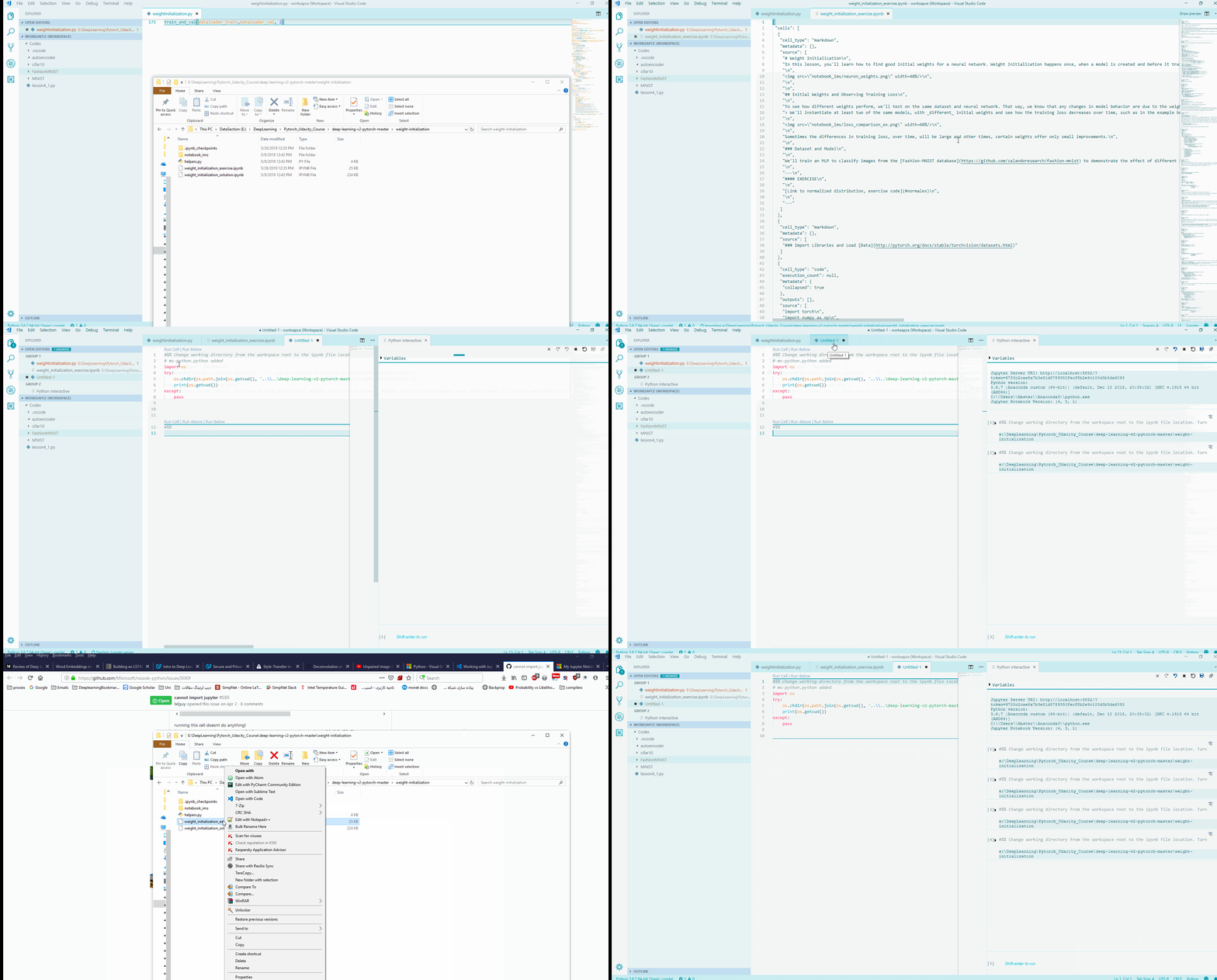
However, I am not able to import any notebooks at all! upon trying to import one, I simply get something like this in a new windows :
#%% Change working directory from the workspace root to the ipynb file location. Turn this addition off with the DataScience.changeDirOnImportExport setting
# ms-python.python added
import os
try:
    os.chdir(os.path.join(os.getcwd(), '..\\..\deeplsv-mstr\initialization'))
    print(os.getcwd())
except:
    pass
running this cell doesnt do anything!
I have the latest version of vscode 1.34.0 and the python extension version is 2019.5.17517!
(I have anaconda3 installed and using Python 3.6.7 if thats needed)
What am I missing here?
Thanks in advance
 Coderx7
on 3 Jun 2019
Coderx7
on 3 Jun 2019
@Coderx7 do you have an example notebook that repros the problem?
That code above is supposed to set the current working directory to where the notebook is relative to your workspace. This is because by default the current directory for our interactive window is your root workspace folder.
However if you imported a notebook with cells in it, the other cells should appear below that line.
You can also disable that line with this setting here:

rchiodo
on 3 Jun 2019
@rchiodo , Any notebook on my system has this issue.
You can test with these notebooks as I have issues with them as well( just tested one of them).
I have never been able to import any notebooks so far. I can use #%% to activate interactive ipython inside vscode and use it, but that's about it. because of this I'm currently using an extension to able to preview ipython notebooks inside vscode
disabling the option, also doesn't help either.
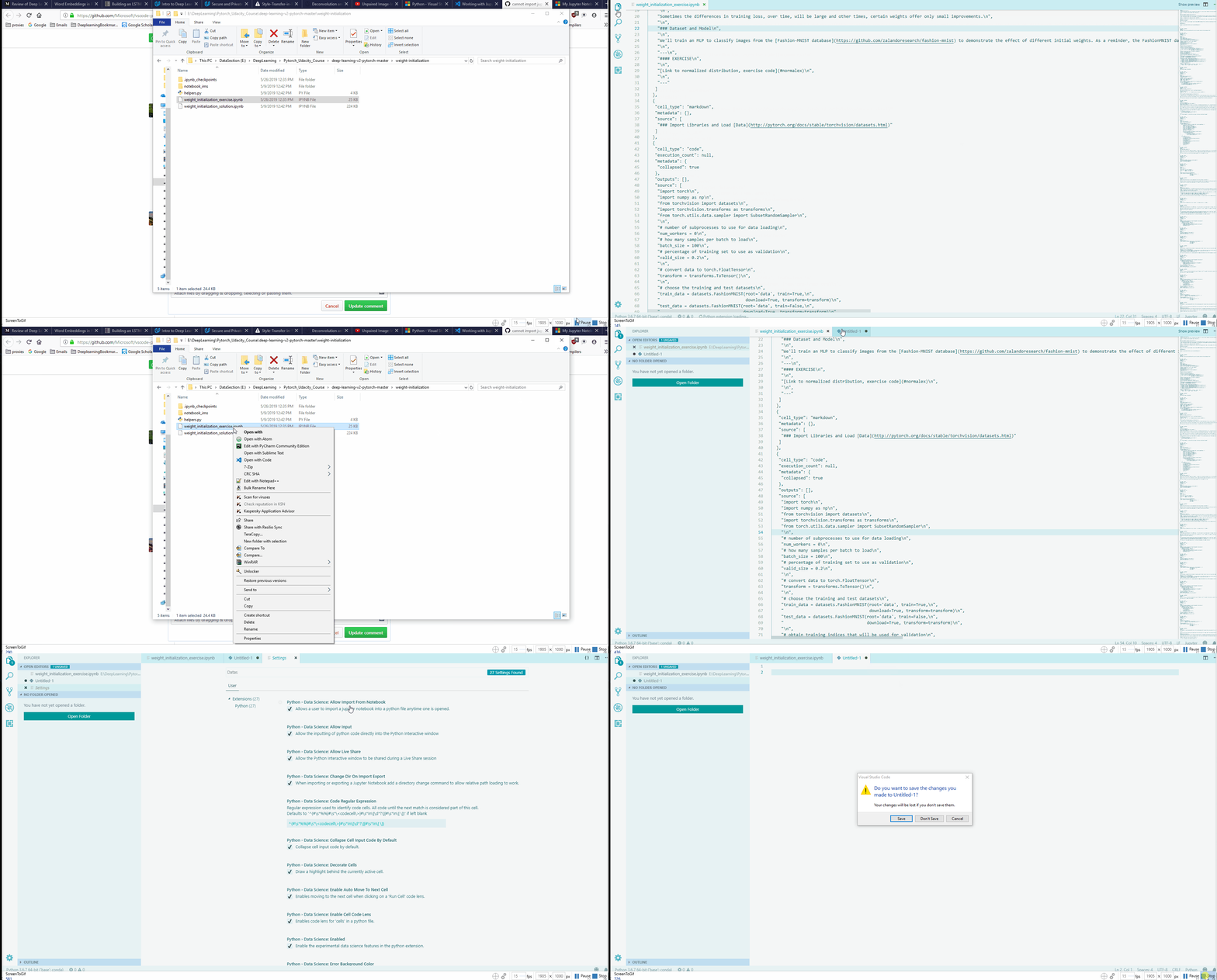
Here is short clip, showing how this is on my system :
when there is a workspace:
when there is no active workspace:
Coderx7
on 3 Jun 2019
Those notebooks work for me, so there must be something specific to your system.
Can you go to Help | Developer Tools, click on Console, right click and Save As, then upload the results here?
Under the covers we just run this command line:
python -m nbconvert --to python --stdout <file>
Can you also try that and see if you get any errors? (or any output)
rchiodo
on 3 Jun 2019
Here you are : the console log
I ran that command and everything went just fine. here is the output :
click to see the output
E:\DeepLearning\Pytorch_Udacity_Course\deep-learning-v2-pytorch-master\weight-initialization>python -m nbconvert --to python --stdout weight_initialization_exercise.ipynb
[NbConvertApp] Converting notebook weight_initialization_exercise.ipynb to python

# coding: utf-8

# # Weight Initialization
# In this lesson, you'll learn how to find good initial weights for a neural network. Weight initialization happens once, when a model is created and before it trains. Having good initial weights can place the neural network close to the optimal solution. This allows the neural network to come to the best solution quicker.
#
# <img src="notebook_ims/neuron_weights.png" width=40%/>
#
#
# ## Initial Weights and Observing Training Loss
#
# To see how different weights perform, we'll test on the same dataset and neural network. That way, we know that any changes in model behavior are due to the weights and not any changing data or model structure.
# > We'll instantiate at least two of the same models, with _different_ initial weights and see how the training loss decreases over time, such as in the example below.
#
# <img src="notebook_ims/loss_comparison_ex.png" width=60%/>
#
# Sometimes the differences in training loss, over time, will be large and other times, certain weights offer only small improvements.
#
# ### Dataset and Model
#
# We'll train an MLP to classify images from the [Fashion-MNIST database](https://github.com/zalandoresearch/fashion-mnist) to demonstrate the effect of different initial weights. As a reminder, the FashionMNIST dataset contains images of clothing types; `classes = ['T-shirt/top', 'Trouser', 'Pullover', 'Dress', 'Coat', 'Sandal', 'Shirt', 'Sneaker', 'Bag', 'Ankle boot']`. The images are normalized so that their pixel values are in a range [0.0 - 1.0).  Run the cell below to download and load the dataset.
#
# ---
# #### EXERCISE
#
# [Link to normalized distribution, exercise code](#normalex)
#
# ---

# ### Import Libraries and Load [Data](http://pytorch.org/docs/stable/torchvision/datasets.html)

# In[ ]:

import torch
import numpy as np
from torchvision import datasets
import torchvision.transforms as transforms
from torch.utils.data.sampler import SubsetRandomSampler

# number of subprocesses to use for data loading
num_workers = 0
# how many samples per batch to load
batch_size = 100
# percentage of training set to use as validation
valid_size = 0.2

# convert data to torch.FloatTensor
transform = transforms.ToTensor()

# choose the training and test datasets
train_data = datasets.FashionMNIST(root='data', train=True,
                                   download=True, transform=transform)
test_data = datasets.FashionMNIST(root='data', train=False,
                                  download=True, transform=transform)

# obtain training indices that will be used for validation
num_train = len(train_data)
indices = list(range(num_train))
np.random.shuffle(indices)
split = int(np.floor(valid_size * num_train))
train_idx, valid_idx = indices[split:], indices[:split]

# define samplers for obtaining training and validation batches
train_sampler = SubsetRandomSampler(train_idx)
valid_sampler = SubsetRandomSampler(valid_idx)

# prepare data loaders (combine dataset and sampler)
train_loader = torch.utils.data.DataLoader(train_data, batch_size=batch_size,
    sampler=train_sampler, num_workers=num_workers)
valid_loader = torch.utils.data.DataLoader(train_data, batch_size=batch_size,
    sampler=valid_sampler, num_workers=num_workers)
test_loader = torch.utils.data.DataLoader(test_data, batch_size=batch_size,
    num_workers=num_workers)

# specify the image classes
classes = ['T-shirt/top', 'Trouser', 'Pullover', 'Dress', 'Coat',
    'Sandal', 'Shirt', 'Sneaker', 'Bag', 'Ankle boot']


# ### Visualize Some Training Data

# In[ ]:

import matplotlib.pyplot as plt
get_ipython().magic('matplotlib inline')

# obtain one batch of training images
dataiter = iter(train_loader)
images, labels = dataiter.next()
images = images.numpy()

# plot the images in the batch, along with the corresponding labels
fig = plt.figure(figsize=(25, 4))
for idx in np.arange(20):
    ax = fig.add_subplot(2, 20/2, idx+1, xticks=[], yticks=[])
    ax.imshow(np.squeeze(images[idx]), cmap='gray')
    ax.set_title(classes[labels[idx]])


# ## Define the Model Architecture
#
# We've defined the MLP that we'll use for classifying the dataset.
#
# ### Neural Network
# <img style="float: left" src="notebook_ims/neural_net.png" width=50%/>
#
#
# * A 3 layer MLP with hidden dimensions of 256 and 128.
#
# * This MLP accepts a flattened image (784-value long vector) as input and produces 10 class scores as output.
# ---
# We'll test the effect of different initial weights on this 3 layer neural network with ReLU activations and an Adam optimizer.
#
# The lessons you learn apply to other neural networks, including different activations and optimizers.

# ---
# ## Initialize Weights
# Let's start looking at some initial weights.
# ### All Zeros or Ones
# If you follow the principle of [Occam's razor](https://en.wikipedia.org/wiki/Occam's_razor), you might think setting all the weights to 0 or 1 would be the best solution.  This is not the case.
#
# With every weight the same, all the neurons at each layer are producing the same output.  This makes it hard to decide which weights to adjust.
#
# Let's compare the loss with all ones and all zero weights by defining two models with those constant weights.
#
# Below, we are using PyTorch's [nn.init](https://pytorch.org/docs/stable/nn.html#torch-nn-init) to initialize each Linear layer with a constant weight. The init library provides a number of weight initialization functions that give you the ability to initialize the weights of each layer according to layer type.
#
# In the case below, we look at every layer/module in our model. If it is a Linear layer (as all three layers are for this MLP), then we initialize those layer weights to be a `constant_weight` with bias=0 using the following code:
# >```
# if isinstance(m, nn.Linear):
#     nn.init.constant_(m.weight, constant_weight)
#     nn.init.constant_(m.bias, 0)
# ```
#
# The `constant_weight` is a value that you can pass in when you instantiate the model.

# In[ ]:

import torch.nn as nn
import torch.nn.functional as F

# define the NN architecture
class Net(nn.Module):
    def __init__(self, hidden_1=256, hidden_2=128, constant_weight=None):
        super(Net, self).__init__()
        # linear layer (784 -> hidden_1)
        self.fc1 = nn.Linear(28 * 28, hidden_1)
        # linear layer (hidden_1 -> hidden_2)
        self.fc2 = nn.Linear(hidden_1, hidden_2)
        # linear layer (hidden_2 -> 10)
        self.fc3 = nn.Linear(hidden_2, 10)
        # dropout layer (p=0.2)
        self.dropout = nn.Dropout(0.2)

        # initialize the weights to a specified, constant value
        if(constant_weight is not None):
            for m in self.modules():
                if isinstance(m, nn.Linear):
                    nn.init.constant_(m.weight, constant_weight)
                    nn.init.constant_(m.bias, 0)


    def forward(self, x):
        # flatten image input
        x = x.view(-1, 28 * 28)
        # add hidden layer, with relu activation function
        x = F.relu(self.fc1(x))
        # add dropout layer
        x = self.dropout(x)
        # add hidden layer, with relu activation function
        x = F.relu(self.fc2(x))
        # add dropout layer
        x = self.dropout(x)
        # add output layer
        x = self.fc3(x)
        return x


# ### Compare Model Behavior
#
# Below, we are using `helpers.compare_init_weights` to compare the training and validation loss for the two models we defined above, `model_0` and `model_1`.  This function takes in a list of models (each with different initial weights), the name of the plot to produce, and the training and validation dataset loaders. For each given model, it will plot the training loss for the first 100 batches and print out the validation accuracy after 2 training epochs. *Note: if you've used a small batch_size, you may want to increase the number of epochs here to better compare how models behave after seeing a few hundred images.*
#
# We plot the loss over the first 100 batches to better judge which model weights performed better at the start of training. **I recommend that you take a look at the code in `helpers.py` to look at the details behind how the models are trained, validated, and compared.**
#
# Run the cell below to see the difference between weights of all zeros against all ones.

# In[ ]:

# initialize two NN's with 0 and 1 constant weights
model_0 = Net(constant_weight=0)
model_1 = Net(constant_weight=1)


# In[ ]:

import helpers

# put them in list form to compare
model_list = [(model_0, 'All Zeros'),
              (model_1, 'All Ones')]


# plot the loss over the first 100 batches
helpers.compare_init_weights(model_list,
                             'All Zeros vs All Ones',
                             train_loader,
                             valid_loader)


# As you can see the accuracy is close to guessing for both zeros and ones, around 10%.
#
# The neural network is having a hard time determining which weights need to be changed, since the neurons have the same output for each layer.  To avoid neurons with the same output, let's use unique weights.  We can also randomly select these weights to avoid being stuck in a local minimum for each run.
#
# A good solution for getting these random weights is to sample from a uniform distribution.

# ### Uniform Distribution
# A [uniform distribution](https://en.wikipedia.org/wiki/Uniform_distribution) has the equal probability of picking any number from a set of numbers. We'll be picking from a continuous distribution, so the chance of picking the same number is low. We'll use NumPy's `np.random.uniform` function to pick random numbers from a uniform distribution.
#
# >#### [`np.random_uniform(low=0.0, high=1.0, size=None)`](https://docs.scipy.org/doc/numpy/reference/generated/numpy.random.uniform.html)
# >Outputs random values from a uniform distribution.
#
# >The generated values follow a uniform distribution in the range [low, high). The lower bound minval is included in the range, while the upper bound maxval is excluded.
#
# >- **low:** The lower bound on the range of random values to generate. Defaults to 0.
# - **high:** The upper bound on the range of random values to generate. Defaults to 1.
# - **size:** An int or tuple of ints that specify the shape of the output array.
#
# We can visualize the uniform distribution by using a histogram. Let's map the values from `np.random_uniform(-3, 3, [1000])` to a histogram using the `helper.hist_dist` function. This will be `1000` random float values from `-3` to `3`, excluding the value `3`.

# In[ ]:

helpers.hist_dist('Random Uniform (low=-3, high=3)', np.random.uniform(-3, 3, [1000]))


# The histogram used 500 buckets for the 1000 values.  Since the chance for any single bucket is the same, there should be around 2 values for each bucket. That's exactly what we see with the histogram.  Some buckets have more and some have less, but they trend around 2.
#
# Now that you understand the uniform function, let's use PyTorch's `nn.init` to apply it to a model's initial weights.
#
# ### Uniform Initialization, Baseline
#
#
# Let's see how well the neural network trains using a uniform weight initialization, where `low=0.0` and `high=1.0`. Below, I'll show you another way (besides in the Net class code) to initialize the weights of a network. To define weights outside of the model definition, you can:
# >1. Define a function that assigns weights by the type of network layer, *then*
# 2. Apply those weights to an initialized model using `model.apply(fn)`, which applies a function to each model layer.
#
# This time, we'll use `weight.data.uniform_` to initialize the weights of our model, directly.

# In[ ]:

# takes in a module and applies the specified weight initialization
def weights_init_uniform(m):
    classname = m.__class__.__name__
    # for every Linear layer in a model..
    if classname.find('Linear') != -1:
        # apply a uniform distribution to the weights and a bias=0
        m.weight.data.uniform_(0.0, 1.0)
        m.bias.data.fill_(0)


# In[ ]:

# create a new model with these weights
model_uniform = Net()
model_uniform.apply(weights_init_uniform)


# In[ ]:

# evaluate behavior
helpers.compare_init_weights([(model_uniform, 'Uniform Weights')],
                             'Uniform Baseline',
                             train_loader,
                             valid_loader)


# ---
# The loss graph is showing the neural network is learning, which it didn't with all zeros or all ones. We're headed in the right direction!
#
# ## General rule for setting weights
# The general rule for setting the weights in a neural network is to set them to be close to zero without being too small.
# >Good practice is to start your weights in the range of $[-y, y]$ where $y=1/\sqrt{n}$
# ($n$ is the number of inputs to a given neuron).
#
# Let's see if this holds true; let's create a baseline to compare with and center our uniform range over zero by shifting it over by 0.5.  This will give us the range [-0.5, 0.5).

# In[ ]:

# takes in a module and applies the specified weight initialization
def weights_init_uniform_center(m):
    classname = m.__class__.__name__
    # for every Linear layer in a model..
    if classname.find('Linear') != -1:
        # apply a centered, uniform distribution to the weights
        m.weight.data.uniform_(-0.5, 0.5)
        m.bias.data.fill_(0)

# create a new model with these weights
model_centered = Net()
model_centered.apply(weights_init_uniform_center)


# Then let's create a distribution and model that uses the **general rule** for weight initialization; using the range $[-y, y]$, where $y=1/\sqrt{n}$ .
#
# And finally, we'll compare the two models.

# In[ ]:

# takes in a module and applies the specified weight initialization
def weights_init_uniform_rule(m):
    classname = m.__class__.__name__
    # for every Linear layer in a model..
    if classname.find('Linear') != -1:
        # get the number of the inputs
        n = m.in_features
        y = 1.0/np.sqrt(n)
        m.weight.data.uniform_(-y, y)
        m.bias.data.fill_(0)

# create a new model with these weights
model_rule = Net()
model_rule.apply(weights_init_uniform_rule)


# In[ ]:

# compare these two models
model_list = [(model_centered, 'Centered Weights [-0.5, 0.5)'),
              (model_rule, 'General Rule [-y, y)')]

# evaluate behavior
helpers.compare_init_weights(model_list,
                             '[-0.5, 0.5) vs [-y, y)',
                             train_loader,
                             valid_loader)


# This behavior is really promising! Not only is the loss decreasing, but it seems to do so very quickly for our uniform weights that follow the general rule; after only two epochs we get a fairly high validation accuracy and this should give you some intuition for why starting out with the right initial weights can really help your training process!
#
# ---
#
# Since the uniform distribution has the same chance to pick *any value* in a range, what if we used a distribution that had a higher chance of picking numbers closer to 0?  Let's look at the normal distribution.
#
# ### Normal Distribution
# Unlike the uniform distribution, the [normal distribution](https://en.wikipedia.org/wiki/Normal_distribution) has a higher likelihood of picking number close to it's mean. To visualize it, let's plot values from NumPy's `np.random.normal` function to a histogram.
#
# >[np.random.normal(loc=0.0, scale=1.0, size=None)](https://docs.scipy.org/doc/numpy/reference/generated/numpy.random.normal.html)
#
# >Outputs random values from a normal distribution.
#
# >- **loc:** The mean of the normal distribution.
# - **scale:** The standard deviation of the normal distribution.
# - **shape:** The shape of the output array.

# In[ ]:

helpers.hist_dist('Random Normal (mean=0.0, stddev=1.0)', np.random.normal(size=[1000]))


# Let's compare the normal distribution against the previous, rule-based, uniform distribution.
#
# <a id='normalex'></a>
# #### TODO: Define a weight initialization function that gets weights from a normal distribution
# > The normal distribution should have a mean of 0 and a standard deviation of $y=1/\sqrt{n}$

# In[ ]:

## complete this function
def weights_init_normal(m):
    '''Takes in a module and initializes all linear layers with weight
       values taken from a normal distribution.'''

    classname = m.__class__.__name__
    # for every Linear layer in a model
    # m.weight.data shoud be taken from a normal distribution
    # m.bias.data should be 0


# In[ ]:

## -- no need to change code below this line -- ##

# create a new model with the rule-based, uniform weights
model_uniform_rule = Net()
model_uniform_rule.apply(weights_init_uniform_rule)

# create a new model with the rule-based, NORMAL weights
model_normal_rule = Net()
model_normal_rule.apply(weights_init_normal)


# In[ ]:

# compare the two models
model_list = [(model_uniform_rule, 'Uniform Rule [-y, y)'),
              (model_normal_rule, 'Normal Distribution')]

# evaluate behavior
helpers.compare_init_weights(model_list,
                             'Uniform vs Normal',
                             train_loader,
                             valid_loader)


# The normal distribution gives us pretty similar behavior compared to the uniform distribution, in this case. This is likely because our network is so small; a larger neural network will pick more weight values from each of these distributions, magnifying the effect of both initialization styles. In general, a normal distribution will result in better performance for a model.
#

# ---
#
# ### Automatic Initialization
#
# Let's quickly take a look at what happens *without any explicit weight initialization*.

# In[ ]:

## Instantiate a model with _no_ explicit weight initialization


# In[ ]:

## evaluate the behavior using helpers.compare_init_weights


# As you complete this exercise, keep in mind these questions:
# * What initializaion strategy has the lowest training loss after two epochs? What about highest validation accuracy?
# * After testing all these initial weight options, which would you decide to use in a final classification model?
There's an error with finding the template file we create:
jinja2.exceptions.TemplateNotFound: C:\Users\TestUser\AppData\Local\Temp\tmp-8044PQcO1wZI8LDB.tpl
I didn't specify in the command line above, but we also pass a template.
Does the C:\UsersTestUser\AppData\LocalTemp folder exist?
I'm trying to figure out why the tmp file wouldn't be readable.
rchiodo
on 3 Jun 2019
Yes it exists and its also accessible :!
os.path.exists("C:/Users/TestUser/AppData/Local/Temp") returns True
The tmp-8044PQcO1wZI8LDB.tpl also exists :

and
os.path.isfile("C:/Users/TestUser/AppData/Local/Temp/tmp-8044PQcO1wZI8LDB.tpl") also returns True
Coderx7
on 3 Jun 2019
What's in it? Perhaps jinja is having a read problem.
rchiodo
on 3 Jun 2019
Mine looks like this:
{%- extends 'null.tpl' -%}
{% block codecell %}
#%%
{{ super() }}
{% endblock codecell %}
{% block in_prompt %}{% endblock in_prompt %}
{% block input %}{{ cell.source | ipython2python }}{% endblock input %}
{% block markdowncell scoped %}#%% [markdown]
{{ cell.source | comment_lines }}
{% endblock markdowncell %}
This is the content :
{%- extends 'null.tpl' -%}
{% block codecell %}
#%%
{{ super() }}
{% endblock codecell %}
{% block in_prompt %}{% endblock in_prompt %}
{% block input %}{{ cell.source | ipython2python }}{% endblock input %}
{% block markdowncell scoped %}#%% [markdown]
{{ cell.source | comment_lines }}
{% endblock markdowncell %}
Hmm. Nbconvert is having some problem reading it. Not sure why. Without being able to debug your machine, the only thing I can think of is to reinstall nbconvert.
Can you try running nbconvert like this?
python -m nbconvert --to python --stdout --template C:\Users\TestUser\AppData\Local\Temp\tmp-8044PQcO1wZI8LDB.tpl <jupyter notebook>
yup, it encountered with the same errors :
Temp\tmp-8044PQcO1wZI8LDB.tpl weight_initialization_exercise.ipynb
[NbConvertApp] Converting notebook weight_initialization_exercise.ipynb to python
Traceback (most recent call last):
  File "C:\Users\TestUser\Anaconda3\lib\runpy.py", line 193, in _run_module_as_main
    "__main__", mod_spec)
  File "C:\Users\TestUser\Anaconda3\lib\runpy.py", line 85, in _run_code
    exec(code, run_globals)
  File "C:\Users\TestUser\Anaconda3\lib\site-packages\nbconvert\__main__.py", line 2, in <module>
    main()
  File "C:\Users\TestUser\Anaconda3\lib\site-packages\jupyter_core\application.py", line 267, in launch_instance
    return super(JupyterApp, cls).launch_instance(argv=argv, **kwargs)
  File "C:\Users\TestUser\Anaconda3\lib\site-packages\traitlets\config\application.py", line 658, in launch_instance
    app.start()
  File "C:\Users\TestUser\Anaconda3\lib\site-packages\nbconvert\nbconvertapp.py", line 293, in start
    self.convert_notebooks()
  File "C:\Users\TestUser\Anaconda3\lib\site-packages\nbconvert\nbconvertapp.py", line 457, in convert_notebooks
    self.convert_single_notebook(notebook_filename)
  File "C:\Users\TestUser\Anaconda3\lib\site-packages\nbconvert\nbconvertapp.py", line 428, in convert_single_notebook
    output, resources = self.export_single_notebook(notebook_filename, resources, input_buffer=input_buffer)
  File "C:\Users\TestUser\Anaconda3\lib\site-packages\nbconvert\nbconvertapp.py", line 357, in export_single_notebook
    output, resources = self.exporter.from_filename(notebook_filename, resources=resources)
  File "C:\Users\TestUser\Anaconda3\lib\site-packages\nbconvert\exporters\exporter.py", line 165, in from_filename
    return self.from_file(f, resources=resources, **kw)
  File "C:\Users\TestUser\Anaconda3\lib\site-packages\nbconvert\exporters\exporter.py", line 183, in from_file
    return self.from_notebook_node(nbformat.read(file_stream, as_version=4), resources=resources, **kw)
  File "C:\Users\TestUser\Anaconda3\lib\site-packages\nbconvert\exporters\templateexporter.py", line 203, in from_notebook_node
    output = self.template.render(nb=nb_copy, resources=resources)
  File "C:\Users\TestUser\Anaconda3\lib\site-packages\nbconvert\exporters\templateexporter.py", line 80, in template
    self._template_cached = self._load_template()
  File "C:\Users\TestUser\Anaconda3\lib\site-packages\nbconvert\exporters\templateexporter.py", line 186, in _load_template
    raise TemplateNotFound(self.template_file)
jinja2.exceptions.TemplateNotFound: C:\Users\TestUser\AppData\Local\Temp\tmp-8044PQcO1wZI8LDB.tpl
The template references the null template.
{%- extends 'null.tpl' -%}
Perhaps that isn't installed for you?
rchiodo
on 3 Jun 2019
I have one here:
C:\Users\rchiodo.REDMOND\AppData\LocalContinuum\anaconda3\envs\ErrorCollapse\Lib\site-packages\nbconvert\templates\skeleton\null.tpl
rchiodo
on 3 Jun 2019
I have at least one available as well! here :
C:\Users\TestUser\Anaconda3\envs\anaconda35\Lib\site-packages\nbconvert\templates\skeleton
Coderx7
on 3 Jun 2019
OK, Thanks to dear God, upgrading the nbconvert as you suggested seem to have solved the issue!
Now, the import works just fine. however there is slight problem here, I need to open the notebooks twice for the import bar to pop up! it wont pop up the first time. I mean like this : (see the second gif : https://github.com/Microsoft/vscode-python/issues/5069#issuecomment-498420468 )
Coderx7
on 4 Jun 2019
Awesome! Glad it works now.
The import question should pop up when you open a file though. Perhaps you needed to close it first? It only happens on open.
You can also import by right clicking in the file list or by using the 'Import Notebook' or 'Import Notebook from File' commands in the command palette.
rchiodo
on 4 Jun 2019
Thanks. There is something else, what if I only want to view the notebook and not run all the cells?
It seems in order to have the notebook rendered I need to execute all the cells!
Cant we just make it so, that upon being imported, all the markups and html cells get rendered and not the actual cells? This is the default behavior of jupyter!
Currently what crosses my mind is to comment out all code cells and run the markup cells. this however, wont render the previously saved results ( as they do not exist in the imported file! )
Coderx7
on 4 Jun 2019
In our insider's build, the behavior you want is mostly there. When opening an ipynb file, we 'preview' the contents of the notebook in the interactive pane without running anything. We just read in the contents of the file.
If you want to just have the code, then you'd import the file.
rchiodo
on 4 Jun 2019
It's this issue here:
microsoft/vscode-jupyter#3385
rchiodo
on 4 Jun 2019
Closing out issues that cannot be answered without more information.
 greazer
on 3 Aug 2019
greazer
on 3 Aug 2019
On MacOS (Mojave 10.14.5):
- vscode > file explorer > {right click on test.ipynb} > import jupyter notebook:
creates a new empty Untitled-1.py file - vscode > file explorer > {double click on test.ipynb}:
opens test.ipynb but as an css source (no conversion to interactive python)
The newest vscode Python extension installed, and active Python env with jupyter installation (conda).
Any idea what to do?
Many thanks in advance,
Andy
 wodecki
on 5 Aug 2019
wodecki
on 5 Aug 2019
There is no support for double-clicking an ipynb file. VS code doesn't support alternative editors for files. https://github.com/microsoft/vscode/issues/12176
Importing from right click is the only thing you can do for now.
rchiodo
on 5 Aug 2019
OK, but at the moment I don't know how/can't import jupyter notebook at all
(my description is not a "new feature requests").
I'm new to vscode, and have a plenty of jupyter notebooks. I've
successfully created one from scratch in vscode (just a python file with
appropriate #%% comments viewed in Python Interactive mode), but can't
import my own notebooks. "Right-click > import Jupyter" just generates a
new empty file...
So, probably I don't do it correctly. Any advise?
Many thanks for your help in advance,
Andy
pon., 5 sie 2019 o 20:22 Rich Chiodo notifications@github.com napisał(a):
There is no support for double-clicking an ipynb file. VS code doesn't
support alternative editors for files. microsoft/vscode#12176
https://github.com/microsoft/vscode/issues/12176Importing from right click is the only thing you can do.
—
You are receiving this because you commented.
Reply to this email directly, view it on GitHub
https://github.com/microsoft/vscode-python/issues/5069?email_source=notifications&email_token=ADNPDDLTAMHP5ZABTENGTMTQDBVWVA5CNFSM4HC3Y32KYY3PNVWWK3TUL52HS4DFVREXG43VMVBW63LNMVXHJKTDN5WW2ZLOORPWSZGOD3SU5TA#issuecomment-518344396,
or mute the thread
https://github.com/notifications/unsubscribe-auth/ADNPDDIFS3ESGCOK6TW3IP3QDBVWVANCNFSM4HC3Y32A
.
--
Andrzej Wodecki, PhD, MBA;
mob.: +48 600 82 82 65
http://bit.ly/wodeckiAI
https://github.com/wodecki
Q: Why is this email five sentences or less?
A: http://five.sentenc.es
wodecki
on 6 Aug 2019
That sounds like a bug then. Import should generate a python file with the contents of your notebook in it.
Can you go to 'Help | Toggle Developer Tools', click on the console tab, right click, save as, and upload the log? That should give us some idea of what happened.
Internally we use nbconvert with a jinja template file to do the import. You can try using nbconvert from the command line too to see if you get an errors.
rchiodo
on 6 Aug 2019
hi,
please find the log attached.
I have nbconvert installed in the python env I activate, but still doesn't
work,
Many thanks for help :)
Andy
wt., 6 sie 2019 o 17:05 Rich Chiodo notifications@github.com napisał(a):
That sounds like a bug then. Import should generate a python file with the
contents of your notebook in it.Can you go to 'Help | Toggle Developer Tools', click on the console tab,
right click, save as, and upload the log? That should give us some idea of
what happened.Internally we use nbconvert https://github.com/jupyter/nbconvert with a
jinja template file to do the import. You can try using nbconvert from the
command line too to see if you get an errors.—
You are receiving this because you commented.
Reply to this email directly, view it on GitHub
https://github.com/microsoft/vscode-python/issues/5069?email_source=notifications&email_token=ADNPDDI5N2YULAVMPQ6ODW3QDGHJ5A5CNFSM4HC3Y32KYY3PNVWWK3TUL52HS4DFVREXG43VMVBW63LNMVXHJKTDN5WW2ZLOORPWSZGOD3VOIVI#issuecomment-518710357,
or mute the thread
https://github.com/notifications/unsubscribe-auth/ADNPDDIX4N6HCE6VPHCWJOLQDGHJ5ANCNFSM4HC3Y32A
.
--
Andrzej Wodecki, PhD, MBA;
mob.: +48 600 82 82 65
http://bit.ly/wodeckiAI
https://github.com/wodecki
Q: Why is this email five sentences or less?
A: http://five.sentenc.es
wodecki
on 6 Aug 2019
I don't believe your attachment worked.
rchiodo
on 6 Aug 2019
sorry, replied from e-mail...
Now should work :)
-1565112759957.log
wodecki
on 6 Aug 2019
It doesn't look like you ran the import command?
rchiodo
on 6 Aug 2019
And did you select a python interpreter? It's hard to tell if one is picked or not.
rchiodo
on 6 Aug 2019
Yes.
I've selected my conda env with all my data science packages and jupyter
(with nbviewer) installed.
If you want, I can record a video and put it on Youtube.
Andy
wt., 6 sie 2019 o 19:43 Rich Chiodo notifications@github.com napisał(a):
And did you select a python interpreter? It's hard to tell if one is
picked or not.—
You are receiving this because you commented.
Reply to this email directly, view it on GitHub
https://github.com/microsoft/vscode-python/issues/5069?email_source=notifications&email_token=ADNPDDOP5GV6CNJSO3QGI2TQDGZ3LA5CNFSM4HC3Y32KYY3PNVWWK3TUL52HS4DFVREXG43VMVBW63LNMVXHJKTDN5WW2ZLOORPWSZGOD3V5LEA#issuecomment-518772112,
or mute the thread
https://github.com/notifications/unsubscribe-auth/ADNPDDKOS2M7XEVWPUQLFGDQDGZ3LANCNFSM4HC3Y32A
.
--
Andrzej Wodecki, PhD, MBA;
mob.: +48 600 82 82 65
http://bit.ly/wodeckiAI
https://github.com/wodecki
Q: Why is this email five sentences or less?
A: http://five.sentenc.es
wodecki
on 7 Aug 2019
The log is not showing the import command running at all. A video or gif might help.
I would have expected at least this to be there:
console.ts:134 [Extension Host] Info Python Extension: 2019-08-07 08:12:13: > ~\AppData\Local\Continuum\miniconda3\envs\jupyter\python.exe -m jupyter nbconvert --version
If that failed, then we should be showing an error message. If that worked, then this command is what would have done the translation:
console.ts:134 [Extension Host] Info Python Extension: 2019-08-07 08:12:14: > ~\AppData\Local\Continuum\miniconda3\envs\jupyter\python.exe -m jupyter nbconvert d:\Training\SnakePython\bar.ipynb --to python --stdout --template C:\Users\RCHIOD~1.RED\AppData\Local\Temp\tmp-34648J4KJsepws0H.tpl
FYI: removing jupyter_nbconvert_config.json solved this for me. See https://github.com/jupyter/nbconvert/issues/526#issuecomment-277552771
 jraviotta
on 8 Aug 2019
jraviotta
on 8 Aug 2019
I confirm: removing jupyter_nbconvert_config.json solved the problem.
Many thanks :)
wodecki
on 8 Aug 2019
Related issues
 sonulohani
·
3Comments
sonulohani
·
3Comments
 PolishShatter
·
4Comments
PolishShatter
·
4Comments
 allefeld
·
4Comments
allefeld
·
4Comments
 entron
·
4Comments
entron
·
4Comments
 jediyoda36
·
4Comments
jediyoda36
·
4Comments