Vscode-jest: env: node: No such file or directory
I installed the plugin in a create-react-app-ts (https://github.com/wmonk/create-react-app-typescript) generated product; at first, nothing happened, there was a checkmark in the bottom row but the output was empty. Restarting VS Code and manuallly starting the Jest test runner (using the command runner) caused the error to appear in the output terminal.
I had NVM installed with a version set to the LTS version. Then I tried installing the latest version of Node via nvm, also setting as default. Then I installed the latest version of Node globally, using the installer, and restarting VS Code every time. All no luck.
 fwielstra
All 29 comments
Getting the same error, wasn't getting it before.
 glambert
on 16 May 2017
glambert
on 16 May 2017
Oh, very cool, I bet this is because CRA-TS would have different defaults than CRA wrt the Jest testRegex - once this is using Jest version 20, it should work with the newest release I think
 orta
on 17 May 2017
orta
on 17 May 2017
All right, let's just wait for that one then. Thanks for the update.
fwielstra
on 18 May 2017
I used the command for project generated using create-react-app, and I get the same error!
 mohammedzamakhan
on 21 May 2017
mohammedzamakhan
on 21 May 2017

mohammedzamakhan
on 21 May 2017
What does it show in your developer log in vscode?
orta
on 21 May 2017
The plugin was just updated to 2.2.0 and the issue seems to have been resolved! Thanks <3
fwielstra
on 22 May 2017
👍
orta
on 22 May 2017
Seeing this at the moment - seems to be related to having the plugin auto start or not. If it is enabled (the default), Jest will run fine, but if it's not when I manually tell Jest to start I see this error. Let me know if I can help debug - opened up the dev tools and looked there but there was no errors or anything.
 jackfranklin
on 7 Jun 2017
jackfranklin
on 7 Jun 2017
I am having exactly the same issue with a vanilla node.js project, VSCode v1.14.2, plugin v2.2.0 and Jest v20.0.4, let me know if I can help further, this is the whole code.

 kutyel
on 4 Aug 2017
kutyel
on 4 Aug 2017
Same issue here. Any ideas? Running version 2.3.0
 mmahalwy
on 25 Aug 2017
mmahalwy
on 25 Aug 2017
I have same problem, I'm using nvm.
 yoyoys
on 16 Oct 2018
yoyoys
on 16 Oct 2018
I have the same issue, on Node 8
 Mohamed3on
on 23 Nov 2018
Mohamed3on
on 23 Nov 2018
Same issue, this should be reopened
 lednhatkhanh
on 28 Nov 2018
lednhatkhanh
on 28 Nov 2018
placing these nvm in profile/zshrc solves it for me..
export NVM_DIR="$HOME/.nvm"
[ -s "$NVM_DIR/nvm.sh" ] && . "$NVM_DIR/nvm.sh" # This loads nvm
 nhisyam
on 29 Nov 2018
nhisyam
on 29 Nov 2018
Same problem here. In my case I'm on Ubuntu and I see in the output:
/usr/bin/env: 'node': No such file or directory
I have the lines mentioned by @nhisyam in my profile and zshrc files and it's not working.
 vgaltes
on 2 Dec 2018
vgaltes
on 2 Dec 2018
Getting this too since installing oh-my-zsh - not sure if linked to the same as others.
I have export PATH="/usr/local/opt/node@8/bin:$PATH" in my .zshrc
I do not use nvm
 stradled
on 12 Dec 2018
stradled
on 12 Dec 2018
If you have installed node using nvm, it won't be in the place this extension expects it to be (/usr/bin/env).
Workaround
You can make sure it is in the relative path by launching vscode in the root directory of your project:
cd ~/my-project
code .
 jnnnnn
on 6 Mar 2019
jnnnnn
on 6 Mar 2019
@jnnnnn Thank you!
BTW, do you think another way for fixing this issue?
I don't want to move the project to my root directory long time. :(
 ThaddeusJiang
on 25 Mar 2019
ThaddeusJiang
on 25 Mar 2019
for those who use nvm, you might find this comment useful, it seems to provide a pretty reasonable way to address this issue.
 connectdotz
on 26 Mar 2019
connectdotz
on 26 Mar 2019
for those who use nvm, you might find this comment useful, it seems to provide a pretty reasonable way to address this issue.
It does not help.
The only way to use nvm is open vscode with shell... :(
yoyoys
on 18 Nov 2019
I'm getting the same error, strangely this extension has been working perfectly for the last months. I recently added a create-react-app app inside my project, with its own package.json file and everything. Whenever I open VSCode from there code /react-app/. Jest suddenly stops working.
I installed node with Homebrew:
$ which node
/usr/local/bin/node
But this doesn't seem to be an issue when opening VSCode from the "parent" folder...
 josemigallas
on 17 Mar 2020
josemigallas
on 17 Mar 2020
@orta Can this be re-openeded? I am also using nvm in combination with setting up the path to node dynamically for each and every project (via https://direnv.net/). This is a common work flow to keep nodejs versions per-project (i.e. per-directory) since any project might use a different node version.
Everything works fine if I alter some jest config after VS Code has been started. The problem happens for me when VS Code starts. So I assume the plugin is not reading the environment properly on where to find node.
 thernstig
on 10 Apr 2020
thernstig
on 10 Apr 2020
If this is happening to you on a Mac, with iTerm and Zsh.
I had to set the Explorer Kind (terminal application to use) in VSCode to external
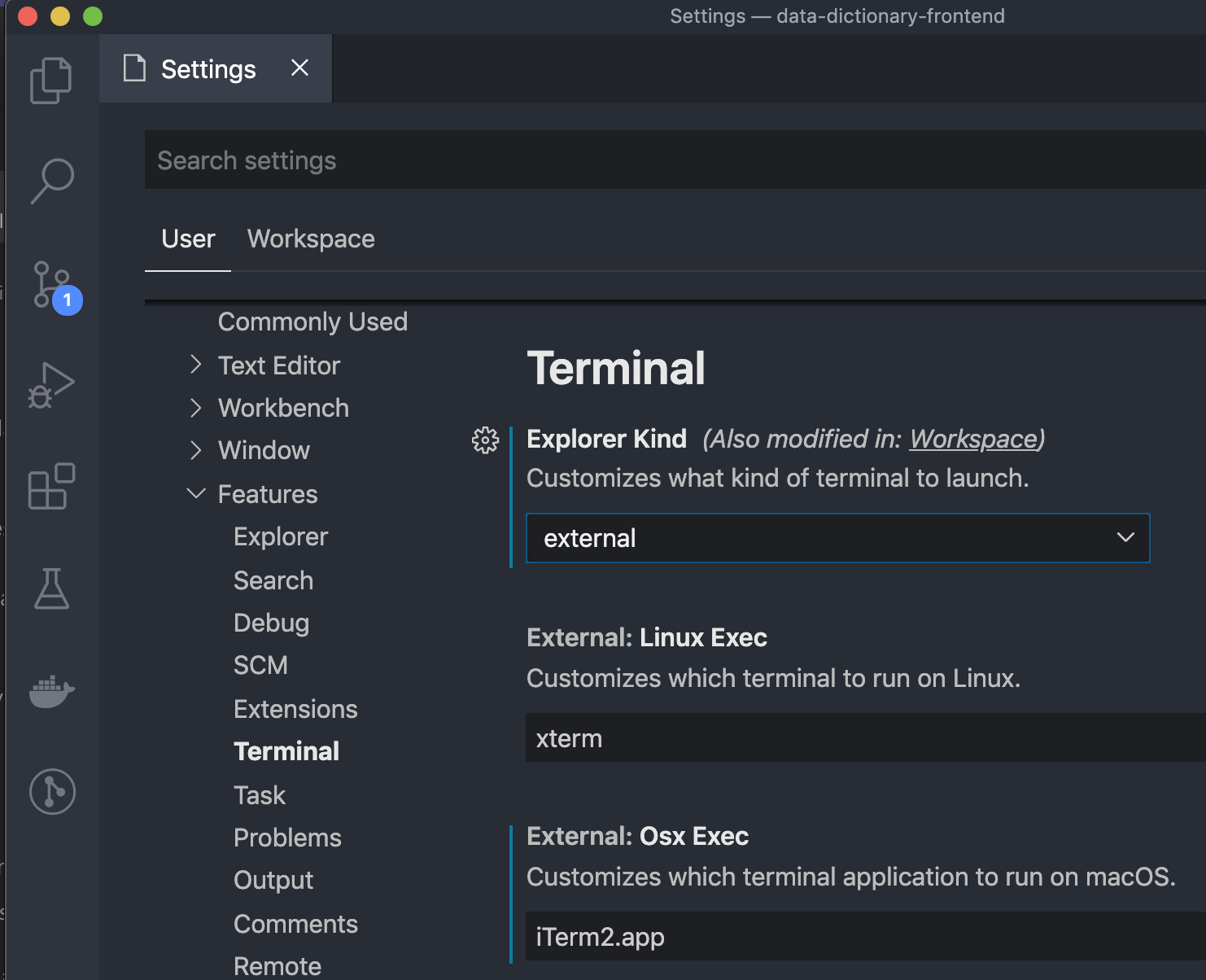
Also, make sure this is not overridden at the Workspace level settings.
 adityavikasd
on 11 Jun 2020
adityavikasd
on 11 Jun 2020
The above solution didn't work for me when using iTerm2 + nvm + zsh; I checked my .zshrc and everything appeared to be set up correctly, but running which node output the binary in the directory ~/.nvm. I attempted a fair amount of things, but ultimately doing something like linking the binary in ~/.nvm was apparently discouraged.
I instead attempted n over nvm, and this fixed the issue the first time, without needing to override settings in vs code. I haven't delved into the architecture of n at this time, but the likely reason is that it links its internal node binary to a more common directory, that being /usr/local/bin/node.
There are different tools that can accomplish the same basic task that nvm performs, and should allow you to specify node version per-project via .node-version per the n docs.
This may conclude my long-lived usage of nvm, as n is installable via brew and provides the same basic features, and shares configuration files with a (somewhat) standardized format.
Good luck to others who encounter this problem, I hope this points you to an acceptable solution.
 kevin-lindsay-1
on 4 Aug 2020
kevin-lindsay-1
on 4 Aug 2020
FWIW, for nvm users
this workaround https://github.com/jest-community/vscode-jest/issues/105#issuecomment-469971991 (quoted below) works well, provided that you don't have any kind of lazy loading mechanism in place for nvm.
👉 lazy loading nvm is not recommended by its authors (see this 2016 comment https://github.com/nvm-sh/nvm/issues/730#issuecomment-226949107)
Lazy loading examples
Via zsh-nvm
This might be the case if you've installed nvm via the zsh-nvm plugin and then, for perf. reasons decided to opt in for lazy loading (exporting the NVM_LAZY_LOAD environment variable). For more info, see : https://github.com/lukechilds/zsh-nvm#lazy-loading
Example of a manual setup
# Add every binary that requires nvm, npm or node to run to an array of node globals
NODE_GLOBALS=(`find ~/.nvm/versions/node -maxdepth 3 -type l -wholename '*/bin/*' | xargs -n1 basename | sort | uniq`)
NODE_GLOBALS+=("node")
NODE_GLOBALS+=("nvm")
# Lazy-loading nvm + npm on node globals call
load_nvm () {
export NVM_DIR=~/.nvm
[ -s "$(brew --prefix nvm)/nvm.sh" ] && . "$(brew --prefix nvm)/nvm.sh"
}
# Making node global trigger the lazy loading
for cmd in "${NODE_GLOBALS[@]}"; do
eval "${cmd}(){ unset -f ${NODE_GLOBALS}; load_nvm; ${cmd} \$@ }"
done
src: https://gist.github.com/fl0w/07ce79bd44788f647deab307c94d6922
Workaround https://github.com/jest-community/vscode-jest/issues/105#issuecomment-469971991
If you have installed
nodeusingnvm, it won't be in the place this extension expects it to be (/usr/bin/env).Workaround
You can make sure it is in the relative path by launching vscode in the root directory of your project:
cd ~/my-project
code .
@kevin-lindsay-1 this might be the reason why, regarding your setup, you didn't manage to find a working solution.
 febero
on 14 Aug 2020
febero
on 14 Aug 2020
I'm using VSCode with WSL and also struggled this issue.
If there is anyone like me, here is the solution:
1) Put ~/.vscode-server/server-env-setup or ~/.vscode-server/server-env-setup in your WSL.
see: https://code.visualstudio.com/docs/remote/wsl#_advanced-environment-setup-script
2) Write below in theserver-env-setup file:
export NVM_DIR="$HOME/.nvm"
[ -s "$NVM_DIR/nvm.sh" ] && \. "$NVM_DIR/nvm.sh"  # This loads nvm
these lines are copied from my ~/.bashrc.
3) Restart WSL session in VSCode
 kn3ny
on 17 Oct 2020
kn3ny
on 17 Oct 2020
did not work solutions above. ended up with defining runtimeExectuable in the launch.json.
Breakpoint stop works, though there is error in the Jest plugin output console.
Here is the full config:
{
  // Use IntelliSense to learn about possible attributes.
  // Hover to view descriptions of existing attributes.
  // For more information, visit: https://go.microsoft.com/fwlink/?linkid=830387
  "version": "0.2.0",
  "configurations": [
    {
      "type": "node",
      "name": "vscode-jest-tests",
      "request": "launch",
      "args": [
        "--runInBand"
      ],
      "cwd": "${workspaceFolder}",
      "console": "integratedTerminal",
      "internalConsoleOptions": "neverOpen",
      "disableOptimisticBPs": true,
      "program": "${workspaceFolder}/node_modules/jest/bin/jest",
      "runtimeExecutable": "/root/.nvm/versions/node/v12.18.3/bin/node"
    }
  ]
}
 myxit
on 2 Dec 2020
myxit
on 2 Dec 2020
Fixed this issue by set the vscode config: Terminal>Integrated: Inherit Env. to true.
 dum3ng
on 19 Mar 2021
dum3ng
on 19 Mar 2021
Related issues
 kartheektrilochan
·
28Comments
kartheektrilochan
·
28Comments
 tiagor87
·
16Comments
tiagor87
·
16Comments
 erikns
·
16Comments
erikns
·
16Comments
 orenmizr
·
15Comments
orenmizr
·
15Comments
 Drakota
·
16Comments
Drakota
·
16Comments
Most helpful comment
If you have installed
nodeusingnvm, it won't be in the place this extension expects it to be (/usr/bin/env).Workaround
You can make sure it is in the relative path by launching vscode in the root directory of your project: