Vscode-java: Error in every java file after updating to macOS Big Sur
I started getting this message at the beginning of every java file that i open in vscode saying:
¨The type java.lang.Object cannot be resolved. It is indirectly referenced from required .class filesJava(16777540)¨
The extension that causes this error is Language Support for Java™ by Red Hat
The issue appeared after the software update to macOS Big Sur and installing Windows Bootcamp. These two actions are the only things I did that i can think of since before committing those actions there was no problem. Please help.
- Operating System: macOS Big Sur Version 11.0.1 (20B29)
JDK version:
java 15.0.1 2020-10-20
Java(TM) SE Runtime Environment (build 15.0.1+9-18)
Java HotSpot(TM) 64-Bit Server VM (build 15.0.1+9-18, mixed mode, sharing)Visual Studio Code version: 1.51.1
- Java extension version: v0.70.0



 shucshin
All 16 comments
I am having the same problem and I don't know how to fix it.
 jnalbert
on 17 Nov 2020
jnalbert
on 17 Nov 2020
I'm updating to Big Sur now, and I'll let you know if I can reproduce it or not.
BTW, is your workspace a 1) maven project or 2) gradle project or 3) simple folder containing .java files?
 Eskibear
on 18 Nov 2020
Eskibear
on 18 Nov 2020
In my case it's been both simple folders containing .java files and maven projects,(don't know about gradle projects since I don't have one) for maven projects it would create a .settings folder containing files with names starting with org.eclipse.something; for simple folders containing only .java files it wouldn't create a .settings folder but still with the same errors as posted.
shucshin
on 18 Nov 2020
I have the same problem and not able to fix it yet.
 summerfang
on 18 Nov 2020
summerfang
on 18 Nov 2020
I've updated to Big Sur, but I cannot reproduce it.
Maybe you can try command Java: Clean the Java language server workspace from command palette.
Eskibear
on 18 Nov 2020
Eskibear I tried that but it still did not resolve the issue.
jnalbert
on 18 Nov 2020
@jnalbert I'm wondering whether it occurs only for existing projects (due to some out-of-sync states), or all projects on your machine. I suggest that you create an empty folder, and open it in vscode. Then you create a single .java file, e.g. Hello.java, write a Hello World program.
Let me know if it works. And if it doens't work, trry F1 -> Java: Open Java language server log file, see if we can find any clue there.
Eskibear
on 18 Nov 2020
Finally I'm able to reproduce it, by removing all the other JDKs except for one JDK 15. Java Home was wrongly recongnized as /usr.

Eskibear
on 18 Nov 2020
@Eskibear do you know of any fix for this right now?
jnalbert
on 18 Nov 2020
Root Cause
In Big Sur, /usr/bin/javac is added, and it's no longer a symlink (in Catalina it's a symlink thus skipped). So LS regard /usr as Java Home, thus fail to find required libs under the folder.
Workaround
Open Setttings in VSCode, set java.home to the correct home dir of your JDK. E.g. mine is,
"java.home": "/Library/Java/JavaVirtualMachines/adoptopenjdk-15.jdk/Contents/Home"
Usually you can find it under /Library/Java/JavaVirtualMachines
$> ls /Library/Java/JavaVirtualMachines
adoptopenjdk-15.jdk
Follow-up
- [x] To fix JDK detection on macOS.
Eskibear
on 18 Nov 2020
Looks like there are more people getting stuck at this issue after upgrading to macOS Big Sur, @Eskibear could you help provide a hot fix on this?
 testforstephen
on 18 Nov 2020
testforstephen
on 18 Nov 2020
@Eskibear it worked! Thank you.
jnalbert
on 18 Nov 2020
I have this same issue as well.
I found a solution from reddit.
The JAVA_HOME variable needs to be set properly.
*First open terminal, type: touch ~/.zshrc
This creates a zshrc file; if you think it already exist, type: open ~/.zshrc
*Then type: open ~/.zshrc
*Copy and paste this inside the zshrc file when it opens up on textedit: export JAVA_HOME=`/usr/libexec/java_home`
*Save the zshrc (cmd+S) then close textedit, close terminal. Close VSCode if it is open.
*Open terminal again and type: echo $JAVA_HOME
*This is to check that the zshrc file works. I use adoptopenjdk so mine shows this directory: /Library/Java/JavaVirtualMachines/adoptopenjdk-14.jdk/Contents/Home
*Lastly, open VSCode, check your java files and run them.
Hope this helps.
 julrdb
on 18 Nov 2020
julrdb
on 18 Nov 2020
Hey @Eskibear. I tried to do that but it opens me a tab saying "Configure Java Runtime" and basically says that my path is not pointing to JDK.
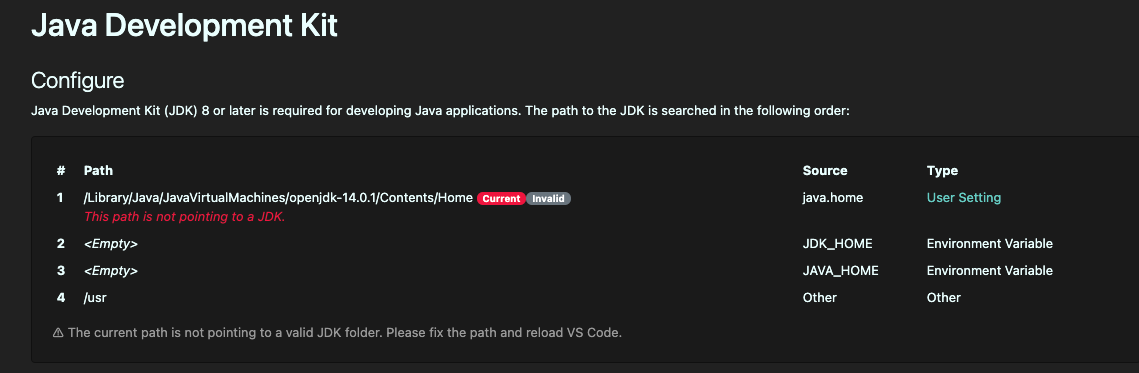
Is there any way for me to solve this? I can still compile and everything using terminal (using javac and java) but on VSCode I can't...
What it gives me is the option to Install JDK
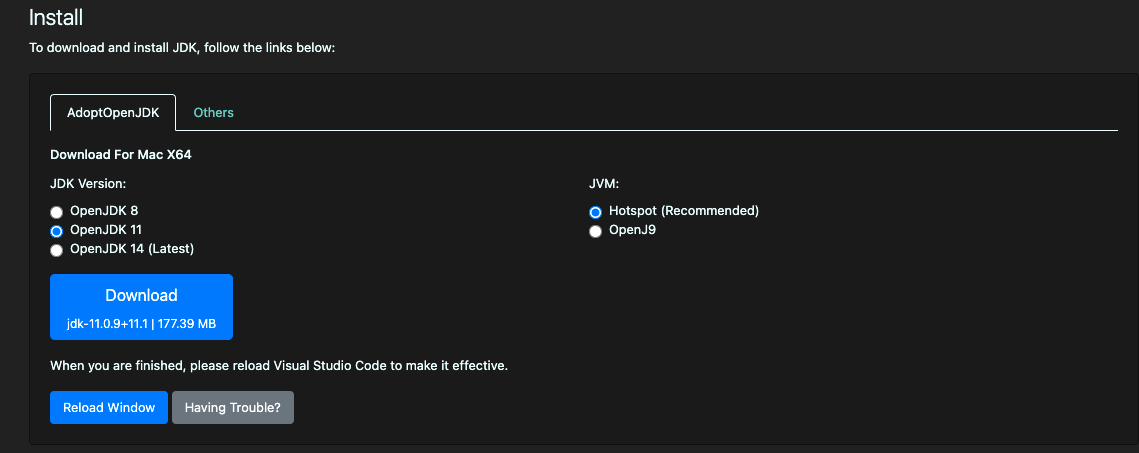
 EduardoSilva088
on 18 Nov 2020
EduardoSilva088
on 18 Nov 2020
Root Cause
In Big Sur,
/usr/bin/javacis added, and it's no longer a symlink (in Catalina it's a symlink thus skipped). So LS regard/usras Java Home, thus fail to find required libs under the folder.Workaround
Open Setttings in VSCode, set
java.hometo the correct home dir of your JDK. E.g. mine is,"java.home": "/Library/Java/JavaVirtualMachines/adoptopenjdk-15.jdk/Contents/Home"Usually you can find it under
/Library/Java/JavaVirtualMachines$> ls /Library/Java/JavaVirtualMachines adoptopenjdk-15.jdkFollow-up
- [ ] To fix JDK detection on macOS.
This solved it, thank you!
shucshin
on 18 Nov 2020
Ok, i fixed my issue. I was using JDK version 14.0.1. Just installed latest version and did what Eskibear did. It is working now!
EduardoSilva088
on 18 Nov 2020
Related issues
 ulongx
·
4Comments
ulongx
·
4Comments
 ViniciusAtaide
·
4Comments
ViniciusAtaide
·
4Comments
 sfariaNG
·
3Comments
sfariaNG
·
3Comments
 gorkem
·
4Comments
gorkem
·
4Comments
 joewood
·
3Comments
joewood
·
3Comments
Most helpful comment
Root Cause
In Big Sur,
/usr/bin/javacis added, and it's no longer a symlink (in Catalina it's a symlink thus skipped). So LS regard/usras Java Home, thus fail to find required libs under the folder.Workaround
Open Setttings in VSCode, set
java.hometo the correct home dir of your JDK. E.g. mine is,Usually you can find it under
/Library/Java/JavaVirtualMachinesFollow-up