Vscode-java: Cannot find JDK
ok so I have my JAVA_HOME set to the home path for the redhat jdk-8 but still get the error that its not installed and cannot be started.
what else do I have to do to get this to work?
I have looked through the other posts but have yet to find a solution.
this is on windows 10 btw.
 TTanner21
All 20 comments
Can you paste the path you used here?
Also can you check if you still have the issue with the new release (0.0.5)?
BTW, you can now set up the java.home variable in VS Code preferences, starting in 0.0.5.
 fbricon
on 14 Oct 2016
fbricon
on 14 Oct 2016
Can you add support for variable JDK_HOME and JAVA_HOME instead of having to compulsorily use java.home ?
In the 20 years I have been programming with Java, my understanding is that the way the environment variables being used is to have the JRE be pointed by the JAVA_HOME and the JDK be pointed by JDK_HOME. In case developers want, they can point both to the JDK.
Look at documentation here for some reference:
https://docs.oracle.com/cd/E35865_01/doc.1120/e29687/preinstall.htm#CIHCIHDE
https://docs.oracle.com/cd/E13222_01/wls/docs/techstart/environment.html
 navneetkarnani
on 14 Oct 2016
navneetkarnani
on 14 Oct 2016
@navneetkarnani _java.home_ configuration is NOT mandatory. We have added it as a way to override the _JAVA_HOME_ for situations such as developer needs JAVA_HOME to point to JDK which is not sufficient for running our tools. See #28 for full discussion.
In @TTanner21's case we are still trying to determine why _JAVA_HOME_ is not automatically discovered, using _java.home_ with the same value as _JAVA_HOME_ would hint us that the path is actually good.
 gorkem
on 14 Oct 2016
gorkem
on 14 Oct 2016
Can you paste the path you used here?
Also can you check if you still have the issue with the new release (0.0.5)?
BTW, you can now set up the java.home variable in VS Code preferences, starting in 0.0.5.
the path is C:\java-1.8.0-openjdk-1.8.0.102-1
I don't know why its not working, but using the java.home variable does work with the same path.
TTanner21
on 17 Oct 2016
@TTanner21 You need to escape the backslashes in the configuration.
From my user settings:
"java.home": "D:\\Dev\\jdk\\jdk1.8.0_25_x86"
 schmic
on 18 Oct 2016
schmic
on 18 Oct 2016
fixed with https://github.com/redhat-developer/vscode-java/commit/9de94901e7cb2f829e74f748ae96a6c211e219da
gorkem
on 28 Oct 2016
I have this same issue and had to paste my JDK_Home environment variable value into the VSC java.home setting, escaping the backslashes. Is it possible that you guys need to escape the backslashes when using JDK_Home for some reason?
 carlin-q-scott
on 17 Dec 2016
carlin-q-scott
on 17 Dec 2016
@carlin-q-scott What is your OS?
gorkem
on 17 Dec 2016
@gorkem Windows 10 Home.
carlin-q-scott
on 9 Jan 2017
I also seem to be having issues with this. I have correctly set my java.home workspace setting to:
"java.home": "C:\\Program Files\\Java\\jdk1.8.0_162"
When running a maven build task I get the error in console:
[INFO] BUILD FAILURE
[INFO] ------------------------------------------------------------------------
[INFO] Total time: 2.068 s
[INFO] Finished at: 2018-02-08T22:18:53-05:00
[INFO] Final Memory: 9M/245M
[INFO] ------------------------------------------------------------------------
[ERROR] Failed to execute goal org.apache.maven.plugins:maven-compiler-plugin:3.1:compile (default-compile) on project HelpMeAdvanced-Sponge: Compilation failure
[ERROR] No compiler is provided in this environment. Perhaps you are running on a JRE rather than a JDK?
EDIT: The only way I've been able to successfully run commands is if I set JAVA_HOME system environment variable. So for some reason it seems to be ignoring all other settings even though the check order that is documented lists java.home workspace setting first.
 kmccmk9
on 9 Feb 2018
kmccmk9
on 9 Feb 2018
@kmccmk9 Running the Java editor is one thing, running Maven from CLI is another. Those are 2 pieces of software each requiring their settings.
The java.home preference is only used by vscode-java (actually the underlying jdt.ls backend). Maven is not aware of vscode preferences.
If you set JAVA_HOME globally on your system, then vscode-java should be able to pick it up, Maven too.
fbricon
on 9 Feb 2018
It was happening the same to me in Ubuntu 18.04, where the $JAVA_HOME variable was pointing to:
"/usr/lib/jvm/java-11-openjdk-amd64/bin/java"
So I just changed the User Settings to the following value and it worked (removed the /bin/java):
"java.home": "/usr/lib/jvm/java-11-openjdk-amd64"
 jgabrielgv
on 15 Oct 2018
jgabrielgv
on 15 Oct 2018
It was happening the same to me in Ubuntu 18.04, where the $JAVA_HOME variable was pointing to:
"/usr/lib/jvm/java-11-openjdk-amd64/bin/java"
So I just changed the User Settings to the following value and it worked (removed the /bin/java):
"java.home": "/usr/lib/jvm/java-11-openjdk-amd64"
Fixed it for me.
 pskrunner14
on 23 Nov 2018
pskrunner14
on 23 Nov 2018
I am on fedora, and I have it set to
"java.home": "/usr/lib/jvm/java-11-openjdk-11.0.5.10-0.fc30.x86_64" and it doesnt want to work for me. Any thoughts?
 PhazonicRidley
on 9 Nov 2019
PhazonicRidley
on 9 Nov 2019
@PhazonicRidley you can try the following:
sudo dnf install java-11-openjdk java-11-openjdk-devel
code ...
 snjeza
on 9 Nov 2019
snjeza
on 9 Nov 2019
It was happening the same to me in Ubuntu 18.04, where the $JAVA_HOME variable was pointing to:
"/usr/lib/jvm/java-11-openjdk-amd64/bin/java"
So I just changed the User Settings to the following value and it worked (removed the /bin/java):
"java.home": "/usr/lib/jvm/java-11-openjdk-amd64"
This is not working for me... What can I do..

 meSajied
on 22 Nov 2019
meSajied
on 22 Nov 2019
@meSajied if the path is correct. I think what you need to do is adding , after the } at line 15
 jdneo
on 23 Nov 2019
jdneo
on 23 Nov 2019
It was happening the same to me in Ubuntu 18.04, where the $JAVA_HOME variable was pointing to:
"/usr/lib/jvm/java-11-openjdk-amd64/bin/java"
So I just changed the User Settings to the following value and it worked (removed the /bin/java):
"java.home": "/usr/lib/jvm/java-11-openjdk-amd64"
Doesn't work for Kali Linux v2019.4
Any Suggestions?
{
    "workbench.editor.enablePreview": false,
    "workbench.editor.enablePreviewFromQuickOpen": false,
    "java.home": "/usr/lib/jvm/java-11-openjdk-amd64",
    "editor.suggestSelection": "first",
}
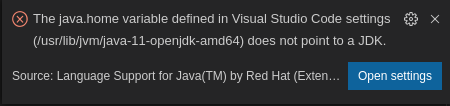
 miteshgoplani
on 12 May 2020
miteshgoplani
on 12 May 2020
It was happening the same to me in Ubuntu 18.04, where the $JAVA_HOME variable was pointing to:
"/usr/lib/jvm/java-11-openjdk-amd64/bin/java"
So I just changed the User Settings to the following value and it worked (removed the /bin/java):
"java.home": "/usr/lib/jvm/java-11-openjdk-amd64"Doesn't work for Kali Linux v2019.4
Any Suggestions?{ "workbench.editor.enablePreview": false, "workbench.editor.enablePreviewFromQuickOpen": false, "java.home": "/usr/lib/jvm/java-11-openjdk-amd64", "editor.suggestSelection": "first", }
@miteshgoplani See if you installed both jdk and jre I had the same problem I only installed jre. After installing jdk add this to settings.json
"java.home": "/usr/lib/jvm/java-11-openjdk-amd64",
 mgautam98
on 14 May 2020
mgautam98
on 14 May 2020
Yes make sure you use a JDK, not a JRE, and don't set the path to bin/ or bin/java.
fbricon
on 14 May 2020
Related issues
 danielcalvogonzalez
·
3Comments
danielcalvogonzalez
·
3Comments
 yaohaizh
·
4Comments
yaohaizh
·
4Comments
 ViniciusAtaide
·
4Comments
ViniciusAtaide
·
4Comments
 ulongx
·
4Comments
ulongx
·
4Comments
 jcjolley
·
3Comments
jcjolley
·
3Comments
Most helpful comment
@miteshgoplani See if you installed both jdk and jre I had the same problem I only installed jre. After installing jdk add this to settings.json