Vscode-java-test: Failed to get workspace folder for the test items when running the test cases
Repro step:
- Open a test project in remote ssh
- Run tests at root level in the test explorer
Java Test Runner version 0.19
 chandangreddy
All 15 comments
Note that my tests are successfully recognized and code lens is displayed.
chandangreddy
on 6 Sep 2019
I'm seeing the same issue when using VsCode through WSL.
 christianfosli
on 15 Sep 2019
christianfosli
on 15 Sep 2019
@christianfosli Please let me know if you found any workarounds for this issue.
chandangreddy
on 16 Sep 2019
Hey guys,
Sorry for the late reply and thank you for reporting this. I'll check about this issue these days and see what's the gap there.
 jdneo
on 17 Sep 2019
jdneo
on 17 Sep 2019
I got a chance to try with Remote WSL today. (not Remote SSH)
It seems to work from my side:
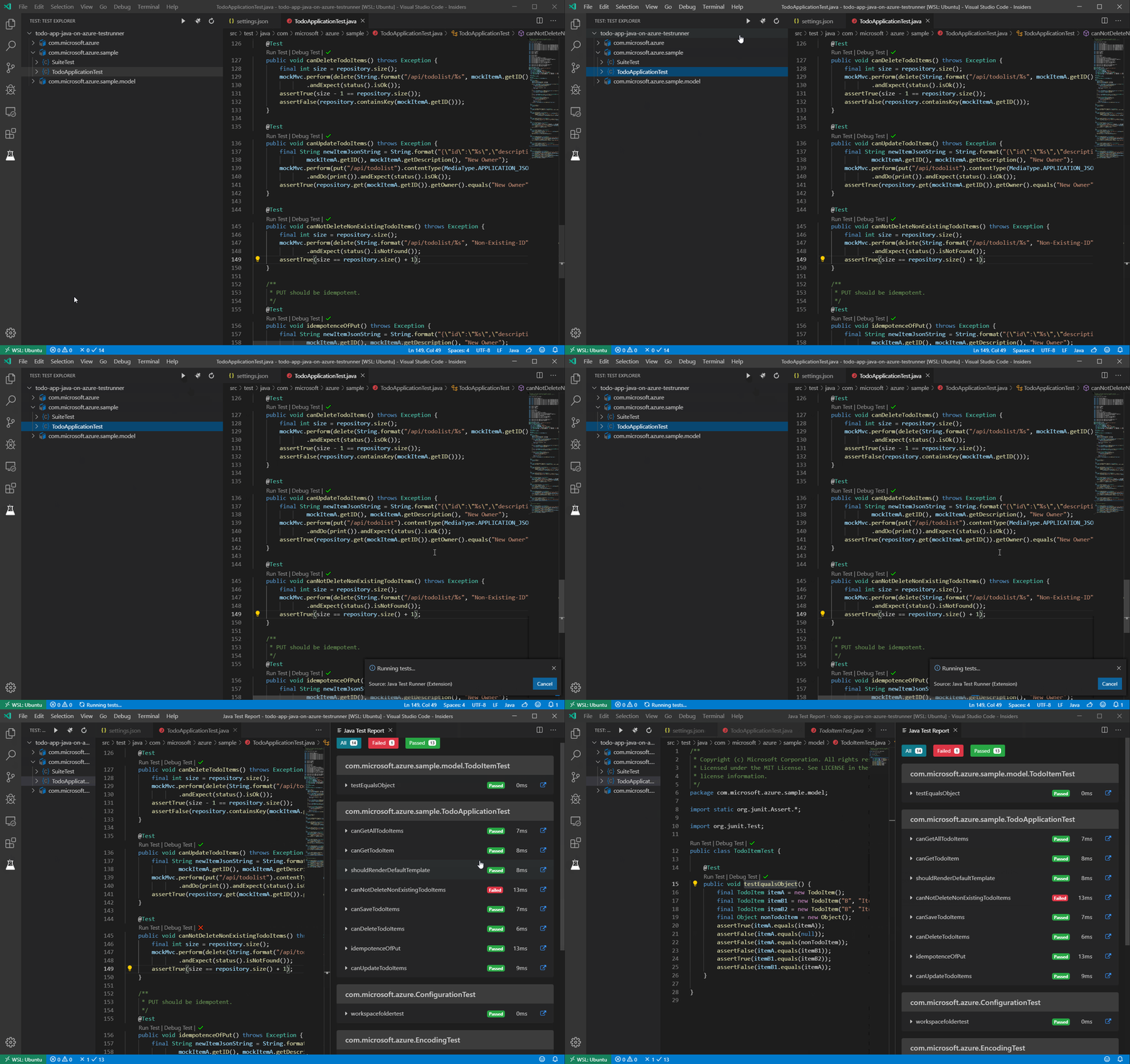
@christianfosli Could you provide more information to help us diagnostic this issue?
jdneo
on 18 Sep 2019
Thanks for looking into this, @jdneo. Good to know it's working for you 😄
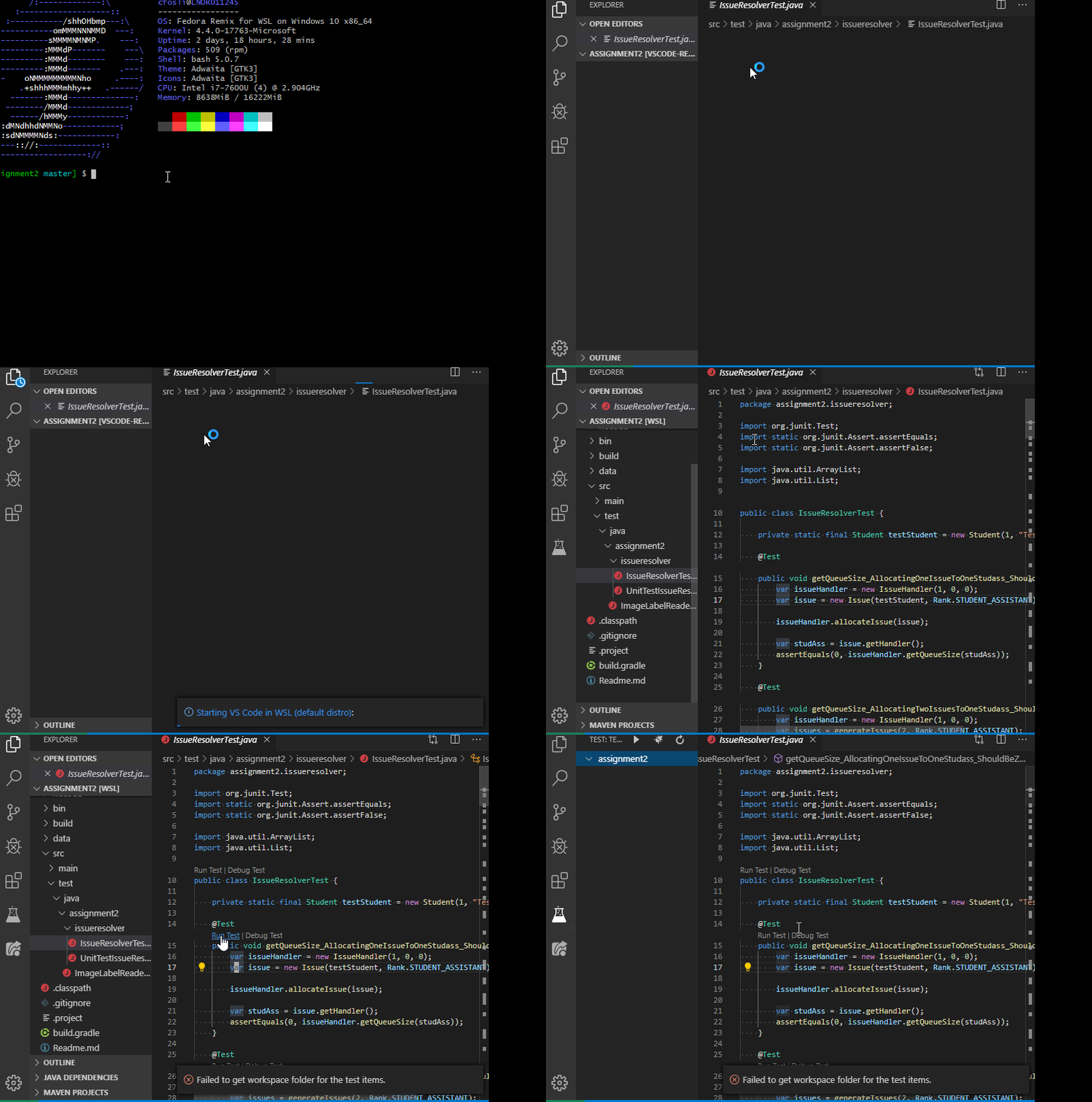
I've got a simple gradle project, which I can test in the commandline using
./gradlew test.I'm running windows 10 pro version 1809, build 17763.678
I'm running FedoraRemix distro on WSL
My tests are recognized with Code Lense, and that's how I try to run them.
They are not recognized in the Test Explorer.
Edit: I'd be happy to help troubleshoot, but I think the most likely reason for our discrepancy is that you're probably using a newer version of Windows 10, and therefore a newer version of WSL. I'm unable to try a newer build as my employer handles windows updates.
christianfosli
on 18 Sep 2019
Hi @jdneo, I still having this issue, did you get a chance to try with remote ssh?
chandangreddy
on 9 Oct 2019
Hi @jdneo could we see the content of your settings.json here? I'm guessing the java.test.config attribute might be our solution here.
 brainafesoh
on 5 Nov 2019
brainafesoh
on 5 Nov 2019
Hi @brainafesoh, I'm just using the default java.test.config, which is:
{
    "name": "default",
    "workingDirectory": "${workspaceFolder}"
}
But so far I just tried it within WSL, not in the SSH, so I'm not sure if the extension still work in SSH. I will take a look when I have a chance.
jdneo
on 6 Nov 2019
Hey @jdneo, thanks for checking. Another supposition though; I think it has to do with vs code's behaviour with symlinked folders as you say on issues #630 & here
In my case, I generally do work on linux but equally like to access my project folders while on Windows too. So what I do is that I save all my projects in a folder on the windows partition then while on linux, I access to it via a symlink. For a temporary workaround, I'll just copy my project folder out of the symlinked folder, directly into my HOME dir.
It'll make me a little more disorganized though. just hope it's resolved soon.
brainafesoh
on 6 Nov 2019
Just confirmed this issue still exists in code 1.40.1, Java Test Runner 0.21.0, running on Debian 10.
Failed to get workspace folder for the test items
when trying to run a detected JUnit test in a symlinked folder. Opening the target folder directory works fine. Thanks for the tip @brainafesoh!
 shane-axiom
on 15 Nov 2019
shane-axiom
on 15 Nov 2019
For people who encountered this problem, are you having the symlinked folder and try to open that when using the Remote - SSH?
jdneo
on 20 Nov 2019
Same issue for me using an attached docker container.
I had a symlink into home directory from a source directory. Switched to the absolute path and it all works perfectly. Problem definitely is only where the workspace folder points to a symlink.
 jimnz111
on 21 Nov 2019
jimnz111
on 21 Nov 2019
According to the feedback. I guess this issue is related (or duplicated) with #630.
So far, the VS Code has some problem handing this scenario, see: https://github.com/microsoft/vscode/issues/74104
For anyone who has the same problem, please also go to https://github.com/microsoft/vscode/issues/74104 to echo/vote for that.
I'm closing this issue for now and track in #630.
jdneo
on 22 Nov 2019
Hey,
Not sure if the issue persists in your case but this is what I found, and when you think about it, it's kinda tricky.
If u open a project folder in VSCode, IT IS NOT considered workspace. So even when the test classes are identified succesfully (CodeLens is properly displaying run and debug options), your folder is not a part of the workspace.
Fix:
Open VSCode --> File --> Add Folder to Workspace... --> [here you add a project folder to workspace, and save the workspace with configuration file in project's root].
After this I have also reinstalled all deps with maven (but im not sure its necessary for this fix to work).
From now on, you should be able to see all tests in tests explorer and also run them successfully.
Let me know if this helped.
 andrewpajda
on 19 Mar 2020
andrewpajda
on 19 Mar 2020
Related issues
 hrsto
·
4Comments
hrsto
·
4Comments
 oakad
·
9Comments
oakad
·
9Comments
 fbricon
·
5Comments
fbricon
·
5Comments
 jimliuxyz
·
7Comments
jimliuxyz
·
7Comments
 Gueka
·
3Comments
Gueka
·
3Comments
Most helpful comment
Hey @jdneo, thanks for checking. Another supposition though; I think it has to do with vs code's behaviour with symlinked folders as you say on issues #630 & here
In my case, I generally do work on linux but equally like to access my project folders while on Windows too. So what I do is that I save all my projects in a folder on the windows partition then while on linux, I access to it via a symlink. For a temporary workaround, I'll just copy my project folder out of the symlinked folder, directly into my HOME dir.
It'll make me a little more disorganized though. just hope it's resolved soon.