Vscode-cpptools: Discovering files too slow on wsl2
Type: LanguageService
Describe the bug
- OS and Version:
wsl2 - VS Code Version:
1.45.0 - C/C++ Extension Version:
0.28.0 - Other extensions you installed (and if the issue persists after disabling them):
docker - Does this issue involve using SSH remote to run the extension on a remote machine?:
yes - A clear and concise description of what the bug is, including information about the workspace (i.e. is the workspace a single project or multiple projects, size of the project, etc).
Discovering files is really slow than in wsl1. In wsl1 it takes only less than 6s but in wsl2,it takes half an hour.
Steps to reproduce
- wsl --set-version Ubuntu 2
- open vscode
- open a c++ file
Expected behavior
parse files fast
{
    "name": "Linux",
    "includePath": [
        "${workspaceFolder}/**"
    ],
    "defines": [],
    "compilerPath": "/usr/bin/g++",
    "cStandard": "c11",
    "cppStandard": "c++17",
    "intelliSenseMode": "clang-x64",
    "compilerArgs": [],
    "browse": {
        "path": [
            "${workspaceFolder}/**"
        ],
        "limitSymbolsToIncludedHeaders": true
    }
}


cpptools/didChangeCppProperties
Attempting to get defaults from compiler in "compilerPath" property: '/usr/bin/g++'
terminating child process: 2181
Code browsing service initialized
Attempting to get defaults from compiler in "compilerPath" property: '/usr/bin/g++'
terminating child process: 2184
  Folder: /usr/lib/gcc/x86_64-linux-gnu/7/include/ will be indexed
  Folder: /usr/local/include/ will be indexed
  Folder: /usr/lib/gcc/x86_64-linux-gnu/7/include-fixed/ will be indexed
  Folder: /usr/include/ will be indexed
  Folder: /mnt/d/Codes/ will be indexed
textDocument/didOpen: file:///mnt/d/Codes/ACM/Vj/WeekTrainning/5/g/g.cpp
Populate include completion cache.
Discovering files...
  Processing folder (recursive): /usr/lib/gcc/x86_64-linux-gnu/7/include/
  Processing folder (recursive): /usr/local/include/
  Processing folder (recursive): /usr/lib/gcc/x86_64-linux-gnu/7/include-fixed/
  Processing folder (recursive): /usr/include/
  Processing folder (recursive): /mnt/d/Codes/
cpptools/getDocumentSymbols: file:///mnt/d/Code
Screenshots
Additional context
 ffacs
ffacs
All 13 comments
It looks like this is a "by design" issue with WSL 2. See https://docs.microsoft.com/en-us/windows/wsl/compare-versions .
The issue is that /mnt/d/Codes exists on the Windows file system:
In order to optimize for the fastest performance speed, be sure to store your project files in the Linux file system (not the Windows file system).
For example, when storing your WSL project files:
Use the Linux file system root directory: \wsl$\Ubuntu-18.04\home\
\Project
Not the Windows file system root directory: C:\Users\\Project
 sean-mcmanus
on 16 May 2020
sean-mcmanus
on 16 May 2020
@sean-mcmanus I have this problem too! When I opened my project from Linux file system, it was still too slow. and it eats my CPU. when the VSCode is connected to wsl2, in the task manager there is something that is eating my CPU. I don't know what is it but its name is "node".
 mahyar1284
on 16 Aug 2020
mahyar1284
on 16 Aug 2020
@sean-mcmanus I have this problem too! When I opened my project from Linux file system, it was still too slow. and it eats my CPU. when the VSCode is connected to wsl2, in the task manager there is something that is eating my CPU. I don't know what is it but its name is "node".
moving your project to the root dir can solve this problem,its wsl2`s problem
ffacs
on 17 Aug 2020
@ffacs you mean I should move my project from "/home/mahyar/u-boot/" to "/u-boot"? what is the difference and how this can solve the problem?
both of these directories are in the linux file system. so, what's the difference?
mahyar1284
on 18 Aug 2020
@sean-mcmanus I have this problem too! When I opened my project from Linux file system, it was still too slow. and it eats my CPU. when the VSCode is connected to wsl2, in the task manager there is something that is eating my CPU. I don't know what is it but its name is "node".
moving your project to the root dir can solve this problem,its wsl2`s problem
Project files that you are working with using a WSL distribution (like Ubuntu) must be in the Linux root file system to take advantage of faster file system access.
@sean-mcmanus I have this problem too! When I opened my project from Linux file system, it was still too slow. and it eats my CPU. when the VSCode is connected to wsl2, in the task manager there is something that is eating my CPU. I don't know what is it but its name is "node".
moving your project to the root dir can solve this problem,its wsl2`s problem
Project files that you are working with using a WSL distribution (like Ubuntu) must be in the Linux root file system to take advantage of faster file system access.
Ok I understood it. now my project is in the root file system of Linux. but still when the visual studio code connects to the wsl, abruptly my CPU usage and power usage comes tremendously high.
Look at my task manager:

This file from visual studio code is eating my cpu when it connects to the wsl.

mahyar1284
on 18 Aug 2020
@mahyar1284 You're using WSL1 and not WSL2. WSL1 has a bug with Ubuntu 20 in regards to "sleep" not working. It's fixed with WSL2. Our extension isn't causing that CPU usage. There's a WSL command you can run to upgrade from version 1 to version 2 (although note that the memory usage seems higher with WSL2).
sean-mcmanus
on 18 Aug 2020
@mahyar1284 You're using WSL1 and not WSL2. WSL1 has a bug with Ubuntu 20 in regards to "sleep" not working. It's fixed with WSL2. Our extension isn't causing that CPU usage. There's a WSL command you can run to upgrade from version 1 to version 2 (although note that the memory usage seems higher with WSL2).
aww 🤦♂️. Thank you 😄. I thought I have upgraded it to WSL2. but it seems I've forgot.
mahyar1284
on 18 Aug 2020
@mahyar1284 You're using WSL1 and not WSL2. WSL1 has a bug with Ubuntu 20 in regards to "sleep" not working. It's fixed with WSL2. Our extension isn't causing that CPU usage. There's a WSL command you can run to upgrade from version 1 to version 2 (although note that the memory usage seems higher with WSL2).
I switched to WSL 2 successfully and the high cpu usage problem and slowness solved. but when I open vscode, I can't save my changes to my project files.
the address of my project : /home/mahyar/my_projects/u-boot/ (it's in the linux file system).

what is the problem?
mahyar1284
on 19 Aug 2020
@mahyar1284 You should install the Remote WSL extension and connect to the remote WSL instance of the folder, instead of trying to access the file from Windows.
sean-mcmanus
on 19 Aug 2020
@mahyar1284 You should install the Remote WSL extension and connect to the remote WSL instance of the folder, instead of trying to access the file from Windows.
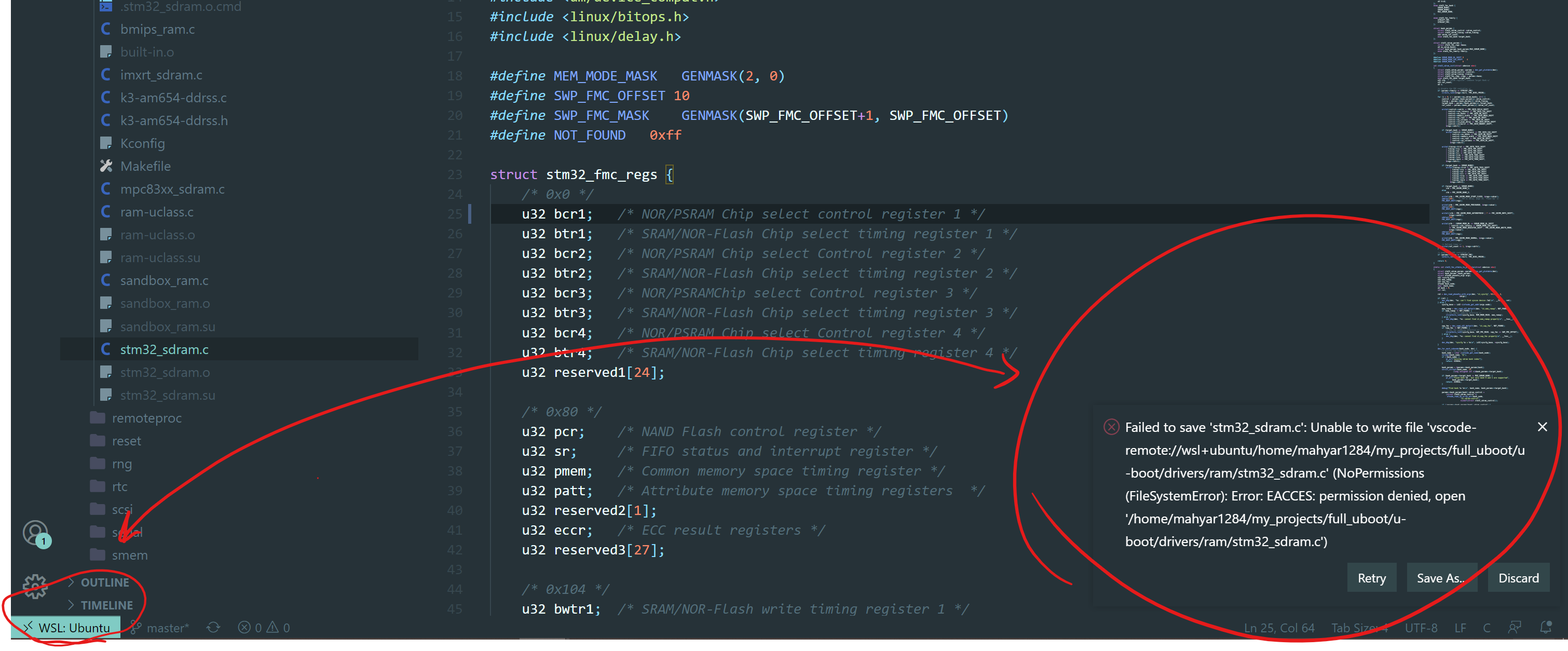
No, I have the WSL extension and connected to the remote WSL instance of my folder. when I open my project folder in windows, I can modify any file. but when I connect to wsl server, I can't modify any files in vscode.
as you can see in the below screenshot, its connected to the wsl with Remote WSL extension but cannot save or modify any files in the linux filesystem. (my project path: /home/mahyar1284/full_uboot/u-boot/)
mahyar1284
on 19 Aug 2020
@mahyar1284 Is your file read-only? This might be https://github.com/microsoft/vscode-remote-release/issues/3071 . Or it could be some other vscode-remote bug. I don't think our extension is involved with file saving. File saving works for me with WSL2/Ubuntu 20.
Or https://github.com/microsoft/vscode-remote-release/issues/3315
sean-mcmanus
on 20 Aug 2020
@mahyar1284 Is your file read-only? This might be microsoft/vscode-remote-release#3071 . Or it could be some other vscode-remote bug. I don't think our extension is involved with file saving. File saving works for me with WSL2/Ubuntu 20.
my files weren't read-only but I copied them again and now I can modify them in vscode. I don't know exactly what was the problem. anyways, thank you so much for helping.
mahyar1284
on 20 Aug 2020
Related issues
 jyavenard
·
3Comments
jyavenard
·
3Comments
 montery8
·
3Comments
montery8
·
3Comments
 igorPhelype
·
3Comments
igorPhelype
·
3Comments
 ismadelgad11
·
3Comments
ismadelgad11
·
3Comments
 DemoCrazer
·
3Comments
DemoCrazer
·
3Comments