Vscode-cpptools: Latest version can no longer link the header files correctly!
Althought when I press Ctrl and click the #include "xxx.h", It can find and jump to the header file correctly, the lint export an error said cannot open source file "xxx.h".

This problem never appeared before Version 0.11.1 update.
My project file structure was customize, perhaps caused? It looks like:
project\src\
    - head\
        -- header files. (*.h)
        .......
    - main\
        -- main source code. (*.c)
U could get more informations details about the project, see GitHub
 zhengxiaoyao0716
All 38 comments
I can confirm this. Having the exact same problems on Ubuntu 17.04x64 since the latest update.
 v3rDr3t
on 20 May 2017
v3rDr3t
on 20 May 2017
Same issue on Ubuntu.
 Ashod
on 20 May 2017
Ashod
on 20 May 2017
same issue on ubuntu with this settings

 sangwon0001
on 20 May 2017
sangwon0001
on 20 May 2017
Are you all referring to the same GitHub project as @zhengxiaoyao0716? To get the linter to work correctly, you need to add your include paths to the "includePath" array. For the project @zhengxiaoyao0716 is referencing, it seems you would need to add ${workspaceRoot}/src/head based on what I see in the repo. The new linter requires that you add an entry in the "includePath" for each path that you would normally send to your compiler via -I
 bobbrow
on 21 May 2017
bobbrow
on 21 May 2017
Hi @bobbrow I have the same problem on Ubuntu 16.04 and my c_cpp_properties.json just like @sangwon0001 's, looks like this:

I am referring to my own project and the problem appeared after upgrading to version 0.11.1.
 boltzmanncte
on 21 May 2017
boltzmanncte
on 21 May 2017
@bobbrow are right, After I insert "${workspaceRoot}/src/head" into c_cpp_properties.json file, it works, thanks.

However, I don't like this way, it brings redundant files (Not only c_cpp_properties but a settings.json file) and doesn't flexible.
What's more, there are still some problem:
- It can not lint the struct variable correctly, although the
Ctrl + Clickcan see the fileds prototype, the lint give the errorxxx is not defined.


- I have a
servermodule defined inserver.hand implement withserver.c, here those code:
/* server.h */
// ...
typedef void (*PP3DHandler)(IN char *recvBuf, OUT char *sendBuf);
// ...

/* server.c */
// ...
#include "server/server.h"
//...
#include "map.cpp.h"
// #include "map.c.h"
// ...
Then in map.cpp.h, it still give an error identifier "PP3DHandler" is undefined when I use. A strange problem is, in another implement file named map.c.h, it works well:

zhengxiaoyao0716
on 21 May 2017
See also the workround in:
https://github.com/Microsoft/vscode-cpptools/issues/743
Someone with admin rights might want to merge some threads together.
 ThatJCB
on 21 May 2017
ThatJCB
on 21 May 2017
@zhengxiaoyao0716 what compiler do you use to compile this C code? I'm not familiar with the struct initialization syntax you've shown in your screenshots.
Are there any red underlines in your server.h file when you open it? Is PP3DHandler defined within an inactive preprocessor block? (hover over the declaration to see)
bobbrow
on 22 May 2017
I'm not familiar with the struct initialization syntax you've shown in your screenshots.
It is an old GCC's syntax. Now obsolete (since GCC 2.5), but it is still supported by GCC https://gcc.gnu.org/onlinedocs/gcc/Designated-Inits.html#Designated-Inits
 UR3IQO
on 23 May 2017
UR3IQO
on 23 May 2017
To @bobbrow : @sov1178 are right, it equals to this syntax: (don't mind the red underlines, I removed the ugly c_cpp_properties.js and settings.json files so the linter report the xxx is undefined error again.)

However, the old syntax is really legal and for me looks more elegance. I use this syntax to keep consistent with other language, such as Js、Python and Go. Most of modern language choised this Json object K-V pair syntax like key: value, instead of .key = value.
And here are my server.h, without red underlines and no special syntax except a function pointer type defined, used to simulate interface.

My project could correctly compiled cross my Win10 PC (both Ubuntu bash and MinGW x64), Ubuntu 16.04 and Raspbian, here the link and you can give a try.
- Win10 Ubuntu bash:

- MinGW x64:

- Ubuntu 16.04:

- Raspbian April 2017:

It works well and once looks pretty with lint, untill I update the plugin.
Excuse me that if I have to compromise with troubles config file, minority syntax and give up function interface, I prefer to abandon the plugin.
zhengxiaoyao0716
on 24 May 2017
I found it helpfulf from #743 , @ThatJCB . With this setting:

All problem above was resolved. However, when I use a struct variable, the lint works well, but if I use a struct function, it still report the same error like xxx not found, and cannot recognize the illegal use:


zhengxiaoyao0716
on 24 May 2017
The Tag Parser does not do linting and does not have semantic awareness, so it cannot recognize any illegal use of methods/fields.
We are working on a change to disable the linting if any #include directives are not resolved so that you won't have to mess with the config files if you don't want to.
bobbrow
on 24 May 2017
@bobbrow I've got the 0.11.2 update, thks .
zhengxiaoyao0716
on 25 May 2017
@bobbrow My cpptools version is 0.12.0, and I'm having the same problem. The screenshot:

It can find the header correctly when I press Ctrl and click the #include "List.h". But I got this error when I was trying to compile CPP_test.cpp:
fatal error: List.h: No such file or directory
It seems like my GCC compiler can't find the header file List.h. My project file structure looks like:
${workspaceRoot}\
    - Cpp File src\
        -- CPP_test.cpp
    - lib\
        -- List.h
And I've already added ${workspaceRoot}/lib into c_cpp_properties.json file like:

@zhengxiaoyao0716 solved the problem when he inserted "${workspaceRoot}/src/head" into c_cpp_properties.json file. But it doesn't work in my computer.
Please tell me how to fix it, thanks!
 David-AJ
on 16 Jul 2017
David-AJ
on 16 Jul 2017
@David-AJ well, you get error just in compile? It seems you need a Makefile to tall g++ how to assemble and compile your code. Here are a general makefile create by me and you can use it after change the Custome variables to the correctly directory your porject need.
zhengxiaoyao0716
on 17 Jul 2017
@zhengxiaoyao0716 Thank you for your help! But I'm just wondering if there's any possible to fix it by changing some setting files without using the makefile. Because I don't know how to use the makefile. Also if a makefile can to tell my g++ how to complie my code, it seems like I don't need the c_cpp_properties.json and tasks.json files anymore.
David-AJ
on 17 Jul 2017
Update
@bobbrow I have fixed my problem by adding my header path into tasks.json like:

Thank you @zhengxiaoyao0716! Your words about telling my g++ how to compile really inspired me! I changed the command with g++ -I to add my header path.
David-AJ
on 17 Jul 2017
@David-AJ c_cpp_properties.json is for the IntelliSense compiler and tasks.json is for the actual compiler.
 sean-mcmanus
on 17 Jul 2017
sean-mcmanus
on 17 Jul 2017
@David-AJ you are welcome, Makefile is outmoded and elusive, but I prefer to use it because it can give more infomation for compile, cross ide and platform, well task.json only works with vscode.
zhengxiaoyao0716
on 18 Jul 2017
@bobbrow There is a same problem in my vscode. Here is my file.
tasks
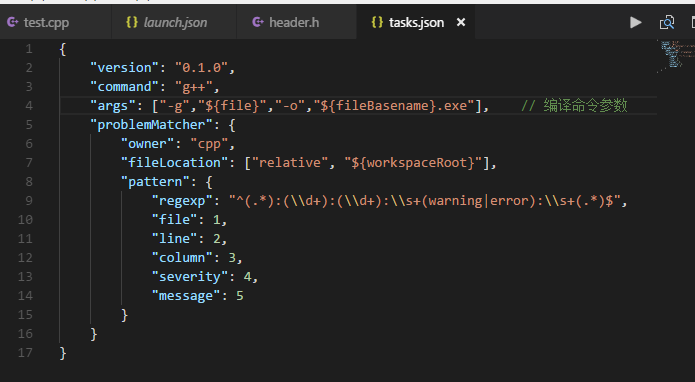
c_cpp

and my folder is like this:
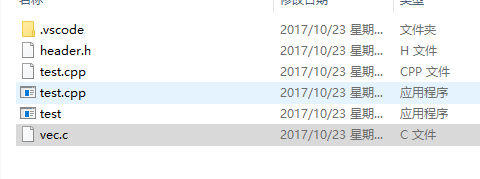
What's wrong is it?
 LlorandoLau
on 23 Oct 2017
LlorandoLau
on 23 Oct 2017
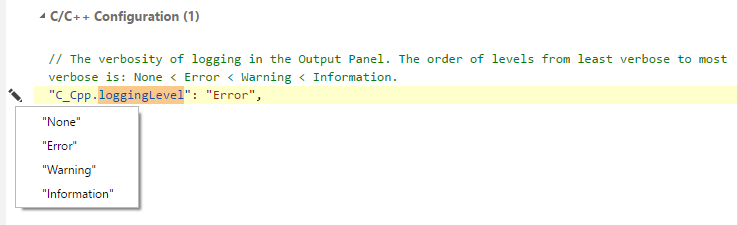
@LlorandoLau Your databaseFilename seems strange and probably shouldn't be in "Program Files" (you might not have non-admin write access). You can change the C_Cpp.loggingLevel to "Warning" to see if there are any issues reported in the C/C++ output window pane.
sean-mcmanus
on 23 Oct 2017
@sean- mumanus I can read the header file in Mingw( throught databasefilename) . But I cannot read my own header file. For example, in picture 3, while linking to”header.h”, it’s warning “ no such a file”. I am sorry I don’t know how to adjust C_Cpp.loggingLevel ( it’s my first time to see this word ). Could you explain more clearly about it?
LlorandoLau
on 23 Oct 2017
To adjust the logging level, press Ctl+, to open the settings file and search for "loggingLevel". Hover over the setting and click the pencil icon to change the setting:
bobbrow
on 23 Oct 2017
And like Sean said, that path looks suspect. Try using ${workspaceRoot}/.vscode/browse.db temporarily so we can rule out any path issues.
bobbrow
on 23 Oct 2017
@bobbrow I change the route and logginglevel, but a new error appear:

and my json file is:
launch.json:
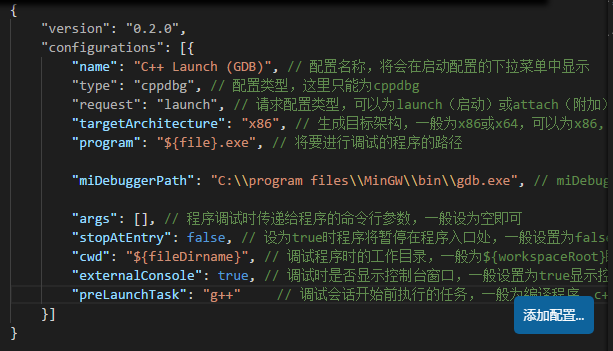
task.json:

c_cpp_properties.json
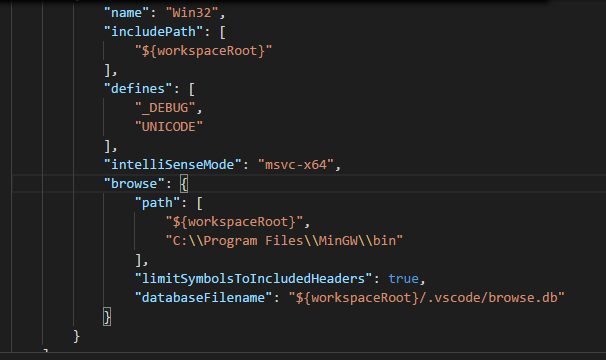
LlorandoLau
on 24 Oct 2017
@LlorandoLau That error appears to be a problem with your build task.json and not the cpptools extension. ${file} seems to resolve to the currently opened file's full path. Maybe you want ${fileBasenameNoExtension}.
sean-mcmanus
on 24 Oct 2017
@sean-mcmanus I change task.json.
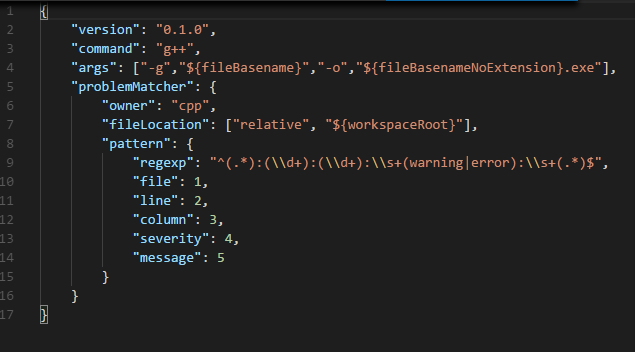
But the error goes on:

the other json files are no changed
LlorandoLau
on 24 Oct 2017
@LlorandoLau That is an error with your build task and not the cpptools extension. I think you need to set the include path with -I/path (i.e. https://stackoverflow.com/questions/6141147/how-do-i-include-a-path-to-libraries-in-g ).
sean-mcmanus
on 24 Oct 2017
@LlorandoLau I think you should change the tasks.json. Like I shown before:
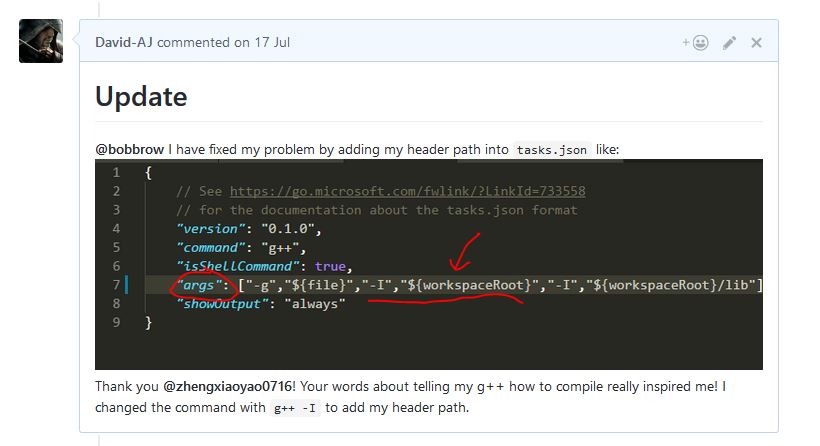
Use the "-I” command to tell your compiler how to find your headers.
David-AJ
on 24 Oct 2017
@David-AJ @sean-mcmanus I try two way as those in pictures and stackoverflow, it could run on debugging. But when I push "run code", the error appears again:

By the way, They can work on cmd:

LlorandoLau
on 24 Oct 2017
Did you save the tasks.json file? Or is VS Code not updating your task? The output doesn't appear to match what you've written in the tasks.json file.

bobbrow
on 24 Oct 2017
@bobbrow Yes, the tasks.json file was saved. And it could run while debugging. The error appeared when I choose “Run code” (ctrl+alt+n). How to correct it?
LlorandoLau
on 25 Oct 2017
Is there any other place to make settings of “Run code”?
LlorandoLau
on 25 Oct 2017
@LlorandoLau I don't see a "Run code (ctrl+alt+n)" command. Is that coming from another extension you have installed?
sean-mcmanus
on 25 Oct 2017
@sean-mcmanus Maybe it is. I download many extensions as soon as I complete the installation. So I think the command is original. Is there a way that I can check whick extension the command belongs to?
LlorandoLau
on 26 Oct 2017
@LlorandoLau If you click on the extension in the Extensions panel and click the Contributions tab you can see the list of commands an extension publishes.
sean-mcmanus
on 26 Oct 2017
@sean-mcmanus Alright, thanks
LlorandoLau
on 27 Oct 2017
Closing this issue due to long inactivity.
 michelleangela
on 21 Aug 2019
michelleangela
on 21 Aug 2019
Related issues
 montery8
·
3Comments
montery8
·
3Comments
 CDitzel
·
3Comments
CDitzel
·
3Comments
 arl
·
3Comments
arl
·
3Comments
 SkyRiderMike
·
3Comments
SkyRiderMike
·
3Comments
 wdc596933938
·
3Comments
wdc596933938
·
3Comments
Most helpful comment
Same issue on Ubuntu.